




How to Sync SharePoint Library with Network Folder (Full Guide)
In this article, you’ll learn two effective methods (one official and one easier) and how to sync SharePoint library with network folder step by step. Scroll down to learn more!

By Ivy Updated on March 23, 2026


Can You Really Sync SharePoint Library with Network Folder?
Short answer: No, you cannot directly sync SharePoint library with network folder as SharePoint is a cloud service, while network folders exist on local servers, with different technologies.
SharePoint stores files online and uses the OneDrive sync client to copy files to your computer. Any changes you make locally sync back to the cloud. Key points:
- SharePoint saves file versions.
- Updates sync both ways.
- You can choose which folders to sync.
Since OneDrive handles all syncing, to sync SharePoint to network folder or sync network folder to SharePoint, you must be sure the network folder is saved in the local OneDrive folder. So, it’s necessary to build a workable hybrid setup for daily work or team collaboration - enabling seamless multi-device access, even offline, fast transfer speeds, without requiring manual intervention.
How to Sync SharePoint Library with Network Folder
Before syncing SharePoint with network folder, make sure the following items to avoid errors and ensure the sync works smoothly.
- You have the right read/write permissions for SharePoint libraries and network folder.
- You have a valid Microsoft 365 account.
- You must use OneDrive for Business to sync SharePoint files locally.
- Make sure the OneDrive client is up to date.
Part 1: Sync the SharePoint Library Locally using OneDrive
OneDrive creates a local folder that automatically syncs with the SharePoint library- the easiest method to work with SharePoint files on your computer.
Step 1. Open your SharePoint library in a web browser.
Step 2. Click the Sync button in the top menu. When prompted, allow the page to open Microsoft OneDrive. It will:
- Create a new folder on your PC for that library
- Download SharePoint files to this folder. Meanwhile, any modifications will be synced to SharePoint automatically.

Step 3. Check the OneDrive icon in the Taskbar or library folder. Both help confirm the library is syncing properly.
- Blue cloud = SharePoint library.
- Green checkmark = Files are fully synced.
- Blue arrows = Sync in progress.
💡Notes:
◾ Don’t rename large folders frequently cause sync delays.
◾ Avoid using special characters in file names (like * , ? , < , >).
◾ Keep the OneDrive app running while you work.
Part 2: Sync SharePoint Library to Network Folder using Robocopy
This method syncs SharePoint library in OneDrive folder to a network folder using Robocopy, either manually or automatically, especially useful for updating files on the file server or network share.
Step 1. Open your local OneDrive folder and find the SharePoint library folder.
Step 2. Create a network folder on the target computer. If it exists, remember the UNC path (e.g., \\Server\SharedFolder).
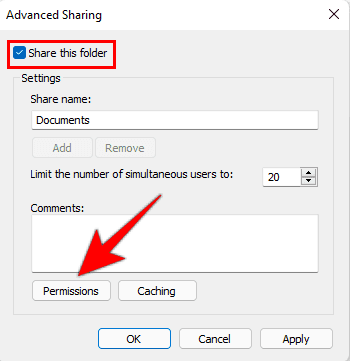
- Right-click the folder you want to share and click Properties.
- Go to Sharing and click Advanced sharing.
- Check Share this folder. Then, click Permissions.
- Check Full Control and click Apply > OK to save changes.
Step 3. Open Notepad. Type the Robocopy command and save it as a .cmd or .bat file. You can then run it manually or automatically.
@echo off
robocopy "C:\Users\YourUser\SharePointLibrary" "\\Server\SharedFolder" /MIR /R:1 /W:1
💡Notes:
◾ /MIR keeps the network folder exactly the same as the SharePoint library.
◾ /MIR keeps the network folder exactly the same as the SharePoint library.
◾ /W:1 waits 1 second before retrying.
Step 4. Optionally, set the Robocopy scheduled task in Task Scheduler and save it.
- Open Task Scheduler. Click Action and Create Task.
- Under the Triggers tab, click New and select your schedule - daily, weekly, monthly, etc.
- Under Actions, choose Start a program and point to your .cmd script.
- ...
Robocopy will now sync SharePoint to network folder automatically. To sync files on network drive to SharePoint, you need to write another Robocopy scheduled task and swap the paths. Please be sure to sync at different times.
@echo off
robocopy "C:\Users\YourUser\SharePointLibrary" "\\Server\SharedFolder" /MIR /R:1 /W:1
Easier Way to Sync SharePoint Library with Network Folder
Robocopy scheduled task is not working? Or too difficult. Try the best Windows folder sync software - AOMEI Backupper Professional - simple and efficient. It offers users more options. You can choose to sync SharePoint to network folder automatically, or vice versa, and even keep both SharePoint library and network folder in sync. No need to write scripts or use Task Scheduler.

 AOMEI Backupper
- 4 Sync Options: Basic Sync, Mirror Sync, Real Time Sync, and Two-Way Sync.
- Automatic Sync: Set up a scheduled task based on daily, weekly, monthly, or event triggers.
- Fast Sync: Synconly changed files each time to maximize transfer speed.
- Batch Sync: Select multiple folders to sync at once.
- More advanced sync features: Optionally sync deletions or not, set up Email notification, enable filter, etc.
 100% Secure
Step 1. Open AOMEI Backupper Professional after installing. Then, click Sync > Two-Way Sync.
Step 2. Click Select Source to add your local OneDrive folder. Then, click the PC icon > Network Share to select the network folder. If you haven't added a network path yet, click Add Network Share, enter the network path, and click OK.
Step 3. Click Schedule Sync to set a frequency - based on daily, weekly, monthly, or event triggers. You can also enable Email notifications for sync status.
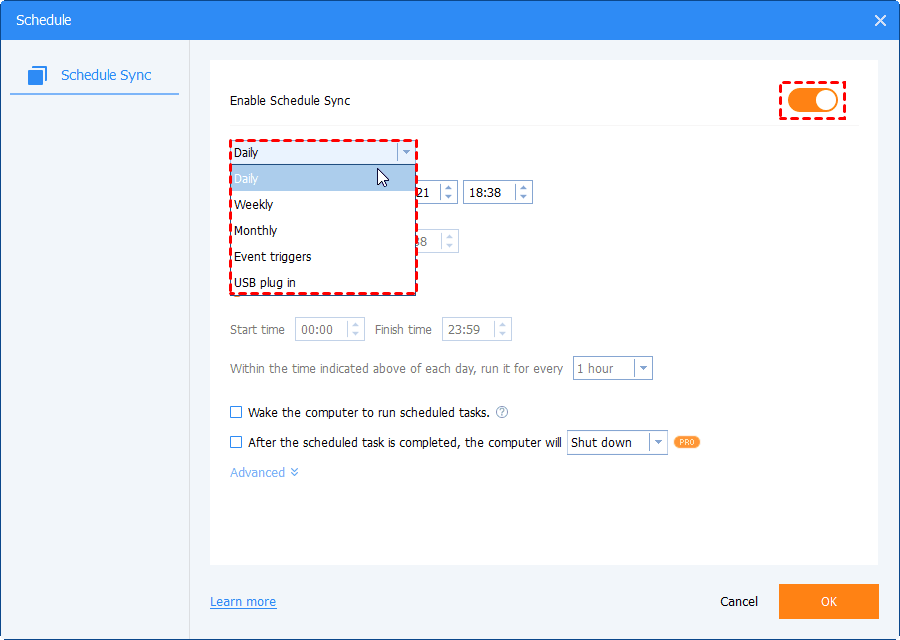
At last, click Start Sync to sync SharePoint library with network folder automatically.
💡Notes:
◾ For 1:1 copy, check: Sync deletions from source directory to destination.
◾ To ensure safety, it’s suggested to enable: verify the integrity of files, in Options.
After the first sync, it will only sync modified or new files -saving both time and disk space.
Final Result
This article describes how to sync SharePoint with network folder in two methods, namely using OneDrive and Robocopy/Task Scheduler, or the best folder sync software - AOMEI Backupper - easier and more efficient.
It provides users with 4 sync options to meet users' different needs, either sync SharePoint library with network folder or perform a one-way file sync, from SharePoint to network drive, or vice versa. It also integrates schedule sync, email notification, filter, etc., to make the process easy.

 as a preferred
source on Google
as a preferred
source on Google