




Slow File Transfer in Windows 11? Fix It Fast with 7+ Proven Solutions
Learn why file transfer is slow in Windows 11 and how to fix it step by step. Explore quick solutions, Robocopy, SSD upgrade, etc., and dedicated toolto speed up copying and improve your efficiency.

By Ivy Updated on June 8, 2026


Why Is File Transfer Slow in Windows 11?
Slow file transfer in Windows 11 is usually caused by a mix of system background activity, hardware limitations, and network conditions. These factors compete for resources and reduce overall transfer speed.
- Background apps consuming CPU or disk resources
- Windows Search indexing interfering with file operations
- HDDs are significantly slower than SSDs
- USB 2.0 ports or cables limiting transfer speed
- Weak or unstable Wi-Fi connections
- Network congestion from multiple devices
- File Explorer limitations during large or bulk transfers
Try These Simple Solutions First
If your file transfer is slow in Windows 11, start with these quick fixes. They don’t require advanced settings and can often improve transfer speed immediately by reducing system load, improving connection stability, and ensuring your hardware runs at full performance.
Fix 1: Restart Windows Explorer and Close Background Apps
This helps remove temporary system glitches and frees up resources that may be slowing down file transfers.
- Open Task Manager (Ctrl + Shift + Esc). Locate Windows Explorer, right-click it, and select Restart.
- Close apps like OneDrive, browsers, or download managers that may use disk or network resources.
- End unnecessary background processes to free up CPU and RAM.
Fix 2: Use Ethernet Instead of Wi-Fi
A wired connection is more stable and consistent than Wi-Fi, especially during large file transfers.
- Connect your PC directly to the router using an Ethernet cable.
- Press Win + I to open settings. Then, click Network & Internet > Wifi and turn it off.
- Avoid physical interference such as walls or distance from the router.
Fix 3: Use an SSD Instead of an HDD
Traditional hard drives (HDDs) are significantly slower than solid-state drives (SSDs), especially when handling large file transfers or multiple small files. Upgrading a hard drive to SSD can dramatically improve overall system performance and reduce waiting time during file transfer.
7 Proven Fixes for Windows 11Slow File Transfer
These fixes address the most common system-level causes of slow file transfers in Windows 11, such as background services, storage configuration, and performance settings. Applying them can help reduce disk congestion and improve overall transfer speed and stability.
Fix 1: Disable Windows Search Indexing
Windows Search indexing continuously scans files in the background to improve search speed. However, during large file transfers, it can compete for disk resources and significantly slow down copy operations.
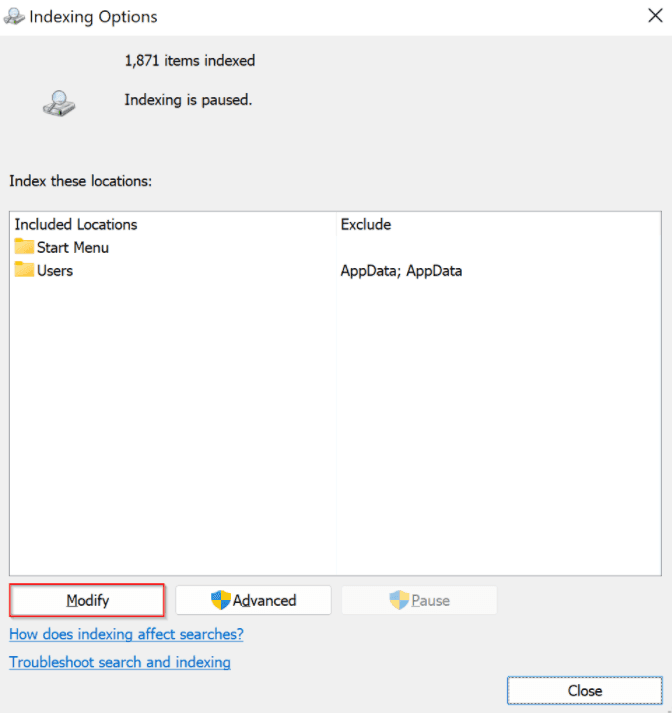
Step 1. Press Win + S, type Indexing Options, and press Enter to open it.
Step 2. Click Modify and uncheck drives or folders involved in large file transfers.
Alternatively, you can use Services to disable Windows Search indexing.
- Type services.msc in the search box and find Windows Search. Then, right-click it and select Properties.
- Set Startup type to Disabled or Manual and click Stop.
- At last, click Apply and OK to confirm changes.
Fix 2: Disable Real-Time Protection (Temporarily for Testing)
Windows Defender’s real-time protection scans files as they are being accessed or copied. In some cases, this can slow down large file transfers because each file is checked in real time. Temporarily disabling it can help determine whether antivirus scanning is the bottleneck.
Step 1. Open Windows Security from the Start menu. Go to Virus & threat protection and click Manage settings under Virus & threat protection settings.

Step 2. Turn off Real-time protection and click OK.
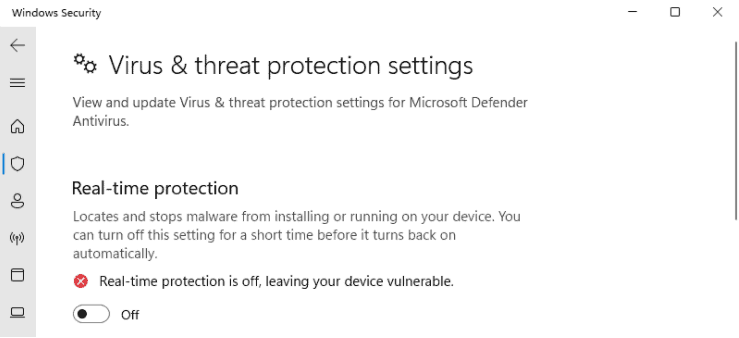
Step 3. Start your file transfer and check if speed improves.
Fix 3: Update Storage, USB, and Chipset Drivers
Outdated or incompatible drivers can cause poor communication between your system and hardware, leading to reduced file transfer speeds. Updating them ensures Windows 11 can properly utilize your storage devices, USB ports, and chipset capabilities.
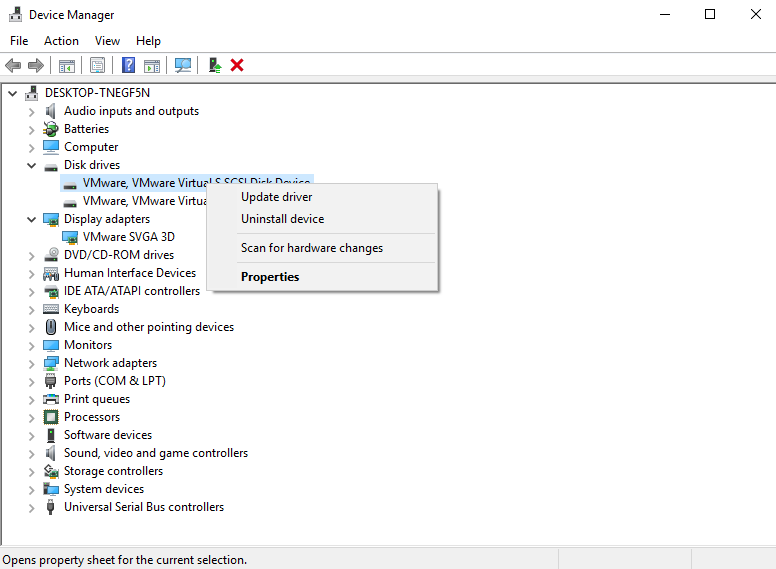
Step 1. Right-click Start and open Device Manager.
Step 2. Expand Disk drives/Universal Serial Bus controllers/IDE/ATA/ATAPI controllers separately. Then, right-click each device and select Update driver.
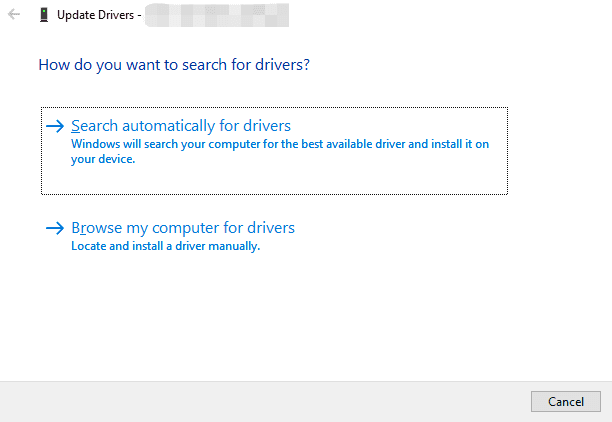
Step 3. Choose Search automatically for drivers and install available updates. Restart your PC to apply changes.
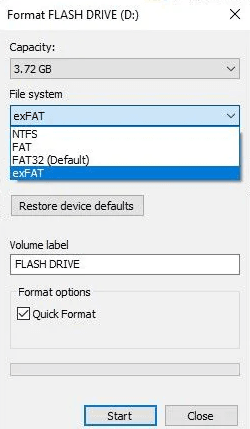
Fix 4: Format Diskto NTFS(Not FAT32 or exFAT)
Using the correct file system is important for achieving stable and high-speed file transfers in Windows 11. NTFS is optimized for modern Windows systems and supports larger files and better performance compared to older formats like FAT32 or exFAT.
Step 1. Open File Explorer. Right-click the drive you want to format and select Format from the context menu.
Step 2. In the pop-up window, choose NTFS and click Start. Be sure Quick Format is checked.
Fix 5: Copy Large Files using Robocopy
Robocopy (Robust File Copy) is a built-in Windows command-line tool designed for high-performance file transfers. Unlike File Explorer, it can handle large datasets more efficiently and supports multi-threaded copying, thereby offering faster speeds and greater stability.
Step 1. Press Win + S, type Command Prompt, and select Run as administrator.
Step 2. Copy files using Robocopy syntax. Replace source_path and destination_pathwith corresponding paths.
robocopy "source_path" "destination_path" /MT:16 /E
Fix 6: Switch to High Performance Power Mode
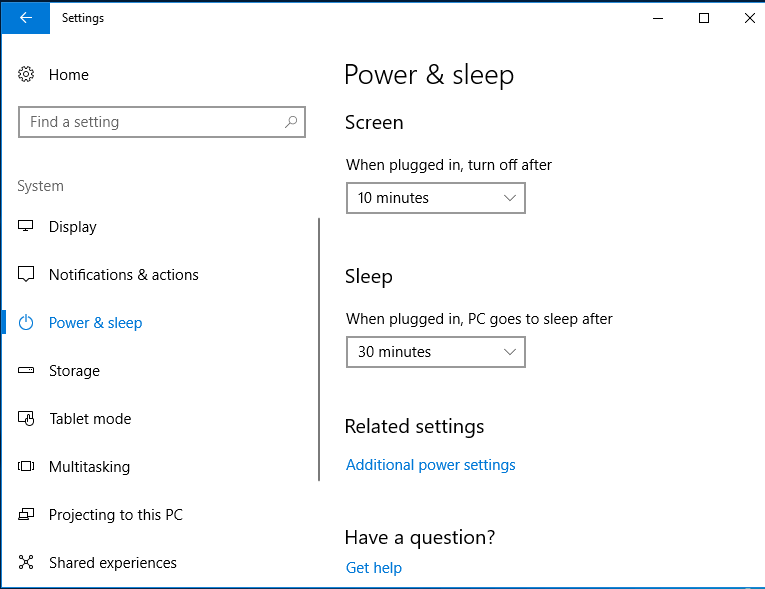
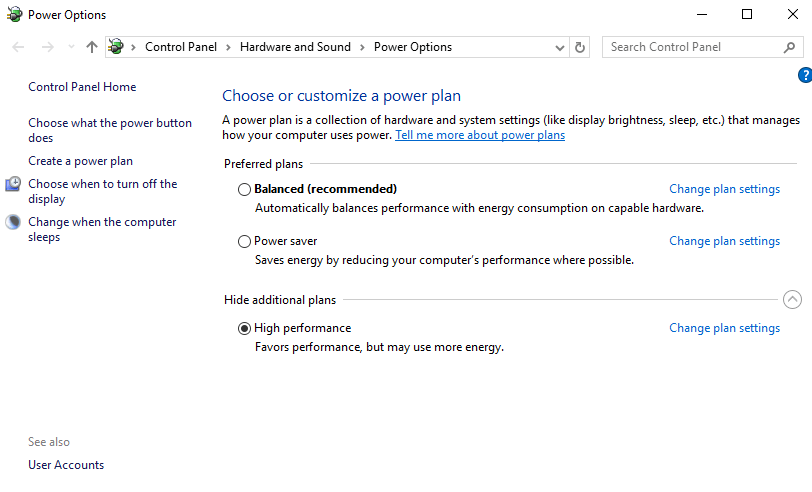
Windows may reduce CPU and disk performance in power-saving modes, which can slow down file transfers. Switching to High Performance modeensures your hardware runs at full capability during transfers.
Step 1. Open Settings > System > Power & sleep. Under Related settings, click Additional power settings.
Step 2. Select High performance if you are currently using Balanced (Recommended).
Fix 7: Compress Files Before Transfer
Compressing files before transferring them can significantly increase transfer speeds, especially when dealing with large numbers of small files. By reducing the total amount of data, Windows has fewer items to process, thereby lowering the system and network load during the transfer.
Why File Transfers Still Feel Slow Even After Fix?
Even after applying these troubleshooting steps, Windows 11file transfers may still feel slow because the system has built-in limitations in file handling and lacks advanced transfer optimization features.
- File Explorer uses a single-threaded copy process, limiting transfer speed.
- It handles large numbers of small files inefficiently, causing delays.
- Transfer speeds can fluctuate and remain inconsistent during large operations.
- Windows does not include built-in acceleration for file transfers.
- There is no native scheduling or batch transfer optimization.
To overcome these limitations, using a dedicated tool like AOMEI Backupper Standard can significantly improve efficiency. It supports smarter strategies for file synchronization, thereby reducing the need for slow, manual file copying in File Explorer.
Use a Smarter Alternative for Windows 11 File Transfer (Faster)
When Windows File Explorer becomes slow or unreliable, especially during large or frequent file sync tasks, switching to a dedicated filesync tool such as AOMEI Backupper Standard can provide a faster and more stable solution.
 AOMEI Backupper
- Multiple Folder Sync: Select two or more files or folders at once to sync, significantly improving efficiency.
- Copy Only Changes: Sync only new or changed files in a scheduled task, saving you valuable time.
- Automatic Sync: Sync files on daily, weekly, monthly (by date), event triggers, etc. So you don’t need to transfer files manually.
- Sync deletions: Offer you the chance to sync deleted files from source to the destination.
- Email notification:Sent when tasks are completed, fail, or require user interaction.
- Multiple Sync Destinations: Sync files to external hard drive, USB drive, network drive, NAS, cloud drives, etc., offering you more options.
 100% Secure
Step 1. Open AOMEI Backupper after installing. Under the Sync tab, click Basic Sync.
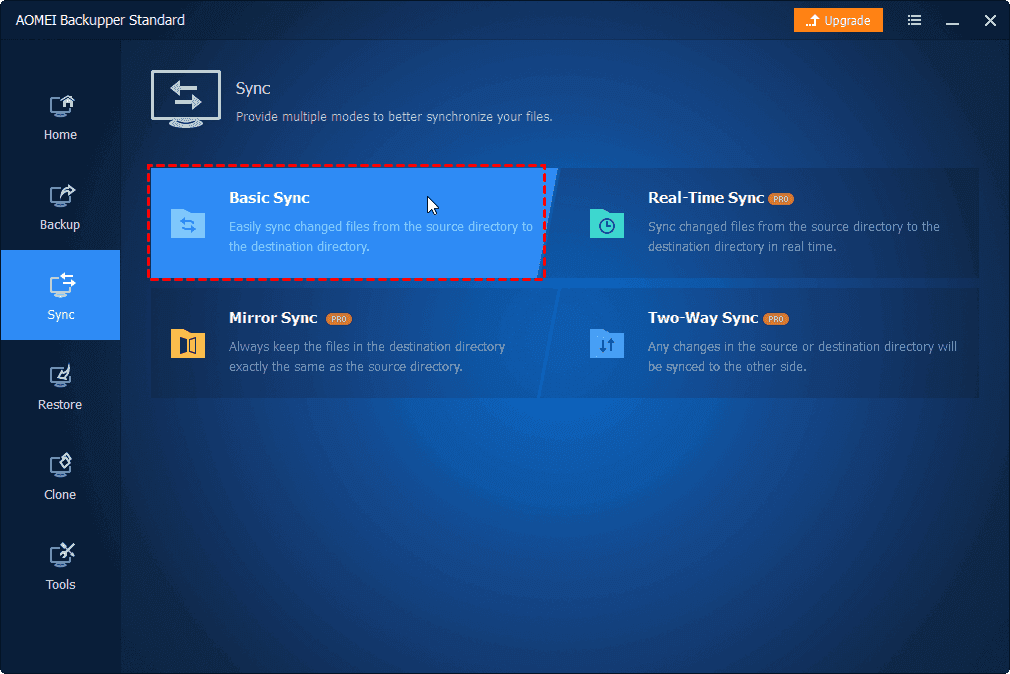
Step 2. Type a unique name for distinguish. Click Select Source > This PC and select all files and folders you want to sync. Then, click the PC icon to select a destination, from local drives to network share, NAS, or cloud drives.
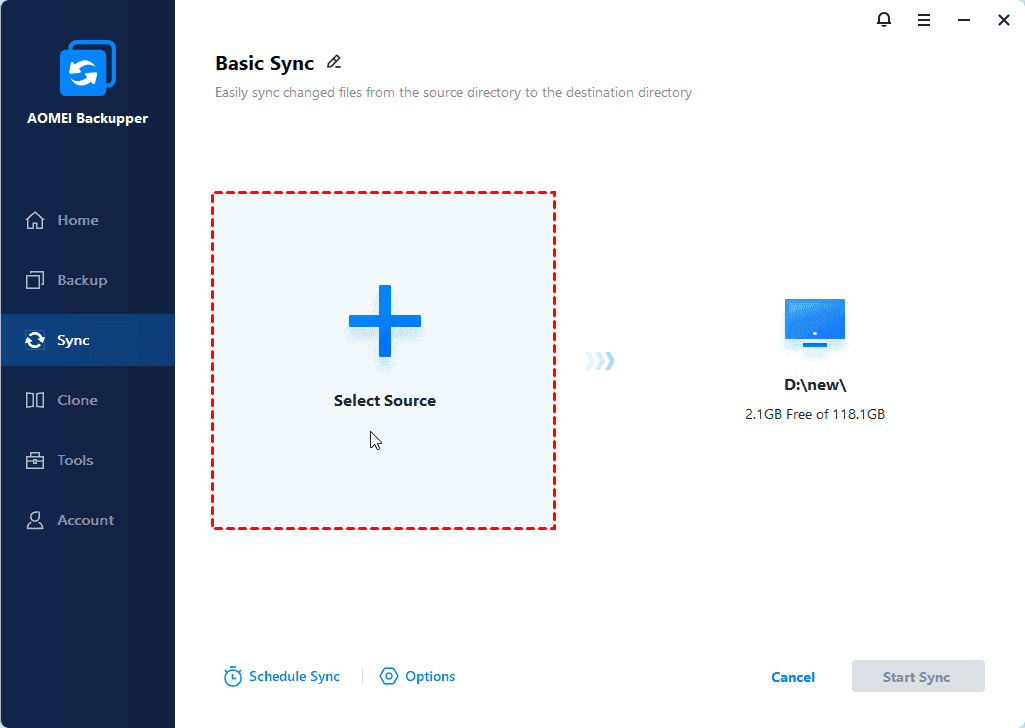
Step 3. To sync files automatically, click Schedule Sync to enable daily, weekly, monthly (by date), etc, and click OK. You can even set the backup time for off-peak hours. You can also enable email notification to get notification timely. At last, click Start Sync.

The first sync will sync all files, which may take a while depending on the number of files. However, subsequent syncs will only sync changes, significantly reducing the time.
For real-time sync or full consistency with the source (Mirror Sync), you must upgrade to at least AOMEI Backupper Professional. It also provides you with Two Way Sync to sync files between two folders, drives, or computers.
How to Prevent Slow File Transfer in Windows 11
Preventing slow file transfers in Windows 11 is easier than fixing them repeatedly. By maintaining system health, optimizing your network, and automating file management tasks, you can ensure more stable and consistent transfer performance over time.
- Keep disk drivers and system controllers updated.
- Monitor SSD/HDD health to prevent gradual performance decline.
- Use Gigabit Ethernet for faster and more stable network transfers.
- Avoid heavy bandwidth usage during large file transfers.
- Schedule sync files instead of manual copying, preferably at an off-peak hour.
Conclusion
Slow file transfer in Windows 11 is usually caused by a combination of system settings, network conditions, and hardware limitations. By applying corresponding solutions, from disabling indexing and antivirus scanning to using Robocopy, upgrading to an SSD, etc., you can significantly improve transfer speed and create a more efficient file workflow.
To avoid manual file transfer, it’s advisable to use a dedicated file sync software such as AOMEI Backupper Standard. It supports a variety of useful features that can significantly increase file transfer speeds, including multiple folder sync, schedule sync, copy only changes, etc.

 as a preferred
source on Google
as a preferred
source on Google