



Fixed: Server Execution Failed on Windows 11 (9 Solutions)
Troubled by "Server execution failed" on Windows 11, relax. This page will provide you with reliable methods to fix this error for Windows Media Player and File Explorer.

By Jonna Updated on April 30, 2026


Why Does Server Execution Failed Occur?
Running into the error: Server execution failed when trying to play a video using Windows Media Player or open File Explorer? Here are the possible causes and reliable solutions.
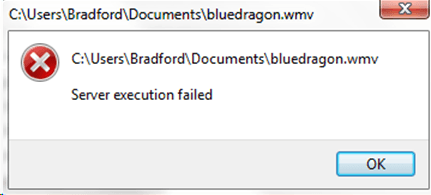
Essentially, the server execution failed on Windows 11 is a COM (Component Object Model) issue. Windows relies on background services, sometimes called "servers", to handle requests from apps. When an app asks Windows to perform an action, such as opening a media file or loading a folder, that request is passed through one or more services. When those services fail to respond correctly, the server execution failed error occurs. The most common causes include:
- Corrupted system or media player files
- Conflicting Windows services running in the background
- Incorrect permissions on user folders
- Broken DLL registrations
- Incomplete or buggy Windows updates
- User profile corruption
Part 1. Fix Server Execution Failed on Windows 11 for Windows Media Player
When the error pops up while opening or using Windows Media Player, the issue is usually tied to media services, background sharing processes, or damaged player components. Try the following methods to fix the server execution failed for Windows Media Player.
Way 1. Restart Windows Media Player
Sometimes, the problem is just due to a stuck running process in the background. Restarting Windows Media Player clears cached sessions and resets it in the system.
Step 1. Press Ctrl + Shift + Esc to open Task Manager and locate Windows Media Player.
Step 2. Select it and click End task.
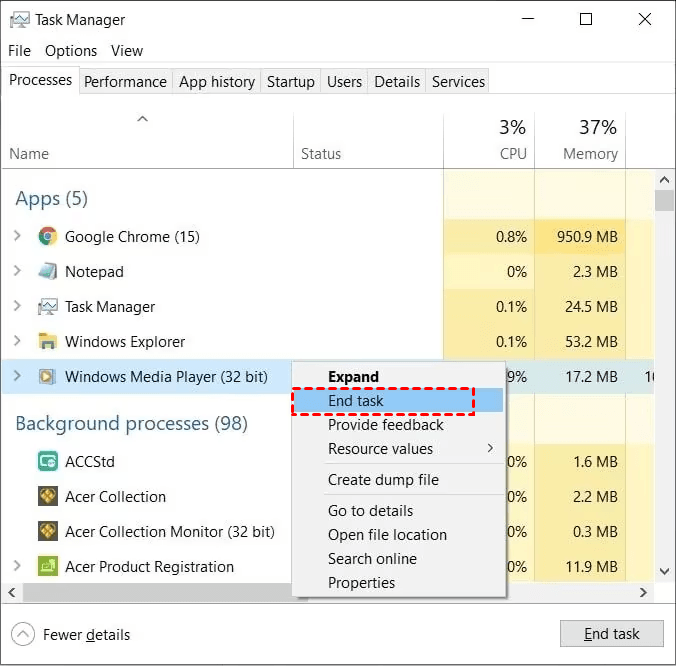
Step 3. Then, close Task Manager and reopen Windows Media Player.
Way 2. Run Video Playback Troubleshooter
Windows 11 includes built-in troubleshooters designed to automatically detect and fix common media-related issueslike server execution failed while playing video.
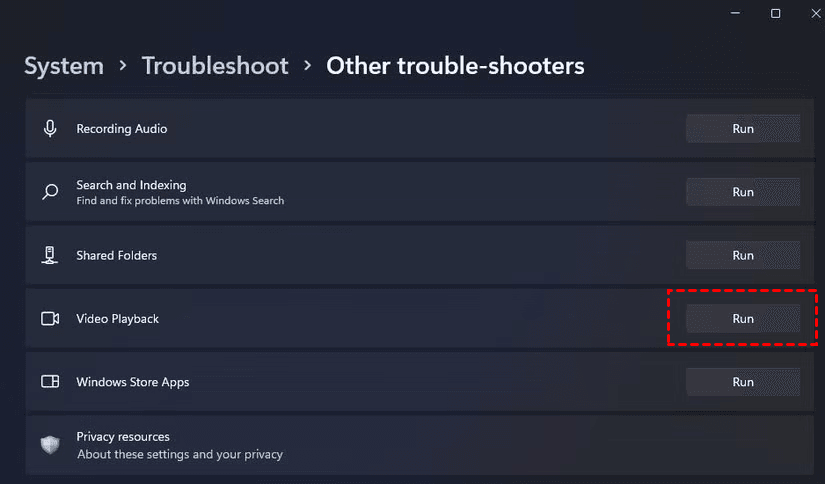
Step 1. Open Windows Settings by pressing Windows + I keys and go to System.
Step 2. Click on Troubleshoot on the left, and hit Other trouble-shooters.
Step 3. Locate Video Playback, and click on Run.
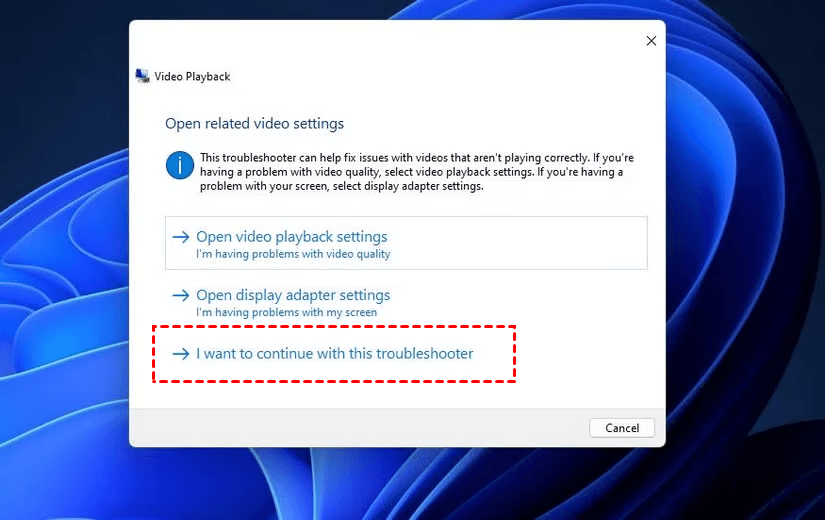
Step 4. Click on I want to continue with this troubleshooter and follow the on-screen guide to resolve Windows 11 server execution failed for WMP.
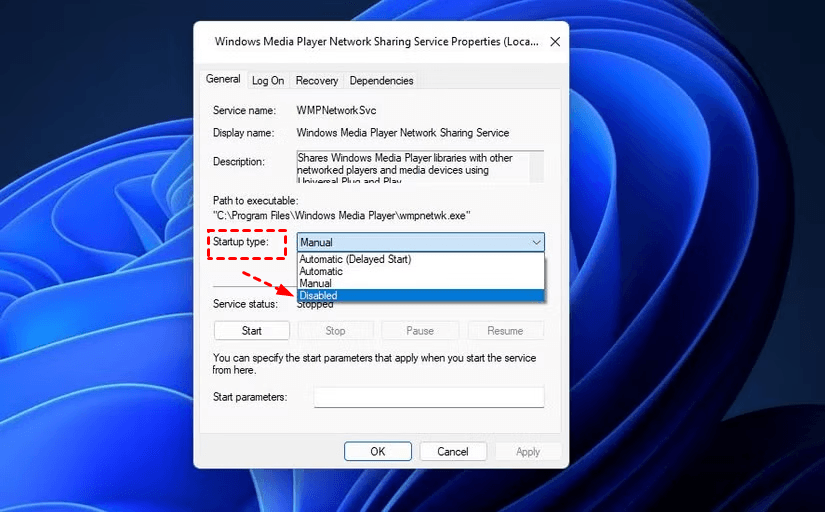
Way 3. Disable Windows Media Player Network Sharing Service
This service allows Windows Media Player to share media libraries across a network. Ironically, it’s one of the most common culprits behind this error. If the service becomes corrupted or conflicts with other services, Windows Media Player may fail to start entirely.
Step 1. Press Win + R, type services.msc to open Services, and press Enter.
Step 2. Find Windows Media Player Network Sharing Service in the list, and double-click it to open Properties.
Step 3. Click Stop to halt the service. Then, set its Startup type to Disabled, and click OK.
Way 4. Set Full Access to the Local User Folder
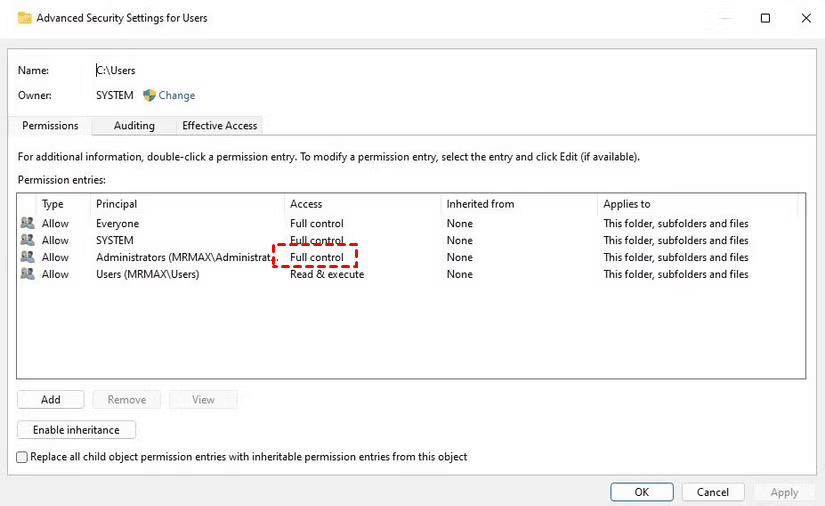
Permission issues can prevent Windows Media Player from accessing media files properly, causing server execution failures. You can grant full access by doing the following:
Step 1. Open File Explorer and navigate to C:\Users\YourUsername.
Step 2. Right-click your user folder and select Properties. Go to the Security tab and click Edit.
Step 3. Select your username and check Full control. Click Apply, then OK.
Way 5. Reinstall Windows Media Player
If core Media Player files are corrupted, reinstalling the feature can restore functionality. Here’s how to do it:
Step 1. Open Control Panel, go to Programs > Turn Windows features on or off.
Step 2. Expand Media Features, uncheck Windows Media Player, and click OK.
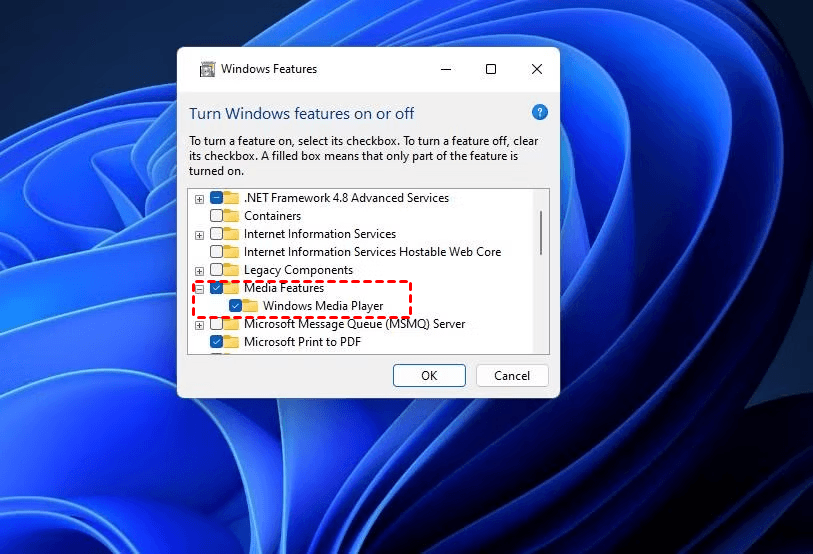
Step 3. Restart your computer, and then head to Optional features, check the Windows Media Player box, and click OK.
Way 6. Register DLL Files
Unregistered or damaged DLL files can break Windows Media Player’s ability to communicate with system services. In such a case, you can re-register key DLL files:
Step 1. Type cmd in the Windows search box and select Run as administrator.
Step 2. Run the following commands one by one:
- regsvr32 jscript.dll
- regsvr32 vbscript.dll
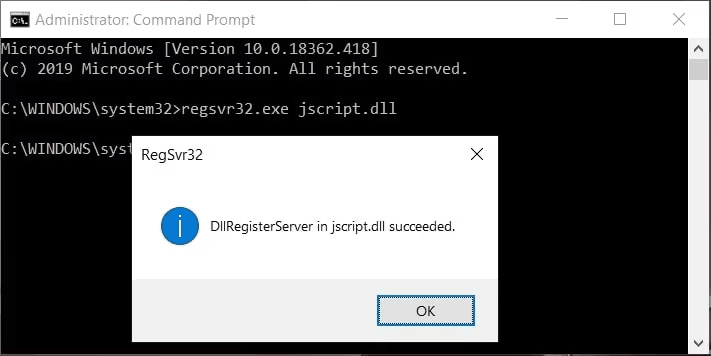
Step 3. Restart your computer after completing the commands.
Part 2. Fix Server Execution Failed on Windows 11 for File Explorer
If you are troubled by explorer.exe server execution failed when opening File Explorer or browsing folders, File Explorer itself may be affected. This usually points to system file corruption or user profile issues.
Way 1. Run SFC and DISM Commands
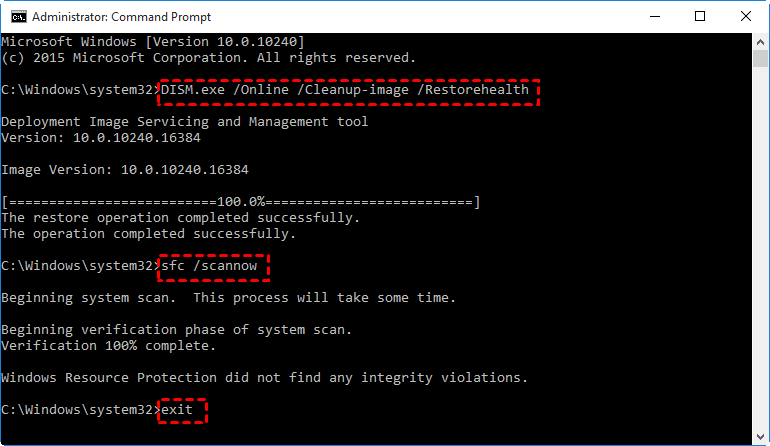
System file corruption is one of the most common causes of File Explorer-related server execution errors.SFC repairs corrupted system files, while DISM restores the Windows image itself. Please repair Windows system files as follows:
Step 1. Open Command Prompt as administrator.
Step 2. Run the DISM /Online /Cleanup-Image /RestoreHealth command with Enter and wait for completion.
Step 3. After it finishes, run sfc /scannow with Enter.
Way 2. Create a New User Account
If your user profile is corrupted, File Explorer may fail even when system files are intact. Create a new account using these steps:
Step 1. Open Command Prompt as administrator.
Step 2. Enter the following commands one by one. Please replace "test" with the new username:
- net user test /add
- net localgroup administrators test /add
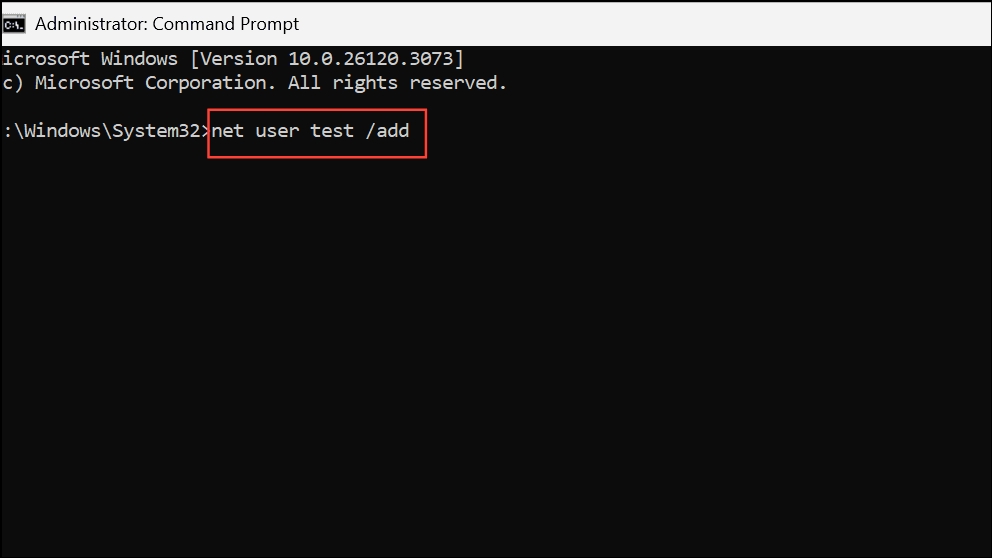
Step 3. Sign out of the current account and sign in to the newly created account, and launch File Explorer. If it functions normally, this indicates that your original user profile may be corrupted.
Way 3. Uninstall the Windows Updates
Occasionally, a problematic update can introduce bugs that trigger the server execution failed on Windows 11 error. You may uninstall recent updates to fix it:
Step 1. Navigate to Update & Security > Windows Update > View update history > Uninstall updates.
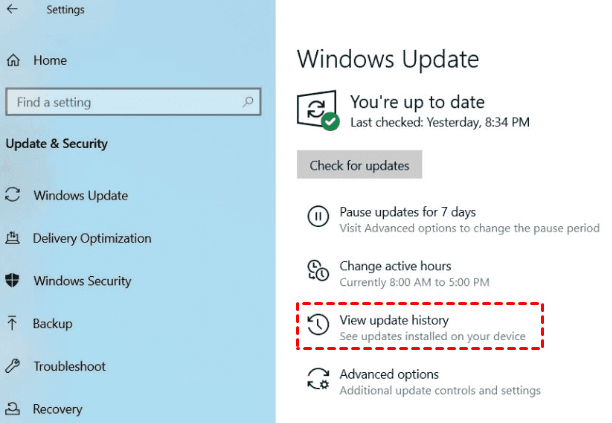
Step 2. Select the latest update, click Uninstall, and finish the process.
If uninstalling Windows updates does not resolve the explorer.exe server execution failed issue, you may try a System Restore (Update & Security > Recovery).
Best Free Way to Back up Windows Files for Data Protection
Troubleshooting system errors is always safer when your data is protected first. Before running repairs, uninstalling updates, or creating new user accounts, a proper backup ensures nothing valuable is lost. AOMEI Backupper Standard is widely used for Windows file protection due to its full-function and ease of use.
 AOMEI Backupper
- It comes with file backup, folder backup, disk backup, partition backup, and system backup to meet your needs.
- It supports automatically backing up files to external hard drive, USB flash drive, network location, cloud drives like Google Drive, NAS, and so on.
- Besides, it provides other backup options, like adding a comment for your backup, compressing the backup image, spliting an image into multiple file images, enabling email notification after finishing the backup, etc.
 100% Secure
Download and install the AOMEI Backupper Standard on your computer (it is widely supported on Windows 11/10/8/7), and use it to backup your files on Windows 11 with the following steps:
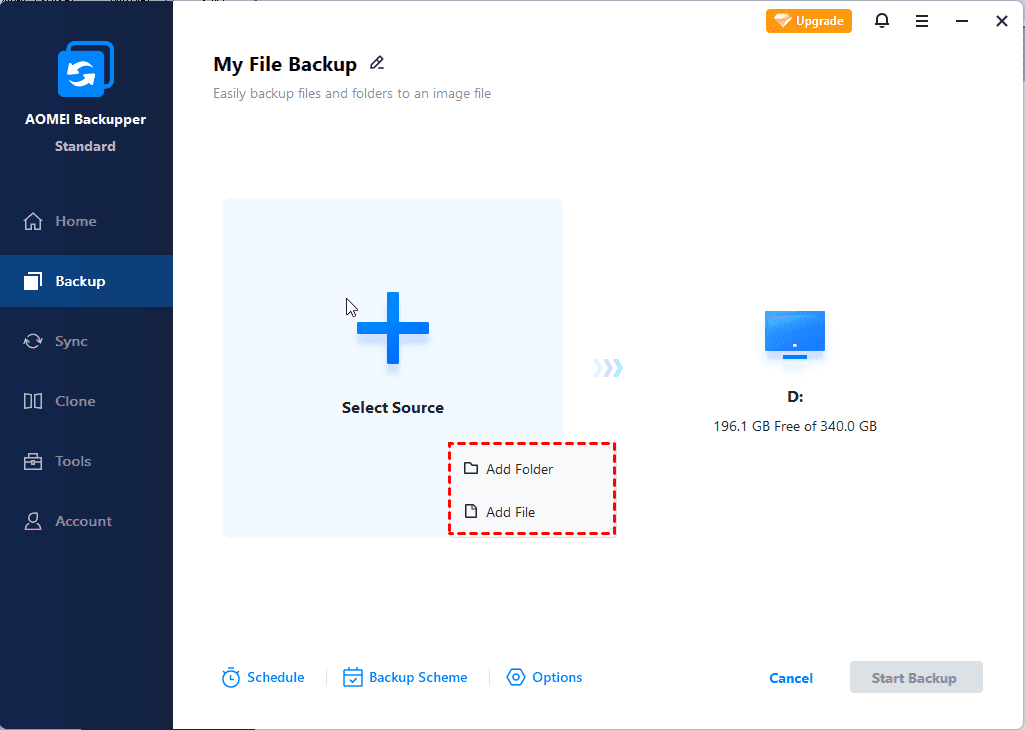
Step 1. Run AOMEI Backupper Standard, go to Backup > File Backup.
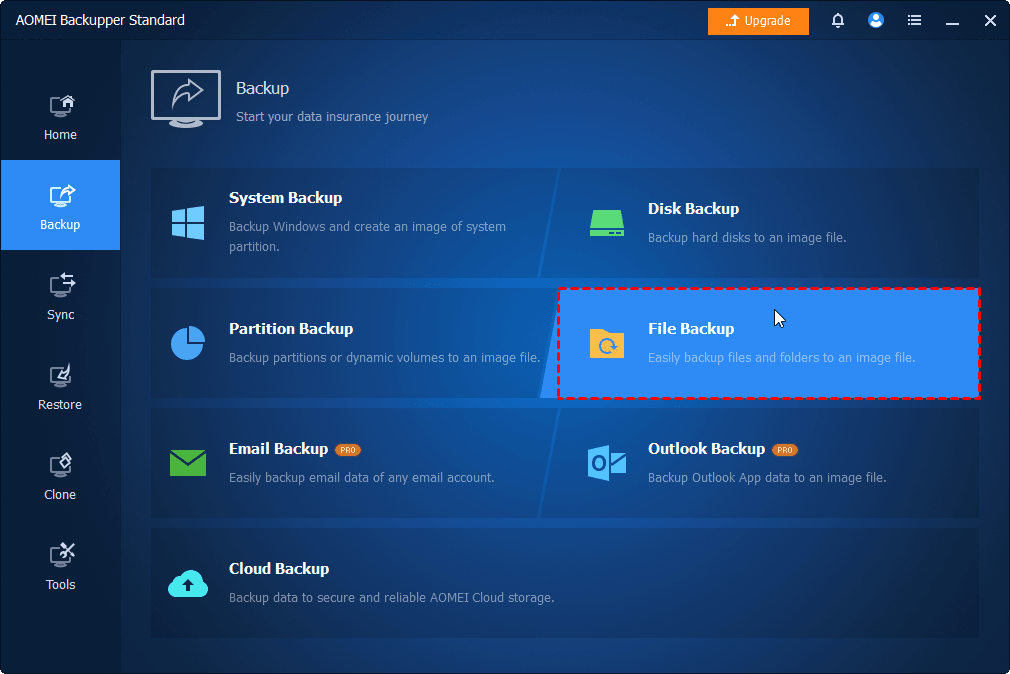
Step 2. Click Select Source > Add Folder or Add File to select the data you wish to back up on Windows 11.
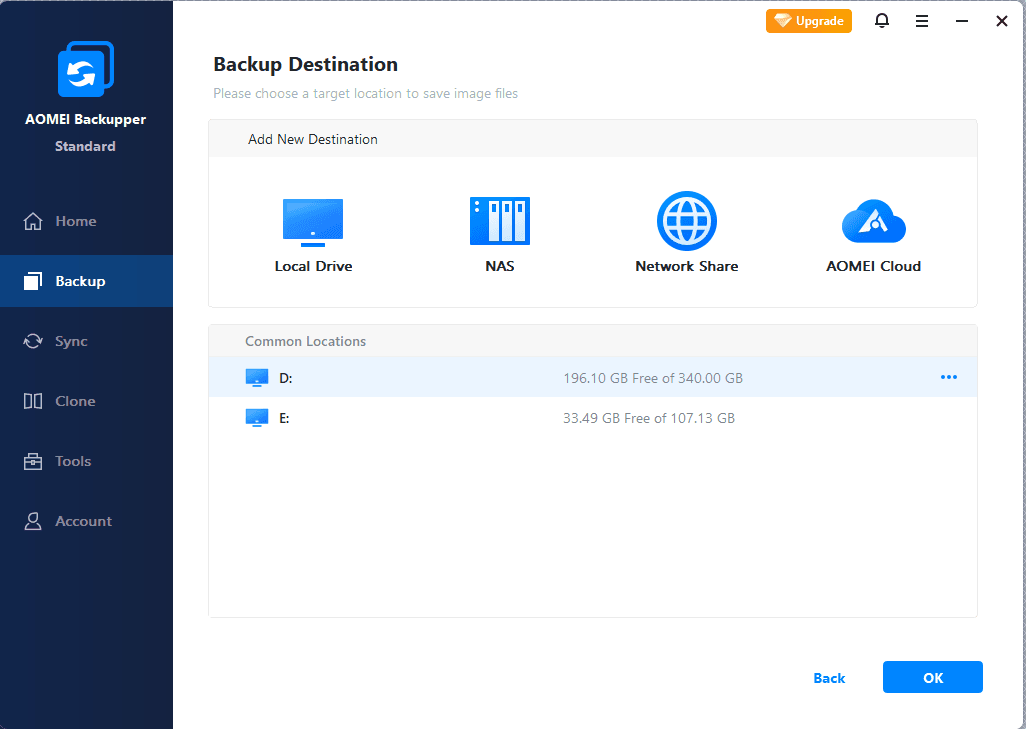
Step 3. Click on the PC icon to choose a storage path, and hit Start Backup.
Conclusion
In this article, we have listed how to resolve server execution failed on Windows 11 for Windows Media Player and File Explorer step by step. To make sure that your data is always safe, you can create a backup image using AOMEI Backupper beforehand. With it, you can backup any files or folders or create a bootable backup of Windows 11, etc.

 as a preferred
source on Google
as a preferred
source on Google