




Quick Fixes to Windows Server 2012 (R2) 80072EFE Error
Stuck with the 80072EFE error on Windows Server 2012 (R2)? This guide details why this Windows Update failure happens and walks you through proven methods to fix it.

By Lily Updated on February 5, 2026


Error: Code 80072EFE on Windows Server 2012
"Running into ‘Code 80072EFE’ on my Windows Server 2012 R2 box. It's a Dell PowerEdge R720 acting as a domain controller. The server keeps failing to download updates from Windows Update. Everything else seems fine on the network. Anyone else hit this and know a solid fix? Tried a few things already with no luck. Thanks!"
- Question from Microsoft Community
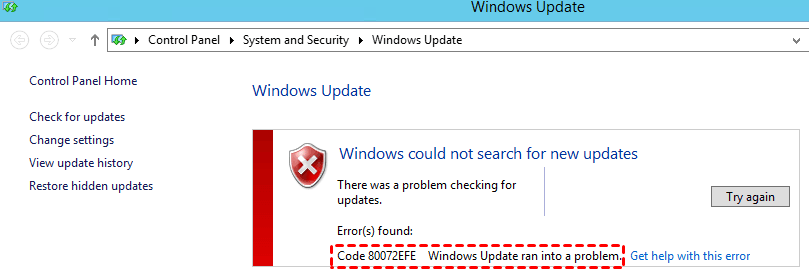
If you run into Windows Update 80072EFE on Server 2012 (R2), it can be caused by:
🎯 Connectivity issues – Unstable networks, DNS problems, or blocked traffic to update servers.
🎯 TLS 1.2 disabled – Required by Microsoft updates but not default on Server 2012.
🎯 Firewall/proxy restrictions – Blocking Microsoft update endpoints.
🎯 Antivirus interference – Some tools disrupt encrypted update traffic.
🎯 Corrupted update components – Damaged services or missing files.
🎯 Incorrect system time – SSL validation fails if the clock is wrong.
🎯 End-of-support changes – Legacy systems may not support newer infrastructure.
Important: Backup Windows Server 2012 (R2) in Advance
Before troubleshooting the Server 2012 80072EFE error or applying any system-level fixes, creating a full backup is critical. A reliable backup ensures you can quickly restore the server in case of update failures, misconfigurations, or unexpected downtime. AOMEI Backupper Server comes to help.

 AOMEI Backupper
- It supports various backup types, including system, disk, partition, file, and email backup.
- It performs hot backups, which allow data to be secured without interrupting running services.
- It allows you to set up predefined schedules for backups to run automatically, eliminating the need for repetitive manual intervention.
- It supports different backup locations. You can create Windows Server backup to NAS, network shares, local disks, and external drives, etc.
 100% Secure
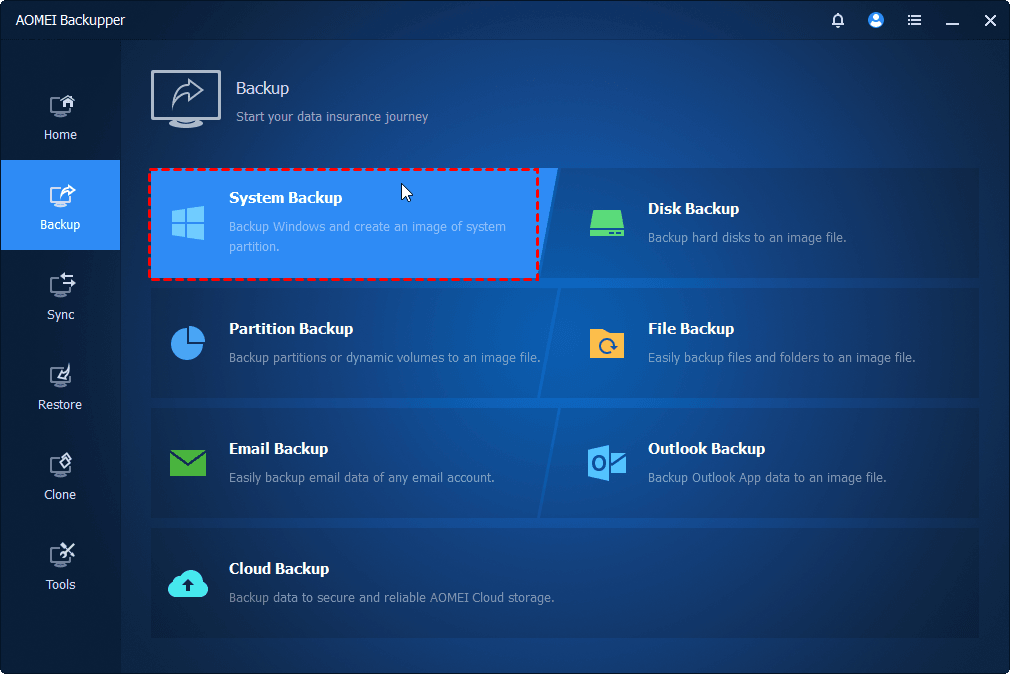
Download AOMEI Backupper and install it on your server now! To create a Windows Server system image backup, click Backup > System Backup. Follow the wizard to complete the process.
How to Fix Server 2012 80072EFE Error Step by Step
In this part, you’ll learn how to fix 80072EFEon Windows Server 2012 (R2) with 5 effective solutions. Try them one by one.
Fix 1: Check Internet, DNS, and Proxy Settings
The 80072EFE error often occurs when the server cannot reliably connect to Microsoft update services. Follow the steps below to check if basic network communication is working correctly:
Step 1. Press Win + X and select Command Prompt (Admin) to open Command Prompt as Administrator.
Step 2. Type ping www.microsoft.com and press Enter. If the request times out or fails, investigate network routing or firewall rules.
Step 3. Type nslookup windowsupdate.microsoft.com and press Enter. If DNS fails, try switching to a reliable DNS provider (such as your internal DNS or a public DNS for testing).
Step 4. Type netsh winhttp show proxy and press Enter. If a proxy is set but not required, reset it by running the command netsh winhttp reset proxy.
Fix 2: Enable Required TLS Versions (TLS 1.2)
By default, Windows Server 2012 and 2012 R2 do not fully enable TLS 1.2, while Microsoft update servers now require it for secure communication. Use these steps to enable TLS 1.2:
Step 1. Press Win + R, type regedit, and press Enter.
Step 2. Navigate to the following path:
HKEY_LOCAL_MACHINE\SYSTEM\CurrentControlSet\Control\SecurityProviders\SCHANNEL\Protocols
Step 3. Right-click on the Protocols key -> New -> Key. Name it TLS 1.2.
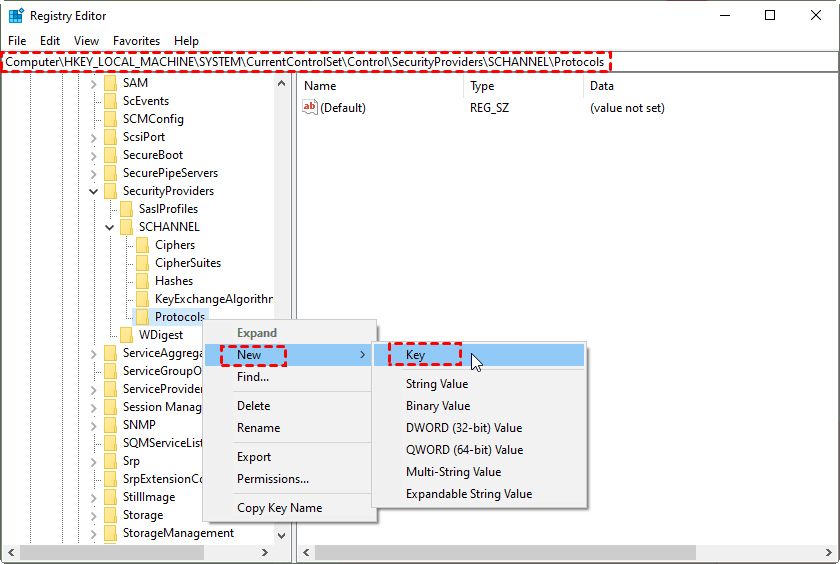
Step 4. Right-click on the TLS 1.2 key -> New -> Key. Name it Client.
Step 5. Right-click on the TLS 1.2 key -> New -> Key. Name it Server.
Step 6. Inside the Client key, create two DWORD (32-bit) values:
- One named DisabledByDefault and set its value to 0.
- One named Enabled and set its value to 1.
💡 Note: Enabled=1 explicitly enables the protocol and DisabledByDefault=0 ensures it is not turned off by default.
Step 7. Repeat step 6 inside theServerkey.
Step 8. Enable TLS 1.2 for .NET Framework.
8.1. Navigate to:
HKEY_LOCAL_MACHINE\SOFTWARE\Microsoft\.NETFramework\v4.0.30319
8.2. Create or set:
- SchUseStrongCrypto = 1 (DWORD)
- SystemDefaultTlsVersions = 1 (DWORD)
8.3. Repeat the same steps under:
HKEY_LOCAL_MACHINE\SOFTWARE\WOW6432Node\Microsoft\.NETFramework\v4.0.30319
Step 9. Restart the server to apply all TLS and cryptographic changes. After rebooting, run Windows Update again to see if it works now.
Fix 3: Temporarily Disable Firewall or Antivirus
Firewalls and antivirus programs—especially third-party ones—can interfere with encrypted connections or silently block Microsoft update endpoints. You may disable them temporarily:
👉 Turn Off Windows Firewall for Testing
Step 1. Open Control Panel → System and Security → Windows Firewall.
Step 2. Select Turn Windows Firewall on or off.
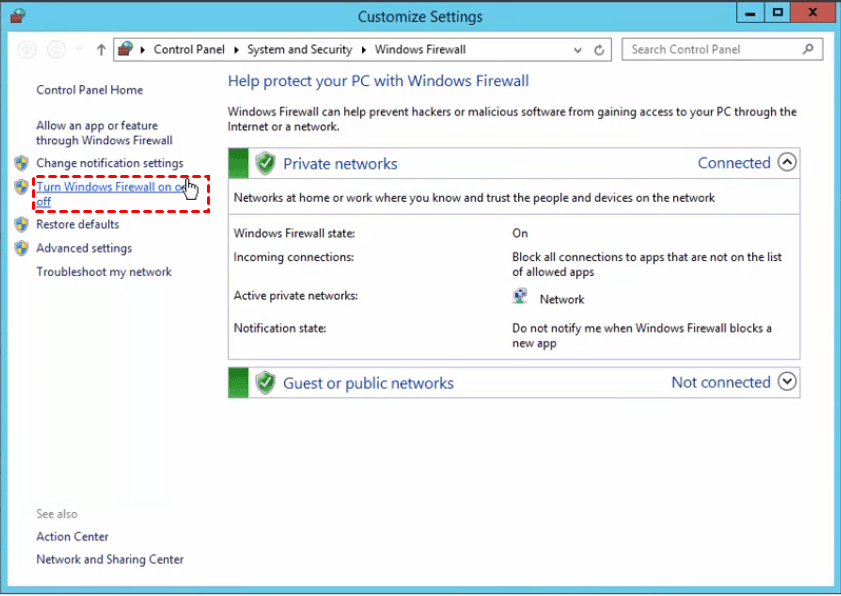
Step 3. Temporarily turn off the firewall for both Private and Public profiles.
Step 4. Apply changes and retry Windows Update. If the update works, the firewall rules need adjustment rather than permanent disabling.
👉 Disable Third-Party Antivirus Software Temporarily
Step 1. Open the antivirus management console.
Step 2. Temporarily disable real-time protection, web filtering, or SSL inspection.
Step 3. Retry Windows Update immediately after disabling.
💡 Note: Disconnect the server from unnecessary external access while protection is disabled.
Step 4. Re-enable your antivirus once testing is complete.
Fix 4: Reset Windows Update Components
Resetting Windows Update components clears damaged data and forces the system to rebuild update-related services from scratch. Here’s how to do it:
Step 1. Press Win + X and select Command Prompt (Admin) to open Command Prompt as Administrator.
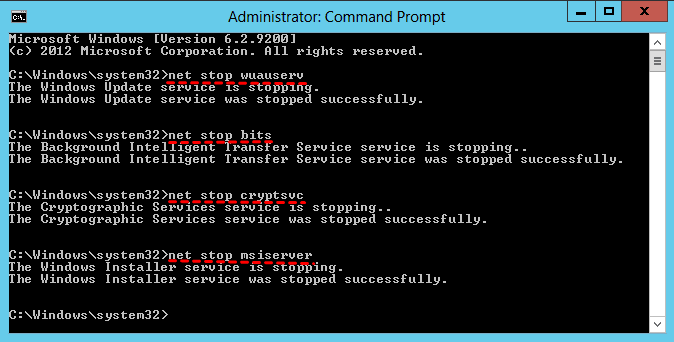
Step 2. Type the following commands and press Enter after each line. Wait until all services stop successfully.
- net stop wuauserv
- net stop bits
- net stop cryptsvc
- net stop msiserver
Step 3. Rename update cache folders by running:
- ren C:\Windows\SoftwareDistribution SoftwareDistribution.old
- ren C:\Windows\System32\catroot2 catroot2.old
Step 4. Run the following commands to restart Windows Update Services:
- net start wuauserv
- net start bits
- net start cryptsvc
- net start msiserver
Step 5. Reboot Server 2012 (R2). After reboot, open Windows Update and check for updates.
Fix 5: Verify System Time and Date
Since Windows Update relies on SSL/TLS validation, even small time discrepancies can cause update requests to fail. Fix it as follows:
Step 1. Right-click the system clock and select Adjust date/time.
Step 2. Confirm the date, time, and time zone are correct.
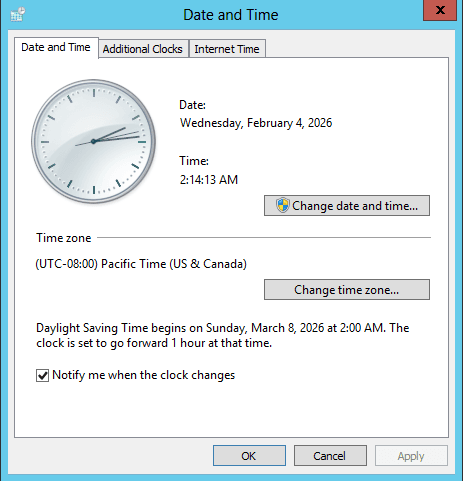
Step 3. If the server is domain-joined, open Command Prompt as Administrator and run w32tm /resync to force time resynchronization.
💡 Note: Time differences greater than a few minutes can invalidate SSL certificates.
Bonus: Preventing 80072EFE Errors on Windows Server 2012
Once the Server 2012 80072EFE error is resolved, the next step is prevention. Here are some best practices:
⭐ Keep TLS and Cryptographic Settings Up to Date
Ensure TLS 1.2 remains enabled and that legacy protocols are not forced by older applications. Periodically review registry settings after major changes or third-party software installations.
⭐ Maintain Accurate Time Synchronization
Configure the server to sync time reliably with a trusted NTP source or domain controller. Incorrect system time is a silent but common trigger for SSL and Windows Update errors.
⭐ Regularly Update Root Certificates
Outdated root certificates can break secure connections even if TLS is enabled. Apply certificate updates regularly or include them in your manual patching routine.
⭐ Review Firewall and Proxy Rules Periodically
Security policies evolve over time. Recheck outbound firewall rules and proxy configurations to ensure Microsoft Update endpoints are not unintentionally blocked.
⭐ Use Reliable Backup and Recovery Practices
Before applying updates or system changes, always create a full server backup. A solid backup strategy minimizes downtime and makes troubleshooting safer on aging systems.
Summary
The Server 2012 80072EFE error is painful. By following the troubleshooting approaches offered in this article, you can reliably restore Windows Update functionality on Windows Server 2012 and 2012 R2.
Because Server 2012 is a legacy platform, every system-level change carries some risk. It is highly recommended to backup your server with AOMEI Backupper regularly. It offers highly granular scheduling and robust merging/cleanup policies to manage backup storage efficiently. Don’t hesitate to try it out!

 as a preferred
source on Google
as a preferred
source on Google