




McAfee Not Working/Opening: Solved (4 Ways)
Frustrated because McAfee is not working or opening? Don't worry, here are effective fixes and another PC protection software, ensuring your device stays protected from malware and threats.

By Jonna Updated on May 26, 2026


Why is My McAfee Not Working?
Has anybody had an issue with McAfee? My problem is that McAfee is not working. They said they upgraded McAfee Total Security, but it won't start on my Windows 11 computer.
Security software is of vital importance to protect the system from malware, ransomware, and online threats. When your antivirus suddenly stops launching, scanning, or responding, such as Malwarebytes not opening or Windows Defender not working, you may feel panic. This page is aimed at dealing with McAfee not working.

McAfee may fail to open, stop responding, or show errors for several reasons. Common causes include:
- Outdated McAfee softwareor corrupted program files - If the software is outdated or an update gets interrupted, key components may become damaged. McAfee may be able to open, or the dashboard refuses to load.
- Windows compatibility conflicts - System changes can temporarily break integration between security software and the operating system.
- Disabled security services - If McAfee security services are stopped or disabled, you may find that McAfee not responding or the program failing to start automatically.
- Conflicts with other security software - Running multiple antivirus programs can cause system-level clashes. If you recently installed another anti-hacking software, McAfee may not load or work properly.
How to Fix McAfee Not Working/Opening on Windows 11/10
Here are some solutions to fix McAfee won't open or function correctly. Try them one by one until the issue is resolved.
Method 1. Update/Reinstall McAfee
Outdated or corrupted files are among the most common reasons behind McAfee not working issues. Updating or reinstalling the program often fixes glitches and restores functionality.
👉 If your McAfee is not working on Windows 11 but is able to open, open it > go to Settings and then Updates > Check for and install the latest updates.
👉 To reinstall McAfee, open Windows Settings > Apps > Installed apps, locate McAfee, and choose Uninstall. Then, restart computer, and reinstall McAfee from its official website.
Method 2. Turn McAfee Security Options On
McAfee expects certain security components to be active. If they’re turned off, the software can behave unpredictably, like McAfee real time scanning not working, or refuse to open.
Step 1. Try opening McAfee from the system tray, and navigate to My Protection.
Step 2. Check the status of: Real-Time Scanning, Firewall, and Web Protection, and turn them on.
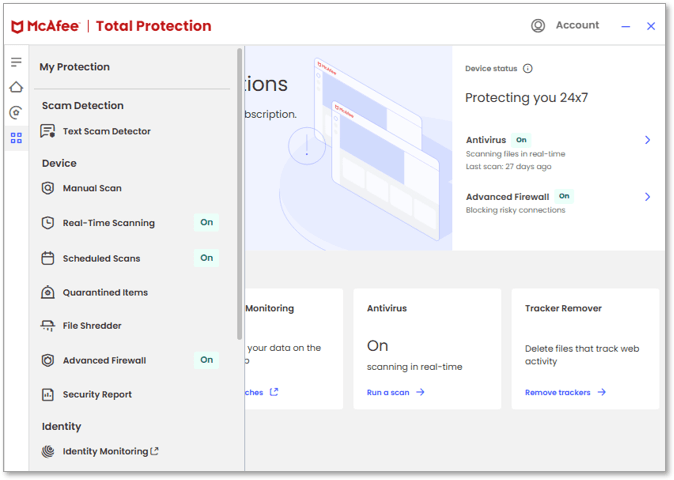
Step 3. Apply changes and restart your PC.
If the McAfee interface won't open at all, you may press Win + R, type services.msc, and press Enter. Locate McAfee-related services (e.g., McAfee Framework Service), ensure the Startup type is set to Automatic.
Method 3. Run McAfee TechCheck
If basic fixes fail, McAfee TechCheck can help diagnose deeper system issues. This diagnostic tool scans for configuration problems, missing components, and software conflicts. To run TechCheck to fix McAfee won't scan, follow the steps below:
Step 1. Download and install the TechCheck utility.
Step 2. Run the program as an administrator, and allow it to scan your system.
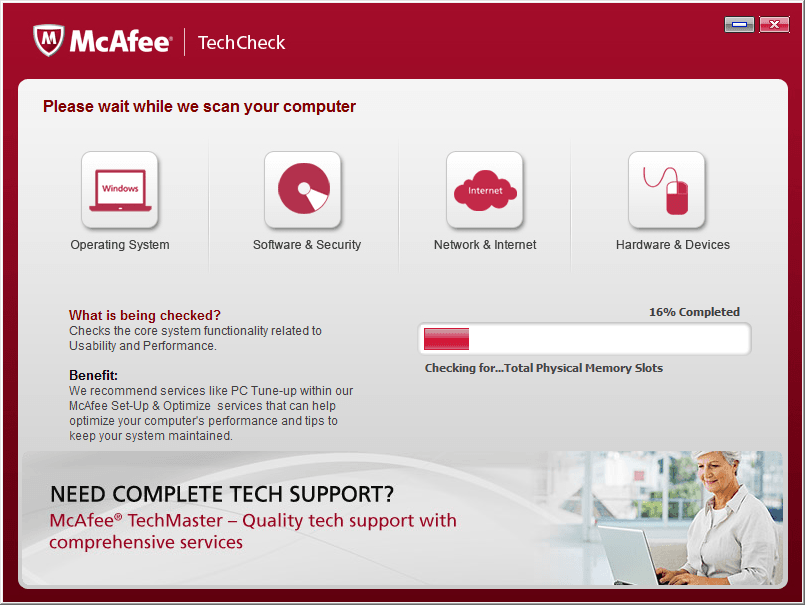
Step 3. And then, follow the recommended fixes.
Method 4. Check the Battery Check Issue
If you are running the 15.0.x or 15.3.x version of McAfee, you can try to disable the battery check by following the steps to resolve the "my McAfeeantivirus is not opening"on Windows 11/10.
Step 1. Create a root folder named McAfee in the C drive, like C:\McAfee.
Step 2. Check if you have a 32-bit or 64-bit processor chip. Then, download the TurnOffCSPBatteryCheck_x86.zip or TurnOffCSPBatteryCheck_x64.zip from kbresources-consumer.mcafee.com to the McAfee folder, depending on your system architecture.
Step 3. Extract the archive file in the McAfee folder, open Command Prompt in administrator mode, and type the cd C:\McAfee command and press Enter.
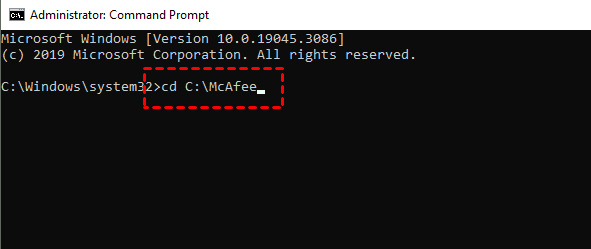
Step 4. Now, run the downloaded tool, and restart your computer when prompted to fix McAfee not working on Windows 11/10.
Try Another PC Protection Software for Windows Computers
Although McAfee is a well-known antivirus software, no software is immune to malfunctions. If repeated attempts fail to resolve McAfee not working errors, you may need to consider supplementing your protection strategy. Modern cybersecurity goes beyond antivirus scanning. Ransomware attacks, hardware failures, and accidental deletions require a more comprehensive defense plan. Backup software plays a crucial role in this layered approach.
AOMEI Backupper is one such solution designed to protect Windows computers through reliable backup and recovery tools. Unlike traditional antivirus programs, AOMEI Backupper focuses on safeguarding data rather than detecting malware directly. Its features include:
 AOMEI Backupper
- It allows you to create a system image, disk image, file/folder image, or partition image for data protection.
- You can backup data daily, weekly, or monthly. And you can backup data to external drive, USB, NAS, etc., and keep multiple backups without overwriting previous backups.
- Its Ransomware Protection feature always protects backup images, or specific files and folders from virus attacks, so you can perform fast recovery after ransomware or system failure whenever needed.
 100% Secure
Step 1. Install and run the AOMEI Backupper program, go to Backup and choose a backup option to create an image.
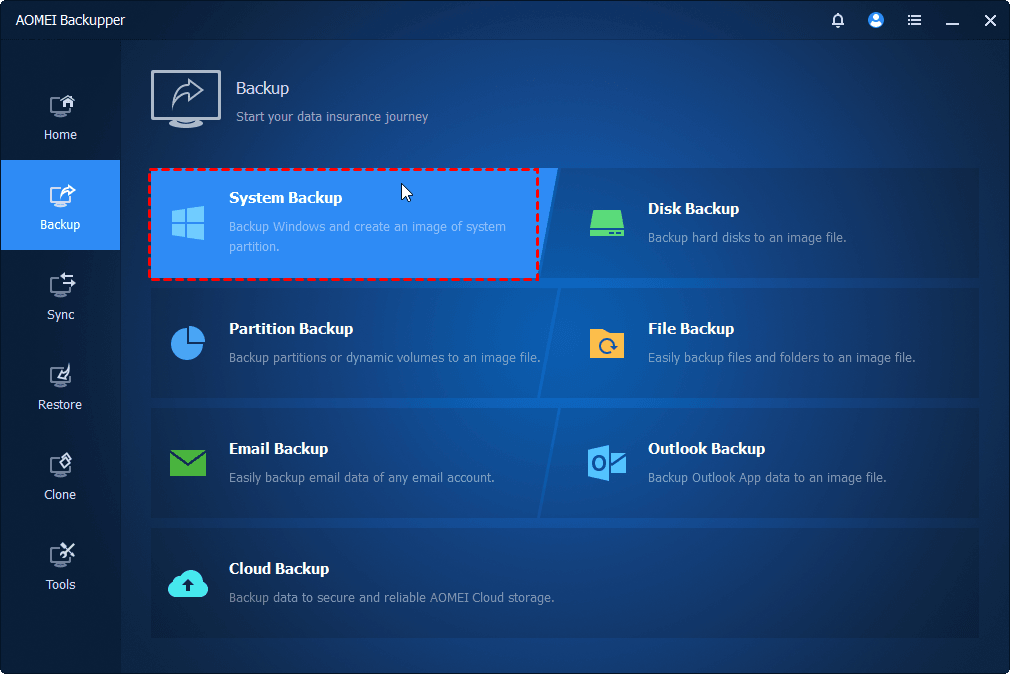
Step 2. Then, head to Tools > Ransomware Protection.
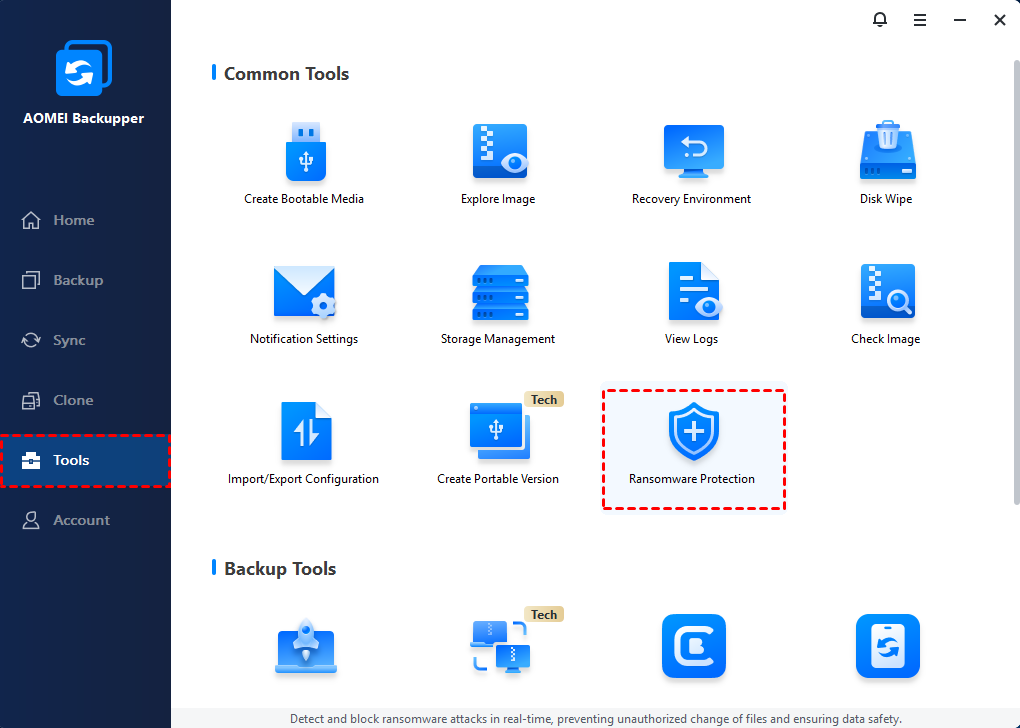
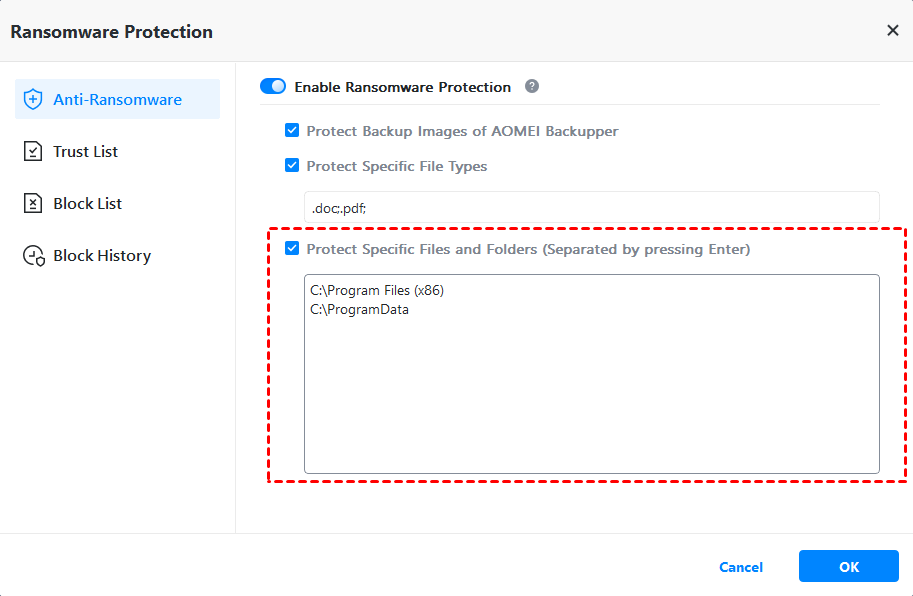
Step 3. Toggle the switch for Enable Ransomware Protection to turn it on. There are 3 sub-options, confirm as needed, and then click OK.
- Protect Backup Images of AOMEI Backupper: Checked by default to protect backup image files created by AOMEI Backupper.
- Protect Specific File Types: Protect specific file types by adding file extensionslike .doc, .ppt, etc.
- Protect Specific Files and Folders: Protect specific files or folders by adding their paths, like C:\ProgramData, etc.
Conclusion
When McAfee is not working on your computer, don't worry. In most cases, restarting computer, updating or reinstalling the software resolves the issue. Checking security settings and running McAfee TechCheck further ensures that no background conflicts are interfering with operation.
If problems persist, you may try another PC protection softwarelike AOMEI Backupper, which offers various backup options and quick recovery to safeguard your data, as well as a Ransomware Protection function for data security. That's why combining prevention (like McAfee) with recovery (like AOMEI Backupper) gives you a stronger, more resilient security strategy.

 as a preferred
source on Google
as a preferred
source on Google