



How to Fix Malwarebytes Not Opening in Windows 10/11
In this article, we will show you how to fix Malwarebytes not opening in Windows 10/11 with 4 effective methods, and another way to protec PC files from ransomware.

By Jonna Updated on May 13, 2026


Why Doesn't Malwarebytes Open on Windows 10/11?
Many users rely on Malwarebytes to protect their PCs from malware, ransomware, and other online threats. When Malwarebytes is not opening, like refusing to launch, freezing on startup, or silently failing, it can feel unsettling. This guide explains why Malwarebytes will not open on Windows 10 or Windows 11, walks through 4 proven fixes in clear steps, and introduces an additional layer of protection to help keep your data safe.
Malwarebytes relies on background services, drivers, and permissions to function correctly. If any of these components are blocked or damaged, the program may fail to open. Common reasons include:
- Insufficient permissions or user account restrictions
- Corrupted installation files
- Conflicts with other antivirus or security tools
- Malware actively blocking security software
- System startup issues or Windows service errors
Fix Malwarebytes Not Opening in Windows 10/11 with 4 Ways
To resolve the cannot open Malwarebytesissue on Windows 10/11, you can first try simple, quick fixes like restarting the computer and reinstalling Malwarebytes to relaunch components to run Malwarebytes. Also, it is recommended to use another antivirus program to run a full system scan, making sure that Malwarebytes has not been compromised by malware. If Malwarebytes not opening persists,you can try the advanced solutions below.
Fix 1. Run Malwarebytes with Administrator Privilege
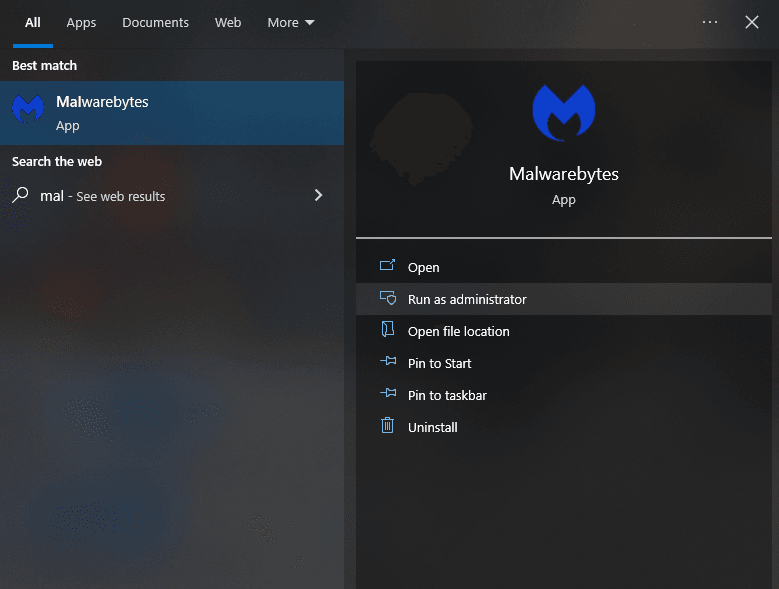
Sometimes Malwarebytes fails to open simply because it doesn’t have enough permission to start its background services. Running it as an administrator may help resolve this issue.
Step 1. Close Malwarebytes completely if it’s partially running.
Step 2. Locate the Malwarebytes shortcut on your desktop or Start menu, select Run as administrator, and click Yes if prompted by User Account Control.
Fix 2. Run Malwarebytes Chameleon
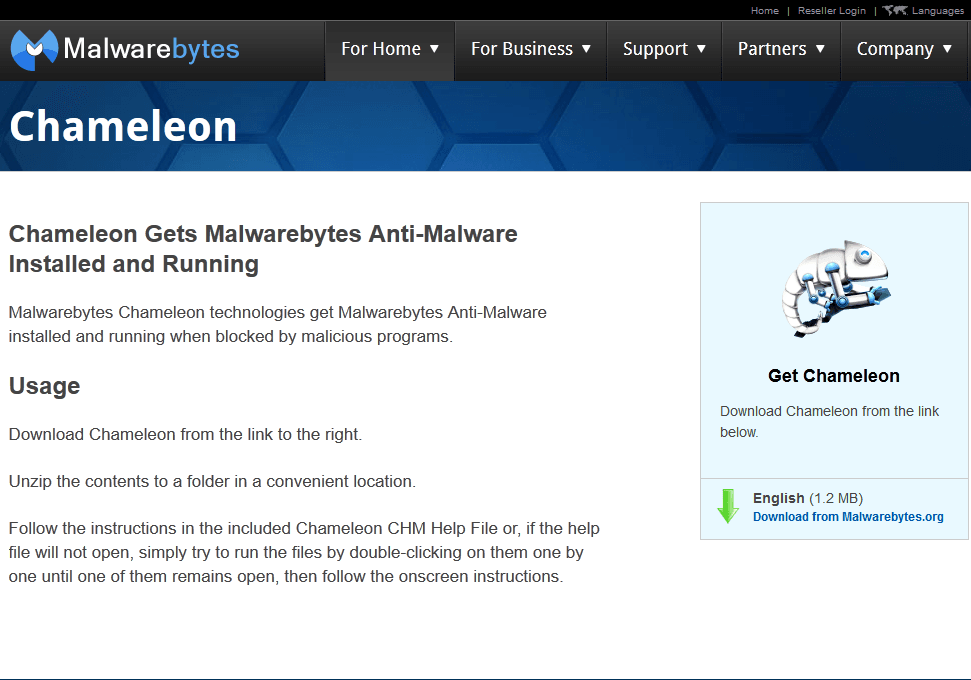
When malware actively blocks security programs, Malwarebytes includes a built-in self-defense tool called Chameleon. This tool disguises Malwarebytes to help it launch even when malware is trying to prevent it. This fix is especially useful if Malwarebytes is not responding or doesn’t open at all.
Step 1. Open the Malwarebytes installation folder, typically: C:\Program Files\Malwarebytes\Anti-Malware\.
Step 2. Locate the Chameleon folder, double-click the Chameleon executable file.
Step 3. Follow the on-screen prompts to allow the tool to attempt launching Malwarebytes.
Fix 3. Check Software Conflicts
Running multiple security programs at the same time often causes conflicts. Real-time scanners may block each other’s processes, leading to startup failures.If you have another antivirus installed, such as Windows Defender, Avast, or Bitdefender, conflicts may be the reason for Malwarebytes isn’t opening.
And Microsoft Defender, in particular, can sometimes interfere with third-party security tools. Adding mutual exclusions usually resolves the problem without compromising security. To troubleshoot conflicts:
Step 1. Temporarily disable real-time protection in your primary antiviruslike Microsoft Defender.
Step 2. Try launching Malwarebytes.
Step 3. If it opens, add Malwarebytes to the antivirus exclusion list.
Fix 4. Run Malwarebytes in Safe Mode
Safe Mode starts Windows with minimal drivers and services. This environment helps determine whether background processes or malware are preventing Malwarebytes from opening.To try this fix for Malwarebytes will not run:
Step 1. Click on Start > Power, then press and hold down the Shift key while you click Restart.
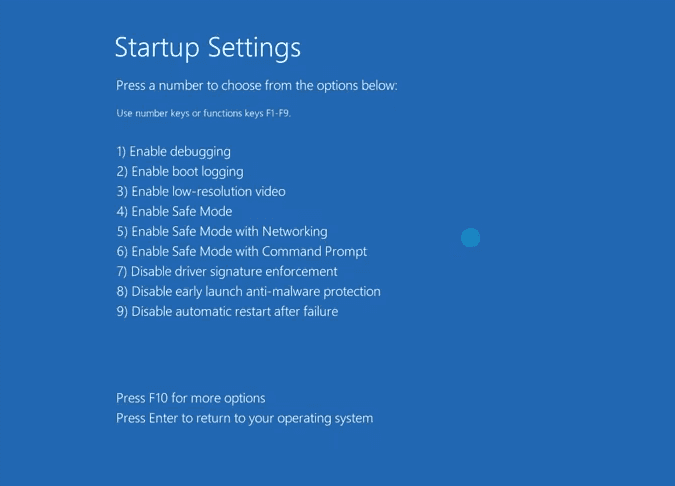
Step 2. Click on Troubleshoot under Choose an option, then select Advanced options > Startup Settings > Restart.
Step 3. Choose Safe Mode, then launch Malwarebytes to see if it works.
Use Ransomware Protection Software for PC Security
Even when Malwarebytes works perfectly, no security tool is immune to failure. Malware can disable defenses, software can malfunction, and systems can crash. That’s why relying on antivirus software alone is risky. The most reliable protection against ransomware and system disasters is having secure, offline backups. Backups ensure that your data can be restored even if malware encrypts files or security tools fail to launch.
AOMEI Backupper is a comprehensive backup and recovery solution, embedded with ransomware defense to protect your data. It can work alongside antivirus software to provide addittional safety net for your files and system.
 AOMEI Backupper
- Complete backup options: It offers to create system image or disk backup, allows to create schedule backup, and offers other features like backup cleanup, encryption, compression, etc.
- Image protection: Protect backups created by this software from being locked or deleted by ransomware.
- File/Folder protection: Protect customized file types and directories as needed.
 100% Secure
You can run AOMEI Backupper, go to Backup and choose the desired backup solution, like creating a system image or disk image.
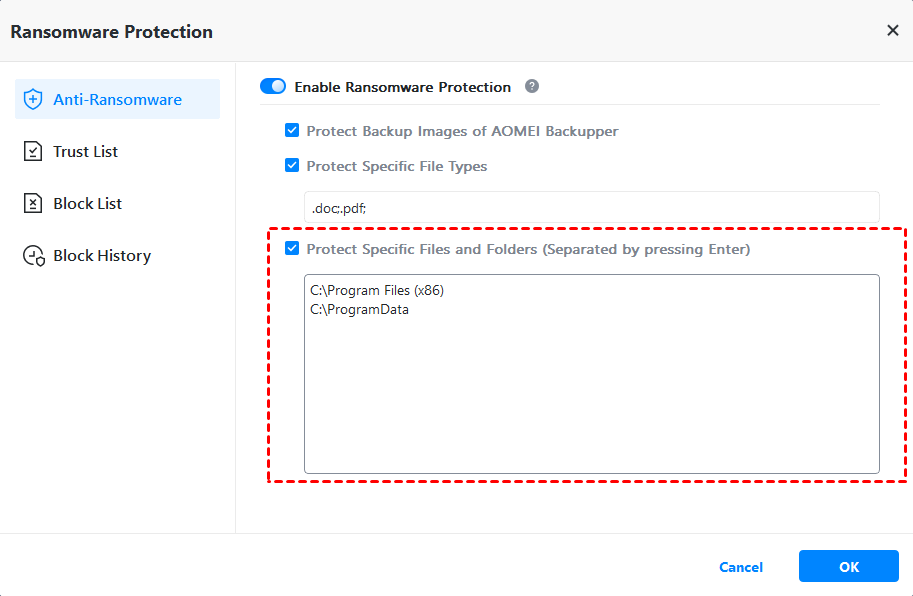
Step 1. Navigate to the Tools tab and choose Ransomware Protection.
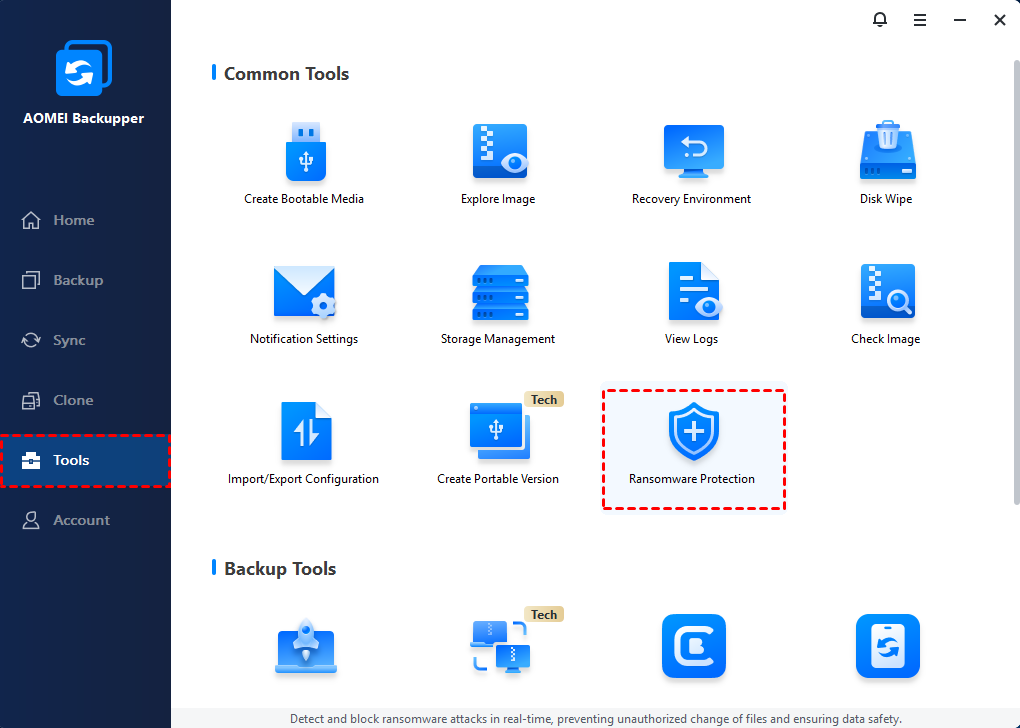
Step 2. Toggle the Enable Ransomware Protection switch to enable it.
Step 3. Then, specify file type, files, folders to protect per your need.
- The backup images created by AOMEI Backupper is selected to protect automatically.
- To protect specific file types, enter the file extensions.
- To protect important files and folders, enter specific folder paths, such as C:\Program Files (x86), C:\ProgramData, etc.
Summary
When Malwarebytes not opening occurs on Windows 10 or Windows 11, it’s rarely a sign of permanent damage. In most cases, the problem stems from permission issues, software conflicts, or malware interference that can be resolved with the right approach. You may apply these fixes above step by step to restore its functionality.
Still, antivirus software alone isn’t enough anymore. Pairing Malwarebytes with a robust backup solution like AOMEI Backupper creates a layered defense that protects both your system and your data.

 as a preferred
source on Google
as a preferred
source on Google