




Fixed: Kaspersky Not Opening/Loading/Launching/Working
In this article, you will learn 4 useful fixes to Kaspersky not opening or working, and another PC data protection software from ransomware.

By Jonna Updated on May 13, 2026


Why is My Kaspersky Not Opening?
Kaspersky is a well-established security solution designed to protect computers from malware, ransomware, spyware, phishing attacks, and other online threats. It delivers comprehensive baseline protection through multiple security technologies, like real-time malware scanning, automatic virus definition updates, ransomware protection, anti-phishing and malicious website blocking, behavior monitoring to detect zero-day threats, etc.

Seeing Kaspersky not opening on the computer can feel unsettling. The reasons why Kaspersky fails to launch or work typically fall into one of the following categories.
- Incomplete or corrupted updates: If a database update is interrupted, core files may become damaged. This often results in Kaspersky antivirus not opening, Kaspersky stuck on loading screen, interface launching but not responding, and so on.
- Outdated virus databases: Even if the application is installed correctly, outdated threat databases can cause instability.
- Corrupted installation files: If installation files are damaged or incomplete, Kaspersky may install but fail to execute properly, leading to Kaspersky not loading or launching.
- Disabled background services: Kaspersky depends on several Windows services to run properly. If these services fail to start, the main program may not launch at all.
- Windows update conflicts: Changes to system security policies, especially feature updates, can temporarily interfere with antivirus services.
How to Resolve Kaspersky Not Opening/Loading/Launching/Working
Below are 4 practical methods to resolve Kaspersky won't opening issues. Start with the simplest solution and then try others if needed.
Way 1. Restart Computer
Sometimes the simplest fix is the most effective. Temporary system conflicts, stuck background services, and memory glitches can prevent Kaspersky from launching properly. Restarting clears these temporary errors and reloads all services from scratch. This solution is especially helpful if:
- Kaspersky was working fine yesterday
- The issue started after a minor update
- Kaspersky suddenly stopped responding
Just close all open applications, and then restart the computer and wait for the system to fully reboot. After that, try launching Kaspersky again to see if Kaspersky not opening on Windows 10/11 is solved.
Way 2. Update Kaspersky to the Latest Version
Outdated software is one of the most common reasons for Kaspersky not opening. New Windows updates sometimes require corresponding antivirus updates to maintain compatibility. Updating Kaspersky ensures you are using the latest bug fixes and security patches.
📢 To update the program: Open Kaspersky (if it launches partially), navigate to the "Support" or "Update" section, and check for available updates.
📢 If Kaspersky won't open at all, download the latest installer from the official website and run the update manually.
Way 3. Reinstall Kaspersky Software
If updating does not solve the issue, reinstalling the software is often the most effective solution. Reinstallation removes corrupted files and replaces them with clean program data.
Step 1. Open Control Panel and select Programs and Features.
Step 2. Find Kaspersky in the list, and right click it to choose Uninstall.
Step 3. Then, download and reinstall Kaspersky from its official website.
Way 4. Update Databases for Kaspersky Manually
Antivirus databases are essential for identifying threats. If these files become outdated or corrupted, the software may not load correctly, causing problems like Kaspersky not working and Kaspersky Total Security not opening. In such a case, you can manually update database to restore functionality when automatic updates fail.
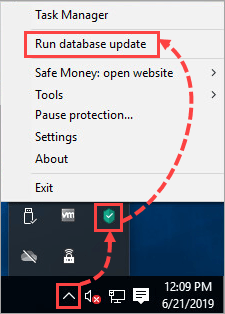
1️⃣ In the taskbar notification area, right-click the Kaspersky application icon, and select Run database update from the menu.
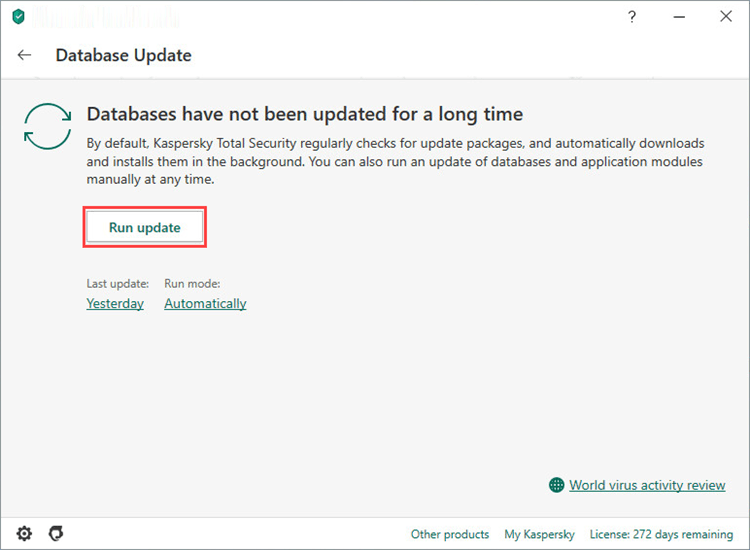
2️⃣ In the main window of Kaspersky Internet Security, click Database Update. And then, click Run update.
Try Another PC Protection Software for Windows Computers
While Kaspersky is a reputable antivirus solution, no software is immune to failures. If repeated troubleshooting fails or you want additional protection, it may be wise to consider complementary tools. AOMEI Backupper, a professional backup and recovery solution, is designed to protect your system and files against ransomware, crashes, hardware failure, and even antivirus malfunctions. This software is designed to safeguard data rather than detect malware directly.
 AOMEI Backupper
A professional and reliable Windows backup software that helps you protect data, automate backup tasks, and easily perform system and disk migrations.
Focused on recovery and system protection, this tool offers various features include:
🎉 Full backup & restore - Create OS, disk, or file images, and restore them quickly whenever needed.
🎉 Ransomware Protection - Protect backup images created by this tool, and specified file types & file paths from ransomware for recovery.
🎉 Bootable rescue media creation - Create a bootable USB or CD/DVD that allows you to restore your system even if Windows fails to start.
You can get this tool installed on your computer and create disk image or system images by heading to the Backup tab. To use it for PC protection, go with the following guide.
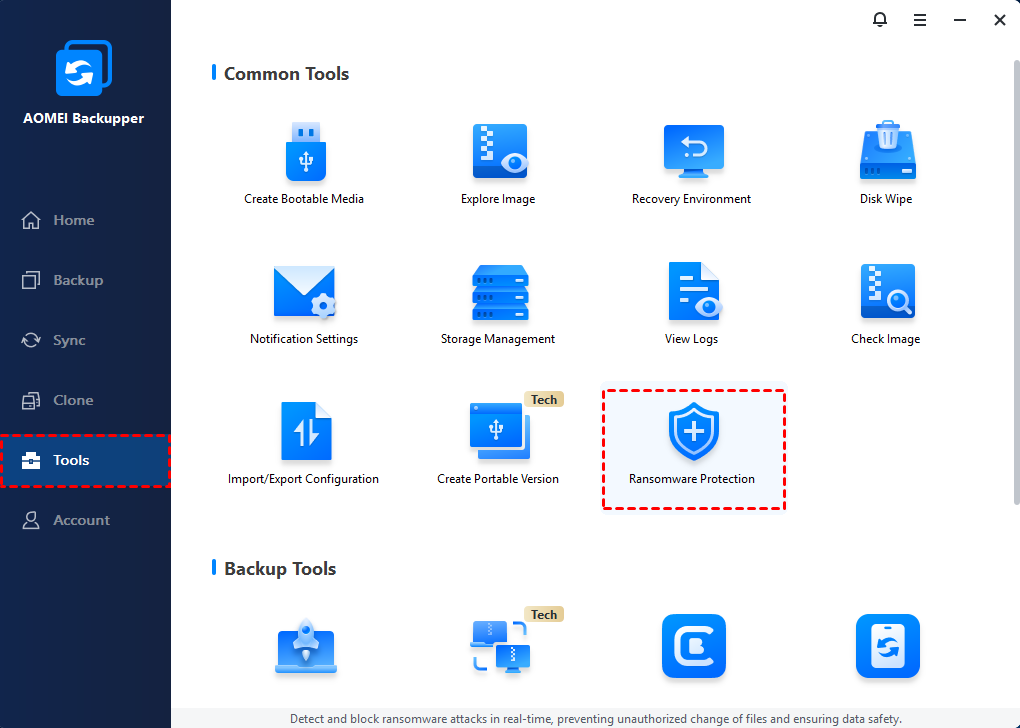
Step 1. Head to Tools > Ransomware Protection.
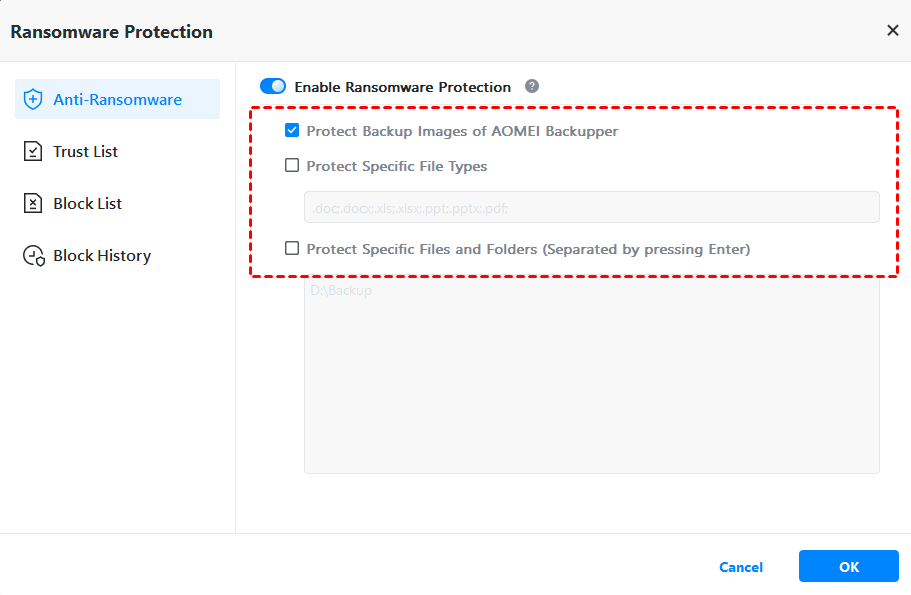
Step 2. Turn on the switch for Enable Ransomware Protection, and check the options as needed:
- Protect Backup Images of AOMEI Backupper: Checked by default to protect backup images created by AOMEI Backupper.
- Protect Specific File Types: Protect common file typesby addingfile extensions.
- Protect Specific Files and Folders: Add specific folder paths for protection, like C:\Program Files (x86), etc.
Step 3. Then, confirm the changes and hit OK.
In the End
The Kaspersky not opening problem is not difficult to fix with the right method. But to keep your computer always safe, it is highly recommended to use Kaspersky with recovery software like AOMEI Backupper, which allows you to restore computer quickly and easily with a complete system OS image.

 as a preferred
source on Google
as a preferred
source on Google