




How to Enable Ransomware Protection on Windows 10 (3 Ways)
Learn how to activate ransomware protection on Windows 10 using the top 3 tools available. We cover both the native Windows 10 utility and leading third-party software to secure your system.

By Lily Updated on April 27, 2026


Ransomware has become one of the most destructive cyber threats facing everyday users and businesses alike. From locking personal photos to crippling entire workstations, modern ransomware attacks are no longer rare or unsophisticated.
This guide focuses on how to enable Windows 10 ransomware protection so as to stay secure in today’s threat landscape.
Best tools for ransomware protection on Windows 10
In this part, we’ll explore Windows 10 built-in ransomware protection tool and robust third-party ransomware protection software. The following comparison table can help you make the best choice.
|
Feature |
Microsoft Defender Antivirus |
Bitdefender Antivirus Plus |
|
|
Ransomware Core Protection |
Controlled Folder Access (blocks unauthorized app changes to protected folders) |
Protects specified file types and file paths from ransomware |
Advanced Threat Defense&Ransomware Remediation |
|
Included Firewall |
Yes (Windows Defender Firewall) |
No |
Yes (Advanced) |
|
Backup Features |
No (relies on OneDrive/File History separately) |
Yes (System backup, file backup, incremental/differential backup, etc.) |
Limited (only for ransomware-encrypted files via "Data Protection" module) |
|
Real-time Behavior Monitoring |
Yes |
No |
Yes (superior heuristic & behavioral analysis) |
|
Impact on System Performance |
Low (Integrated into OS) |
Low to moderate |
Moderate to High (Comprehensive scanning uses more resources) |
|
Cost |
Free (Included with Windows 10) |
Paid (Yearly/lifetime license) |
Paid (Annual subscription) |
|
Best For |
✔ Baseline, integrated protection ✔ Users wanting free, solid MS-managed defense |
✔ Data resilience strategy ✔ Users needing backup software integrated with ransomware defense |
✔ Maximum proactive security ✔ Users seeking a top-rated, all-in-one anti-malware suite |
How to turn on ransomware protection on Windows 10
Now let’s see how to turn on ransomware protection on Windows 10 with the three ransomware protection tools.
Way 1: Using Microsoft Defender Antivirus
Step 1. Search for “Windows Security” and open it.
Step 2. Select Virus & threat protection. Then click Manage settings under Virus & threat protection settings.
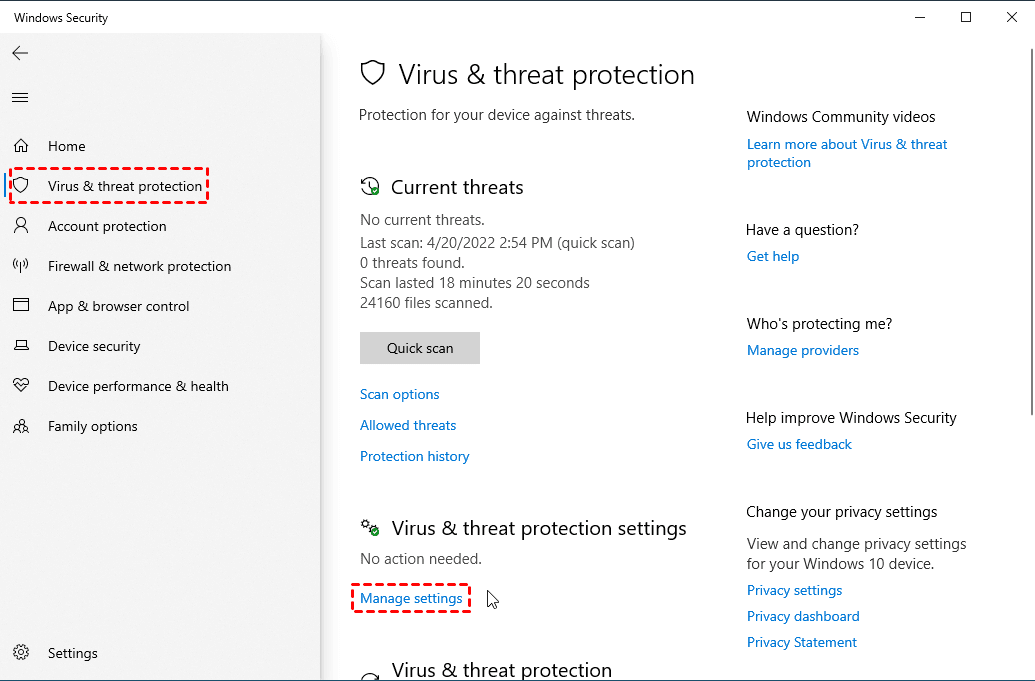
Step 3. Make sure these are turned On:
- Real-time protection
- Cloud-delivered protection
- Automatic sample submission
- Tamper Protection
Step 4. Under Controlled folder access, click Manage Controlled folder access.
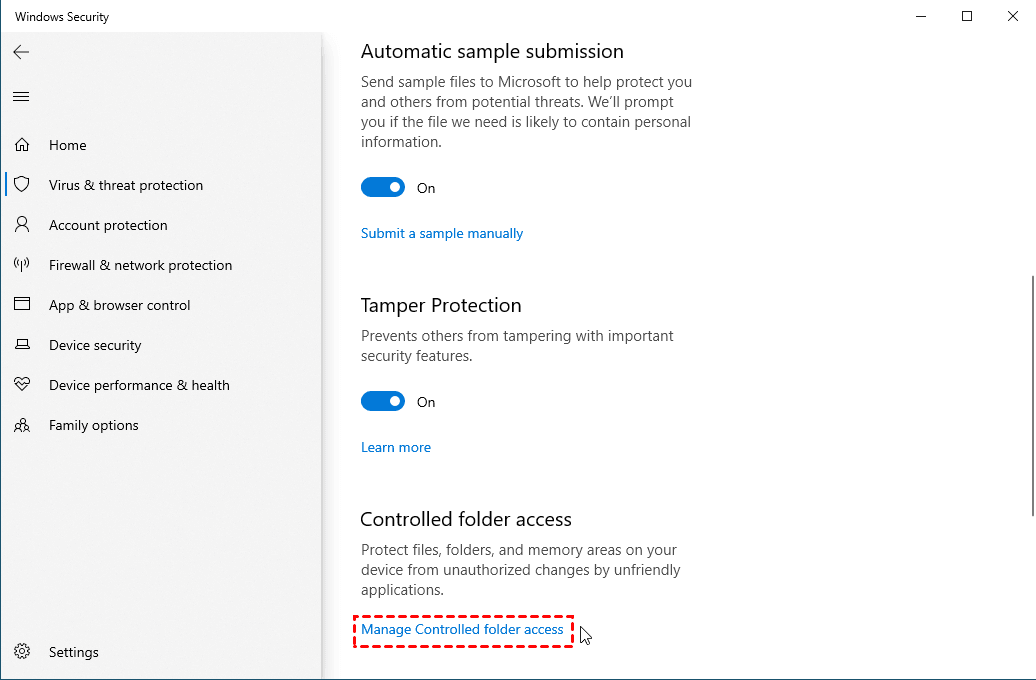
Step 5. Turn On the switch for Controlled folder access. Windows will then prevent unknown or untrusted apps from making changes to protected folders like Documents, Pictures, and Desktop.
- Click Protected folders to add custom folders you want secured.
- Click Allow an app through Controlled folder access if a trusted program is blocked.
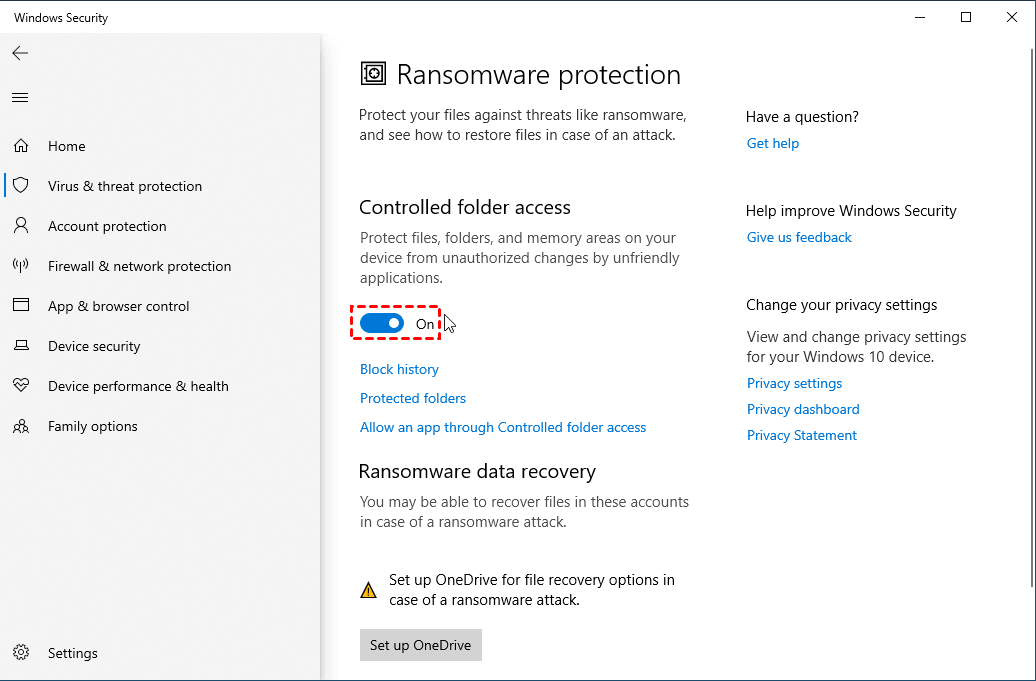
Step 6. Under Ransomware data recovery, click Set up OneDrive to back up key folders. This allows you to restore files if ransomware encrypts them.
Way 2: Using AOMEI Backupper Professional
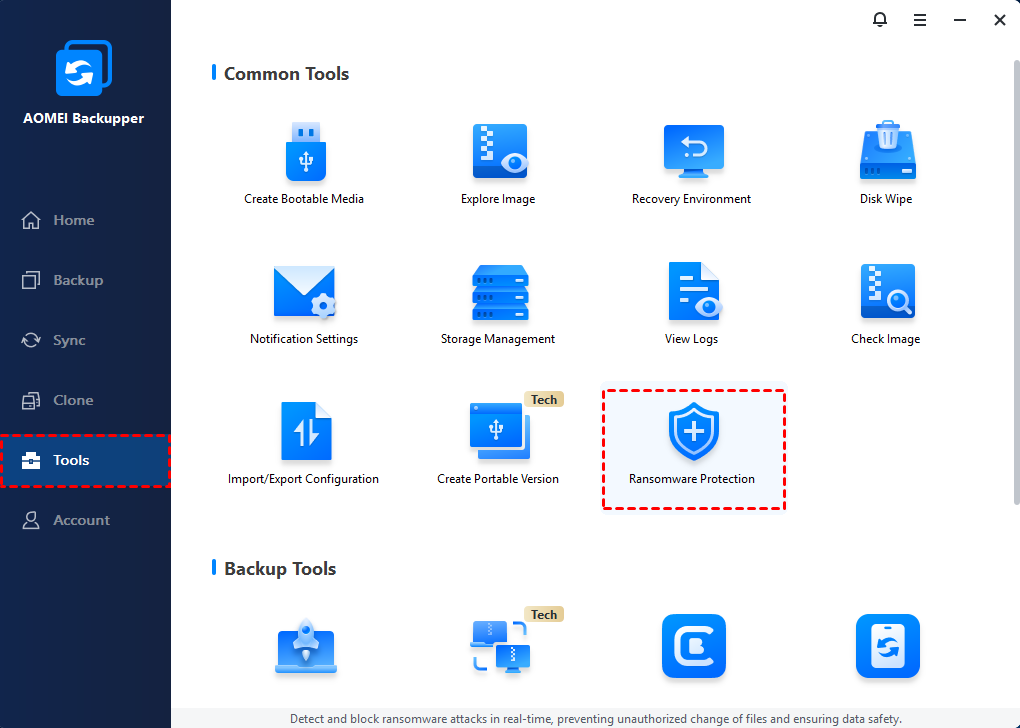
Step 1. Download, install and run AOMEI Backupper. Click Tools > Ransomware Protection.
 AOMEI Backupper
Simple Windows backup software with ransomware protection capability.
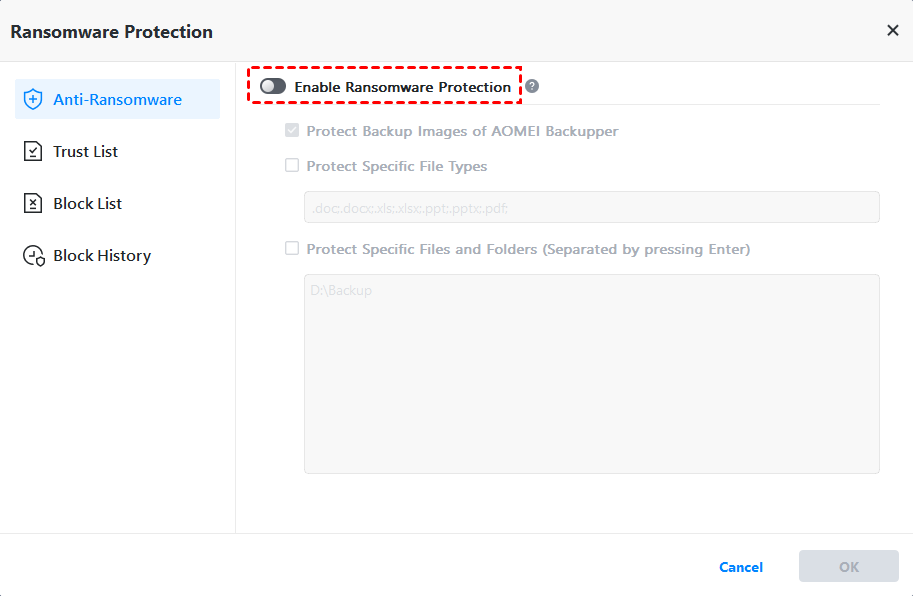
Step 2. In the pop-up window, turn on the switch for Enable Ransomware Protection.
Step 3. There are three sub-options:
- Protect Backup Images of AOMEI Backupper: Checked by default to protect image files created by AOMEI Backupper.
- Protect Specific File Types: Add common file types to be protected, such as .doc and .pdf.
- Protect Specific Files and Folders: Add specific folder paths to be protected, for example, C:\Program Files (x86), C:\ProgramData, etc.
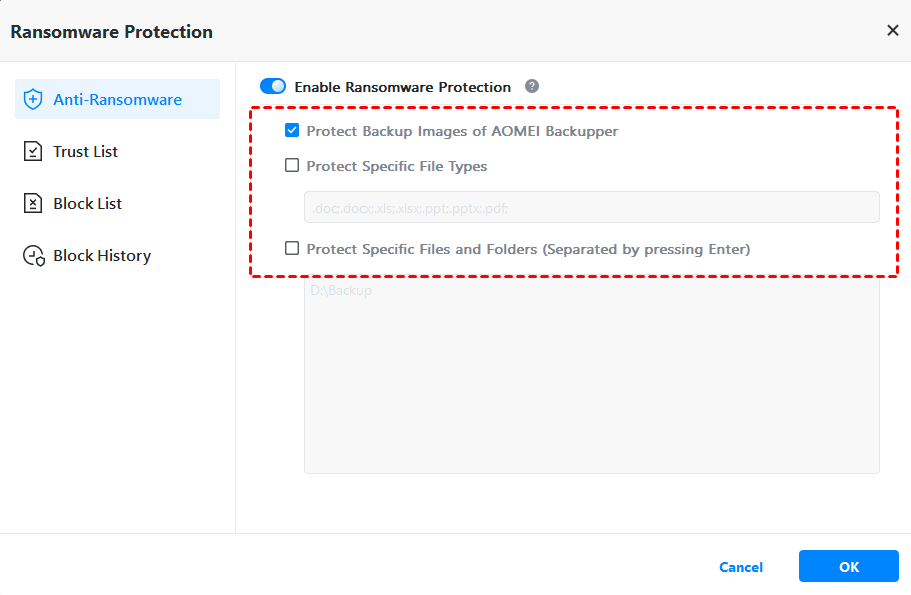
Step 4. Confirm your settings and click OK.
Way 3: Using Bitdefender Antivirus Plus
Step 1. Sign in to Bitdefender Central with your subscription to Bitdefender Antivirus Plus.
Step 2. On Dashboard, click Install Bitdefender Products to download and install Bitdefender Total Security on Windows 10.
Step 3. Open Bitdefender Total Security and sign in with your Bitdefender account.
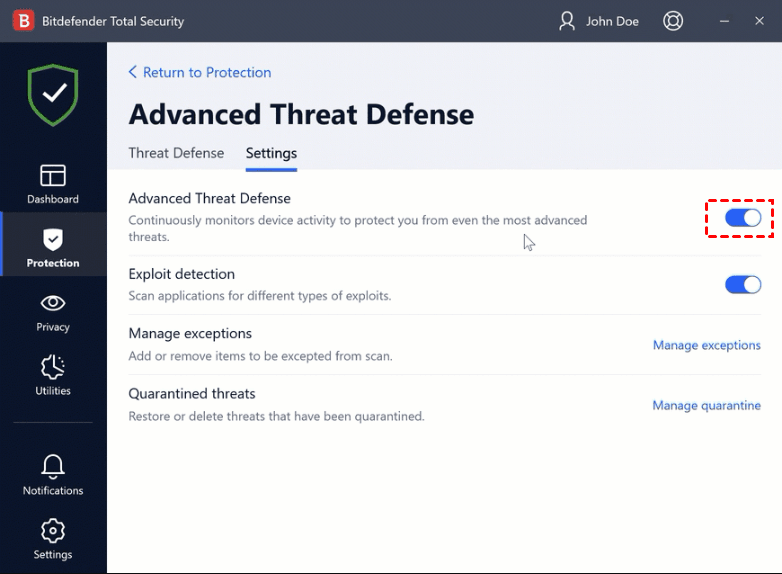
Step 4. Click Protection from the left menu. Find the Advanced Threat Defense pane and click Open.
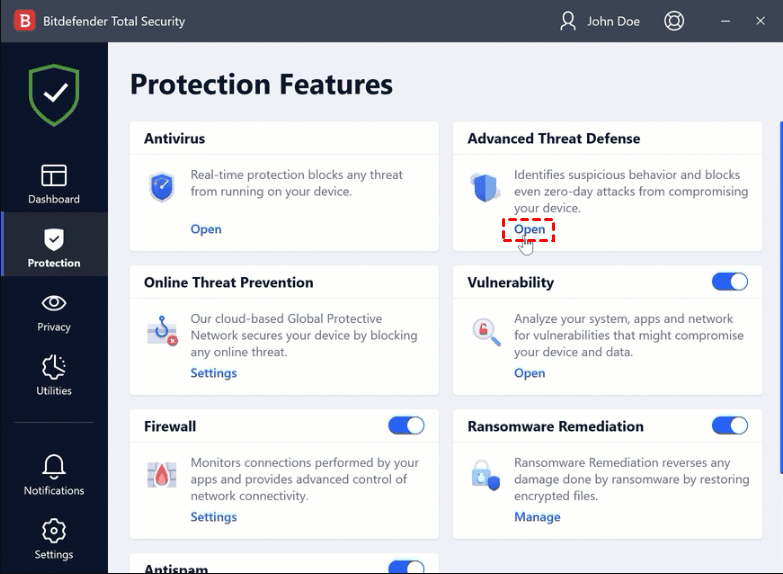
Step 5. Go to the Settings tab and toggle on Advanced Threat Defense.
Step 6. Return to the Protection screen. Locate the Ransomware Remediation module and toggle the switch to ON.
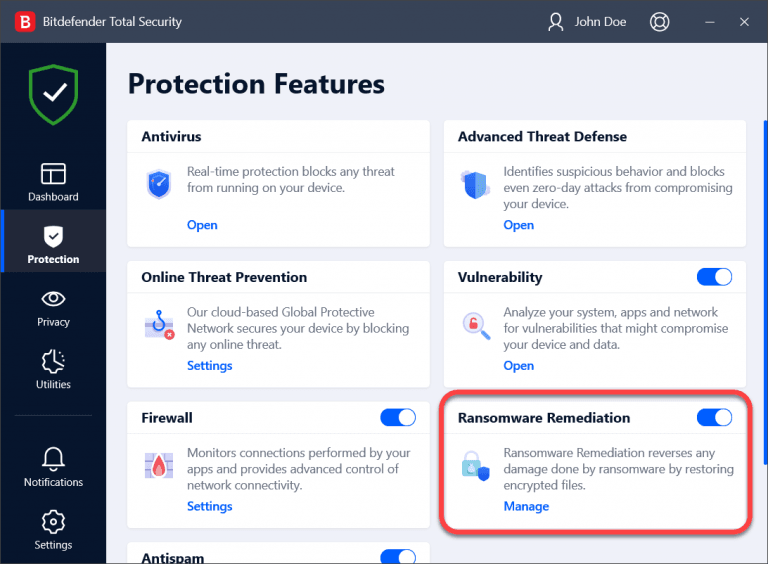
Step 7. (Optional) Click Manage within the Ransomware Remediation module to ensure Automatic restore is enabled, which automatically recovers files if they are encrypted during an attack.
FAQs about ransomware protection on Windows
1. Is built-in Windows protection enough to stop ransomware?
Not really. While the built-in Microsoft Defender Antivirus provides a solid baseline, it may not stop all advanced or zero-day ransomware attacks. For stronger protection, many users combine built-in security with a third-party antivirus solution and regular backups.
2. How often should I back up my Windows system to stay safe from ransomware?
For ransomware protection, backups should be created regularly—daily or weekly, depending on how often your data changes. Backups should be stored offline or in a secure cloud environment to prevent ransomware from encrypting them.
3. Can ransomware encrypt external drives connected to Windows?
Yes. If an external drive or network location is connected during an attack, ransomware may encrypt those files as well. To reduce risk, disconnect backup drives when not in use or use backup software that supports versioning and protected storage.
4. What is the best overall approach to ransomware protection on Windows?
The best approach is a layered defense: keep Windows updated, enable built-in ransomware protection, use reputable third-party security software, and maintain secure, tested backups. This combination minimizes the chance of infection and ensures recovery if an attack occurs.
Wrapping things up
Now you know how to enable ransomware protection on Windows 10 with the best 3 tools - Microsoft Defender Antivirus, AOMEI Backupper, and Bitdefender. While Microsoft Defender Antivirus provides a solid baseline, you may use AOMEI Backupper and Bitdefender to set up stronger defenses against modern attacks.
If you need complete backup and recovery solutions for Windows 10, try AOMEI Backupper. It enables you to backup C drive and restore it when disasters strike. Why not give it a shot?

 as a preferred
source on Google
as a preferred
source on Google