




How to Fix HP Cloud Recovery Tool Not Working (3 Cases)
Struggling with HP Cloud Recovery Tool not working? This guide walks you through practical troubleshooting steps and presents a powerful alternative for system recovery.

By Lily Updated on January 22, 2026


Common Errors for HP Cloud Recovery Tool Not Working
When the HP Cloud Recovery Tool is not working, it usually doesn’t fail silently. Instead, it throws specific error messages that point to what went wrong. Below are the three most frequent problems users encounter.
1. HP Cloud Recovery Tool Product ID Invalid (>> Fixes)
The “Product ID invalid” error appears when the tool cannot match your device to a valid recovery image on HP’s servers. This often happens if the model is not supported, the product number is entered incorrectly, or the device is tied to a different region.
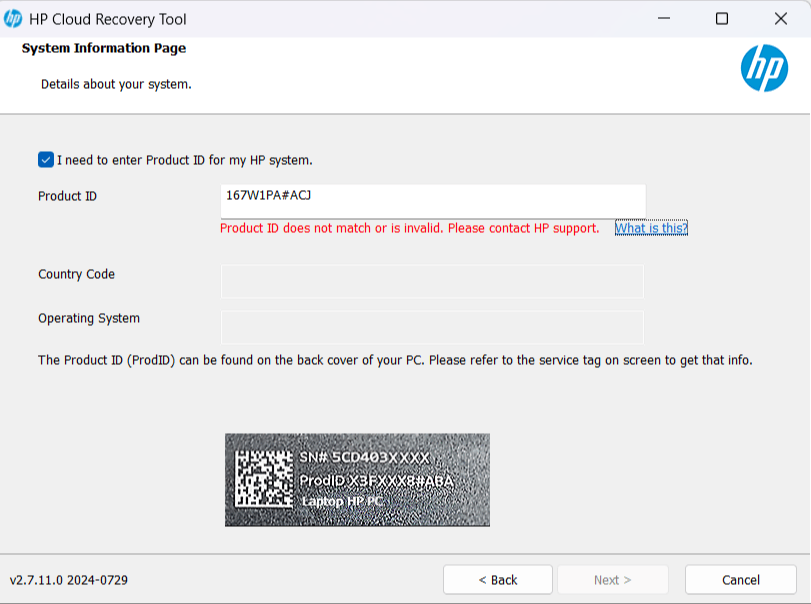
2. HP Cloud Recovery Tool Drive Partitioning Failed (>> Fixes)
The “Drive partitioning failed” error means the tool was unable to properly prepare the USB recovery drive. Since HP Cloud Recovery must erase, format, and create multiple partitions on the USB device, any interruption or hardware issue can cause this failure.
3. HP Cloud Recovery Tool Image Extraction Failed (>> Fixes)
The “Image extraction failed” error usually occurs after the recovery files have already been downloaded. It indicates that the tool cannot unpack or write the recovery image to the USB device.
 AOMEI Backupper
If the HP Cloud Recovery Tool continues to fail or your model is unsupported, try a reliable third-party backup and recovery solution.
Case 1. HP Cloud Recovery Tool Product ID Invalid
If you see the “Product ID invalid” message, try the following fixes in order.
Fix 1: Verify the HP Product Number
The HP product number is not the same as the serial number. Using the wrong one will trigger the “invalid product ID” error. You can find the correct product number by:
- Pressing Fn + Esc on your HP laptop.
- Checking the label on the back of the laptop or inside the battery compartment.
- Opening HP Support Assistant → My Device → Specifications.
Re-enter the product number exactly as shown, including special characters.
Fix 2: Check Your HP Model
Most HP consumer PCs manufactured in 2016 or later support HP Cloud Recovery Tool, including Pavilion, Spectre, OMEN, Envy, Stream, and HP Notebooks.
- Visit HP’s official support site and confirm your model supports HP Cloud Recovery Tool.
- If your model is not supported, you will need to use Windows installation media or a third-party system recovery solution instead.
Fix 3: Check Region and Language Settings
HP recovery images are region-based. If your system region does not match the original sales region of the device, the product ID may be rejected.
1. Open Settings → Time & Language → Language & Region.
2. Set the correct Country or region.
3. Restart the PC and run HP Cloud Recovery Tool again.
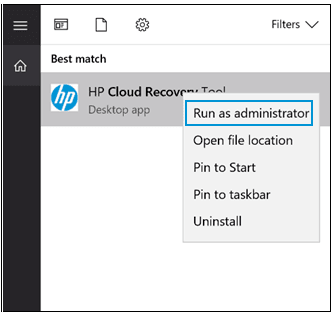
Case 2. HP Cloud Recovery Tool Drive Partitioning Failed
If you encounter the “Drive partitioning failed” error, walk through the fixes below in order.
Fix 1: Reformat the USB Flash Drive
Bad sectors or file system errors can stop partition creation. Follow these steps to reformat the USB drive:
1. Connect the USB flash drive to your PC.
2. Open This PC. Right-click the USB drive → Format.
3. Set File system as FAT32 or exFAT and keep Allocation unit size as Default.
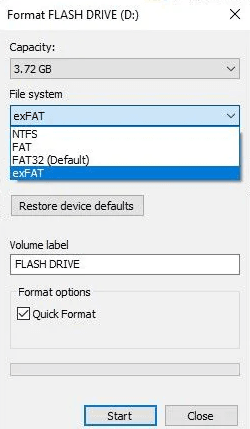
4. Click Start and wait for completion.
5. Safely eject the drive, reconnect it, then run HP Cloud Recovery Tool again as administrator.
Fix 2: Replace the USB Flash Drive
Many partitioning failures are caused by incompatible or unhealthy USB drives. Recommended requirements:
- At least 32 GB capacity
- USB 3.0 or newer from a reputable brand
- No hardware encryption or built-in security software
Case 3. HP Cloud Recovery Tool Image Extraction Failed
Here are fixes for the “Image extraction failed” error.
Fix 1: Redownload the Image
Corrupted or incomplete downloads are the most frequent cause of extraction failures.
- Switch to a stable wired or high-quality Wi-Fi connection.
- Avoid VPNs, proxies, or bandwidth-limiting tools.
- Restart the HP Cloud Recovery Tool and allow it to download the image again.
Fix 2: Check System Drive Free Space
HP Cloud Recovery Tool temporarily stores large recovery files on your system drive before extracting them. Insufficient disk space can silently interrupt the extraction process.
- Ensure your Windows system drive has at least 20–25 GB of free space.
- Run Disk Cleanup or move large data to another drive if needed.
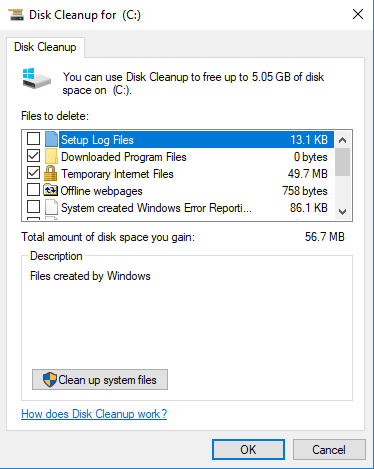
- Restart the PC and rerun the tool.
Fix 3: Temporarily Disable Antivirus and Security Software
Some antivirus programs block large compressed files or disk-writing operations. You may disable them temporarily:
1. Turn off real-time protection in your antivirus software and, if necessary, temporarily disable third-party firewalls.
2. Open Windows Security > Virus & threat protection, click Manage settings, and toggle off Real-time protection to disable Windows Defender temporarily.
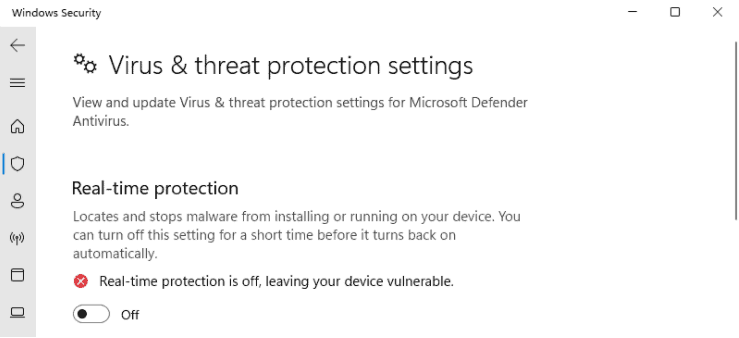
3. Run HP Cloud Recovery Tool again as administrator. After the recovery USB is successfully created, re-enable antivirus software and Windows Defender.
Best Alternative to HP Cloud Recovery Tool
When the HP Cloud Recovery Tool is not working and you need a reliable way to backup or restore your HP system, AOMEI Backupper Standard is one of the best alternatives available.
 AOMEI Backupper
- Full System and Data Backup: It enables you to create a complete image of your OS, entire hard drive, individual partitions, or specific files and folders.
- Fast recovery: Its streamlined recovery process helps restore your computer to a working state quickly.
- Rescue media creation: Create a recovery disk (USB/CD/DVD) that lets you start your PC even when Windows won’t load.
- High compatibility: Itsupports not only HP computers but also Dell, Lenovo, ASUS, Acer, etc.
 100% Secure
Download AOMEI Backupper and use it to protect your HP computer now!
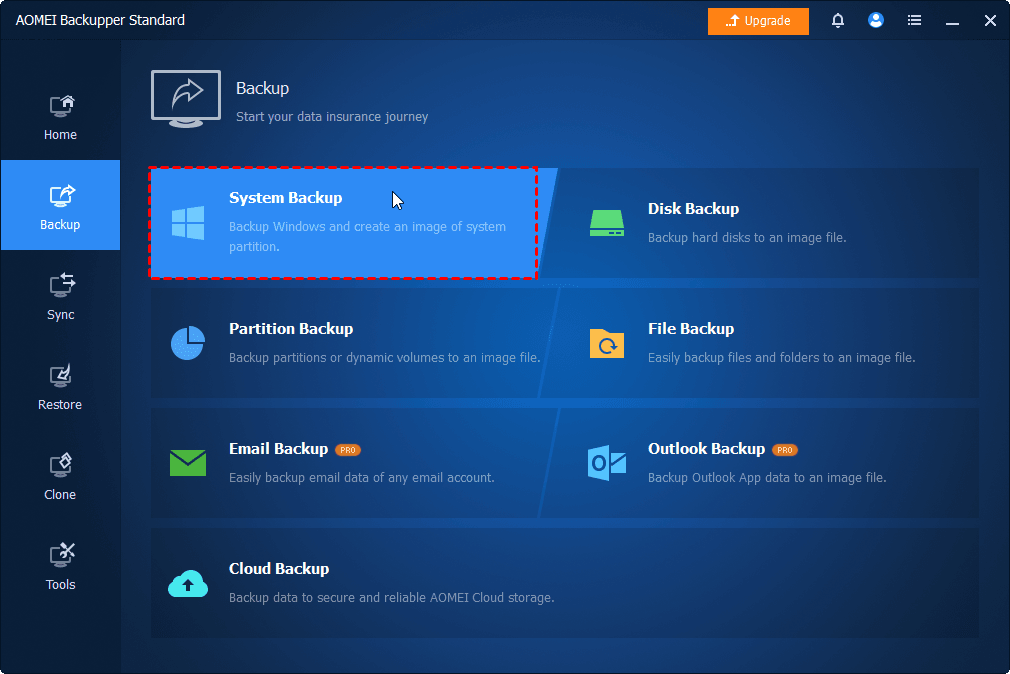
👉 To create a system image:
Click Backup > System Backup, select a backup destination, and click Start Backup.
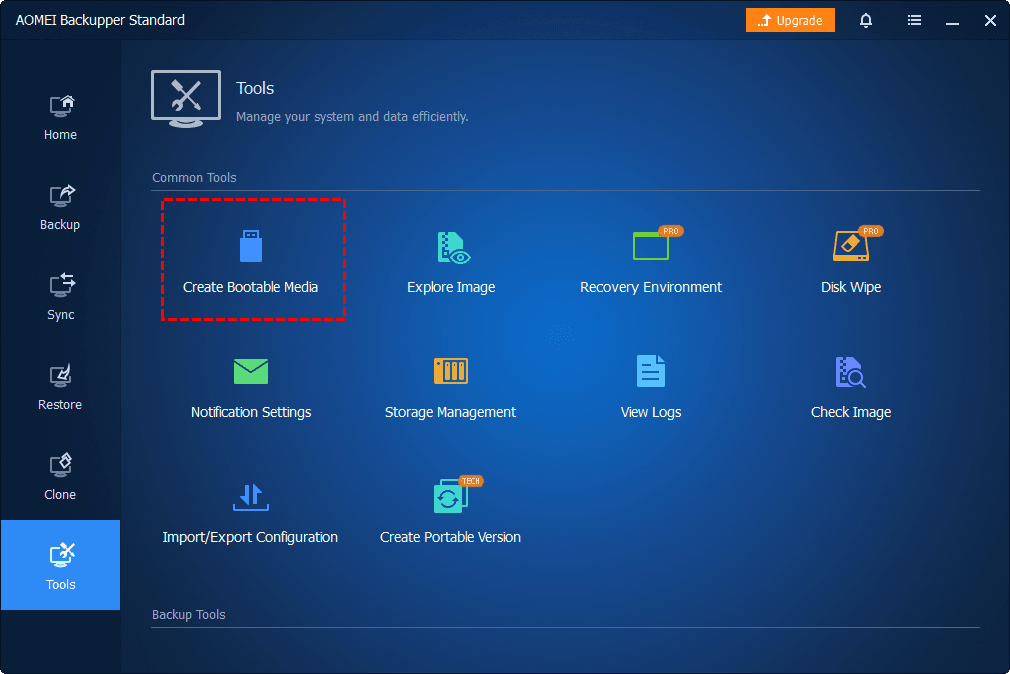
👉 To create a recovery USB:
Click Tools > Create Bootable Media, select USB Boot Device as the destination, and click Create.
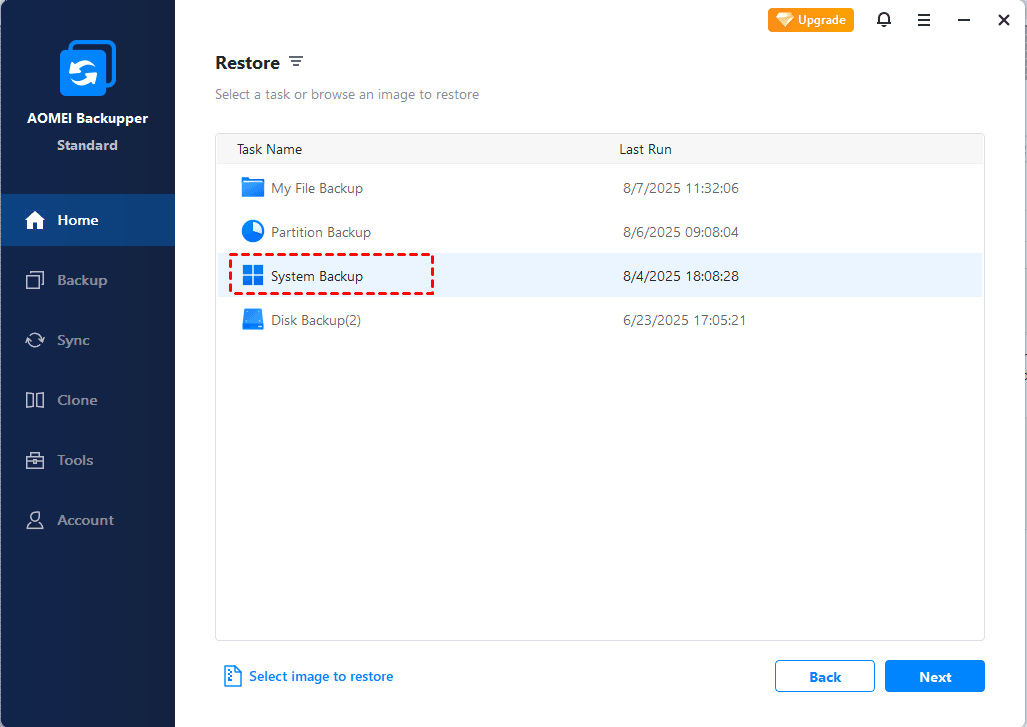
👉 To restore HP computer:
Go to Home > Restore. Then select the system backup task you created earlier and follow the wizard to complete the process.
Conclusion
This page shows you how to fix HP Cloud Recovery Tool not working in different cases, including product ID errors, drive partitioning failures, and image extraction problems. If HP Cloud Recovery continues to fail or your model is unsupported, you can rely on a third-party backup and recovery solution like AOMEI Backupper.
It enables you to create Windows local backup, build bootable rescue media, and restore Windows even when it won’t start. Why not give it a shot?

 as a preferred
source on Google
as a preferred
source on Google