




File History Drive Disconnected? Fix It Easily in 4 Ways
File History drive disconnected? Follow 4 proven fixes to reconnect your drive, plus a free, more reliable backup alternative - one that will never disconnect the drive.

By Ivy Updated on June 8, 2026


You set up File History to automatically back up your files. Weeks or months pass. Then one day, you open the settings and freeze, showing an error: "Reconnect your drive. Your File History drive was disconnected for too long."Your backups stopped running. You just didn't know it.
The problem: This error is shockingly common. It can happen because of a simple drive letter change, USB power settings, or a corrupted configuration. And when it does, your documents, photos, and work are left completely unprotected- no warning, no alert, no backup.
What you'll get from this guide:
- ✅ Why File History keeps disconnecting the drive (the real reasons)
- ✅ Step-by-step solutions you can try right now
- ✅ A free, more reliable alternative that never "disconnect drive"
Keep reading- your future backups depend on it.
Why Does File History Keep Disconnecting?
If your File History drive keeps showing "File History drive was disconnected", you're not alone. This error has several common causes, and most are surprisingly easy to fix once you know where to look.
- Drive letter change: Windows sometimes reassigns a different drive letter to your backup drive (e.g., from E: to F:). File History is looking for the old drive letter and gives up.
- Power settings: To save energy, Windows may turn off USB ports or external drives after a period of inactivity, cutting the connection.
- Drive sleep or timeout: Many external hard drives have their own power-saving firmware. They enter sleep mode, and File History doesn't wake them up.
- Corrupted File History configuration: The internal database that tracks which files have been backed up can become damaged, causing the service to fail.
- Drive disconnection during backup: A loose USB cable, accidentally unplugged backup drive, or an unstable network connection during the backup process may cause errors in “File History”.
How to Tell If Your Drive Is Really Disconnected
Before you start troubleshooting, confirm whether the problem is with File History itself or with your actual drive.
- Check File History settings: Go to Control Panel > File History. If you see "Drive disconnected," the software can't find it. If you see "Drive not available," the drive may be physically missing or corrupted.
- Verify the drive appears in File Explorer: Open This PC and look for your backup drive. If it's there, the problem is likely a configuration or letter change. If it's missing, check cables and power.
- Run a quick command(fhmanagew /query) as administrator. This shows the current status of File History, including the target drive and whether backups are running.
Once you know the real cause, you can jump straight to the fix that works.
Step-by-Step Fixes to Reconnect Your File History Drive
Before you panic or assume your backups are lost forever, try these proven fixes. Each solution addresses one of the common causes we identified earlier. Start with Fix 1, which solves the majority of cases, and work your way down. No technical expertise required.
Fix 1: Reassign the Correct Drive Letter
Windows sometimes reassigns drive letters when you connect multiple USB devices or after a system update. File History remembers the original drive letter. By giving your backup drive back its original identity, File History instantly recognizes it again.
Step 1. Press Win + R to open the Run window, type diskmgmt.msc, and press Enter to open Disk Management.
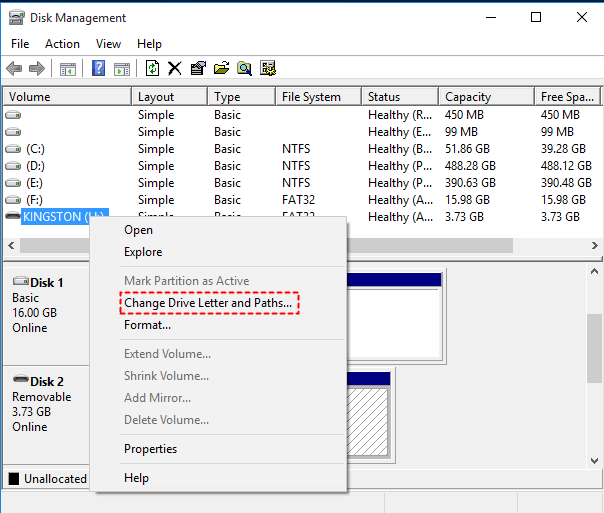
Step 2. Look for your backup drive (with the correct size and no "Healthy" warning). Right-click the drive and select Change Drive Letter and Paths.
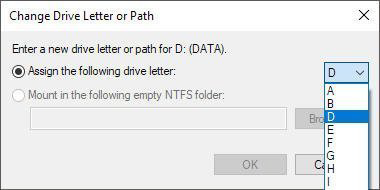
Step 3. Click Change and select the original drive letter from the drop-down menu (e.g., E:). Then, click OK.
Step 4. After reassigning the drive letter, open Control Panel > File History > click Turn on to restart File History and see if it recognizes the backup drive.
Fix 2: Disable USB Selective Suspend
In Windows, due to power-saving features, your external backup drive will go to sleep after a period of inactivity, and File History thinks it's been unplugged. Disabling this feature keeps your drive awake and ready for scheduled backups.
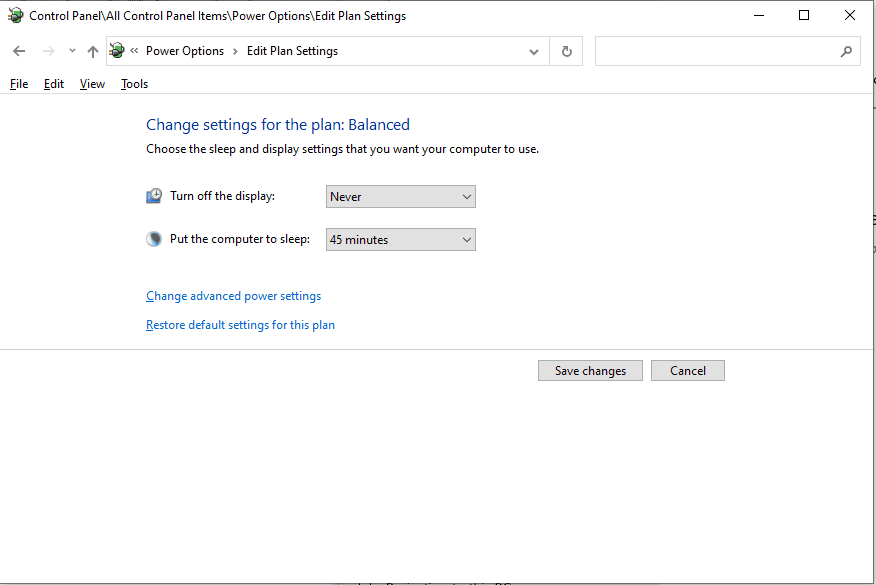
Step 1. Go to Control Panel>Power Options and click Change plan settings next to your active power plan.
Step 2. Click Change advanced power settings.
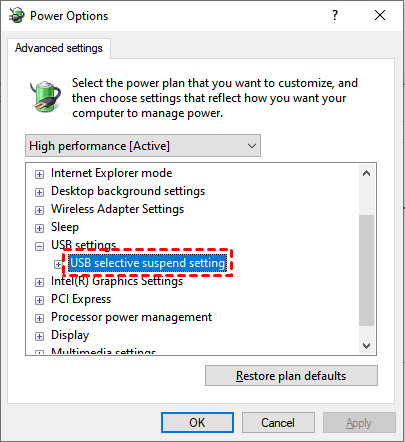
Step 3. Scroll to USB settings >USB selective suspend setting and set it to Disabled from the drop-down menu. Click Apply>OK.
Step 4. Restart your computer and reconnect your backup drive.
Fix 3: Reset File History Configuration
Over time, File History's internal tracking database can become corrupted, especially after interrupted backups or system crashes. Resetting clears the corrupted configuration while leaving your actual backup files untouched. Think of it as giving File History a fresh start.
Step 1. Press Win + R to open the Run window, type services.msc, and press Enter to access the Services window.
Step 2. Find File History Service in the list, right-click it, and select Stop.

Step 3. Open File Explorer, navigate to your backup drive, and delete the FileHistory folder. This removes the configuration, not your original files.
Step 4. Go back to Services, right-click File History Service, and select Start.
Step 6. Open Control Panel > File History and select your backup drive to turn on File History backup.
Fix 4: Check and Repair Drive Errors
Bad sectors, file system corruption, or physical errors on your backup drive can cause intermittent disconnections. Windows includes a built-in repair tool that scans for disk issues and fixes many of them automatically. This is especially important if your drive is older or has been unplugged improperly.
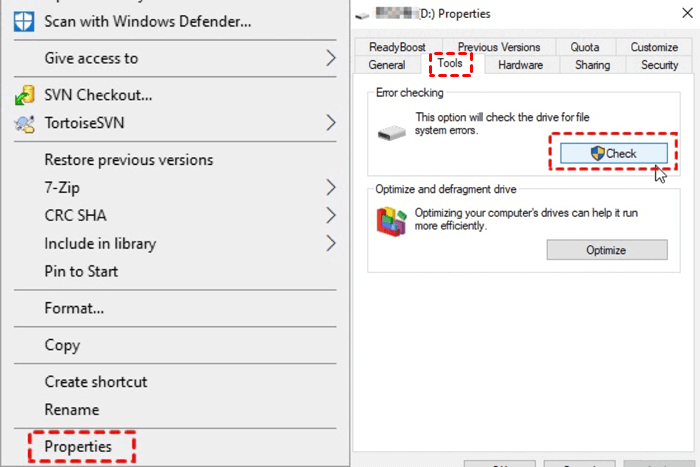
Step 1. Open File Explorer, right-click your backup drive, and select Properties.
Step 2. Go to the Tools tab and click Check under "Error checking".
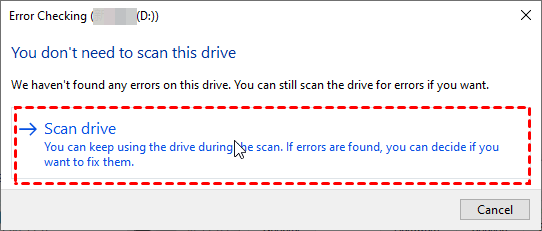
Step 3. If prompted, select Scan drive. Wait for the scan to complete. This may take several minutes to over an hour for large drives.
Alternatively, type cmd in the search box and select Run as administrator. Then, type: chkdsk X: /f/r and press Enter in the Command Prompt window. Replace X with your drive letter.
Similarly, you need to check if File History is “On” with a scheduled next backup time. If the error persists, your backup drive may be physically failing, consider replacing it and switching to a more reliable backup solution.
File History Keeps Failing – Try a More Reliable Backup Software
File History only backs up your primary user folders (Documents, Photos, etc.), ignores system files and programs, breaks easily when drive letters change, and gives no alert when backups fail.
If “File History” still disconnects randomly, or if you're tired of constantly monitoring your backups, it's time to consider a more reliable alternative. The good news is: you don't have to pay for a premium solution. There's already a free and highly trustworthy alternative available.
AOMEI Backupper Standard is a free backup tool that offers you more flexible options, not limited to just files.
 AOMEI Backupper
- Complete backup solutions: Backup any files or folders, operating system, partition, entire disk, etc., depending on what you want to protect.
- Set and forget scheduling: Enable daily, weekly, monthly (by date), event triggers, etc., to schedule backup for continuous data protection.
- Email notification: Enable it, and you’ll know immediately when tasks are completed, fail, or require user interaction.
- Full suite of backup features: Include incremental backup, compression, splitting, intelligent sector backup, etc., allowing you to maintain multiple backups while saving time and disk space.
 100% Secure
Follow these steps to create more reliable, worry-free backups.
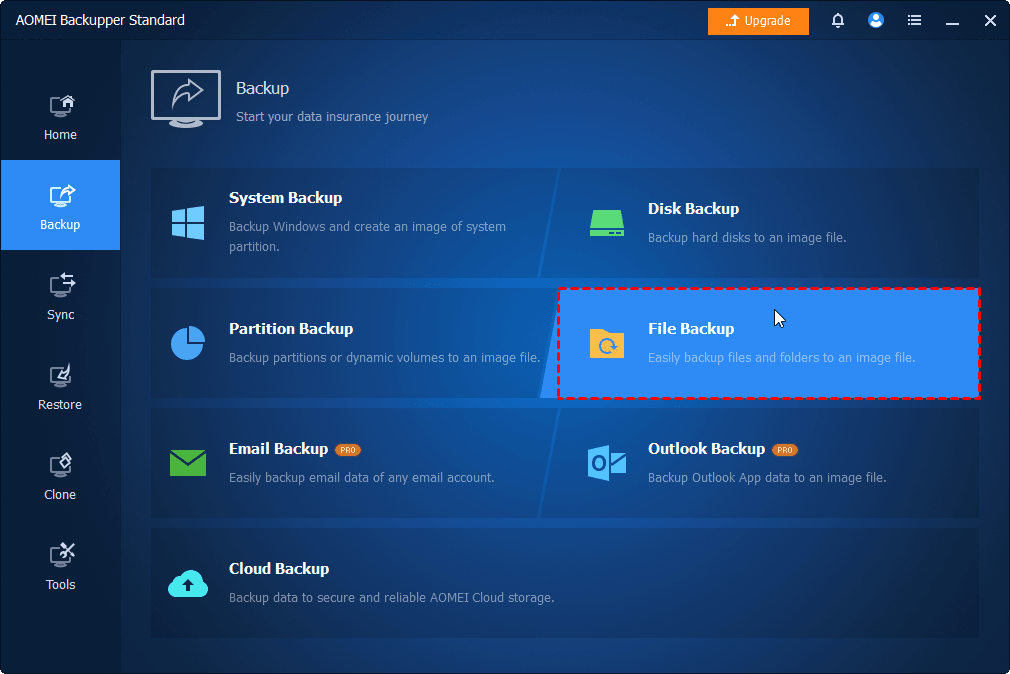
Step 1. Open AOMEI Backupper Standard after installing. Then, go to Backup > File Backup. You can also select other backup solutions (if needed).
Step 2. Click Select Source > This PC/NAS/Network Share to add any file and folder you want to protect. To add two or more files or folders, click Add Source.
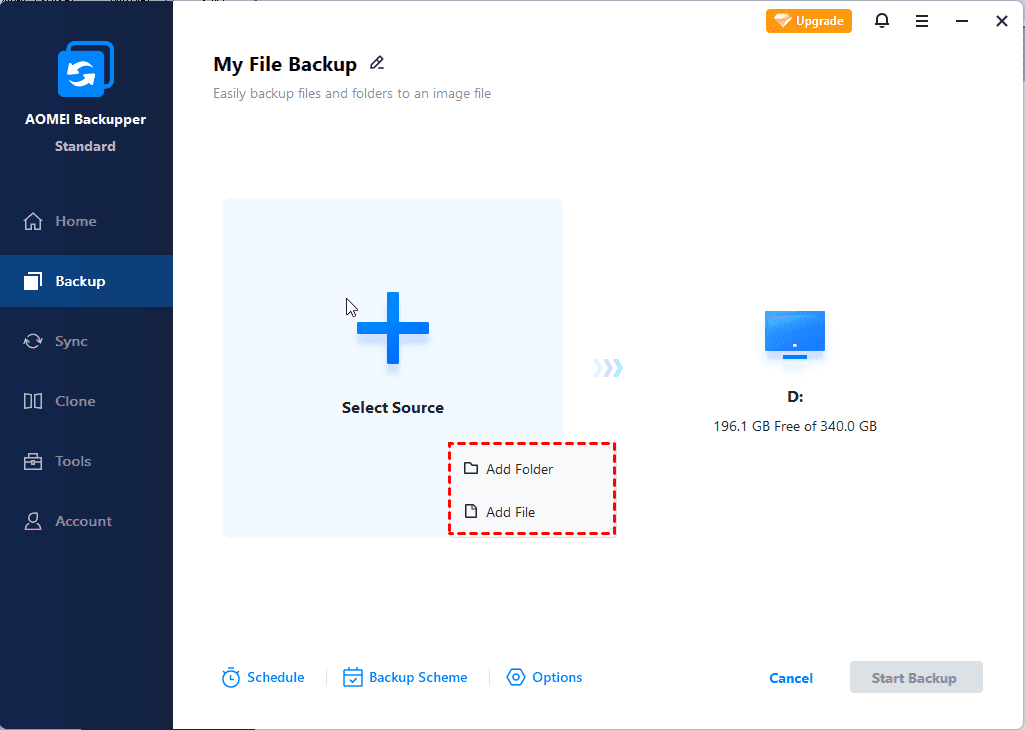
Step 3. To add two or more files or folders, click Add Source. Then, click the PC icon to select a destination, from local drives to network share, NAS, AOMEI Cloud.
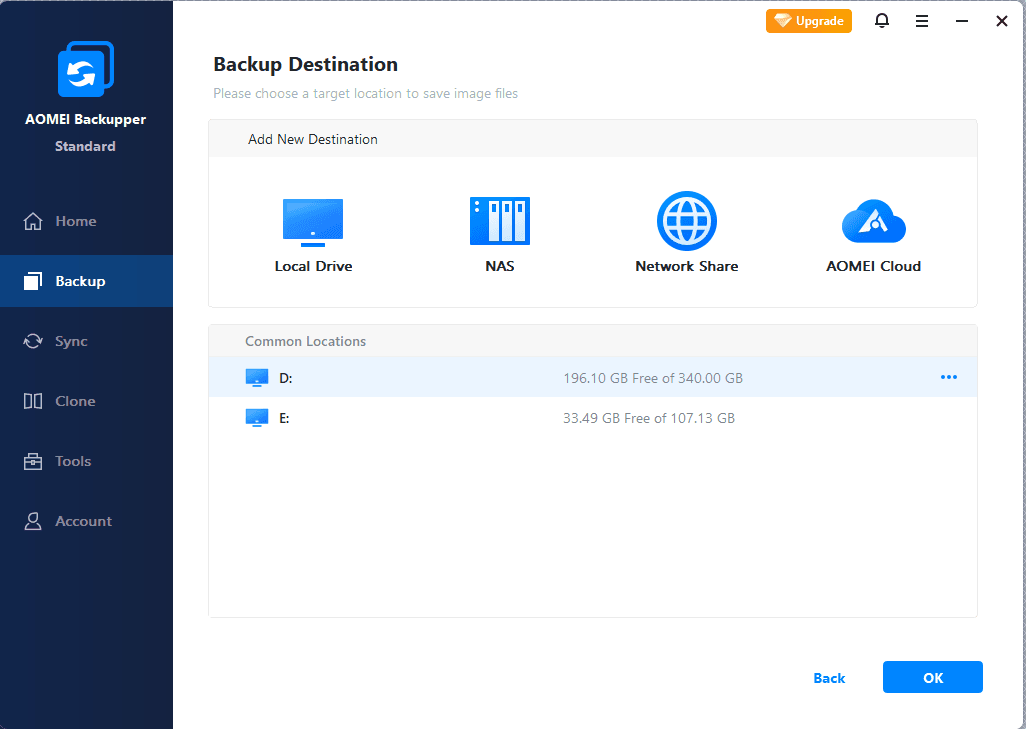
Step 4. To backup files automatically, click Schedule to enable Daily, Weekly, Monthly(By Date), Event Triggers, etc., and click OK. At last, click Start Backup.

- By default, the incremental backup is enabled to back up only new or changed files. Meanwhile, you can click Options to confirm or change compression or splitting level.
- Also, you can enable Email notification to send notifications when backup tasks succeed, fail, or user interaction is required.
For more advanced features, upgrade to AOMEI Backupper Professional. Try Differential Backup for fast recovery and Automatic Backup Cleanup to proactively delete backups.
How to Prevent “File History Drive Disconnected” Error
Once you've fixed the immediate issue, take these proactive steps to ensure your backups stay connected and reliable. With just a few minor adjustments, you can avoid encountering the same problem again.
- Use a powered USB hub to prevent power-related disconnections.
- Dedicate a separate drive for backups (to avoid mixing with personal files).
- Label the backup drive with a unique and durable label for easy identification.
- Assign a fixed drive letter (e.g., Z:) to the backup drive to prevent Windows from automatically reassigning it.
- Test your backups regularly.
- Backup files to network share, NAS, or cloud drives, avoiding local disk failure. Compared to File History, AOMEI Backupper is more reliable.
Conclusion
“File History drive disconnected" error is common, and while the fixes above can help, you probably don’t want to keep running into this issue. You deserve a better backup system than one that fails silently and without warning.
For critical files, such as photos, documents, work projects, try AOMEI Backupper Standard. It's free, far more reliable than File History, and it won't lose your backup drive due to simple letter changes or power settings.
Download AOMEI Backupper Standard today. Spend just 5 minutes setting up a scheduled backup, giving you true peace of mind and knowing your data is always protected- no more surprises, no more disconnections.

 as a preferred
source on Google
as a preferred
source on Google