



Backup Failing Hard Drive: How to Save Your Data Before It's Too Late
In this article, you will learn common signs of a disk failing andhow to backup failing hard drive before it becomes completely unreadable, plus step-by-step instructions.

By Ivy Updated on June 5, 2026


Hard drive failures often occur without warning, and once they happen, they can result in permanent data loss. If you're hearing strange noises, experiencing frequent crashes, or noticing files disappearing, your drive may be at risk of failure.
The good news is that as long as the drive is still accessible, you may be able to back up your important data before the situation gets worse. The key is to act quickly. Waiting too long can make files harder, or even impossible, to recover.
👉What you'll get from this guide:
- Common signs of hard drive failure
- The safest method to backup a failing hard drive
- When to use data recovery software?
Can You Back Up a Failing Hard Drive?
In many cases, yes, you can still back up a failing hard drive if it remains accessible. However, the chances of a successful backup depend on the condition of the drive and how quickly you act. The earlier you start the backup process, the more data you're likely to save.
Several factors determine whether a failing hard drive can be backed up successfully:
📌 Severity of physical vs. logical damage
Logical issues, such as file system corruption or accidental formatting, are generally easier to work around than physical damage. If the drive has mechanical problems, such as a failing read/write head or damaged platters, it may stop working at any time, making backup much more difficult.
📌 Remaining drive accessibility:
The more accessible the drive is, the better your chances of creating a complete backup. If Windows can still detect the drive and you can open files, you should back up your data immediately. If the drive frequently disconnects or becomes unreadable, focus on saving the most important files first.
📌 The risks of continuing to use a declining-performance drive
Every read and write operation puts additional stress on a failing drive. Running unnecessary programs, copying large amounts of data repeatedly, or attempting multiple repair operations may accelerate the failure. To maximize your chances of success, minimize drive activity and begin the backup process as soon as possible.
If you don't have enough time to back up everything, focus on the files that would be the most difficult or impossible to replace, such as contracts, school projects, tax records, resumes, family photos or videos, business documents, customer records, financial data, system settings and application data, etc.
Common Signs of Hard Drive Failure
Before attempting to back up a failing hard drive, it's important to recognize the warning signs. Hard drives rarely fail without symptoms. Identifying these issues early gives you a better chance of protecting your data before the drive becomes completely inaccessible.
📌 Unusual clicking, grinding, or buzzing noises
Mechanical hard drives (HDDs) contain moving parts that can wear out over time. If you hear repeated clicking, grinding, buzzing, or other unusual sounds coming from the drive, it could indicate physical damage. In many cases, these noises are a sign that the hard disk detects imminent failure.
📌 Frequent system crashes or blue screens
If your computer suddenly freezes, restarts unexpectedly, or displays frequent Blue Screen of Death (BSOD) errors, a failing hard drive could be the cause. Damaged sectors and read/write errors can prevent the operating system from accessing critical files.
📌 Slow performance and file access issues
A healthy drive should open files and launch programs within a reasonable amount of time. If your computer becomes unusually slow, files take a long time to load, or folders stop responding, the drive may be struggling to read data.
📌 Corrupted or missing files
Files suddenly become unreadable, disappear without explanation, or report errors when opened may indicate disk corruption. If this problem affects multiple files or folders, it's a strong warning that the drive's condition is deteriorating.
Pick the Best Way to Backup a Failing Hard Drive
When a hard drive starts showing signs of failure, your priority should be preserving as much data as possible before the drive becomes unreadable. The best backup method depends on the drive's condition, the amount of data you need to save, and the time available.
Below are 3 practical methods to backup a failing hard drive.
|
Backup Method |
👍 Best For |
What to Backup |
Pros |
Cons |
|
Manually Copy Files |
Saving critical data quickly |
Selected files and folders |
Simple, free, and fast |
Easily overlooked; ideal for smaller numbers of files |
|
Disk Backup |
Protect entire drive |
Include everything, such as files, partitions, OS, and settings. |
Most comprehensive backup; enable full system recovery |
Require a larger drive, at least one with sufficient space |
|
File Backup |
Large backup or numerous files |
Any files or folders |
Continuous backup; require less intervention |
Require an extra device (i.e., external drives, NAS, etc) |
🔥 Recommendation: If the drive is severely deteriorating, manually back up your most important files first. If the drive remains reasonably stable, creating a disk image backup provides the most complete protection because it preserves the operating system, system settings, applications, and personal data in a single backup.
How to Backup a Failing Hard Drive Safely
When a hard drive starts to fail, the way you perform a backup matters just as much as the backup itself. Acting carefully and using reliable tools such as AOMEI Backupper Standard can significantly increase your chances of saving important data before the drive becomes unusable.
 AOMEI Backupper
- Free and beginner-friendly: With an easy interface, even non-technical users can start a backup in just a few clicks.
- Complete backup solutions: Backup specific files or folders, operating system, partition, entire disk, etc., depending on what you want to protect.
- Intelligent sector backup: Backup only used sectors of file systems, thus reducing the size of the image file and backup time.
- Schedule backup: For continuous data protection, it’s necessary to enable schedule backup, such as daily, weekly, monthly (by date), etc., backup, along with incremental backup to copy only changes.
- Multiple backup destinations: Backup to internal or external drives (HDDs/SSDs), network share, NAS, cloud drives, etc., for added flexibility.
 100% Secure
🔥Tips to Improve Backup Success Rates:
- Start the backup process as soon as possible.
- Back up critical files first.
- Always store backups on a separate drive, preferably an external drive or NAS.
- Close unnecessary applications.
- Don’t run large programs, games, or background tasks during backup.
Here's how to backup a failing hard drive on Window.
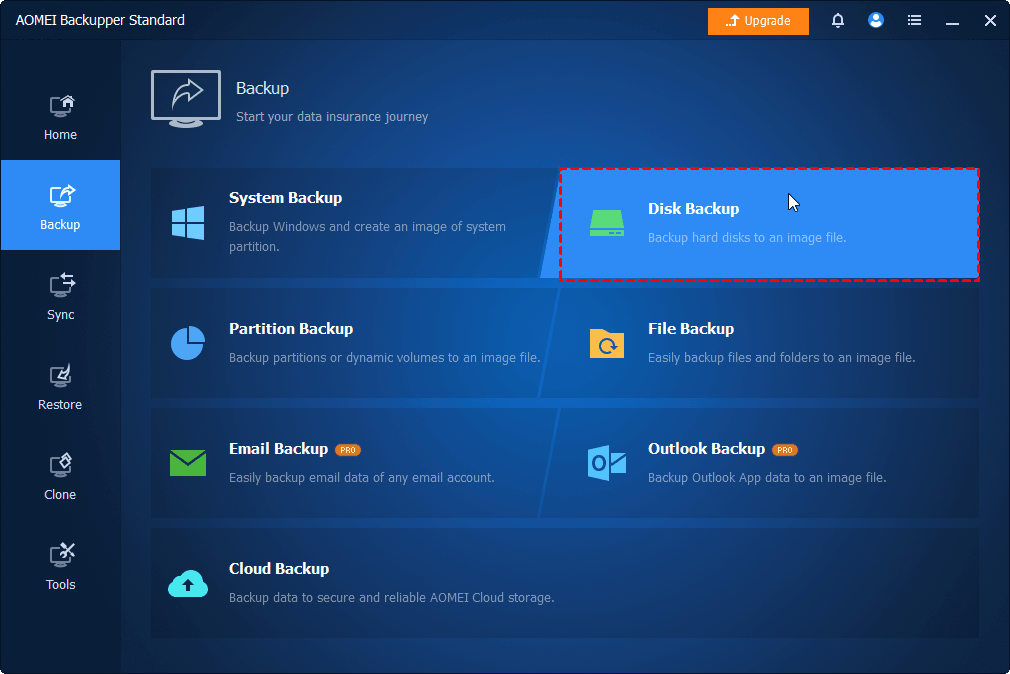
Step 1. Open AOMEI Backupper Standard after installing. Then, go to Backup > Disk Backup. You can also choose File Backup to backup important files or folders.
Step 2. Click Select Source to choose the disk you want to backup. Then, click the PC icon to select a destination, from local drives to network share or NAS.
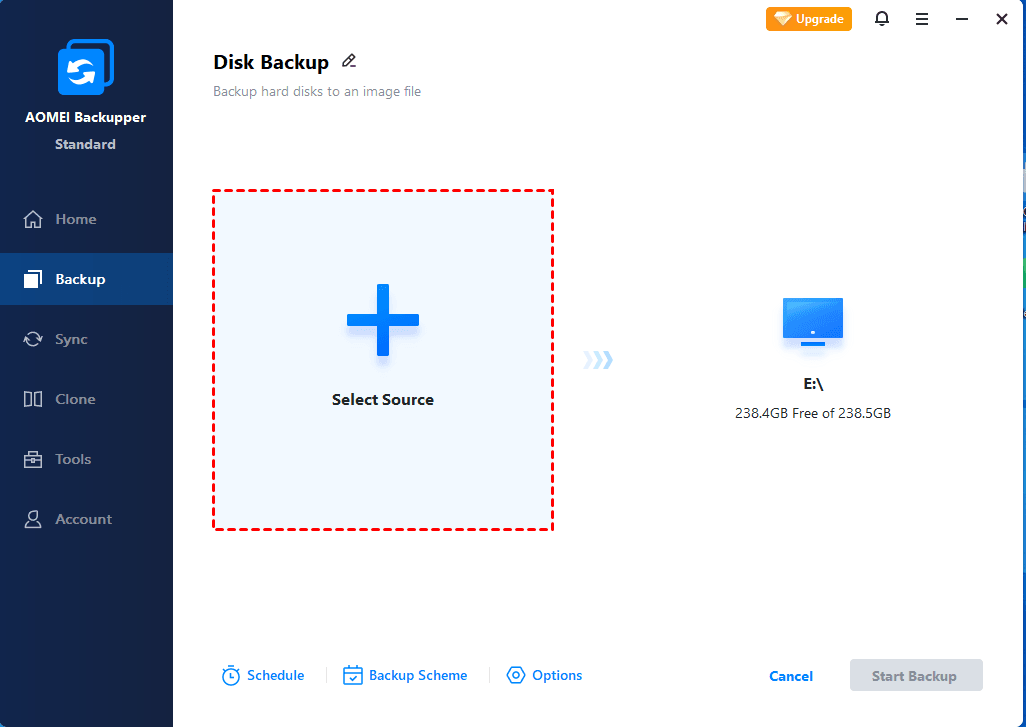
Step 3. To backup disk automatically, click Schedule to enable Daily, Weekly, Monthly(By Date), Event Triggers, etc., and click OK. At last, click Start Backup.

- By default, the incremental backup is enabled to back up only new or changed files.
- To free up more space, you can adjust the level of compression or splitting in Options. This will take longer, of course.
- To avoid unexpected issues, click Options to enable Email notification. You can receive notifications when backup tasks succeed, fail, or user interaction is required.
For more advanced features, upgrade to AOMEI Backupper Professional. Try Differential Backup for fast recovery while Automatic Backup Cleanup to proactively delete old backups.
What If the Hard Drive Is Too Damaged to Backup?
In some cases, a failing hard drive becomes too unstable or partially unreadable, making a normal backup impossible. When this happens, your focus should shift from standard backup methods to data recovery solutions.
AOMEI FastRecovery is a powerful Windows data recovery software that can scan the drive to find and recover deleted or lost data easily and quickly, even if your disk is slightly damaged or corrupted.
It enables you to create a WinPE bootable USB to access the Windows recovery environment and recover data from a failing drive in Windows 11, 10, 8.1, 8, 7, and Windows Server.
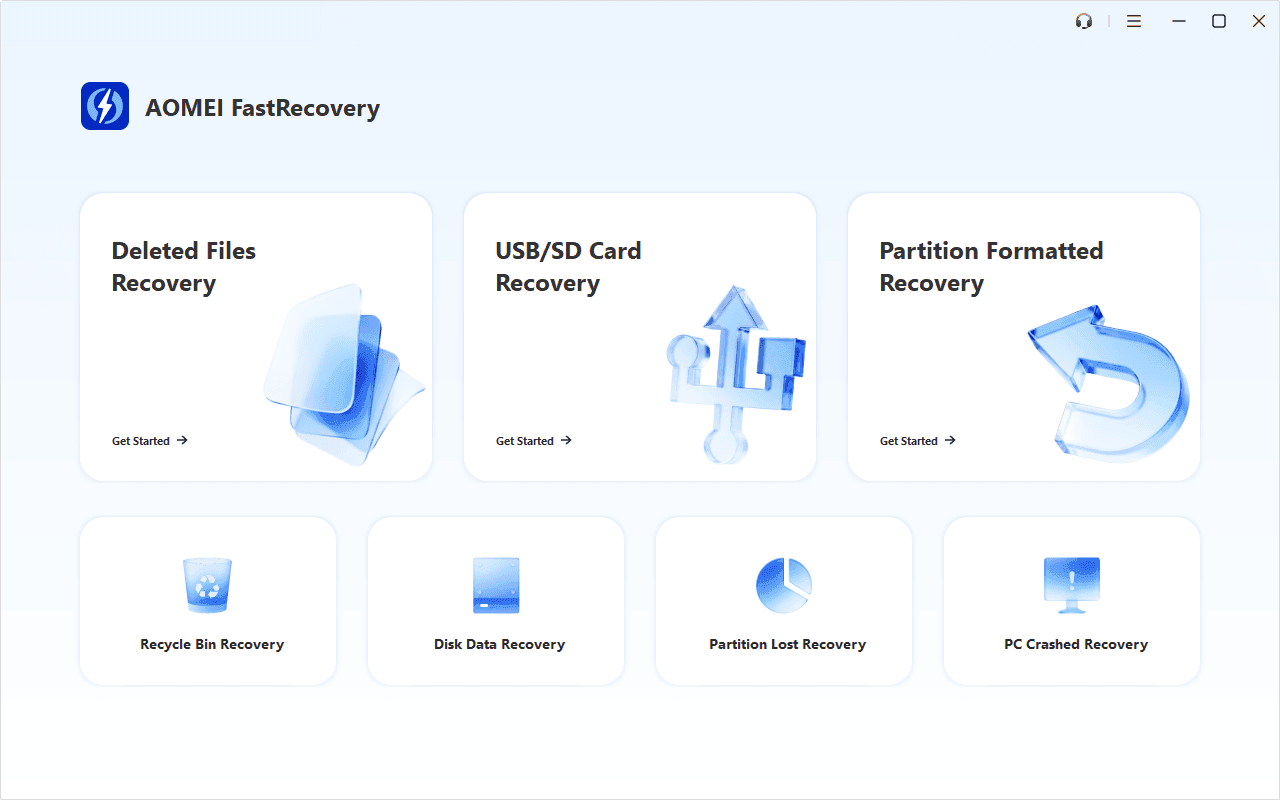
Here's how to recover data from a failing drive:
- Download AOMEI FastRecovery to another working computer. Open it and click PC Crashed Recovery.
- Check USB Boot Devices and select your USB drive.
- Then, click Create to create a Windows 11 recovery USB.
- Restart your computer and set your USB drive as the first boot option.
- Press F10 to save changes and restart. After loading AOMEI FastRecovery, click Deleted Files Recovery for quick recovery. Click Disk Data Recovery for complete recovery.
- Select the drive you want to recover data from and click Scan.
- Wait until the process is complete. Select files or folders you want to recover and click Recover.
- Select a new location to save the recovered data, significantly reducing the risk of data overwriting.
Conclusion
Signs such as slower performance, file errors, or unusual noises indicate that your disk is failing and you must backup failing hard drive. The key is to act before the drive becomes unreadable. Even if the hard drive is still accessible, delaying can lead to permanent data loss.
In most cases, you can still back up a failing hard drive using methods like file copying or disk image backup, especially when saving data to an external drive. Tools like AOMEI Backupper Standard can help make the process more stable and efficient when the drive is still usable.

 as a preferred
source on Google
as a preferred
source on Google