



Windows 10 Backup Not Backing Up All Files: Fixes in 2 Cases
Is Windows 10 backup skipping some of your files? This article shows you effective solutions – with specific fixes for both File History and Backup and Restore (Windows 7).

By Lily Updated on May 11, 2026


Why Is Windows 10 Backup Not Backing Up All Files?
Many users discover that their Windows 10 backup is missing important files only when they try to restore data. This problem can happen with built-in tools like File History or Backup and Restore (Windows 7). Here are the most common reasons why Windows 10 backup may fail to back up all files:
- Excluded folders – Tools like File History only back up libraries and desktop by default unless manually extended.
- Hidden/system files – Often skipped unless explicitly included.
- Low disk space – Backups may stop or skip files when the destination drive is full.
- File path too long – Extremely long filenames or deep nesting can cause failures.
- Corrupted backup data – Damaged databases, system files, or disk errors can interrupt backups.
- Connection issues – Unstable USB, disconnected drives, or network problems may halt backups silently.
- Incorrect settings – Wrong schedules, disabled services, or outdated configs can cause gaps.
 AOMEI Backupper
If Windows 10 backup tools continue to skip files, try this free and reliable Windows backup software.
Fix Windows 10 File History Not Backing Up All Files
If you are using File History, try these solutions to fix Windows backup not backing up folders/all files.
Fix 1: Check the "Include" and "Exclude" Lists
File History only backs up folders that are included in its backup configuration. If important folders are excluded accidentally, they will not appear in the backup. Follow these steps to review the settings:
1. Press Windows + I to open Settings.
2. Go to Update & Security > Files backup. Click More options under Back up using File History.
3. Scroll down to:
- Back up these folders: Make sure your missing folders are listed. If not, click Add a folder.
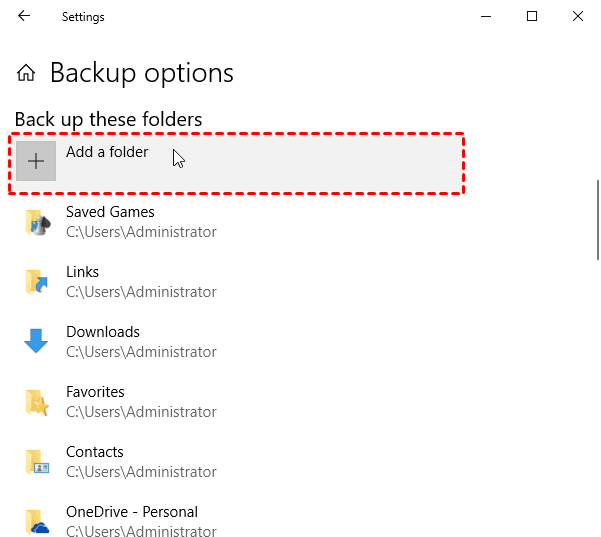
- Exclude these folders: Remove any folders that were mistakenly excluded.
4. Click Back up now to test the changes.
Fix 2: Reset the File History Configuration
A corrupted File History database can prevent Windows from detecting or backing up files correctly. Resetting the configuration often resolves incomplete backup problems.
1. Open Settings > Update & Security > Files backup. Turn off Automatically back up my files.
2. Open File Explorer and paste this into the address bar:
%LocalAppData%\Microsoft\Windows\FileHistory
3. Delete all files and folders inside the FileHistory folder.
4. Re-enable File History:
- Return to the Backup settings.
- Reconnect your backup drive if necessary.
- Turn File History back on to start a new backup.
Fix 3: Fix Long File Paths
File History may skip files stored in deeply nested folders because Windows has path length limitations. You can fix this issue by shortening folder paths:
- Move files closer to the root directory
- Rename folders with shorter names
- Avoid excessive subfolder nesting
Fix 4: Reconnect External or Network Drives
File History depends on a stable backup destination. If the external drive disconnects or the network share becomes unavailable, Windows may skip files or stop the backup process entirely.
👉 For External Hard Drives
- Disconnect and reconnect the USB drive
- Try another USB port
- Replace faulty USB cables
- Check whether the drive appears in File Explorer
👉 For Network Drives or NAS
- Verify the network connection
- Confirm the shared folder is accessible
- Re-enter network credentials if needed
- Make sure the NAS device is powered on
After reconnecting the backup destination, go to Settings > Update & Security > Files backup > More options. Select Back up now to test the changes.
Fix Windows 10 Backup and Restore Not Backing Up All Files
If you are using Backup and Restore (Windows 7), use these solutions to fix Windows 10 Backup and Restore not backing up all files.
Fix 1: Check "Volume Shadow Copy" Services
Backup and Restore relies on the Volume Shadow Copy Service (VSS) to back up files that are currently in use. If this service is disabled or malfunctioning, Windows may skip files during backup.
1. Press Win + R, type services.msc, and hit Enter.
2. Locate Volume Shadow Copy and Microsoft Software Shadow Copy Provider.
3. Double-click each service and:
- Set Startup type to Manual or Automatic. Then click Apply.
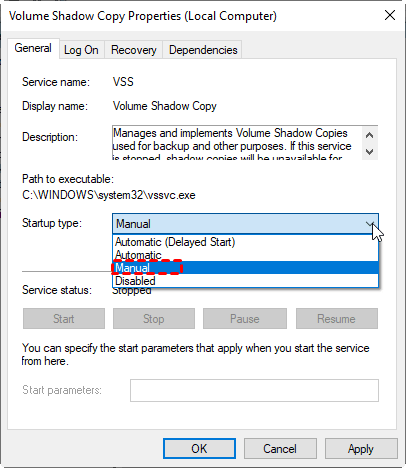
- Click Start to start the services manually and click OK.
4. After enabling the services, restart your computer and try the backup again.
Fix 2: Run CHKDSK and SFC Scan
Disk errors and corrupted system files can interrupt the backup process and cause missing files. Running CHKDSK and System File Checker (SFC) can help repair these problems.
👉 Run CHKDSK
1. Open Command Prompt as administrator.
2. Type chkdsk C: /f /r and press Enter. CHKDSK will scan the drive for bad sectors and file system errors.
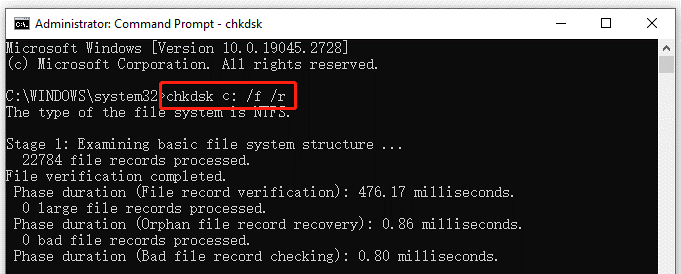
3. (Optional) Type Y if prompted to schedule the scan after restart. Then restart your computer to scan the drive.
👉 Run SFC Scan
After CHKDSK finishes:
1. Open Command Prompt as administrator again.
2. Type sfc /scannow and press Enter.
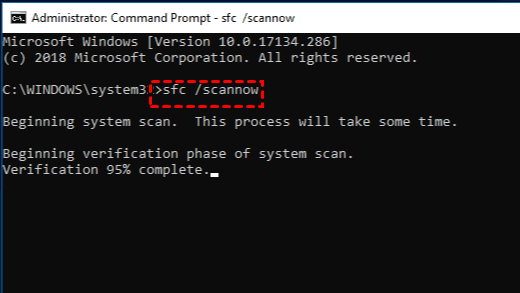
3. Wait for the scan to complete. SFC repairs corrupted Windows system files that may interfere with backup operations.
Fix 3: Reset the Backup Configuration
Corrupted backup settings or outdated backup catalogs can cause Backup and Restore to skip files. Creating a new backup configuration often fixes incomplete backup issues.
1. Press Win + R, type regedit, and hit Enter.
2. Navigate to:
HKEY_LOCAL_MACHINE\SOFTWARE\Microsoft\Windows\CurrentVersion\WindowsBackup
3. Right-click the WindowsBackup folder in the left pane and select Export (to save a backup just in case).
4. Delete the keys named ScheduleParams, Security, and Status.
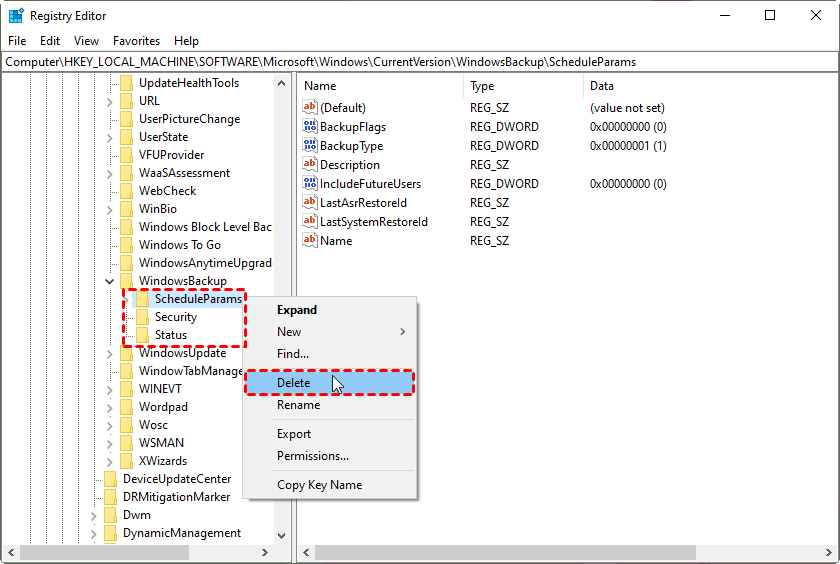
5. Go back to Backup and Restore (Windows 7) and set up the backup from scratch.
Best Alternative When Windows 10 Backup Keeps Missing Files
If Windows 10 backup tools continue to skip files, fail unexpectedly, or create incomplete backups, switching to a more reliable backup solution can save you a lot of frustration. AOMEI Backupper Standard comes to help.
 AOMEI Backupper
- Back up entire systems, disks, partitions, or selected files.
- Support automatic scheduled backups, including daily, weekly, monthly, and event triggers.
- Create incremental backups to save storage space.
- Back up to external drives, NAS devices, network shares, and USB drives.
- Versatile tools like Check Image to verify backup image integrity and Create Bootable Media for unbootable system recovery.
 100% Secure
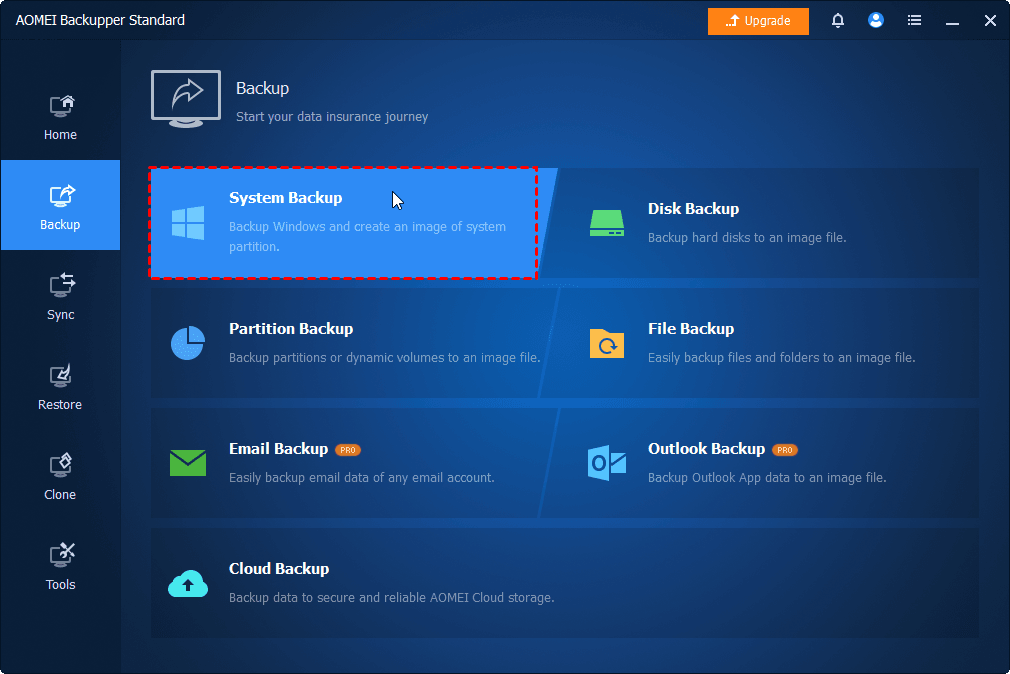
Download AOMEI Backupper to have a try! To backup your Windows 10 OS, click Backup > System Backup. Select a target location to save the system image and click Start Backup.
To Sum Up
Both File History and Backup and Restore (Windows 7) can sometimes skip files without obvious warnings. You can fix Windows 10 backup not backing up all files with effective solutions offered in this article.
However, if Windows built-in backup tools continue to miss files or fail repeatedly, using a more reliable backup solution like AOMEI Backupper Standard is often the best long-term solution. It provides automatic backups, full file protection, disk and system backup, etc. Don’t hesitate to try it out!

 as a preferred
source on Google
as a preferred
source on Google