




Run File History Cleanup to Delete Old Backups (2 Ways)
Is File History taking up too much space on your Windows 11/10 PC? This guide shows you how to clean it up, fix a common issue, and introduces a better file backup solution.

By Lily Updated on June 2, 2026


When You Need File History Cleanup
File History is designed to continuously save versions of your files, making it easy to restore previous versions when needed. However, as backups accumulate over time, they can consume a significant amount of storage space on your backup drive. You may need File History cleanup in the following situations:
- Low backup drive space – File History stores multiple versions of files and the backup size grows rapidly.
- Old versions not needed – Months‑ or years‑old backups take up space. Removing them frees room without affecting current files.
- Slow backup performance – Too many stored versions can slow future backups. Cleaning up helps File History run more efficiently.
 AOMEI Backupper
If you need a better solution to backup files with automatic cleanup, try AOMEI Backupper.
How to Clean Up File History in Windows 10/11
Windows provides built-in tools to remove outdated File History backups and reclaim storage space. Learn how to perform File History cleanup in Windows 11/10 using 2 effective ways below.
Method 1: Use File History Cleanup in Control Panel
The easiest way to clean up File History is through the File History Cleanup utility built into Windows. This tool allows you to remove backup versions older than a specified age. Follow these steps:
1. Open Control Panel and select System and Security > File History.
2. In the left pane, click Advanced settings.
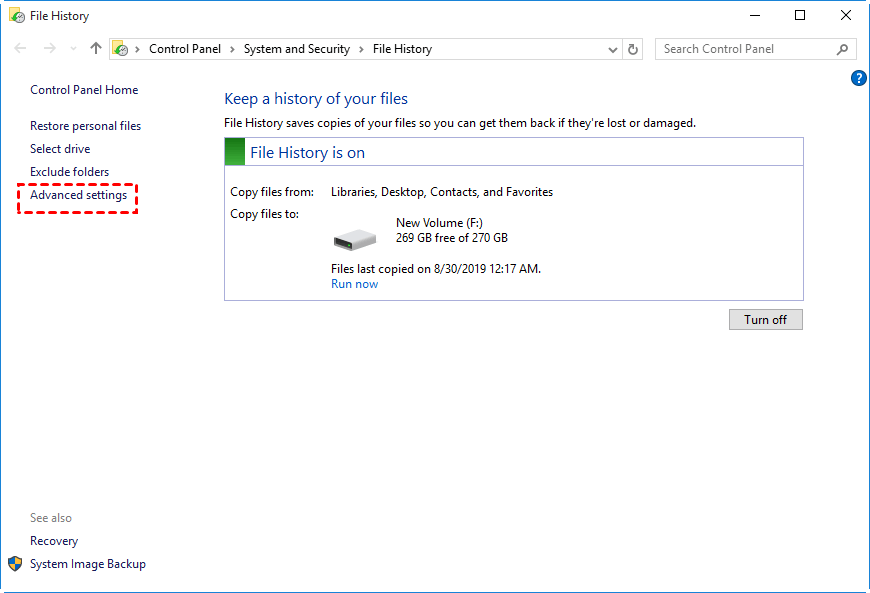
3. Under Versions, click Clean up versions.
💡 Note: This option will only appear if you have File History versions available on the selected drive.
4. In the drop-down menu, choose the age of versions you want to delete, such as:
- Older than 1 month
- Older than 3 months
- Older than 6 months
- Older than 1 year (default)
- All but the latest one
5. Click Clean up and wait for the process to complete.
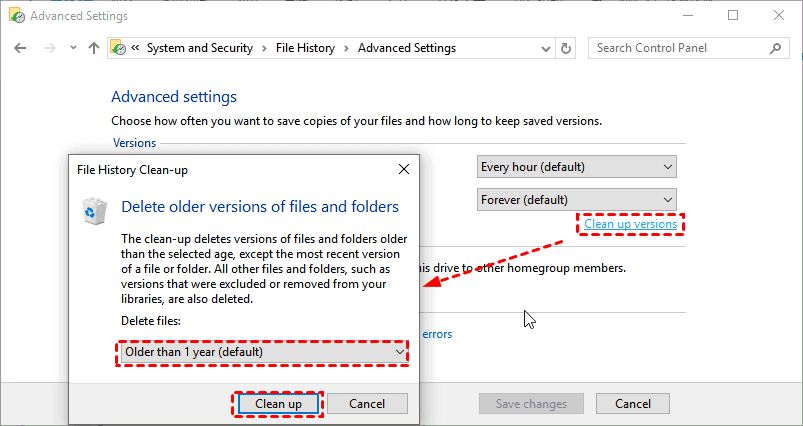
💡 Note: If no versions were found for the chosen time period, click Close and repeat the process with a shorter time frame
Method 2: Run File History Cleanup in Command Prompt
Advanced users can use the File History command-line tool to remove old backup versions more precisely. Windows includes the FhManagew.exe utility specifically for this purpose. Follow the instructions below:
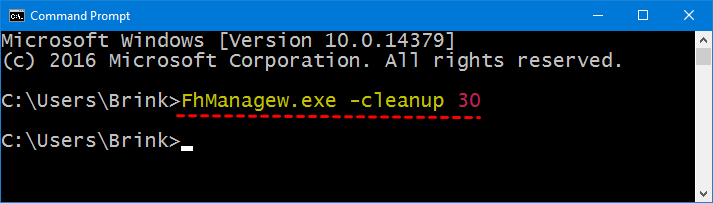
1. Type cmd in the Windows search box. Right-click Command Prompt and select Run as administrator.
2. Enter one of the following commands and press Enter:
① Delete File History versions older than 1 month:
FhManagew.exe -cleanup 30
② Delete File History versions older than 3 months:
FhManagew.exe -cleanup 90
③ Delete all versions except the most recent one:
FhManagew.exe -cleanup 0
💡 Note: To suppress all output from this program, you can add the -quite switch in the commands. For example, FhManagew.exe -cleanup 30 -quiet.
3. Wait for the command to finish. Windows will automatically remove the selected backup versions.
Fixed: Could Not Clean Up File History Data
Sometimes, Windows may display the error message "Could not clean up File History data" when you attempt to remove old backup versions. This issue can occur due to corrupted File History configurations, inaccessible backup drives, insufficient permissions, or damaged backup databases.
If File History cleanup fails, try the following solutions.
Fix 1: Reconnect the File History Drive
If the backup drive is disconnected, unavailable, or experiencing file system errors, Windows may be unable to remove old backups.
1. Disconnect and reconnect the external drive.
2. Verify that the drive is accessible in File Explorer.
3. Run chkdsk X: /f to check the drive for errors. Replace X with the drive letter of your File History drive.
Fix 2: Reset File History Configuration
Corrupted File History settings may prevent Windows from deleting old versions.
1. Open Control Panel > File History. Click Turn off.
2. Navigate to the following folder:
%LocalAppData%\Microsoft\Windows\FileHistory
3. Rename the Configuration folder to Configuration.old.
4. Re-enable File History and set up the backup drive again.
Fix 3: Delete File History Data Manually
If the built-in cleanup utility continues to fail, you can manually remove backup files.
1. Open the File History backup drive. Navigate to the FileHistory folder.
2. Delete outdated backup folders that are no longer needed.
3. Empty the Recycle Bin to reclaim storage space.
Bonus: Better Solution to Backup Files with Automatic Cleanup
While File History provides a basic way to protect personal files, its cleanup options are relatively limited. If you want more flexible backup management and automatic storage optimization, a dedicated backup solution may be a better choice. AOMEI Backupper Professional comes to help.
 AOMEI Backupper
- Automatic Backup Cleanup – Delete old backup versions based on customizable retention policies.
- Scheduled Backups – Run backups daily, weekly, monthly, at system startup, or upon user logon, etc.
- Incremental and Differential Backups – Save storage space by backing up only changed data.
- Multiple Backup Types – Create file, folder, disk, partition, and system backups.
- Backup to Various Locations – Store backups on external drives, NAS devices, network shares, cloud-synced folders, and more.
- Ransomware Protection – Protect backups, certain file types, or specified file paths from unauthorized encryption.
 100% Secure
Download AOMEI Backupper and follow the steps below to create automatic file backups with cleanup:
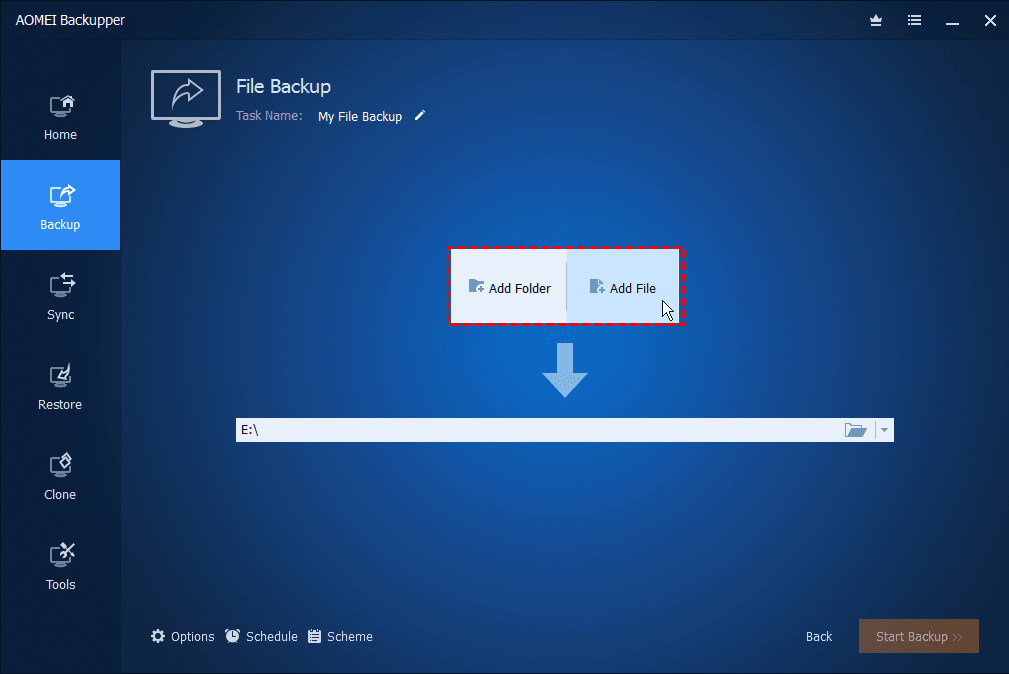
Step 1. Install and launch AOMEI Backupper Professional. Click Backup > File Backup.
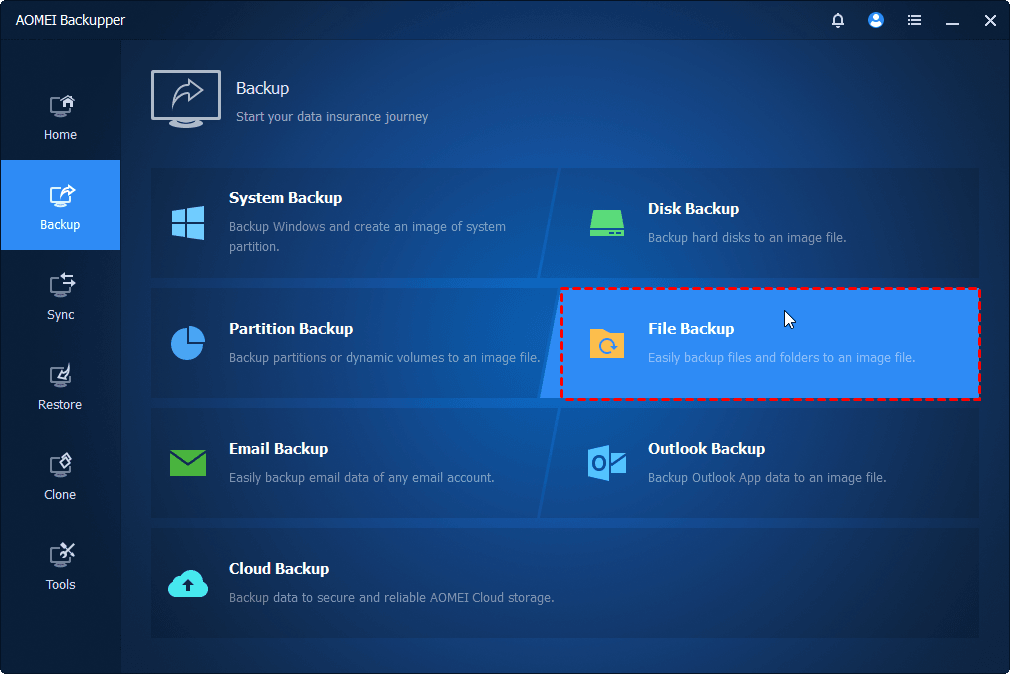
Step 2. Click Select Source to select the files or folders you want to protect. Then choose a destination location for the backup.
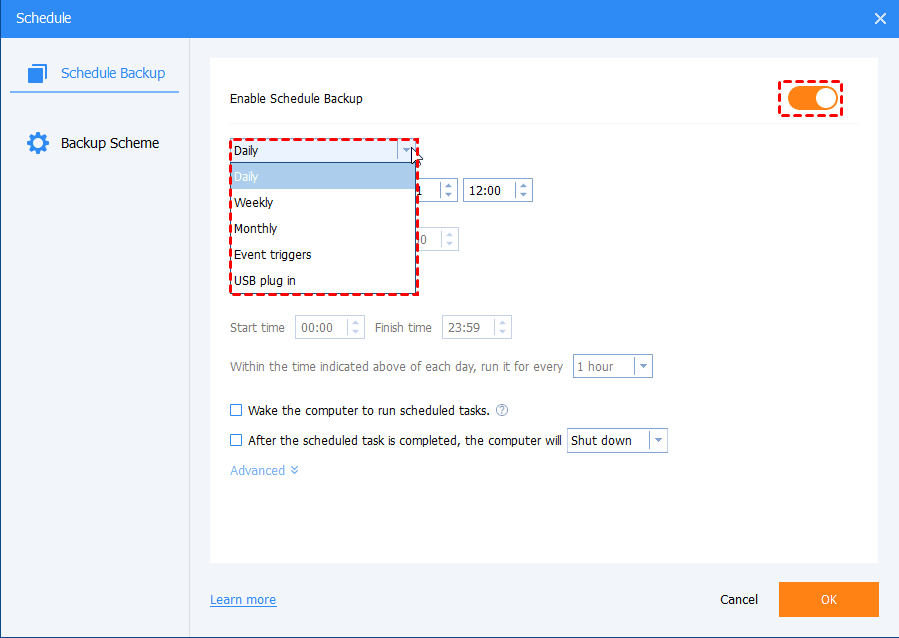
Step 3. Click Schedule > Enable Schedule Backup and configure the desired backup frequency.
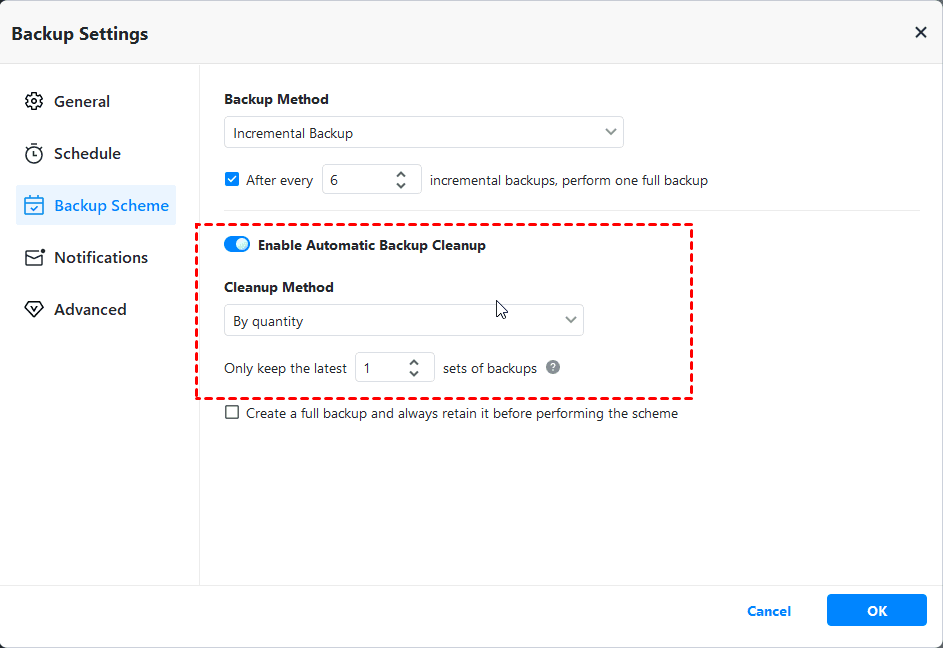
Step 4. Click Backup Scheme > Enable Automatic Backup Cleanup. Choose a way to delete old backups automatically:
- By quantity: Set a maximum number of backup versions to keep; when exceeded, the oldest backups are auto-deleted.
- By time: Delete backups older than a specified number of days, weeks, or months.
- By daily/weekly/monthly: Keep all backups for the days you set, keep all full backups for the weeks you set, and keep one full backup every month for the months you set.
- By space: Automatically delete old backups when storage space is insufficient. Only differential backup supports backup cleanup by space.
Step 5. Click Start Backup > Add the schedule and start backup now to begin the task.
Conclusion
File History cleanup is an essential maintenance task that helps prevent backup drives from filling up with outdated file versions. You can use the cleanup feature in File History or the FhManagew.exe command-line utility to remove old backups.
For users who need more advanced backup management and flexible cleanup options, AOMEI Backupper Professional offers a more comprehensive solution. It helps you protect files, folders, disks, partitions, and operating systems with automatic backup cleanup. Why not give it a shot?

 as a preferred
source on Google
as a preferred
source on Google