




How to Backup Outlook Emails Before Deleting Account (3 Ways)
Backup Outlook emails before deleting account using PST export, AutoArchive, or a dedicated tool - AOMEI Backupper. This process is simple and efficient, and step-by-step instructions are provided.

By Ivy Updated on June 5, 2026


Deleting your Outlook account without a backup may cause permanent loss of all your emails, attachments, contacts, and calendar data. Many users only realize this after it’s too late, especially when switching accounts or cleaning up old mailboxes.
This guide will walk you through simple, efficient methods to backup Outlook emails before deleting an account, helping you avoid irreversible data loss and keep full control of your important information.
Way 1: Export Outlook Emails to PST Files Before Deleting Account
Exporting Outlook data to a PST file is one of the safest and easiest ways to backup your emails before deleting your account. A PST file can store emails, attachments, contacts, calendars, and other mailbox data, allowing you to access or restore them later if needed.
Step 1. Open Outlook and click File> Open & Export> Import/Export.
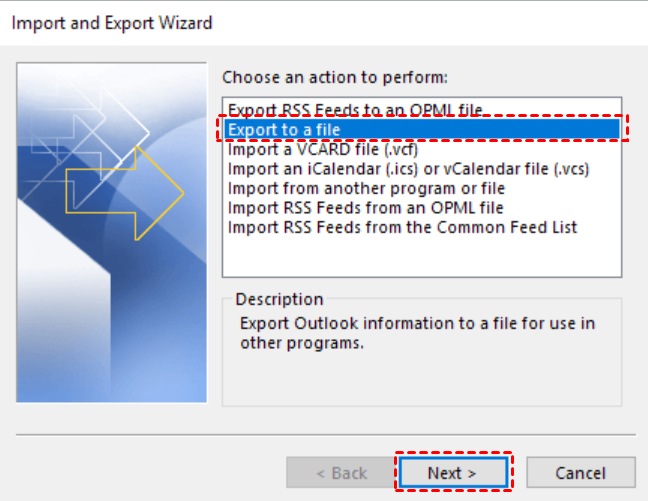
Step 2. Select Export to a file and click Next.
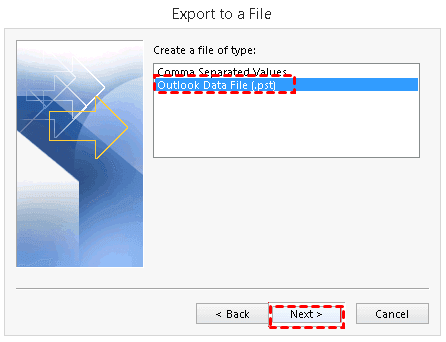
Step 3. Choose Outlook Data File (.pst) and click Next.
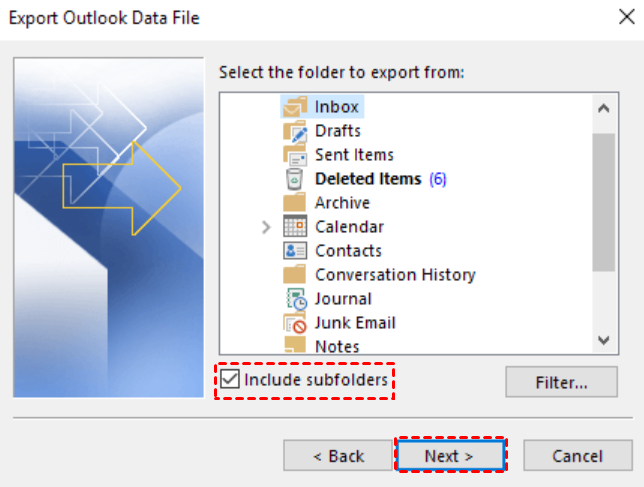
Step 4. Select the emails folder you want to back up and check Include subfolders to export all mailbox content.
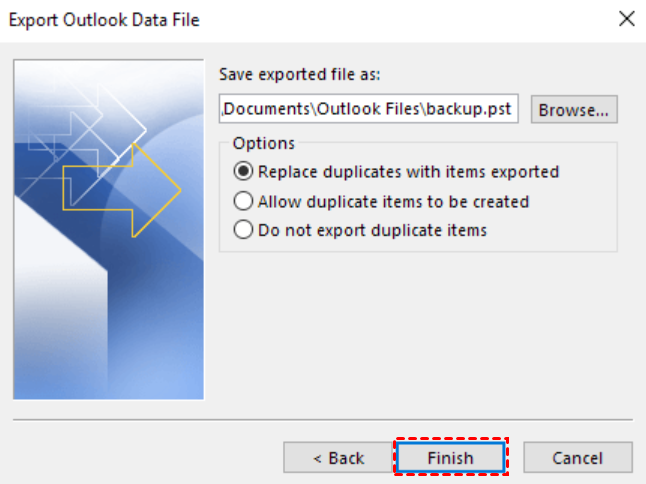
Step 5. Be sure your emails are saved as a .pst file and click Finish. Type the password twice and click OK to confirm.
To minimize the risk of data loss, avoid storing the PST file only on the same computer. Instead, save a copy to:
- an external hard drive or USB drive
- a network drive or NAS device
- a cloud storage service
- another computer
Keeping multiple copies in different locations provides better protection against hardware failure, accidental deletion, system crashes, etc. In addition, you can open the exported PST file in Outlook to verify if the backup is complete.
Way 2: Store Older Outlook Emails Locally using AutoArchive
If you don't want to manually export emails every time, Outlook's AutoArchive feature can help you automatically move older emails and other mailbox items to a local archive file (.pst) after a specified period. While keeping important emails on your computer, this also reduces the size of your mailbox.
Step 1. Open Outlook and click File > Options. Then, select Advanced from the left pane.
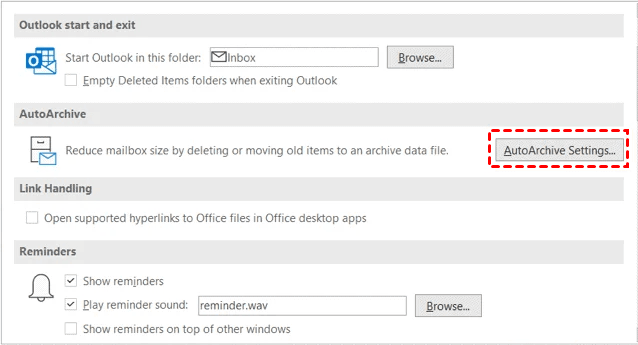
Step 2. Under the AutoArchive section, click AutoArchive Settings.
Step 3. Check Run AutoArchive every X days and specify how old items should be before they are archived.
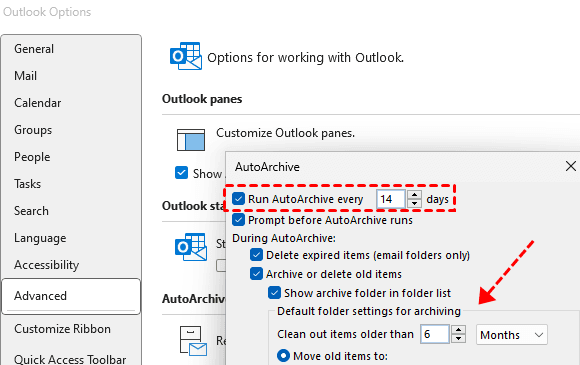
Step 4. Click Browse next to Move old items to box and select a location to save the archive file. At last, click OK to save your settings.
Once enabled, Outlook will automatically archive eligible items according to your chosen schedule. The default location is often C:\Users\Username\Documents\Outlook Files, though the exact location may vary depending on your Outlook version and AutoArchive settings.
Way 3: Automatically Backup Outlook Emails Before Deleting Account
While exporting Outlook data manually works well, it is easy to postpone or forget, especially when you're busy or managing multiple email accounts. The AutoArchive makes up for this, but it is not a complete backup solution and may not include all mailbox data.
For maximum data protection, consider combining AutoArchive with a full PST export and a dedicated Outlook backup solution such as AOMEI Backupper Professional. It integrates an Outlook backup feature and allows you to configure a schedule backup, such as daily, weekly, monthly (by date), etc., to backup emails automatically.
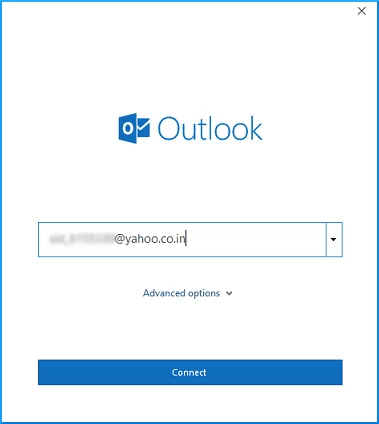
Step 1. Open Outlook, type your email and click Connect. Then, follow the on-screen instructions to add your Outlook account.
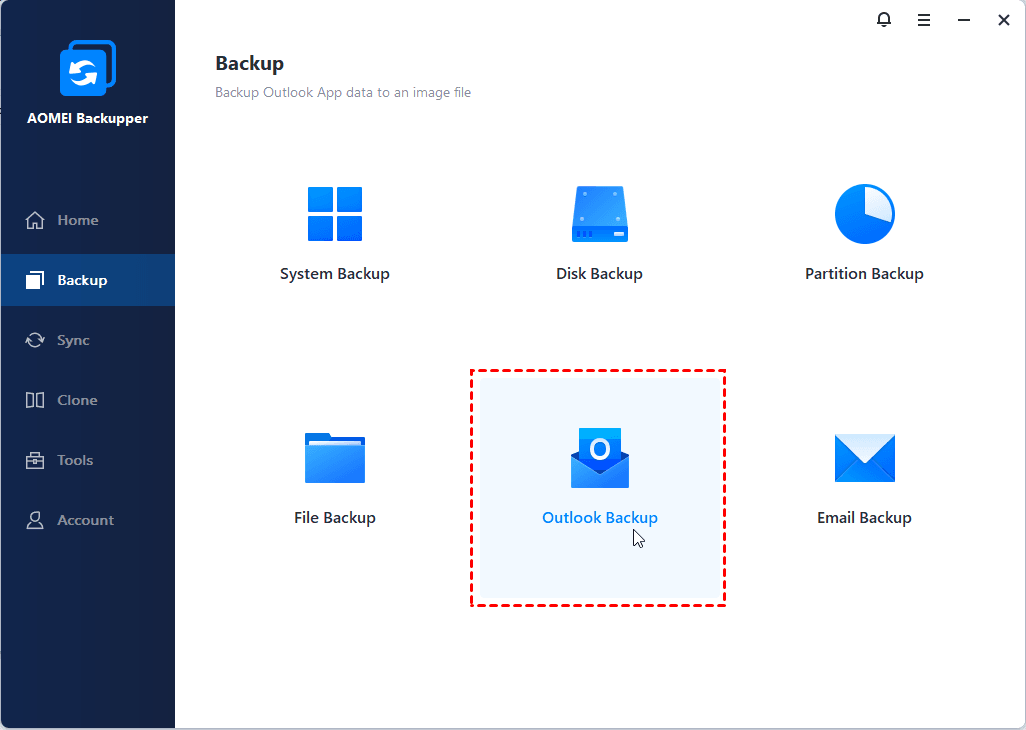
Step 2. Open Outlook backup tool - AOMEI Backupper Professional. Then, click Backup >Outlook Backup.
Step 3. Click Select Source to add the Outlook account, including emails you want to backup. Then, click the PC icon to select a destination, from local drives to network share, NAS, cloud drives, etc.
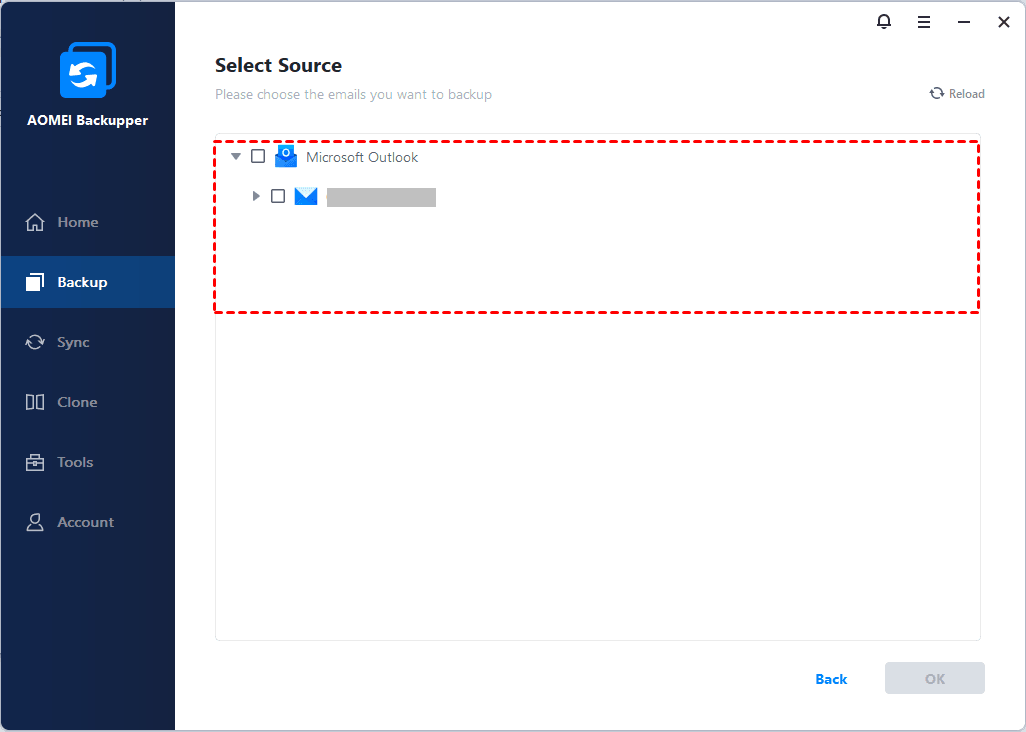
Step 4. To automatically backup Outlook emails before deleting account, click Schedule to enable daily, weekly, monthly (by date), etc. You can also enable automatic backup cleanup to proactively delete old backups, significantly saving your time.

Step 5. Confirm the backup settings and click Start Backup.
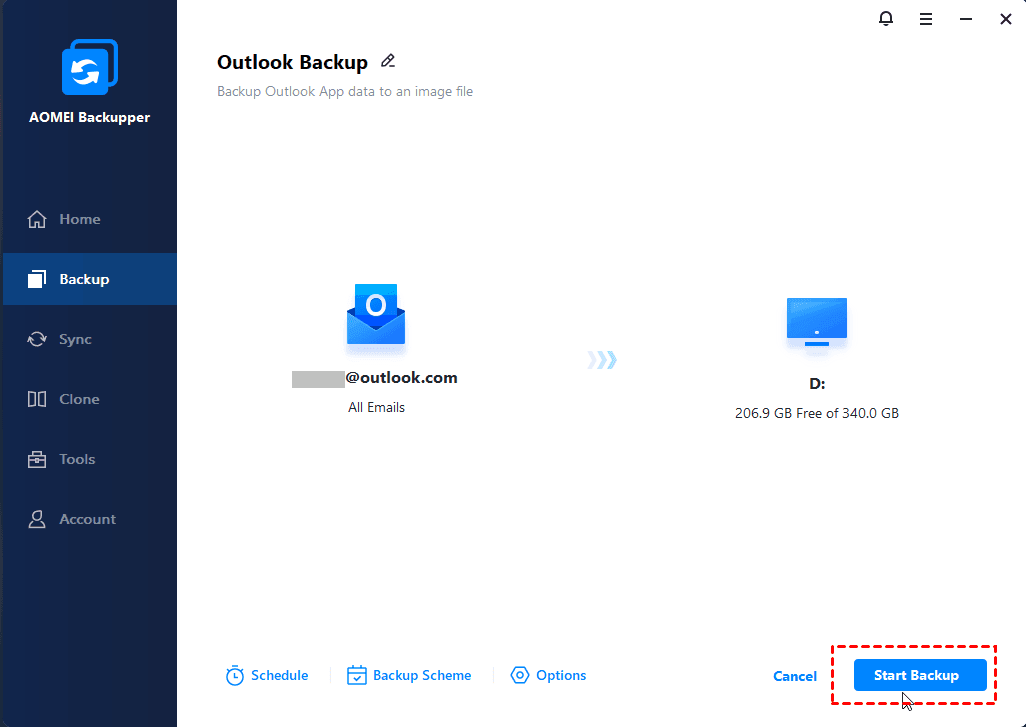
- Make sure the option “Wake the computer to run scheduled task” is checked, especially when you set up this task at off-peak hours.
- By default, the incremental backup is enabled to back up only new or changed files.
- To free up more space, you can adjust the level of compression or splitting in Options. This will take longer, of course.
- To avoid unexpected issues, click Options to enable email notification. You can receive notifications when backup tasks succeed, fail, or user interaction is required.
Conclusion
If you don’t want to lose any data, such as emails, attachments, contacts, and calendar events, you’d better backup Outlook emails before deleting account.
PST export creates a full copy of your Outlook data, AutoArchive stores older emails locally, and AOMEI Backupper helps you automatically keep them up to date. You can directly backup your Outlook data or the exported PST files for added safety.

 as a preferred
source on Google
as a preferred
source on Google