




How to Backup Flash Drive Automatically When Plugged in
Discover the best free tool - AOMEI Backupper Standard to backup flash drive automatically when plugged in, along with step by step instructions, significantly reducing the risk of data loss. Scroll down to learn more.

By Ivy Updated on May 22, 2026


Backup flash drive automatically when plugged in is one of the most effective ways to keep your data safe without extra effort. USB drives face several real-world risks, including accidental deletion, unexpected corruption, disk formatting, virus infections, and even physical damage, any of which can result in permanent data loss.
By setting up automatic backups, you avoid manual copying of files and reduce the risk of human error. This also protects critical files as soon as the device is connected, while allowing you to keep multiple backup versions for easier and more reliable recovery in the event of issues.
Can You Automatically Backup a Flash Drive When Plugged In?
Yes, it is possible to automatically back up a USB drive when it is plugged into a computer, but it depends on how the system is configured. In Windows, this process is based on plug-and-play behavior, where the system detects USB insertion events, triggers predefined actions or backup tasks automatically, and distinguishes between simple file syncing and true backup operations that include versioning and recovery options.
However, built-in Windows tools have limitations when it comes to fully automated USB-triggered backups. This is why many users rely on dedicated backup software, which offers more flexible scheduling and better control over backup types. AOMEI Backupper Standard is a free automatic backup software that helps users set it up easily with minimal configuration.
AOMEI Backupper Standard - Free, Automatic USB Drive Backup Software
AOMEI Backupper Standard is free Windows backup software that can backup files to flash drive automatically when plugged in on Windows 7, 8/8.1, 10, 11. It also automatically backs up data stored on a USB drive. This largely depends on how you set up the backup task.

 AOMEI Backupper
- Newbie-friendly: The interface is intuitive, features wizard-style guidance, and is easy to use, so you won’t get confused.
- Flexible backup solutions: Backup individual files, system, disk, or partition, depending on what you want to protect.
- Set and forget scheduling: Set up event triggers, such as USB Plug in, or create continuous backup based on daily/weekly/monthly, etc.
- Free incremental backup: Copy only changes rather than everything each time, significantly reducing backup time and saving storage space.
- Complete backup suite: Not only incremental backup, but it also includes compression, splitting, intelligent sector backup, etc., to optimize storage and encryption for data security.
 100% Secure
How to Backup Flash Drive Automatically When Plugged In
Here is the step-by-step guide to automatically backup flash drive when plugged in PC. AOMEI Backupper Standard is fully compatible with Windows 7, 8, 8.1, 10, and 11, so you can use it on any Windows PC.
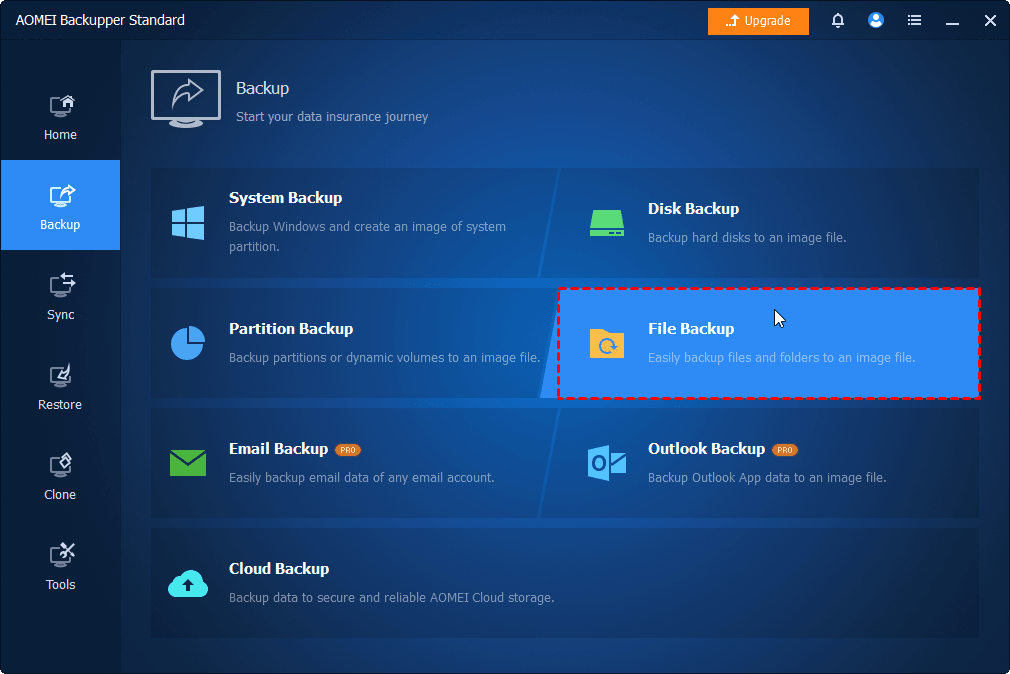
Step 1. Connect the USB drive to your computer and be sure it’s detected. Download and install AOMEI Backupper Standard. Then, go to Backup > File Backup. You can also choose a more suitable backup solution.
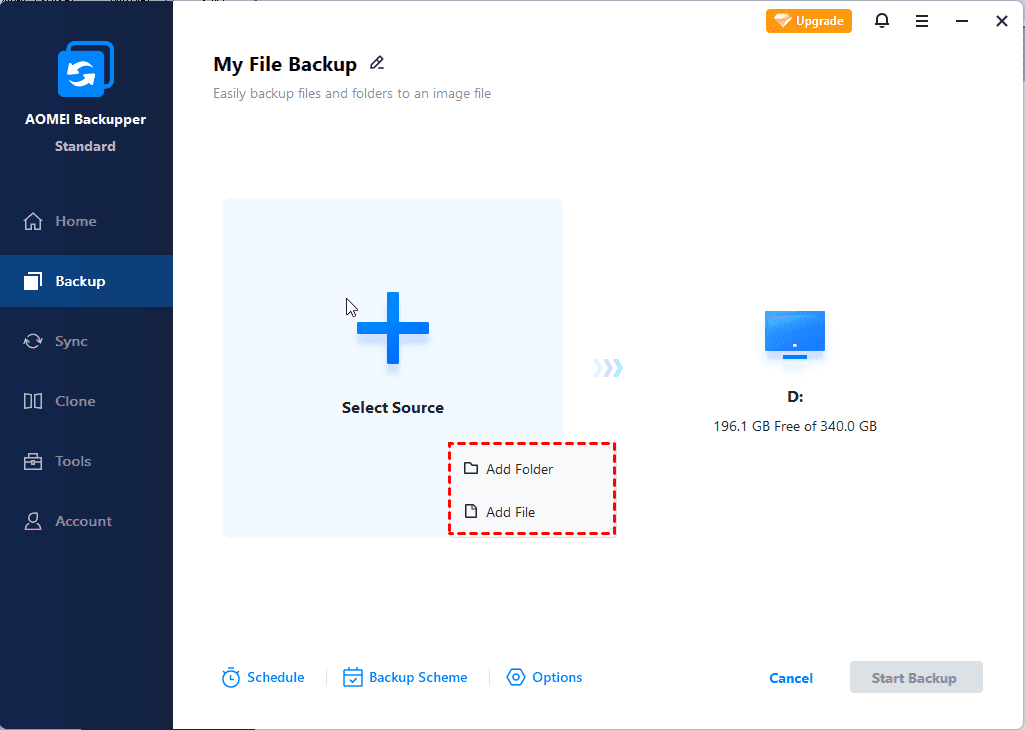
Step 2. Click Select Source to select files or folders you want to backup, whether they are on local drives, external drives, NAS, or network shares. To add two or more files or folders, click Add Source.
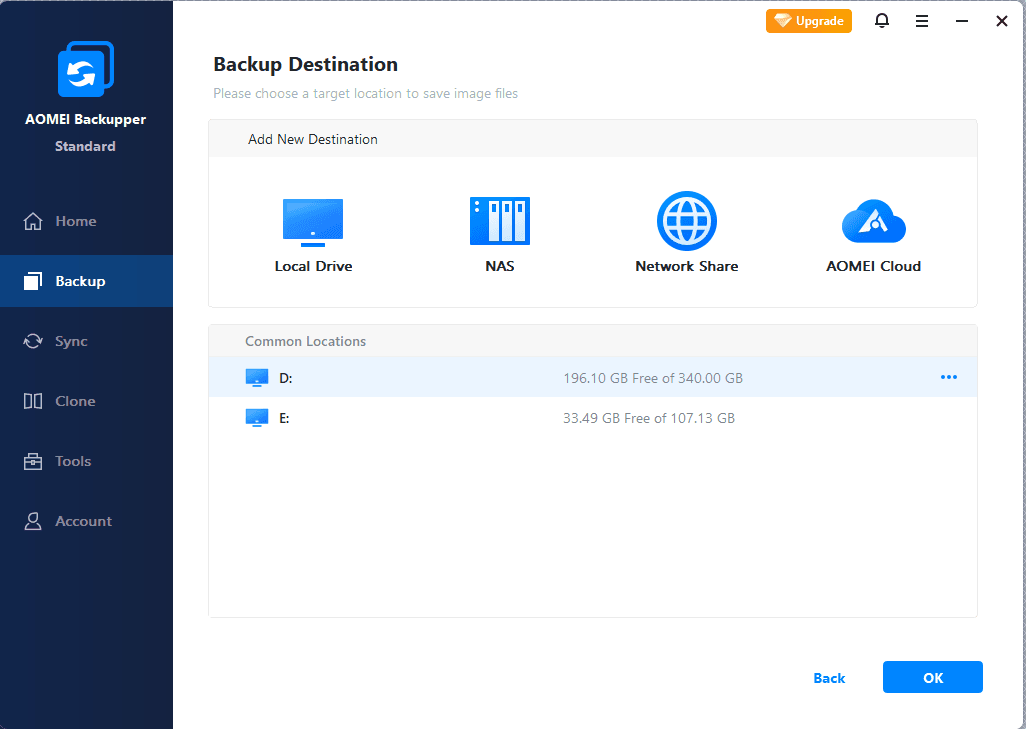
Step 3. Then, click the PC icon to select your USB drive, usually under the This PC section, on the right side.
Step 4. AOMEI Backupper will automatically enable incremental backup, compression, splitting, etc., optimize storage, and backup time. To backup USB drive automatically when plugged in, click Schedule to enable Event triggers > USB Plug in.

- To save even more time, click “Options” to change your compression level and splitting options.
- For data safety, it’s suggested to enable encryption for backup.
- You can also enable Email notification to receive alerts when backup tasks succeed, fail, or require user action.
Step 5. Confirm your backup settings and click Start Backup to backup USB drive automatically when plugged in. All data will be fully backed up the first time. Subsequent backups will only include new or modified data.
FAQs
1. Can Windows automatically copy files from a USB drive?
Yes, Windows can trigger basic actions when a USB drive is connected, but it does not offer a fully automated, flexible backup system by default. For advanced automation, third-party tools like AOMEI Backupper Standard are typically required.
2. What is the best software to auto backup USB drive on plug in?
One of the most popular free solutions is AOMEI Backupper Standard, which allows users to create automatic USB backup, but also offers a suite of backup features, thereby streamlining backup tasks.
3. Can multiple USB drives be backed up automatically?
Yes, many backup tools allow you to configure separate tasks for different USB devices, with individual backup settings for each.
4. How can I sync USB drive to PC automatically?
To sync USB drive to PC automatically, you need a free file sync software such as AOMEI Backupper Standard.
- Open AOMEI Backupper Standard after installing. Then, click Sync > Basic Sync.
- Click Select Source > This PC and select files or folders on the USB drive. Click the PC icon to select a local drive under This PC.
- Click Schedule Sync to enable daily, weekly, monthly (by week), etc., for continuous data protection.
- At last, confirm your settings and click Start Sync to sync files on USB drive automatically.
Conclusion
It’s essential to backup flash drive automatically when plugged in to protect your important files from different data loss scenarios, such as accidental deletion, corruption, unexpected disk failure, etc.
With the help of free backup software like AOMEI Backupper Standard, you can achieve reliable and efficient data protection, especially convenient for users who frequently use USB drives. You can enjoy a fully hands-free process that keeps your data continuously protected without manual effort.

 as a preferred
source on Google
as a preferred
source on Google