




Avast Ransomware Protection and Removal: What It Is and How It Works
Learn how Avast ransomware protection defends against ransomware and how combining it with backup tools - AOMEI Backupper creates a stronger, layered strategy to protect your data safely.

By Ivy Updated on May 26, 2026


Ransomware is a type of malicious software that locks or encrypts your files and demands a ransom payment in exchange for restoring access. It typically spreads through phishing emails, malicious downloads, or compromised websites, and once activated, it quickly targets important data, such as documents, photos, and business files, making them inaccessible without a decryption key.
Ransomware attacks are increasing as they are highly profitable and increasingly easy to deploy using automated tools and ransomware-as-a-service models. At the same time, growing reliance on digital systems and remote work environments has expanded the number of potential targets, making strong security solutions like Avast Free Antivirus or Avast Premium Security, etc., essential for early detection and prevention.
Avast Ransomware Protection: Key Features & How It Works
Avast ransomware protection is built as a layered defense system that focuses on preventing unauthorized file encryption before it can cause damage. Instead of relying on a single tool, it combines multiple security components that work together in real time to detect, block, and stop ransomware behavior across your system.
Ransomware Shield and Folder Protection:
The Ransomware Shield is a core feature that protects sensitive folders by restricting which applications can modify files inside them. Users can manually select important directories such as Documents or Desktop, ensuring only trusted apps can make changes while blocking unknown or suspicious programs.
File Shield and Behavior Shield Integration:
Avast combines File Shield and Behavior Shield to strengthen ransomware defense. File Shield scans files in real time before they are opened or executed, while Behavior Shield monitors active processes to detect and flag or block suspicious activity, such as rapidly encrypting or modifying multiple files, unauthorized access to protected folders, etc., even if it has not been previously identified.
Real-Time Monitoring and Blocking:
The system continuously monitors file activity in real time, scanning for unusual or unauthorized changes. If suspicious behavior is detected, Avast can immediately block the process to prevent encryption from spreading further across the system.
Customizable Protected Folders:
Users can manually choose which folders to protect, such as documents, photos, and cloud-synced directories. This customization ensures the most valuable data receives the highest level of protection based on individual needs and usage patterns.
Automatic Threat Blocking and Alerts:
When suspicious activity is detected, Avast can automatically block the process and alert the user in real time. This helps users respond quickly while preventing ransomware from spreading or encrypting additional files.
Avast Free Antivirus vs Premium Security: The Key Differences
Avast Free and Premium both include core ransomware protection, but they differ in how much control, depth, and additional security they provide. The Free version focuses on essential prevention, while PremiumSecurity expands protection with stronger detection and broader system security features.
What You Get with Avast Free Antivirus

The Free version offers essential ransomware defense designed for everyday users. It focuses on preventing unauthorized file changes through core security shields and basic ransomware protection features.
- Includes File Shield, Behavior Shield, and basic Ransomware Shield protection.
- Blocks unauthorized apps from modifying or encrypting protected files.
- Provides real-time monitoring against common ransomware activity.
- Suitable for general home use and basic security needs.
- Limited advanced controls and customization options
Advanced Ransomware Protection in Premium Security
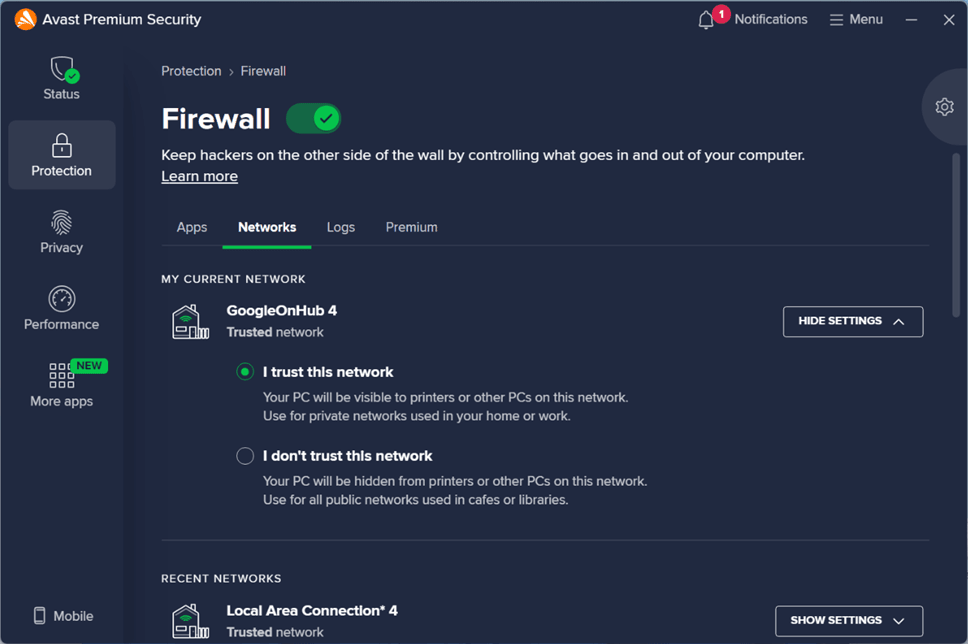
Premium Security builds on the Free version by adding more advanced protection layers and stronger threat detection capabilities. It is designed for users who need broader and more proactive defense.
- Includes all Free features plus enhanced security layers.
- Improves detection of advanced and targeted ransomware attacks.
- Provides stronger system-wide protection beyond file-level defense.
- Offers more advanced security tools and configuration options.
- Better for sensitive data, remote work, or business environments.
How to Enable Avast Ransomware Protection Step by Step
This guide walks you through enabling CoreShields and Ransomware Shield. Proper setup ensures real-time detection is active, and your most important files are protected from unauthorized encryption.
Enable Ransomware Protection
Step 1. Download and install Avast Free Antivirus. On the main page, click Protection and then Core Shield.
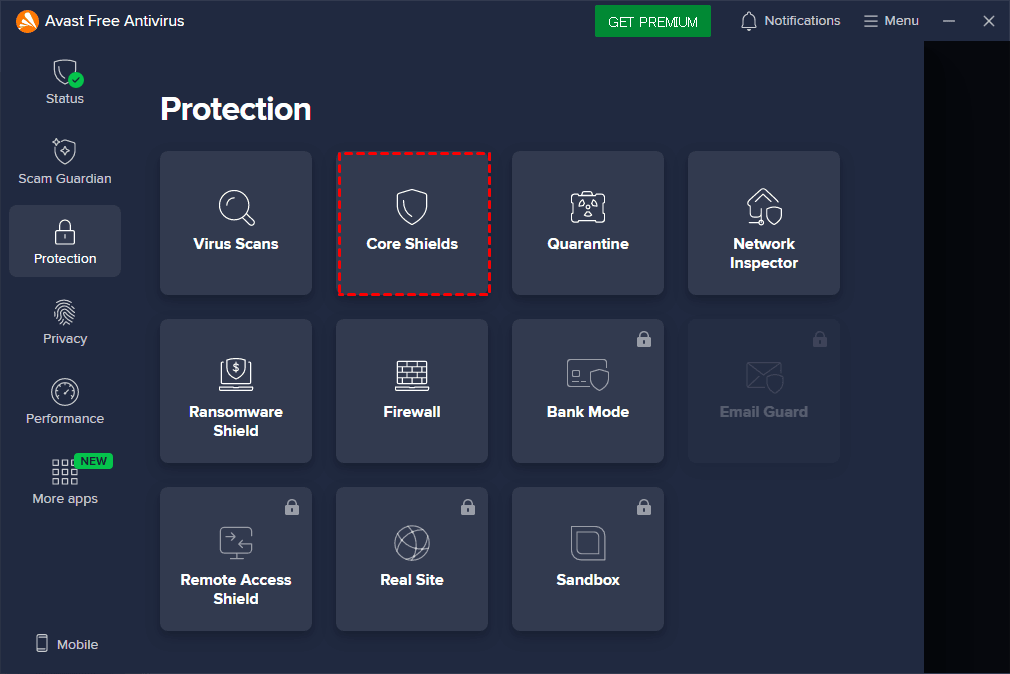
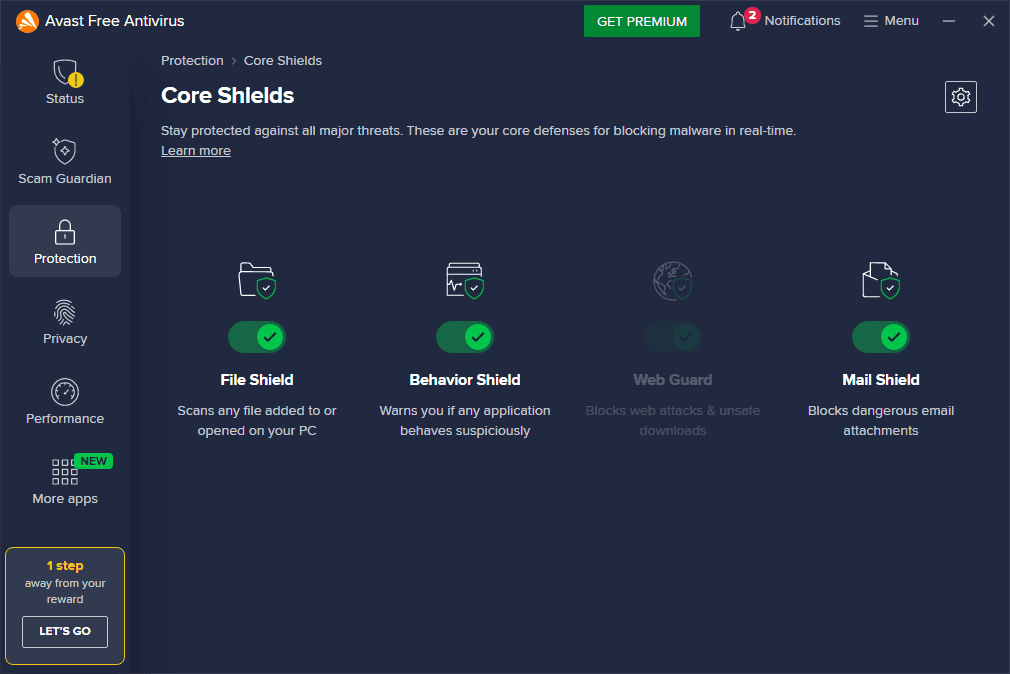
Step 2. Be sure File Shield, Behaviour Shield, and Mail Shield are enabled. Click the Settings icon.
Step 3. Under the "What to do with" section, choose automatic fix to deal with malware, or potentially unwanted programs & tools. Or ask later.
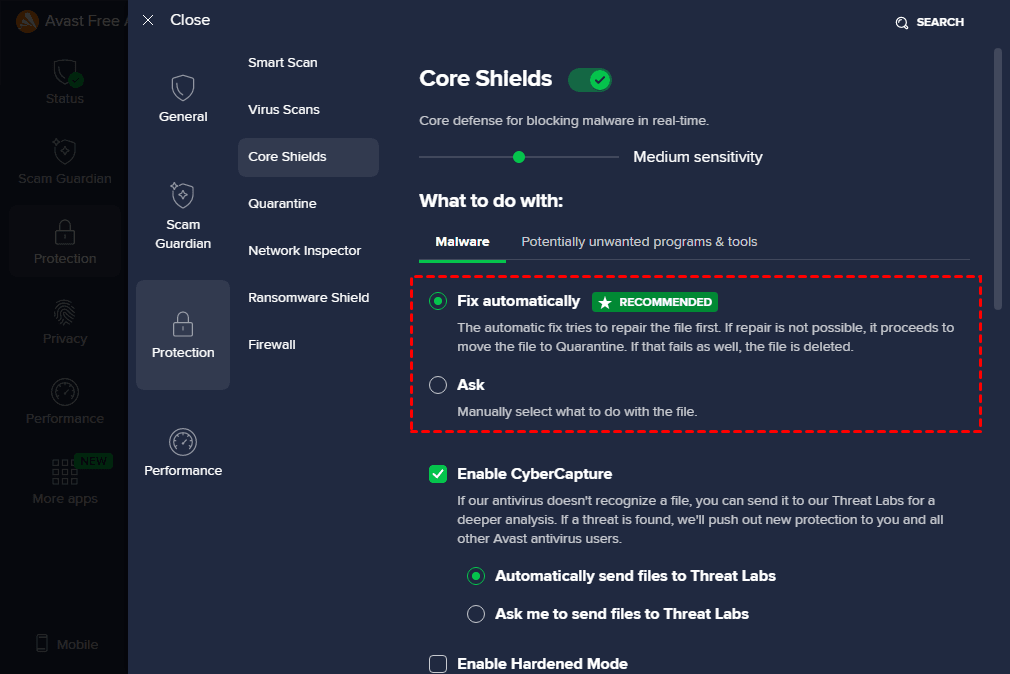
- CyberCapture and Anti-Rootkit are checked automatically.
- Hardened Mode can further lock down the security of your computer. It’s recommended for inexperienced users.
- Be sure all the shield settings are configured well.
Enable Ransomware Shield
Step 1. On the Avast Free Antivirus, click Protection and Ransomware Shield, respectively.
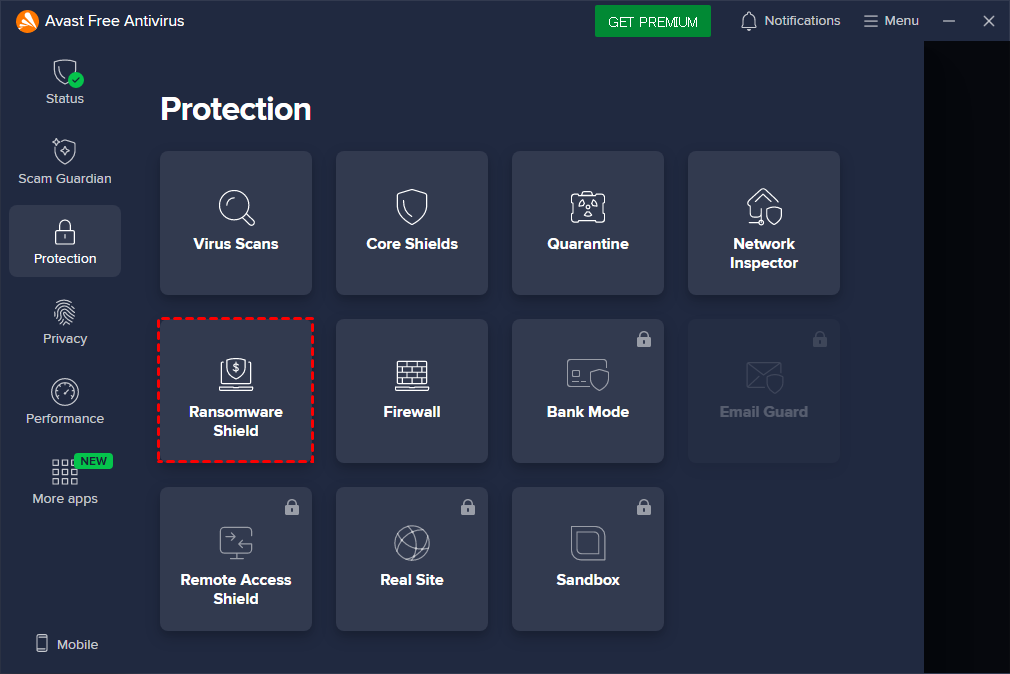
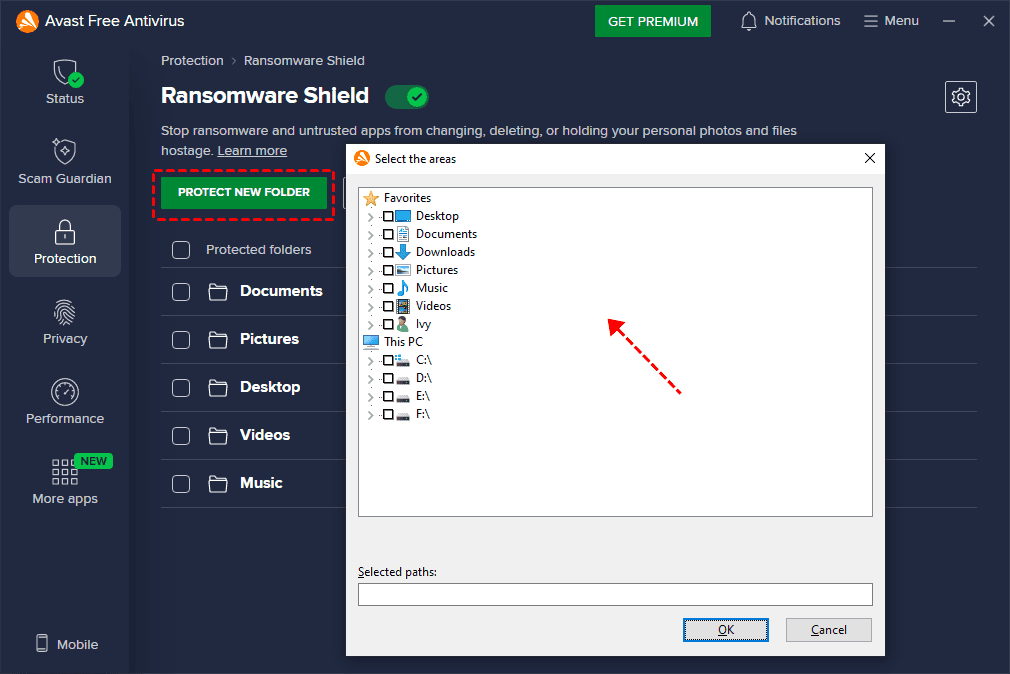
Step 2. All the protected folders are listed below. To protect other folders, click PROTECT NEW FOLDER.
Step 3. Select the folder you want to protect and click OK.
Step 4. Click the Settings icon. Select Smart mode to let trusted or approved apps change or delete files in your protected folders.
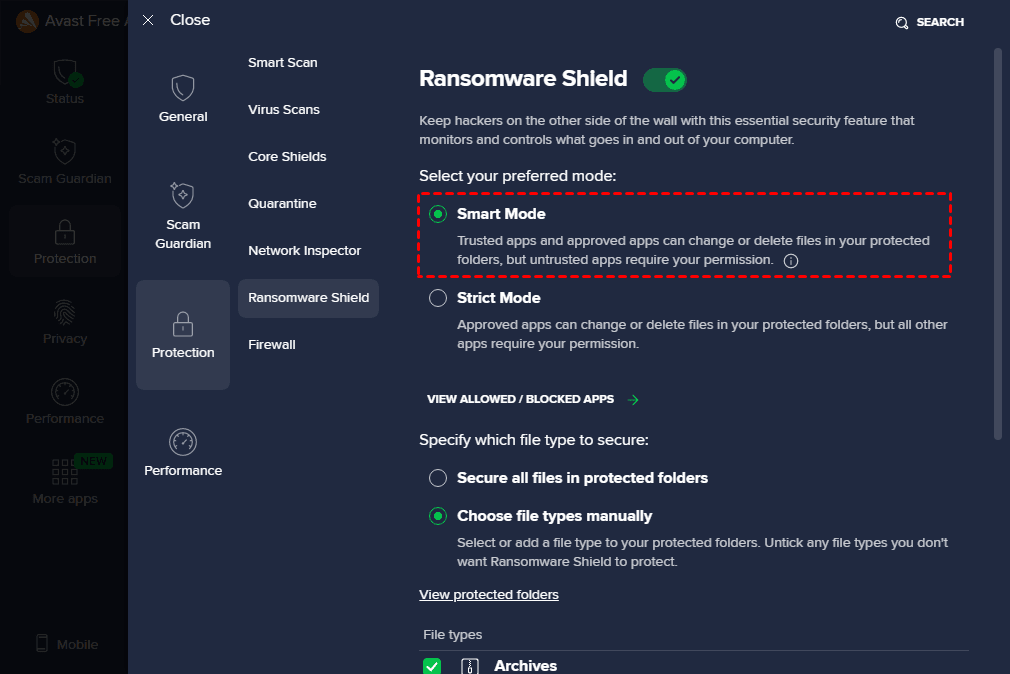
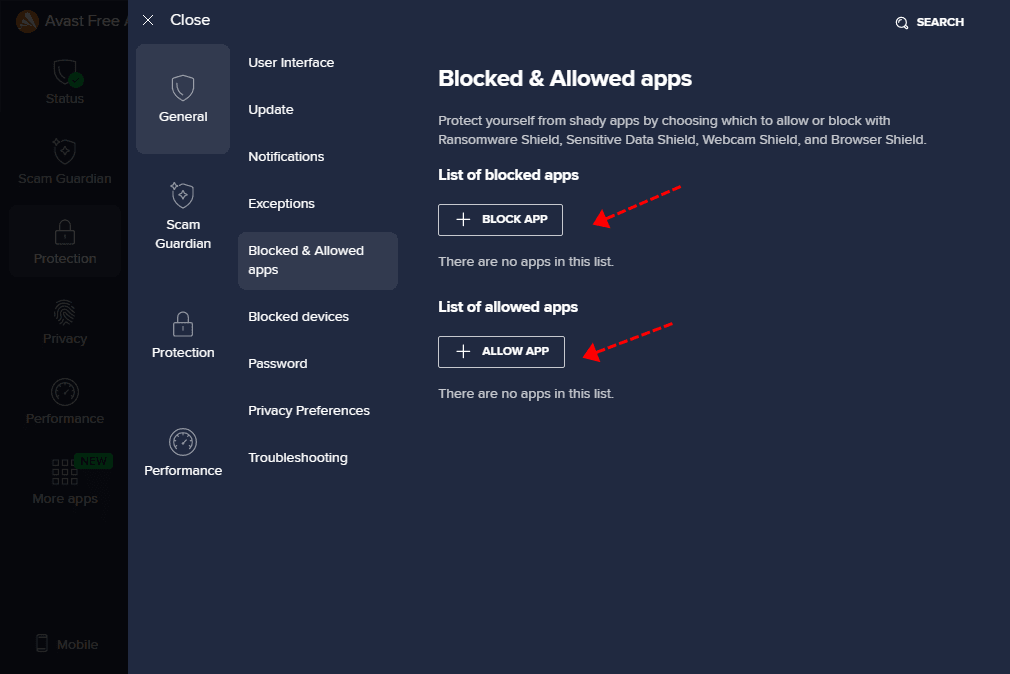
Step 5. At the lower location, click VIEW ALLOWED/BLOCKED APPS. Click ALLOW APP to add approved apps and click BLOCK APP to block suspicious apps.
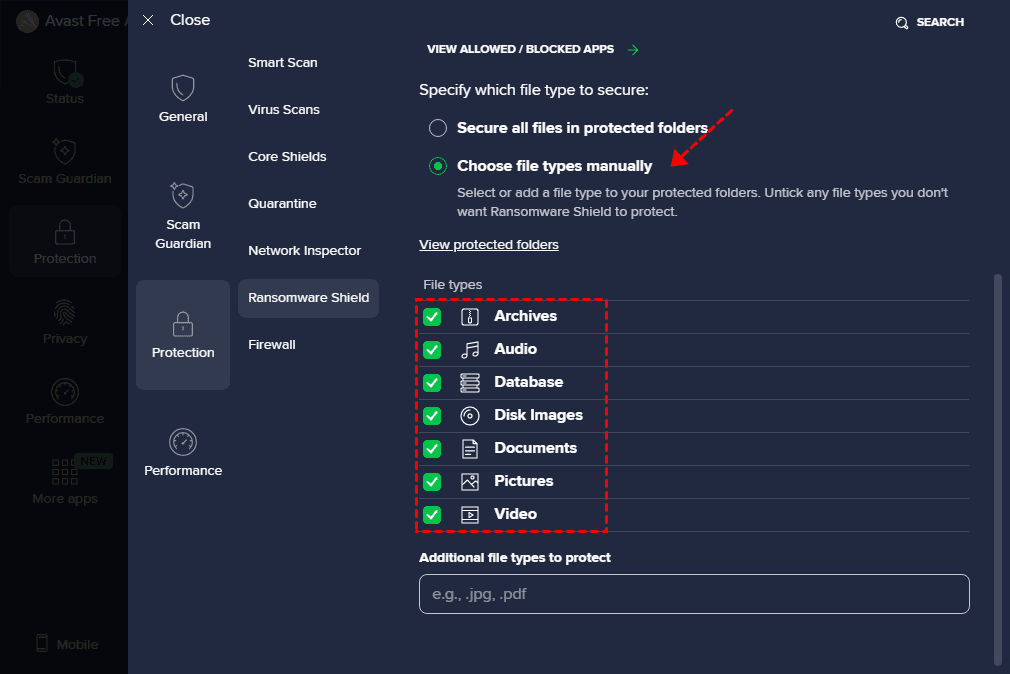
Step 6. In the Specify which file type to secure section, make sure Choose file types manually is checked. Below are 7 common file types. Alternatively, you can enter extensions directly to add other types.
Is Avast Alone Enough to Protect against Ransomware?
Avast is generally effective against ransomware, offering strong real-time protection and behavior-based detection that can identify recognized malware and new, unknown variants in everyday scenarios, such as phishing downloads or malicious email attachments. Its Ransomware Shield restricts unauthorized applications from accessing protected folders for stronger defense.
However, it is not completely foolproof. Highly targeted or zero-day ransomware may sometimes bypass detection, and its effectiveness depends on proper configuration, such as enabling Ransomware Shield and selecting protected folders. In addition, like all antivirus tools, it focuses on prevention, not recovery of encrypted files, meaning backups are still essential for complete protection.
Add an Extra layer of Security with AOMEI Backupper
While Avast provides strong ransomware prevention through real-time detection and file protection, combining it with AOMEI Backupper Professional adds a critical recovery layer. This approach ensures that even if an attack bypasses antivirus defenses, your data remains safe and recoverable.

 AOMEI Backupper
- Integrate Ransomware Protection to detect and block suspicious activity early, ensuring the integrity of your backups and individual files.
- Create schedule backup (OS, disk, files, etc)to keep all data up to date.
- Enable incremental or differential backups to significantly save space while maintaining multiple backup versions.
- Store backups in atleast one off-site location to prevent ransomware from encrypting them.
 100% Secure
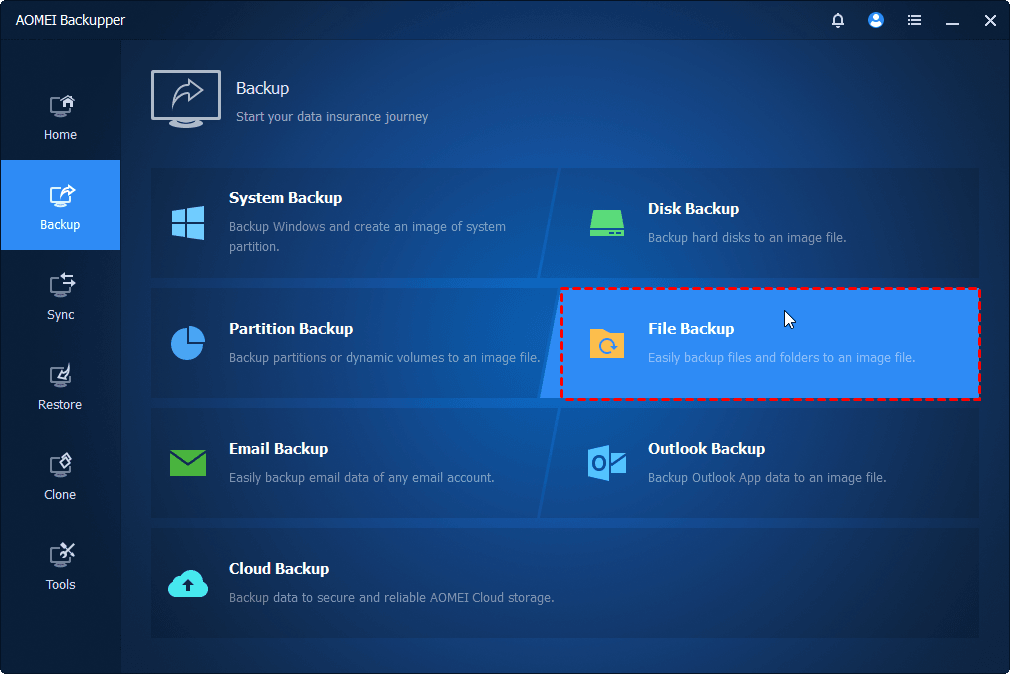
Step 1. Open AOMEI Backupper Professional after installing. Under the Backup tab, click System Backup, Disk Backup, File Backup, etc., to back up exactly what you want.
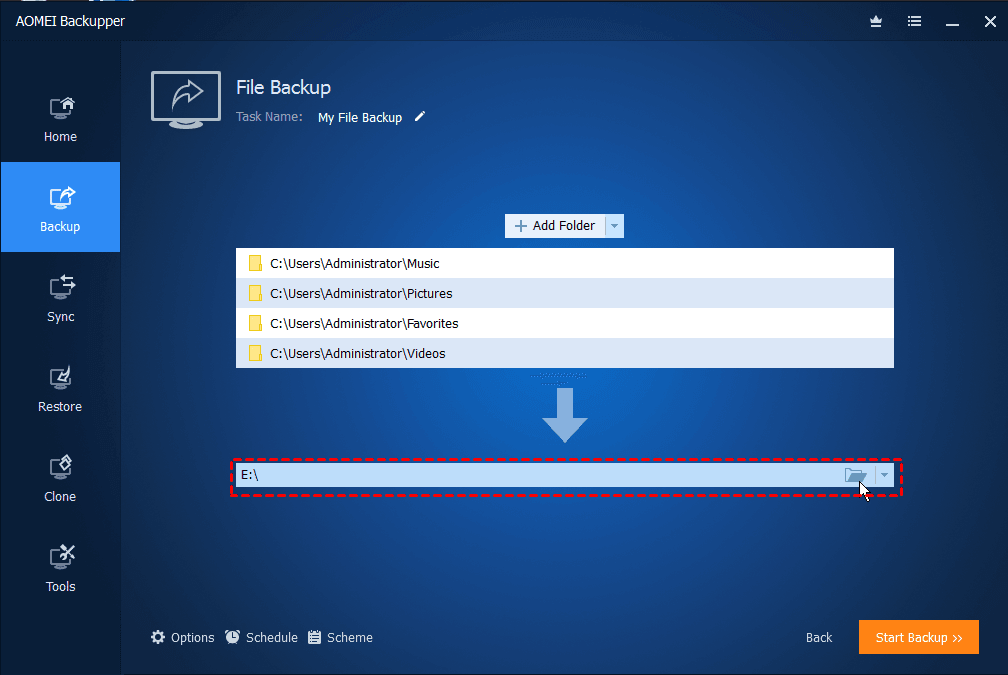
Step 2. Select a destination to save the backup, preferably one off-site location. Next, click Schedule, Backup Scheme, Options at the bottom to enable schedule backup, select a backup method, etc. At last, click Start Backup.
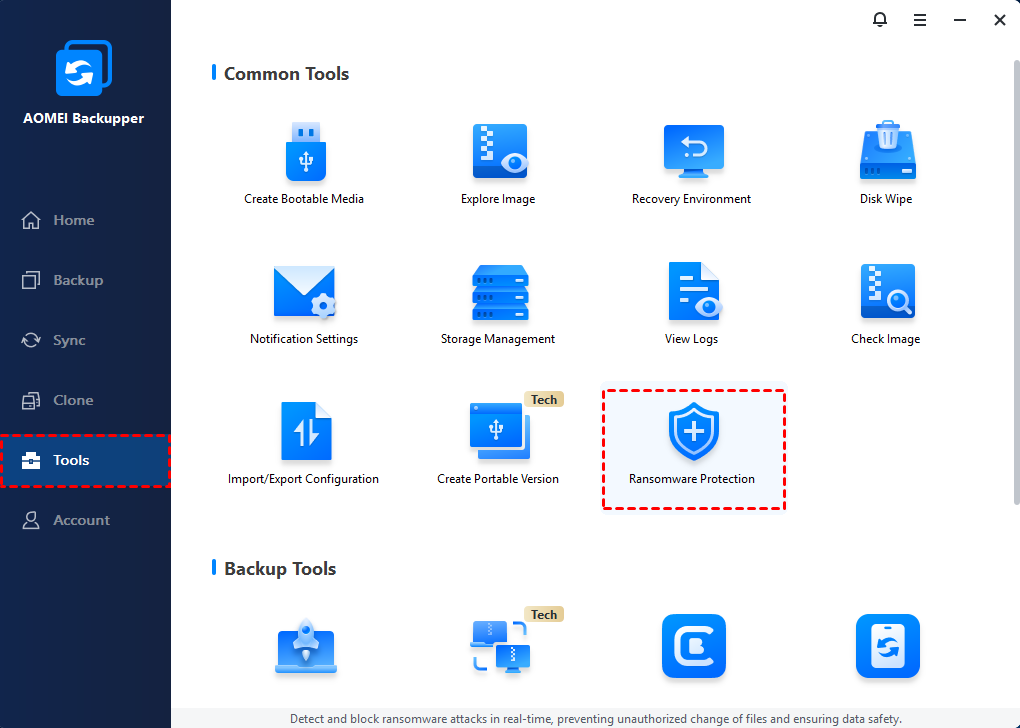
Step 3. Wait for the backup process to complete. Switch to the Tools tab, click Ransomware Protection.
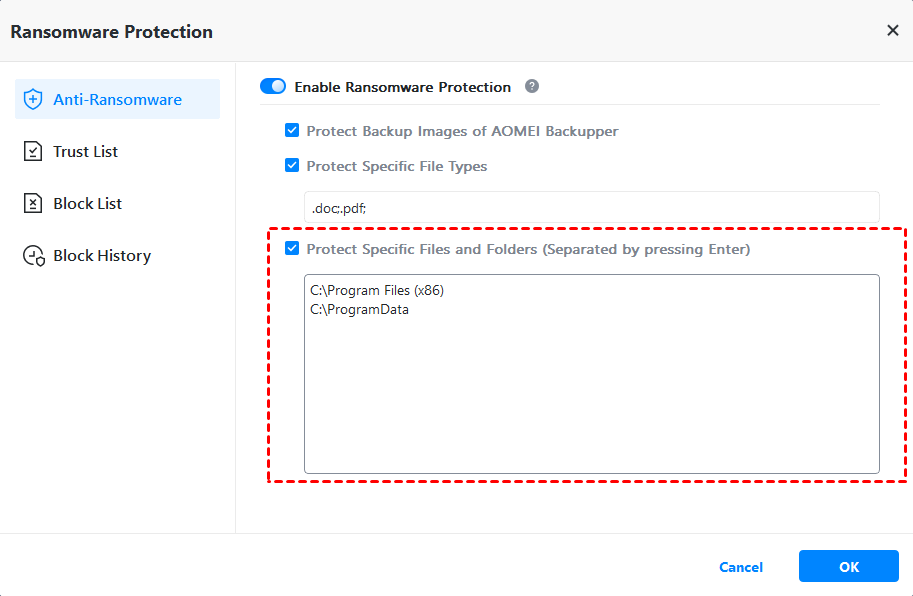
Step 4. Toggle the Enable Ransomware Protection tab, providing 3 available options. The option to protect backup image created by AOMEI Backupper is automatically checked. To protect individual data, specify the file type or path, such as C:\Program Files (x86), C:\ProgramData, etc.
Step 5. Once enabled, you’ll be asked to add apps to the trust or block list. Either follow the prompts or tap Ignore.
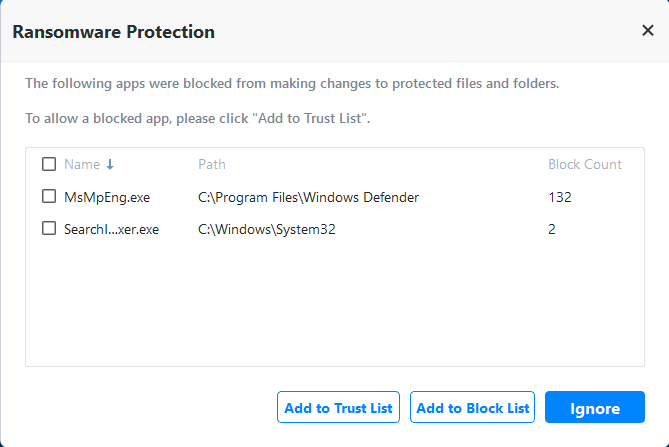
- You can also manually add programs to the trust or block list. Or clear block history under the Block History tab.
- Trusted apps can modify or delete protected files and folders. In contrast, blocked apps cannot take these actions.
Conclusion
Avast provides strong ransomware prevention through its Ransomware Shield and behavior-based detection, making it effective for blocking the most common threats before they can encrypt files. Its real-time protection offers a solid first line of defense, especially for everyday users.
However, Premium plans significantly improve overall protection by adding deeper security layers and broader coverage against advanced threats. For complete safety, it’s best to combine Avast with backup solutions like AOMEI Backupper, ensuring both prevention and recovery in case an attack slips through.

 as a preferred
source on Google
as a preferred
source on Google