




Immutable Backups & Their Role in Data Resilience [2026]
This article covers everything about immutable backups, from the meaning, mechanisms, best practices, etc., as well as a flexible logical immutable backup with ransomware protection.

By Ivy Updated on April 22, 2026


What Is an Immutable Backup?
Immutable backup is a backup that cannot be modified, deleted, or encrypted once it has been created, no matter what happens. Unlike traditional backups that rely on access controls, immutable backups enforce technical restrictions that lock backup data for a defined retention period.

This “set it and lock it” model makes them especially effective against ransomware, insider threats, and accidental deletions, ensuring a clean, recoverable copy of your data always exists when you need it most.
Immutable Backups vs Traditional Backups
Traditional backups are designed for recovery, but not necessarily for resistance against attacks. They usually depend on user permissions, storage access rules, or administrative controls, yet ransomware often bypasses these mechanisms after gaining elevated privileges.
Immutable backups differ as follows:
- Enforced protection: Immutability is enforced at the storage or backup system level, not just by permissions.
- Time-based locking: Backup data is locked for a predefined retention period and cannot be altered during that time.
- Attack resilience: Even if ransomware compromises an admin account, immutable backups remain intact.
As a result, immutable backups shift backups from being a “soft target” into a robust foundation for recovery.
Why Immutable Backup Is Essential in the Age of Ransomware?
Modern ransomware does more than encrypt live data, it actively searches for and destroys backups to prevent recovery. In many attacks, backups are deleted or corrupted before encryption even begins. Common techniques include:
- Locate backup servers, NAS devices, and cloud storage through network scanning.
- Steal administrator credentials to access backups.
- Delete backup repositories or shorten retention periods.
- Encrypt connected backup volumes along with live data.
The value of a backup is no longer defined by how quickly it can restore data, but by whether it can survive an attack at all, even after gaining full permissions. This is where immutable backup becomes essential rather than optional.
How Immutability Changes the Attack?
Immutable backup fundamentally breaks the ransomware playbook. By enforcing write-once and time-based locking, immutability ensures that once a backup is created, it cannot be modified or deleted, even if attackers gain administrative controls. So,
- Attackers lose the ability to delete backup images.
- Organizations retain guaranteed, clean versions of their data.
- Recovery becomes a controlled process rather than a desperate response.
- Motivation to pay ransom is significantly reduced.
In short, immutable backup turns backups from a vulnerable target into a dependable last line of defense.
How Immutable Backup Works?
Immutable backup is not just a concept, it is a set of technical mechanisms. At the core, immutability relies on 3 critical components: write-once storage, retention and locking policies, and the storage platform’s implementation level.
Write Once, Read Many (WORM) Technology
WORM (short for Write Once, Read Many) is the foundational technology behind most immutable backup solutions. Its main principles are:
- Write Once: Once a backup file is written, it cannot be changed, deleted, or encrypted.
- Read Many: The backup data can be accessed and restored multiple times without affecting integrity.
- Tamper-Resistance: Even users with administrative privileges cannot modify or delete the data during its retention period.
WORM ensures that every backup version is preserved exactly as it was created, providing a trustworthy backup image in the event of ransomware or accidental deletion.
Retention Periods and Locking Mechanisms
Beyond WORM, immutable backups implement time-based retention policies and locking mechanisms to enforce data integrity.
- Retention Period: Each backup is assigned a minimum retention duration. During this period, it cannot be deleted or altered, even by administrators.
- Backup Locking: The system locks the backup metadata and storage objects, preventing accidental or malicious modifications.
- Enforced Policies: Many backup solutions allow administrators to configure alerts and controls, ensuring retention settings cannot be overridden without proper authorization.
Object Storage vs File-System-Level Immutability
Immutable backups can be implemented at different storage layers, each with its advantages:
👉 Object Storage-Level Immutability
- Often used with cloud storage (e.g., AWS S3 Object Lock, Azure Blob Immutable Storage).
- Data is stored as immutable objects with built-in retention and WORM policies.
- ✅Advantages: Scalable, cost-efficient, and resilient against ransomware attacks targeting network volumes.
👉 File-System-Level Immutability
- Implemented on local NAS, SAN, or dedicated backup servers.
- Uses file attributes or snapshot mechanisms to prevent modification.
- ✅Advantages: Fast recovery, control over on-premises infrastructure, and integration with local backup policies.
Choosing between object-level or file-system-level immutability depends on your organization’s performance requirements, budget, and threat model, but both approaches enforce the same core principle.
Best Practices for Immutable Backup Security
Creating immutable backups is only half the battle, as maintaining their security and reliability requires careful planning and ongoing management. By following best practices, organizations can ensure that immutable backups remain tamper-proof, recoverable, and aligned with business continuity goals.
Choosing the Right Retention Period
The retention period determines how long each backup remains immutable. Selecting the right duration is critical for balancing data availability, compliance, and storage costs.
- Compliance Requirements: Some industries (e.g., healthcare, finance) require backups to be retained for months or years.
- Ransomware Recovery: Retaining multiple immutable versions over an extended period ensures you have clean restore points even if ransomware goes undetected for weeks.
- Storage Efficiency: Avoid unnecessarily long retention periods for short-term data to reduce storage costs.
✅Practical Tip: Implement a tiered retention strategy- short-term daily backups with quick restore access and long-term weekly or monthly backups stored immutably for compliance and disaster recovery.
Protect Backup Access With MFA and Role Separation
Even immutable backups can be at risk if attackers gain administrative credentials. Enhancing access control is essential:
- Multi-Factor Authentication (MFA): Require MFA for all accounts that manage backups or storage platforms.
- Role-Based Access Control (RBAC): Limit permissions so that no single user can modify or delete backup settings.
- Segregation of Duties: Separate backup administration from general IT administration to reduce insider risks.
By combining MFA and RBAC, or ganizations prevent attackers from bypassing immutability through credential compromise.
Regularly Test Immutable Backup Recovery
An immutable backup is only valuable if it can be successfully restored. Regular testing ensures backups are not only secure but also reliable:
- Scheduled Restore Drills: Periodically restore backup snapshots to verify integrity and usability.
- Test Across Environments: Restore to isolated systems or virtual machines to simulate actual recovery scenarios.
- Verify Version Completeness: Ensure all critical files, databases, and configurations are included and unaltered.
✅ Pro Tip: Pairing immutable backups with solutions like AOMEI Ransomware Protection can help verify that backups remain unaffected by malware, providing a fully layered protection strategy.
More Flexible Logical Immutable Backups with Proactive Protection
Immutable backups provide strong protection against deletion and tampering, but it often comes with higher storage costs, reduced operational flexibility, complex retention management, and slower recovery, especially in cloud-based implementations. In addition, immutable backups do not prevent ransomware from encrypting data before it is backed up.
For many individuals and small businesses, creating tamper-proof backups is a challenge. AOMEI Backupper Professional provides a more flexible, software-enforced logical immutable backup architecture that can effectively prevent ransomware from encrypting or deleting backup. The main benefits are:

 AOMEI Backupper
- Provide multiple backup solutions, including system backup, disk backup, file backup, etc.
- Set up proper backup frequencies, from daily to monthly schedule backup or event triggers, with up to 7 options.
- Integrates with multiple auto space-saving features, including incremental backup, compression, splitting, etc., to make the backup image smaller.
- Support more flexible backup cleanup mechanism, such as by quality, time, daily/weekly/monthly, or space. The options depend on the selected backup methods.
- Proactive ransomware protection primarily monitors disk I/O activities to prevent backup images or data from being deleted or tampered with.
 100% Secure
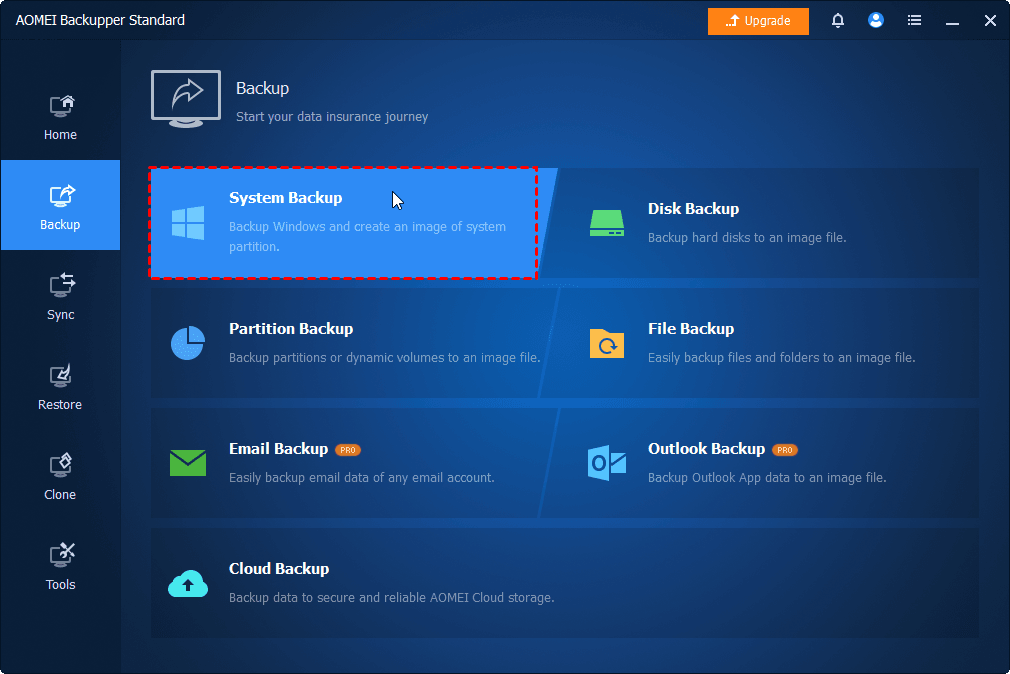
Step 1. Open AOMEI Backupper Professional after installing. Click Backup and select the desired backup solution, preferably system or disk backup. Follow the on-screen instructions to create backup images.
📍📍📍Notes:
✅ To set up or change backup settings, click Options, Backup Scheme, Schedule. You can change the backup settings in the Home tab.
✅ Locate the backup task, click the three-dot icons, and select the corresponding options.
Step 2. Switch to the Tools tab, click Ransomware Protection.
Step 3. Toggle the Enable Ransomware Protection tab. You can specify file type, files, and folders to enhance data security. The backup images created by AOMEI Backupper are protected automatically.
- Protect Specific File Types: Enter the file extensions you frequently use to protect them.
- Protect Specific Files and Folders: Enter specific folder paths, such as C:\Program Files (x86), C:\ProgramData, etc.
Step 4. Once enabled, you’ll be asked to add apps to the trust or block list. Check the specific app and click Add to Trust List or Add to Block List. Or simply click Ignore.
Step 5. Switch to the Trust List, Block List, Block History, and manually configure them. Click OK after each configuration.
In the Block History window, you can choose to clear block history, add to trust list, or add to block list.
📍📍📍Note: Adding trusted apps or folder paths to the trust list allows them to modify or delete protected files/folders. Conversely, adding blocked apps or folder paths will prohibit these activities.
Final Thoughts
Secure immutable backups rely not just on technology but also on thoughtful policies and operational discipline. Choosing the right retention period, enforcing strong access controls, and performing regular recovery tests ensures the immutable backups remain a reliable defense line against ransomware and other threats.
However, it’s difficult for many individuals and small businesses to create immutable backups and manage backup storage, retention policies, etc. AOMEI Backupper Professional provides a more flexible, software-enforced logical immutable backup architecture that can effectively prevent ransomware from encrypting or deleting backup data.

 as a preferred
source on Google
as a preferred
source on Google