




Anti CryptoLocker: How to Protect Your PC from CryptoLocker
Worried about CryptoLocker ransomware? This guide reveals the best Windows tools to stop attacks, protect your files, and recover fast.

By Lily Updated on April 23, 2026


What Is CryptoLocker?
CryptoLocker is one of the earliest and most infamous forms of ransomware. First discovered in 2013, it marked a turning point in cybercrime by introducing strong, military-grade encryption to lock victims out of their own files — unless a ransom was paid.
CryptoLocker originally spread through:
- Malicious email attachments (fake invoices, shipping notices, payroll documents)
- Infected ZIP files
- Drive-by downloads from compromised websites
- Exploits targeting outdated software
Modern ransomware variants use similar tactics, along with Remote Desktop Protocol (RDP) attacks and phishing campaigns.
Best Anti CryptoLocker Solutions for Windows
Protecting a Windows PC from ransomware like CryptoLocker requires tools that actively detect threats, block malicious behavior, and help you recover if an attack succeeds. Here are three top CryptoLocker protection tools and how to use them.
Solution 1: Microsoft Defender
Microsoft Defender (built into Windows 10 and Windows 11) includes powerful ransomware protection tools. Its Ransomware Protection feature uses controlled folder access and cloud-based intelligence to block unauthorized encryption attempts. Learn how to enable Defender Ransomware Protection below:
Step 1. Search for “Windows Security” and open it.
Step 2. Select Virus & threat protection. Under Virus & threat protection settings, click Manage settings.
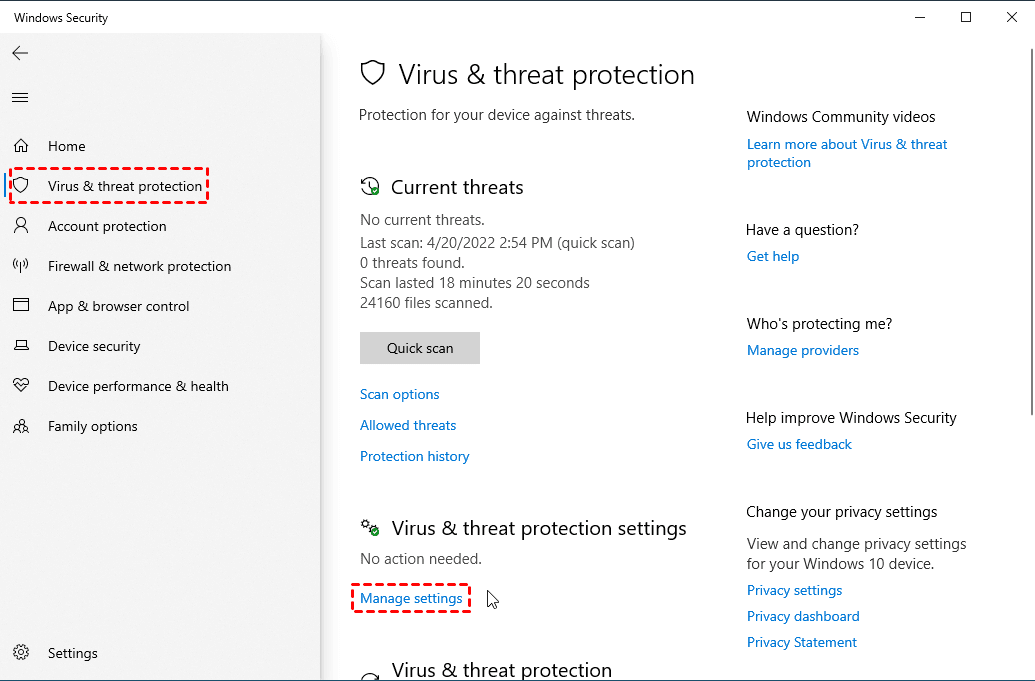
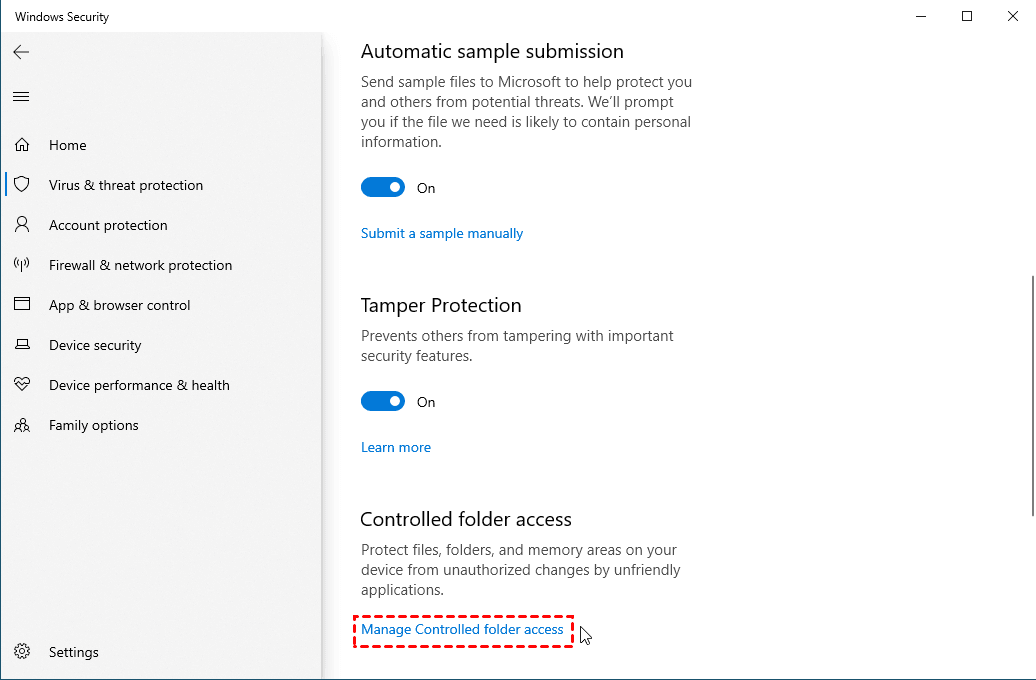
Step 3. Turn on the following options:
- Real-time protection
- Cloud-delivered protection
- Automatic sample submission
- Tamper Protection
Step 4. Under Controlled folder access, click Manage Controlled folder access.
Step 5. Turn On Controlled folder access to prevent unknown or untrusted apps from making changes to protected folders like Documents, Pictures, and Desktop.
- Click Protected folders to add custom folders you want secured.
- Click Allow an app through Controlled folder access if a trusted program is blocked.
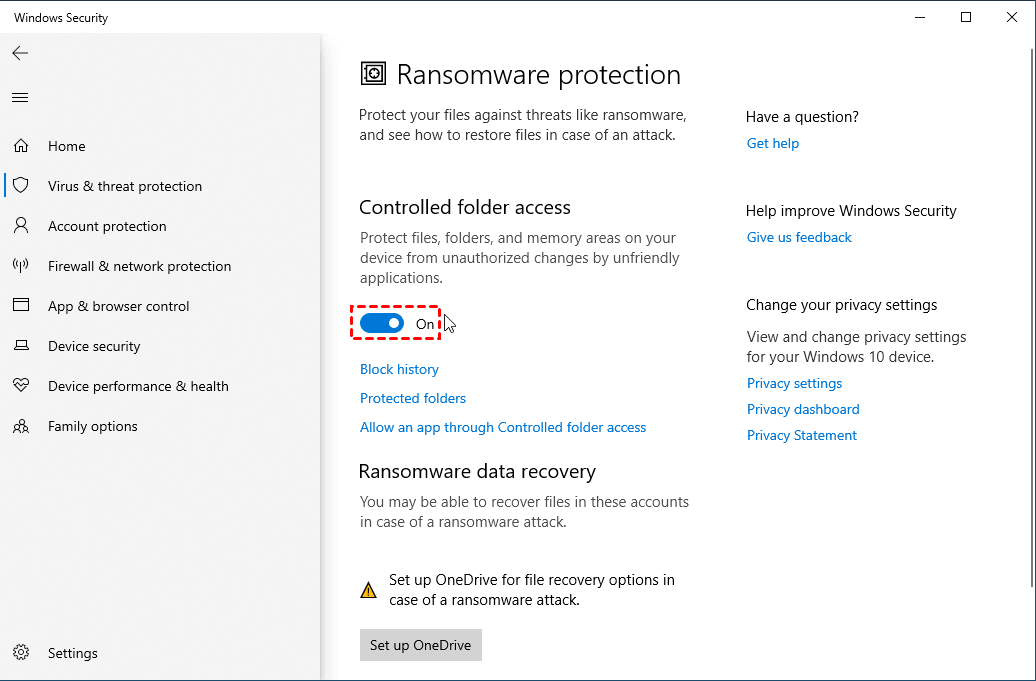
Step 6. Under Ransomware data recovery, click Set up OneDrive to back up key folders. This allows you to restore files if ransomware encrypts them.
Solution 2: AOMEI Backupper Professional
AOMEI Backupper Professional is a dedicated Windows backup software integrated with the ransomware protection feature. It guards your backups, defends your critical files, and ensures you can recover fast—even when ransomware evades detection.

 AOMEI Backupper
- Customizable Backups: Create a defense strategy that fits your needs by scheduling automated backups for individual files, specific partitions, or your entire system.
- Air-Gapped Isolation: Stay one step ahead of hackers by backing up to NAS, offline drives, or secure cloud environments.
- Instant Recovery: Execute high-speed recovery of data and system states following ransomware incidents.
- Integrated Ransomware Defense: Guard backup repositories and sensitive directories against unauthorized modification using built-in security protocols.
 100% Secure
Download AOMEI Backupper and follow the steps below to enable ransomware protection:
Step 1. Install and run AOMEI Backupper. Click Tools > Ransomware Protection.
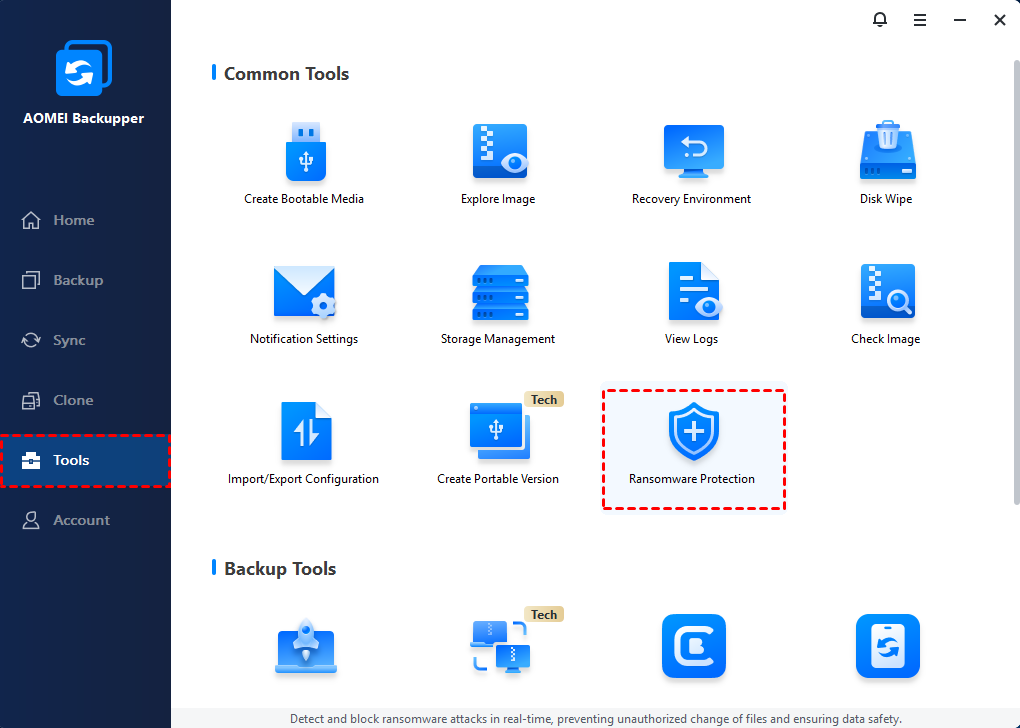
Step 2. In the pop-up window, turn on the switch for Enable Ransomware Protection.
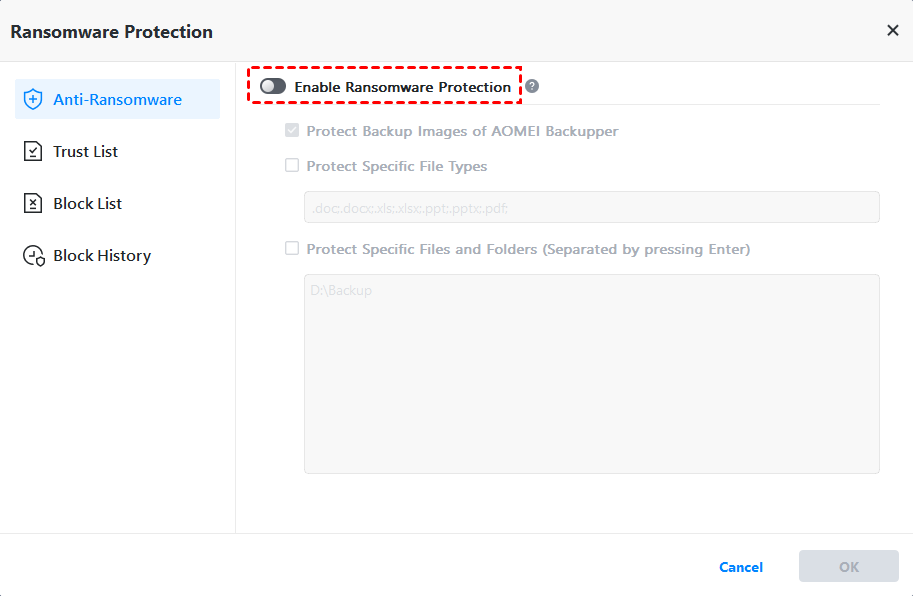
Step 3. There are three sub-options:
- Protect Backup Images of AOMEI Backupper: Checked by default to protect image files created by AOMEI Backupper.
- Protect Specific File Types: Add file extension(s) to be protected, such as .doc, .docx, and .pdf.
- Protect Specific Files and Folders: Add specific folder paths to be protected, for example, C:\Program Files (x86), C:\ProgramData, etc.
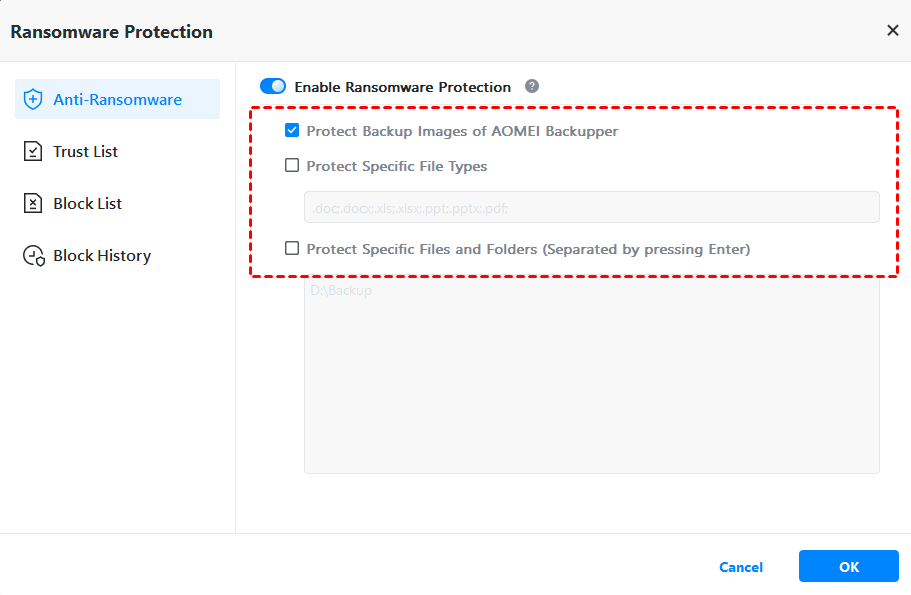
Step 4. Confirm your settings and click OK.
Solution 3: Bitdefender Total Security
Bitdefender Total Security is a comprehensive security suite with top-tier ransomware defense, advanced behavior monitoring, and anti-exploit technologies that make it a strong CryptoLocker antivirus tool. Learn how to use it for ransomware protection below:
Step 1. Download Bitdefender Total Security from the official site, create an account, and install.
Step 2. Open the Bitdefender dashboard. Click on Protection in the left-hand navigation menu.
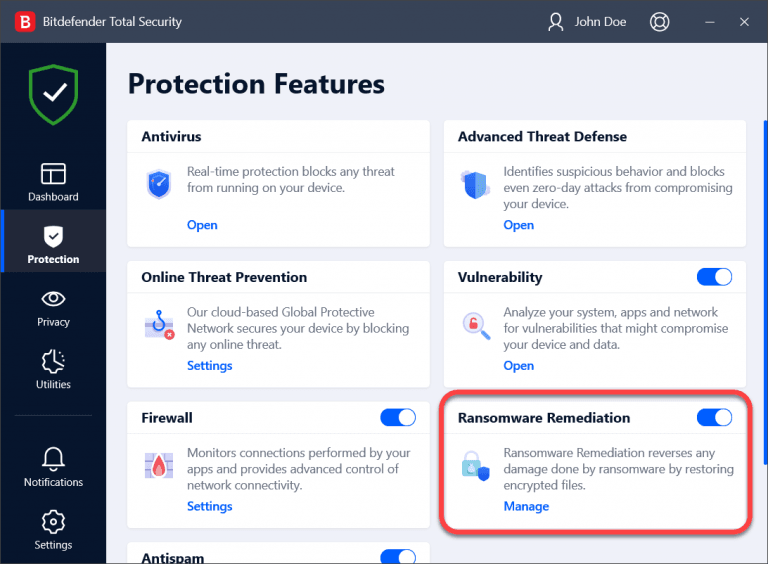
Step 3. Locate the Ransomware Remediation pane and ensure the switch is toggled to ON.
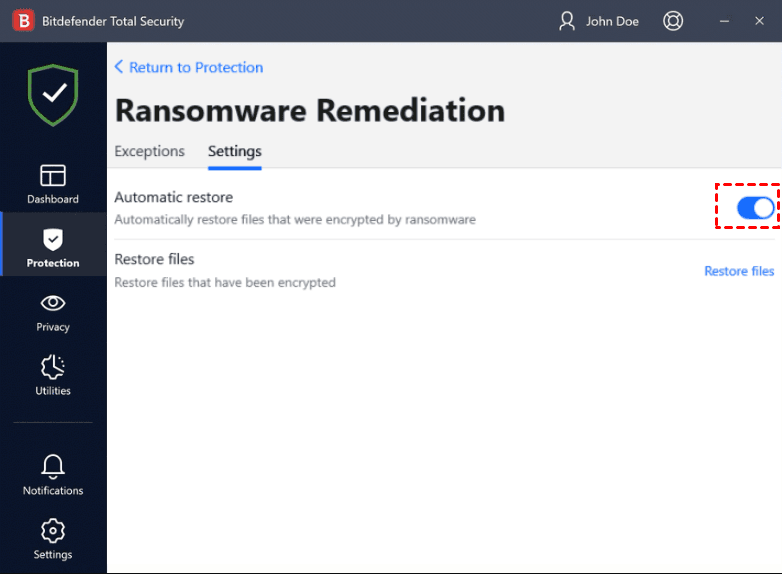
Step 4. Click Manage within that pane and verify that Automatic restore is enabled. This ensures you don't have to manually recover every file if an attack is caught.
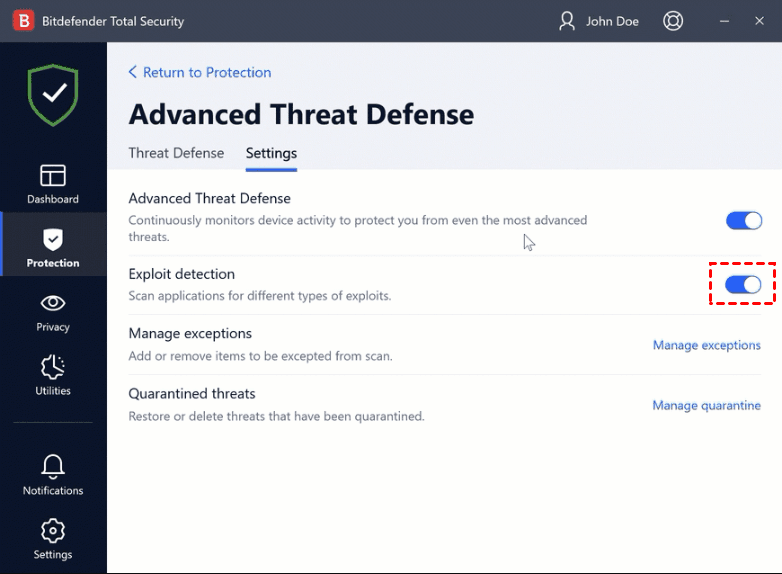
Step 5. In the Protection tab, find Advanced Threat Defense and click Open.
Step 6. Go to the Settings tab and ensure Exploit detection is enabled. This blocks the "exploits" that ransomware like CryptoLocker uses to sneak onto your system.
What to Do If CryptoLocker Has Already Encrypted Your Files
If your files have already been locked by CryptoLocker or a similar ransomware variant, time is critical. Acting quickly can prevent further damage and improve your chances of recovery. Here’s exactly what to do.
1. Immediately Disconnect the Infected Device
The first priority is containment.
- Disconnect from Wi-Fi or unplug the Ethernet cable
- Disable Bluetooth
- Remove external drives
- Disconnect from shared network folders
2. Do NOT Pay the Ransom (If Possible)
Although attackers promise decryption after payment, there are serious risks:
- No guarantee you’ll receive a working decryption key
- You may become a repeat target
- You’re funding criminal operations
- Some ransomware strains fail even after payment
3. Identify the Ransomware Variant
Look for:
- The ransom note filename
- The file extension added to encrypted files
- Contact email addresses listed in the note
Search online for the variant name. Some ransomware strains have free decryption tools available through cybersecurity research initiatives. You can also check reputable ransomware decryption projects such as:
- The No More Ransom initiative
- Major antivirus vendor decryption portals
4. Scan the System with Anti-Ransomware Software
Before attempting recovery, remove the active threat. Use a reputable security solution to:
- Run a full system scan
- Remove malicious processes
- Clean registry entries
- Ensure ransomware is no longer active
If possible, perform the scan in Safe Mode with Networking to reduce interference.
5. Restore Files from Backup (Best Option)
If you have clean backups, this is the safest recovery method. Follow the steps below to restore safely:
- Ensure the ransomware has been completely removed
- Reinstall Windows if necessary (for severe infections)
- Reconnect your backup drive
- Restore files using your backup software
- Verify files open normally
Verdict
Implementing strong anti CryptoLocker protection is essential for modern Windows users. Tools like Microsoft Defender Ransomware Protection, Bitdefender Total Security, and AOMEI Backupper Professional can provide multiple layers of defense, including real-time threat detection, protected folders, and secure data recovery.
To enable ransomware protection for Windows Server, you may try AOMEI Backupper Server. Don’t hesitate to download it!

 as a preferred
source on Google
as a preferred
source on Google