



Full Guide on Alienware SSD Upgrade without OS Reinstallation
Upgrading Alienware's solid state disks is not just about increasing storage space, it's about unlocking your machine's full potential, such as faster boot and load times, improved gaming performance, and smoother multitasking and workflow.

By Lily Updated on August 10, 2026


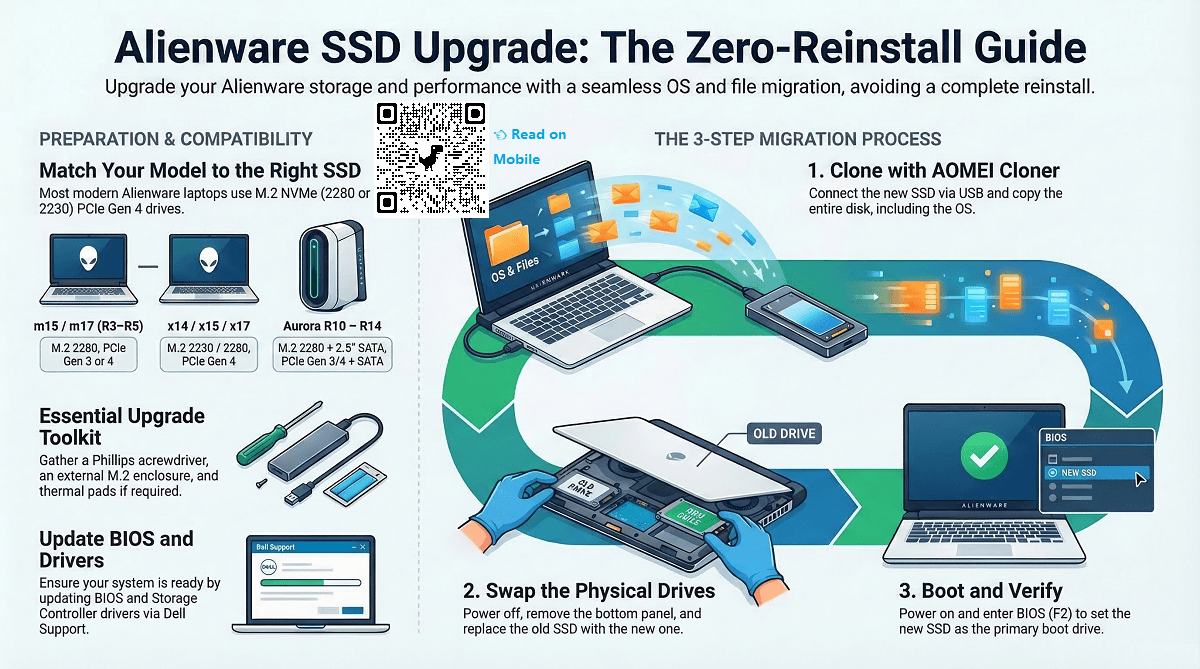
When your Alienware is running out of storage space, the system feels sluggish, or you want a clean slate, you may choose to upgrade your Alienware SSD. This article will provide you with the preparations before upgrading, as well as the method of upgrading your Alienware SSD without reinstalling Windows.
🌟To check more SSD transfer methods and scenarios, please refer to this complete guide: Transfer Data from One SSD to Another.
SSD Upgrade Guide for Common Alienware Models
The following section contains a comprehensive SSD upgrade guide for common Alienware models (laptops and desktops).
|
Alienware Model |
SSD Slot Type |
Interface |
Max Capacity |
Upgrade Notes |
|
Alienware Laptops |
||||
|
Alienware m15 / m17 (R3–R5) |
M.2 2280 |
PCIe Gen 3 or Gen 4 (varies by variant) |
Up to 2TB or more per slot |
Check BIOS to confirm maximum supported capacity |
|
Alienware x14 / x15 / x17 |
M.2 2230 and/or M.2 2280 |
PCIe Gen 4 |
Varies by configuration |
Use thermal adhesive and verify screw length for smaller 2230 SSDs |
|
Alienware 17 R5 |
M.2 2280 + 2.5" bay |
NVMe + SATA |
Up to 2TB NVMe + 2TB SATA |
Supports dual-drive configuration |
|
Alienware Desktops |
||||
|
Alienware Aurora R10 / R11 / R13 / R14 |
M.2 2280 + 2.5" SATA |
PCIe Gen 3 or Gen 4 + SATA |
Up to 4TB or more per slot |
WD SN850X recommended for gaming; Samsung 990 Pro for creators |
|
Alienware Area-51 Series |
Multiple M.2 + SATA slots |
NVMe + SATA |
Depends on motherboard and chipset |
Designed for high-capacity multi-drive setups |
Preparations before Alienware SSD Upgrade
1. Identify the System and SSD Type
- Model: Know your exact Alienware model, for example, m15 R6, Aurora R13.
- SSD Slot Type: Check what kind of SSD is supported, for example, M.2 NVMe, SATA.
2. Backup Your Data
You can use Windows Backup, or you can choose to backup important files to an external drive to avoid data loss.
3. Gather the Required Tools
- Anti-static wrist strap (optional, but good practice).
- Small Phillips head screwdriver.
- Thermal pads or heatsinks (some Alienware SSD slots require thermal contact).
- External SSD enclosure or USB-to-M.2 adapters (if cloning).
4. Update BIOS & Drivers
Go to Dell Support and update:
- BIOS
- Storage Controller Drivers
- Intel RST (Rapid Storage Technology) drivers (if applicable)
How to do Alienware Laptop SSD Upgrade without Reinstalling Windows
The next section explains how to upgrade your Alienware SSD.
Step 1. Connect the New SSD
You can connect the new hard disk to an Alienware system via USB using a solid-state drive caddy or adapter. After connecting, the new hard drive should show up in Disk Management.
Step 2. Clone the Old SSD to the New One
To do this, you can use AOMEI Cloner, which can provide you with:
 AOMEI Cloner
- Easy to use: It offers a clean, user-friendly interface, making cloning accessible to beginners.
- Disk Clone: It creates an exact copy of the HDD or SSD, including the operating system (OS), applications, and files, on the new hard disk.
- System Clone: It automatically selects the system-related partitions and migrates them to a new SSD or HDD.
- Intelligent Clone: It offers a smart clone, copying only used sectors to save disk space.
- Fast Transfer: It offers high-speed data transfer and low system impact, allowing seamless operation without disrupting normal computer usage.
 100% Secure
You can follow the easy steps to begin SSD cloning:
1. Download and install AOMEI Cloner. Then choose Disk Clone.

2. Click Select Source Disk to choose the old SSD as the source disk and click Next.
3. Click Select Destination Disk to choose the new SSD as the destination disk. And click Next.
4. Enable SSD Alignment to optimize the target SSD performance and click Start Clone. In the Data Safety Notice window, click Start Clone again to launch the cloning process.
Step 3. Swap out the Drives
1. Power off the Alienware.
2. Remove the bottom panel (usually secured with Phillips screws).
3. Locate the existing SSD and remove it.
4. Insert the new SSD in its place.
5. Reassemble your laptop or desktop.
Step 4. Boot up
Turn on your system, and if the clone was successful, just boot it.
If the laptop or desktop fails to boot, you can check this: Cloned SSD won’t Boot. Or enter the BIOS (press F2 or DEL at startup), and make sure the new SSD is set as the primary boot drive.
Why Upgrade Alienware SSD?
Upgrading the SSD in your Alienware system can improve system performance and expand storage space.
💨Faster boot and load time: SSD can significantly reduce boot and application/game load times compared to traditional hard drives and older SATA SSDs.
The whole system will boot faster, file transfer faster, and applications launch near-instantly.
🎮Better gaming performance: While SSDs don’t increase FPS, they can reduce loading screens and texture pop-in in games. Games installed on SSDs will launch faster and load levels seamlessly.
💾More storage capacity: Modern AAA games and creative tools like Adobe or 3D software take up a lot of space. Upgrading lets you add a larger or second SSD.
🛠️Improved System Reliability: SSDs are more durable than hard drives, and newer models also have better thermal management, power efficiency, and grind-free features for long-term stability.
FAQs About Alienware SSD Upgrade
1. Can I upgrade the SSD in an Alienware laptop?
Yes, most Alienware laptops allow SSD upgrades. Models such as the m15, m17, x14, x15, and x17 typically include one or two M.2 NVMe SSD slots, making it easy to replace or add a larger and faster SSD.
2. What type of SSD do Alienware laptops use?
Most modern Alienware laptops use M.2 NVMe SSDs, commonly in the M.2 2280 size. Some newer models, such as the x-series, may also support M.2 2230 drives. Always check your model’s specifications before purchasing a new SSD.
3. Will upgrading my SSD improve gaming performance?
Upgrading to a faster NVMe SSD can significantly reduce game loading times, improve system responsiveness, and speed up file transfers, though it will not directly increase FPS like a GPU upgrade would.
4. How do I check which SSD my Alienware computer uses?
You can check your SSD type by using Device Manager, Disk Management, or System Information in Windows, or by reviewing the official specifications for your specific Alienware model.
Conclusion
Upgrading your SSD enhances the performance of your Alienware system, while using AOMEI Cloner makes the upgrade process seamless and easy. Whether you're looking to reduce load times or work with large volumes of files, the upgrade is a worthwhile option.

 as a preferred
source on Google
as a preferred
source on Google