




How to Transfer Calendar to New iPhone: 4 Easy Ways
This guide helps you identify where your calendar events are stored and choose the right way to move them to a new iPhone without missing meetings.

By Jonna Updated on August 21, 2026


When you switch to a new iPhone, transferring your calendar is essential if you want to keep your appointments, meetings, reminders, birthdays, and important events. However, many users find that their calendar events do not appear automatically after setting up a new device. This guide explains why calendar events may not transfer and how to transfer calendar to new iPhone quickly.
Why Did My Calendar Events Not Transfer to My New iPhone?
If your calendar events did not transfer to your new iPhone, the problem may not necessarily be with the iPhone-to-iPhone transfer itself. Calendar data can come from different accounts and services, and each one may require a different transfer or sync method. Here are some common reasons for iPhone calendar not transferred:
- Calendar sync is disabled: Your new iPhone may not have Calendar enabled under iCloud or another account.
- Different Apple Account: If you signed into the new iPhone with a different Apple Account, your iCloud calendar events may not appear.
- Events are stored in another account: Your old iPhone may contain calendars from Google, Outlook, Exchange, or another service rather than iCloud.
- Only local calendars were transferred: Some calendar events may be stored locally on the device and therefore require a separate transfer or backup.
- Sync has not finished: Large amounts of calendar data may take some time to appear after enabling synchronization.
How Do I Transfer Calendar from Old iPhone to New iPhone Easily?
Depending on whether you prefer a quick direct transfer, cloud synchronization, official iTunes backups, or account-based linking, there are four proven methods to transfer your calendar to a new iPhone. Below is a detailed walkthrough of each solution.
Solution 1. One-Click Transfer Calendar to New iPhone
If you want a direct, fast, and hassle-free way to move calendar to new iPhone without relying on slow cloud syncs, AOMEI FoneBackup is the ideal choice. It is a professional iOS data management tool designed for quick PC-to-iPhone and iPhone-to-iPhone transfers.
 AOMEI FoneBackup
-
Selectable & Direct Transfer: Unlike iCloud or iTunes, which forces a full restore, it allows you to selectively migrate messages, contacts, videos, music, and photos.
-
No Apple ID Restrictions: Easily transfer data between iPhones even if they use different Apple IDs.
-
Superfast Speed: Physical USB cable transfers complete in minutes without needing stable Wi-Fi.
-
Data Safety: Existing data on your target iPhone will not be overwritten or erased.
 100% Secure
Follow these steps to move your calendar from your old iPhone to your new iPhone:
Step 1. Free download and launch AOMEI FoneBackup on your Windows PC. Connect both your old iPhone and new iPhone to the computer via USB cables. Tap Trust This Computer on both devices if prompted.
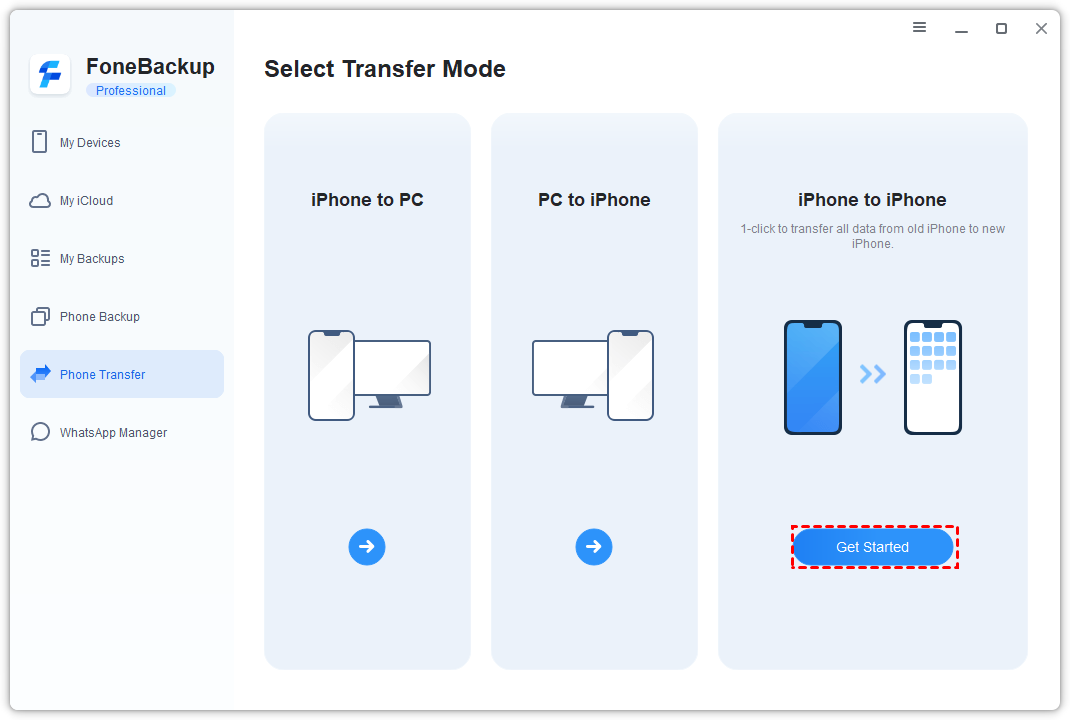
Step 2. On the main interface, navigate to Phone Transfer on the left panel, hover over iPhone to iPhone, and click Get Started.
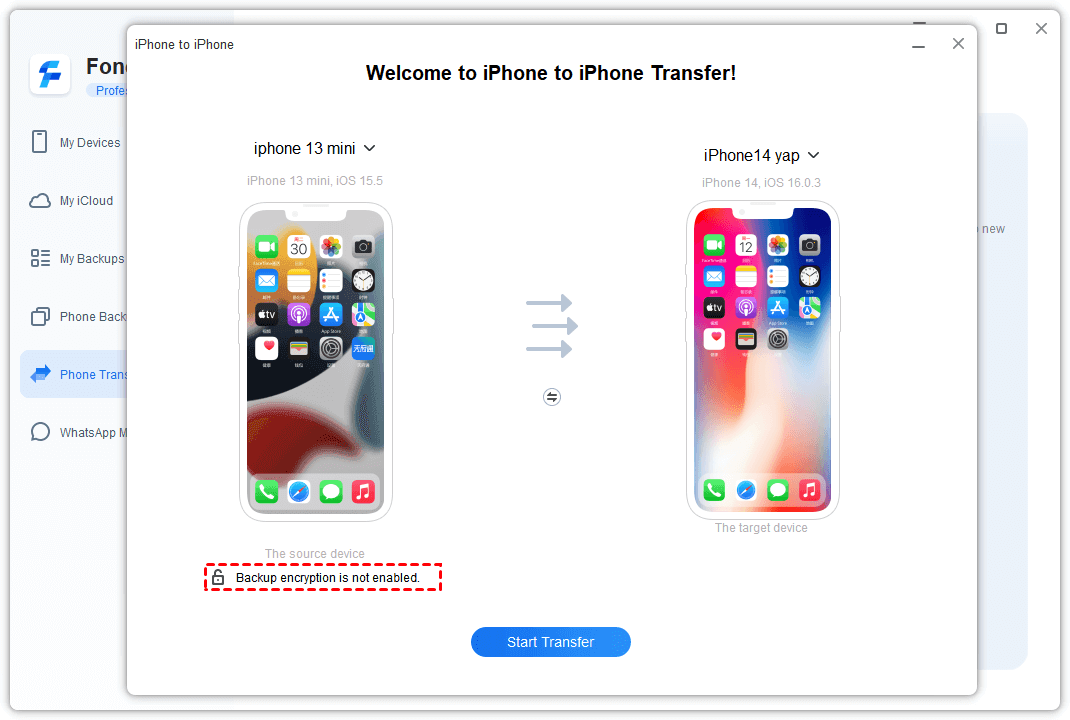
Step 3. Set your old iPhone as the source device, and choose your new iPhone as the target device; enable backup encryption if required for sensitive health or keychain data.
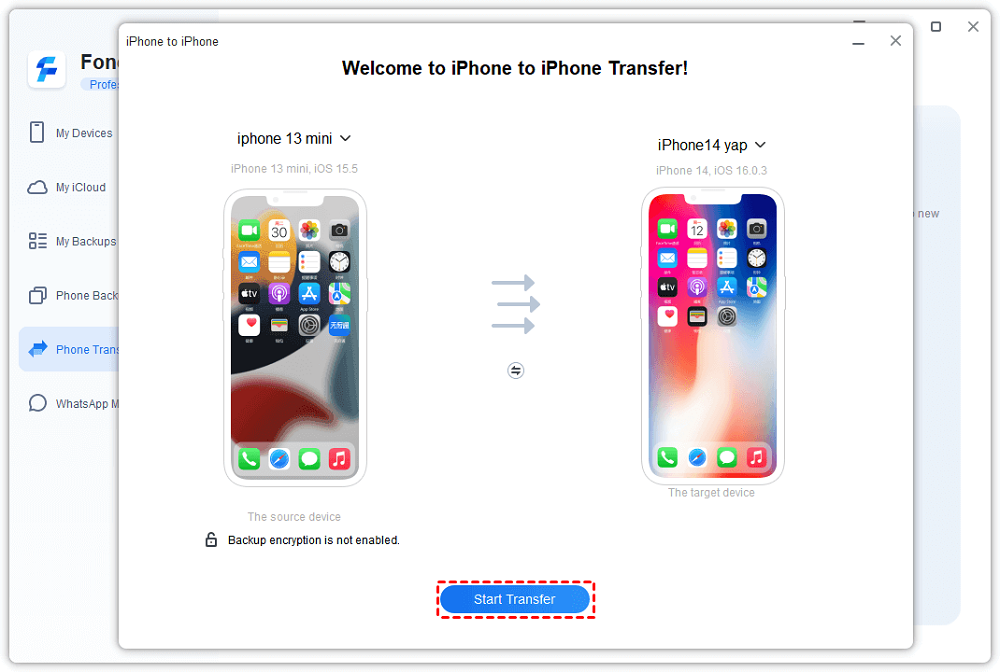
Step 4. Click Start Transfer to transfer iPhone data to new iPhone.
Solution 2. Sync Calendar on New iPhone with iCloud
For users who prefer Apple's native cloud service and use the same Apple ID on both devices, iCloud offers an automatic wireless synchronization method.
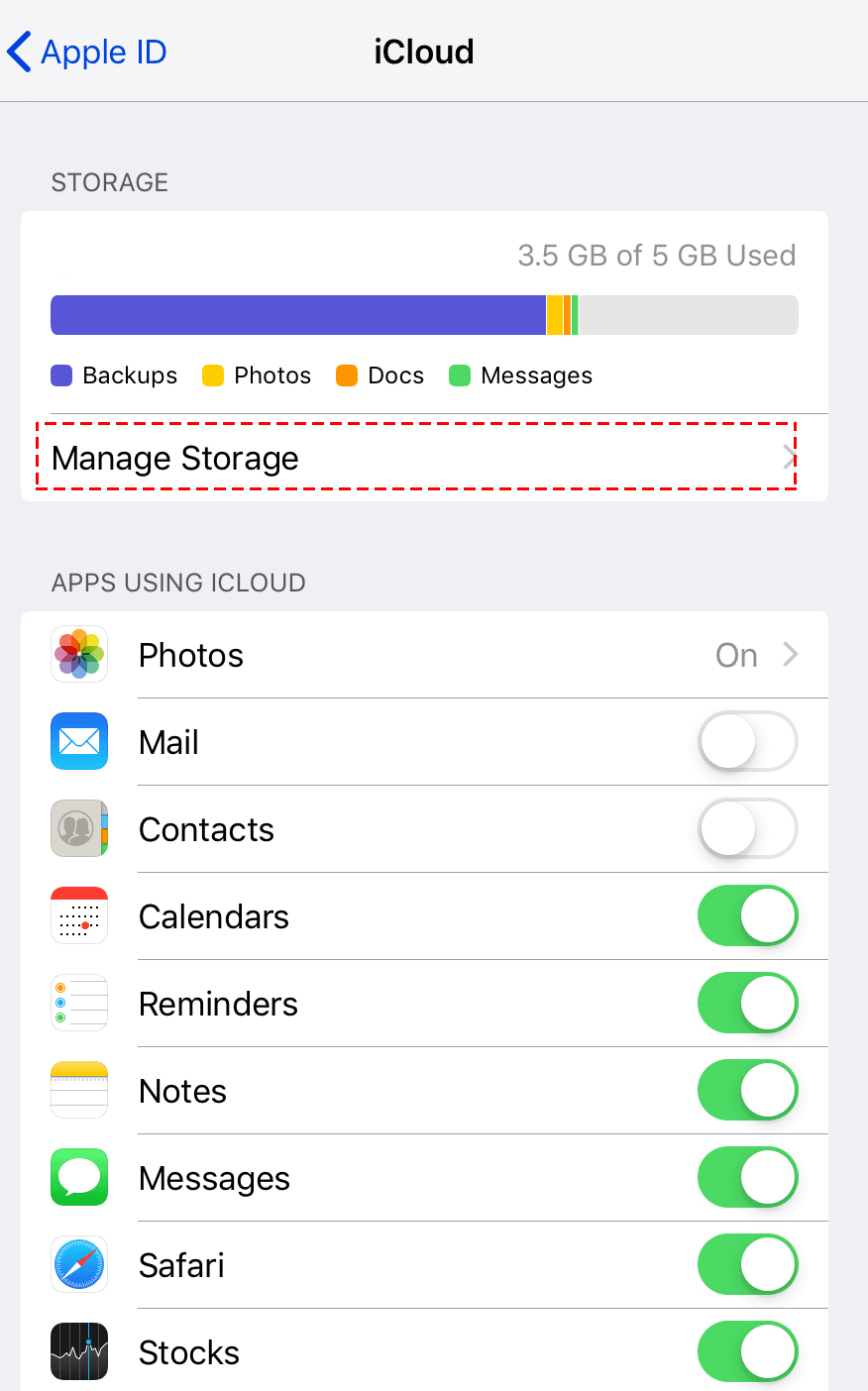
Step 1. Enable iCloud Calendar on Old iPhone: Go to Settings > [Your Name] > iCloud. Under "Apps Using iCloud", tap See All and ensure the Calendars toggle switch is turned ON (green). Connect to Wi-Fi and wait a few minutes for data to upload.
Step 2. Sign into New iPhone: Make sure your new iPhone is signed into the exact same Apple ID account under Settings.
Step 3. Enable iCloud Calendar on New iPhone: Go to Settings > [Your Name] > iCloud > See All, and switch on Calendars.
Solution 3. Backup & Restore Calendar via iTunes/Finder
If you prefer standard desktop management or are setting up a brand-new iPhone from scratch, performing a full system backup and restore using iTunes (or Finder on macOS Catalina and later) will move all device data, including calendars.
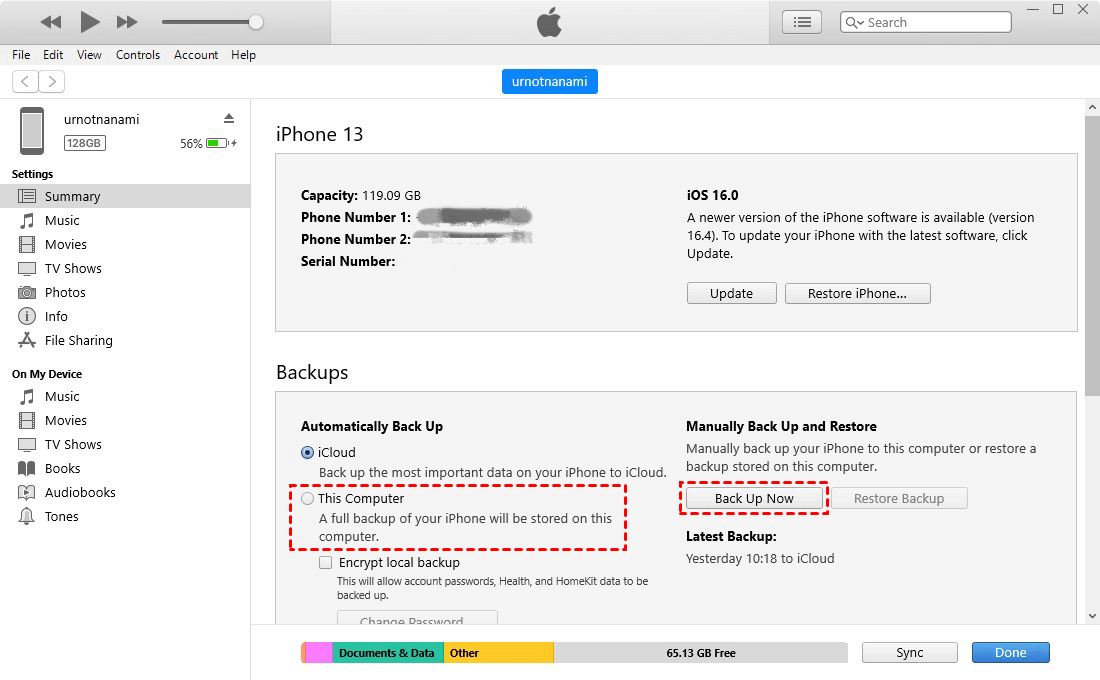
Step 1. Backup Old iPhone: Connect your old iPhone to your PC or Mac using a USB cable. Open iTunes (or Finder). Select your device icon, go to the Summary (or General) tab, select This Computer, and click Back Up Now.
Step 2. Prepare New iPhone: Connect your new iPhone to the computer. If it is already set up, you may need to erase content via Settings > General > Transfer or Reset iPhone > Erase All Content and Settings to reach the setup screen.
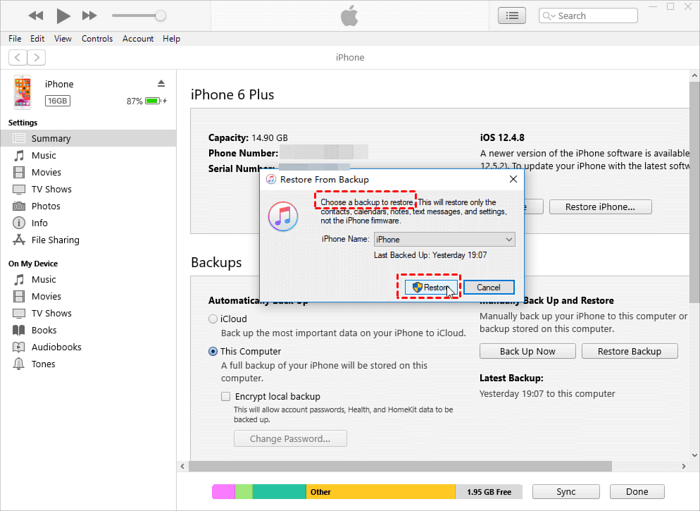
Step 3. Restore Backup: During the initial setup on your new iPhone, choose Restore from Mac or PC when reaching the Transfer Your Apps & Data screen. Alternatively, select Restore Backup in iTunes/Finder, select your recent backup file, and click Restore. Keep the cable connected until the restore completes.
Solution 4. Move Google, Outlook, or Exchange Calendar to New iPhone
If your calendar schedule is linked to third-party accounts (such as Gmail, Work/School Microsoft Exchange, or Outlook) rather than iCloud, you don't need complex backups. Simply logging into these accounts on your new iPhone instantly displays your full schedule.
Step 1. Go to Settings > Calendar (or Mail) on your new iPhone. Tap Accounts > Add Account.
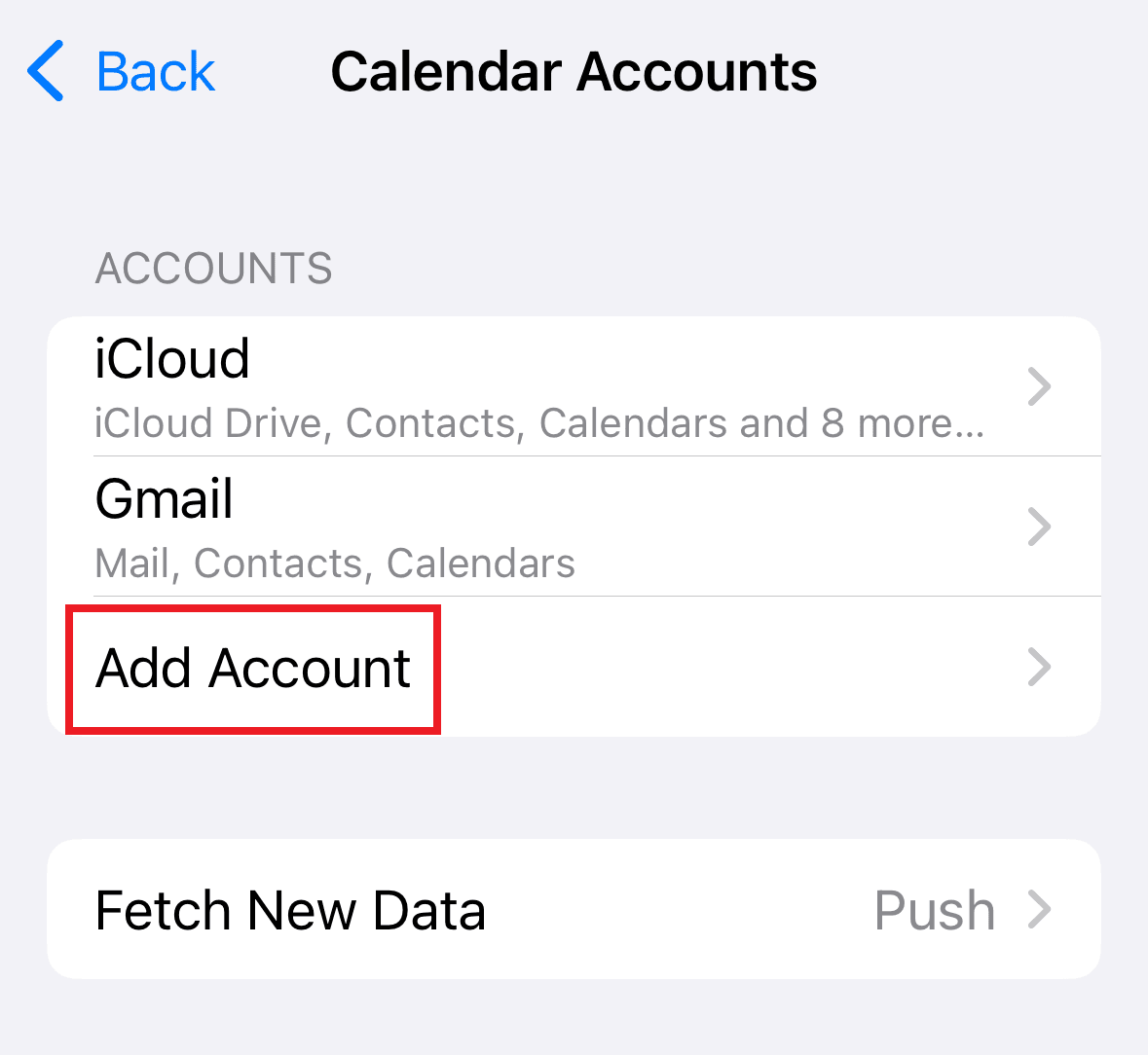
Step 2. Select your account provider (e.g., Google, Outlook.com, or Exchange).
Step 3. Enter your email address and password, then follow the on-screen authentication steps.
Step 4. On the sync permissions screen, make sure the Calendars toggle is switched ON, then tap Save.
Step 5. Open the native iPhone Calendar app, tap Calendars at the bottom center, and ensure the newly added account calendars are checked.
FAQ About Transferring Calendar to New iPhone
Q1: How do I transfer calendar events from iPhone to iPhone without iCloud?
You can use AOMEI FoneBackup for a direct transfer without iCloud between devices. Alternatively, you can back up your old iPhone via iTunes/Finder on a computer and restore it to the new iPhone, or sync calendar events through third-party email accounts like Gmail or Outlook.
Q2: Does Quick Start transfer calendar events?
Quick Start can move many settings and data, but account-based calendars still depend on account sign-in and sync settings. Always check the Calendar app after setup.
Q3: Can I transfer calendar events if my iPhones use different Apple IDs?
Yes. iCloud and iTunes backups require the same Apple ID, but AOMEI FoneBackup bypasses Apple ID limitations completely, allowing seamless transfers between different Apple accounts.
Conclusion
Learning how to transfer calendar to new iPhone ensures you never miss a vital appointment, business deadline, or personal event. Depending on your needs:
-
Use AOMEI FoneBackup for the fastest, most flexible, and selective transfer without Apple ID restrictions.
-
Use iCloud Sync for convenient cloud-based syncing across devices using the same Apple ID.
-
Use iTunes/Finder if you want to perform a complete system restoration from scratch.
-
Use Account Sync if your schedule relies on Google, Outlook, or Exchange.
Choose the method that best matches your setup and enjoy your new iPhone with a perfectly organized schedule!

 as a preferred
source on Google
as a preferred
source on Google