



How to Transfer Apple Music to Spotify | 2 Useful Ways
Learn how to transfer Apple Music to Spotify with two easy methods. Use SongShift on iPhone or Tune My Music on desktop, keep your playlists intact. Step-by-step guide.

By Kelsey Updated on May 14, 2026


Is it possible to transfer my Apple Music playlist to Spotify?
New user here! I love the app but I don't want to lose my 2K+ songs on AM - can I easily transfer them over?
- Question from Reddit
So you're switching to Spotify. Smart move, over 100 million songs, 6 million podcasts, and those cool social features like sharing playlists and hosting "Jams" with friends. But there's just one problem: you've got thousands of songs carefully curated in Apple Music, and the thought of rebuilding all those playlists by hand is exhausting.
✔Good news: you don't have to. Some tools do the heavy lifting for you. This guide covers two solid ways to transfer Apple Music to Spotify, so you can keep your playlists and start enjoying your new platform right away.
Method 1. Transfer Playlists to Spotify with SongShift
SongShift is a popular iOS app built specifically for moving playlists between music services. It's reliable, supports tons of platforms, and gives you control over what gets transferred.
Step 1. Download and install SongShift from the App Store on your iPhone. Open the app.
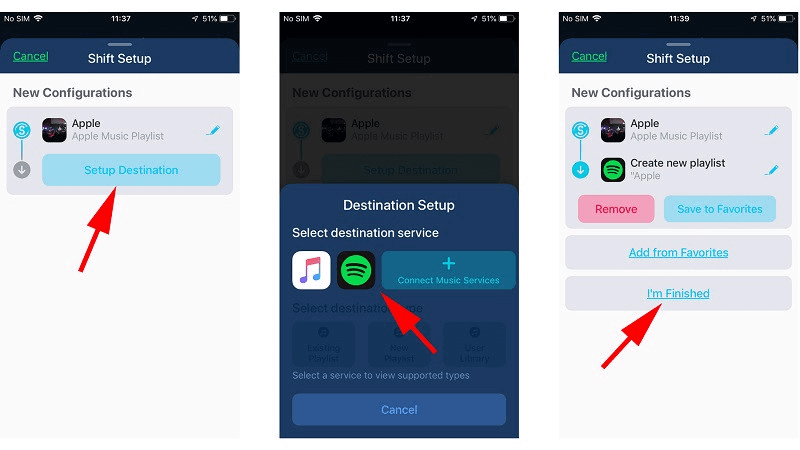
Step 2. On the main screen, tap "Setup Source." Choose Apple Music from the list of services. You'll be prompted to log in to your Apple Music account and authorize the app.
Step 3. After adding Apple Music, go back to the Source option and select it. You'll see your saved playlists—choose the ones you want to transfer.
Step 4. Once the app finishes syncing your selected playlists, tap "Setup Destination." Choose Spotify and log in to your Spotify account to grant access.
Step 5. Review your selections and tap "Finished" or "Start Shift." The app will handle the rest. Depending on how many songs you have, it might take a few minutes.
-
SongShift may not match every single song perfectly; some tracks might not be available on Spotify due to licensing differences. But it gets the vast majority right.
Method 2. Transfer Apple Music Playlists with Tune My Music
If you prefer working on a computer, Tune My Music is a solid choice. It's a web-based tool that supports just about every music platform out there - Spotify, Apple Music, Deezer, YouTube Music, TIDAL, you name it.
Step 1. On your computer, open a browser and go to the Tune My Music website.
Step 2. Click on the Apple Music icon. You'll be asked to log in to your Apple Music account and authorize the connection. (Make sure your iCloud Music Library is enabled on your devices, it helps with syncing.)
Step 3. Once connected, Tune My Music will display your playlists. Select the ones you want to transfer.
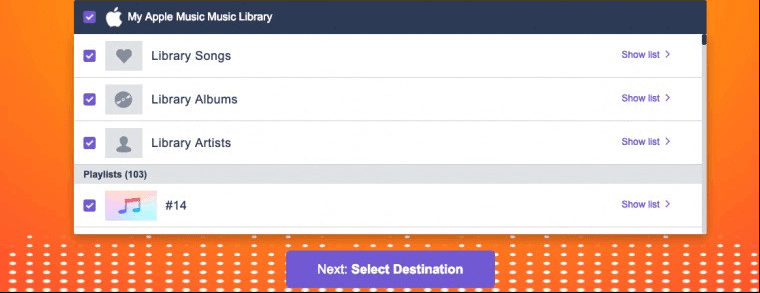
Step 4. Click "Choose Destination" and select Spotify. Log in to your Spotify account when prompted.
Step 5. Click "Start Moving" and wait for the transfer to complete. You'll get a notification when it's done. Open Spotify, your playlists should be there.
Tune My Music also works in reverse, you can use it to transfer playlists from Spotify to Apple Music, or between any other supported services.
Bonus: Back Up Your iPhone Music to Avoid Data Loss
Once you've successfully transferred your music to Spotify, don't forget about the music still on your iPhone. Things happen—phones get lost, broken, or replaced. A good backup ensures you never lose your library. AOMEI FoneBackup is a free Windows tool that makes backing up your iPhone music (and everything else) ridiculously simple.
 AOMEI FoneBackup
- Transfer between iPhone and PC: Move media files and personal data to PC/iPhone instantly - no iCloud or Wi-Fi required.
- 1-Click iPhone Backup: Fully back up photos, videos, contacts, messages, app data, settings, and more to PC.
- WhatsApp Backup & Transfer: Back up WhatsApp to PC and transfer data between iPhones with one click.
- iCloud Manager: Manage and sync iCloud photos, videos, contacts, and Drive files across accounts efficiently.
- Wide compatibility: iPhone 4 up to the latest iPhone 17 and iOS.
 100% Secure
Step 1. Download and install AOMEI FoneBackup on your Windows PC. Connect your iPhone with a USB cable and tap "Trust This Computer" when prompted.
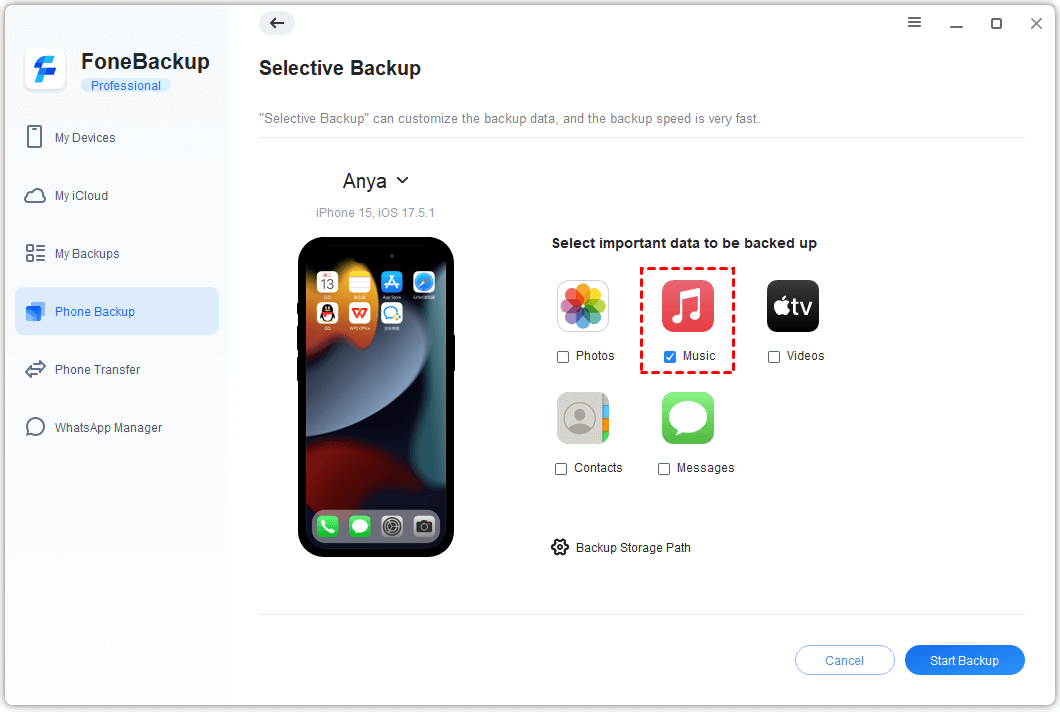
Step 2. Open AOMEI FoneBackup. On the home screen, click Phone Backup, then choose Selective Backup and click Get Started.
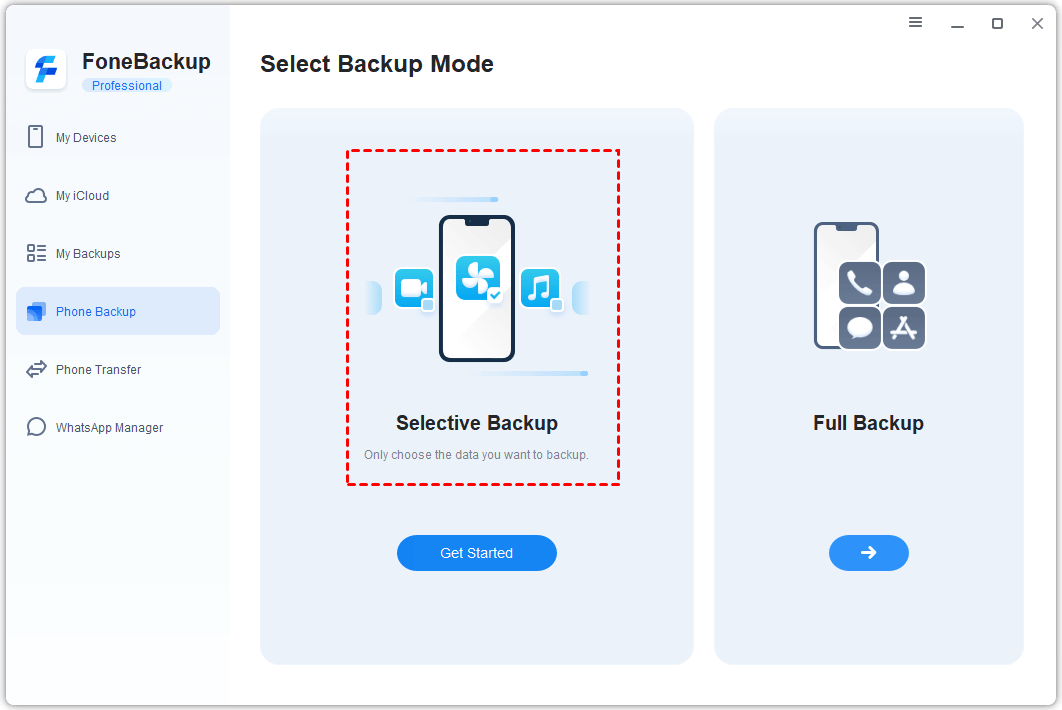
Step 3. Click the Music icon. You'll see a preview of all the songs on your iPhone. Select the ones you want to back up. Click OK.
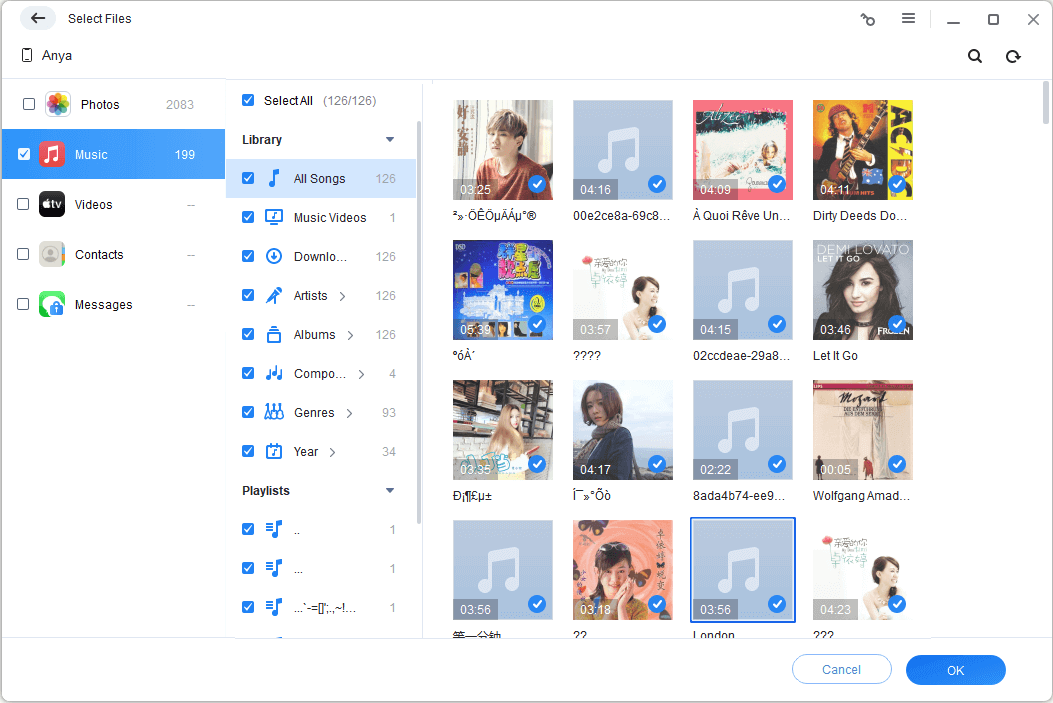
Step 4. Choose a folder on your computer to save the backup. (You can change this in Backup Storage Path if needed.)
Step 5. Click Start Backup. Your music is now safely on your PC.
🔍You May Wanna Know: How to Listen to Apple Music Offline | 3 Simple Ways (2026 Guide)
Conclusion
Moving from Apple Music to Spotify doesn't mean leaving your carefully crafted playlists behind. SongShift does the job right from your iPhone, while Tune My Music gives you a solid web-based option. Either way, your 2K+ songs can make the jump with you. Once they're there, take a few minutes to back up your iPhone's music with AOMEI FoneBackup, because losing your library is never fun.

 as a preferred
source on Google
as a preferred
source on Google