



How to Transfer Music from Laptop to iPhone with USB in 2026
Learn how to transfer music from laptop to iPhone with USB in 2026. Step-by-step guide for iTunes, plus faster alternatives like AOMEI FoneBackup and wireless options.

By Kelsey Updated on May 14, 2026


How do I transfer music from laptop to iPhone?
Hi, I've been trying to transfer music from my laptop to my iPhone by dragging it to iTunes, but it doesn't work. How do I transfer music from laptop to iPhone with iTunes or without it? Thanks a lot!
- Question from Apple Community
If that sounds familiar, you're not alone. iTunes has been the go‑to for years, but it's not exactly user‑friendly. It's slow, it's confusing, and sometimes it just doesn't work. The good news? You've got options. Whether you want to stick with iTunes or find something simpler, this guide walks you through exactly how to transfer music from laptop to iPhone with USB, no frustration, no guesswork.
🔍Why Transfer Music with USB?
Using a USB cable is still the fastest and most reliable way to move music. No Wi‑Fi drops, no upload limits, no waiting for cloud syncing. Just plug in, transfer, and go.
Method 1. Transfer Music from Laptop to iPhone with iTunes
iTunes can work if you know the right settings. The key is to switch to manual management so iTunes doesn't wipe your existing music.
How to set up iTunes for manual transfer:
Step 1. Download and open the latest version of iTunes on your laptop. Connect your iPhone with a USB cable.
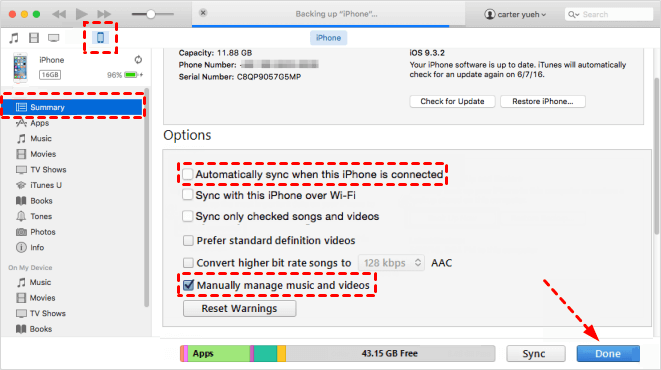
Step 2. Click the phone icon that appears near the top left. Go to Summary and scroll down to Options.
Step 3. Check the box next to "Manually manage music and videos." Uncheck "Automatically sync when this iPhone is connected." Click Done or Apply.
How to add music manually:
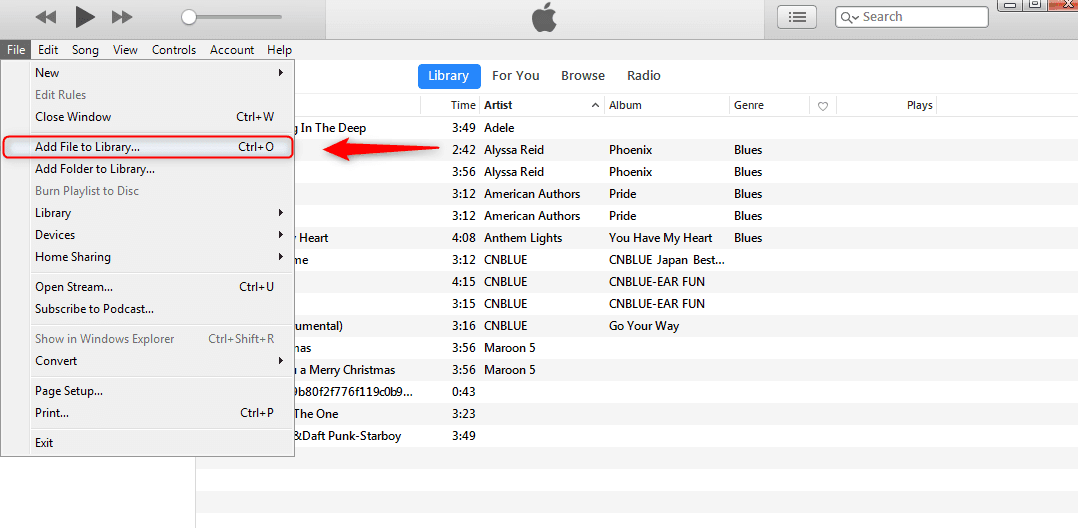
Step 1. In iTunes, go to File > Add File to Library (or Add Folder to Library). Select the music you want and click Open. This adds the songs to your iTunes library.
Step 2. Now go to the Music tab in your iPhone's summary page. Check "Sync Music." You can choose "Entire music library" or pick specific playlists, artists, or albums.
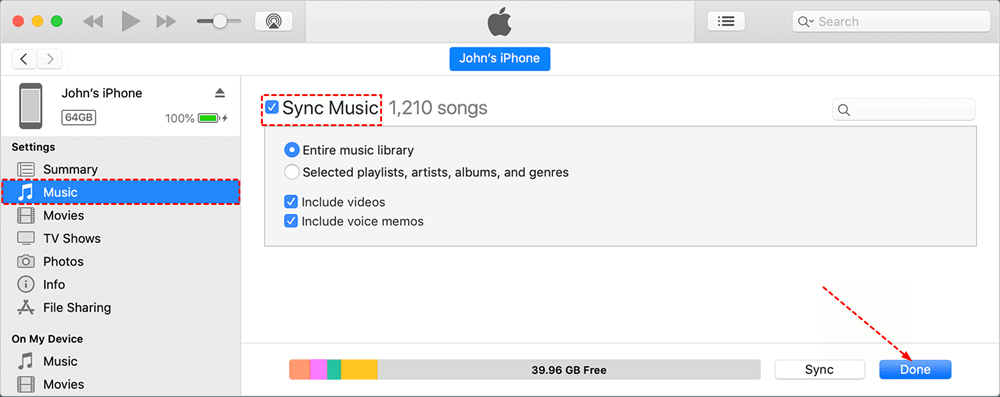
Step 3. Click Done or Apply in the bottom-right. iTunes will transfer the selected music to your iPhone.
-
If you already have music on your iPhone and you sync a library that doesn't include it, iTunes will ask if you want to replace it. Be careful what you click.
Method 2. Transfer Music from Laptop to iPhone with AOMEI FoneBackup
If you'd rather skip iTunes entirely, AOMEI FoneBackup is a solid choice. It's a free tool that lets you transfer music (and photos, videos, contacts, and messages) between your laptop and iPhone without any of iTunes' headaches.
 AOMEI FoneBackup
- Transfer between iPhone and PC: Move media files and personal data to PC/iPhone instantly - no iCloud or Wi-Fi required.
- Selective Transfer: Pick exactly which songs to move, no need to sync your whole library.
- No data loss: It adds music to your iPhone without deleting what's already there.
- 1-Click iPhone Backup: Fully back up photos, videos, contacts, messages, app data, settings, and more to PC, external drive, SSD, USB, or NAS.
- Fast USB Transfer: Direct cable connection means no waiting for Wi-Fi.
- Wide Format Support: MP3, AAC, WAV, FLAC - you name it, it handles it.
 100% Secure
Step 1. Download and install AOMEI FoneBackup on your Windows PC. Connect your iPhone with a USB cable and tap "Trust This Computer" when prompted.
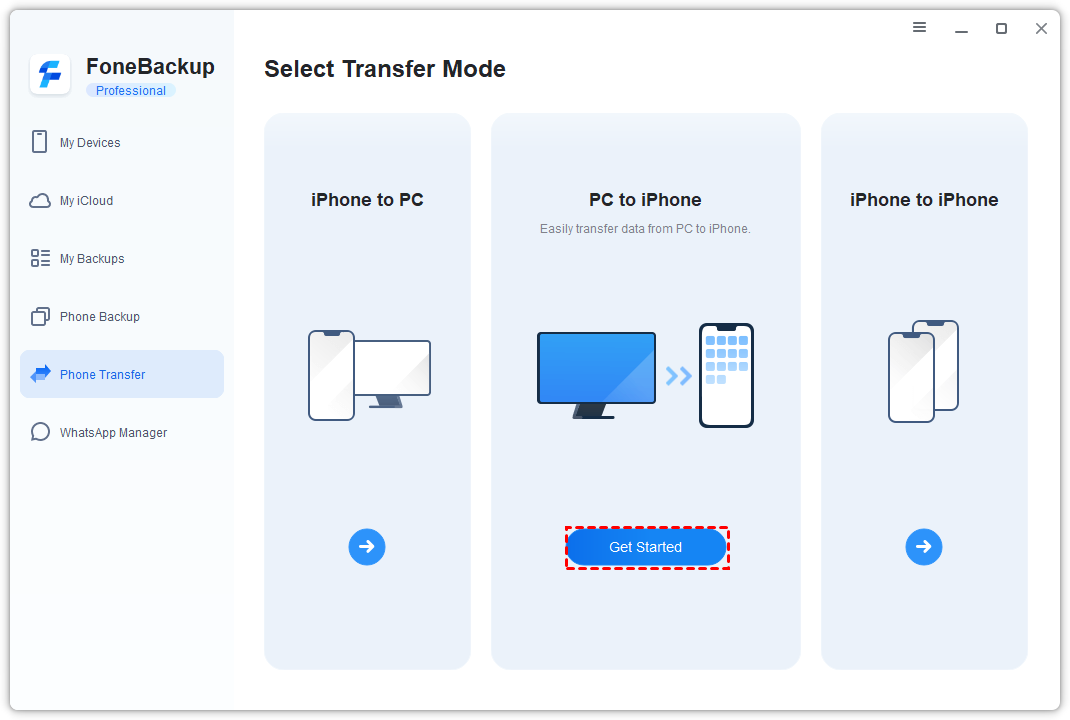
Step 2. Open AOMEI FoneBackup. On the home screen, click Phone Transfer, then choose PC to iPhone and hit Get Started.
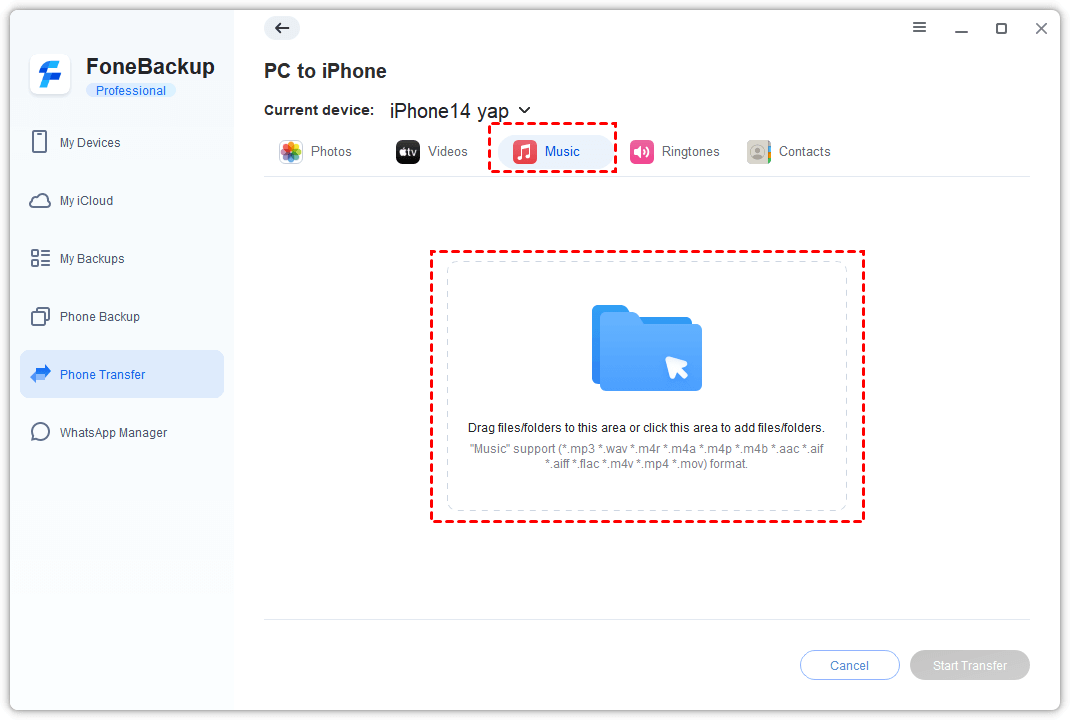
Step 3. Click the Music tab. Then click the folder icon to browse your laptop for the songs you want to transfer. Select the files and click Open.
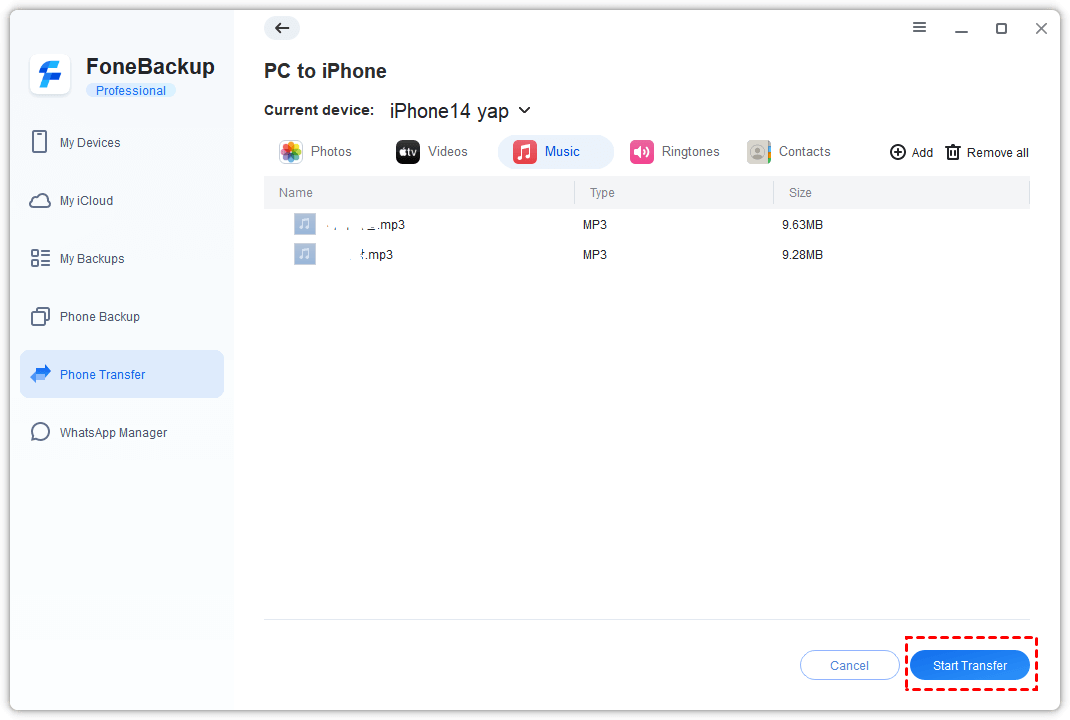
Step 4. Make sure you've added all the music you want. Click the Start Transfer button.
Step 5. Wait a few seconds - done. Disconnect your iPhone and open the Music app to find your songs.
AOMEI FoneBackup can also transfer music from iPhone to laptop, or even between two iPhones. Handy if you ever need to go the other way.
Method 3. Transfer iPhone Music to PC Wirelessly with Dropbox
If you're in a situation where you don't have a USB cable, cloud services like Dropbox can bridge the gap. This method is wireless, but it does require a stable internet connection.
-
Dropbox gives you 2 GB of free storage. If your music library is larger, you might need to pay for more space or do it in batches.
Step 1. On your laptop, download and install Dropbox if you haven't already. Sign in or create an account.
Step 2. Copy the music files you want to transfer into your Dropbox folder. Dropbox will automatically upload them to the cloud.
Step 3. On your iPhone, download the Dropbox app from the App Store. Sign in with the same account.
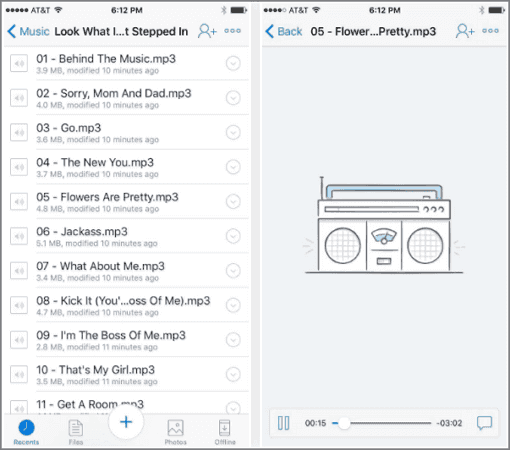
Step 4. Navigate to the uploaded music files. You can stream them directly from the app, or tap the three dots and select "Make Available Offline" to download them to your phone for offline listening.
Final Words
So, how to transfer music from laptop to iPhone with USB? You've got options. iTunes works if you set it to manual mode. Dropbox is great for wireless transfers, though it's slower and has storage limits. But for most people, AOMEI FoneBackup hits the sweet spot - fast, simple, and you keep full control over what moves. Give it a try and enjoy your music without the iTunes headache.

 as a preferred
source on Google
as a preferred
source on Google