



Tones Not Showing in iTunes? Here's How to Fix It
Can't find the Tones tab in iTunes? This guide explains why it disappeared in newer iTunes versions, how to restore it in older releases, and the easiest way to transfer ringtones to your iPhone without iTunes.

By Lily Updated on July 9, 2026


Help: Where Is the Tones Tab in iTunes?
“Hi! So, I am trying to make a new ringtone for my iPhone SE, but the Tones tab won't come up in the library section. This has nothing to do with my phone, just iTunes. I can't even sync music + tones from the summary tab on my phone because the section is grayed out. And no, I don't have ‘manually manage music and videos’ on. Please help! 😢”
- Question from Apple Community
Why Are iTunes Tones Not Showing?
Apple introduced iTunes in 2001 as an all-in-one media management tool for Windows and Mac. Besides organizing music and videos, iTunes also allowed users to manage iPhone data, including ringtones.
However, starting with iTunes 12.7, Apple permanently removed both the Tones and Apps sections. The software shifted its focus to music, movies, TV shows, podcasts, and audiobooks, making ringtone management through iTunes unavailable.
As a result:
- If you're using iTunes 12.7 or later, the Tones tab is no longer included, and there is no official way to restore it.
- Apple recommends downloading previously purchased ringtones directly from your iPhone through Settings > Sounds & Haptics instead of using iTunes.
How to Restore the Tones Tab in iTunes 12.6 or Earlier
If the Tones tab is missing in an older version of iTunes, it may simply be hidden. Follow these steps to enable it:
Step 1. Launch iTunes on your computer.
Step 2. Click Edit > Preferences (Windows) or iTunes > Preferences (Mac).
Step 3. Under the General tab, check the box next to Tones, then click OK. The Tones section should now appear in your iTunes library.
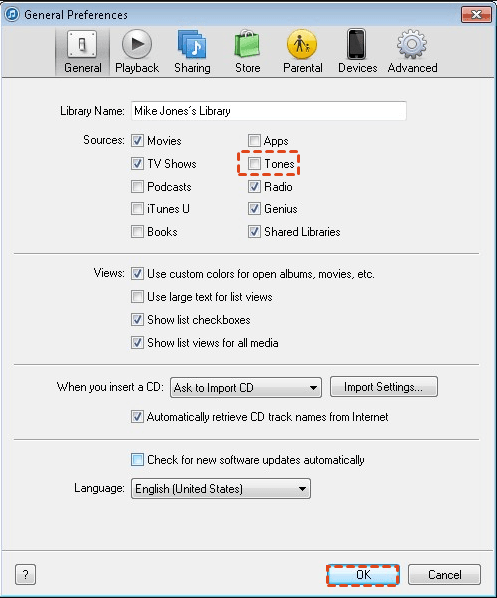
✍ Tip: To check your iTunes version, open iTunes and select Help > About iTunes (Windows) or iTunes > About iTunes (Mac).
Best Free Alternative When Tones Are Missing in iTunes
Since modern versions of iTunes no longer support ringtone management, a dedicated iPhone transfer tool is a much easier solution. AOMEI FoneBackup lets you import ringtones directly from your Windows PC to your iPhone without syncing through iTunes.
 AOMEI FoneBackup
- Transfer up to 1,000 ringtones in about 10 minutes.
- Supports popular audio formats, including MP3, M4A, M4R, WAV, AIF, and more.
- Preview and selectively transfer the files you want.
- Imported ringtones appear directly in the iPhone ringtone list.
- Simple interface suitable for beginners.
- Compatible with most iPhone models and the latest iOS versions, including iPhone 17 and iOS 27.
 100% Secure
Download AOMEI FoneBackup on your Windows PC and follow the steps below.
How to Transfer Ringtones to iPhone Without iTunes
Step 1. Connect your iPhone to the computer using a USB cable, then tap Trust This Computer on your iPhone if prompted.
Step 2. Open AOMEI FoneBackup and choose Phone Transfer > PC to iPhone, then click Get Started.
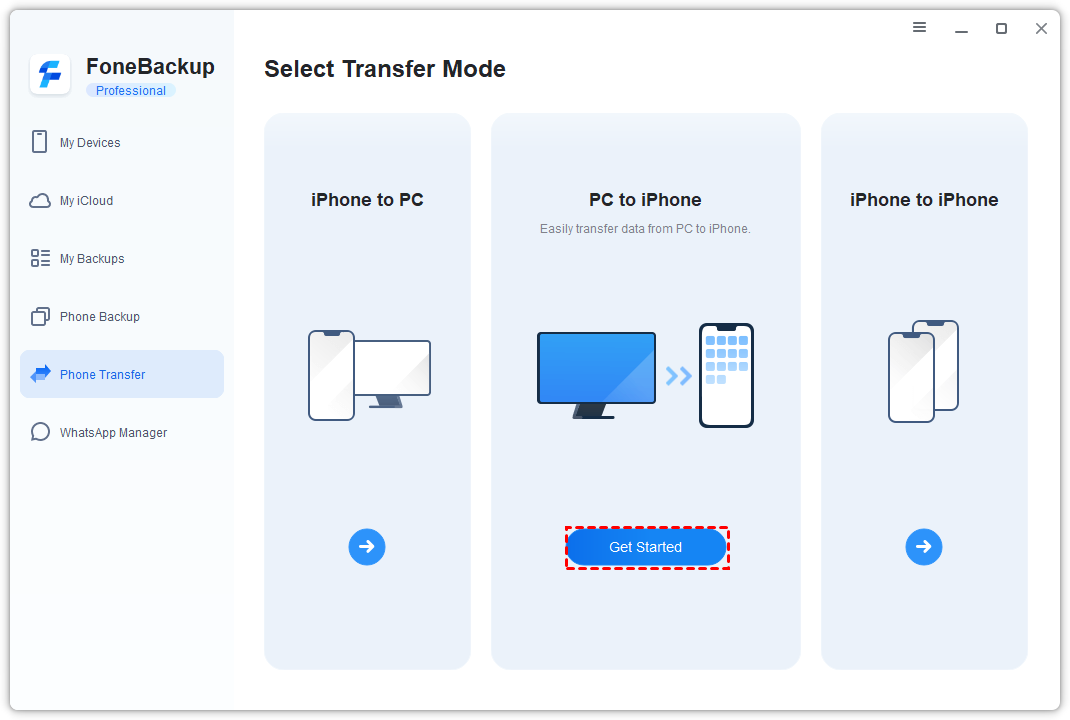
✍ Tip: If you want to export ringtones from your iPhone to your computer, select iPhone to PC instead.
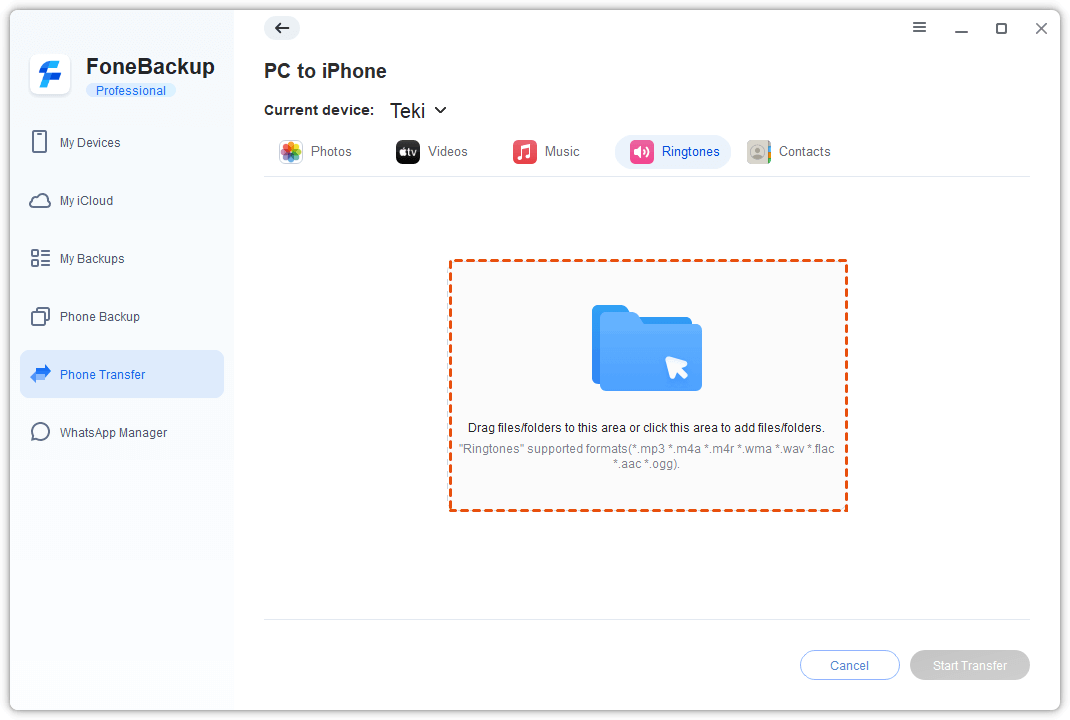
Step 3. Click the Ringtones icon and add the ringtone files by dragging and dropping them into the window or clicking the blue folder.
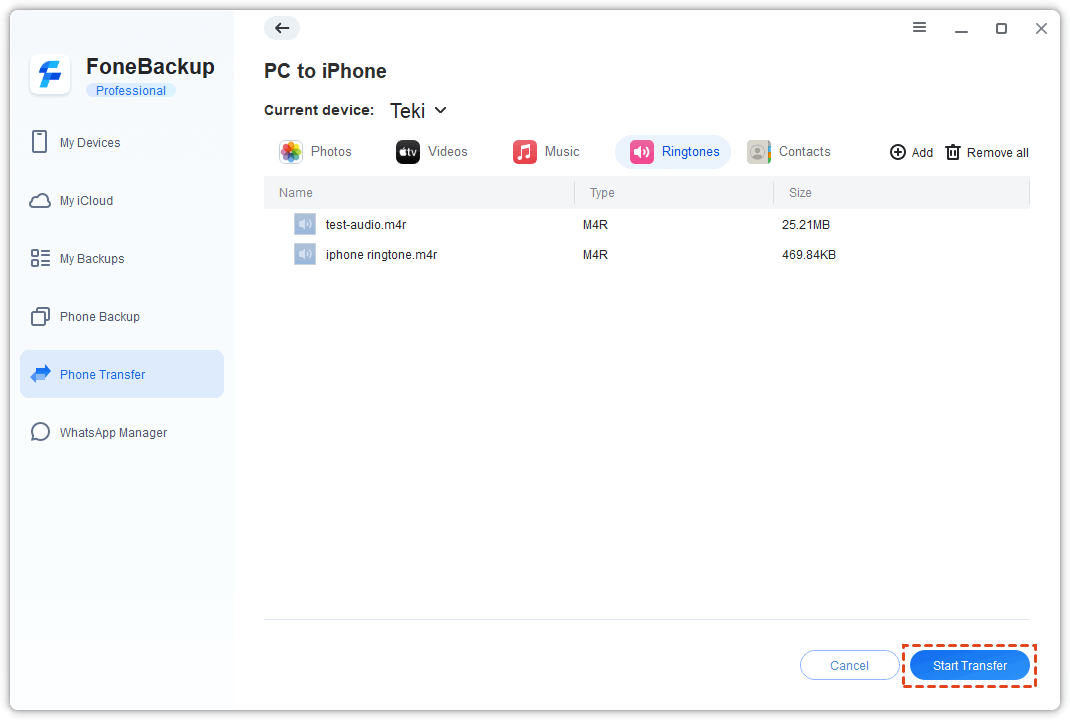
Step 4. Confirm the files you want to transfer, then click Start Transfer.
💡 Notes:
- After the transfer is complete, open Settings > Sounds & Haptics > Ringtone on your iPhone to choose your newly imported ringtone.
- Besides transferring ringtones, AOMEI FoneBackup also lets you protect your important data. Go to Phone Backup and choose Full Backup or Selective Backup to back up iPhone data as you like.
FAQs About iPhone Tones and iTunes
1. Why did Apple remove the Tones section from iTunes?
Beginning with iTunes 12.7, Apple redesigned iTunes and removed built-in ringtone management. Users are now encouraged to purchase and download ringtones directly on their iPhones instead of managing them through a computer.
2. Where can I find ringtones on my iPhone?
There are two common ways to access ringtone downloads:
- Open the iTunes Store app, tap More, then select Tones to browse or search for ringtones.
- Go to Settings > Sounds & Haptics > Ringtone, then tap Tone Store at the top of the screen.
3. Why isn't my iPhone showing up in iTunes?
Several factors can prevent iTunes from detecting your iPhone, including:
- You haven't tapped Trust This Computer.
- You're using an outdated version of iTunes.
- The USB cable or USB port is faulty.
- Apple Mobile Device drivers aren't working properly.
- Security software is blocking the connection.
Try reconnecting the device, updating iTunes, changing the cable, or restarting both your computer and iPhone.
4. How do I restore purchased ringtones on my iPhone?
If your purchased ringtone is missing:
- Open Settings > Sounds & Haptics.
- Tap Ringtone.
- Select Download All Purchased Tones.
If the ringtone still doesn't appear, verify that you're signed in with the correct Apple ID, check your internet connection, restart your iPhone, or contact Apple Support for additional assistance.
Conclusion
Tones not showing in iTunes? First check which version you're using. Users running iTunes 12.6 or earlier can usually restore the Tones section by enabling it in Preferences. However, if you're using iTunes 12.7 or later, the feature has been permanently removed by Apple.
Instead of relying on outdated versions of iTunes, you can use AOMEI FoneBackup to quickly transfer ringtones from your computer to your iPhone. It supports multiple audio formats and offers fast transfer speeds. Why not give it a shot?

 as a preferred
source on Google
as a preferred
source on Google