




iPhone Not Importing Photos to Mac/Windows: How to Fix It
Fix iPhone not importing photos to Windows PC with checks for Trust, USB, iCloud Photos, HEIC settings, drivers, Photos app errors, and transfer alternatives.

By Jonna Updated on August 21, 2026


Connecting an iPhone to a computer to transfer high-resolution photos or back up precious memories is a standard routine for many users. However, encountering errors during this process can be frustrating. You might plug in your cable only to discover that the transfer window stays blank, freezes halfway through, or displays an error message.
Whether you are using macOS or Windows, photo transfer issues are surprisingly common. Below, we examine why these transfer failures happen and explore step-by-step solutions to get your photo library moving smoothly again.
Why aren't all my photos transferring to my PC?
When iPhone photos not importing to PC, the culprit usually falls into one of a few categories:
-
Hardware & Connection Faults: Damaged Lightning or USB-C cables, dirty ports, or faulty USB hubs can disrupt communication between devices.
-
iCloud Sync Conflicts: If "Optimize iPhone Storage" is active on your device, full-resolution photos reside in iCloud rather than local memory, causing transfer routines to skip files or stall.
-
Format Incompatibilities: iPhones record media in High Efficiency formats (HEIC/HEVC). When transferring to older platforms or third-party operating systems, you may see errors stating cannot import photos from iphone to Mac: unrecognizable file format.
-
Driver or Software Bugs: Outdated operating systems, corrupt USB drivers, or expired system trust permissions frequently disrupt media indexing.
-
Corrupted Files or SD Card Reader Issues: Faulty memory hardware or corrupted individual image files can halt bulk transfer tasks.
How to fix iPhone not importing photos to Mac/Windows
Follow these tested methods sequentially to resolve photo import issues on both Mac and Windows systems.
Way 1. Check the USB connection
Start with the physical connection, as minor hardware disruptions often mimic major software bugs.
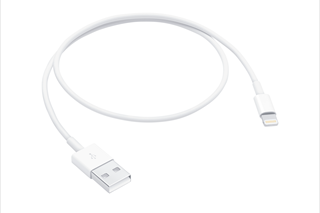
Step 1. Use an MFi-Certified Cable: Third-party charging cables often lack data transmission pins. Use an original Apple cable or an MFi-certified data transfer cable.
Step 2. Connect Directly: Avoid unpowered USB hubs or keyboard passthrough ports. Plug the cable directly into a motherboard port on your PC or Mac.
Step 3. Inspect and Clean Ports: Fluff and debris inside your iPhone’s charging port or the computer’s USB port can cause sporadic disconnections. Clean ports carefully using a wooden toothpick or compressed air.
Way 2. Restart your devices
A system restart clears temporary system caches, resets background services, and forces operating systems to re-establish interface protocols.
-
Restart iPhone: Press and hold the Volume Down button and the Side button until the power-off slider appears. Slide to turn off, wait 30 seconds, and turn it back on.
-
Restart Computer: Fully reboot your Mac or Windows PC to re-initialize USB background services.
Way 3. Change iPhone photo transfer settings
iPhones automatically convert HEIC images to JPEG during transfer by default. However, this real-time conversion process frequently causes bugs or yields errors like some photos not importing from iPhone to Mac.
To adjust conversion behavior:
Step 1. Open Settings on your iPhone.
Step 2. Scroll down and select Photos.
Step 3. Scroll to the bottom section labeled Transfer to Mac or PC.
Step 4. Switch the setting from Automatic to Keep Originals to fix iPhone photos not showing on PC.
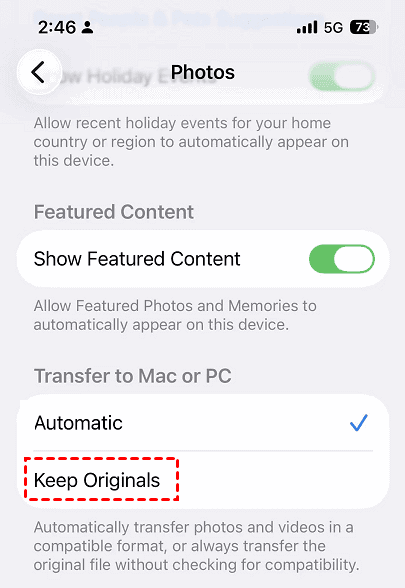
👉Note: Selecting "Keep Originals" transfers raw HEIC/HEVC files directly without on-the-fly processing, eliminating conversion-related transfer hangs.
Way 4. Turn off iCloud Photos temporarily
If "Optimize iPhone Storage" is enabled, your actual photos reside in iCloud while your phone only retains low-resolution thumbnails. When you connect your iPhone to a computer, the computer cannot pull full files that do not exist locally on the phone's hardware.
Step 1. Go to Settings > [Your Name] > iCloud > Photos.
Step 2. Disable iCloud Photos.
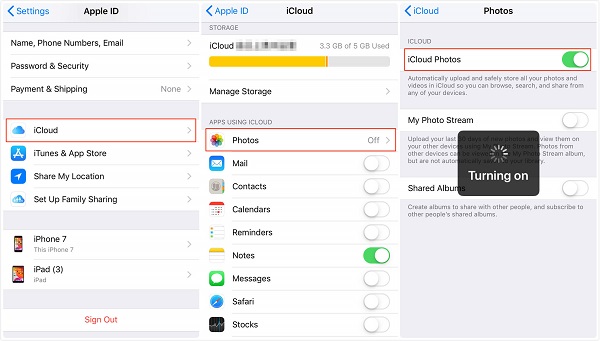
Step 3. Select Download Photos & Videos” to download photos to iPhone.
If you use external media adapters and find no photos to import iphone sd card reader, ensure the photos have finished downloading from iCloud to your local device memory before attempting the transfer to external storage.
Way 5. Update software
Outdated system software creates protocol mismatches between iOS and desktop operating systems, frequently resulting in situations where you can't import photos from iPhone to Windows 11 or modern macOS versions.
-
Update iOS: Go to Settings > General > Software Update and install available updates.
-
Update macOS: Open System Settings > General > Software Update.
-
Update Windows 11/10: Go to Settings > Windows Update and click Check for updates.
Way 6. Reset iPhone's Location & Privacy
When connecting an iPhone to a computer for the first time, you must tap "Trust This Computer." If this trust setting becomes corrupted or was accidentally declined, the computer will be blocked from accessing your photo library.
Resetting trust prompts forces your iPhone to ask for permission again:
Step 1. On your iPhone, go to Settings > General.
Step 2. Scroll to the bottom and select Transfer or Reset iPhone.
Step 3. Tap Reset > Reset Location & Privacy > Reset Settings.
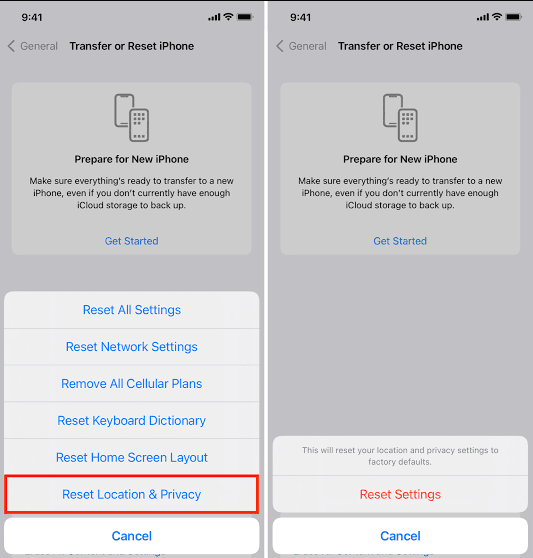
Step 4. Enter your passcode.
Step 5. Reconnect your iPhone to your computer and tap Trust on the iPhone screen when prompted.
Way 7. Update Apple Drivers (for Windows)
If you are on Windows and the Windows Photos APP not importing iPhone photos or File Explorer fails to display your iPhone media, the Apple Mobile Device USB Driver may be missing or outdated.
Step 1. Right-click the Windows Start button and select Device Manager.
Step 2. Expand Portable Devices (or Universal Serial Bus controllers). Look for Apple iPhone.
Step 3. Right-click Apple iPhone (or Apple Mobile Device USB Driver) and select Update driver.
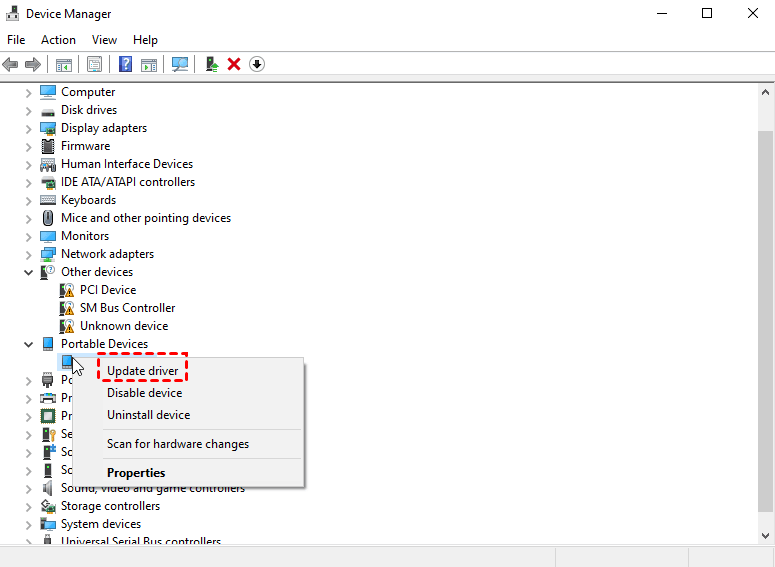
Step 4. Choose Search automatically for drivers and allow Windows to install the latest software version.
Alternative: Use a dedicated iPhone transfer tool to import photos from iPhone to PC
When native built-in solutions continuously fail causing the iPhone not importing photos, using a professional, dedicated transfer utility bypasses system-level conversion bugs and driver conflicts. AOMEI FoneBackup is a reliable software option specifically designed to bridge media management between iOS devices and Windows PCs.
 AOMEI FoneBackup
- Lightning-fast transfer with a reliable USB connection ensures a smooth and uninterrupted data transfer process without delays or connection issues.
- Broad device compatibility supports transferring data between various iPhone, iPad, and iPod touch models and your PC or external storage devices.
- User-friendly interface makes data transfer simple and efficient, allowing you to complete the process in just a few clicks.
- Supports multiple image formats, including JPG, PNG, GIF, HEIC, BMP, JPEG, TIF, TIFF, and more, for flexible photo management.
- Transfers various types of iPhone data, including transferring videos, music, messages, contacts, and other important files, directly to your PC with ease.
 100% Secure
How to transfer photos using AOMEI FoneBackup:
Step 1. Download AOMEI FoneBackup on your Windows PC and launch the application.
Step 2. Plug your iPhone into the PC using a working USB cable and tap Trust on your phone screen.
Step 3. On the main home screen, navigate to Phone Transfer and choose Phone to PC. Click Get Started.
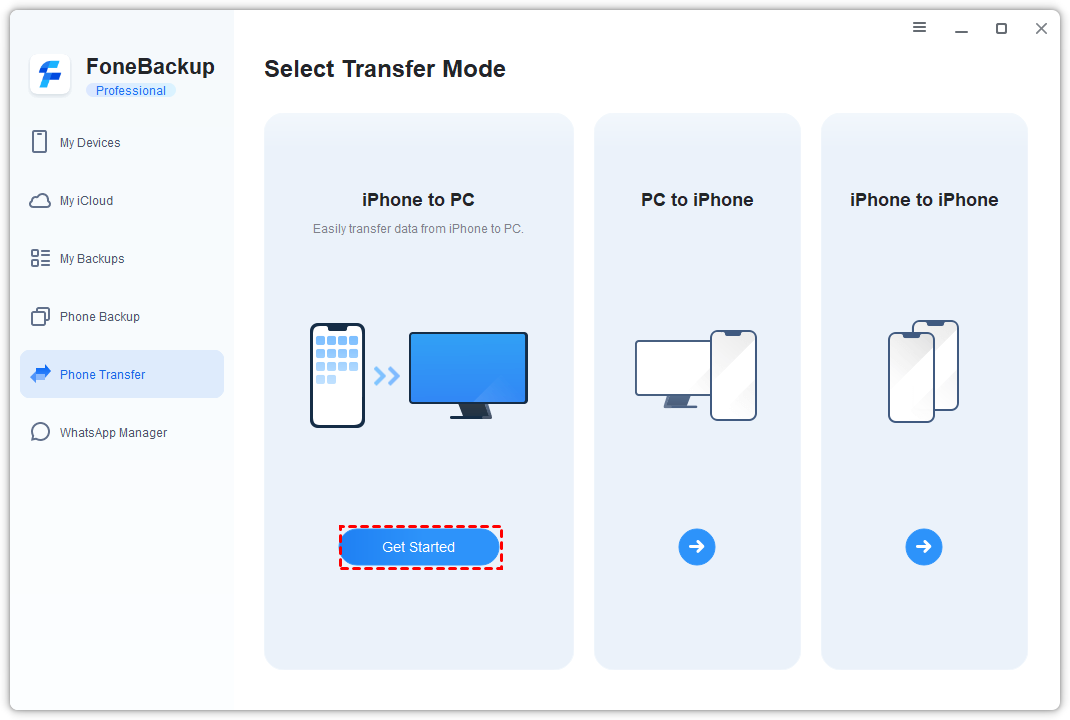
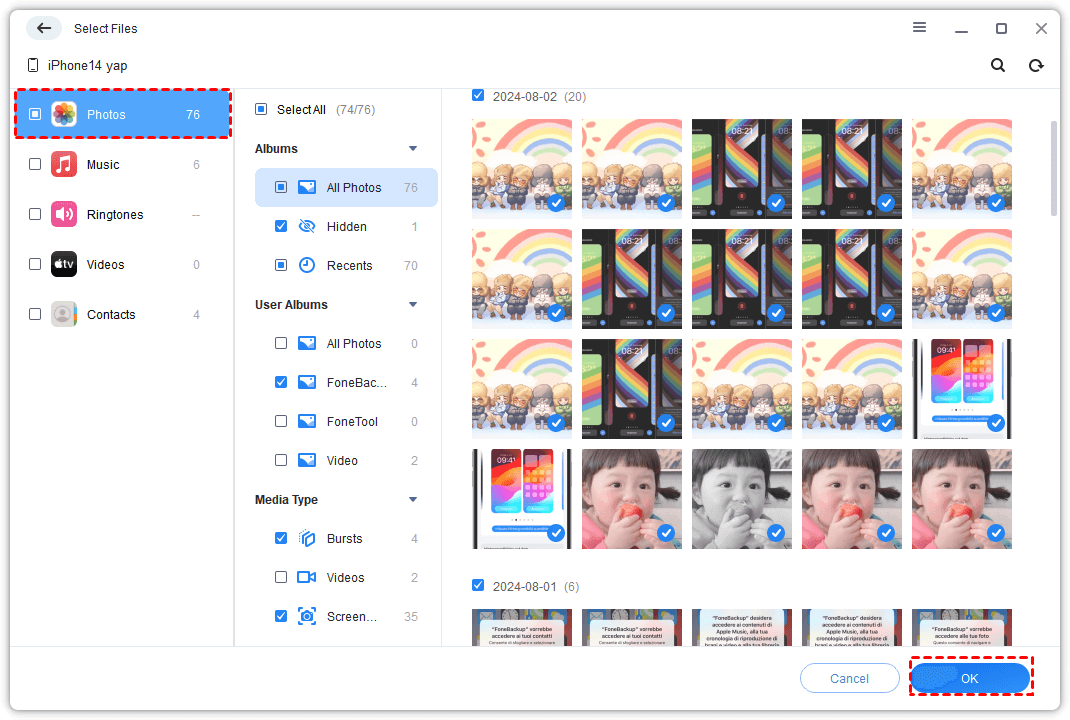
Step 4. Click the Photos icon to preview your iPhone's camera roll. Select specific albums or individual photos you want to export.
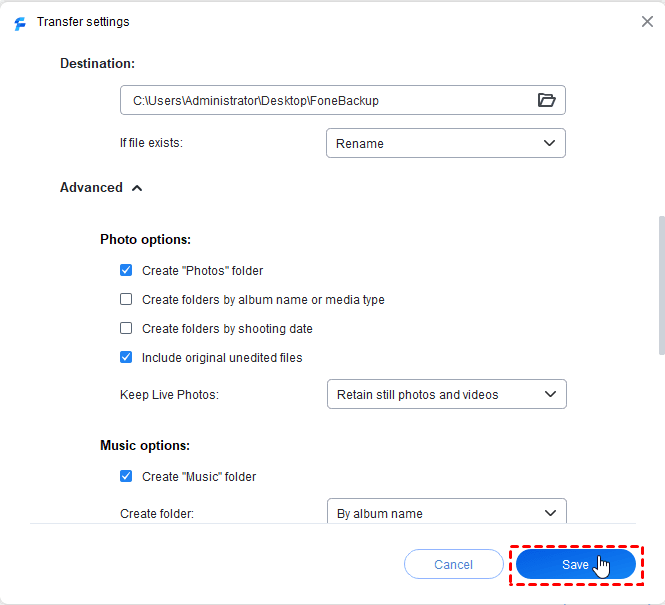
Step 5. Choose a destination folder on your computer (or an external drive) in Transfer Settings, then click Start Transfer to begin moving your media directly.
Conclusion
Resolving photo transfer errors on Mac or Windows usually comes down to adjusting a few core settings. By disabling iCloud storage optimization, setting image transfers to "Keep Originals," and verifying device trust permissions, most native system transfer tools resume working correctly. When operating system glitches persist or large libraries require stable bulk migration, dedicated third-party tools like AOMEI FoneBackup offer a dependable, streamlined path to secure your photo collection.

 as a preferred
source on Google
as a preferred
source on Google