



How to Change iPad Owner Without Losing Apps (2 Solutions)
Transferring your iPad to a new owner? Learn how to keep app access, preserve purchases, and protect data – all without losing a thing.

By Lily Updated on September 8, 2026


Things to Know Before Changing the iPad Owner
Before changing the owner of an iPad, there are several important things to understand. Unlike simply changing a device name or user profile, transferring an iPad to another person can affect apps, purchases, personal data, and account access.
- Apps stay tied to the original account – Even if apps remain installed after an account change, updates or reinstalls may require the original Apple ID and password.
- Purchased apps can't be transferred – Apple does not allow direct transfer of app purchases between accounts. Family Sharing may offer limited access for eligible apps.
- Back up personal data first – Before signing out, ensure photos, contacts, messages, and other important files are backed up or moved to the correct account or device.
- Remove Activation Lock for permanent transfer – When giving or selling the iPad, the original owner must sign out of their Apple Account and turn off Find My to prevent Activation Lock issues for the new user.
- App data may not carry over – Some app data is tied to the original account or a separate login. Verify that critical data is synced or backed up before ownership changes.
How Do I Change Ownership of an iPad Without Losing Apps?
Changing the owner of an iPad can be complicated because apps are permanently associated with the Apple ID used to download or purchase them. However, depending on your situation, there are two ways to change Apple ID settings or share eligible purchases while keeping your apps and data available.
Method 1: Change Apple ID Settings Without Erasing the iPad
If you want to update the Apple ID information associated with the iPad but continue using the same account, you may not need to erase the device. For example, you can change certain account details, such as your email address or password, while keeping the same Apple Account. Learn how to change the email address associated with your account as follows:
Step 1. Visit the Apple Account official website on your iPad. Then sign in with your original Apple account.
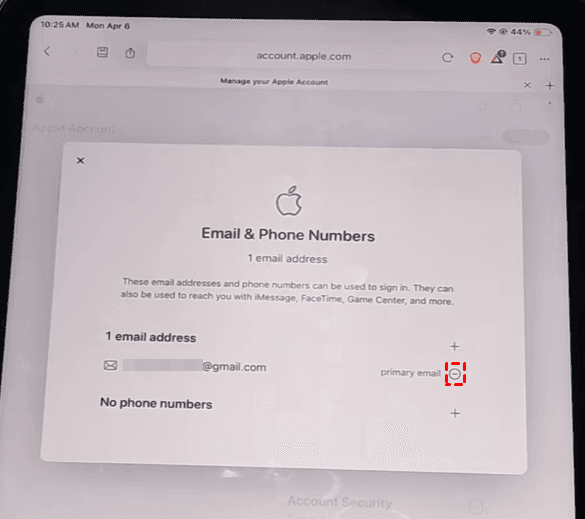
Step 2. Under Sign-In & Security, tap Email & Phone Numbers.
Step 3. Tap the minus icon next to your current primary email.
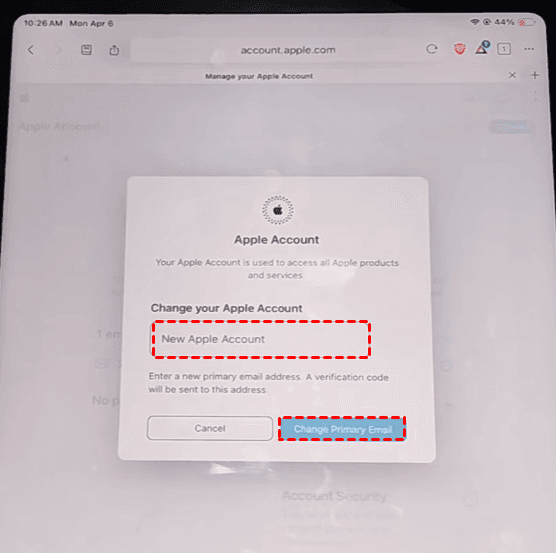
Step 4. Enter the new email address and tap Change Primary Email.
This method is the best option when the original owner is still the same person but wants to update their account information. Your installed apps, app data, photos, and other content can remain on the iPad because the underlying Apple Account is unchanged.
Method 2: Use Family Sharing for Eligible App Purchases
If you want another person to use the iPad without losing access to eligible purchased apps, Family Sharing can be a useful solution. It allows family members to share certain purchases while maintaining separate Apple Accounts.
👉 Set Up Family Sharing
Step 1. Open Settings on your iPad.
Step 2. Tap [your name]. Then select Family or Family Sharing, depending on your iPadOS version.
Step 3. Follow the onscreen instructions to create a family group.
Step 4. Tap Invite next to suggested family members (if any are listed), or tap Invite Others, then do one of the following:
- Tap Create Child Account to create an Apple Account for a child you want to add to your family.
- Tap Invite People, then follow the onscreen instructions to invite family members and designate added adult members as parents or guardians.
Step 5. Tap Purchase Sharing and follow the onscreen instructions to share eligible App Store purchases.
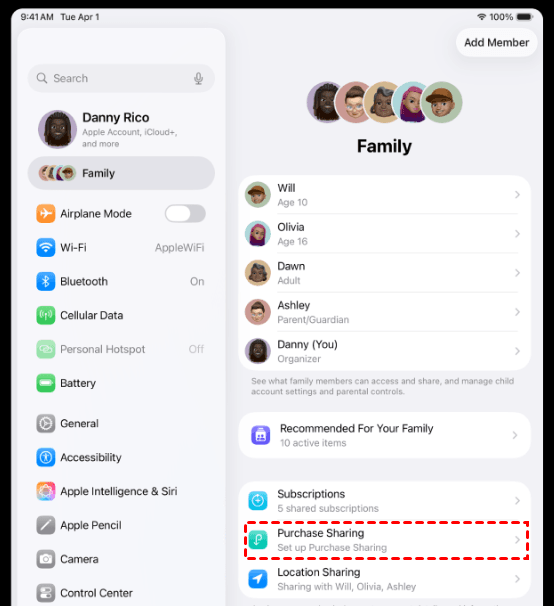
💡 Note: Not every app, subscription, or in-app purchase is eligible for Family Sharing. Availability depends on the developer and Apple's sharing policies.
👉 Sign into New Apple Account and Download Shared Apps
After the new owner has joined the Family Sharing group, follow the steps below to change Apple ID on iPad without losing apps:
Step 1. Open Settings on your iPad, tap your name, scroll down, and tap Sign Out > Sign Out But Don't Erase.
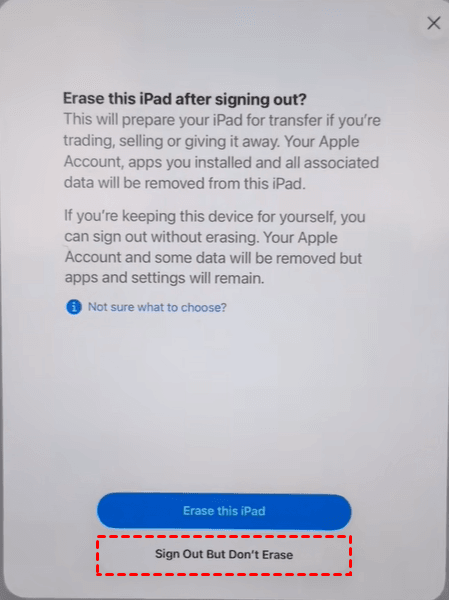
💡 Note: If you don’t want the new owner to see your iPad data, such as contacts, photos, and documents, choose Erase this iPad here.
Step 2. Follow the onscreen instructions. Enter the original Apple Account password when requested and tap Confirm and Sign Out.
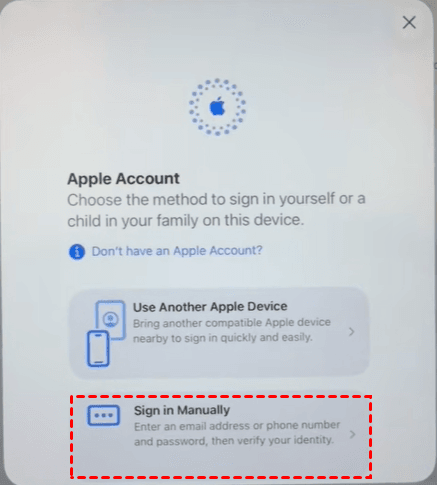
Step 3. Open Settings > Apple Account > Sign in Manually to sign in with the new owner’s Apple ID.
Step 4. Open the App Store on the iPad and tap the profile picture in the upper-right corner.
Step 5. Select Apps > My Apps > Not on this iPad.
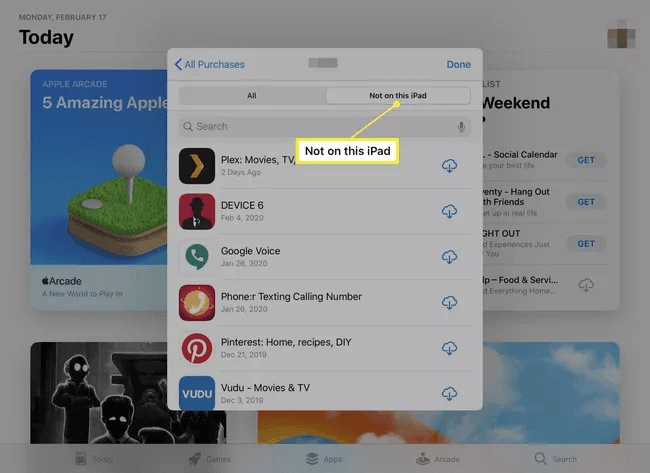
Step 6. Find the app you want to download and tap the Download button. The app will then download to the iPad if it is available for Family Sharing.
Bonus: Best Way to Backup iPad Data Before Changing the Owner
Before changing the owner of your iPad, it is highly recommended to create a complete backup of important data. This ensures that your photos, videos, contacts, messages, and other files are safely preserved before you sign out of your Apple Account or transfer the device to someone else.
For Windows users, AOMEI FoneBackup is a convenient solution for backing up iPad data to a computer. It provides a simple and flexible way to protect important files without relying entirely on iCloud or iTunes.
 AOMEI FoneBackup
- Back up important iPad data to your Windows PC, an external hard drive, or a USB drive, etc.
- Select specific files, such as photos, videos, contacts, and music, instead of backing up everything.
- Create full backups to protect more data before transferring ownership.
- Restore backed-up data to the old iPad or a new iPad when needed.
- Easily manage and transfer iOS data through a user-friendly interface.
 100% Secure
Download AOMEI FoneBackup and learn how to backup your iPad before changing ownership below:
Step 1. Open AOMEI FoneBackup and connect your iPad to the computer. If prompted on the iPad, unlock it and tap Trust to authorize the connection.
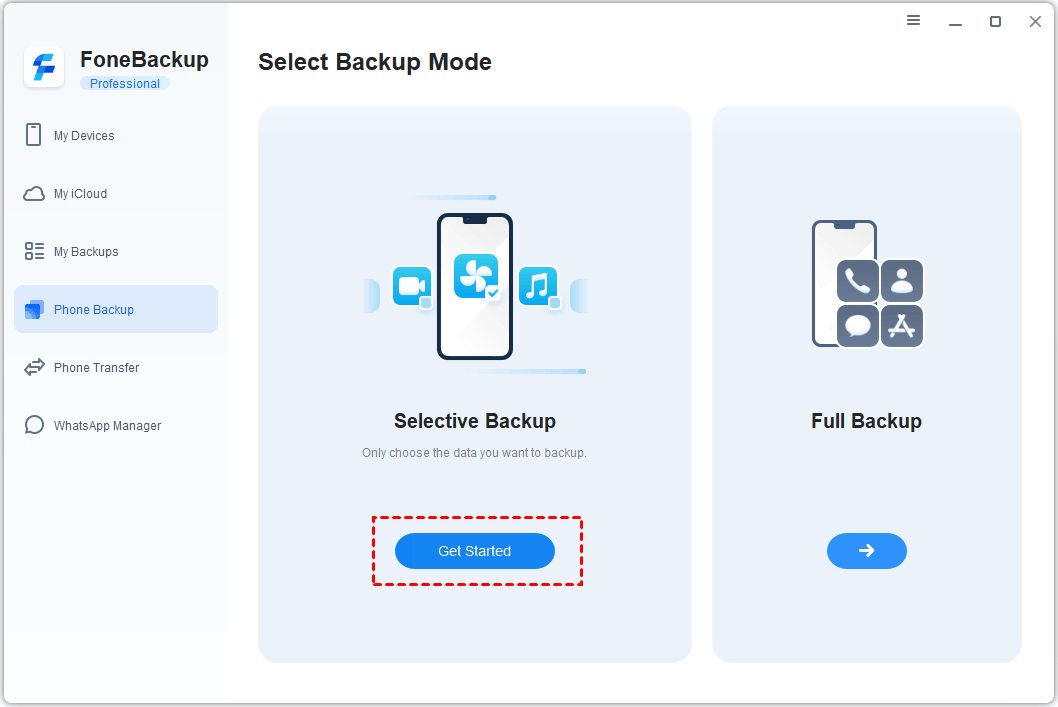
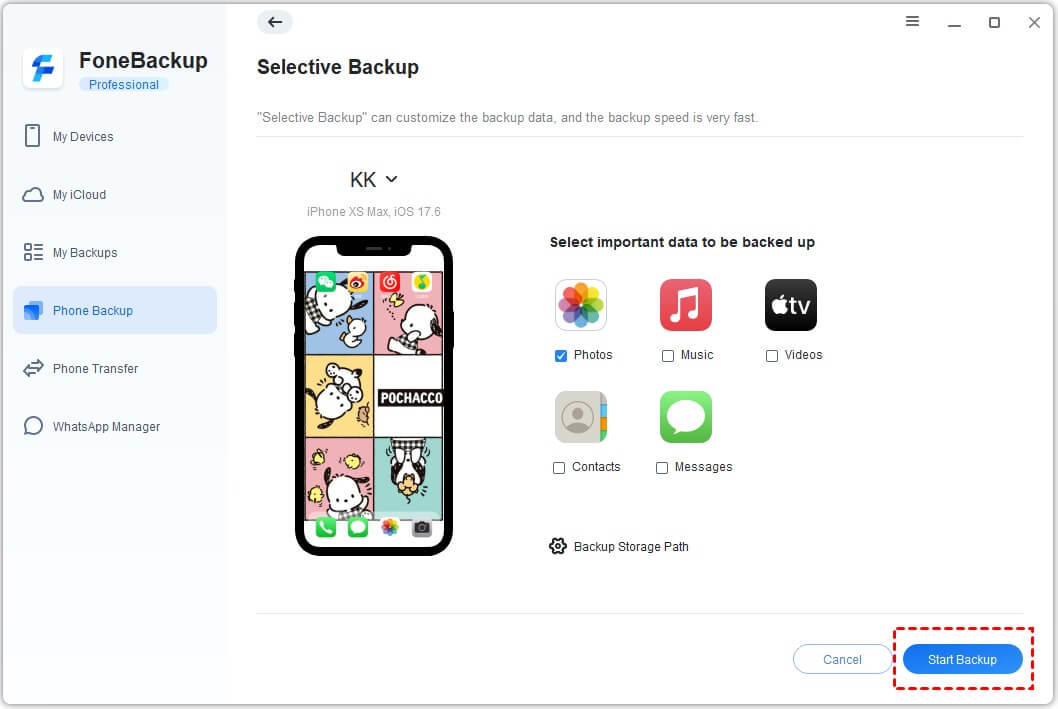
Step 2. From the main interface, click Phone Backup > choose Selective Backup. Then click Get Started.
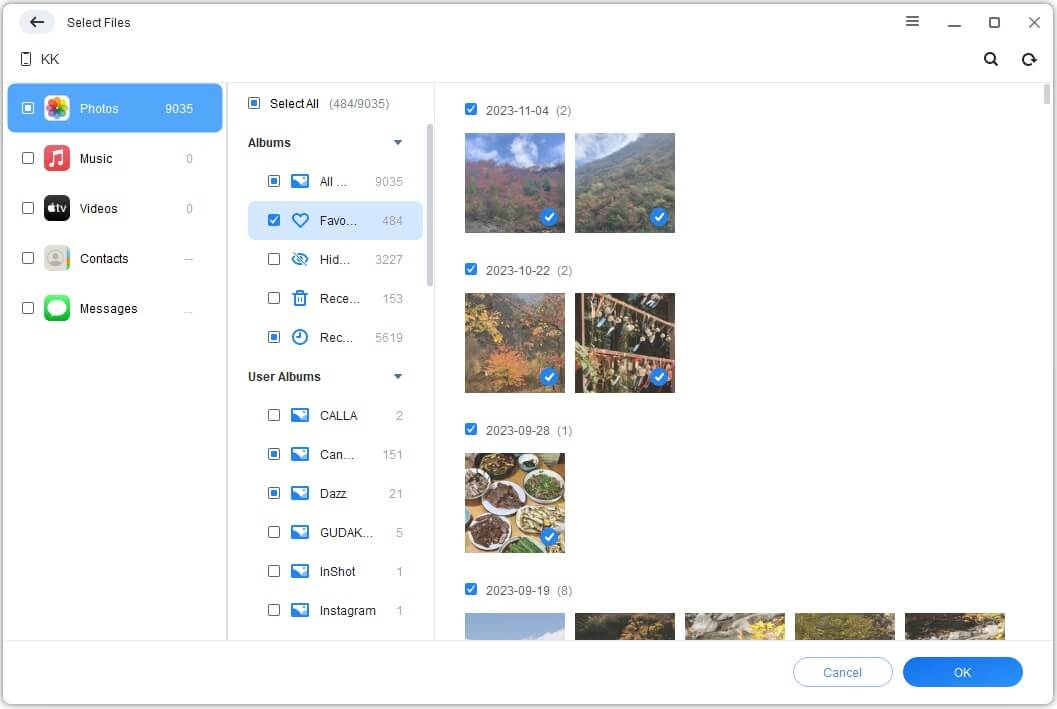
Step 3. Check the checkbox under the data category you want to backup to backup all data in it. You can also click the data category icon to select only desired files in the next window.
Step 4. Click Backup Storage Path to pick a storage location on your computer. Then click Start Backup to save the selected data.
FAQs About Changing an iPad Owner Without Losing Apps
1. Can I change the Apple ID on my iPad without losing apps?
The apps may remain installed temporarily, but apps downloaded with the previous Apple Account are still associated with that account. You may be asked for the previous account's password when updating those apps.
For a permanent ownership change, it is generally better for the new owner to download apps using their own Apple Account or access eligible purchases through Family Sharing.
2. Can I transfer app ownership to another Apple Account?
No. Changing the Apple Account on an iPad does not transfer ownership of purchases from one Apple Account to another.
3. How can the new owner keep the same apps?
The new owner can download free apps again from the App Store. For eligible purchased apps, Family Sharing may provide access if both people are members of the same family group.
4. Is Family Sharing the same as transferring app ownership?
No. Family Sharing allows eligible purchases to be shared between family members, but the original purchases remain associated with the Apple Account that bought them.
Summary
Now you know how to change iPad owner without losing apps. Depending on your situation, you may update Apple ID settings without erasing the device or use Family Sharing to access eligible purchases.
Before making any changes, back up your important data to prevent unexpected loss. AOMEI FoneBackup provides a simple way to back up iPad data to a Windows PC. It can also help you backup iPhone on Windows. Don’t hesitate to try it out!

 as a preferred
source on Google
as a preferred
source on Google