



3 Best Free Software to Transfer Photos from iPhone to PC
Looking for free ways to transfer photos from iPhone to PC? Discover software that works with or without a cable – quickly and safely.

By Lily Updated on September 9, 2026


Need Free iPhone to PC Photo Transfer Software?
Your iPhone may contain thousands of photos capturing important events, memorable trips, and everyday moments. Over time, however, these images can take up a significant amount of storage space. Moving them to a computer is an effective way to protect your photos and make them easier to manage.
You may be looking for free software to transfer photos from iPhone to PC for several reasons:
- Free up iPhone storage: Moving photos to your PC can help create more available space without immediately deleting important pictures.
- Create an additional backup: Keeping copies of your photos on a computer can provide extra protection against accidental deletion, device damage, or loss.
- View and edit photos more easily: A larger computer screen and professional editing software can make organizing and editing photos more convenient, especially for high-resolution images.
Here is a quick comparison of the available options:
|
Transfer Software |
Main Advantages |
Difficulty |
|
AOMEI FoneBackup |
Fast USB transfer, selective export, no quality loss |
Super Easy |
|
Windows Photos App |
Built-in Windows tool, simple USB photo import |
Easy |
|
iCloud for Windows |
Wireless access and automatic syncing |
Easy |
1. Best Free Software to Transfer Photos from iPhone to PC - AOMEI FoneBackup
When searching for free iPhone photo transfer software for PC, many users first consider Apple's iCloud or iTunes. However, iCloud depends on internet access and available cloud storage, while iTunes is primarily designed for syncing and device management.
For users who want a more direct way to transfer photos from iPhone to PC free, AOMEI FoneBackup provides a simple USB-based solution. It allows you to preview and select photos before transferring them to your computer. In addition to photos, the software can also help transfer videos, music, contacts, and other supported data between an iPhone and a PC.
 AOMEI FoneBackup
- Easy-to-use interface: The transfer process can be completed with only a few clicks.
- Selective photo transfer: You can preview available photos and choose only the images you want to export.
- Fast USB connection: Photos can be transferred directly through a wired connection without relying on Wi-Fi.
- Original image quality: Your selected photos can be exported without intentionally reducing their quality.
- Multiple storage locations: You can save transferred photos to a local folder, external drive, or other available storage location.
- Broad device compatibility: The software supports various iPhone and iPad models and iOS versions.
 100% Secure
Follow these steps to transfer photos from your iPhone to a Windows computer using AOMEI FoneBackup. This method is especially useful if you want to selectively transfer photos from iPhone to PC free without uploading your files to cloud storage.
Step 1. Launch AOMEI FoneBackup and connect your iPhone to the PC using a USB cable. Unlock your iPhone and tap Trust if prompted.
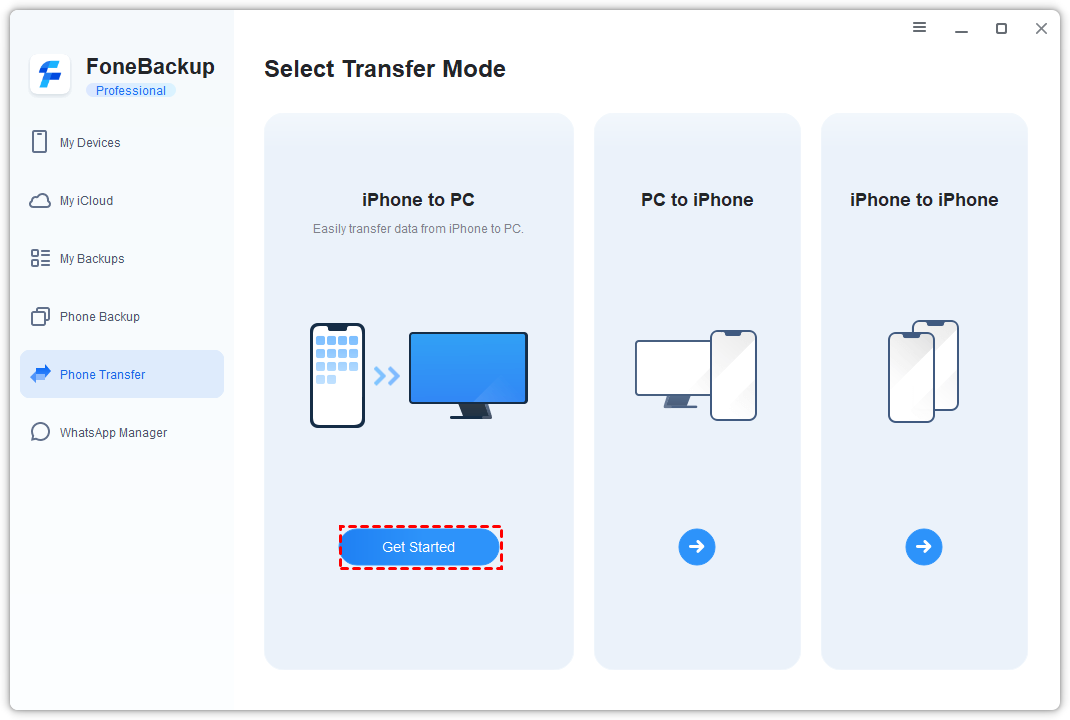
Step 2. On the main interface, select Phone Transfer. Choose iPhone to PC, then click Get Started.
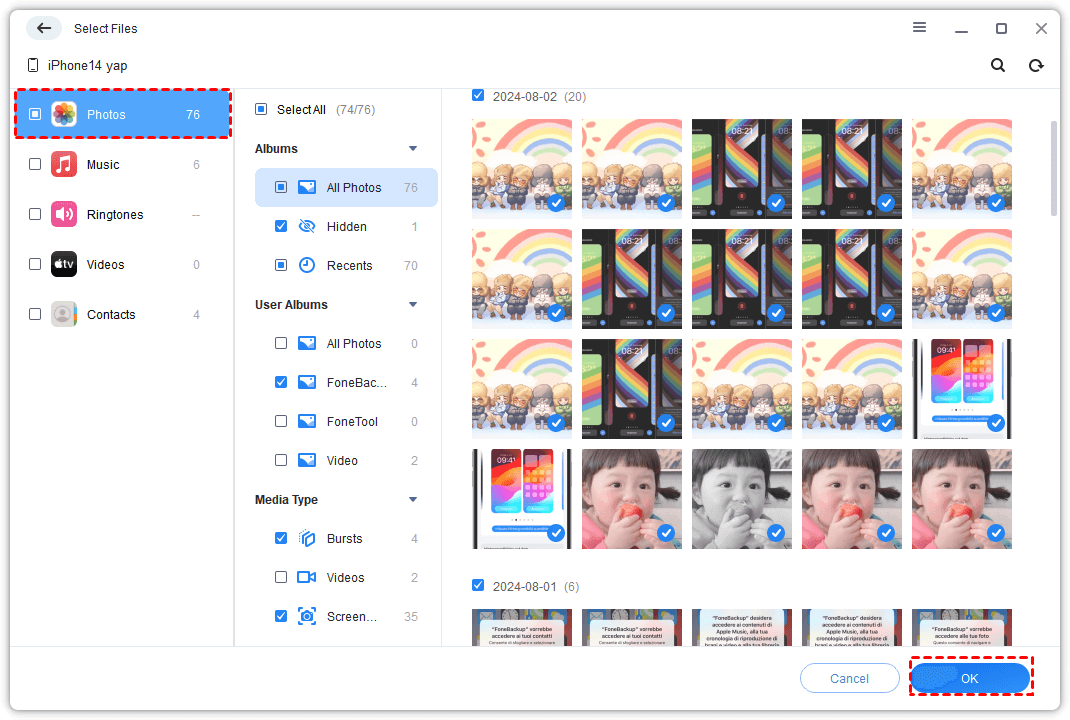
Step 3. Select Photos and preview the available images. Choose the photos you want to export and click OK.
✍ Tip: When transferring Live Photos, the exported files may include an image file and a corresponding short video file, allowing you to retain both parts of the Live Photo.
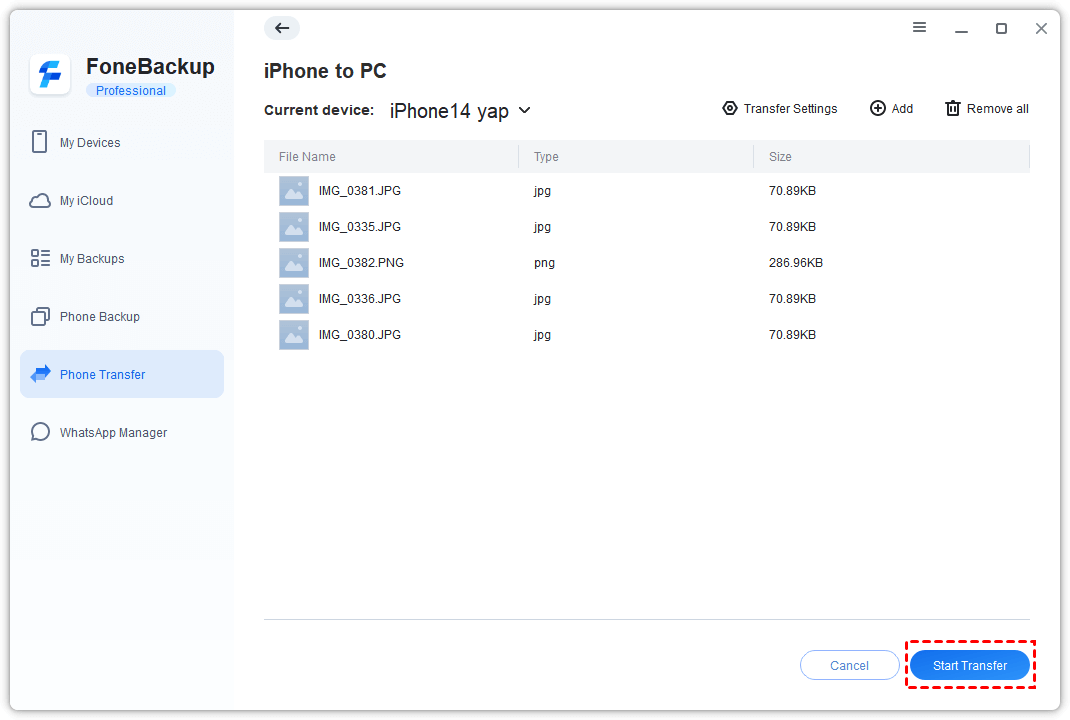
Step 4. Click Transfer Settings to select a destination folder for your photos. Then click Start Transfer to begin transferring the selected images.
Step 5. Once the process is complete, you can open the destination folder and view your photos on the PC.
2. Free App to Transfer Photos from iPhone to PC - Windows Photos App
Windows includes a built-in Photos app that can import pictures from an iPhone to a PC without requiring third-party software. It is a convenient option if you only need to copy photos from your iPhone to a Windows computer using a USB cable.
However, the available options may vary depending on your Windows version, and the import process may not always be as flexible as dedicated iPhone photo transfer software. Learn how to transfer photos from iPhone to PC using Windows Photos below:
Step 1. Connect your iPhone to your Windows PC using a compatible USB cable. Unlock the iPhone and tap Trust or Allow if a permission prompt appears.
Step 2. Open the Photos app on your Windows PC from the Start menu or search box.
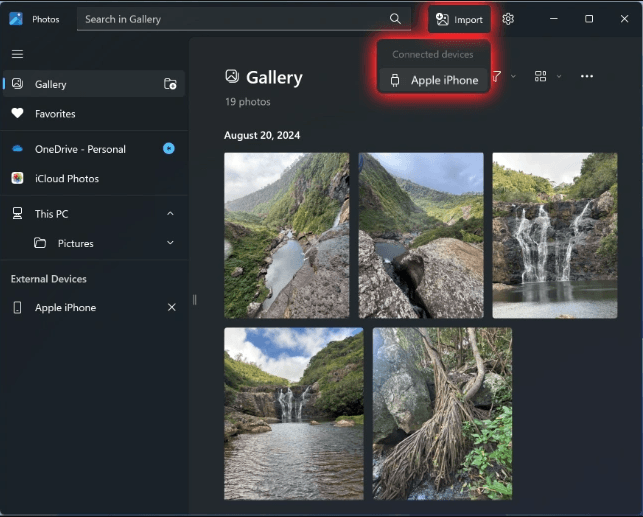
Step 3. Click Import > Apple iPhone. Wait for Windows to scan your iPhone for available photos.
Step 4. Select the pictures you want to transfer and click the blue button Add xx items (xx stands for the number of selected photos).
✍ Tip: You can also use Select all if you want to copy all your photos or Select new if you only want to copy photos you've not copied before.
Step 5. Confirm the destination folder (C:\Users\Username\Pictures), then click Import to copy the selected photos to your PC.
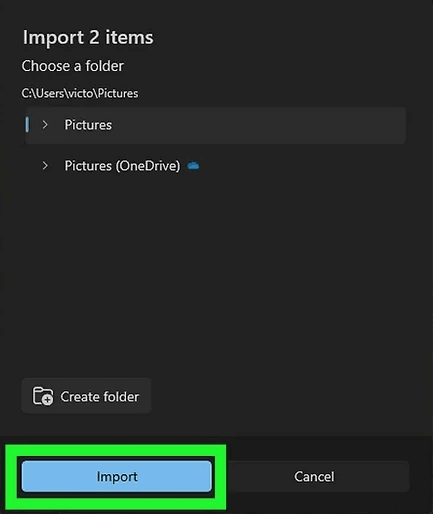
✍ Tip: You can also click the Pictures folder to select a subfolder in it as the destination location. Or you can click Create folder to create a new folder as the destination.
3. Free Program to Transfer Photos from iPhone to PC - iCloud for Windows
If you prefer a wireless solution, iCloud for Windows is another option. When iCloud Photos is enabled, your photos can sync across devices signed in with the same Apple Account.
Before using this method, make sure your iPhone and computer have a stable internet connection. The syncing speed may depend on the number and size of your photos as well as your network connection. Follow the instructions below:
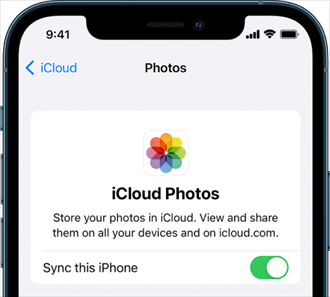
Step 1. On your iPhone, open Settings and tap [your name] > iCloud > Photos. Turn on Sync this iPhone or iCloud Photos, depending on your iOS version.
Step 2. Download and install iCloud for Windows on your computer. Open the application and sign in using the same Apple Account used on your iPhone.
Step 3. To the right of iCloud Photos, click the Arrow button (>).
Step 4. Turn On iCloud Photos to upload your PC photo library to iCloud and download photos from iCloud to PC. Click Done.
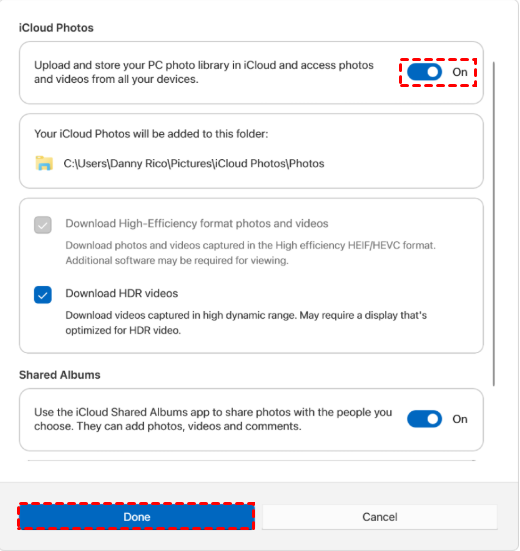
Step 5. iCloud will download photos to the designated folder on your Windows computer. The folder path is C:\Users\[user name]\Pictures\iCloud Photos\Photos.
✍ Tip: This method requires sufficient iCloud storage and a reliable internet connection. If you have a large photo library, syncing may take some time.
FAQs About Free iPhone Photo Transfer Software
1. What is the best free software to transfer photos from iPhone to PC?
The best option depends on your needs. AOMEI FoneBackup and Windows Photos app are suitable for selective USB transfers, while iCloud for Windows is useful for wireless photo syncing. If you want to manage photos directly on your PC, a wired transfer method is usually faster and less dependent on your internet connection.
2. Why can't my PC recognize my iPhone photos?
This problem can occur for several reasons. Try the following:
- Unlock your iPhone and tap Trust when prompted.
- Check whether your USB cable and USB port are working properly.
- Restart both your iPhone and computer.
- Make sure you have enough available storage space on your PC.
- Update the required Apple device drivers or software on your Windows computer.
3. Can I transfer photos from iPhone to an external hard drive?
Yes, you can transfer photos from iPhone to an external hard drive. After connecting your iPhone to a PC, select an external hard drive as the destination folder when using compatible transfer software. You can also transfer the photos to a local folder first and then copy them to the external drive.
4. Is iCloud for Windows completely free?
iCloud for Windows is free to download and use, but iCloud storage is limited. If your photo library exceeds the storage included with your Apple Account, you may need additional iCloud storage or choose another method to transfer your photos.
Wrapping Things Up
There are several options when you need free software to transfer photos from iPhone to PC. AOMEI FoneBackup and Windows Photos app enable you to preview and selectively move photos through a USB connection, while iCloud for Windows provides a wireless syncing option.
Actually, AOMEI FoneBackup is not only free iPhone to PC photo transfer software but also strong iPhone backup software. You can use it to backup your entire iPhone or only selective data. Just go for it!

 as a preferred
source on Google
as a preferred
source on Google