



How to Download Multiple Photos from Dropbox to iPhone
This guide explains how to download multiple photos from Dropbox to iPhone directly or through a Windows PC, with practical fixes for missing photos and failed exports.

By Ivy Updated on August 28, 2026


You open Dropbox on your iPhone and find dozens or perhaps hundreds of photos you want to put back in the Photos app. Saving every picture separately would take too long, but options such as Save Image, Save to Files, and Make available offline do not all produce the same result.
The best method depends on how many photos you have. Try the Files app first if you want to download multiple photos from Dropbox to iPhone without a computer. If you have a large folder or the mobile export keeps failing, download the pictures to a Windows PC and transfer them to your iPhone through USB.
Where Do Downloaded Dropbox Photos Go on iPhone?
A Dropbox photo can be stored in 3 different places on your iPhone. Before downloading it, check where you want the picture to appear:
- Photos: The picture becomes part of your iPhone photo library and appears in Library or Recently Saved.
- Files: The picture is stored as a file under On My iPhone, iCloud Drive, or another Files location. It does not automatically appear in Photos.
- Dropbox offline: The picture remains inside Dropbox but can be opened without an internet connection. It is not added to your Photos library.
If you want the pictures in your iPhone Camera Roll, the final action should be Save Image or Save Images. Choosing Save to Files or Make available offline will not produce the same result.
Also check that your iPhone has enough free space for all the selected pictures. If Dropbox requests access to Photos, allow the access needed to save images.
Which Method Should You Use?
| 🧩 Your situation | ✅ Recommended method | ❌ Key limitation |
|---|---|---|
| Save several photos without a computer | Files app | Save Images may vary by selection or file type |
| Save only 1 or 2 pictures | Dropbox app | You may need to repeat the steps |
| Move hundreds of photos or a complete folder | AOMEI FoneBackup | Require a computer and USB cable |
| Mobile export fails or lacks Save Images | AOMEI FoneBackup | Dropbox files must be downloaded first |
Method 1. Download Multiple Dropbox Photos to iPhone through Files
👍 Best for: Saving several compatible image files without using a computer - available sharing actions can vary by iOS version, Dropbox version, and file type.
Apple allows Dropbox to appear as a location in the Files app. Once it is enabled, you can browse Dropbox folders and select several files together.
Part 1: Add Dropbox to the Files app
Step 1. Install Dropbox on your iPhone, sign in, and confirm that you can open your account.
Step 2. Open the Files app and tap Browse. Return to the main Browse screen if you are already inside a folder.
Step 3. Tap the More button, then select Edit and turn on Dropbox under Locations.
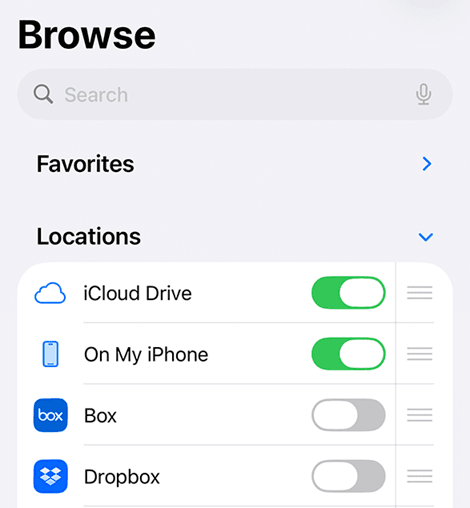
If Dropbox does not appear, reopen the Dropbox app and make sure you are signed in.
Part 2: Select and save multiple Dropbox photos
Step 1. Open Files > Browse > Dropbox, then find the folder containing your photos.
Step 2. Tap More > Select, choose the pictures you want to download and tap Share. If Save Images appears, select it and wait for the export to finish.
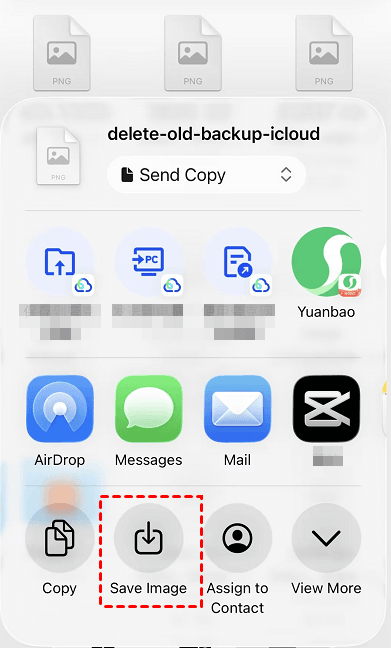
Step 3. Open Photos and check Library or Recently Saved.
- If Save Images does not appear, make sure you selected image files rather than an entire folder, ZIP archive, or mixed collection of documents. Try selecting only JPG, PNG, or HEIC files and use a smaller batch.
- You may also see Save to Files, but this stores the pictures in a Files folder. It does not add them to the Photos app.
Method 2. Save an Individual Dropbox Photo to iPhone
👍 Best for: Saving 1 or 2 pictures directly from Dropbox - the process may need to be repeated for each image.
If you only need a small number of photos, using Dropbox directly may be faster than setting up another method.
Step 1. Open the Dropbox app, tap Files and find the picture you want to download.
Step 2. Tap the More button beside the picture. Then, choose Save to device or Save image, depending on the option displayed.
Step 3. Open Photos and confirm that the picture appears.
This method is simple for an individual image, but it becomes time-consuming when you need dozens or hundreds of pictures. In that case, use the Files method or transfer the collection through a computer.
Method 3. Transfer a Large Dropbox Photo to iPhone using a Windows PC
👍 Best for: Hundreds of photos, complete Dropbox folders, ZIP downloads, or mobile exports that repeatedly fail - requires a Windows PC and USB data cable.
The computer method includes 2 stages. First, download the photos from Dropbox to the PC. Then transfer the local copies from the PC to your iPhone.
Part 1. Download multiple Dropbox photos to the PC
Step 1. Open dropbox.com in a computer browser and sign in to your account.
Step 2. Select All files, then browse to the pictures or folder you want to download, check the items, and click Download.
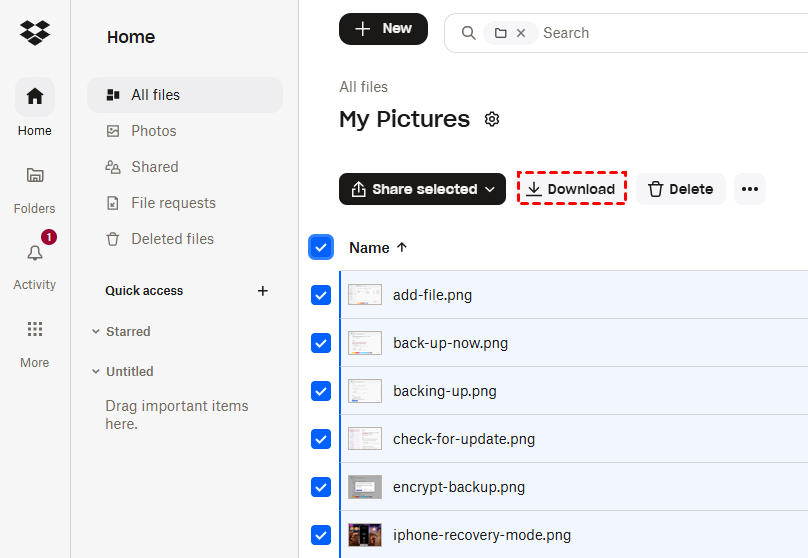
Step 3. Wait for the download to finish and check the computer’s Downloads folder.
- A downloaded item is a separate local copy. Editing or deleting this copy on the PC does not make the same change to the original item stored in Dropbox.
- If a very large browser download fails, select fewer items at a time or use the Dropbox desktop app.
Part 2. Transfer Dropbox photos from PC to iPhone with AOMEI FoneBackup
AOMEI FoneBackup is a simple PC to iPhone transfer software for Windows PCs. It can transfer a wide range of photos, such as PNG, JPG, HEIC, BMP, TIFF, RAW, GIF, and more easily and quickly.
 AOMEI FoneBackup
- 🔌Direct USB Transfer: Seamlessly sync over a wired connection, bypassing Wi-Fi and cloud storage entirely.
- ⚡ Lightning-Fast Batch Moves: Transfer 1000+ photos in under 10 minutes with zero loss in resolution or quality.
- 🔍 Smart Selection: Pick specific photos or entire folders, with full preview before transfer.
- 🎯Album Targeting: Send photos directly to the exact album you choose using Data Explorer.
- 🛠️Post-Edit: Easily delete or edit imported photos right inside your Photos app.
- 💰Free Quota: Move up to 30 files per day completely free.
 100% Secure
Step 1. Download, install, and launch AOMEI FoneBackup on the Windows PC and your iPhone. Connect the iPhone with a USB data cable, unlock it and tap Trust if prompted.
Step 2. On your computer, open AOMEI FoneBackup, navigate to Phone Transfer > PC to iPhone, and click Get Started. While doing this, make sure the app stays open on your iPhone.
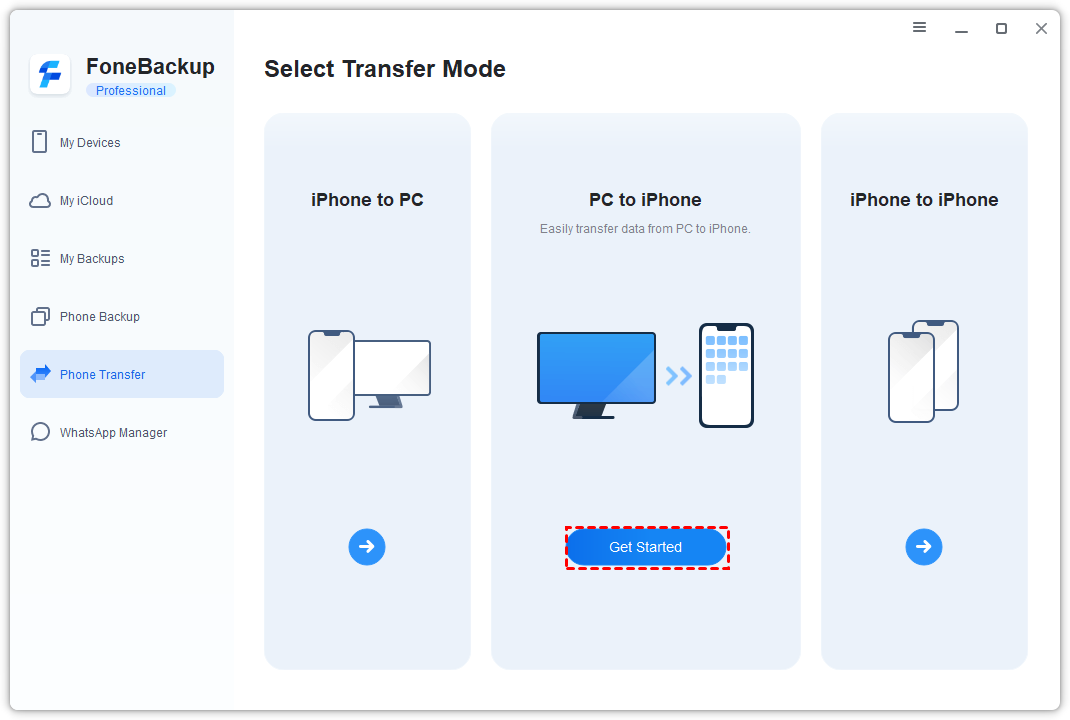
Step 3. Click the blue folder icon to add your Dropbox photos. You can also drag compatible photos or folders into the transfer window. Click Start Transfer.
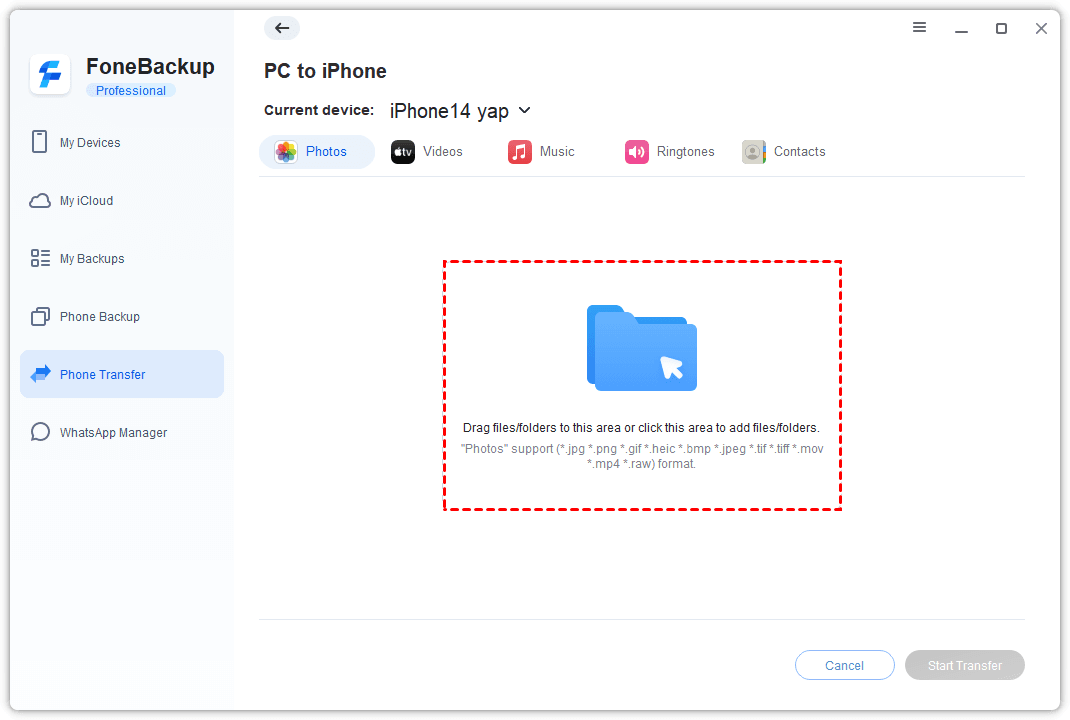
Step 4. Click Start Transfer and keep the iPhone connected until the process finishes.
Step 5. After the transfer, open Photos and look for the FoneBackup album. Or check the Recently Saved album.
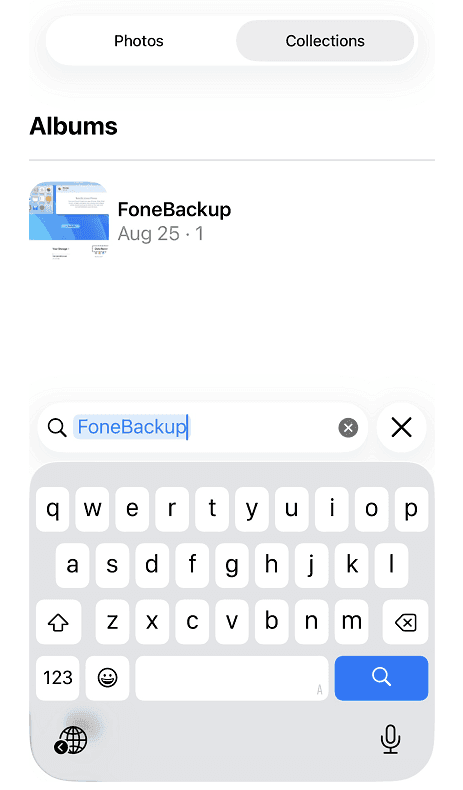
If you want to transfer photos from computer to iPhone with an album you choose, consider using Import to Device in Data Explorer. Yo can access this feature under My Devices.
Why Are Dropbox Photos Not Showing in Photos?
The pictures appear in Files instead of Photos: You probably selected Save to Files. Select the compatible image files, tap Share, and choose Save Images if it is available.
The pictures are available only inside Dropbox: You may have selected Make available offline. This creates an offline copy inside Dropbox but does not add the file to Photos.
Save Images is missing: Your selection may contain a folder, ZIP archive, unsupported format, or another document type. Select only image files and try a smaller group. If the option remains unavailable, use the Windows method.
The export starts but does not finish: Insufficient iPhone storage, an unstable connection, or an oversized selection may interrupt it. Check your storage, connect to stable Wi-Fi, and divide the pictures into smaller groups.
Dropbox cannot save pictures: Open iPhone Settings, find Dropbox, and review its Photos permission. Allow the access required to save pictures, then try again.
Compare the Dropbox-to-iPhone Methods
| Method | 👍 Best for | Computer needed | Key limitation |
|---|---|---|---|
| Files app | Several photos without a computer | No | Save Images may not appear for every selection |
| Dropbox app | 1 or 2 photos | No | May require individual downloads |
| AOMEI FoneBackup | Large batches or failed mobile exports | Yes | Free Transfer allows 30 files per day |
Here is the simple rule:
- The Files app is the first method to try for a direct batch download.
- The Dropbox app is suitable for an individual picture.
- Use the Windows method when you have a large folder or cannot save the selected files to Photos from your iPhone.
FAQs
1. Can I download multiple Dropbox photos to iPhone without a computer?
Yes. Add Dropbox to the Files app, select multiple compatible pictures, and use Share > Save Images when that option is available. If it does not appear, try a smaller selection or use a computer.
2. Does Make available offline save Dropbox photos to Camera Roll?
No. It keeps an accessible copy inside Dropbox for times when you do not have an internet connection. It does not add the photo to the iPhone Photos app.
3. Can I download an entire Dropbox folder to my iPhone?
You can access Dropbox folders through Files, but a folder cannot always be exported directly into Photos. For a large folder, downloading it to a computer, extracting the ZIP archive, and transferring the pictures is usually easier.
4. Why are my Dropbox photos in Files instead of Photos?
Files and Photos are separate locations. Save to Files stores the image as a file. To add compatible pictures to Photos, select them, tap Share, and choose Save Images.
5. Will downloading photos remove them from Dropbox?
No. Downloading creates another copy. The originals stay in Dropbox unless you delete them separately.
6. Can I move all Dropbox photos to iCloud Photos?
Yes, but this is a broader migration task. You first need to import the pictures into a Photos library or use another supported upload process. Keep the Dropbox originals until you have confirmed that all pictures are available through iCloud Photos.
Summary
To download multiple photos from Dropbox to iPhone, match the method to the size of the job:
- Use Files to select several pictures without a computer.
- Use the Dropbox app when you only need 1 or 2 photos.
- Use AOMEI FoneBackup on a Windows PC for large batches, complete folders, or failed mobile exports.
Start with Files if you want a direct download. If Save Images is unavailable or you need to move a much larger collection, download the photos to your PC and use the PC to iPhone transfer function.

 as a preferred
source on Google
as a preferred
source on Google