



How to Backup WhatsApp to PC from iPhone or Android
Want to back up your WhatsApp data to your PC? This guide shows you how – whether you're using an iPhone or Android.

By Lily Updated on September 9, 2026


WhatsApp is one of the most widely used messaging apps worldwide. Over time, your account may accumulate thousands of important chats, photos, videos, voice messages, and documents. Losing this information because of accidental deletion, device damage, or a phone replacement can be frustrating.
For this reason, many users want to know how to backup WhatsApp to PC. The good news is that you can save WhatsApp data to your computer from both iPhone and Android devices.
This guide explains how to backup WhatsApp messages to PC using different methods, so you can choose the solution that best fits your device.
How to Backup WhatsApp to PC from iPhone
If you want to backup WhatsApp from iPhone to PC, AOMEI FoneBackup provides a straightforward solution. It allows you to create a local backup of your WhatsApp data without relying on cloud storage.
 AOMEI FoneBackup
- Back up WhatsApp chats and related data to your PC with a few clicks.
- Use a USB connection for a stable local backup process.
- Protect private backup data with optional encryption.
- Save backups to your computer or another supported storage location.
- Restore WhatsApp backups to compatible iOS devices.
 100% Secure
Follow the steps below to backup WhatsApp from iPhone to PC.
Step 1. Download and launch AOMEI FoneBackup on your Windows PC. Connect your iPhone to the computer using a USB cable. If prompted on your iPhone, tap Trust to allow the connection.
Step 2. Select WhatsApp Manager from the main interface. Then choose WhatsApp > Backup WhatsApp and click Get Started.
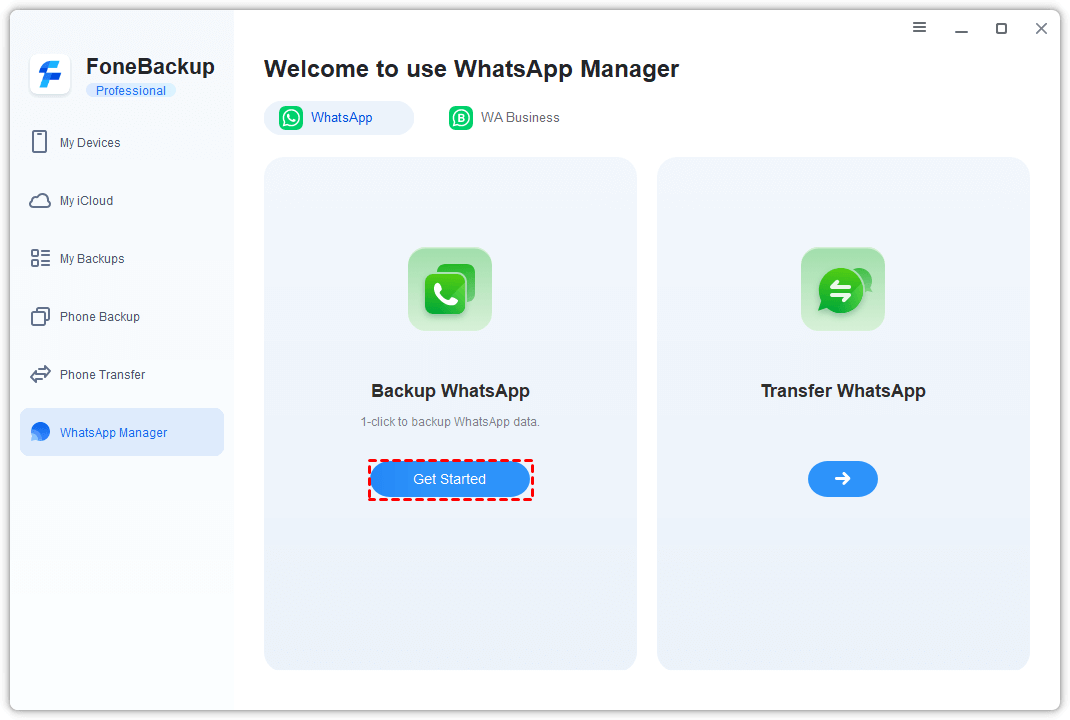
Step 3. If you want additional protection for your backup, enable Backup Encryption.
Step 4. Choose a destination under Backup Storage Path. Then click Start Backup to begin backing up WhatsApp to your PC.
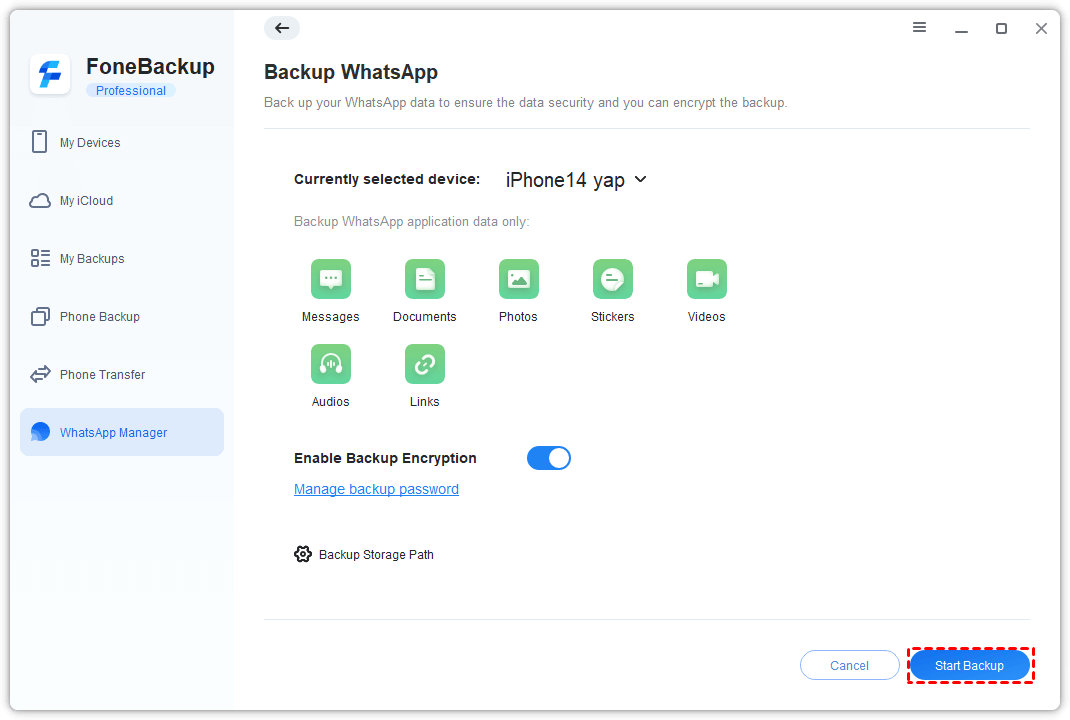
💡 Note: If there are multiple iOS devices connected to your PC, you can choose the device to be backed up next to Currently selected device.
Step 5. Wait for the backup process to finish before disconnecting your iPhone.
🌟 Bonus: How to Restore WhatsApp Backup from PC
When you need your WhatsApp data again, follow the steps below to restore from the WhatsApp backup you created before.
Step 1. Connect your iPhone to your computer via a USB cable. Open AOMEI FoneBackup and go to My Backups.
Step 2. Locate the WhatsApp backup you want to use and click the Restore icon.
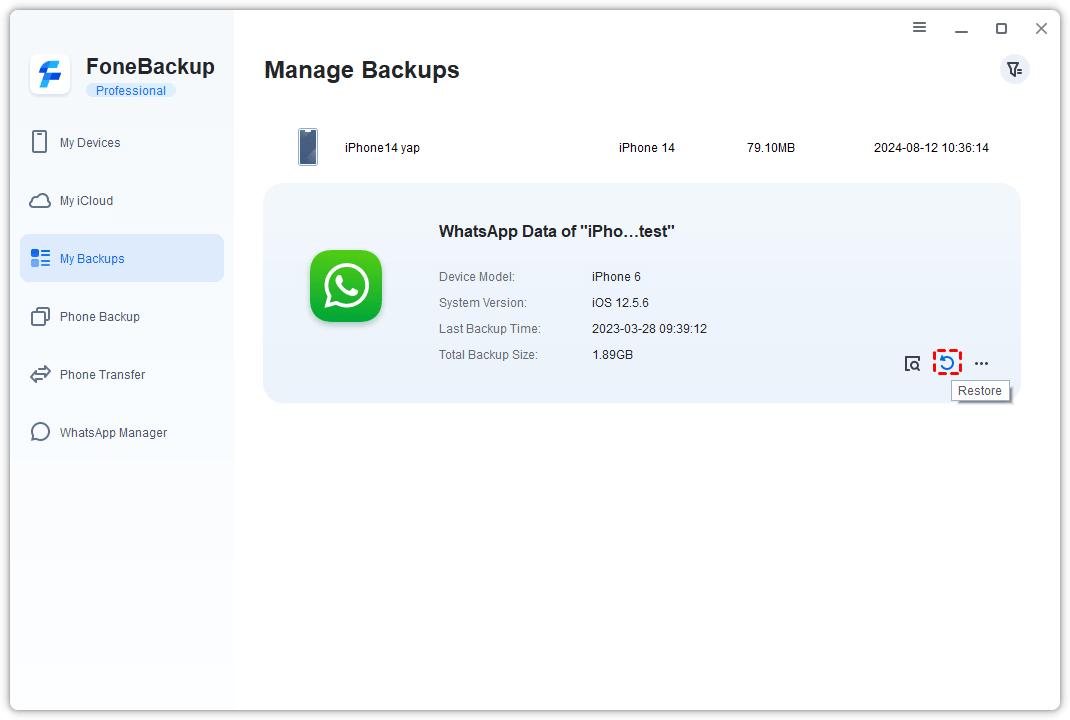
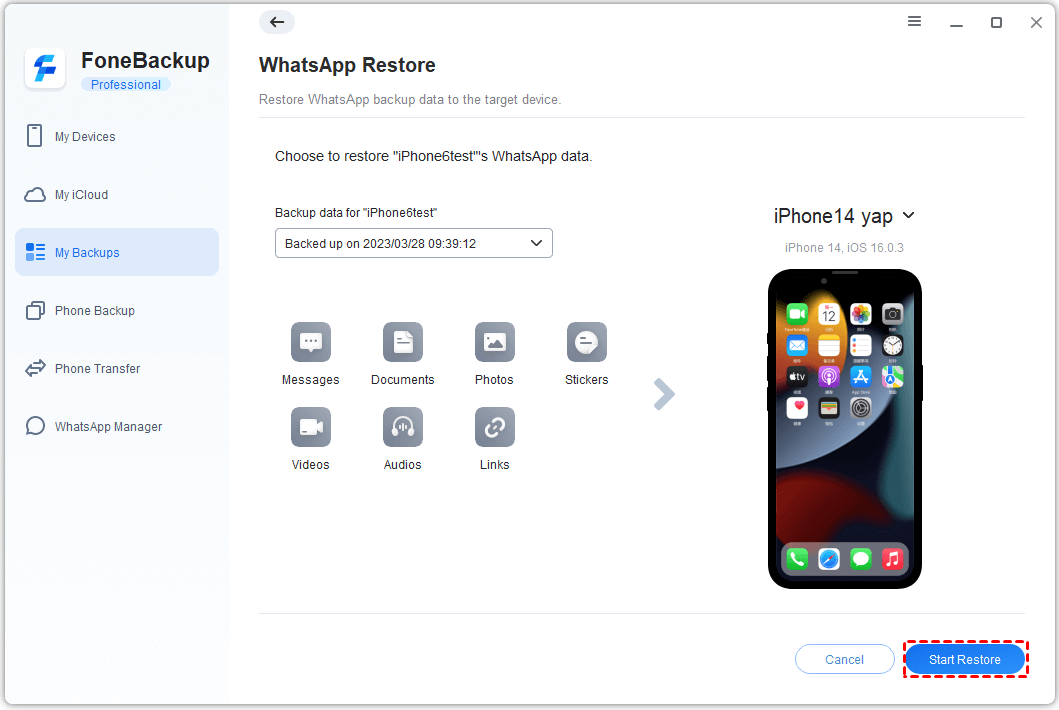
Step 3. Choose a backup version and confirm the target device, then click Start Restore to begin the restoration process.
How to Backup WhatsApp from Android to PC
The process of backing up WhatsApp from Android to PC is different from the iPhone method. Depending on whether you want to back up an individual chat or the entire chat history, you can choose different backup methods.
Method 1. Backup Individual WhatsApp Chats to PC via Email
If you only need to save specific conversations, WhatsApp's chat export feature can be a convenient option. You can export a chat and send the resulting file to an email account that you can access from your computer.
Step 1. Open WhatsApp on your Android phone and select the conversation you want to save.
Step 2. Tap the three-dot menu and choose More > Export chat.
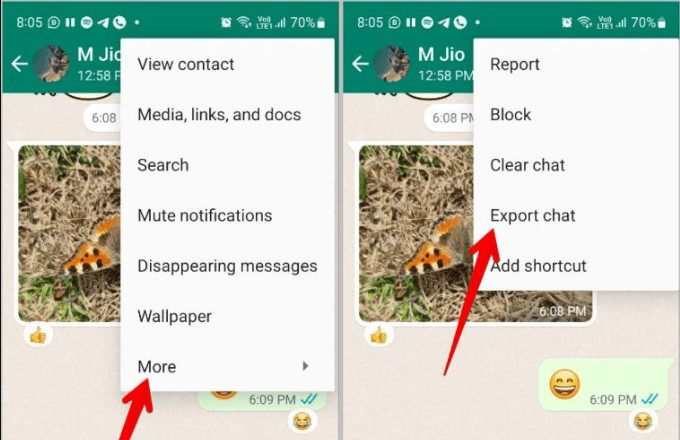
Step 3. (Optional) Choose whether you want to include media files when exporting the conversation.
Step 4. Select Gmail or other email apps as the sharing method. Enter your Gmail information and click Send to send the exported chat to your email account.
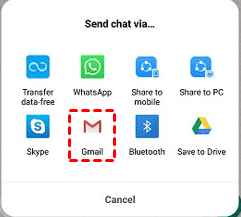
Step 5. Open the email via the web browser on your computer and download the exported WhatsApp chat attachment.
💡 Note: This method is particularly useful when you want to save WhatsApp chats to computer for reference or archiving. However, you may need to export conversations individually.
Method 2. Backup Entire WhatsApp Chats to PC via USB
If you want to save more WhatsApp data to your computer, you can manually back up WhatsApp data from your Android phone's internal memory to your PC using a USB cable and disabling cloud backups. Follow the instructions below:
Step 1. Open WhatsApp on your Android phone. Tap the three-dot menu in the top right corner and go to Settings > Chats > Chat backup.
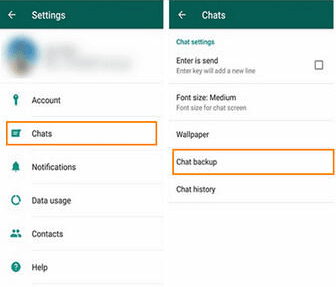
Step 2. Set Back up to Google Drive to Never to ensure it saves locally.
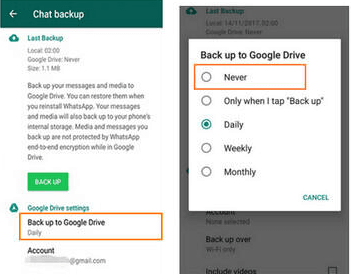
Step 3. Tap the green Back Up button to save the latest database and media onto your phone's internal memory.
Step 4. Connect your Android phone to the computer using a USB cable.
Step 5. Unlock your phone and select File Transfer or Transfer Files when the USB connection notification appears.
Step 6. Open File Explorer on your PC and select your Android device.
Step 7. Navigate to your phone's internal storage > WhatsApp > Databases.
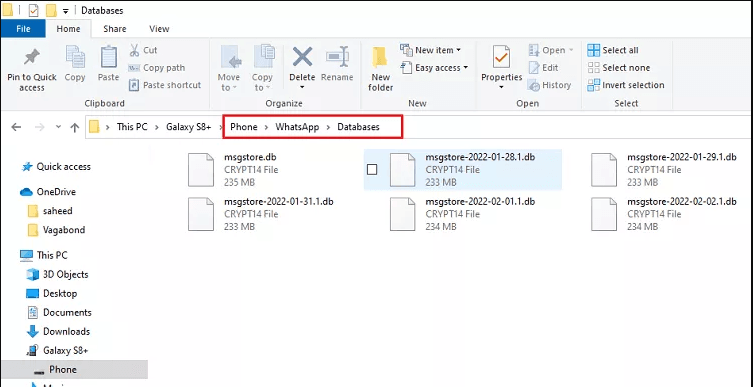
Step 8. In the Databases folder, copy the most recent backup (msgstore.db) and paste it to another location on your computer. You can also copy and paste this whole folder.
💡 Note: This method can be useful for saving WhatsApp messages, photos, videos, and other media files. The exact folder location may vary depending on your Android version and device.
FAQs About WhatsApp Backup to PC
1. How do I backup WhatsApp messages to a new phone?
For iPhone users, you can use AOMEI FoneBackup to transfer WhatsApp data between supported iOS devices by opening WhatsApp Manager and selecting Transfer WhatsApp.
For Android users, WhatsApp's backup options can help you restore chats to another Android device when the appropriate account and backup are available.
2. Can I backup WhatsApp to PC without using cloud storage?
Yes. iPhone users can create a local WhatsApp backup on a computer using AOMEI FoneBackup.
Android users can export individual chats or copy accessible WhatsApp files to a PC using a USB cable.
3. Can I backup WhatsApp on PC without my phone?
Generally, you need access to your phone to create a new backup of WhatsApp data because your chats and account information are stored and managed through the mobile device.
WhatsApp Web allows you to access synced conversations from a computer, but it should not be considered a complete replacement for a dedicated WhatsApp backup.
To Sum Up
Now you know how to backup WhatsApp to PC from both iPhone and Android devices.
- For iPhone users, AOMEI FoneBackup offers a convenient way to create a local WhatsApp backup, manage backup files, and restore data when necessary.
- Android users can export individual chats through email or copy accessible WhatsApp files to their computer using a USB cable.
What’s more, AOMEI FoneBackup is professional iPhone to PC transfer software. You can use it to move photos, videos, and contacts from iPhone to PC and vice versa. Don’t hesitate to try it out!

 as a preferred
source on Google
as a preferred
source on Google