




How to Add Ringtones to iPhone SE in 3 Ways
This guide compares three practical ways to add custom ringtones to iPhone SE, then walks through each method and explains how to verify the result.

By Jonna Updated on August 17, 2026


If you want to personalize your iPhone SE, adding a custom ringtone is one of the easiest ways to make your device feel unique. Whether you want to use your favorite song, a downloaded audio clip, or a custom sound, learning how to add ringtones to iPhone SE allows you to replace the default Apple tones with something you prefer.
Although Apple provides many built-in ringtones, many users still search for ways to add their own ringtones because they want a specific sound for incoming calls, messages, or contacts. Fortunately, there are several methods to add ringtones to iPhone SE, including using iTunes/Finder, GarageBand, or third-party tools.
What You Need Before Adding Ringtones to iPhone SE?
Before you start adding a ringtone to your iPhone SE, make sure you have:
- An iPhone SE (1st, 2nd, or 3rd generation)
- The latest version of iOS installed
- A ringtone file in a compatible format
- A computer with iTunes or Finder (for some methods)
- A USB cable if you transfer files from a computer
The iPhone supports ringtone files in the M4R format. If your audio file is MP3, WAV, or another format, you may need to convert it before using it as a ringtone. Also remember that Apple limits ringtone length to about 30 seconds. Therefore, you may need to trim longer songs before setting them as a ringtone.
Method 1. Add Ringtones to iPhone SE Without iTunes via AOMEI FoneBackup
If you want a simple & quick way to manage iPhone ringtones, AOMEI FoneBackup is a practical solution. It is a professional iPhone data management and transfer tool designed to help users transfer, backup, and manage files between iPhones and computers. Unlike traditional iTunes syncing, it provides a more flexible way to manage iPhone content, including photos, music, videos, contacts, and other personal data.
It allows you to easily transfer custom ringtone files to your iPhone SE without complicated settings. It is especially useful for users who want to add multiple ringtones, move audio files from a computer to an iPhone, or manage iPhone data more efficiently.
 AOMEI FoneBackup
- Support for multiple file types: Manage and transfer different types of iPhone content, including music, videos, photos, contacts, and more.
- Fast data transfer speed: Move files between your computer and iPhone efficiently while maintaining original quality.
- Safe and reliable transfer: Your existing iPhone data remains protected during the transfer process.
- Wide compatibility: Supports various iPhone models, including iPhone SE (1st, 2nd, and 3rd generation).
 100% Secure
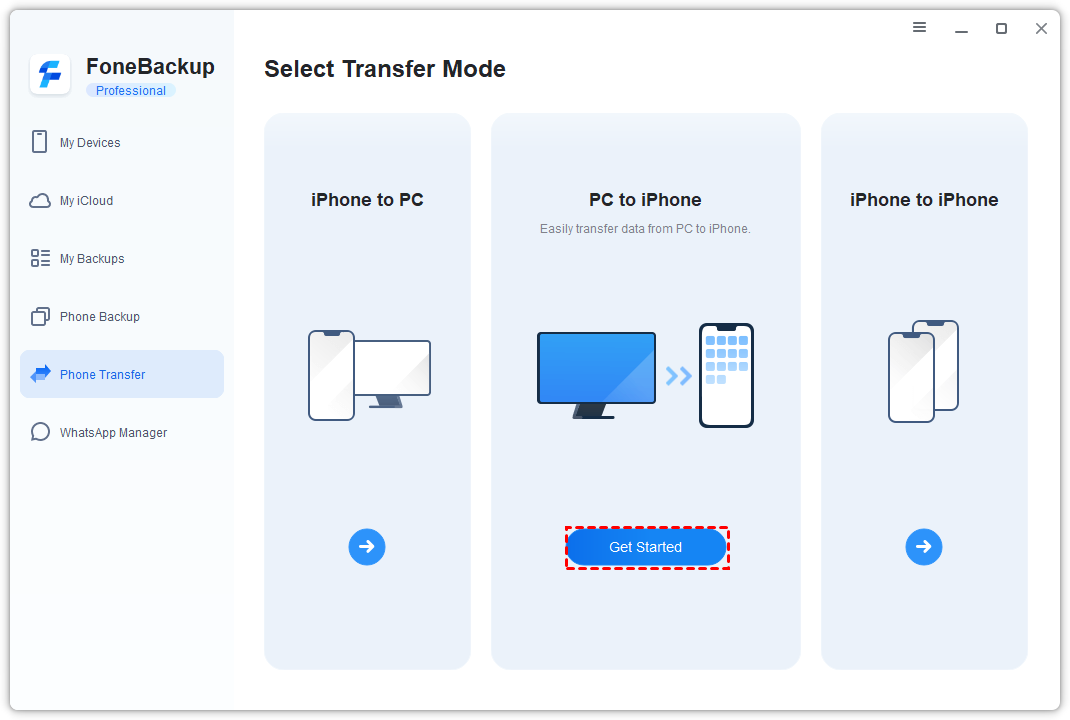
Step 1. Install and open AOMEI FoneBackup. Connect the iPhone SE to the computer with a USB cable, unlock the iPhone, and tap Trust This Computer if prompted.
Step 2. Choose Phone Transfer from the main interface. Select PC to iPhone and click Get Started.
Step 3. Choose the Ringtones option, then click the add area or drag & drop the ringtone file from your computer.
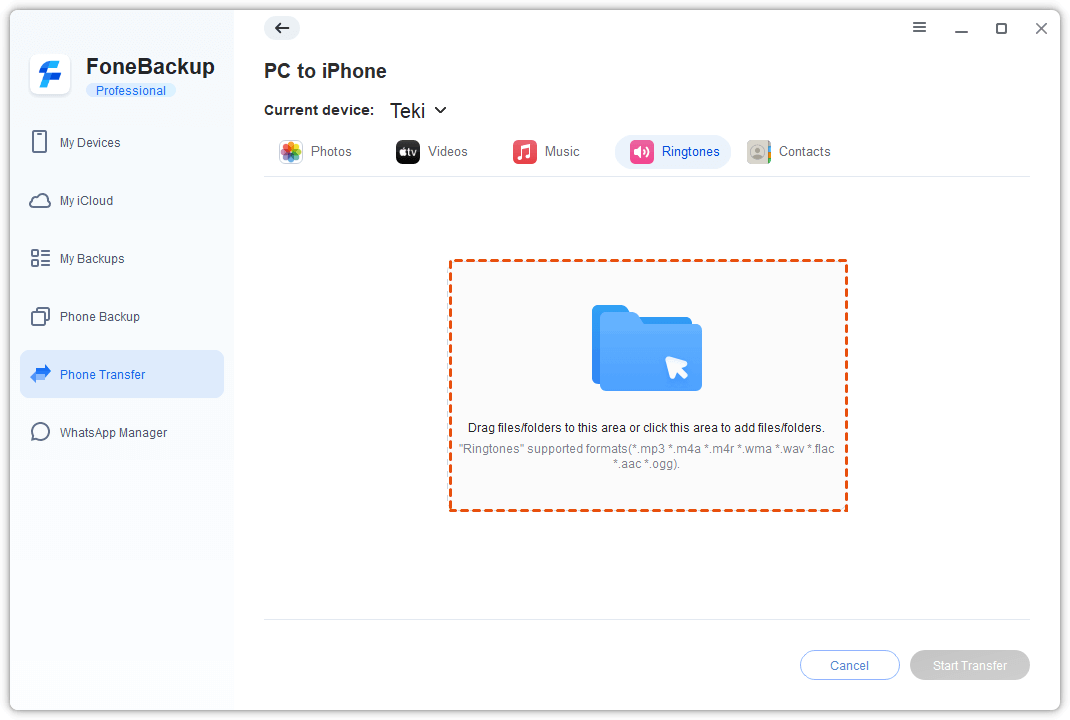
Step 4. Click Start Transfer and keep the iPhone connected until the transfer finishes.
After the transfer, go to Settings > Sounds & Haptics > Ringtone on the iPhone SE and check whether the new ringtone appears. If it does not appear, review the file format and repeat the transfer with a prepared ringtone file.
Method 2. Add Custom Ringtones to iPhone SE without a Computer
GarageBand is a good option if the audio is already on the iPhone SE and you want to create a custom ringtone without a computer. It takes more editing work, but it avoids iTunes and a USB cable.
Step 1. Install GarageBand from the App Store if it is not already on the iPhone SE. Open it, tap +, and choose an audio project such as Audio Recorder.
Step 2. Tap the track view button, then open the Loop Browser. Click on Music to choose the audio file or song you want to use and drag it into the project timeline.
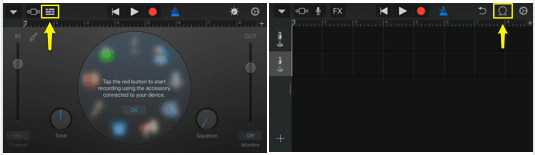
Step 3. Trim the audio to the ringtone section you want, usually a short clip. Tap the down arrow, choose My Songs, then long-press the project.
Step 4. Tap Share> Ringtone, name the ringtone, and tap Export.
Step 5. Choose Use sound as and select Standard Ringtone, Standard Text Tone, or another available option.
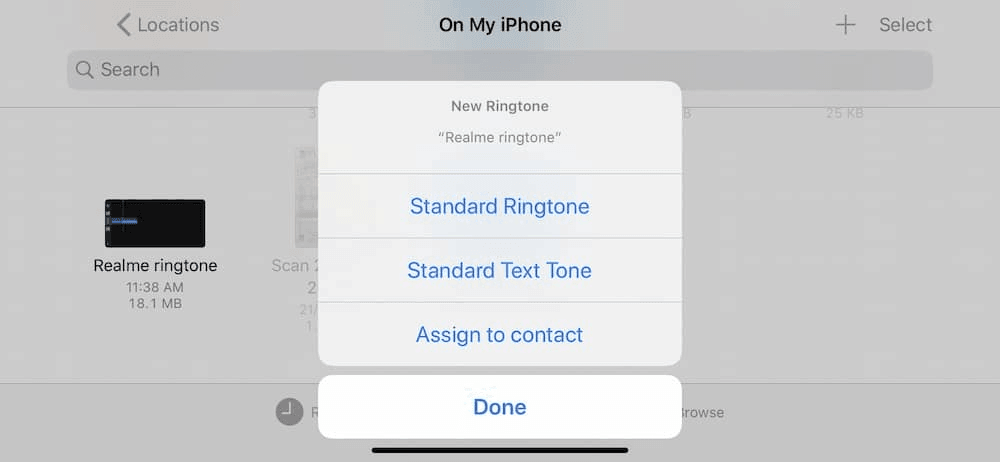
GarageBand is flexible, but it is not the fastest path if the ringtone file is already on a Windows PC. In that case, using a direct transfer tool is usually cleaner.
Method 3. Add Ringtones to iPhone SE Using iTunes
iTunes can still be used to create and add a ringtone, but it has the longest workflow. You need to import the song, trim a short section, create an AAC version, rename the file extension to .m4r, and then move it to the iPhone SE.
Step 1. Open iTunes on the Windows PC and add the song through File > Add File to Library.
Step 2. Find the song in Songs or Recently Added, right-click it, and choose Song Info.
Step 3. Open Options, set the Start and Stop times for the ringtone clip, and click OK.
Step 4. Select the song, then choose File > Convert > Create AAC Version.
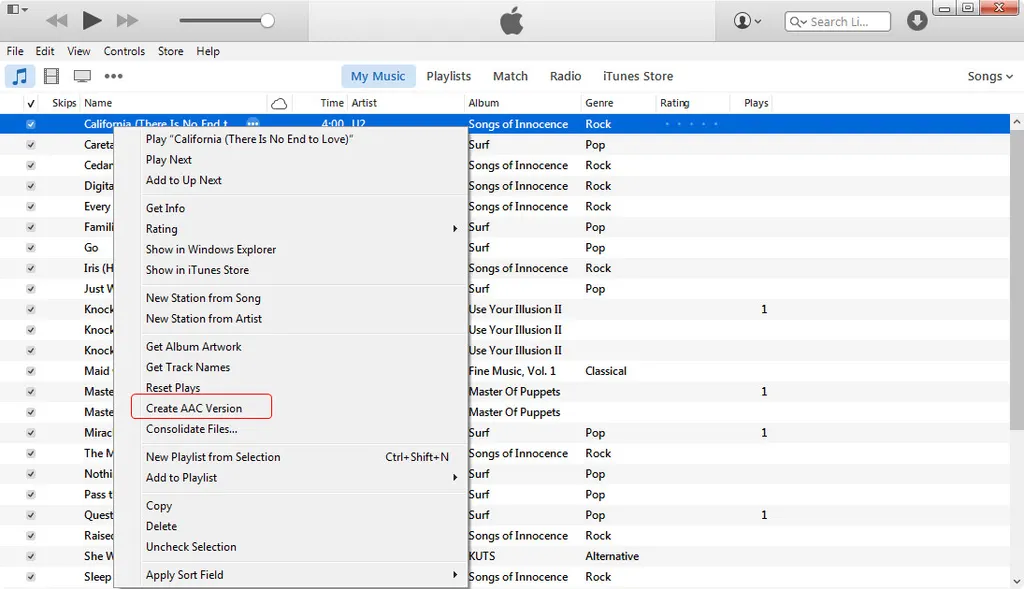
Step 5. Right-click the new short version and choose Show in Windows Explorer.
Step 6. Copy the file to a convenient location and change the extension from .m4ato .m4r.
Step 7. Connect the iPhone SE, open the device page in iTunes, and make sure Manually manage music and videos is enabled if required.
Step 8. Drag the .m4rfile into Tones under the device area.
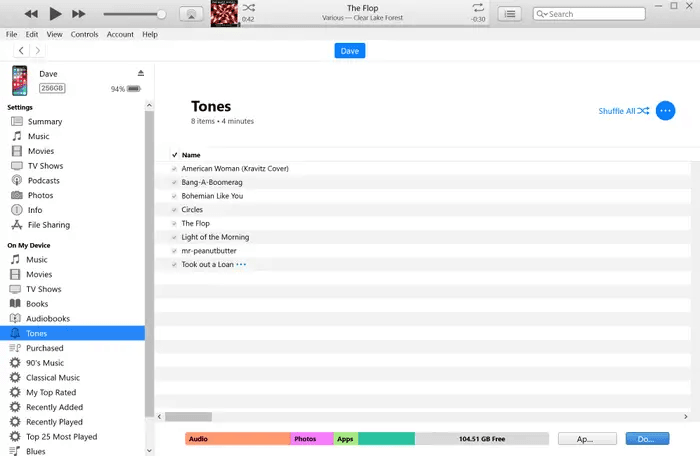
Step 9. On iPhone SE, go to Settings > Sounds & Haptics > Ringtone and choose the new tone.
Use this method if you are comfortable with iTunes and file extensions. If you only want to transfer an already prepared ringtone file, AOMEI FoneBackup is usually easier.
Where to Get Ringtones for iPhone SE?
If you do not already have a ringtone file, you can create one from personal audio, export a short clip from an audio editor, or download a ringtone from a source you trust. Keep copyright and personal-use rules in mind, especially if the audio comes from a song or commercial recording.
For fewer problems, prepare a short ringtone file on your computer first, give it a simple name, then transfer it to iPhone SE. This avoids hunting for the file later in settings.
FAQ About Adding Ringtones to iPhone SE
#1. Can I add ringtones to iPhone SE without iTunes?
Yes. You can use AOMEI FoneBackup to transfer prepared ringtone files from a Windows PC, or use GarageBand to create and export a ringtone directly on the iPhone SE.
#2. Which method is easiest for Windows users?
AOMEI FoneBackup is usually easier when the ringtone file is already on a Windows PC because it avoids the iTunes AAC conversion and .m4r drag-and-drop process.
#3. Can GarageBand make a song into a ringtone?
Yes, if the audio is available on the iPhone and can be imported into a GarageBand project. You still need to trim it and export it as a ringtone.
#4. Why is my ringtone not appearing in Settings?
The file may be too long, in the wrong format, or not transferred as a ringtone. Recheck the file and repeat the transfer or GarageBand export.
#5. Can I assign a custom ringtone to one contact?
Yes. After the ringtone appears on iPhone SE, open the contact, edit the contact details, and choose the ringtone from the available tone list.
Conclusion
By following the steps above, you can successfully add ringtones to iPhone SE, create personalized sounds, and enjoy a more customized iPhone experience. Choose the method based on where the audio file is and how much editing you want to do. AOMEI FoneBackup is a practical choice for transferring prepared ringtones from a Windows PC without iTunes. GarageBand works well for making a ringtone directly on iPhone SE. iTunes remains available, but it takes more steps and is less convenient for many users.

 as a preferred
source on Google
as a preferred
source on Google