



Solved: Your Pin Is No Longer Available in Windows 11/10
Your PIN is no longer available in Windows 11/10? But don’t worry, this guide will help you resolve this annoying issue with different methods.

By Hedy Updated on May 29, 2026


Few things are more frustrating than turning on your computer and getting locked out by a message saying “Your PIN is no longer available due to a change in the security settings on this device”.
This issue has become increasingly common among both Windows 10 and Windows 11 users, especially after major system updates, BIOS changes, or TPM resets.
In most cases, your files are still safe, and the issue can usually be repaired without reinstalling Windows. This guide walks through the causes, proven fixes, and preventive measures step by step so you can get back into your system without panic.
|
🔧 Quick fixes |
🔸 Restart your computer |
|
🔸 Try entering or recreating the PIN again |
|
|
🔸 Launch Windows Automatic Repair |
|
|
🔨Advanced fixes |
🔹 Bypass Windows PIN using AOMEI Partition Software |
|
🔹 Sign in via Microsoft Account |
|
|
🔹 Uninstall any recent Windows Updates |
|
|
🔹 Clear TPM data |
|
|
🔹 Reset your PC |
How to solve your PIN is no longer available in Windows 10/11
If you are facing the “Your PIN is no longer available” error in Windows, there are several effective ways to fix it. The following guide introduces six practical solutions, ranging from using AOMEI Partition Software to performing a full PC reset.
Before moving on to the advanced methods, it is worth trying a few simple troubleshooting steps first. In many cases, these quick fixes can resolve the issue immediately.
⚙️ Quick fixes to try first
◆ Restart your computer
A normal reboot can clear temporary system glitches that may be preventing the PIN from working properly.
◆ Try entering or recreating the PIN again
Sometimes the error is temporary. Attempt to sign in again or recreate the PIN to check whether the problem disappears.
◆ Launch Windows Automatic Repair
If restarting does not help, force Windows into Automatic Repair mode. On the login screen, hold down the Shift key while clicking Restart. Then navigate to Troubleshoot > Advanced options to access the repair tools.
If none of these methods solve the Windows 11 your pin is no longer availableproblem, continue with the detailed solutions below.
Way 1. Bypass Windows PIN using AOMEI Partition Software (fastest)
If you forget your Windows PIN and cannot sign in normally, using a professional disk management and recovery tool can make the process much easier. AOMEI Partition Software is an all-in-one Windows management software that includes a powerful “Reset Windows Password” feature, allowing users to bypass Windows PIN login issues by resetting the account password directly.
Unlike complicated command-line methods, AOMEI Partition Software provides a user-friendly interface suitable for both beginners and advanced users. It can create a bootable USB drive, boot an unbootable computer, and reset or remove forgotten Windows passwords without reinstalling the operating system.
Beyond resolving login-related problems, AOMEI Partition Software also includes a variety of advanced disk management tools, making it a practical all-in-one utility for Windows users.
✍ Key benefits include:
📌 Fast and reliable removal of Windows login and PIN issues
📌 User-friendly operations suitable for both beginners and advanced users
📌 Secure access recovery without unnecessary data loss
📌 Powerful partition and hard drive management features for better disk control
 AOMEI Partition Software
A safe and reliable disk partition management tool that helps you migrate OS to SSD or HDD, reorganize disk space, and improve overall PC performance.
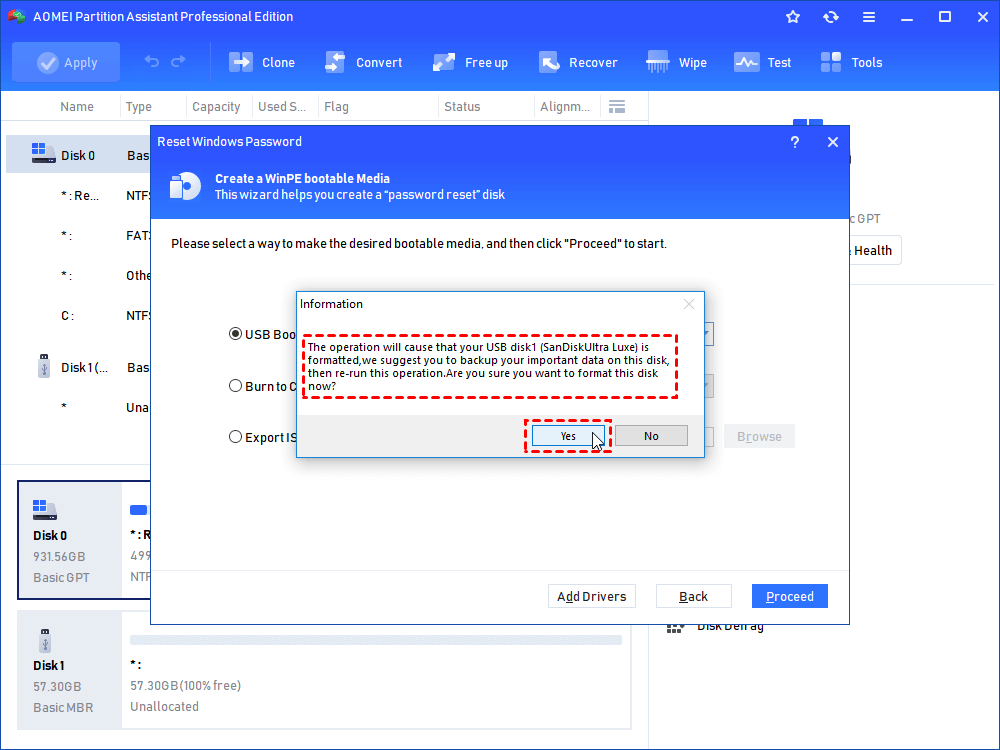
Step 1. On a working Windows computer, connect an empty USB drive, install and open AOMEI Partition Software, go to Tools > Reset Windows Password, then follow the prompts to create a WinPE bootable USB device, which will erase all data on the flash drive.
.png)
Step 2. Click "Proceed". Once the process is finished, unplug the USB drive.
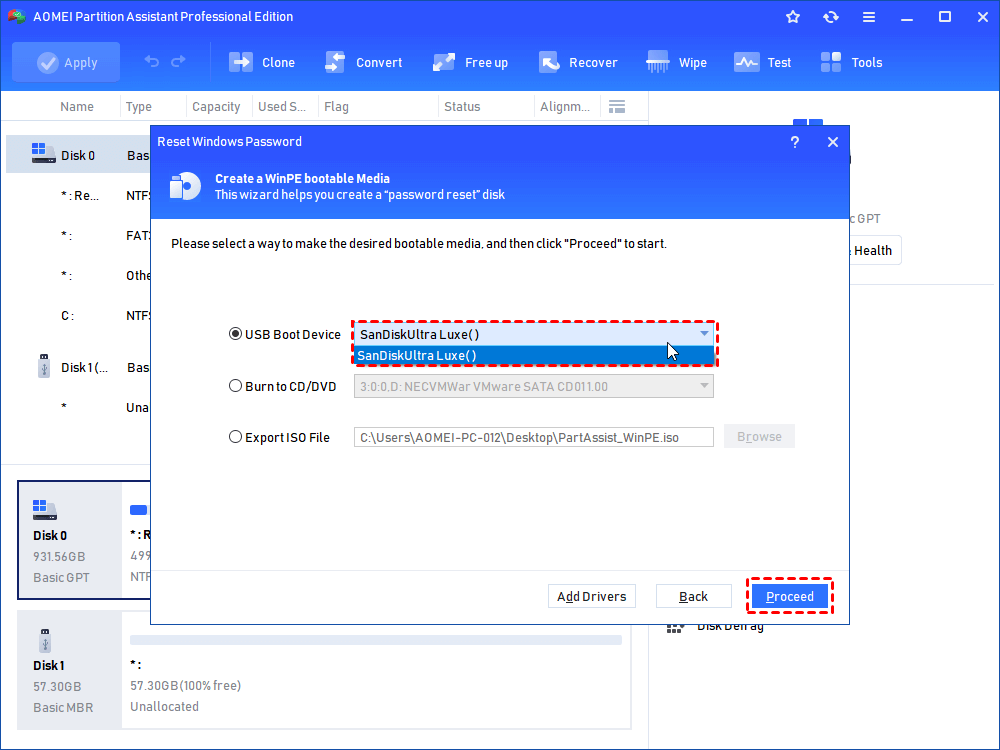
Step 3. Insert the newly created AOMEI USB drive into your locked computer. Turn the computer on and immediately press your BIOS/Boot Menu key repeatedly (usually F9, F10, F12, or DEL, depending on your PC manufacturer).
Step 4. Change the boot order so the computer boots directly from the USB drive.
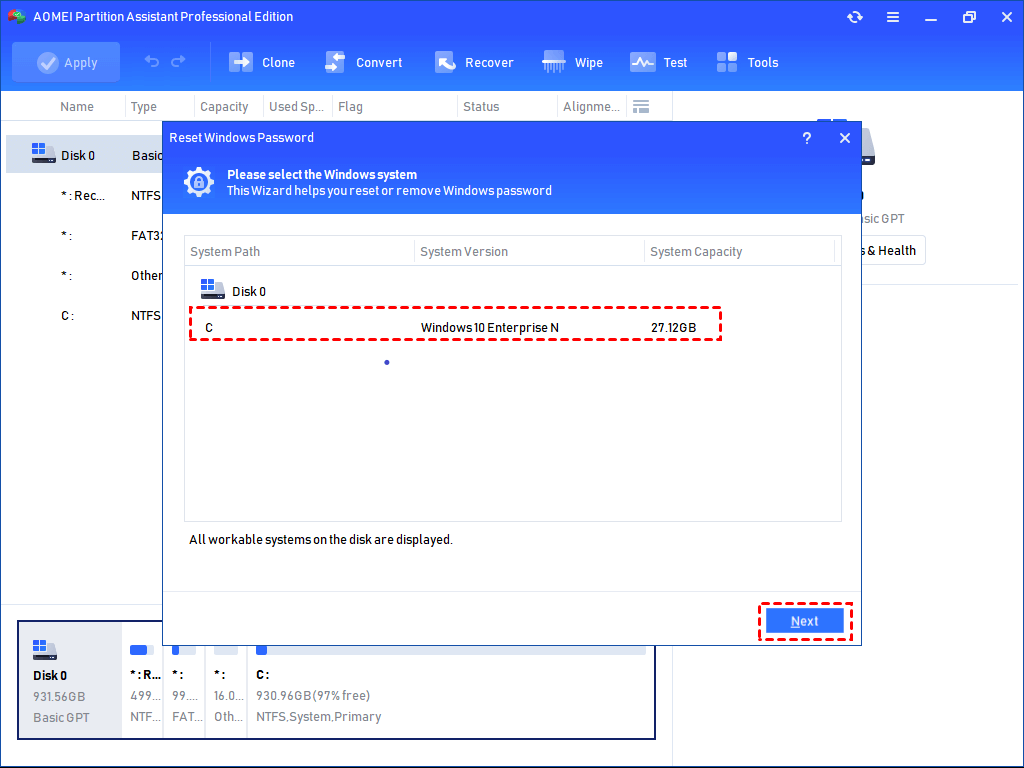
Step 5. The AOMEI interface will load on your screen. A window will pop up asking you to select the Windows operating system. Select your Windows OS and click Next.
Step 6. Select the locked Administrator Account from the list.
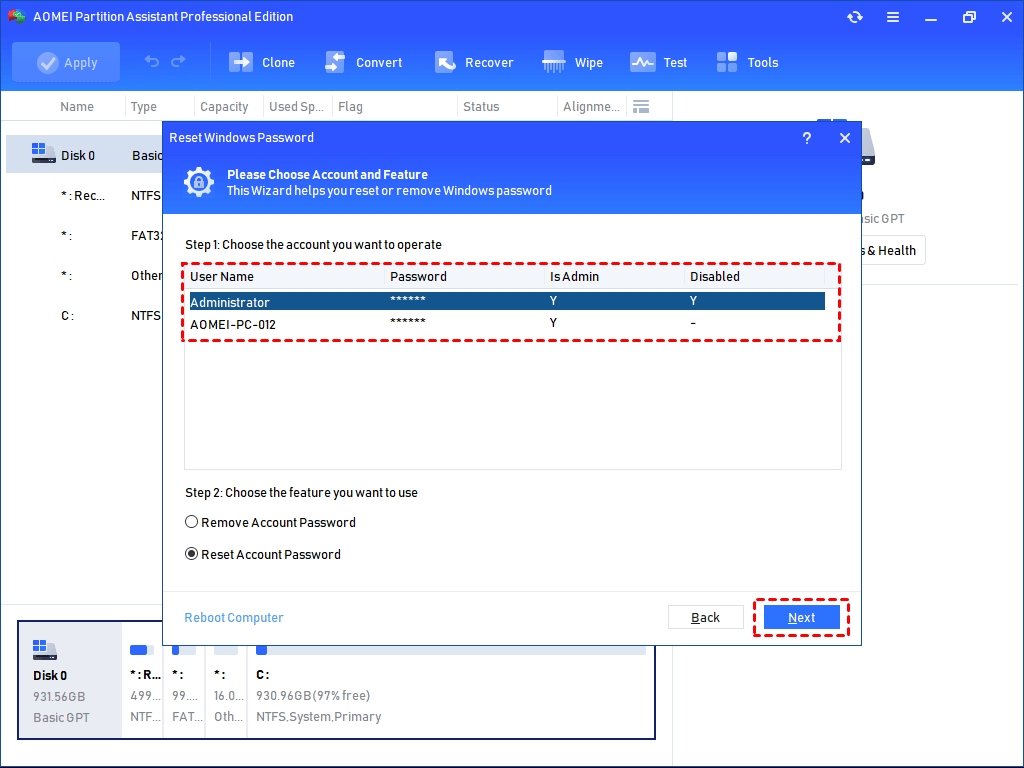
Step 7. Check the box next to Remove Account Password (or choose Reset Account Password to type a new one) and click Next.
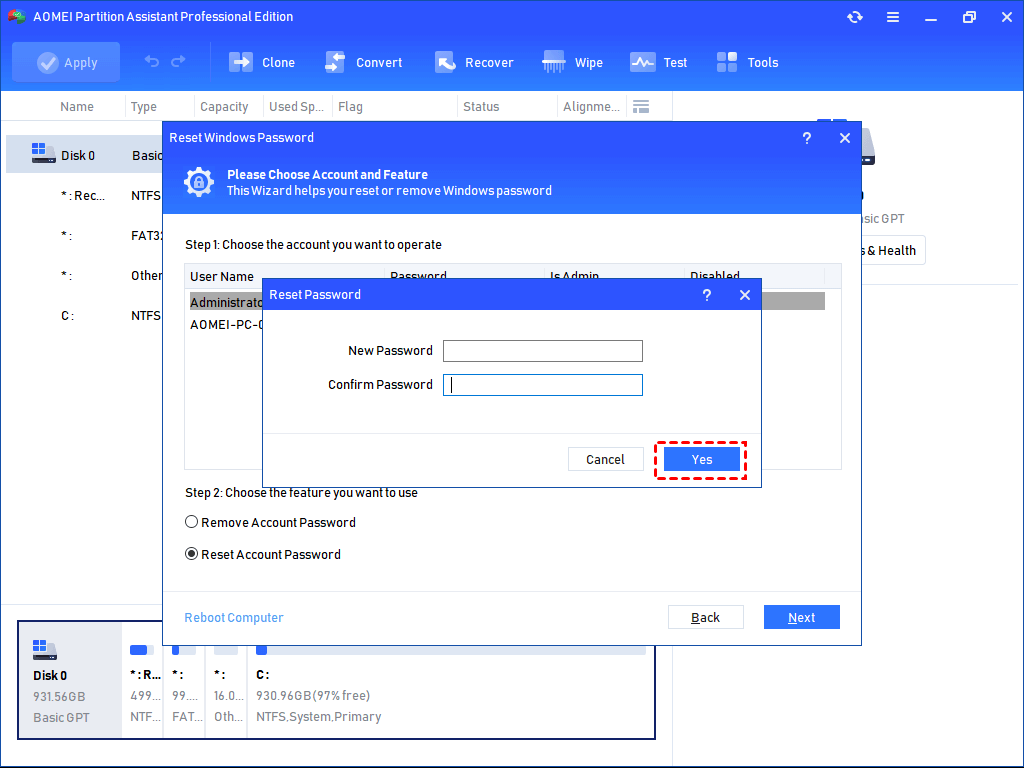
Step 8. Click OK to confirm the operation. Then click Reboot, remove the USB drive, and wait for your computer to start directly on the desktop without asking for a password.
Way 2. Sign in via Microsoft Account
This solution works only if your Windows computer is connected to a Microsoft account. In that case, you can use your Microsoft account credentials to sign in and bypass the unavailable PIN. After successfully accessing the system, you will be able to create a new PIN for future logins.
Follow these steps to reset your Windows PIN:
Step 1. On the Windows login screen, click Sign-in options if the option is available. You can also enter an incorrect PIN and select I forgot my PIN.
Step 2. Choose Sign in with a Microsoft account, then enter your Microsoft account email address and password to continue.
Step 3. After signing in successfully, access your account settings to reset the PIN.
Step 4. Open Settings in Windows, then go to Accounts > Sign-in options.
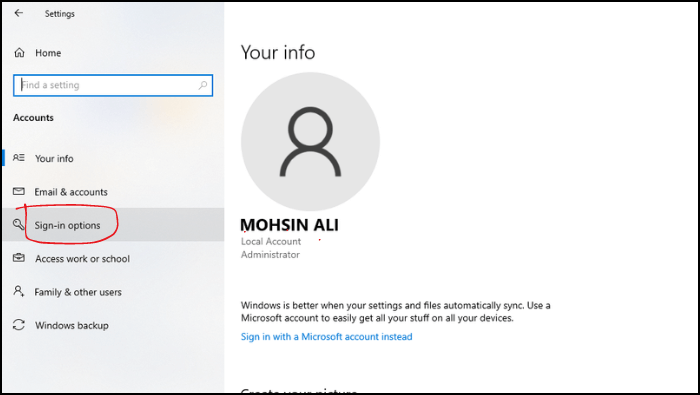
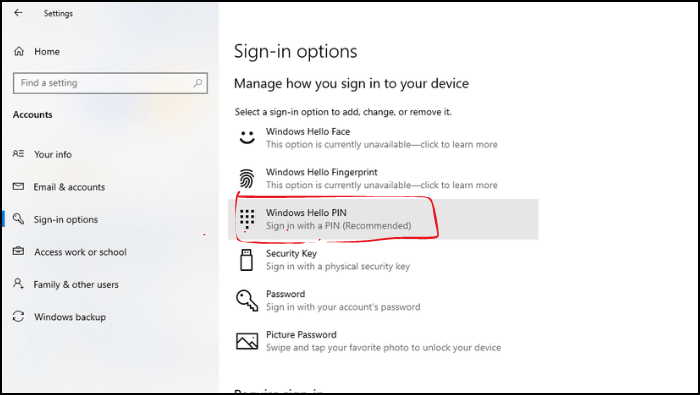
Step 5. Locate Windows Hello PIN, remove the existing PIN, and then create a new one by following the on-screen instructions.
Way 3. Uninstall any recent Windows Updates
In some cases, a recently installed Windows update may interfere with the PIN sign-in feature and trigger login problems. Removing the latest update can often help restore normal access to your account.
Follow these steps to uninstall a recent Windows update:
Step 1. Open the Control Panel by typing its name into the Windows search bar and selecting it from the results.
Step 2. Under the Programs section, click Uninstall a program.
Step 3. On the left side of the window, select View installed updates to see a list of recently installed Windows updates.
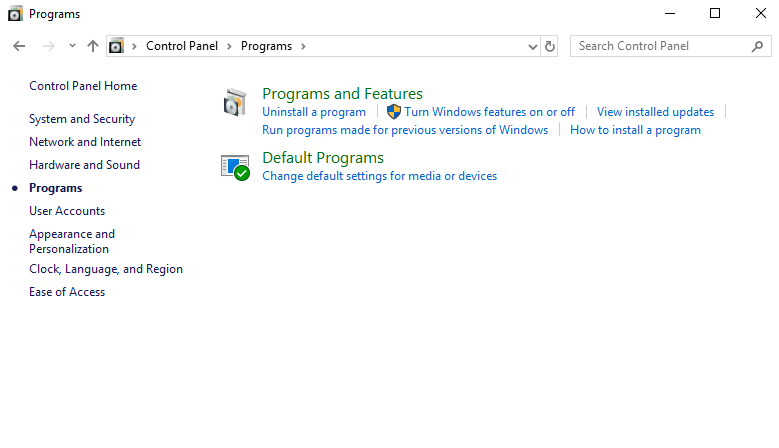
Step 4. Locate the latest update, right-click it, and choose Uninstall. Follow the on-screen instructions to complete the removal process.
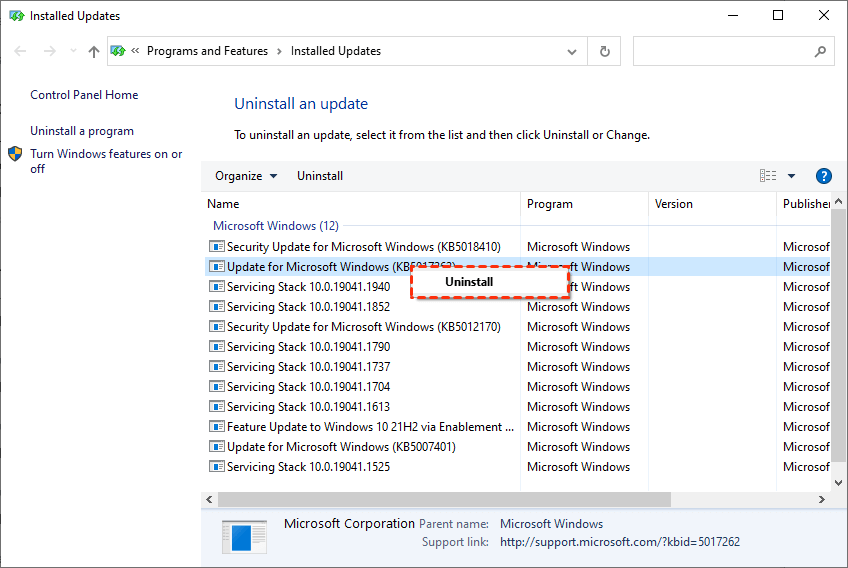
Once the update is uninstalled, restart your computer and check whether the PIN login issue has been fixed.
Way 4. Clear TPM data
The Trusted Platform Module (TPM) is an important security component in Windows 11. When TPM data becomes corrupted or changes unexpectedly, Windows may fail to recognize your PIN, resulting in sign-in errors. In many cases, clearing the TPM can help fix the issue and restore normal login functionality.
Resetting the TPM returns it to factory settings. This process may affect encrypted data, security keys, or saved credentials. Before continuing, back up all important files and ensure you understand the potential risks.
Follow these steps to clear the TPM in Windows 11:
Step 1. Type Security processor troubleshooting into the Windows search box and open the matching result.
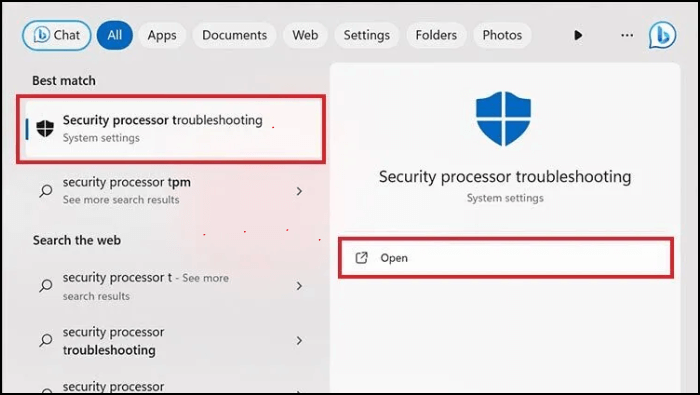
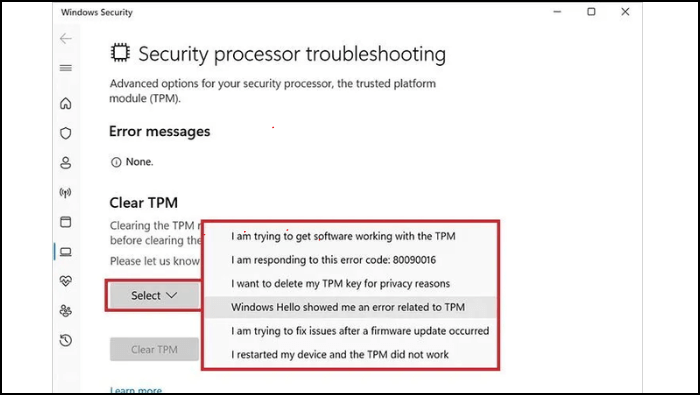
Step 2. In the Security Processor Troubleshooting window, select the reason for clearing the TPM from the available dropdown menu.
Step 3. Click the Clear TPM button. When the confirmation prompt appears, review the warning carefully and choose the option that best matches your situation.
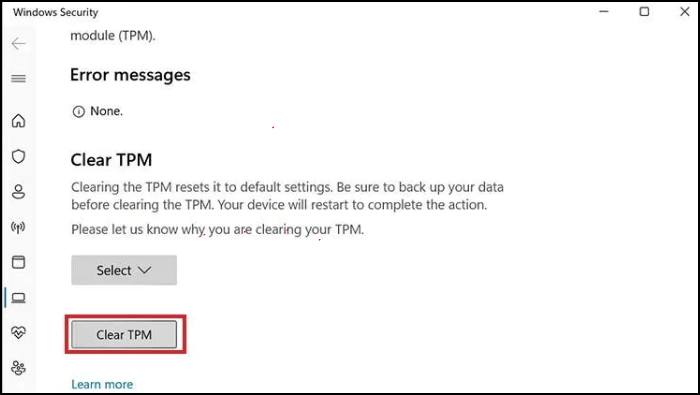
After the process is complete, restart your computer and check whether the PIN issue has been resolved.
Way 6. Reset your PC
If none of the previous methods resolve the issue, resetting your PC to factory settings may be the final option. This process reinstalls Windows and removes installed apps, settings, and personal files. Before proceeding, make sure to back up all important data to avoid permanent loss.
Follow these steps to reset your Windows PC:
Step 1. On the login screen, press and hold the Shift key. While holding it, click the Power icon and select Restart.
Step 2. Keep holding the Shift key until the Choose an option screen appears.
Step 3. Select Troubleshoot from the available options.
Step 4. Click Reset this PC, then choose Remove everything to perform a full reset.
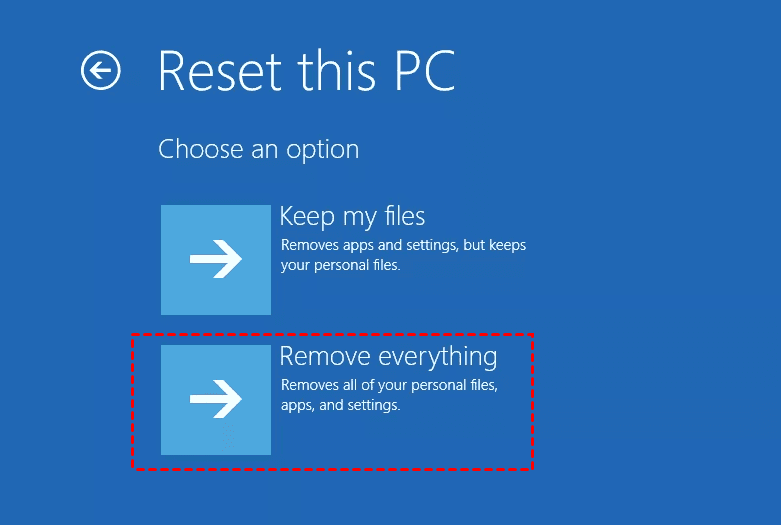
Step 5. Select the drive where Windows is installed.
Step 6. Choose Just remove my files, then click Reset to begin the process.
Your computer will restart and start reinstalling Windows automatically. Once completed, you can set up the device again and create a new PIN.
Why your PIN is no longer available?
The message “Your PIN is no longer available Windows 11” usually appears in Windows when the system can no longer verify or access your sign-in PIN information. This problem is commonly related to changes in security settings, corrupted system files, or TPM (Trusted Platform Module) issues.
Here are the most common causes:
🔺 System update or upgrade: A Windows update may reset or damage PIN-related settings.
🔺 TPM malfunction: Windows Hello PIN relies on the TPM chip to store encryption keys securely. If TPM is disabled, reset, or corrupted, the PIN may stop working.
🔺 Corrupted NGC folder: The NGC folder stores Windows PIN data. If it becomes corrupted, Windows cannot recognize your PIN.
🔺 Account or password changes: Changing your Microsoft account password, domain settings, or security policies can invalidate the existing PIN.
🔺 Damaged system files: Corrupted Windows system files may interfere with Windows Hello services.
🔺 Motherboard or BIOS changes: Hardware modifications, BIOS updates, or TPM resets can break the PIN authentication process.
FAQs
1. Why did my Windows PIN suddenly stop working?
A Windows PIN may suddenly stop working because of corrupted system files, damaged NGC folder data, Windows updates, TPM issues, account synchronization errors, or recent hardware and BIOS changes that interfere with authentication settings.
2. Will resetting my PIN delete my files?
Resetting your Windows PIN normally does not delete personal files, installed apps, or saved documents. It only removes the current PIN settings and allows you to create a new PIN for account access.
3. What is the NGC folder in Windows?
The NGC folder is a protected Windows system folder that stores PIN-related information and authentication data for Windows Hello. If the folder becomes corrupted, PIN sign-in problems and login errors may occur.
4. Can BIOS updates cause PIN problems?
Yes, BIOS or firmware updates can sometimes cause PIN problems by resetting TPM settings, changing security configurations, or interfering with Windows Hello authentication. This may require users to reset or recreate their Windows PIN.
5. Is reinstalling Windows always necessary?
No, reinstalling Windows is not always necessary for fixing PIN issues. Most problems can be solved by resetting the PIN, repairing system files, clearing the NGC folder, or adjusting TPM and account settings.
Conclusion
The “Your PIN is no longer available” error in Windows 10/11 is usually caused by TPM problems, corrupted PIN data, failed updates, or damaged system files. Fortunately, the issue can often be fixed through simple troubleshooting, resetting the PIN, uninstalling updates, clearing TPM data, or using professional tools like AOMEI Partition Software. If all methods fail, resetting the PC can restore normal access.

 as a preferred
source on Google
as a preferred
source on Google