



The Best Bootable USB Partition Manager Tools for Windows PC
This article introduces a multifunctional USB partition manager with bootable partition manager features, helping you manage USB flash drives and external hard drives more easily.

By Irene Updated on May 29, 2026


🌟 Article Overview: Easily Manage USB Storage with USB Flash Drive Partition Tool
This article introduces USB flash drive partition tools, which are utilities designed to efficiently organize and manage storage space on removable devices. While built-in Windows utilities often fall short when dealing with partition errors, RAW drives, or corrupted file systems, professional partition managers offer a flexible and reliable solution.
The guide highlights AOMEI Partition Software as a leading choice for both beginners and professionals. It provides an intuitive graphical interface that replaces risky manual command lines. The article covers three primary features of the software:
-
Creating Bootable Media: Allows users to build a bootable USB drive to repair systems and manage disks when Windows fails to boot.
-
Formatting and Reformatting: Safely restores inaccessible, RAW, or unallocated USB drives to highly compatible file systems like FAT32 or exFAT.
-
Checking USB Partitions: Conducts surface tests to detect bad sectors and determine if a drive is physically failing.
Ultimately, a dedicated bootable partition manager ensures better device compatibility, advanced data protection through disk cloning and partition recovery, and comprehensive support for multiple file systems. Readers will gain a clear understanding of how to optimize their external storage and troubleshoot common boot errors safely.
What is a USB flash drive partition tool?
A USB flash drive partition tool is a practical utility designed to help users manage partitions on USB flash drives, USB hard drives, and other removable storage devices. It allows users to organize storage space more efficiently by creating, deleting, resizing, formatting, merging, or splitting partitions based on different needs. Many users also rely on a bootable partition manager because it can start a computer from a USB device and enter a WinPE environment when the system fails to boot normally.
Compared with Windows built in tools, professional USB partition manager software often provides more advanced and flexible features. It supports multiple file systems such as NTFS, FAT32, exFAT, Ext2, Ext3, and Ext4. In addition, it can help solve common USB drive problems, including USB drives not showing full capacity, partition errors, or inaccessible storage space.
Many modern partition tools are designed with simple interfaces, making them suitable for both beginners and experienced users. Users can complete complex partition tasks with only a few clicks while protecting important files during the process. Some tools also include disk cloning, partition recovery, and boot repair features for more complete disk management.
The following table shows some common functions of a USB partition manager:
| Function | Description |
|---|---|
| Resize Partition | Adjust partition size without losing files |
| Format USB Drive | Convert USB drives to FAT32, NTFS, or exFAT |
| Create Bootable USB | Build a bootable partition manager USB drive |
| Partition Recovery | Recover lost or deleted partitions |
| Disk Clone | Copy an entire disk or partition safely |
What is the best USB partition manager?
When Windows tools cannot handle USB problems such as RAW drives, write protection, boot errors, or failed formatting, a professional USB partition manager can provide a much easier solution. AOMEI Partition Software is widely considered one of the best USB partition management tools because it combines powerful features with a simple and user friendly interface. It helps users manage USB flash drives and external hard drives safely without dealing with complicated command lines or risky manual operations.
This software supports many useful functions for daily USB management and repair. Users can format USB drives, create bootable USB media, check and repair USB errors, rebuild MBR, recover lost partitions, and even create a portable Windows environment through the Windows To Go Creator feature. These tools are especially helpful when built in Windows utilities fail or become too difficult for ordinary users.
📢 Some key advantages include:
✔️ Easy USB formatting and partition management
✔️ Bootable USB creation for system repair
✔️ USB error checking and repair support
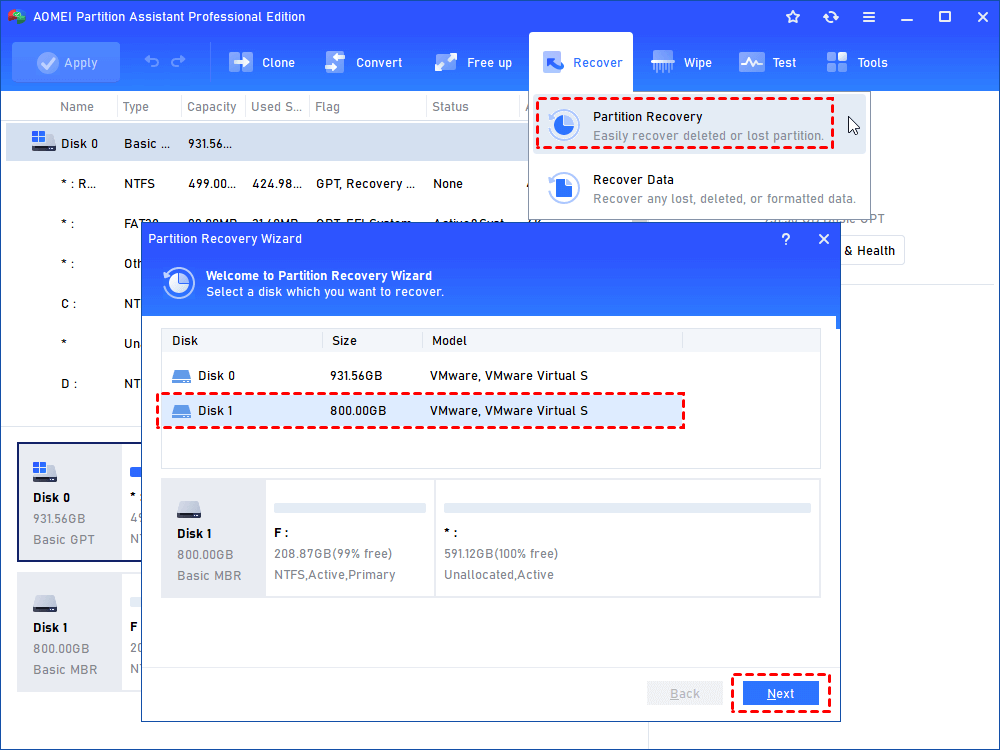
✔️ Lost partition recovery with Partition Recovery Wizard
✔️ Support for Windows 11, 10, 8, and 7
✔️ Simple graphical interface suitable for beginners
✔️ Quickly reset Windows password with a USB
With reliable performance and practical features, AOMEI Partition Software makes USB management and troubleshooting much more convenient for both home and professional users.
 AOMEI Partition Software
A safe and reliable disk partition management tool that helps you migrate OS to SSD or HDD, reorganize disk space, and improve overall PC performance.
Feature 1. Make a bootable media
Prepare a USB flash drive, CD, or DVD for the operation and back up important files in advance. Then download and install AOMEI Partition Software, a professional USB partition manager and bootable USB partition manager, on a working Windows computer to manage USB flash drive partitions and create bootable media easily.
Step 1. Launch this bootable USB utility, click "Tools" > "Make Bootable Media" on the main interface.

Step 2. Tick "USB Boot Device" or "Burn to CD/DVD" and select your device. Then click "Proceed".
Step 3. There is a warning prompt, click "Yes" to confirm the operation.
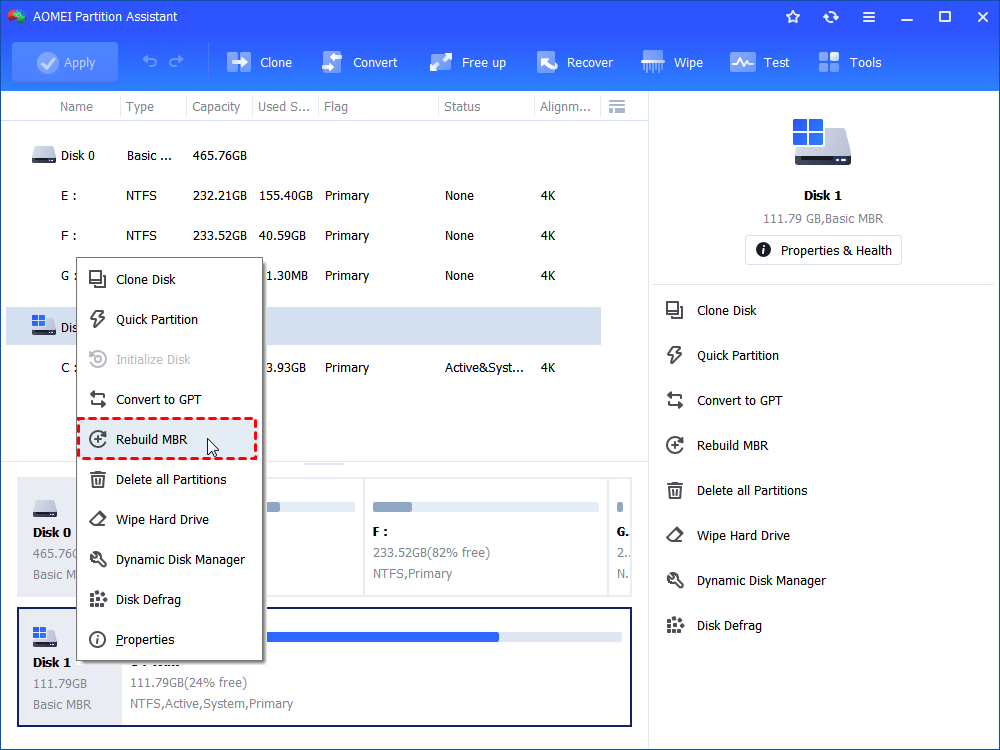
Then waiting for the proceess to finish. And you can insert this USB to a computer that can't boot up. Refer the steps of enter BIOS in the above part to boot the PC from the USB. You will see the AOMEI Partition Software main interface, it can helps you to perform boot reapir, rebuild MBR, check partition, and manage all connected hard drives.
.png)
Feature 2. Format/Reformat the USB drive
If Disk Management cannot assign a drive letter, or your USB drive appears as “Unallocated” or “RAW,” it usually means the USB partition or file system has become damaged. In many cases, built in Windows tools cannot repair corrupted USB flash drive partitions successfully. To fix these problems safely and easily, many users choose a professional USB partition manager instead of using complicated command line operations.
AOMEI Partition Software is a reliable USB flash drive partition tool that helps repair damaged USB partitions, manage USB hard drives, and recover access to unusable flash drives with a simple and user friendly interface.
Step 1. Right-click the RAW partition on your pen drive in AOMEI and select Format Partition.
Step 2. Choose a highly compatible file system like FAT32 or exFAT.
Step 3. Click OK, then click Apply and Proceed.
Once the format is finished, you can right-click the drive again and easily use the Advanced > Change Drive Letter feature to ensure it appears in File Explorer.
📢 Tip: You can also recover a USB partition when your USB drive partition is missing, or it suddenly becomes RAW, unallocated, or inaccessible after accidental formatting, virus attacks, or unexpected power loss. You can also use the Partition Recovery feature if your files disappear or Windows no longer recognizes the USB drive correctly.
AOMEI Partition SoftwareA safe and reliable disk partition management tool that helps you migrate OS to SSD or HDD, reorganize disk space, and improve overall PC performance.
Feature 3. Check USB partition
If an old USB flash drive starts failing, the problem may come from damaged flash memory cells, also called bad sectors. AOMEI Partition Software, this reliable USB partition manager and USB flash drive partition tool, can perform a deep surface test to detect errors and help users check whether the USB drive is physically damaged.
Step 1. Inside AOMEI Partition Software, right-click the problematic pen drive.
Step 2. Select Advanced and then click Check Partition.
Step 3. Choose the option "Check whether there is a bad sector on the partition" and click OK.
Step 4. Click Start to run the scan. If the map turns completely green, your drive is perfectly healthy. If you see red squares, the pen drive is physically dying, and you should copy your files off it immediately.
Why do you need a bootable USB partition manager?
A bootable USB partition manager is useful because it helps users manage storage devices even when the operating system cannot start normally. If a computer fails to boot due to damaged partitions, missing boot files, or disk errors, users can start the PC from a bootable USB partition manager and enter a WinPE environment for repair and management tasks. This provides a safer and more flexible way to fix disk problems without reinstalling Windows.
Many users also choose a professional USB partition manager because it offers more advanced features than standard Windows tools. It helps improve storage organization, optimize disk performance, and reduce the risk of partition errors. In addition, modern partition software is designed with simple steps and clear interfaces, making it suitable for both beginners and advanced users.
📢 Advantages of a bootable USB partition manager include:
✔️ Easy partition management
Users can resize, create, delete, merge, split, or format partitions with simple operations.
✔️ Better USB drive compatibility
It supports USB flash drives, USB hard drives, SSDs, memory cards, and many popular storage brands.
✔️ Boot repair support
It helps fix boot related problems when Windows cannot load normally.
✔️ Data protection features
Many tools include disk cloning, partition backup, and partition recovery functions to reduce the risk of data loss.
✔️ Multiple file system support
Users can manage NTFS, FAT32, exFAT, Ext2, Ext3, and Ext4 partitions more flexibly.
✔️ User-friendly interface
Clear layouts and guided steps make disk management easier for all users.
With these practical features, a reliable bootable partition manager can help users manage storage devices more safely and efficiently.
Conclusion
In conclusion, a reliable USB partition manager can make USB storage management much easier, safer, and more flexible for both personal and professional use. Whether users need to format a USB drive, repair damaged partitions, create bootable media, or recover lost storage space, professional tools often provide more practical solutions than built in Windows utilities.
AOMEI Partition Software combines advanced features with a simple interface, allowing users to manage USB flash drives and external hard drives efficiently without complicated operations. With support for boot repair, partition recovery, disk checking, and multiple file systems, it offers a complete solution for handling common USB related problems and improving overall storage management experience.
FAQs
🗨️ What is the best USB partition manager for Windows?
A reliable USB partition manager helps users create, resize, format, delete, and recover partitions on USB flash drives and external hard drives. Many users prefer tools that support bootable media creation, file system conversion, and USB repair features. AOMEI Partition Software is often recommended because it supports both regular USB partition management and bootable USB partition manager functions in Windows 11, 10, 8, and 7.
🗨️ Can I partition a USB flash drive without losing data?
Yes, many modern USB flash drive partition tool programs support resizing or splitting partitions without deleting existing files. However, data safety depends on the condition of the USB drive and the operation being performed. Backing up important files before making partition changes is still recommended.
🗨️ Why is my USB hard drive showing as unallocated?
A USB hard drive partition may appear as unallocated because of file system corruption, accidental deletion, power failure, or virus attacks. In some cases, the partition table becomes damaged and Windows can no longer recognize the drive correctly. A professional partition manager may help recover or rebuild the partition structure.
🗨️ How do I create a bootable USB partition manager?
Most bootable partition manager tools include a feature that creates WinPE or Linux based bootable media on a USB drive. After booting the computer from the USB device, users can manage partitions even when Windows cannot start normally. This is useful for fixing startup problems, partition errors, or system migration tasks.
🗨️ What can a bootable USB partition manager do?
A bootable USB partition manager can perform advanced disk operations outside the Windows environment. It is commonly used to repair damaged partitions, format inaccessible drives, clone disks, migrate operating systems, rebuild MBR, and manage partitions on computers that fail to boot properly.

 as a preferred
source on Google
as a preferred
source on Google