




Some Partitions Are Missing! Follow to Recover Lost Partitions
If some partitions are missing on your Windows 10 PC, this guide provides straightforward steps for lost partition recovery to find and restore your disappeared disk partition.

By Irene Updated on June 3, 2026


Why are some partitions missing?
If you see messages like "A required drive partition is missing" or "The drive where Windows is installed is locked," it usually indicates a problem with essential parts of your hard drive that help your computer start or access data.
| Error Message | When It Appears | What It Means |
|---|---|---|
| "A required drive partition is missing" | When trying to reset or install Windows | The startup map such as the MBR or BCD file is broken, or important system files are damaged or missing. |
| "The drive where Windows is installed is locked" | When trying to reset the PC | The drive containing Windows is inaccessible or protected, preventing the reset process. |
Sometimes, you may successfully resize partitions, but some do not appear in File Explorer. In most cases, these partitions are not truly missing: you can see them in Windows Disk Management.
The main reason a partition does not show up in File Explorer is simple: it does not have a drive letter assigned (like C: or D:). Without a letter, File Explorer ignores it. Before assuming data is lost, always check Disk Management. Often, the issue is a configuration problem, not physical loss. If partitions are genuinely missing, common causes include:
| Cause | Simple Explanation |
|---|---|
| Missing Drive Letter | The partition exists but hasn’t been assigned a letter. This is the most common and easiest fix. |
| Corrupted File System | The structure (like NTFS) that organizes files on the partition is damaged. |
| Unallocated Space | The partition was deleted or converted into unorganized space. |
| Partition Table Corruption | The master map for all partitions is damaged, so the computer can’t locate them correctly. |
| Driver Issues | The software that allows Windows to communicate with the hard drive is outdated or faulty. |
| Physical Problems | Loose cables, bad ports, or a failing hard drive. |
How to fix drive partition is missing in Windows 10 and 11?
Fix 1. Assign a drive letter
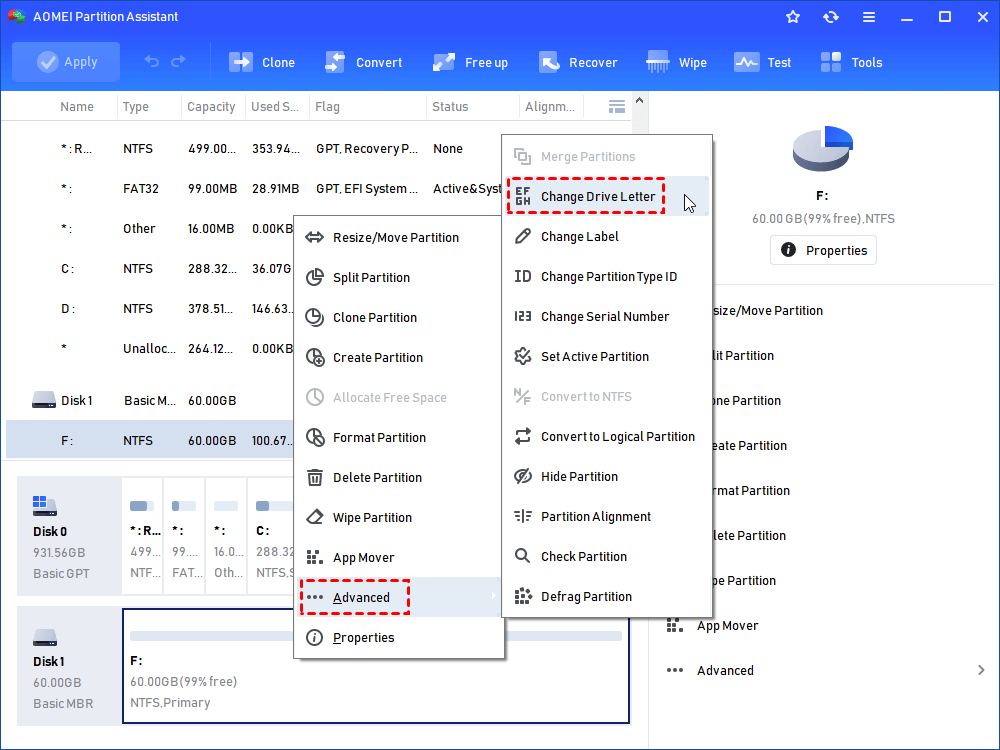
Sometimes, after resizing a partition, it may not appear in “My Computer,” but this does not mean it is truly missing. You can still find it in Windows Disk Management or AOMEI Partition Assistant. The reason it does not show up is simple: the partition does not have a drive letter.
To fix this, just assign a drive letter using either Partition Assistant or Windows Disk Management. Once a letter is added, the partition will appear normally.
In AOMEI Partition Assistant:
 AOMEI Partition Software
A safe and reliable disk partition management tool that helps you migrate OS to SSD or HDD, reorganize disk space, and improve overall PC performance.
In Disk Management:
Step 1. Press Win + X and select Disk Management.
Step 2. Look for any unallocated space or partitions without a drive letter.
Step 3. If found, right-click on it.
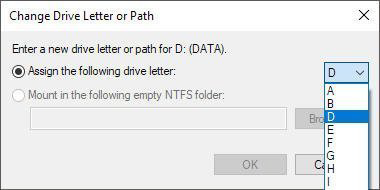
Step 4. Choose Change Drive Letter and Paths > Add > assign a letter. Click OK.
Fix 2. Recover lost partition
When you see messages like “A required drive partition is missing” or “The drive where Windows is installed is locked,” it often means a system partition is lost or damaged. If built-in tools cannot fix the problem, you can try AOMEI Partition Assistant. This tool is a full disk management program that lets you create, resize, move, and manage partitions. More importantly, it includes a Partition Recovery Wizard that helps you find and restore lost or deleted partitions without losing your data.
Why choose AOMEI Partition Assistant for partition recovery?
✅ Easy for beginners: Its clear, step-by-step wizard requires no technical background.
✅ Safe and fast: It scans your drive for missing partitions and restores them without data loss.
✅ Wide support: Works with NTFS, FAT32, EXT2/3, and supports HDDs, SSDs, USB drives, SD cards, and more.
✅ Recovery preview: You can check the partition before recovering it, which helps reduce mistakes.
AOMEI Partition SoftwareA safe and reliable disk partition management tool that helps you migrate OS to SSD or HDD, reorganize disk space, and improve overall PC performance.
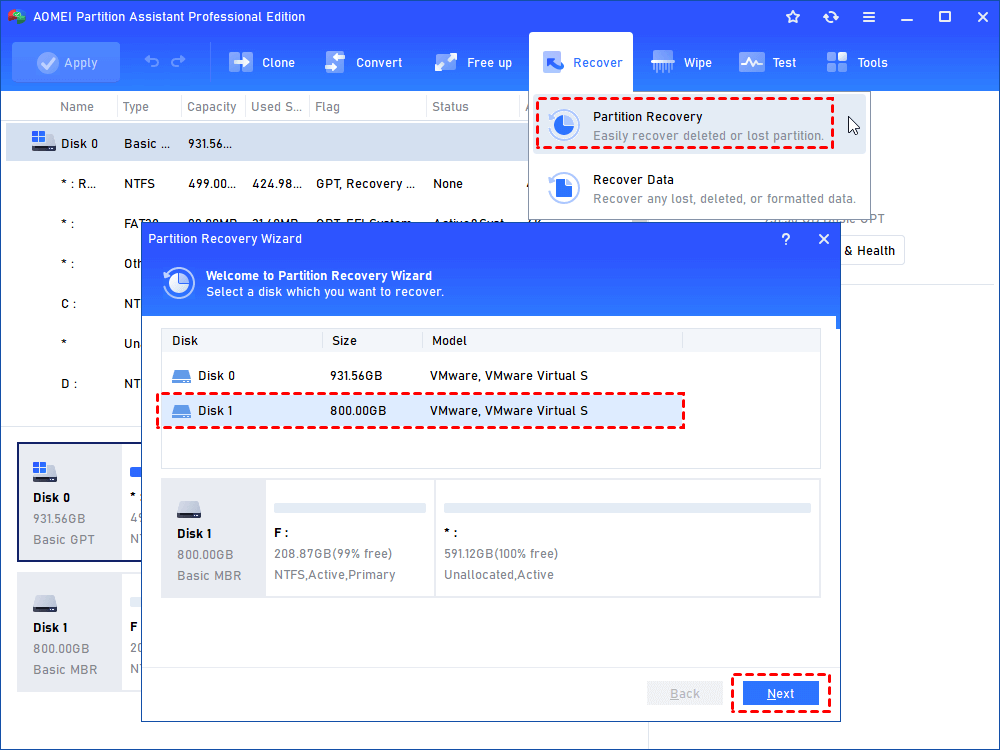
Step 1. Install and launch AOMEI Partition Assistant. Click “Recover” on in the top toolbar, and choose “Partition Recovery”.
Step 2. A small window will appear, then you will have to choose the disk which contains your missing partition from the list and click “Next”.
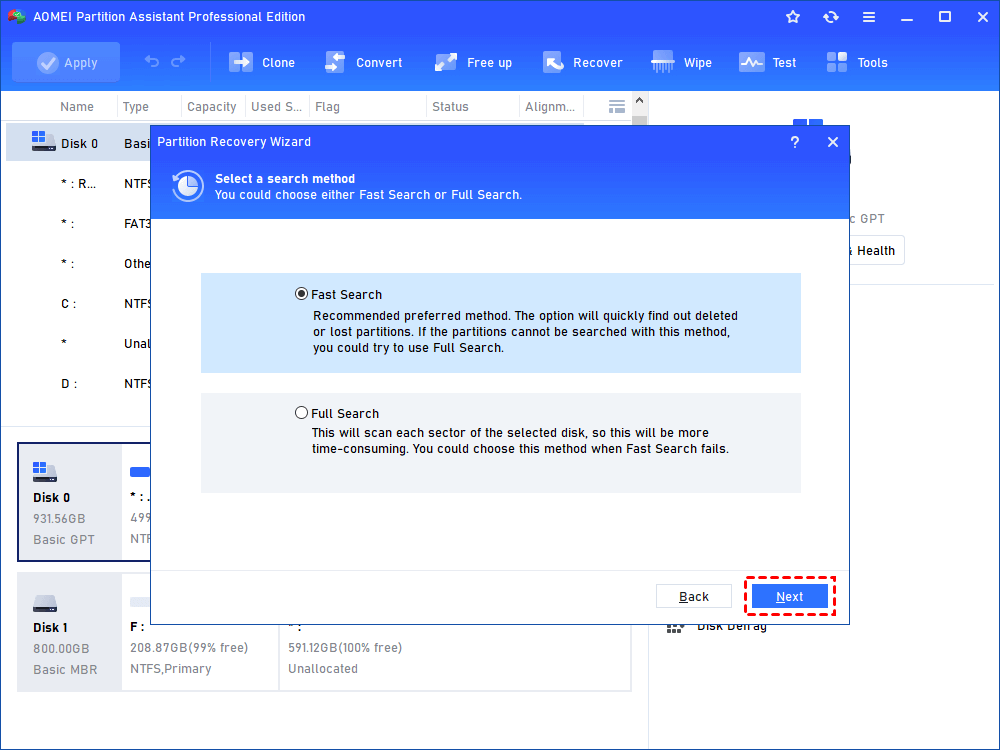
Step 3. Then you can choose a proper search method according to your actual requirements. Click “Next” to go on.
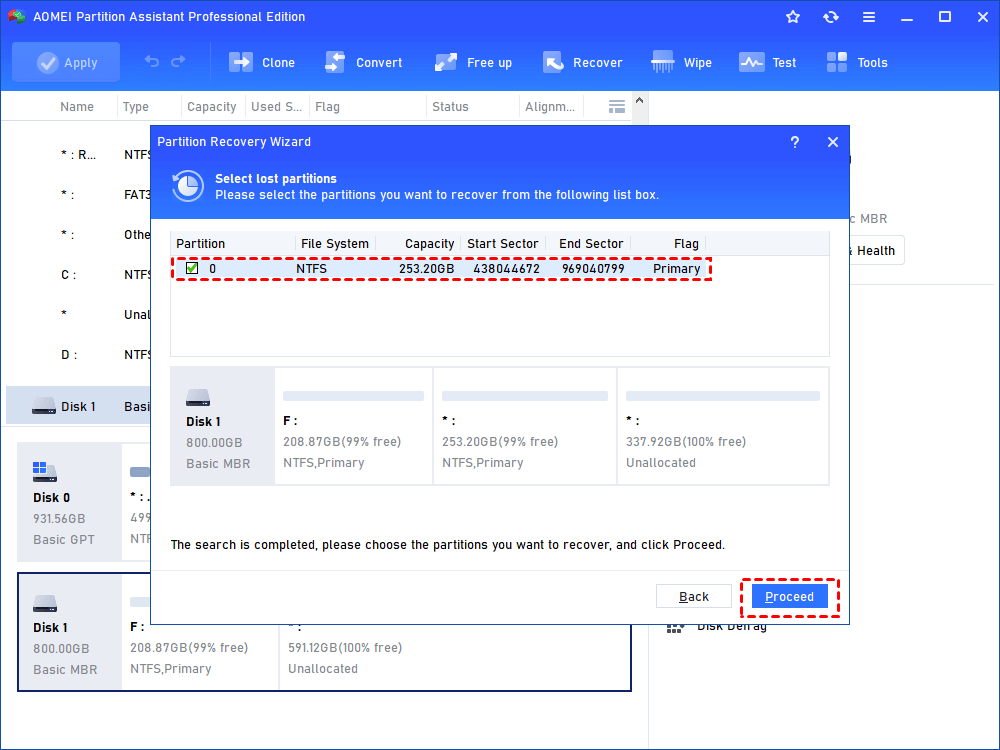
Step 4. Tick the partition which is missing from your computer and click “Proceed”.
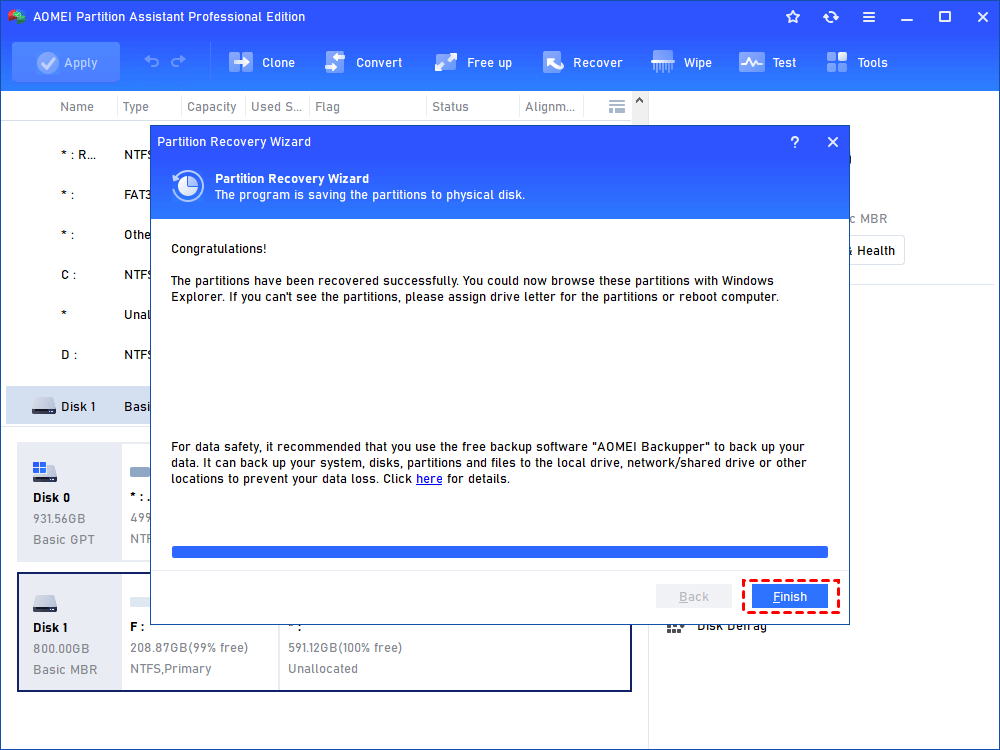
Step 5. When you see the word “Congratulations” in the window, the missing partition is restored successfully. Then you can click “Finish”.
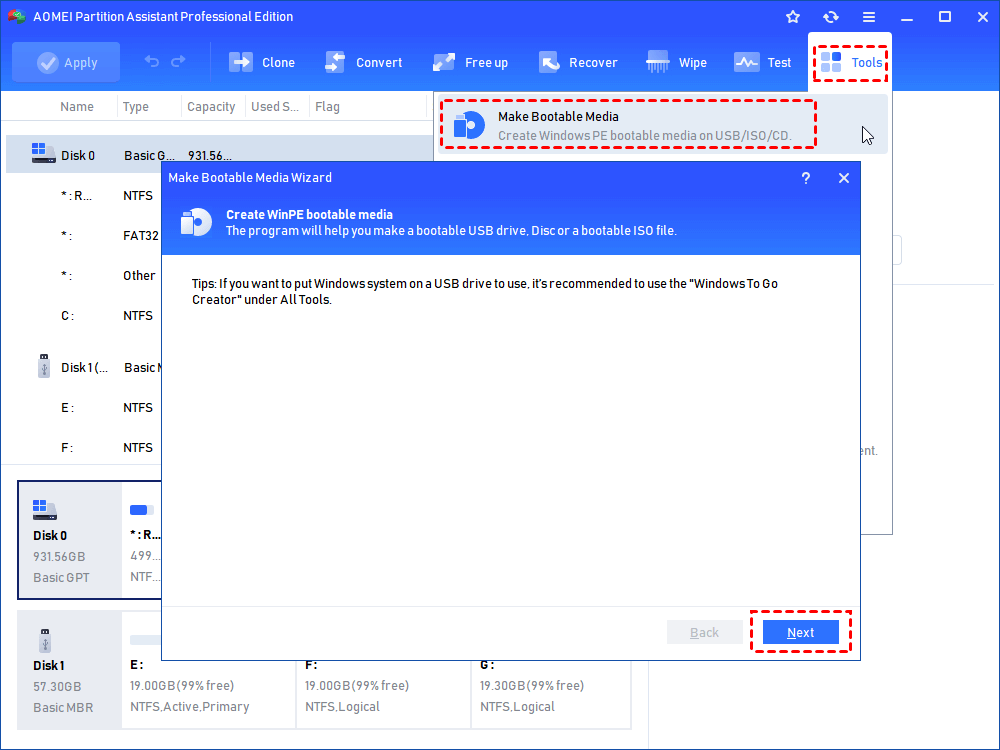
Then, open the Disk Managementor File Explorer and you can find your missing partition back. If the recovered partition does not have a drive letter, you won’t be able to see it in File Explorer, assign a new drive letter will solve that problem. Besides, if you accidentally delete boot partition in Windows, you can also use it to create a bootable media and then recover it in WinPE environment by applying the same steps above.
Conclusion
Some partitions missing can be confusing, but they are often caused by simple issues such as missing drive letters or minor file system errors. Before worrying about data loss, always check Disk Management to confirm the partition’s status. If the problem is more serious or a system partition is lost, tools like AOMEI Partition Assistant can help you scan, locate, and restore the missing partition safely. With the right steps, you can bring your data and system back to normal without stress.

 as a preferred
source on Google
as a preferred
source on Google