




How to Delete All Partitions With DiskPart in Windows?
This guide explains DiskPart delete partition commands, including delete volume and delete partition force. Different methods for removing partitions in Windows are introduced with simple explanations and practical information.

By Irene Updated on June 3, 2026


👍 Quick Look
DiskPart can quickly delete all partitions and clean a disk through command lines, but incorrect commands may erase the wrong drive. For users who prefer an easier method, AOMEI Partition Software offers a simpler graphical interface to remove partitions safely. If you need stronger privacy protection, HDD wipe methods such as Zero Fill or DoD 5220.22 M can overwrite data to reduce recovery chances, while SSD Secure Erase is designed to wipe SSDs more effectively and safely.
How to use DiskPart to delete all partitions?
If you want to completely remove all partitions from a hard drive, DiskPart can help clean the disk and return it to unallocated space. This method is often used before reinstalling Windows, reusing an old drive, or removing damaged partitions that cannot be deleted normally. Since DiskPart works through command lines, it is important to select the correct disk carefully. Once the process is finished, all partitions and stored data on the selected drive will be erased permanently.
Step 1. Press Windows + R, type diskpart, and press Enter. Click Yes if the User Account Control window appears.
Step 2. In the DiskPart window, type the following commands one by one and press Enter after each command:
list disk
select disk X
clean
Step 3. Replace X with the number of the target disk. The clean command will delete all partitions and volume information from the selected drive.
Step 4. After the process finishes, type the following command to close DiskPart:
exit
Step 5. Open Disk Management to confirm the disk now shows as unallocated space. You can then create new partitions if needed.
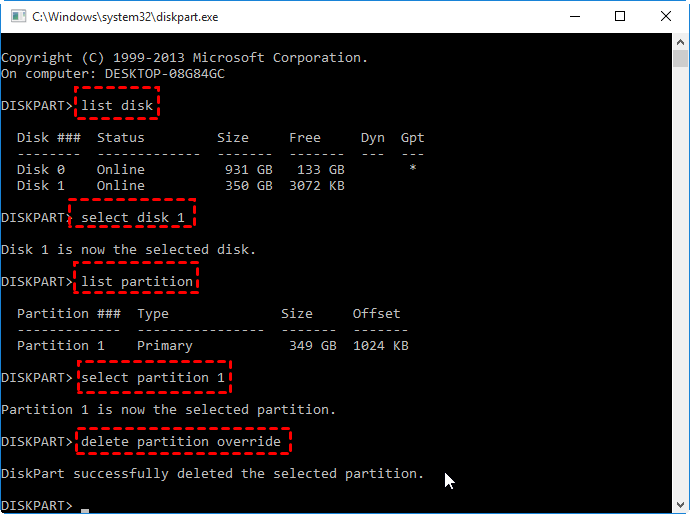
❗If you are actually looking to perform a diskpart delete partition force on a single stubborn volume, please follow the guide.
The best alternative for DiskPart to delete all partitions
DiskPart can delete all partitions from a hard drive, but many users find it difficult because it relies on command lines. A wrong command may erase the wrong disk or cause unexpected problems. If you want a simpler and safer way to remove all partitions, AOMEI Partition Software can be a practical choice.
This partition management tool provides a clear interface, so users can delete all partitions with only a few clicks instead of typing commands manually. It supports Windows 11, 10, 8, 7, and Windows Server systems. Whether you want to clean a hard drive before repartitioning, create unallocated space for extending another partition, or prepare a disk for reuse, the process is much easier.
The software also offers different deletion methods. You can quickly remove partitions while keeping data recoverable, or completely wipe the disk to prevent data recovery. For SSD users, it even includes an SSD Secure Erase feature to clear data more thoroughly.
Compared with DiskPart, AOMEI Partition Software is more user friendly, especially for beginners who want to delete all partitions safely and efficiently.
 AOMEI Partition Software
- Advanced Partition Management: Go beyond basic disk tools with more flexible partition operations. Resize, move, split, merge, and align partitions with greater flexibility.
- OS Migration & Disk Cloning: Migrate Windows OS to SSD or HDD without reinstalling, or clone entire disks and partitions for seamless system upgrades.
- Flexible Disk Converter: Convert disks between MBR and GPT without deleting partitions, switch between basic and dynamic disks, and convert NTFS and FAT32 file systems.
- Smart Space Allocation: Allocate free space directly from one partition to another and extend system drives without creating unallocated space.
- Partition Recovery & Dynamic Disk Support: Recover lost or deleted partitions and manage dynamic volumes with advanced disk management tools.
 100% Secure
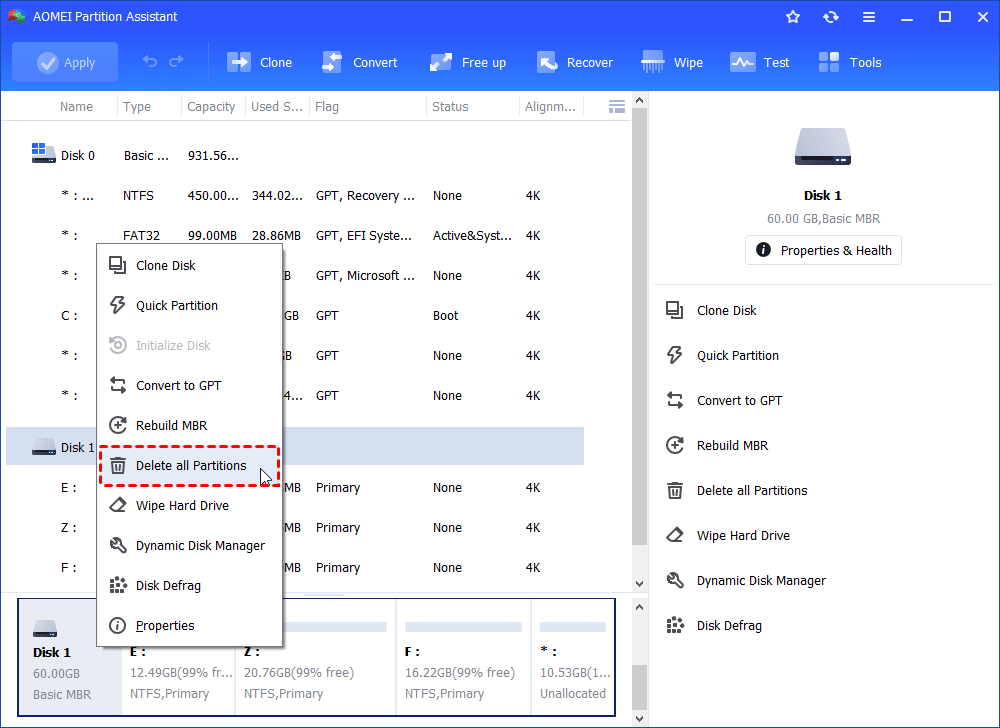
Step 1. Install and open AOMEI Partition Software. In the main interface, locate the target disk that you want to clear. Right click the disk and choose “Delete All Partitions”.
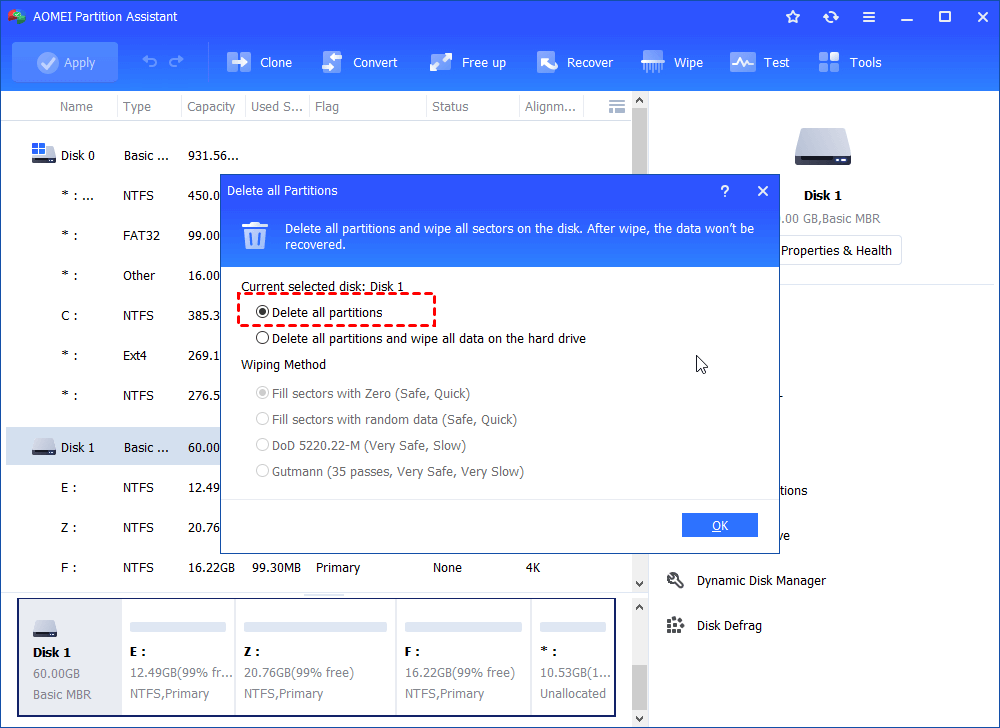
Step 2. In the pop up window, choose a deletion method based on your needs. The first option deletes all partitions but the deleted data may still be recoverable. The second option deletes all partitions and wipes the entire disk, making data recovery much more difficult. If the disk contains important files, it is recommended to create a backup before continuing.
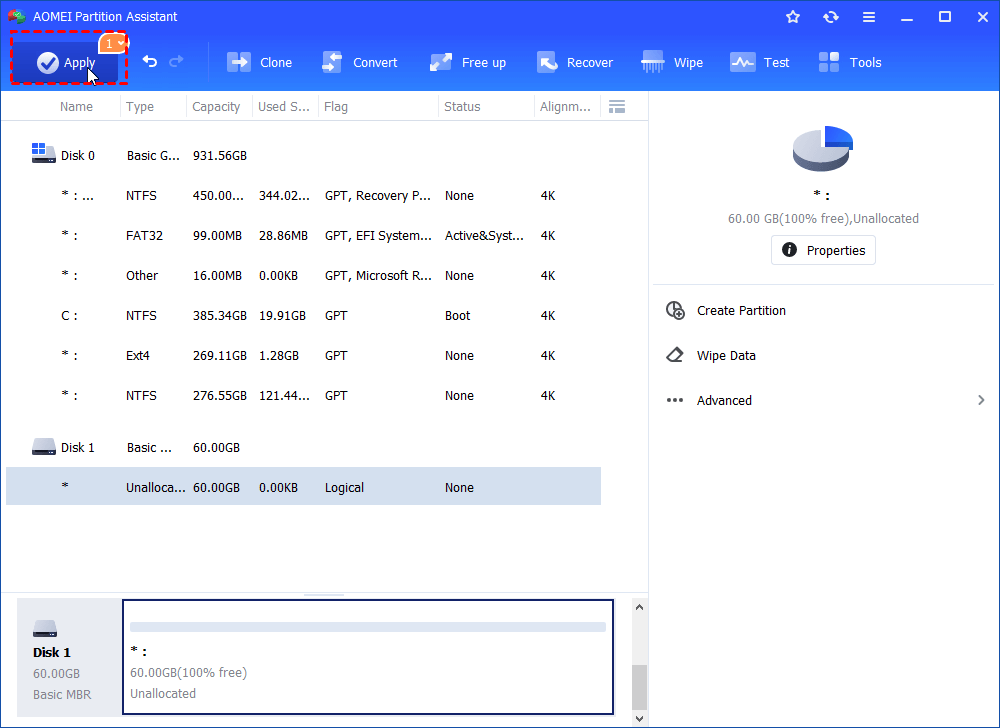
Step 3. After selecting the desired method, click “OK” to return to the main interface. Then click “Apply” and “Proceed” to start the operation. The software will remove all partitions from the selected disk and turn it into unallocated space.
Delete All Partitions vs Erase HDD vs Erase SSD
Many users think deleting partitions and erasing a drive are the same thing, but they actually work in different ways. DiskPart delete all partitions mainly removes partition information and turns the disk into unallocated space. However, data may still be recoverable in some cases. Erasing an HDD or SSD focuses more on permanently removing data from the drive. Understanding the differences can help you choose the right method before selling, reusing, donating, or repartitioning a storage device.
| Feature | Delete All Partitions | Erase HDD | Erase SSD |
|---|---|---|---|
| Main Purpose | Remove all partitions | Permanently wipe data from HDD | Securely erase data from SSD |
| Data Recovery Possibility | Possible with recovery tools | Very difficult or impossible | Very difficult or impossible |
| Storage Device Type | HDD and SSD | Mainly HDD | Specifically for SSD |
| Effect on Disk | Creates unallocated space | Removes data completely | Clears SSD cells securely |
| Typical Use Case | Repartitioning or reusing disk | Selling or disposing HDD | Resetting or preparing SSD |
| Speed | Usually fast | Depends on disk size and wipe method | Usually faster than HDD wipe |
✔️ Deleting all partitions is a good choice when you simply want to reorganize storage space or prepare a disk for new partitions. It is faster because it mainly removes partition structures instead of fully wiping every sector on the drive.
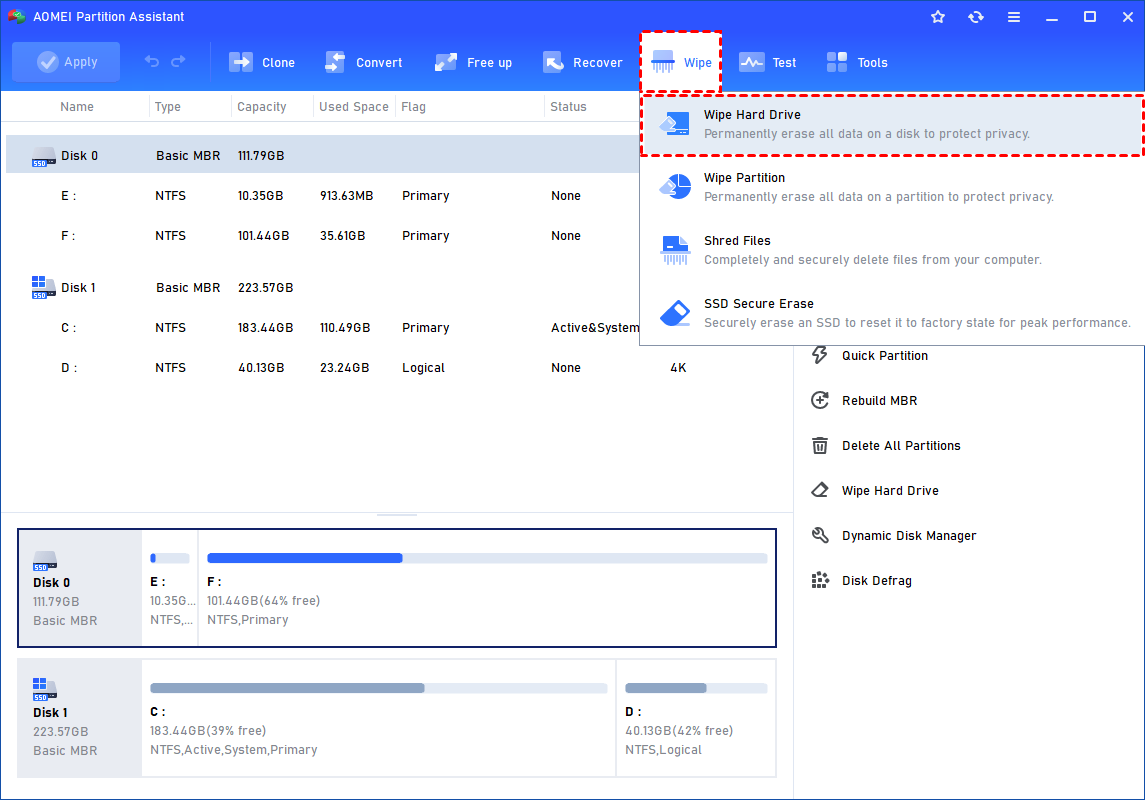
📢 Wiping an HDD is more suitable when privacy and security are important. Unlike simply deleting partitions, HDD wipe methods overwrite stored data to make recovery much harder. This is often recommended before selling, donating, or disposing of an old hard drive. Different wipe methods provide different security levels. Zero Hard Drive Fill is fast and suitable for basic cleaning, Random Data Fill offers stronger protection, while DoD 5220.22 M balances security and speed through multiple overwrite passes.
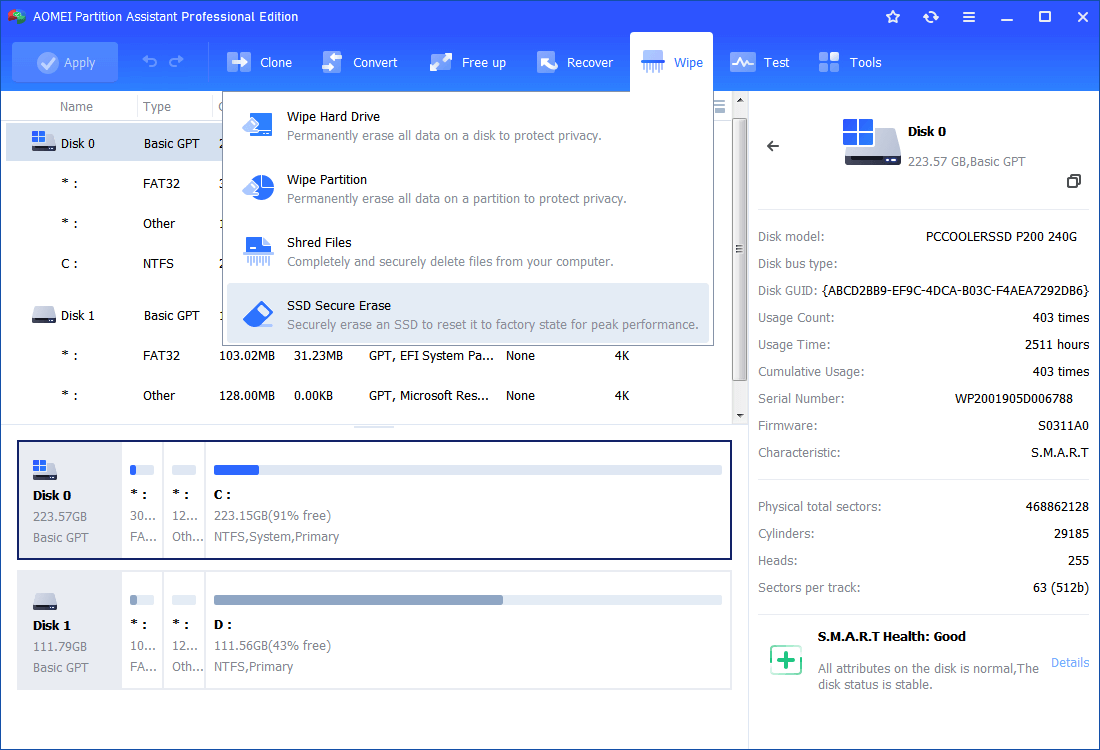
🔶 Erasing an SSD is different because SSDs store data differently from traditional hard drives. A secure erase function can reset and wipe SSD data more effectively while also helping maintain SSD performance. Using normal wipe methods on SSDs may increase unnecessary wear, so dedicated SSD erase tools are usually the safer option.
Conclusion
In this guide, you learned how to use DiskPart delete all partitions to clean a hard drive and create unallocated space. Although DiskPart is useful, its command line operations may be difficult for some users. For a simpler and safer experience, AOMEI Partition Software provides an easier way to delete partitions, wipe HDDs, and securely erase SSDs. By understanding the differences between these methods, you can choose the most suitable option for disk management, data cleanup, and privacy protection.
FAQs
🗨️ What is the difference between clean and clean all?
The clean command only removes partition information and marks the disk as unallocated, so data may still be recoverable. The clean all command overwrites every sector with zeros, making recovery almost impossible.
🗨️ Is it possible to recover data after running the clean command?
Yes. If you used the clean command and did not save new data to the disk, recovery tools may still restore files or partitions. However, recovery is usually impossible after using clean all.
🗨️ Can DiskPart delete a partition that is protected or in use?
Yes. DiskPart can remove protected partitions by using the delete partition override command. However, deleting system partitions like EFI or Recovery may cause Windows to fail to boot.
🗨️ How do I use the disk again after deleting all partitions?
After deleting all partitions, the disk becomes unallocated space. You need to create a new partition, format it, and assign a drive letter before it can be used normally again.
🗨️ Why does my disk not appear in DiskPart list disk?
This is usually caused by connection problems, missing storage drivers, BIOS settings, or a damaged drive. Checking cables, updating drivers, or changing BIOS storage settings may help the disk appear.

 as a preferred
source on Google
as a preferred
source on Google