



What Is Zero Hard Drive and How to Write Zeros to Hard Drive Easily?
This passage explains how to zero fill a hard drive and why it is useful. It also shares practical methods that may help fix hard drive errors, corruption, and performance issues.

By Irene Updated on May 29, 2026


🌟 Article Summary: How to Zero Fill Your Hard Drive
Zero filling is a data sanitization method that overwrites every sector of a hard drive with zeros, making data recovery nearly impossible. This process is essential when selling, donating, or recycling a computer to ensure personal information remains private.
✔️ Core Methods for Zero Filling
-
Professional Software: Using tools like AOMEI Partition Software is the most beginner-friendly approach. It offers a graphical interface and specialized options for both traditional HDDs (zero fill) and SSDs (Secure Erase).
-
Command Prompt (CMD): Windows users can manually wipe a drive by using the
format [Drive Letter]: /fs:NTFS /p:1command. This performs a single pass of zeros across the entire volume.
✔️ Key Considerations
-
HDD vs. SSD: While zero filling is highly effective for traditional Hard Disk Drives, Secure Erase is the recommended standard for Solid State Drives to ensure all flash memory cells are cleared without unnecessary wear.
-
Data Permanence: Unlike a "Quick Format," zero filling is irreversible. Users must back up any critical data and double-check the target drive letter before proceeding.
-
Time Commitment: The process duration depends on the drive size; for instance, a 1TB HDD can take 3 hours or more to complete a single overwrite pass.
✔️ Why Choose Zero Fill?
Standard deletion only removes the "index" to a file, leaving the actual data on the platter. Zero filling provides better data protection, safer resale value, and a cleaner drive setup for fresh operating system installations.
How do you zero hard drive?
🔥Way 1. Zero fill a hard drive with a tool (the quickest way)
If you want a faster and easier way to zero fill a hard drive, a professional disk manager like AOMEI Partition Software can be a helpful choice. It provides a simple and clear interface, so even beginners can complete the process without using complicated command lines. The software supports Windows 11, 10, 8, and 7, making it convenient for different users.
Unlike quick formatting, zero filling completely overwrites the drive data, which helps erase files more thoroughly and reduces the chance of recovery. Some disk tools only perform basic formatting instead of a true overwrite, so using a reliable utility is important for better security and stable results. AOMEI Partition Software can safely write zeros to the entire disk step by step, helping users clear old data, prepare a drive for reuse, or fix certain disk-related problems more easily.
 AOMEI Partition Software
A safe and reliable disk partition management tool that helps you migrate OS to SSD or HDD, reorganize disk space, and improve overall PC performance.
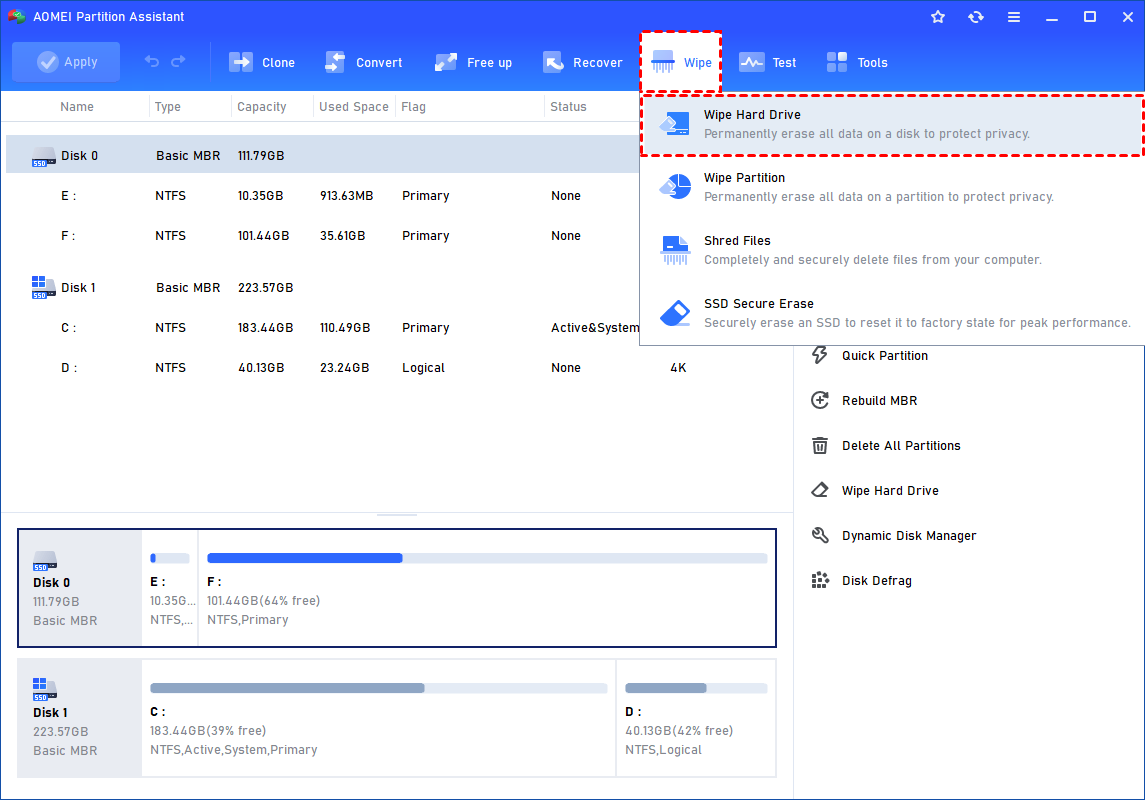
Step 2. Launch AOMEI Partition Software. Click the "Wipe" main tab and select "Wipe Hard Disk" option. (You can also right-click the Disk you want to wipe and select the "Wipe Hard Drive" option.)
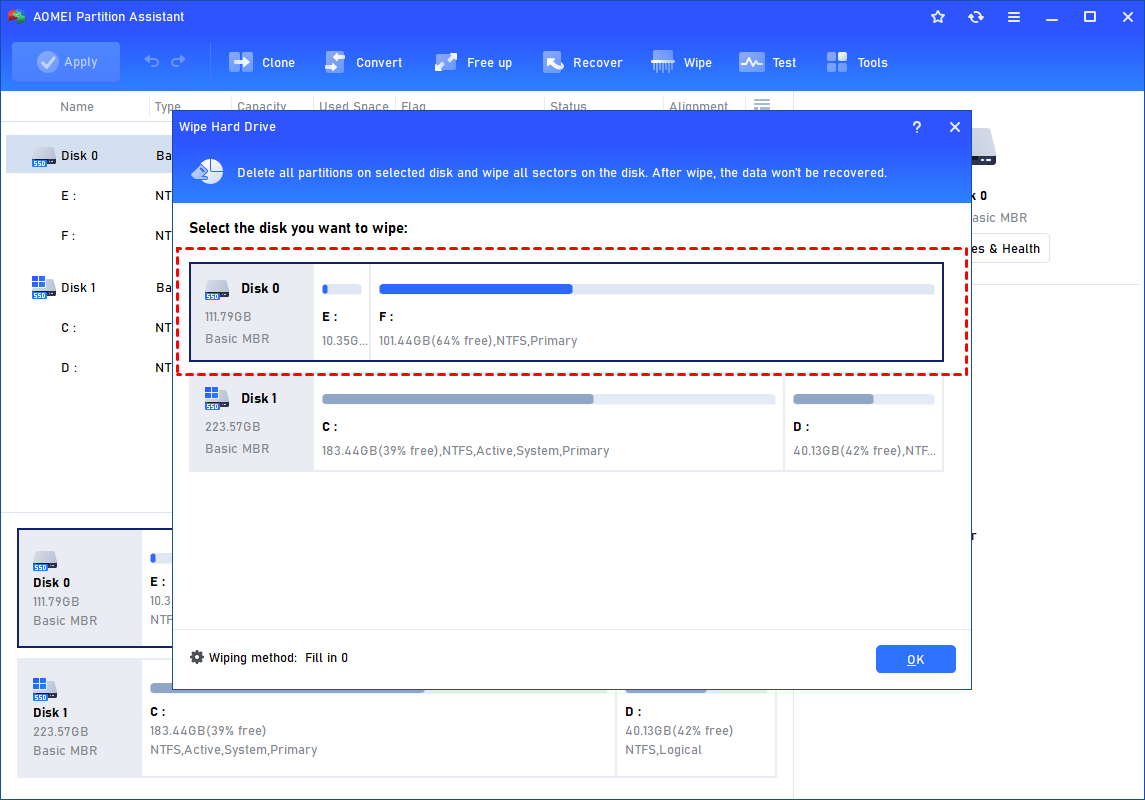
Step 2. Select the disk you want to wipe and click "OK" to continue.
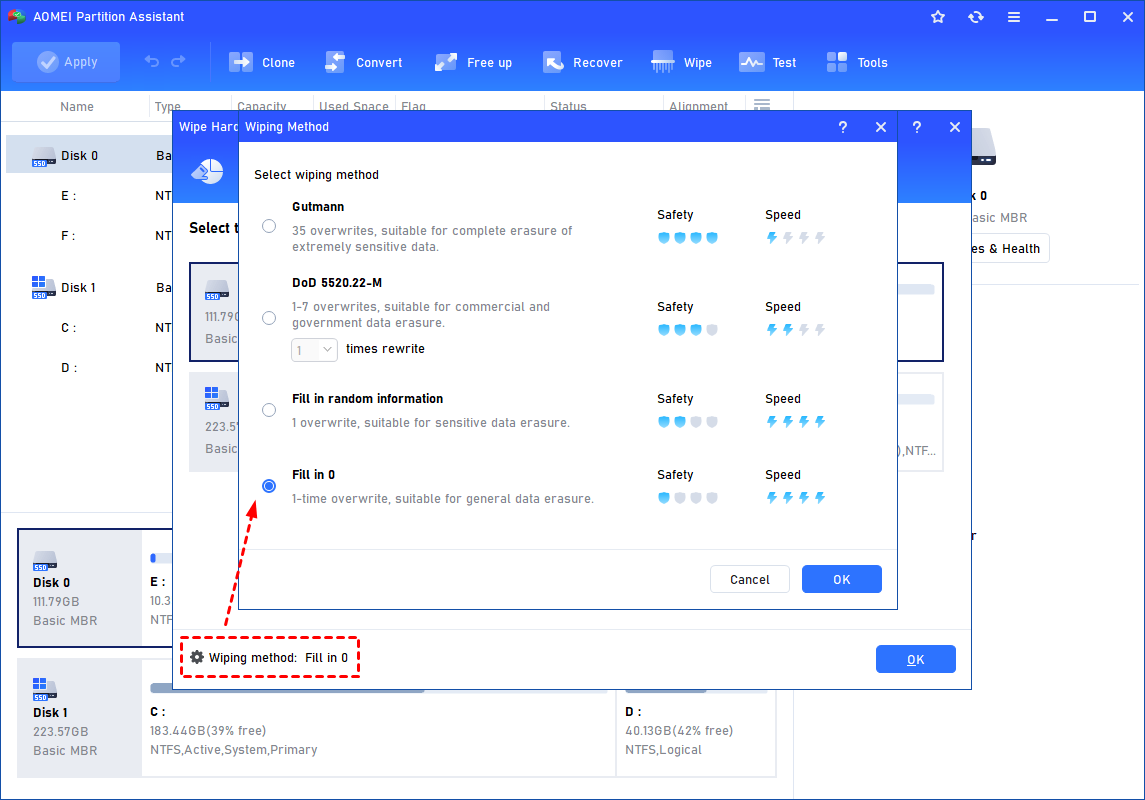
In this stage, you can also select a wiping method to wipe the selected hard drive according to your requirements and click "OK". (By default, the wiping method is Fill in 0.)
Notes:
- Fill in 0: Overwrite all sectors with zeros. It is common to wipe a personal hard drive. It is safe and fast.
- Fill in random information: It overwrites the hard drive with random data. It is more secure than the first one.
- DoD 5220.22-M: It will overwrite addressable locations on the hard disk with binary 0's, binary 1's, and a random bit pattern from once to seven times. The more times you choose to overwrite, the longer the process will take. Three times to five times are recommended. It is more secure than "zero-filling" and "random data filling" and faster than the Guttman. Thus it is often adopted by companies and organizations.
- Gutmann: It overwrites a hard drive with 35 passes. It is the safest way here, but it also takes the longest time.
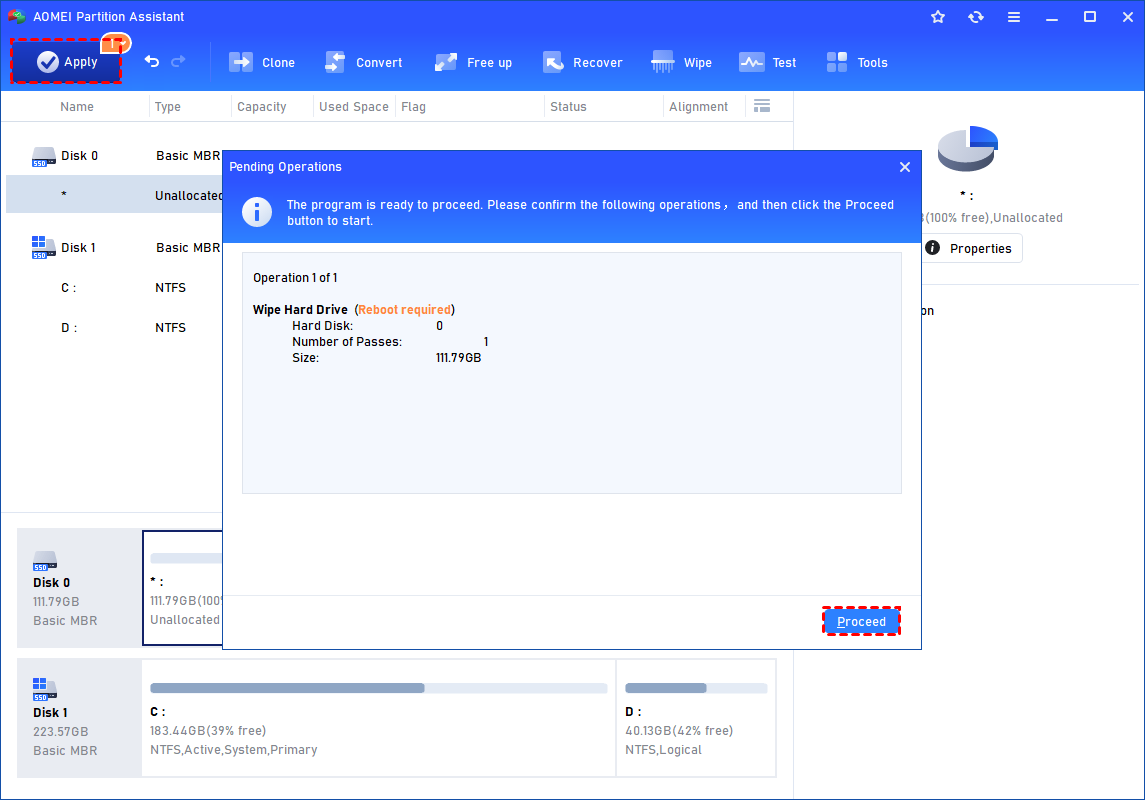
Step 3. You can preview the shrink operation by viewing the "Pending Operations". To commit the "Pending Operations", please click "Apply" and "Proceed".
For SSDs, its Secure Erase SSD feature may be more suitable because traditional zero filling may not fully remove stored data.
Way 2. Write zeros to hard drive via CMD
If you are wondering how to write zeros to hard drive, the format /p:1 command in Windows can overwrite every sector of the selected disk with zeros one time. This process permanently removes stored data and makes recovery extremely difficult. It is commonly used before selling, donating, or reusing a traditional HDD.
⚠️ Warning: Avoid running this command on the Windows system drive (usually C:) while the operating system is active. Carefully confirm the correct drive letter before starting.
Step 1. Press Win + S, type cmd, then choose Run as administrator.
Step 2. Open File Explorer and check the drive letter you want to erase, such as E:.
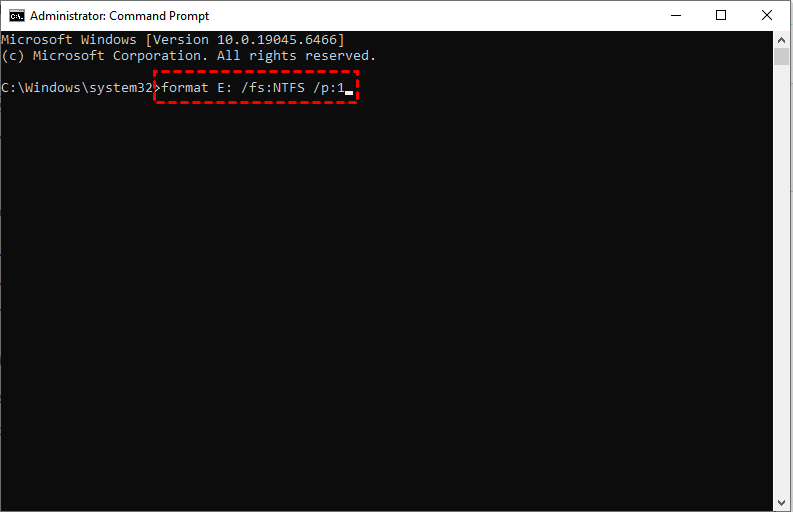
Step 3. In Command Prompt, enter format E: /fs:NTFS /p:1 and press Enter. Replace E: with the target drive letter.
⚠️ Notes:
✅ /fs: NTFS sets the file system. FAT32 and exFAT are also supported.
✅ /p:1 tells Windows to overwrite all sectors once with zeros.
❌ Do not add /Q because quick format does not overwrite data.
When the warning message appears asking whether to continue formatting, type Y and press Enter. Windows will begin writing zeros across the entire drive and then verify the operation.
Keep the process running until it finishes. The required time depends on disk capacity. In many cases, a 500GB HDD may take around 1 to 2 hours, while a 1TB HDD can take 3 hours or longer.
What is zero fill hard drive?
Zero fill hard drive means writing zeros across every sector of a storage drive. Instead of simply deleting files, the process overwrites the data so it becomes much harder to recover.
People often use zero fill methods for the following situations:
- Selling an old computer
- Donating a laptop
- Reusing a hard drive
- Removing private information
- Cleaning up corrupted drives
- Preparing a disk for a fresh operating system installation
For traditional HDDs, zero filling is considered an effective way to erase data. For SSDs, secure erase tools are usually recommended because SSD technology works differently.
Why many users write zeros to hard drive storage
A normal delete action only removes file references from the operating system. The actual files may still remain on the drive until new data replaces them.
Writing zeros to a hard drive offers several benefits:
| Benefit | Description |
|---|---|
| Better data protection | Makes old files difficult to recover |
| Safer resale | Helps protect personal or business information |
| Cleaner drive setup | Prepares the disk for reuse |
| Useful troubleshooting step | Sometimes helps fix disk related problems |
| Full drive wipe | Removes hidden or leftover data |
For users wondering how to zero fill a hard drive safely, choosing the correct method for the drive type is important.
Zero Fill vs Secure Erase
Many people confuse zero fill with secure erase. Both remove data, but they work differently.
| Feature | Zero Fill | Secure Erase |
|---|---|---|
| Erase method | Overwrites sectors with zeros | Uses firmware level erase commands |
| Best for | HDDs | SSDs and modern drives |
| Speed | May take longer on large disks | Usually faster |
| Recovery risk | Very low | Extremely low |
| Verification | Basic overwrite confirmation | Often includes verification reports |
For SSDs, wear leveling technology may prevent every memory cell from being overwritten during a zero fill process. Because of this, manufacturers often recommend secure erase tools instead.
Important Things to Do Before Zero Filling a Drive
Before starting the process, users should carefully prepare the system. Zero filling permanently removes all data from the selected drive.
Here are some important steps:
-
Back up important files
-
Double check the correct drive
-
Disconnect unnecessary storage devices
-
Keep the computer connected to power
-
Understand that the process may take hours on large drives
Once the process starts, the data usually cannot be recovered.
Conclusion
Zero filling a hard drive is a reliable way to permanently erase stored data and prepare a disk for reuse, resale, or troubleshooting. Whether you choose an easier disk management tool or the built in Command Prompt method, the process can help improve data security and reduce the chance of file recovery. Before starting, it is important to back up important files and confirm the correct drive because all data will be removed permanently. For HDDs, zero filling works well, while SSD users may achieve better results with secure erase tools designed for flash storage. If you want to reuse the HDD, AOMEI Partition Software can also help to set up a disk defragmenter schedule.
FAQs
🗨️ How do I zero a hard disk?
You can zero a hard disk by overwriting every sector with zeros using disk management software or Windows Command Prompt. Many users prefer tools like AOMEI Partition Software because the interface is simpler and supports different wiping methods for HDDs and SSDs.
🗨️ What is a zero fill hard drive?
A zero fill hard drive is a storage drive that has been completely overwritten with zeros. This process removes existing data and makes file recovery much more difficult than normal deletion or quick formatting.
🗨️ Can a zeroed drive be recovered?
In most cases, recovering data from a zeroed drive is extremely difficult because the original information has been overwritten. A single zero fill pass already removes most recoverable data, while multiple overwrite passes provide even stronger protection.
🗨️ What does 0 hard drive capacity mean?
A hard drive showing 0 capacity usually means the system cannot correctly detect the disk size. This problem may happen because of corrupted partitions, connection issues, firmware errors, or physical drive damage. To test if your hard drive is failing, you can follow the steps in the passage.
🗨️ Which drive is drive 0?
Drive 0 is usually the first storage device detected by the computer motherboard. In many systems, it is the main internal drive where the operating system is installed, but the exact order can vary depending on BIOS or hardware settings.

 as a preferred
source on Google
as a preferred
source on Google