




Full Guide on AOMEI Partition Assistant Server Edition
What is AOMEI Partition Assistant Server Edition? Follow this guide to get the full introduction as well as the detailed steps to know how to use it to manage your Server computer.

By Hedy Updated on June 4, 2026


Overview of AOMEI Partition Assistant Server Edition
AOMEI Partition Software (Server Edition) is a professional disk management solution designed specifically for Windows Server environments. Unlike consumer-level partition tools, this edition is built to handle enterprise workloads where stability, uptime, and data integrity are critical. Businesses use it to manage storage efficiently, optimize disk performance, and prevent downtime caused by poor partition planning. According to AOMEI’s official documentation, it supports advanced partition operations such as resizing, cloning, and conversion without data loss, making it suitable for IT administrators managing multiple server machines.
In modern IT infrastructure, storage management is not just about creating partitions—it’s about ensuring that servers run efficiently under heavy workloads. AOMEI Server Edition acts like a control center for disk operations, giving administrators flexibility to adjust storage dynamically without reinstalling systems or interrupting services. That level of flexibility is what separates it from basic tools included in Windows Server.
Core features of AOMEI Partition Assistant Server Edition
▶ Disk partition resizing and management
One of the most powerful features is real-time partition resizing. Administrators can expand or shrink partitions without formatting drives or losing data. This is especially useful when a server’s storage demand changes suddenly, such as when a database grows rapidly.
The Windows Server management tool also allows merging and splitting partitions, making it easier to reorganize storage layouts without reinstalling the operating system. These operations are designed to be safe, even on active server environments.
▶ MBR/GPT conversion without data loss
Modern servers often require GPT partition styles due to larger disk support and advanced features. AOMEI allows for converting between MBR and GPT without data loss, which is a critical feature for system upgrades.
This capability helps businesses transition to modern storage architectures without disrupting operations. It ensures compatibility with newer hardware and operating systems while preserving existing data structures.
▶ Server optimization utilities
Beyond partition management, the software includes utilities for optimizing disk performance. These tools help improve read/write efficiency and ensure storage resources are used effectively.
Features like disk alignment and unused space allocation contribute to better server performance. In environments where milliseconds matter, such optimization tools can significantly improve responsiveness.
How to use AOMEI Partition Assistant Server Edition
AOMEI Partition Software is designed for Windows Server environments, offering powerful disk management tools. It helps users optimize disk usage, improve system performance, and safely modify partition structures. Here we will introduce you two effective features to show you how to use the Windows Server manager.
 AOMEI Partition Software
A safe and reliable disk partition management tool that helps you migrate OS to SSD or HDD, reorganize disk space, and improve overall PC performance.
How to resize partition (extend or shrink disk space)
Resizing partitions allows you to adjust disk space allocation without formatting or losing data. This is commonly used when the system drive (C:) runs low on space.
Step 1. Download and install AOMEI Partition Software, then launch it. Upon opening, a well-organized, color-coded layout displays all disks and partitions for easy navigation.
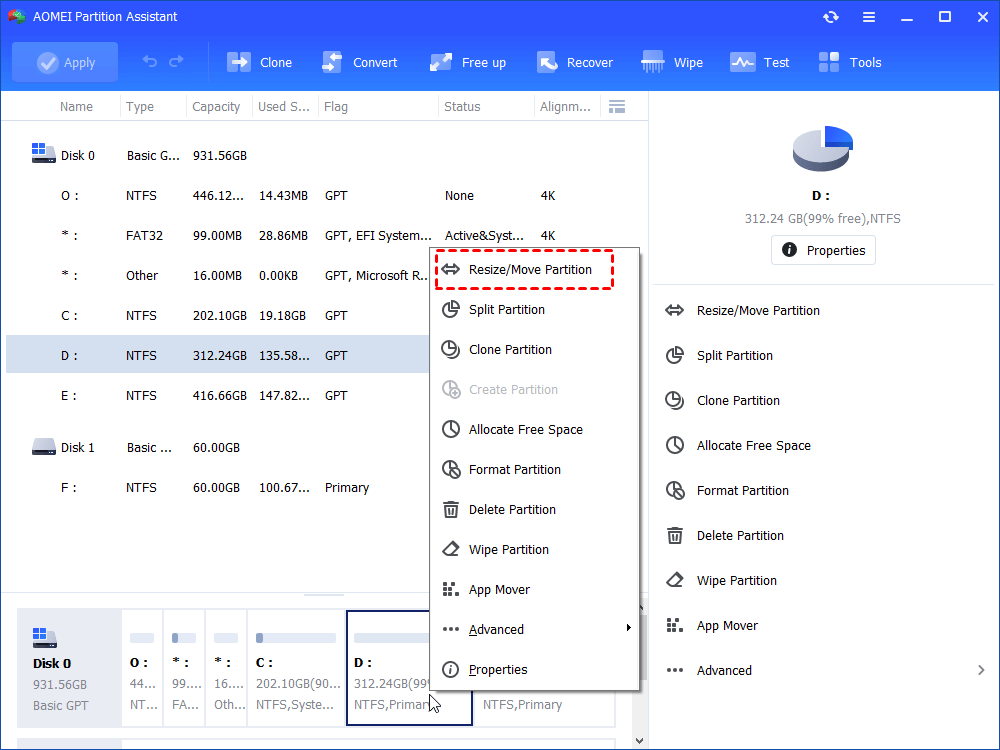
Step 2. Locate the partition you want to adjust (such as the C: drive), right-click it, and choose “Resize/Move Partition”.
Step 3. A new window appears with a visual bar representing the selected partition.
◉ To shrink the partition: Drag the edge inward to create unallocated space.
◉ To extend the partition: Drag the edge outward into any available unallocated space.
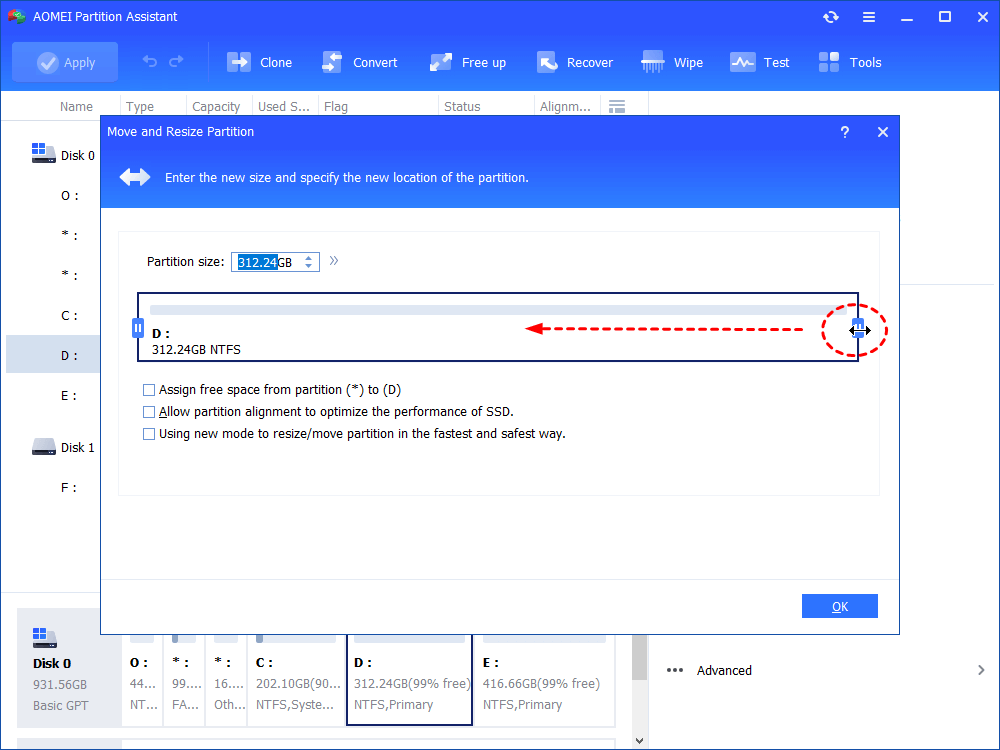
Step 4. Click “OK” to confirm the adjustment and return to the main interface.
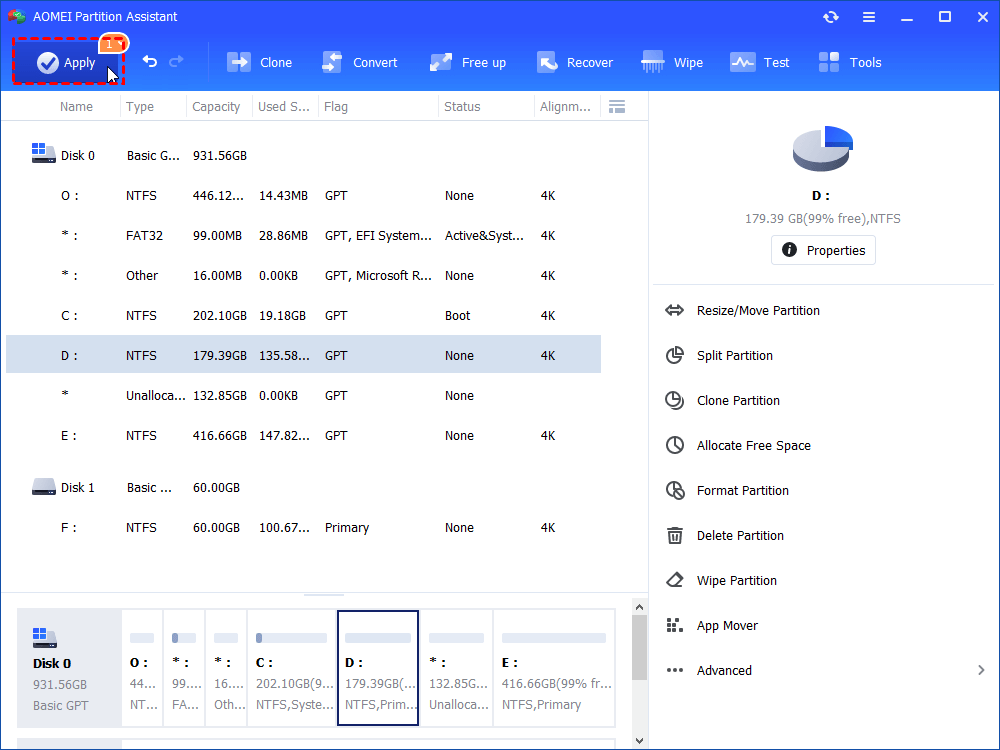
Step 5. The modification will be listed as a pending task. To finalize it, click “Apply” in the toolbar, then select “Proceed” to execute the changes.
How to convert MBR to GPT (without data loss)
Converting disk style from MBR to GPT is critical for modern systems, especially when upgrading to UEFI-based systems, installing Windows 11 on servers, using disks larger than 2TB, and creating more than 4 primary partitions.
Step 1. Launch AOMEI Partition Software. Find the target hard drive, right-click on it, and select “Convert to GPT”.
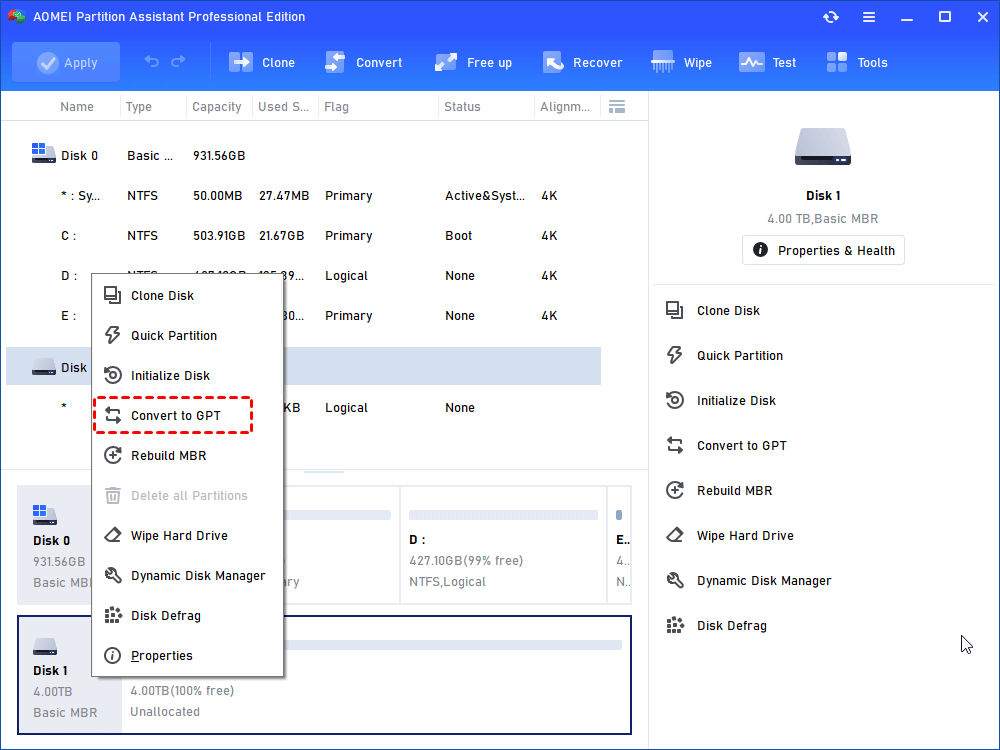
Step 2. Confirm the conversion by clicking OK and then Yes.
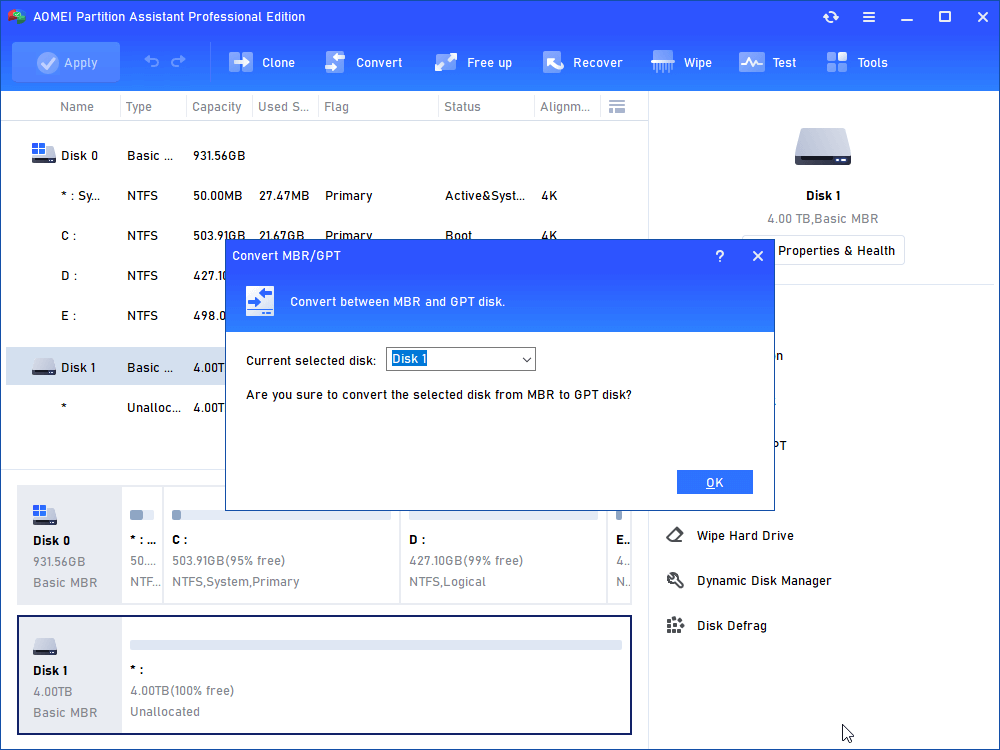
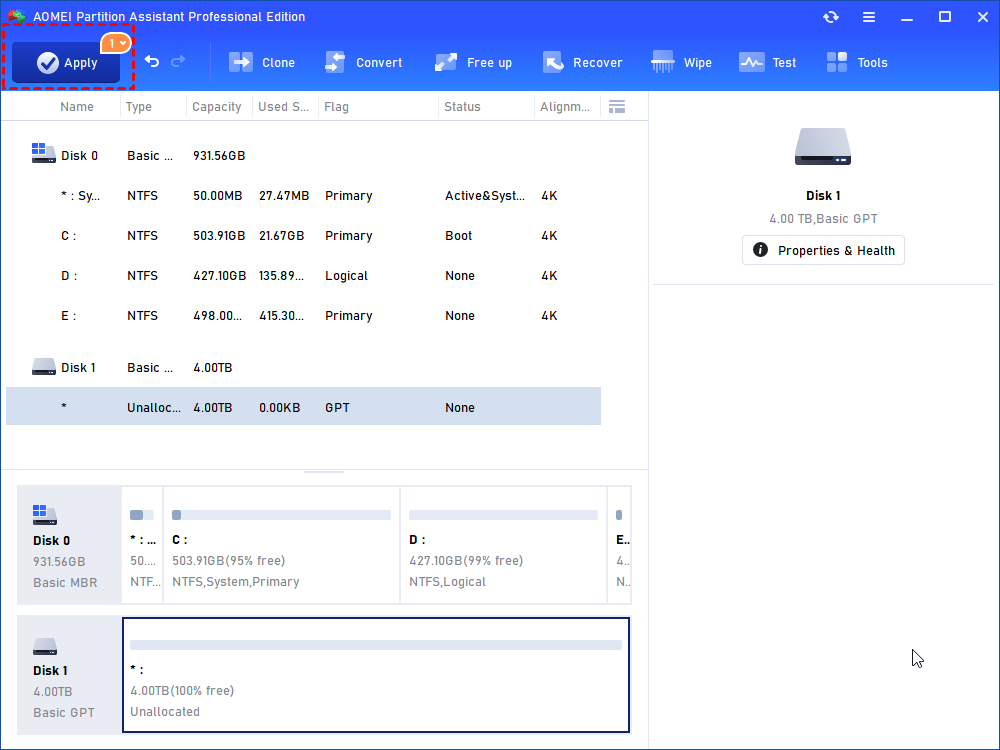
Step 3. Return to the main interface and click Apply → Proceed to execute the conversion.
Comparison with builtin partition manager
Here’s a detailed comparison between AOMEI Partition Software and the built-in Windows partition manager, commonly known as Disk Management. It can help you know which one would be a better choice.
|
Feature |
AOMEI Partition Software |
Windows Disk Management |
|
Server support |
Full |
Basic |
|
OS migration |
✔️ Yes |
❌ No |
|
Data-safe conversion |
✔️ Yes |
❌ No |
|
Bootable media |
✔️ Yes |
❌Limited |
|
Enterprise tools |
Advanced |
Basic |
FAQs
✎ What is AOMEI Partition Assistant Server Edition used for?
AOMEI Partition Software (Server Edition) is a disk management tool designed for Windows Server environments. It helps administrators resize, create, merge, and manage partitions to optimize server storage without data loss.
✎ Is it safe for enterprise servers?
Yes. It is safe for enterprise servers, featuring built-in "Rollback Technology" that automatically restores the server to its original state if an unexpected system interruption or failure occurs during operations.
✎ Does it support GPT and MBR conversion?
Yes. It supports bidirectional conversion between MBR and GPT partition styles. Crucially, it performs this conversion without requiring you to delete existing partitions or causing data loss.
Conclusion
In conclusion, AOMEI Partition Software provides a reliable and flexible solution for managing server storage. With features like partition resizing, safe MBR/GPT conversion, and performance optimization, it simplifies complex disk operations while protecting data integrity. Compared with Windows Disk Management, it offers more advanced enterprise-level capabilities, making it a practical choice for IT administrators seeking efficient and secure server disk management.

 as a preferred
source on Google
as a preferred
source on Google