




Windows Can't Access the Disk? Fix the Disk Check Error
When Windows can't access the disk, start with its connection and volume status. Find the appropriate fix for a missing drive letter, restricted access, or file-system trouble, and recognize when file recovery should come first.

By Ivy Updated on October 16, 2026


You try opening a drive or checking it for errors, but Windows reports that it can't access the disk. During error checking, the full message may read: “The disk check could not be performed because Windows can't access the disk.”
The message does not identify the cause or prove your files are gone. Check the connection and the volume’s status before choosing a repair.
A missing drive letter may need a simple access fix. A RAW drive containing important files needs a different approach. Use the conditions below to choose your next action without working through repairs you don't need.
Check What Windows Can Detect Before Choosing a Fix
Right-click Start and open Disk Management. Identify the affected disk by its capacity, then check its file system, volume status, and drive letter. Cancel formatting or initialization prompts for a disk containing needed files.
| 👁🗨 What you see | ✅ Recommended action | 👉 Matching method |
|---|---|---|
| Drive appears intermittently | Check its connection and power | Method 1 |
| RAW volume or a formatting request | Scan hard drive before repair | Method 2 |
| The drive does not have a drive letter | Assign an unused letter | Method 3 |
| “Access denied” on a recognized NTFS volume | Check your account’s access | Method 4 |
| Recognized file system with suspected errors | Consider CHKDSK after protecting files | Method 5 |
Go to the method matching your result. You do not need to complete every method.
Method 1: Check the Drive’s Connection and Power
👍 Best for: An external drive that disappears or disconnects during access, without signs of physical damage.
An unstable connection can prevent Windows from reading the volume or checking its file system.
- Stop any active transfer and disconnect the external drive. Check the cable and connectors for visible damage.
- Connect the drive directly to a USB port on your computer. Avoid a USB hub during testing.
- Try another compatible cable and a different port. For a separately powered drive, check its specified adapter and power outlet.
- Test the drive on another computer if it remains stable. Cancel any request to format or initialize it.
If the drive opens, copy important files to another healthy disk. Stop testing if the drive clicks, grinds, or repeatedly disconnects.
Method 2: Retrieve Files from a Readable RAW Drive
👍 Best for: A drive that shows RAW or requests formatting, while remaining detectable and readable.
AOMEI FastRecovery is specialized disk recovery software that makes it straightforward to scan readable RAW drive for documents, photos, videos, and more.
 AOMEI FastRecovery
- 🔎 Disk Data Recovery: Starts with Deep Scan for a more thorough search on RAW, formatted, or inaccessible drives.
- ✅ Flexible browsing: Browse files by Type or Path, then combine search, sort, filters, and thumbnails to narrow results.
- 📂 Selective recovery: Save the files you need to another healthy drive, such as external hard drives, USB drives, SD cards etc.
- 📚 1000+ data types: Recover deleted files, from documents to images, videos, audios, archive files, and more.
- 💰 Free Tier: Recover data up to 500MB for free. Need more? Upgrade for unlimited recovery.
 100% Secure
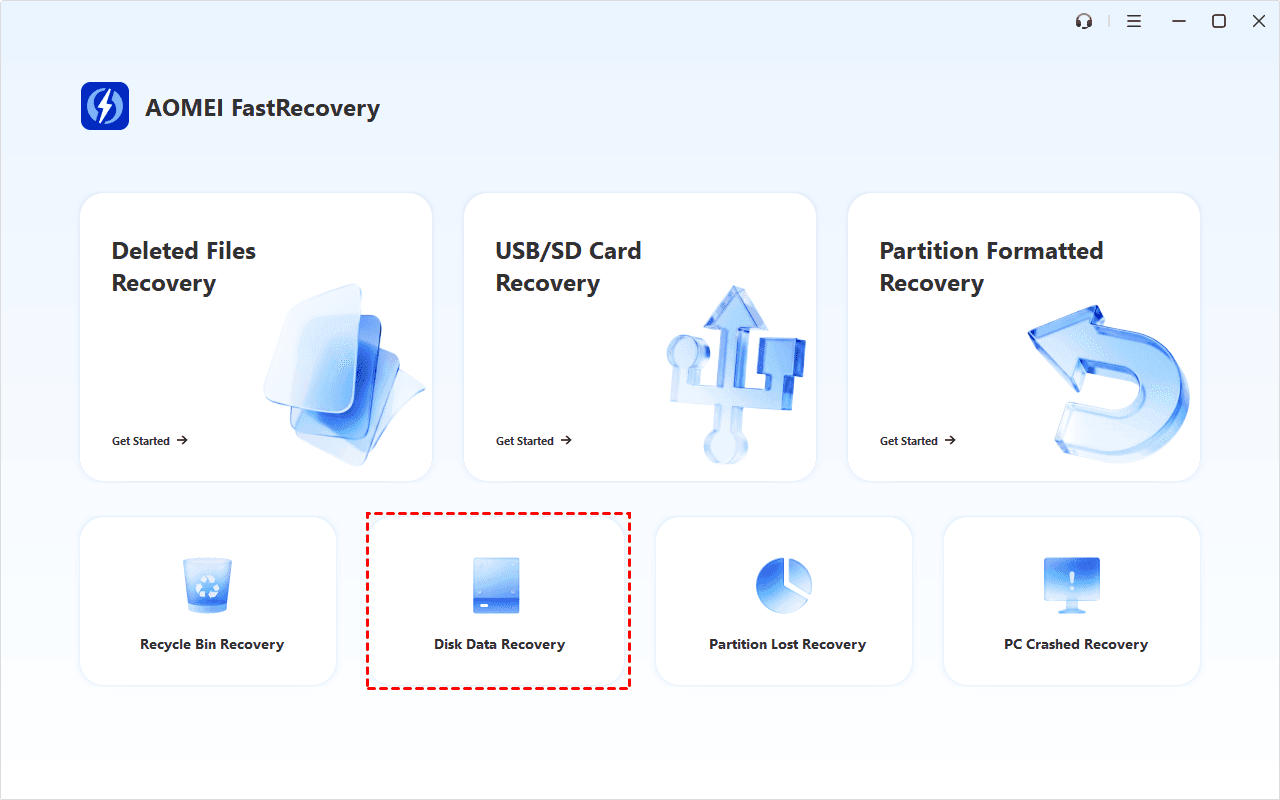
Step 1. Download and install AOMEI FastRecovery on a different healthy drive, not the one Windows can't access. Open the software and select Disk Data Recovery.
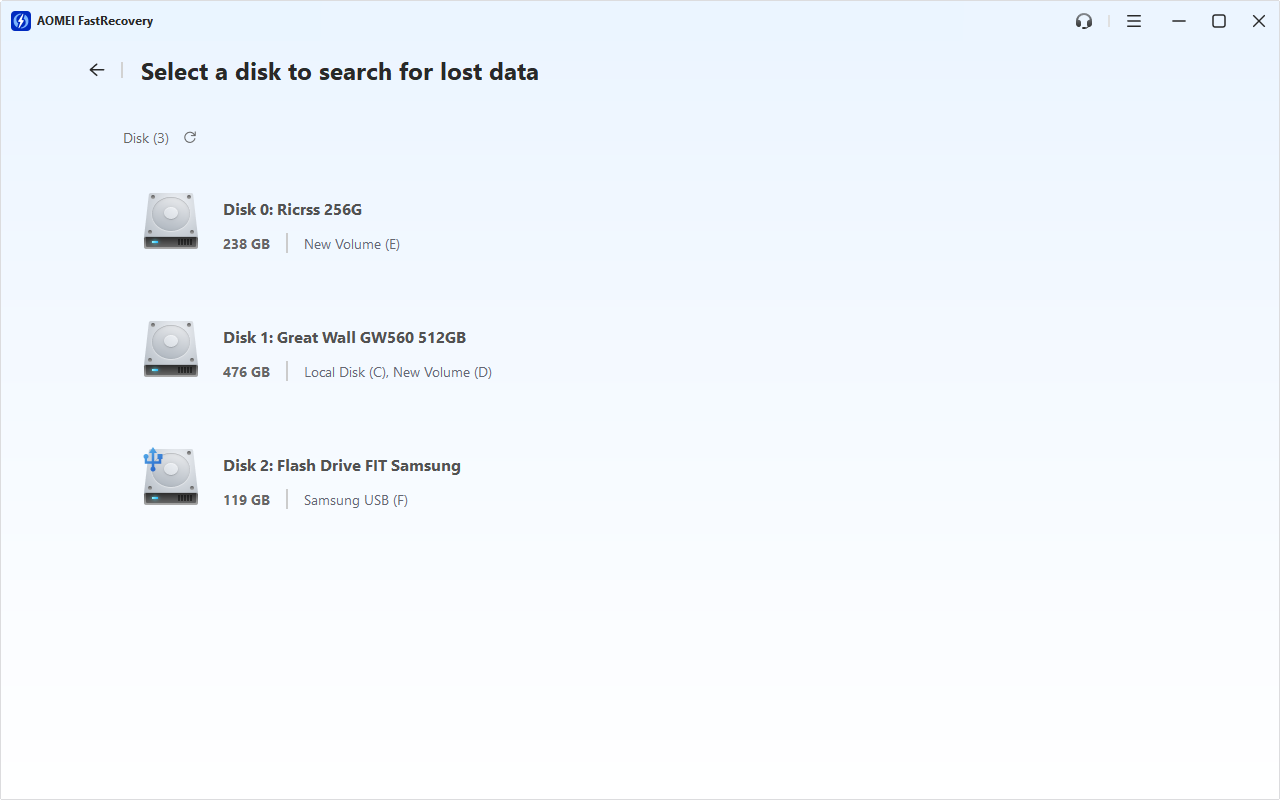
Step 2. Identify the affected disk by its capacity, then click Scan. . A Deep Scan starts automatically to look for your files and this may take a while.
Step 3. On the scanned results window, select all files and click Recover. Choose a different healthy drive as the destination. A separate folder on the inaccessible disk can still overwrite data.
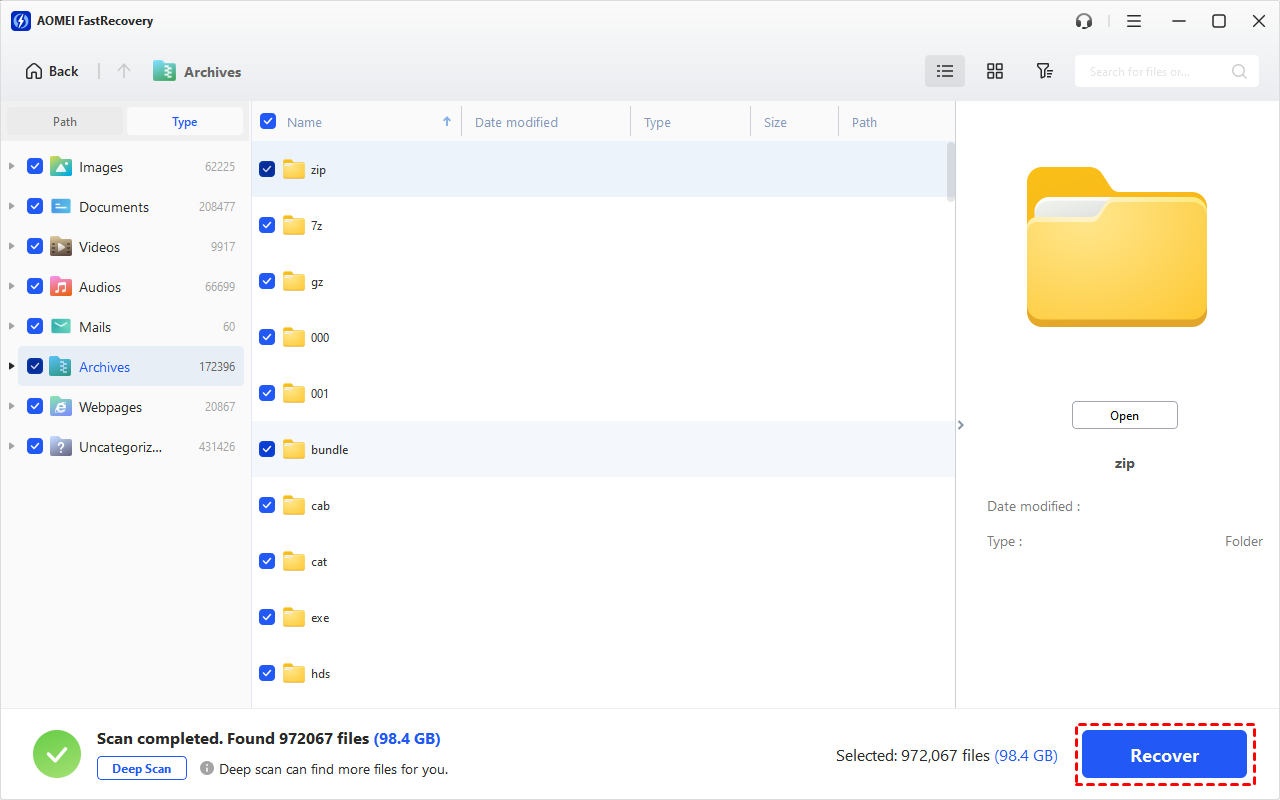
Or Browse results under Type or Path. Search by filename or extension, sort or filter results to locate what you care most about Thumbnail previews can help identify relevant photos.
The free edition supports recovery up to 500MB. Recovering more requires an upgraded edition. Note file recovery does not repair the original disk.
Method 3: Assign a New Drive Letter
👍 Best for: An existing data volume with a recognized file system but no drive letter.
Assigning a new drive letter can make the volume available through File Explorer.
Step 1. Right-click Start and select Disk Management to open it.
Step 2. Locate the disk Windows cant access, right-click it and choose Change Drive Letter and Paths.
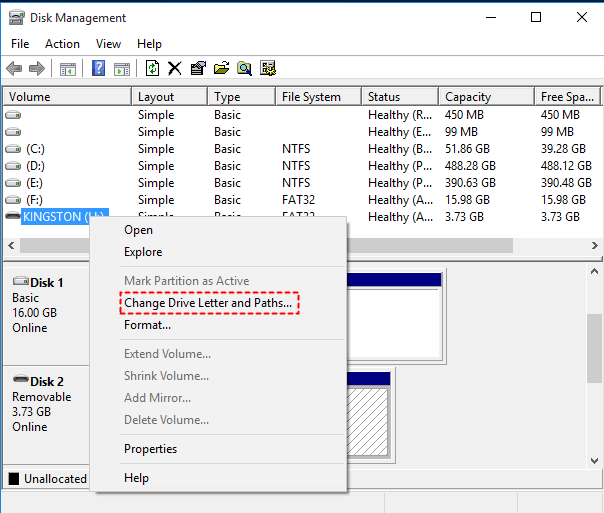
Step 3. Select Add, then under Assign the following drive letter, choose an unused letter and click OK.
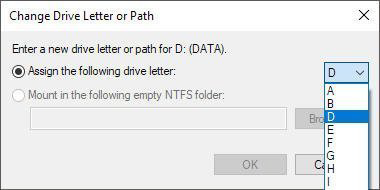
Open This PC and try accessing the drive. Do not initialize or format an existing data disk to make this option available.
Method 4: Check Account Access for an NTFS Drive
👍 Best for: A recognized NTFS drive or folder that specifically reports “Access denied”.
A permission restriction can block your account even when the file system remains readable.
Step 1. Right-click the inaccessible drive or folder in File Explorer and select Properties.
Step 2. Swicth to Security, select your account or user names. Check the displayed permissions for reading the files.
Step 3. If another account has authorized access, sign in with it and try opening the location. For a work device or shared computer, ask the owner or administrator to grant permissions.
Method 5: Check File System Errors with CHKDSK
👍 Best for: A stable volume with a recognized file system and suspected errors, after important files are protected.
CHKDSK can report file-system problems and repair certain logical errors.
Step 1. Search for Command Prompt and choose Run as administrator.
Step 2. Enter chkdsk X: and press Enter. Replace X: with the actual drive letter. Without repair parameters, the command reports status without fixing errors.
Step 3. If repair is appropriate and your files are protected, enter chkdsk X: /f and press Enter.
You'll see one of the following responses. Handle it as described:
- Volume in use: Close remaining applications. For a system volume, Windows may offer a check at restart.
- RAW file system: Stop this method and consider Method 2 for needed files.
- Cannot open volume for direct access: Recheck the connection and volume status before attempting further repair.
In addition, the /r parameter includes /f and adds a bad-sector scan. It can take much longer. A persistent access error alone does not establish that /r is appropriate.
What If the Drive Still Won’t Open?
Persistent clicking, grinding, disconnections, or missing capacity can indicate a problem beyond ordinary access settings. Stop repeated scans and seek professional assessment for valuable files.
Discuss recovery before arranging a warranty return or replacement. Replacing the drive does not retrieve its files.
If you are using a stable external drive, check: external hard disk detected but not opening.
FAQs
Does 0 bytes in Properties mean the drive is empty?
No. That display alone does not establish whether files remain. Check the disk’s reported capacity and volume status in Disk Management.
Should I format the drive to make error checking work?
Not while you need its files. Retrieve them or restore a usable backup before considering formatting.
What if the drive opens but folders are missing?
Missing folders require different checks from an inaccessible volume. Follow the guide: files disappearing from an external hard drive.
Conclusion
When Windows can't access the disk, match your next action to its condition. Resolve connection, letter, or account restrictions where applicable. For readable RAW storage, retrieve needed files before repair. Once access returns, keep a verified second copy on another healthy device.

 as a preferred
source on Google
as a preferred
source on Google