




External Hard Disk Detected but Not Opening: What to Do Next
An external hard disk detected but not opening needs a fix matched to its condition. Learn how to check what Windows sees, identify simple access problems, and recover important files before repairs that change the drive.

By Ivy Updated on September 18, 2026


Your external drive shows up when you plug it in, but it won't open, you get an error, a format prompt, or an endless loading bar. Windows can see the device without being able to read its files, so there's no single fix.
Start with the connection and Disk Management. If important files are on a RAW volume, don't format or repair it yet. AOMEI FastRecovery can scan a readable drive and save files elsewhere. If the drive clicks or grinds persistently, disconnect it and seek professional help.
Check What Windows Can Actually Read
Before choosing a recovery method, find out what Windows can see. In Disk Management, identify the disk by its capacity and check its partitions, file system, and drive letter. Cancel any initialization or format prompt if the disk contains files you need.
"RAW" means Windows can't recognize a usable file system. "Unallocated" means there's no partition Windows recognizes. Neither proves the hardware has failed - use the table below to match what you see with your next step.
| 👁🗨 What you see | 👍 Recommended action | 🔑 Key requirements |
|---|---|---|
| Connection works intermittently | Check the cable, port, and power | Stop repeated attempts if instability persists |
| RAW volume or formatting request | Recover needed files before repair | The disk must remain readable |
| Recognized volume without a letter | Add a drive letter | Don’t initialize an existing data disk |
| Password prompt or Access denied | Check encryption or permissions | Use the correct credentials |
| Recognized file system with errors | Consider CHKDSK after protecting files | Repair changes the volume |
If the disk shows no usable capacity or repeatedly disconnects, don’t assume a recovery scan can proceed normally. For a missing partition, see this guide to recovering files from lost partition.
Method 1: Check the USB Connection and Power
👍 Best for: A drive that connects inconsistently or works on another computer, without signs of physical damage.
A faulty cable or insufficient power can interrupt communication even when Windows detects a device. These checks help separate a connection problem from trouble with the stored files. If the drive opens during testing, copy important files to another healthy disk before investigating further.
- Connect directly to a computer USB port instead of a hub.
- Try another compatible cable and a different USB port.
- For a powered desktop drive, check its specified power adapter and outlet.
- Test the drive on another computer, provided it remains stable.
- If the issue only occurs on this PC, restart it once.
Method 2: Recover Files from a RAW External Drive with AOMEI FastRecovery
👍 Best for: Retrieving files from an external drive that shows RAW but remains detectable and readable, without persistent hardware symptoms.
AOMEI FastRecovery is specialized external hard drive recovery software that can scan a RAW drive for recoverable photos, documents, videos, and other files.
 AOMEI FastRecovery
- 🔎 Dual Scan Mode: Quick Scan for fast results; Deep Scan for a deeper search - each fits a different scenario.
- 🎯 Target Recovery: Disk Data Recovery for entire disk, including multiple partitions, while Deleted Files Recovery for a single partition.
- 📚 1000+ data types: Recover deleted files, from documents to images, videos, audios, archive files, and more.
- 📂 Pinpoint What You Need: Browse by type or path, then search, sort, and filter results, with thumbnail previews so you know exactly what you're recovering.
- 🎯 Selective Recovery: Choose what you want and save to a PC folder, external drive, USB drive, or other location.
- 💰 Free Tier: Recover data up to 500MB for free. Need more? Upgrade for unlimited recovery.
 100% Secure
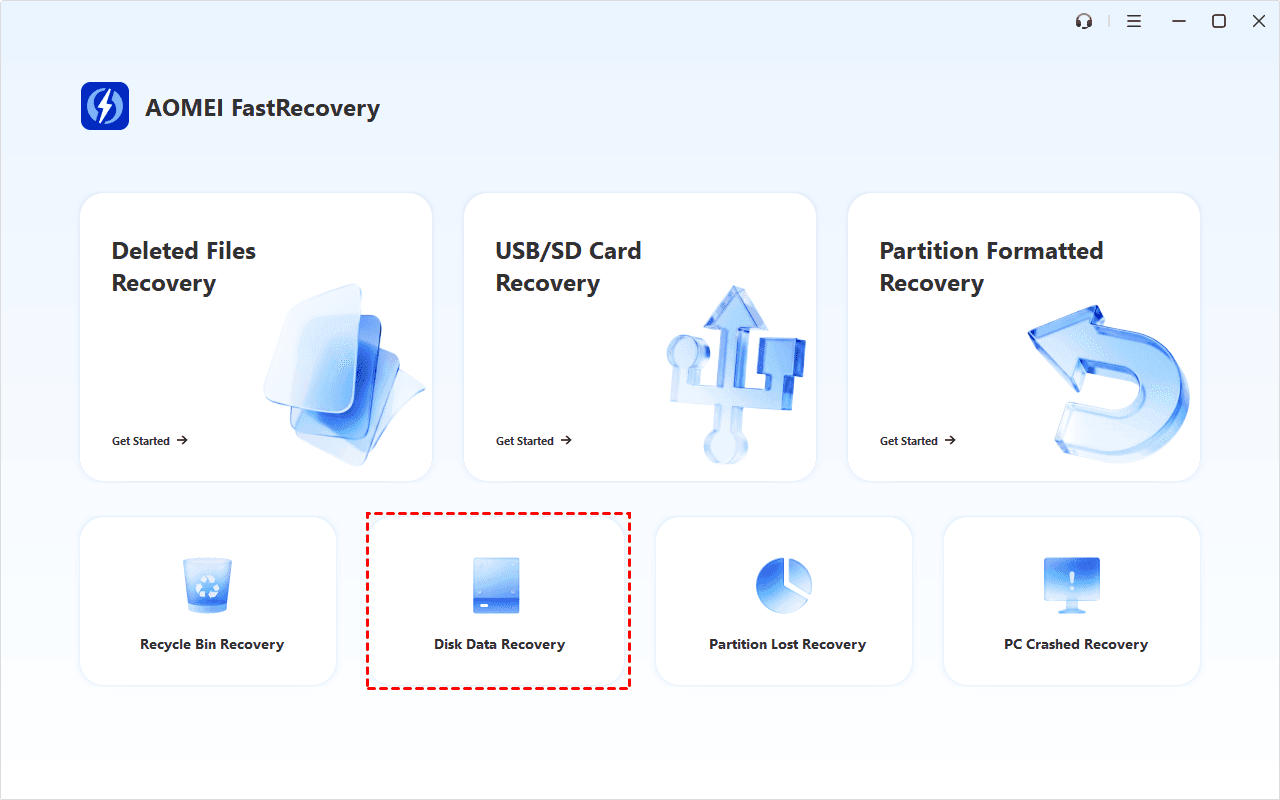
Step 1. Connect the external drive to your computer and prepare another healthy drive with enough free space. Download and install AOMEI FastRecovery on your computer, then open it and select Disk Data Recovery.
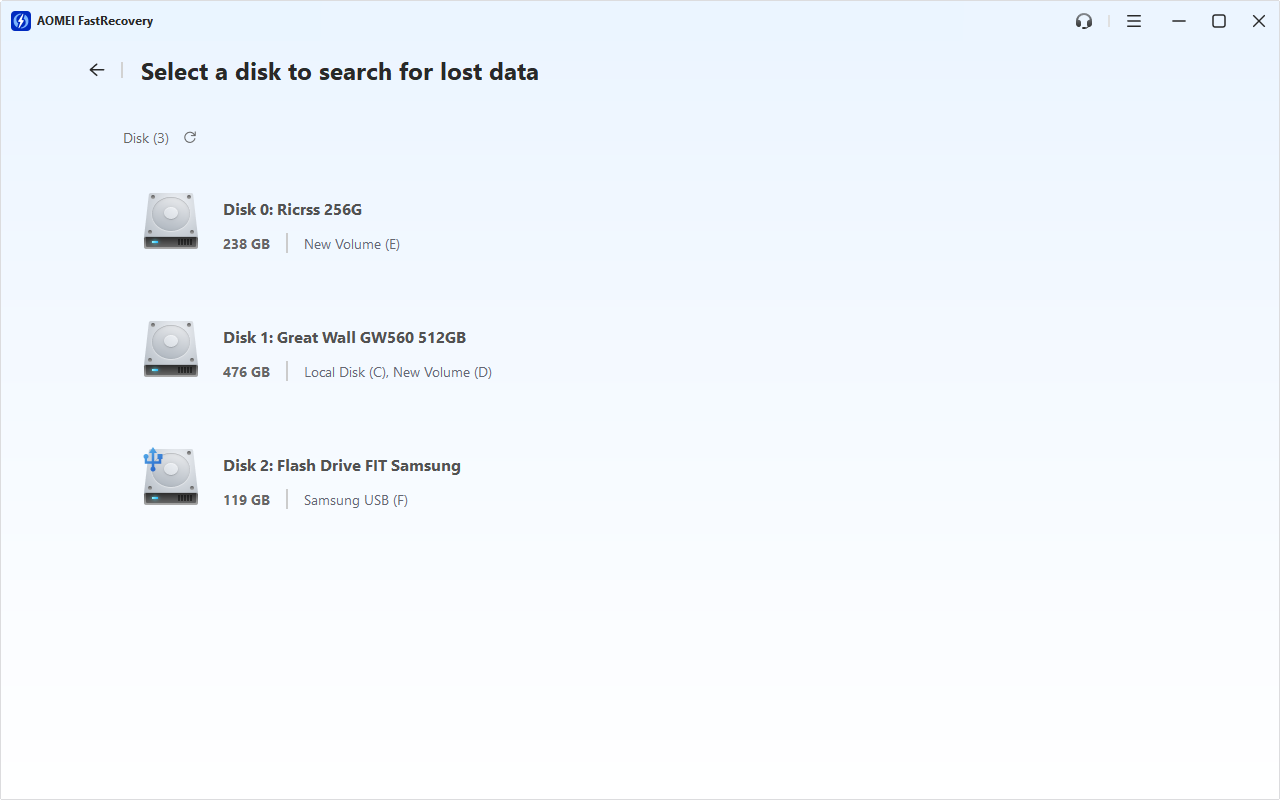
Step 2. Choose the RAW external drive by its capacity, then click Scan. This workflow starts a Deep Scan; larger drives may take longer.
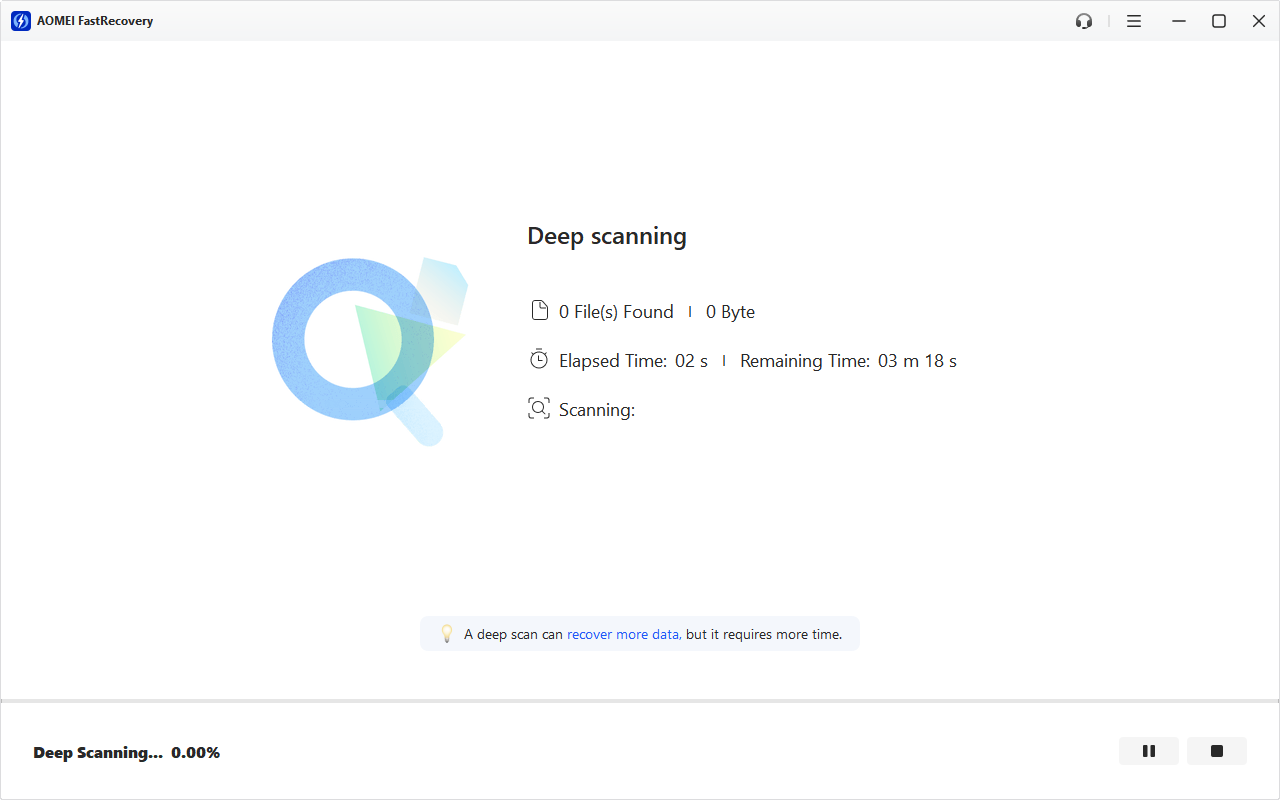
Step 3. Wait for the scan to finish. Browse results by Type or Path. Search by filename or extension, filter by file type or size, or sort to narrow things down. Thumbnail previews help you identify deleted photos.
Step 4. Select all files you need, click Recover. You can recover only what you want - just choose a different, healthy drive as the destination. A separate folder on the same external disk may overwrite data.
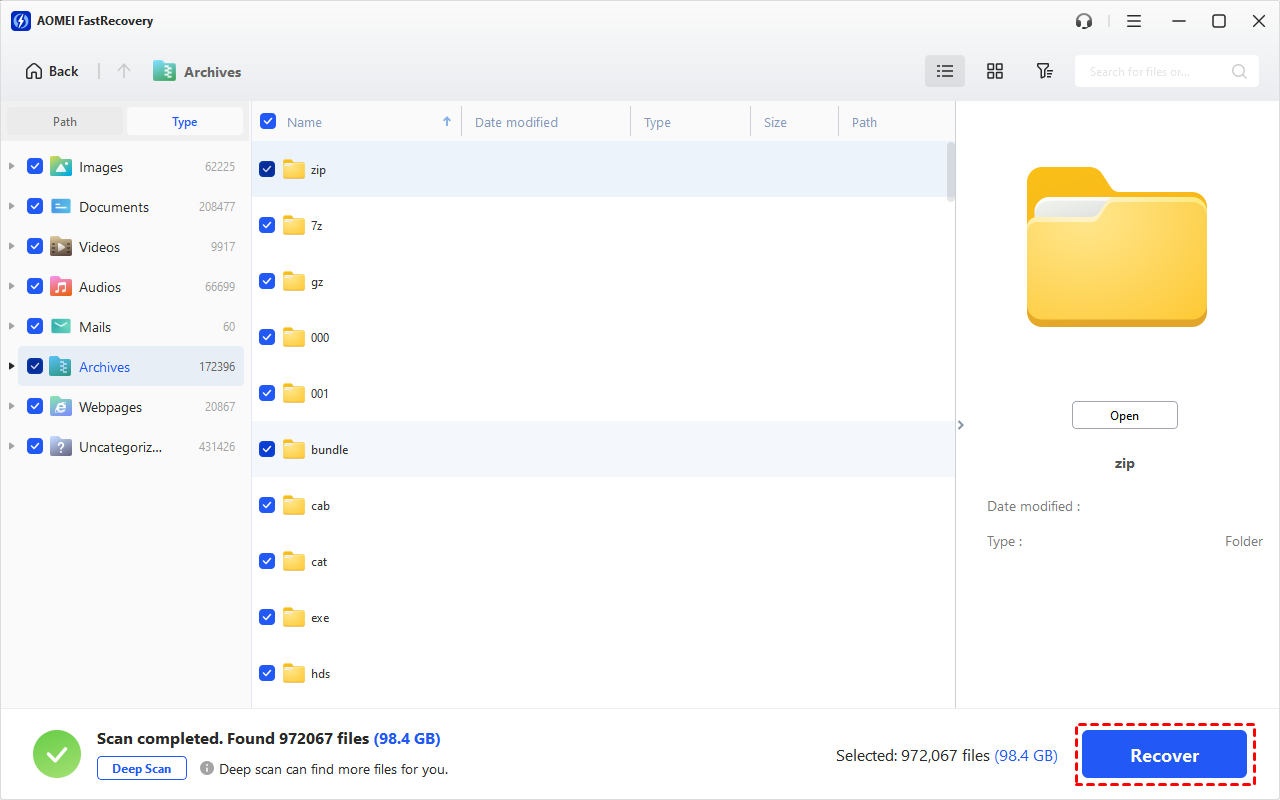
The free edition can recover up to 500MB. Recovering more requires an upgraded edition.
Open the recovered documents, photos, and videos to check the files you need. Recovery results depend on the drive’s condition and whether the original data remains readable.
Method 3: Add a Drive Letter in Disk Management
👍 Best for: A recognized, accessible data volume that has no drive letter and therefore doesn’t appear normally in File Explorer.
If your external hard disk is detected but not opening because it has no letter, assigning one may restore access. Use this method only when Disk Management shows an existing volume with a recognized file system. A RAW or unallocated disk requires a different approach.
Step 1. Right-click the Start menu, and choose Disk Management.
Step 2. Locate the external hard drive, right-click it and select Change Drive Letter and Paths.
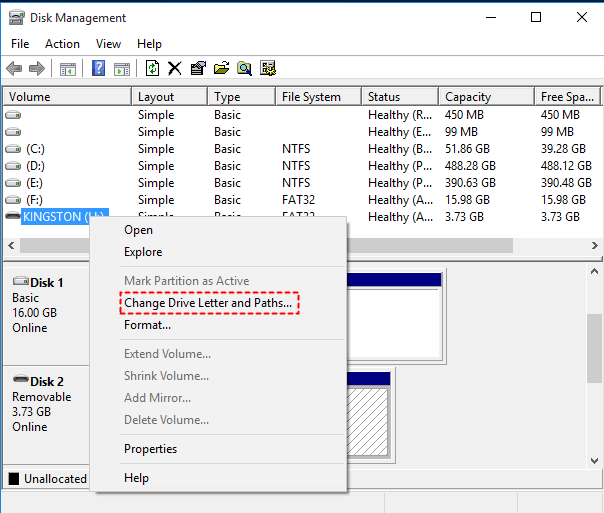
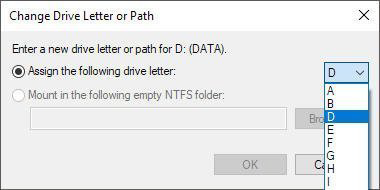
Step 3. Click Add. From the Assign the following drive letter drop‑down menu, select an unused letter, then click OK.
Open This PC and try to access the external hard drive. If you can't access it, don't create a new volume or initialize the disk just to make it appear.
Method 4: Check BitLocker and Access Permissions
👍 Best for: A drive that requests credentials or reports Access denied while its file system remains recognizable.
A locked or restricted drive can be healthy yet inaccessible to your current account. Check the actual message before changing anything. Encryption requires valid unlocking information, while permission problems require access granted to the correct account. Formatting addresses neither requirement while preserving your files.
Unlock a BitLocker Drive
Step 1. Connect the drive, open This PC, right-click it and select Unlock Drive.
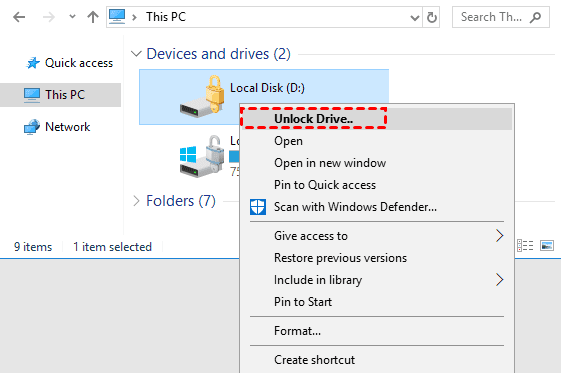
Step 2. Enter its BitLocker password when prompted. You can also select More options and Enter recovery key if forget a password. You may save it to a text file, Microsoft account, or organization.
Check an Access Denied Message
For an NTFS volume, right-click the inaccessible drive or folder and open Properties > Security. Check whether your account has permission to read it.
If access was assigned to another account, use the authorized account or ask the owner or administrator to correct the permissions. Avoid granting broad access to everyone or applying blanket ownership changes across the drive.
Method 5: Repair File System Errors with CHKDSK
👍 Best for: A stable drive with a recognized file system and suspected logical errors, after important files are backed up or recovered.
CHKDSK helps check the file system of a drive and can repair certain errors. Repair parameters modify the volume, so don't use it until your files are recovered. A RAW volume should not be formatted simply to make CHKDSK run.
Step 1. Search for Command Prompt and choose Run as administrator.
Step 2. Type chkdsk X: and press Enter to check its status. Replace X: with the drive letter shown in File Explorer.
Step 3. If repair is appropriate and your files are protected, enter chkdsk X: /f and execute. Let the operation finish, then try opening the drive.

If you decide to reuse a RAW drive after recovering files, this guide explains how to convert RAW to FAT32. You can also select NTFS or other file system you want.
FAQs
Does being detected mean the hard drive is healthy?
No. Detection confirms some communication with the device. It doesn’t establish that the file system or every storage sector is readable.
What if Windows asks me to format the drive?
Cancel if you need its files. Check its status and connection, then decide whether software recovery or professional assistance is appropriate before formatting.
What if the drive opens, but folders are missing?
That is a different problem from a drive that won’t open. Follow these checks for files disappearing from an external hard drive.
Conclusion
An external hard disk detected but not opening needs a fix matched to its status. Resolve a connection, letter, or credential problem where applicable. For readable RAW storage containing important files, recover those files before repair. Once you regain access, keep a verified second copy on another healthy device.

 as a preferred
source on Google
as a preferred
source on Google