




How to Convert RAW to FAT32 without Losing Data
If you want to convert RAW to FAT32 without losing data, consider recovering data from RAW drive first. Reliable data recovery software - AOMEI FastRecovery helps.

By Ivy Updated on May 6, 2026


Can I convert file system from RAW to FAT32?
I have a 4GB flash drive, and its file system is RAW. I’ve tried to format it but couldn’t. Please help me change the file system from RAW to FAT32. Thanks.
- -A user from Toms Hardware
When a hard drive or external storage device displays as RAW, it could be related to its file system.
- The file system of the drive is missing.
- Your Windows OS cannot recognize its file system.
- The RAW drive has not been formatted with any file systems.
According to the above case, it’s possible to locate your RAW drive and its file system in File Explorer. But a disk in a RAW state does not allow you to access data on it. Moreover, you’ll receive the formatting error after double-clicking it.
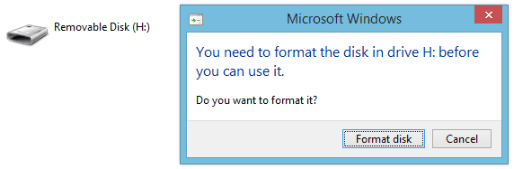
Don't click Format disk, as this process can erase all the existing data on your RAW drive. More importantly, to avoid data loss, it's advisable to recover data from RAW drive before converting RAW to FAT32.
Part 1. Recover data from RAW drive using reliable software
With its high success rate and fast recovery speed, AOMEI FastRecovery is the go-to choice in the data recovery field. With it, you can recover data from hard drives, SSDs, memory cards, USB drives, etc., whether it's healthy, damaged, formatted, or RAW.
 AOMEI FastRecovery
- Recover deleted & lost documents, photos, folders, compressed files, videos, audio, websites, and other files, up to 1000+ data formats.
- Integrate Quick & Deep Scan to find as many deleted & missing files as possible.
- Organize and display data by Type or Path, along with options to sort, search, filter, and preview files.
- Recover data in any scenario, such as permanent deletion, disk formatting, virus attacks, lost partition, or system crashes.
- Support NTFS, FAT32, exFAT, and ReFS file systems and be compatible with Windows 11, 10, 8, 7, or Windows Server.
 100% Secure
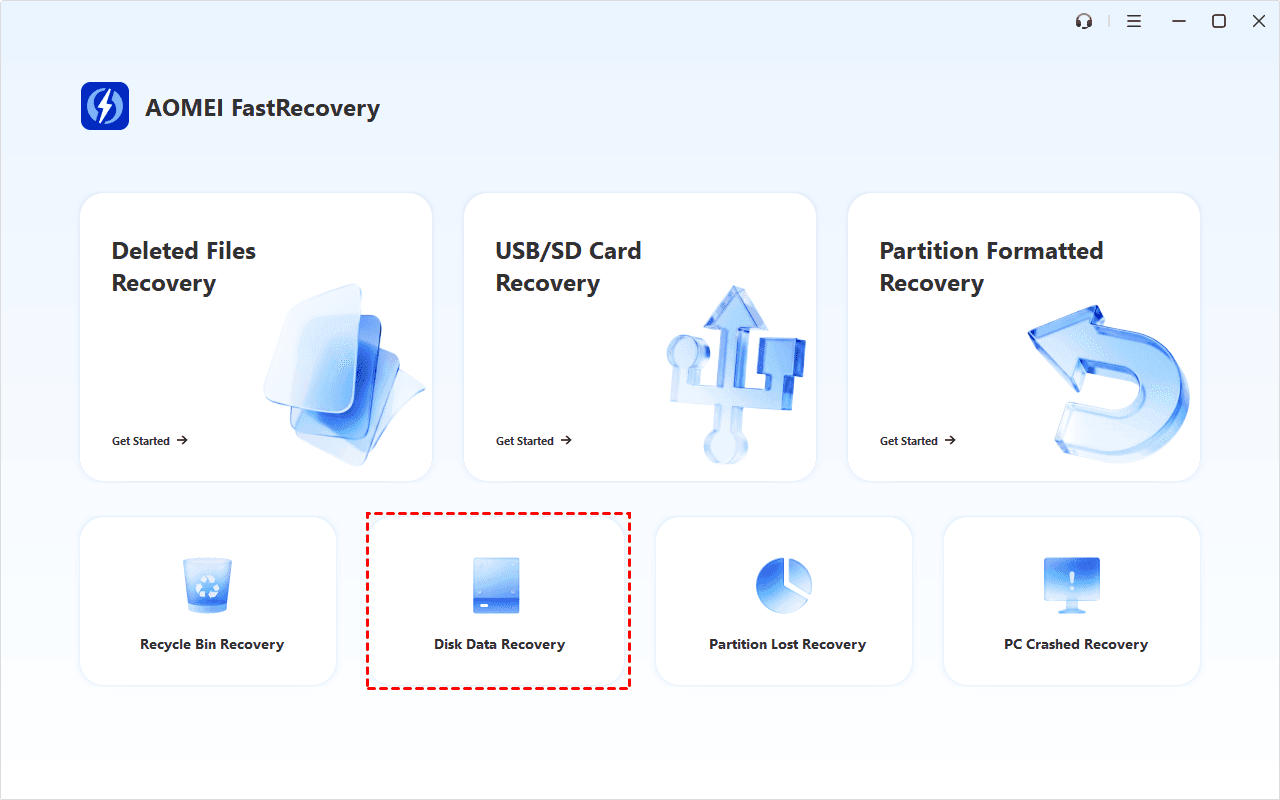
Step 1. Download and install AOMEI FastRecovery on your computer. Click Disk Data Recovery at a lower location. To recover specific files or folders, click Deleted Files Recovery.
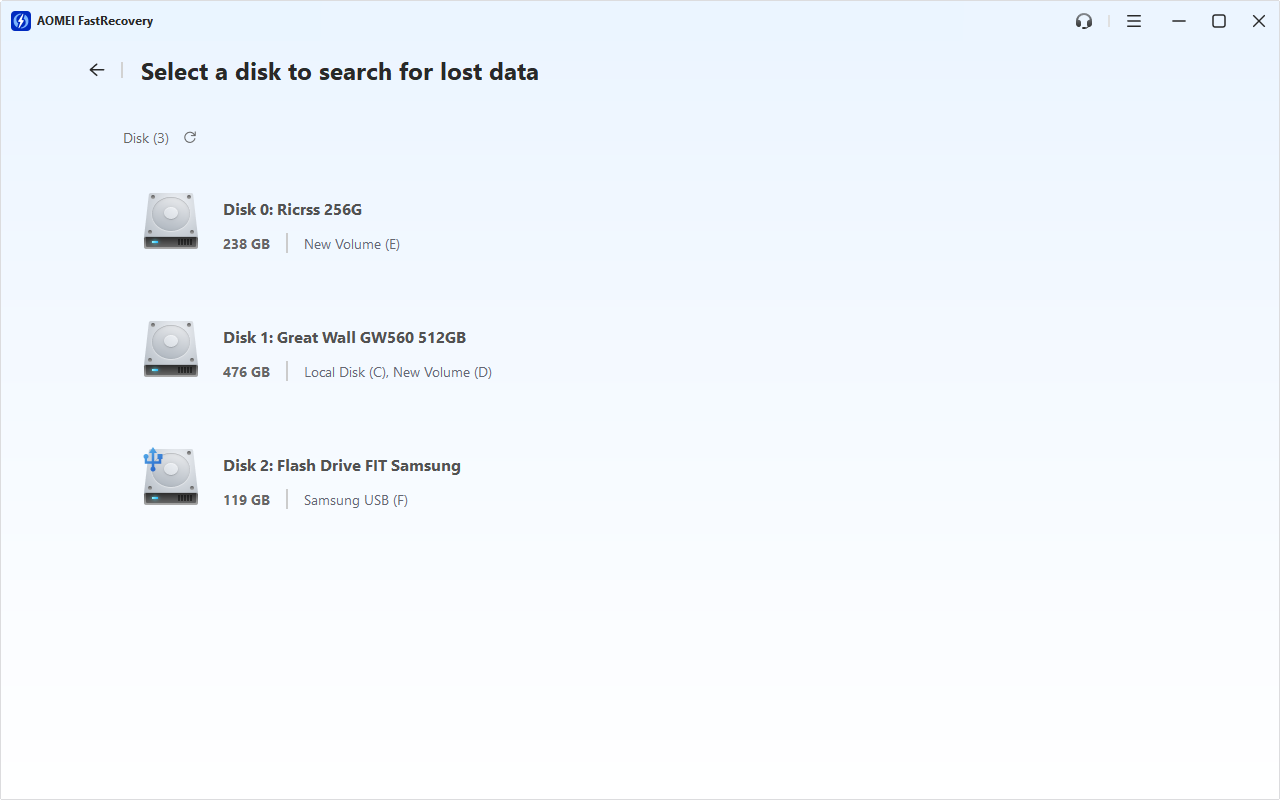
Step 2. You'll see all available drives. Select the RAW drive and click Scan to start the deep scanning process and display all recoverable data.
Step 3. Under the Type section, check all the data types and expand them to find what you want. You can sort them or search the name to locate files quickly.
Step 4. Select your desired data and click the Recover button. Please save the recovered files to a new location. Otherwise, your data may be overwritten.
- After recovery, you must save these retrieved files in a new location, as restoring to the original location may result in data overwriting.
- Please consider upgrading AOMEI FastRecovery to its advanced edition if you need to recover large amounts of deleted or lost files from hard drives.
Part 2. Convert RAW to FAT32 without losing data
If you’ve salvaged recoverable data from your RAW disk, you’re ready to convert RAW to FAT32 via the following solutions.
Way 1. Convert RAW to FAT32 using Disk Management
Disk Management is a powerful Windows System utility that can help users to perform advanced storage tasks. This fix can also convert RAW to NTFS without losing data.
Step 1. Press Win + X and select Disk Management to open this utility.
Step 2. Right-click on your RAW drive and select the Format option.
Step 3. Select the FAT32 file system and click OK to save these changes.
Way 2. Convert RAW to FAT32 using CMD
Some users are wondering how to convert RAW to FAT32 using CMD. Note your RAW partition might still retain its drive letter. Thus, the specific commands may vary slightly.
▶ Directly Format RAW to FAT32
If your RAW drive has a drive letter, you can directly format it to FAT32 file system.
Step 1. Type cmd in the search bar and click Run as administrator to open the command prompt window.
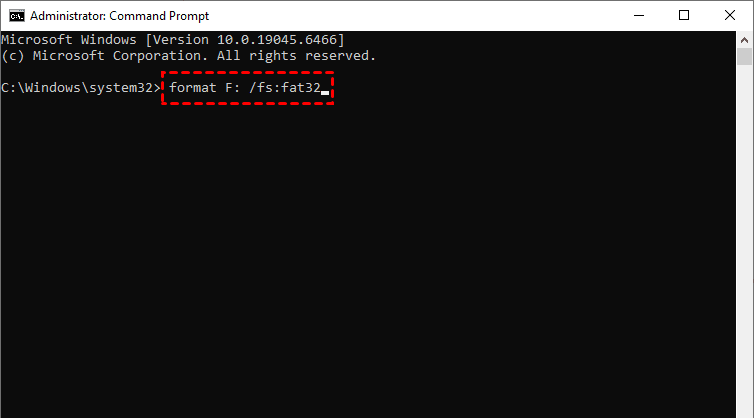
Step 2. Type format F: /fs:fat32 in the window and hit Enter to go on. You can replace the letter F: with the real drive letter of your RAW drive.
▶ Convert RAW to FAT32 using Diskpart
If the RAW drive does not have a drive letter, try DiskPart to find RAW drive and format it.
Step 1. Type Diskpart in the search bar and hit Enter to open the Command Prompt window.
Step 2. Type the following command lines one by one.
- list volume
- select volume n (where n is the volume number of the RAW drive)
- format fs=fat32 quick
- exit
Way 3. Convert RAW to FAT32 without losing data via AOMEI Partition Assistant
Is there an easier way to convert RAW to FAT32 without losing data? It turns out there is. You can use this handy and powerful partition management software - AOMEI Partition Assistant, to convert RAW to FAT32 without paying. Other highlights:
- Recover deleted & missing NTFS, FAT, EX2, EX3, or Ex4 partitions.
- Repair corrupted file systems via CHKDSK.exe, deal with improper partition size, partition creation, resize, etc.
- Perform disk conversion between MBR and GPT, OS migration, etc.
- Support Windows 11, 10, 8.1, 8, 7, Vista, and XP (32/64-bit) computers.
Step 1. After running this free demo on your Windows PC, right-click on your selected RAW disk and select the Format Partition option.
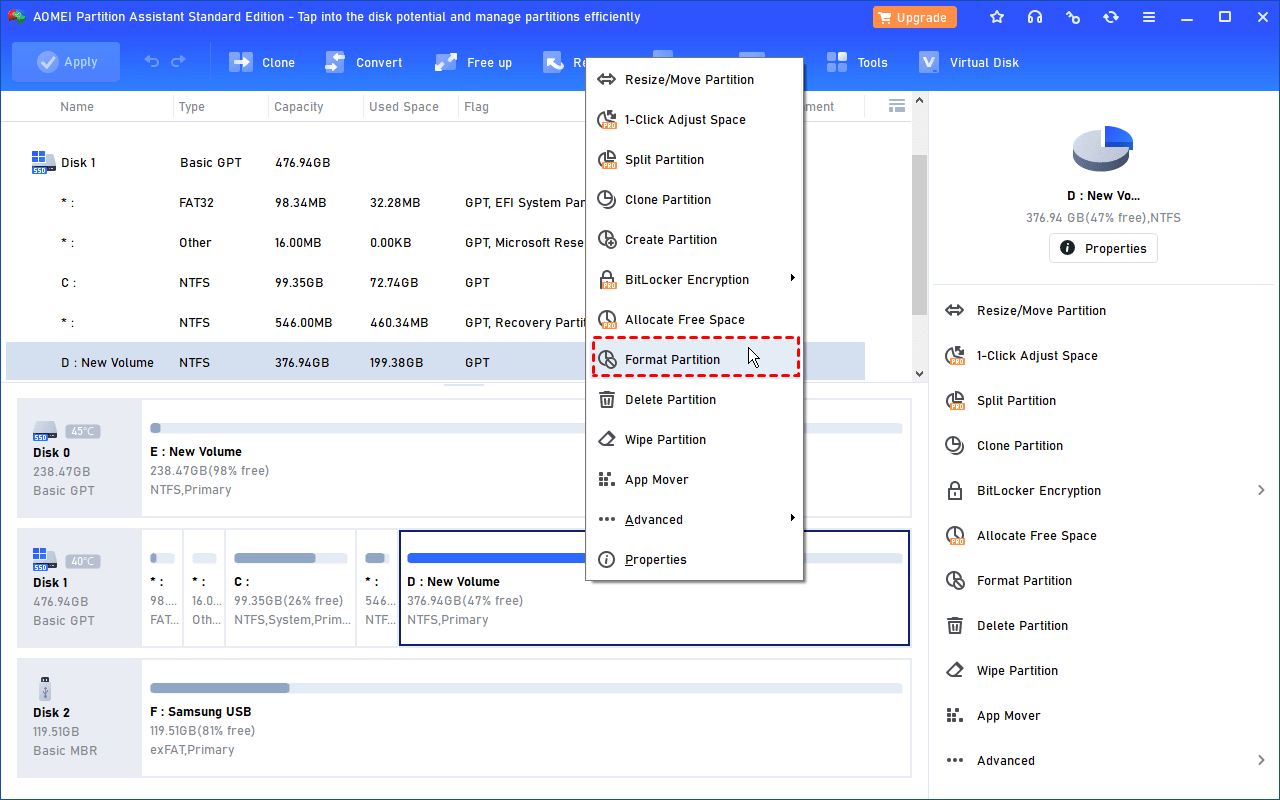
Step 2. Select the FAT32 file system and click the OK button. At last, click Apply to save these changes and wait patiently.
Conclusion
How to convert raw to fat32 without losing data? The most straightforward method is to format hard drive to FAT32 using Disk Management, CMD, or third-party tools, but they do cause data loss unless you recover data from RAW drive before formatting it.
AOMEI FastRecovery is a reliable data recovery software that can retrieve data from RAW drive in Windows 11, 10, 8.1/8. 7, and Windows Server, along with multiple convenient features, such as sort, filter, preview, crashed PC recovery, etc. Why not give it a try!

 as a preferred
source on Google
as a preferred
source on Google