




Where Are Sticky Notes Stored in Windows 10 and Windows 11?
Where are Sticky Notes stored in Windows 10? Find the right database and preserve a separate copy, then distinguish hidden notes from deleted files before choosing how to retrieve them.

By Ivy Updated on September 10, 2026


If an older guide tells you to find StickyNotes.snt, you may be looking for the wrong file. In the standalone Microsoft Sticky Notes app commonly used on Windows 10 and 11, local notes are stored in a database named plum.sqlite.
To find where Sticky Notes are stored in Windows 10, paste this path into File Explorer’s address bar and press Enter:
%LocalAppData%\Packages\Microsoft.MicrosoftStickyNotes_8wekyb3d8bbwe\LocalState
That folder helps you locate and back up your notes. However, a note disappearing from your desktop doesn’t necessarily mean its file was deleted. Check your app and files before choosing a recovery method.
Find the Right Sticky Notes Database
Different generations of Sticky Notes use different storage formats. The standalone version uses plum.sqlite, while the classic version uses StickyNotes.snt.
The storage paths also differ:
👉 Standalone Microsoft Sticky Notes (Windows 10 1607 and later):
%LocalAppData%\Packages\Microsoft.MicrosoftStickyNotes_8wekyb3d8bbwe\LocalState
👉 Classic Sticky Notes (Windows 10 1511 or earlier):
%AppData%\Microsoft\Sticky Notes
If your shortcut opens the newer Sticky Notes experience inside OneNote, check that app and its account first. Don't assume the standalone app's database path applies to every Sticky Notes shortcut.
The database stores multiple notes together. You may also find plum.sqlite-wal and plum.sqlite-shm beside it.
What If the Sticky Notes Folder Is Missing?
A missing folder can point to the wrong user profile or app version. Check these possibilities:
- Current Windows account: %LocalAppData% opens the current user’s folder. Notes from another Windows account belong to that account’s profile.
- Old computer or backup: Search the saved user profile for plum.sqlite or StickyNotes.snt, depending on the app version.
- Different app: Confirm whether you’re using standalone Microsoft Sticky Notes or the OneNote experience.
- Deleted directory: Check the Recycle Bin for the database or its parent folder. If the whole directory was removed, see: recover deleted folder in Windows 10.
If other personal files also disappeared after an upgrade, check the broader guidance for missing files after Windows 11 update.
How to Back Up Sticky Notes Safely
👍 Best for: Preserving accessible notes before a reset or migration; this won’t retrieve previously deleted content.
A separate backup keeps the files as they existed when you copied them. Account sync helps you access notes across devices, but it doesn’t replace an independent historical copy. Once you know where Sticky Notes are stored in Windows 10, keeping dated backups takes only a few steps.
Step 1. Close Sticky Notes normally. Open the LocalState folder using corresponding path:
Standalone Microsoft Sticky Notes:
%LocalAppData%\Packages\Microsoft.MicrosoftStickyNotes_8wekyb3d8bbwe\LocalState
Classic Sticky Notes: %AppData%\Microsoft\Sticky Notes
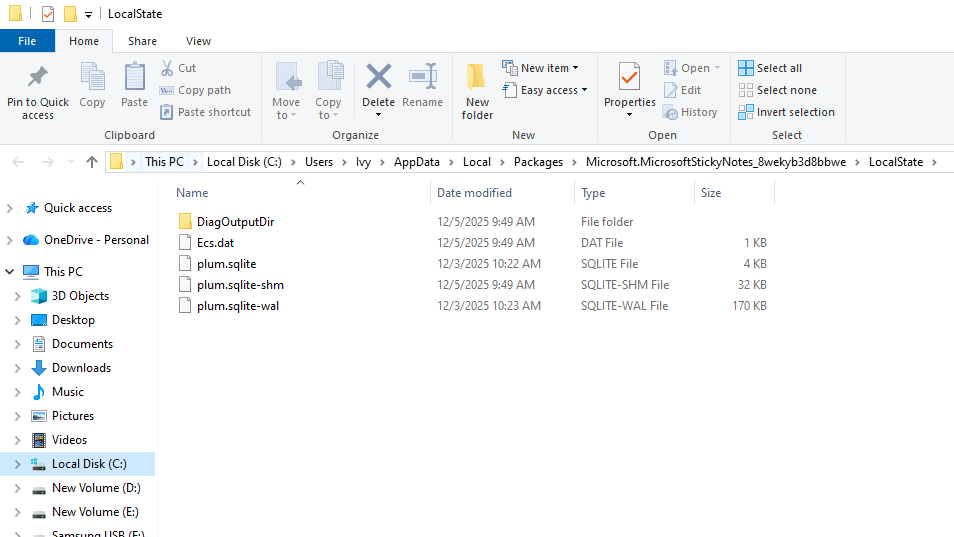
Step 2. Copy its contents to a dated folder on an external drive. Include any accompanying database files still present, and leave the originals in place.
Step 3. Check that the destination contains your copied files. Keep multiple dated backups instead of repeatedly replacing one copy.
Before using an older database for restoration, preserve the current files. Replacing a database doesn’t merge old and new notes, and different app versions may not accept the same files.
How to Recover Missing Sticky Notes in Windows
Missing notes may still be in your notes list or linked to another account. If the local database was deleted, choose between a recovery scan and an existing backup.
| 🧩 Your situation | ✅ Best Method | ❌ Key limitation |
|---|---|---|
| Notes disappeared from the desktop | Check the notes list and account | Doesn’t undo note deletion |
| The local database file was deleted | Use AOMEI FastRecovery | Requires recoverable disk data |
| A backup contains the earlier database | Restore with File History | Requires a suitable pre-loss backup |
Method 1: Check the Notes List and Your Account
👍 Best for: Notes that stopped appearing on the desktop; this checks visibility and synchronization rather than deleted files.
Closing a note window can leave its contents in the notes list. A different signed-in account can also make your usual collection appear missing. These checks help establish whether the notes remain accessible before attempting database replacement or recovery software. Microsoft recommends them in its missing Sticky Notes guidance.
Step 1. Open Microsoft Sticky Notes. If only one note appears, open its … menu and select Notes list.
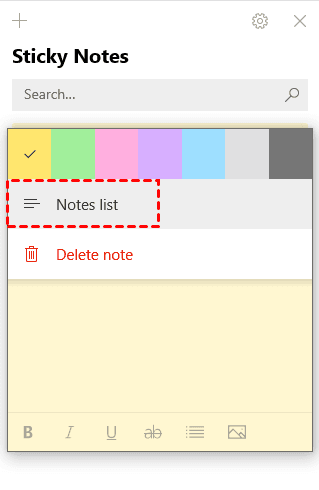
Step 2. Search the list for the missing note. Double-click a matching note to reopen it.
Step 3. Open Settings, select the account that previously synced your notes, then select Sync now if available.
These actions can restore access to existing notes. They don’t reverse a note deletion inside the app.
Method 2: Recover a Deleted Sticky Notes Database with AOMEI FastRecovery
👍 Best for: Recovering a local database deleted from Windows 10 or Windows 11; results depend on whether its data remains recoverable.
AOMEI FastRecovery is easy-to-use Windows data recovery software that helps you search for and recover deleted Sticky Notes database files in Windows 10, 11, Windows Server, and more.
 AOMEI FastRecovery
- 🎯 Scenario‑Driven:Choose your data loss situation - accidental deletion, formatting, virus attack, or lost partition, and we'll run the scan that fits.
- 🔄 Flexible Scanning: Deleted Files Recovery starts with Quick Scan, with an optional Deep Scan when the required database files aren’t found.
- 🚀 Find Files Quickly: Search by filename or extension, browse the original folder when available, or narrow results with filters and sorting.
- 💰 500 MB Free: Recover up to 500 MB of files with the free edition; recovery beyond that allowance requires an upgrade.
 100% Secure
Step 1. Download and install AOMEI FastRecovery on a different drive from the one containing the deleted database. Avoid installing it on C: if that is the affected drive. Then, select Deleted Files Recovery after launching it.

Step 2. Choose the drive containing deleted database, and click Scan. Quick Start will search for recoverable data automatically.
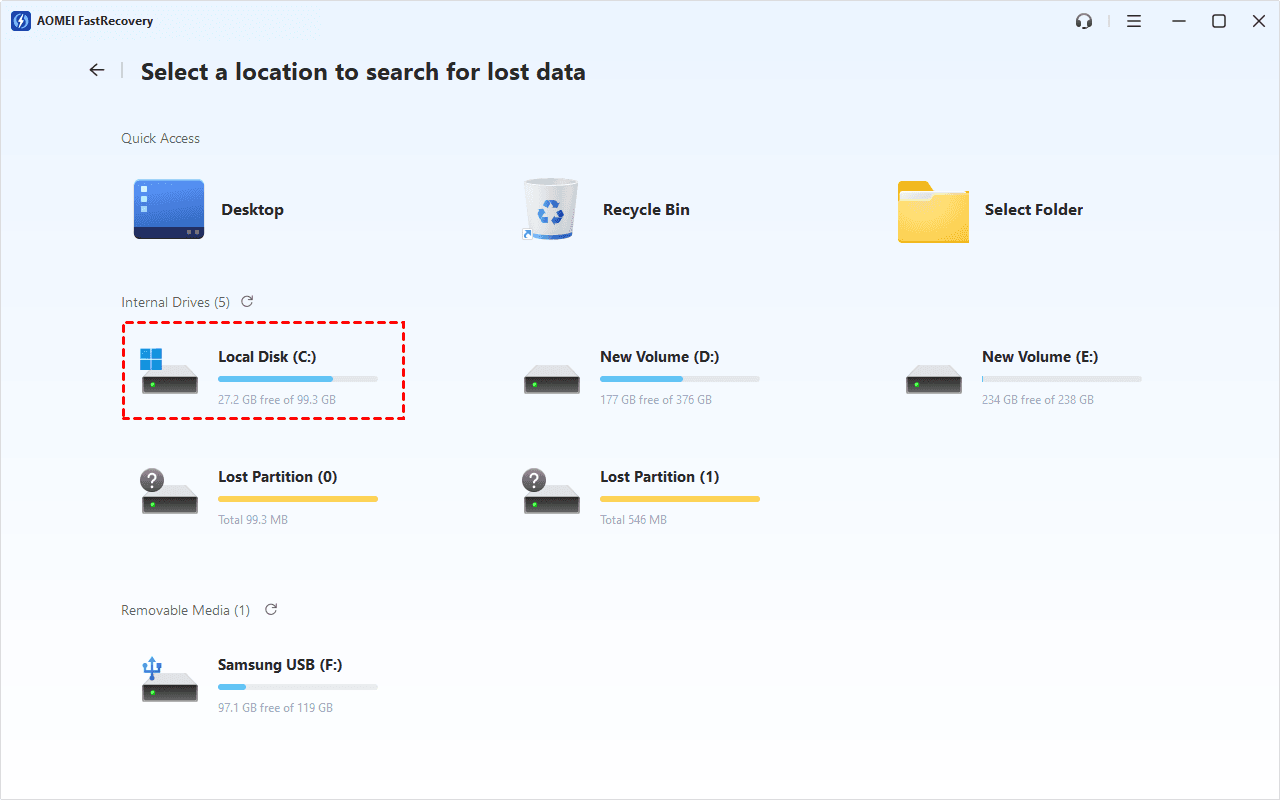
Step 3. In the scanned results window, search for plum.sqlite, or use Path to look for the original LocalState folder. If missing, click Deep Scan.
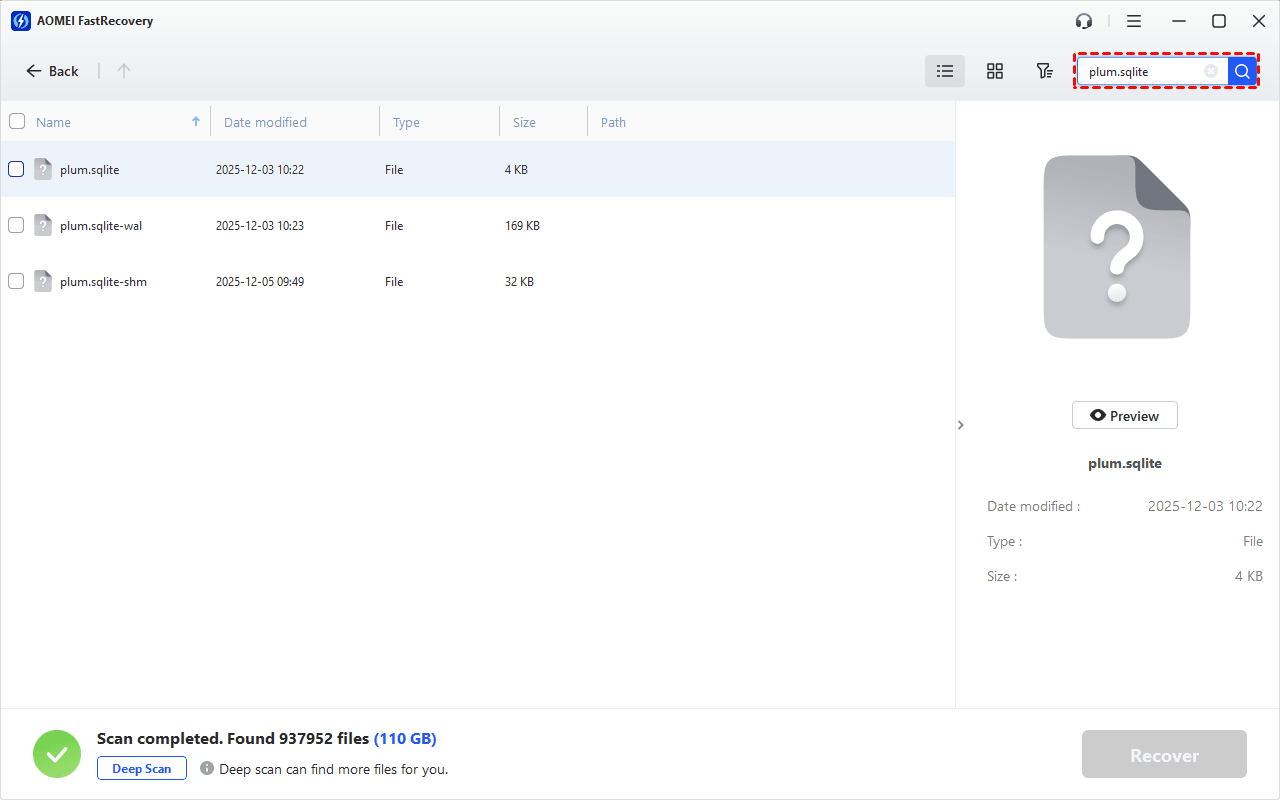
Step 4. Select the relevant database and any matching companion files found, click Recover.
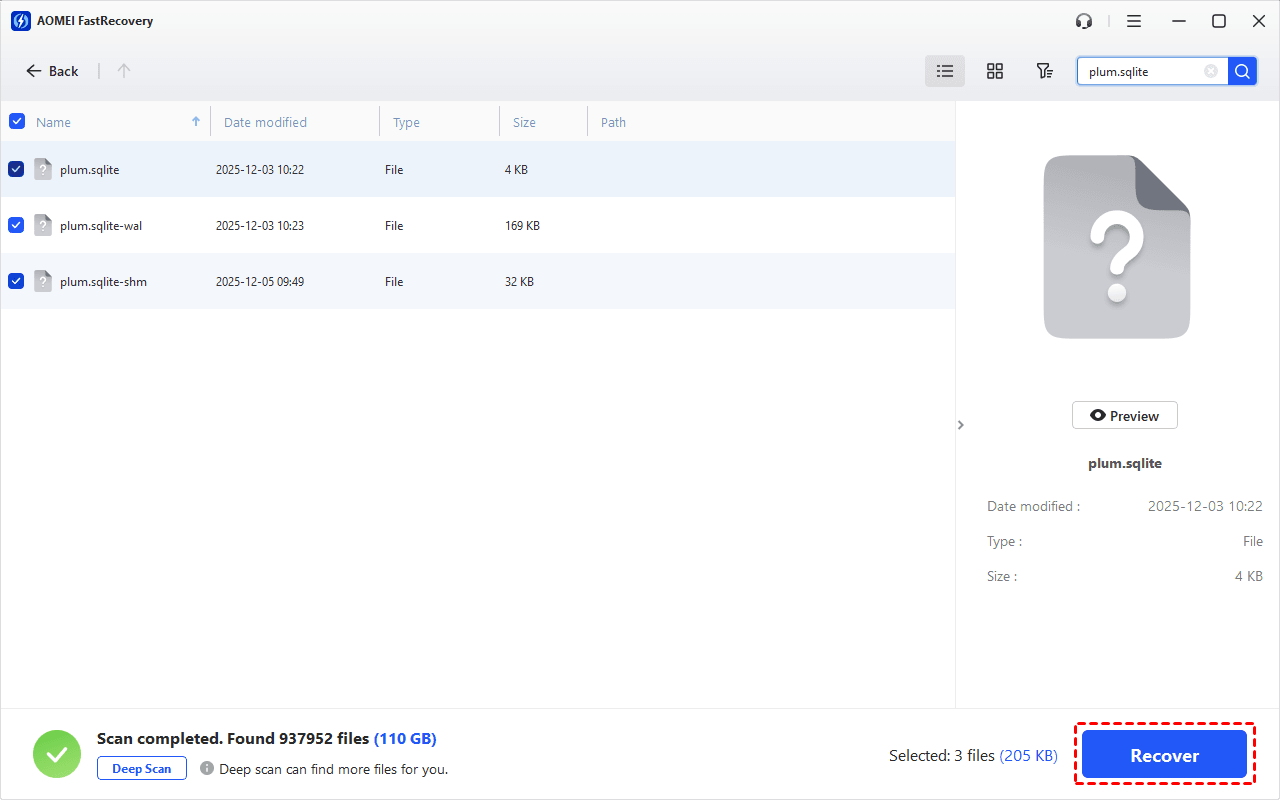
Step 5. Select a separate, healthy drive as the destination, so your data will not be overwritten.
Keep the recovered originals unchanged while checking copies. Retrieving a file is only the first stage: the database must still be readable and contain the notes you need.
Method 3: Retrieve a Previous Version from File History
👍 Best for: A database folder backed up before the loss; enabling File History afterward won’t create earlier versions.
File History is a built-in Windows backup feature that keeps previous versions of your files. But even if it's turned on, that doesn't mean your Sticky Notes folder was backed up. So before relying on this method, check whether a suitable version exists, then copy the files out separately - this way, your current database stays accessible while you review them.
Step 1. Connect the File History backup drive to your Windows PC. In File Explorer, locate the original folder, or its surviving parent if the folder was deleted.
Step 2. Right-click it and select Restore previous versions.
Step 3. Choose a version from before the loss and expand Open > Open in File History to check the contents.
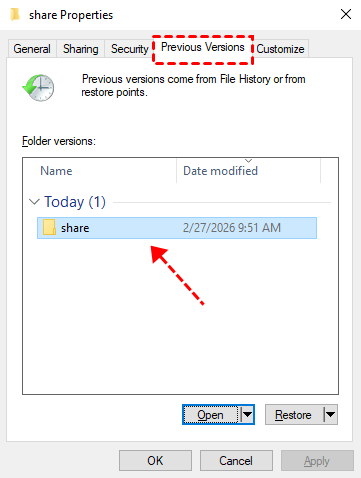
Step 4. Once confirm, expand Restore and select Restore to… to retrieve the files elsewhere.
If Windows can’t access the backup disk, check File History drive doesn't recognize this drive to resolve the disk error first. An empty version list may mean no suitable backup exists.
FAQs
Why can’t I find StickyNotes.snt?
That file belongs to the classic app. For the later standalone Microsoft Sticky Notes app, look for plum.sqlite inside LocalState.
Can I read plum.sqlite in Notepad?
It’s a database, so Notepad won’t display a clean collection of notes. Don’t edit or save the original file through a text editor.
Are Sticky Notes saved in OneDrive?
Account synchronization in Sticky Notes isn’t the same as copying its database to a OneDrive folder. Treat app synchronization and independent file backups as separate protections.
Does recovering the database guarantee my notes will return?
No. The recovered database may be incomplete, contain different notes, or be incompatible with the app version you’re using.
- Knowing where Sticky Notes are stored in Windows 10 and 11 gives you a starting point.
- Preserve accessible files first, check the app when notes disappear from view, and choose a backup or recovery scan when the database itself is lost.

 as a preferred
source on Google
as a preferred
source on Google