




Undo Flash Drive Delete? Here's How to Recover Your Files
Accidentally deleted files from your USB drive? You're not alone, and you're not out of luck. This guide walks you through 2 most effective methods to undo flash drive delete and recover your data. No technical skills required.

By Ivy Updated on July 2, 2026


USB flash drives are everywhere. In 2025, the global USB device market was valued at an estimated $39 billion, and it continues to grow.
We use them to back up important files, transfer data between computers, and carry our work wherever we go. They're small, convenient, and essential. But they're not perfect.
It happens all the time: you delete a file from your USB drive, go to your desktop Recycle Bin, and find… nothing. It's not there. And you're left wondering:where do deleted USB files actually go? how to undo flash drive delete? Keep reading.
Where do deleted USB drive files go?
📌 The short answer: they don't go to the Recycle Bin at all.
Unlike files deleted from your internal hard drive, files removed from external USB drives are permanently deleted - they skip the Recycle Bin entirely.
Whether you press the DEL key, right‑click and select delete, or use Shift + DEL, you're prompted to permanently delete files. Even worse, if you drag a file from your USB to the Recycle Bin, you won't even see that warning - it's gone without a trace.
Here's the good news: permanently deleted doesn't always mean gone forever. With the right tool, those files can still be recovered, and we'll show you how in the next part.
How to undo flash drive delete (2 Ways)
To be honest, recovering deleted files from a USB drive is not something the average user can do with a few clicks. It can feel confusing, technical, and out of reach.
But you don't need to be a tech expert to get your files back. If you're comfortable with command lines, Windows File Recovery, an official recovery tool, can help. If not, try AOMEI FastRecovery, a user‑friendly recovery software.
Either way, recovery is possible. You just need the right method.
Method 1. Recover deleted files from flash drive with software
You accidentally deleted files from your USB drive. Windows File Recovery requires complex commands, but professional software gives you the same result without the headache.
When choosing a recovery tool, three things matter most:
-
High success rate: Scans thoroughly, finds more files, and works across common data loss scenarios.
-
Ease of use: No command lines. No technical knowledge needed. Just a few clicks.
-
Safe: Read‑only scanning ensures your original data stays intact.
AOMEI FastRecovery delivers on all three. Simple, powerful, and reliable.
 AOMEI FastRecovery
- 🔎 Dual-Scan Modes: Quick Scan for recently deleted files, Deep Scan for more complex scenarios. Together, they find more files and recover them with greater success.
- 📚 1000+ Data Types: Recover deleted or lost documents (TXT, DOC, XLSX, CSV), images (JPG/JPEG, PNG, TIF, HEIC, GIF), videos (MP4, MOV, AVI, ASF, WMV), and more.
- 🧩 Wide Range of Scenarios: Recover files from accidental deletion, Recycle Bin, formatted drive, virus attack, system crash, and more.
- 🚀 Find Your Files Fast: Browse by type or path, sort, search, filter, and preview files before recovery. No more digging through endless lists.
- ✅ Safe & Easy to Use: Read-only, no data overwriting. simple, intuitve interface.
- 👍 Try It with No Risk: The free edition recovers up to 500MB of data - no commitment, no quality compromise.
 100% Secure
Step 1. Connect the USB properly. Download, install, and launch AOMEI FastRecovery. Then, click Deleted Files Recovery, specifically designed for quick recovery.

Step 2. Hover the mouse over the USB drive where deleted files were saved, and click Scan.
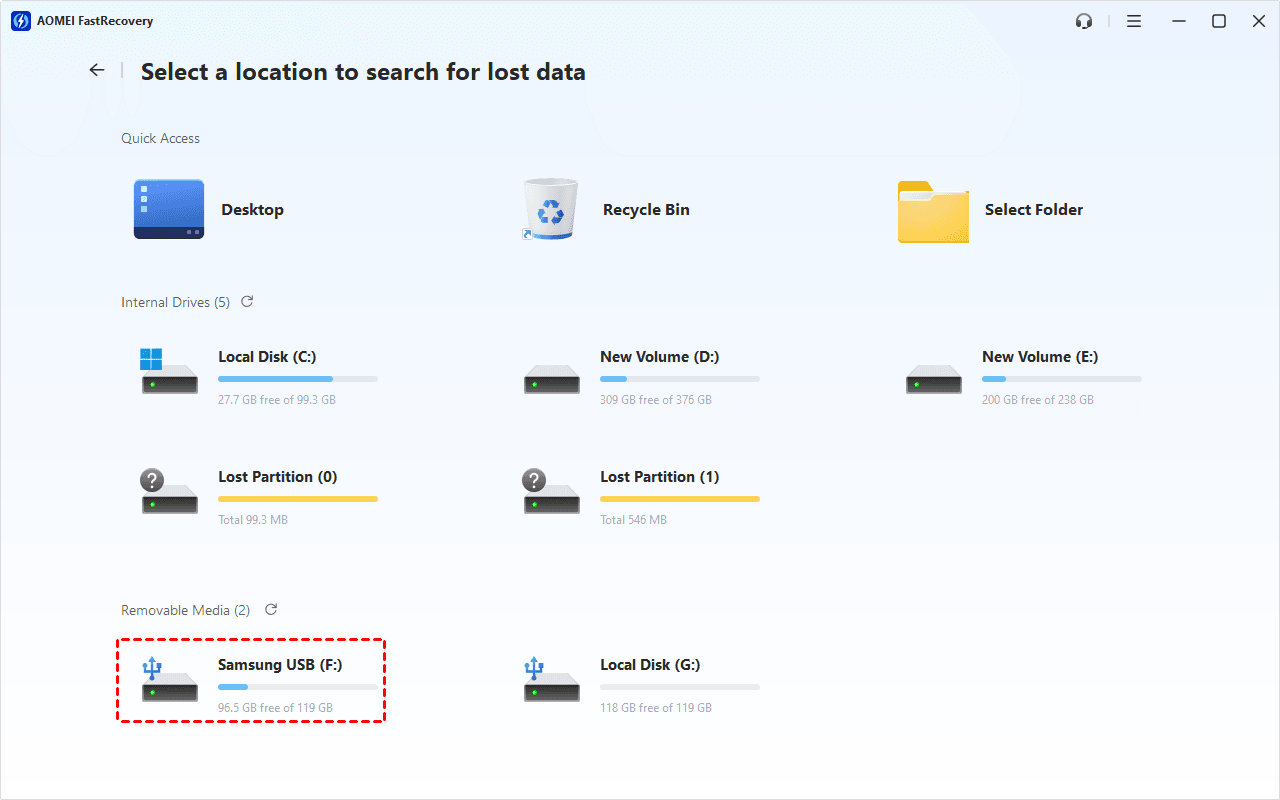
Step 3. The quick scan starts automatically. Once it finishes, check the results by file type (e.g., Documents) and specific formats (e.g., Excel).
You can also expand Excel to find specific files in Deleted Files, Recycle Bin, or Existing Files directories. To find files quickly, combine the following options:
-
Sort files by name, date modified, type, etc., using the column headers.
-
For faster searching, type the file name or extension (.xlsx) in the search box.
- Or click the funnel-shaped button to narrow your search by type or size, especially useful for large deleted files.
-
Browse by Path if you remember where the file was originally saved.
-
Click the Deep Scan to find more data if Quick Scan fails. It will scan every sector of the disk and take longer.
Step 4. Select the deleted files you want and click Recover to get your data back quickly. Always save them to a new location to avoid data overwriting.
Method 2. Recover deleted files from USB with Windows File Recovery
If you're comfortable with command lines, there's also a free Microsoft‑built option - Windows File Recovery. It's more technical, but it can be an effective alternative if you prefer not to install third‑party software.
Step 1. Connect the flash drive to the PC > go to This PC > right-click the USB > Properties. Check the file system of the USB.
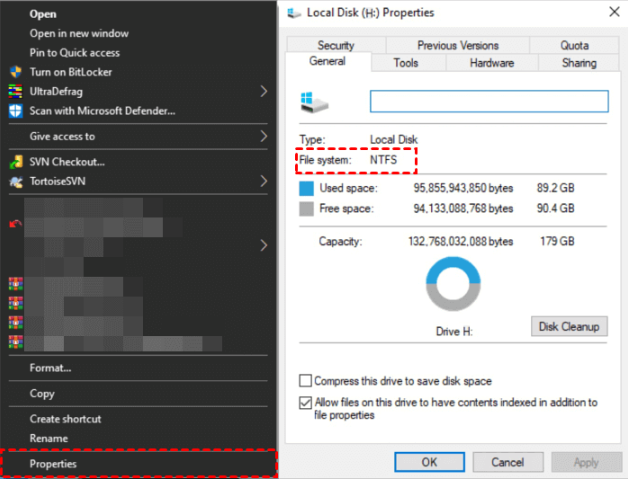
Step 2. Choose a recovery mode. If you are using a non-NTFS flash drive, please choose Extensive mode.
| File system | Scenarios | mode |
| NTFS | Deleted recently | Regular |
| NTFS | Deleted for a while | Extensive |
| NTFS | Formatted disk | Extensive |
| NTFS | corrupted disk | Extensive |
| FAT and exFAT | Any | Extensive |
Step 3. Switches can help narrow the scanning range and target the path/file type.
| Switches | Meaning | Supported mode(s) |
| /n | Filter the scan range: scans for a specific file with its file name/path/type, etc. | All |
| /y: | Recovers specific extension groups. | Signature |
| /k | Recovers system files. | NTFS Segment |
| /segment | Segment mode; recovers files under NTFS drives using file record segments. | Segment |
| /signature | Signature mode; recovers files under all file system types using file headers. | Signature |
| /u | Recovers undeleted files, for example, from the Recycle Bin. | NTFS Segment |
Step 4. Go to the Microsoft Store, search, and click Get to install Windows File Recovery.
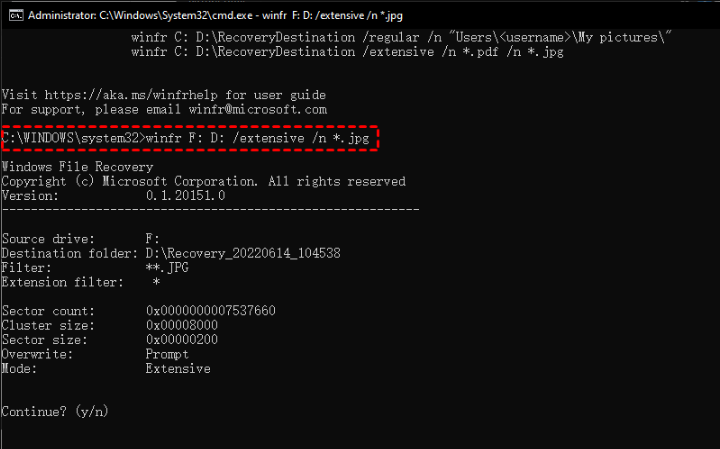
Step 5. Input the winfr command to undo flash drive delete. The source drive is your USB drive. The target drive must be a different drive to avoid data overwritting.
winfr source-drive: destination-drive: [/mode] [/switches]
For instance, to recover all JPG files from the USB drive to the D: drive, input:
winfr F: D: /extensive /n *.jpg
Related suggestions
You could get help in this tutorial with 2 feasible methods with detailed steps and instructions to undo flash drive delete and thus achieve thumb drive data recovery.
Both commands and a reliable data rescue tool could help you. To make it easier for you to promote data security, extra suggestions are prepared.
- Plug in your USB flash drive and other external storage devices properly.
- Disconnect the flash drive after clicking "Safe to Remove Hardware".
- Keep the pen drive away from high heat, liquid, oil, dust, etc.
- Back up important files to prevent data loss in the future. Use AOMEI Backupper as your data protector.

 as a preferred
source on Google
as a preferred
source on Google