



4 Free Undelete Tools for Windows 10
A free undelete tool for Windows 10 can help when your files are missing from the Recycle Bin. Check what each tool lets you save for free before you scan the drive.

By Ivy Updated on November 6, 2026


You deleted a folder on Windows 10, and it's not in the Recycle Bin. If you have a backup from before the deletion, check that first. If not, a free undelete tool can scan the drive for files that may still be recoverable.
Here are 4 free tools for recovering deleted files on Windows 10. We'll walk through how each one works and what you get for free, so you can pick the one that fits your situation.
Compare Free Undelete Tools for Windows 10
Start with the amount of data you need back. A few documents may fit within a free recovery limit, while a folder of videos can exceed it quickly. If more than one tool fits, use the interface and preview columns to decide which one you’d be most comfortable using.
| 🔧 Tool | 🖥️ Interface | 🎁 Free allowance | 👁🗨 Preview |
|---|---|---|---|
| AOMEI FastRecovery | Graphical | Up to 500 MB | Thumbnail previews |
| Recuva Free | Graphical | Unlimited recovery; Free for home use | Image previews when available |
| Windows File Recovery | Command line | Local files, no export limit | Export first, then open |
| TestDisk | Text menus | Free and open source, with no recovery size limit | Open recovered files after saving them |
1. AOMEI FastRecovery
Best for recovering a small batch of files through a graphical interface.
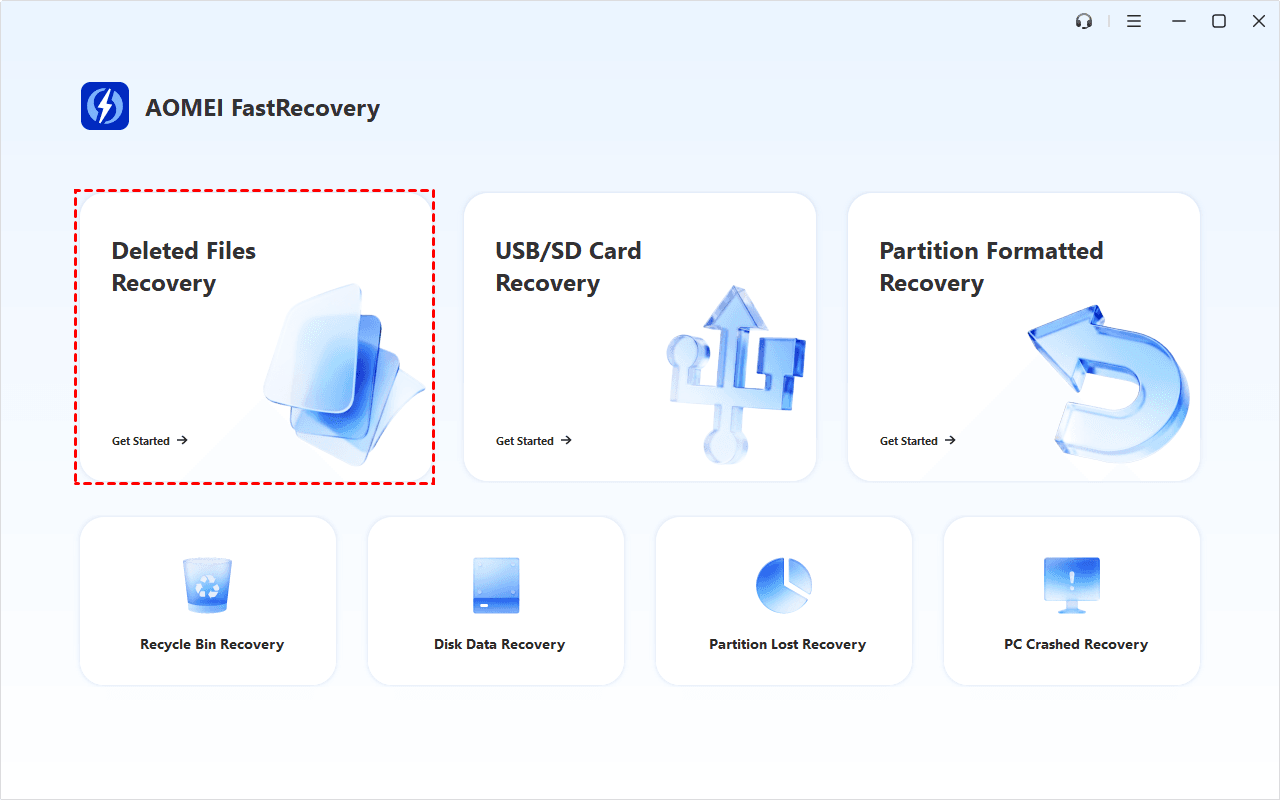
AOMEI FastRecovery is a dedicated Windows file recovery software with a recovery mode for each situation, from Deleted Files Recovery to Partition Formatted Recovery, USB/SD Card Recovery, and more.
If you remember where a file was saved, browse the results by Path. If you only remember that it was a photo or a document, start with Type. That choice matters when a scan brings back files from several folders.
👍 Pros:
- Intuitive, user-friendly interface
- Quickly find files with search and sort
- Thumbnail previews distinguish similar files
- Fast and deep scanning
- Recover deleted partition with data
❌ Cons:
- The free edition restores up to 500 MB.
- Full preview requires an upgrade.
This is a practical choice when you need a few documents or photos and want to identify them before exporting. If your files are more than 500 MB and you want to stay within the free allowance, prioritize the files that are hardest to replace.
2. Windows File Recovery
Best for users who know the original folder or file extension and are comfortable with commands.
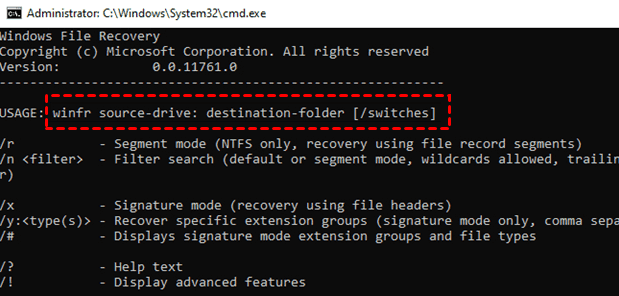
Windows File Recovery is a free tool that can recover deleted or lost files on Windows 10 or 11. You'll need to specify the source drive, a different destination drive, a scan mode, and any necessary switches along the way.
For files deleted recently on NTFS, Microsoft recommends Regular. For files deleted for a while on NTFS, or those deleted from FAT or exFAT, use Extensive.
👍 Pros:
- Work on local storage only
- Recover data across different file systems
- Recover what you want with specific filters
❌ Cons:
- Steep learning curve
- Doesn't support cloud storage or network shares
Choose it when you know enough about the missing files to narrow the scan. For example, if you only need Word documents from a project folder, target that folder and file type before searching the whole drive.
3. Recuva Free
Best for home users who want a graphical workflow and may need to identify deleted photos visually.
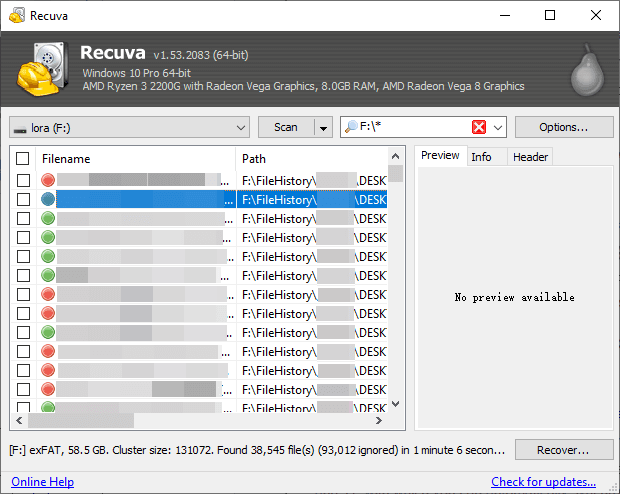
Recuva Free supports Windows 10 and includes file recovery for home use. Its advanced view lets you look up a full or partial filename. For image files, it can show a preview when one is available.
👍 Pros:
- Partial-name search
- Image previews for similar photos
❌ Cons:
- Free edition is for home use only
- Legacy interface
- Virtual hard drive is only available on advanced editions
Recuva Free fits a personal recovery job on a Windows 10 PC, especially when you want to sort through pictures without entering commands. Check the license terms before choosing it for a work device.
4. TestDisk
Best for readers who can identify the correct disk and partition in a text menu.
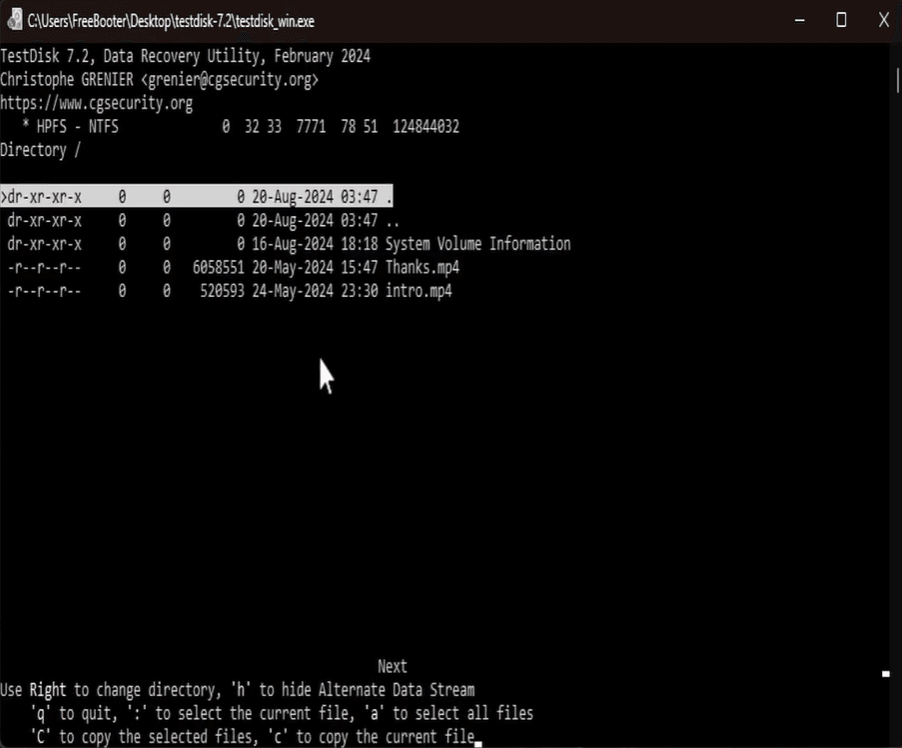
TestDisk is a free, open-source utility that can undelete files from NTFS, FAT, and exFAT volumes. It lets you select files you want and copy them to a separate destination. This can be useful for a readable USB drive or memory card where you can identify the source volume by its size and file system.
👍 Pros:
- Free, open-source
- Supports multiple file systems
👍 Cons:
- Legacy interface
- Text menus require more attention
- No preview support
Choose TestDisk if you're comfortable identifying the source volume and working through text menus. If you need to tell several similar photos apart, a graphical tool with image previews is easier to use.
How to Undelete Files in Windows 10 With AOMEI FastRecovery
AOMEI FastRecovery has a dedicated Deleted Files Recovery mode that can undelete any file on Windows 10. Start with the drive that held the deleted files. Quick Scan finds them fast, while Deep Scan is more thorough and comes in handy when Quick Scan doesn't turn up what you're looking for.
Download and install AOMEI FastRecovery to different drive from the original drive. Meanwhile, prepare a new drive for the recovered data.
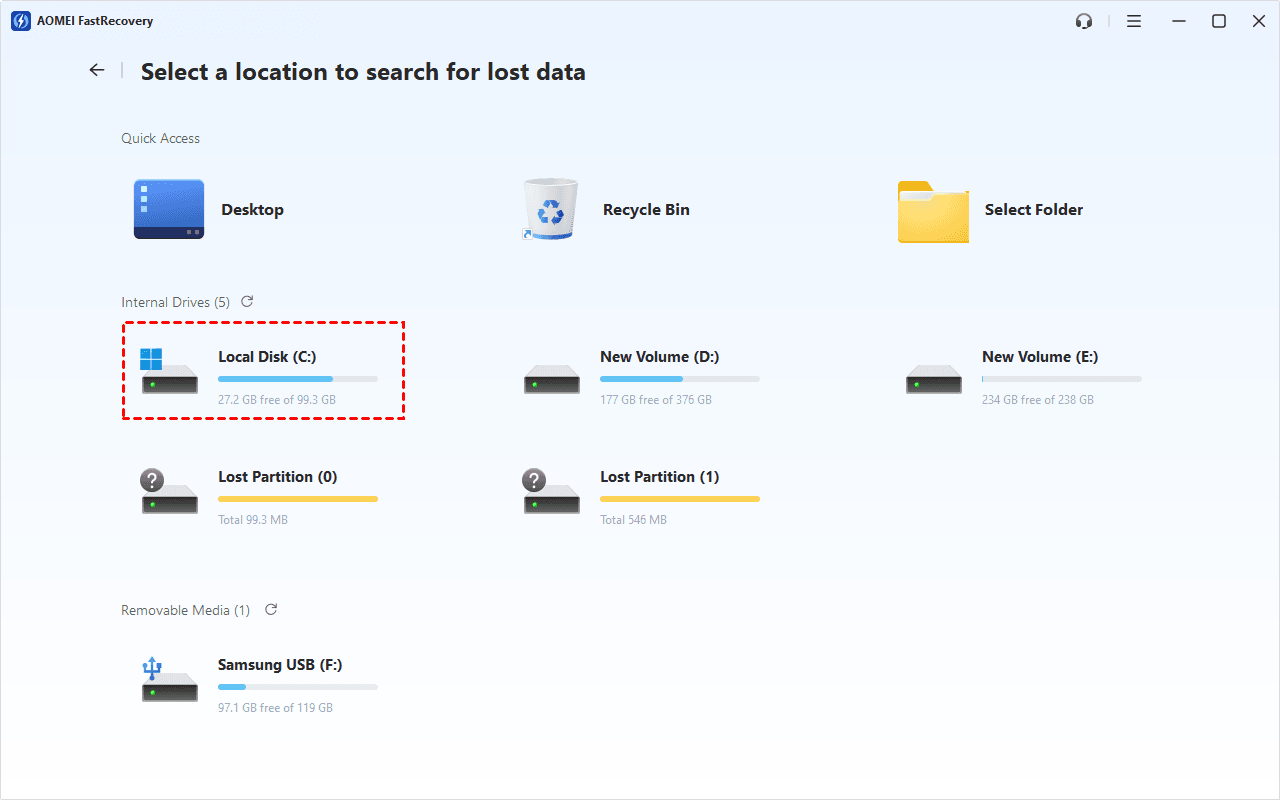
Step 1. Open AOMEI FastRecovery after installing and select Deleted Files Recovery.
Step 2. Choose the drive that held deleted files and click Scan. The software starts with Quick Scan. You don't need to wait too long.
Step 3. Review the results by Type or Path. Search by filename or extension, or click the column headers to sort the results. This makes it easy to find deleted files by date, type, name, and more.
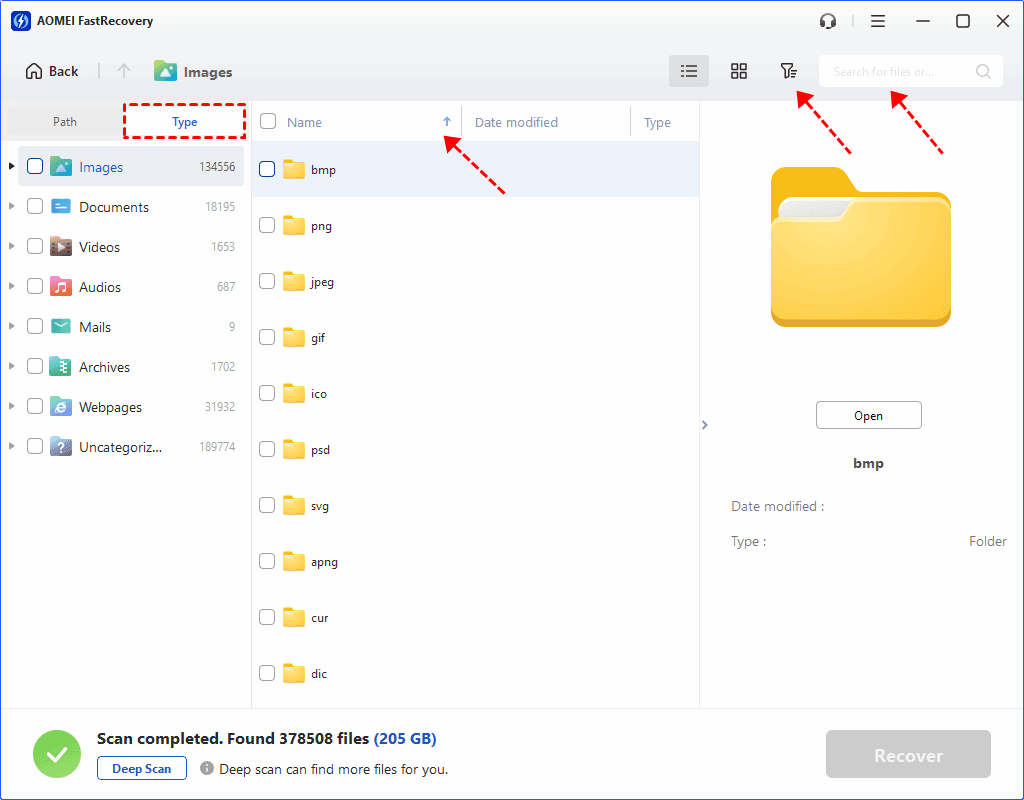
- Thumbnail previews help you compare similar files when available.
- If the files are missing from the initial results, select Deep Scan to search more thoroughly.
Step 4. Select the files you want, then click Recover. Save them to a different drive. New data can overwrite files on the source drive.
You can choose to recover specific files or folders, such as recovering a deleted Desktop folder. Just select Desktop folder. Either way, open the recovered copies afterward and check that the pages you need are there.
FAQs
Can free software recover files after Shift+Delete?
Sometimes. Recovery depends on whether the deleted data is still accessible. New writes can overwrite it, and SSD TRIM can make deleted data unavailable even if you act quickly. See how to recover deleted files on SSD.
Can I recover more than 500 MB for free?
Yes, if the files are recoverable and the tool you choose allows it. The 500 MB limit applies to AOMEI FastRecovery’s free edition. If you already know your files exceed that allowance, check whether Windows File Recovery or TestDisk fits your drive and whether you’re comfortable with its interface.
Will recovered files keep their original names and folders?
That depends on what information remains on the drive. A recovered file can have a different name or appear outside its original folder. Check the file type and size, then open the copy to confirm it’s the one you need.
Conclusion
If you only need a few files, start with a graphical tool whose free edition covers the amount you need back. For a larger batch, check whether Windows File Recovery or TestDisk fits your drive and whether you’re comfortable with its interface. Once you’ve picked a tool, connect a separate drive to save the recovered files.

 as a preferred
source on Google