




How to Recover a Deleted Folder on Desktop
If you're wondering how to recover a deleted folder on desktop, start by checking where its files were stored. This guide helps you choose between restoring a saved copy, scanning your drive, and correcting a missing Desktop location.

By Ivy Updated on October 13, 2026


You were cleaning up your desktop. A folder got caught in the sweep. Now the photos or documents inside it are gone too and you're not even sure when you deleted it.
Before you panic, slow down. The first place to look is the Recycle Bin. If it's not there, try AOMEI FastRecovery to scan the original drive where the folder was. And if your desktop was synced to OneDrive or backed up with File History, you may already have a copy.
Choose a Recovery Method for Your Desktop Folder
The right method depends on where the desktop folder was stored and what happened to it.
| 👁🗨 What you see | ✅ Where to start | 📋 What you'll need |
|---|---|---|
| The deleted folder is in the Recycle Bin | Restore from Recycle Bin | You don't delete it from Recycle Bin or empty it |
| Local files were permanently deleted | Scan with AOMEI FastRecovery | Don't continue use the drive |
| Your desktop was stored in OneDrive | Check OneDrive’s web recycle bin | The correct account and password |
| You backed up the folder before deletion | Restore through File History | A backup containing the missing files |
| Files still exist, but the desktop looks empty | Check icons and the Desktop location | Find the existing files |
If you deleted a folder from a location such as C:\Users\YourName\OneDrive\Desktop, check the the cloud copy. If only a shortcut disappeared, its target file or application may still be available.
Method 1: Restore a Desktop Folder from the Recycle Bin
Best for: The folder was recently deleted and is still in the Recycle Bin.
The Recycle Bin keeps deleted files until they are removed from it. Restoring a folder returns it to its original location, along with its contents. Check the folder name and original location so you don’t restore a different folder with a similar name.
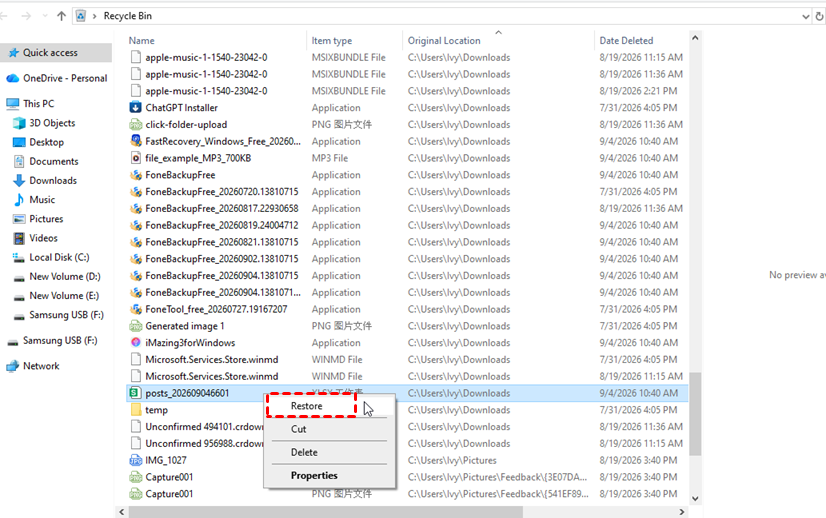
Step 1. Open Recycle Bin and search for the missing folder.
Step 2. Right-click the matching folder and select Restore.
- If you deleted a desktop folder just now, press Ctrl +Z to undo it immediately.
- Files can bypass the Recycle Bin if you use Shift+Delete, empty the Recycle Bin, or delete files too large for Recycle Bin.
Method 2: Recover Deleted Folder on Desktop with AOMEI FastRecovery
👍 Best for: Scan for a desktop folder’s files after they were deleted from local storage and are no longer in the Recycle Bin.
AOMEI FastRecovery is an easy-to-use deleted-file recovery software that can retrieve deleted folder on desktop and the files inside, such as documents, photos, videos, and more.
 AOMEI FastRecovery
- 🔎 Dual Scan Mode: Deleted Files Recovery starts with Quick Scan, with an optional Deep Scan for a more thorough search.
- 📚 1000+ Data Types: Recover deleted desktop files, such as Word documents, spreadsheets, photos, videos,ZIP archives, and more.
- 📂 Pinpoint What You Need: Browse by type or path, then combine search, sort, filter results, and thumbnail previews to narrow the result.
- 💰 Free Tier: Recover data up to 500MB for free. Need more? Upgrade for unlimited recovery.
 100% Secure
Step 1. Download and install AOMEI FastRecovery on a different drive, not the one containing the deleted desktop files. Launch it and select Deleted Files Recovery.

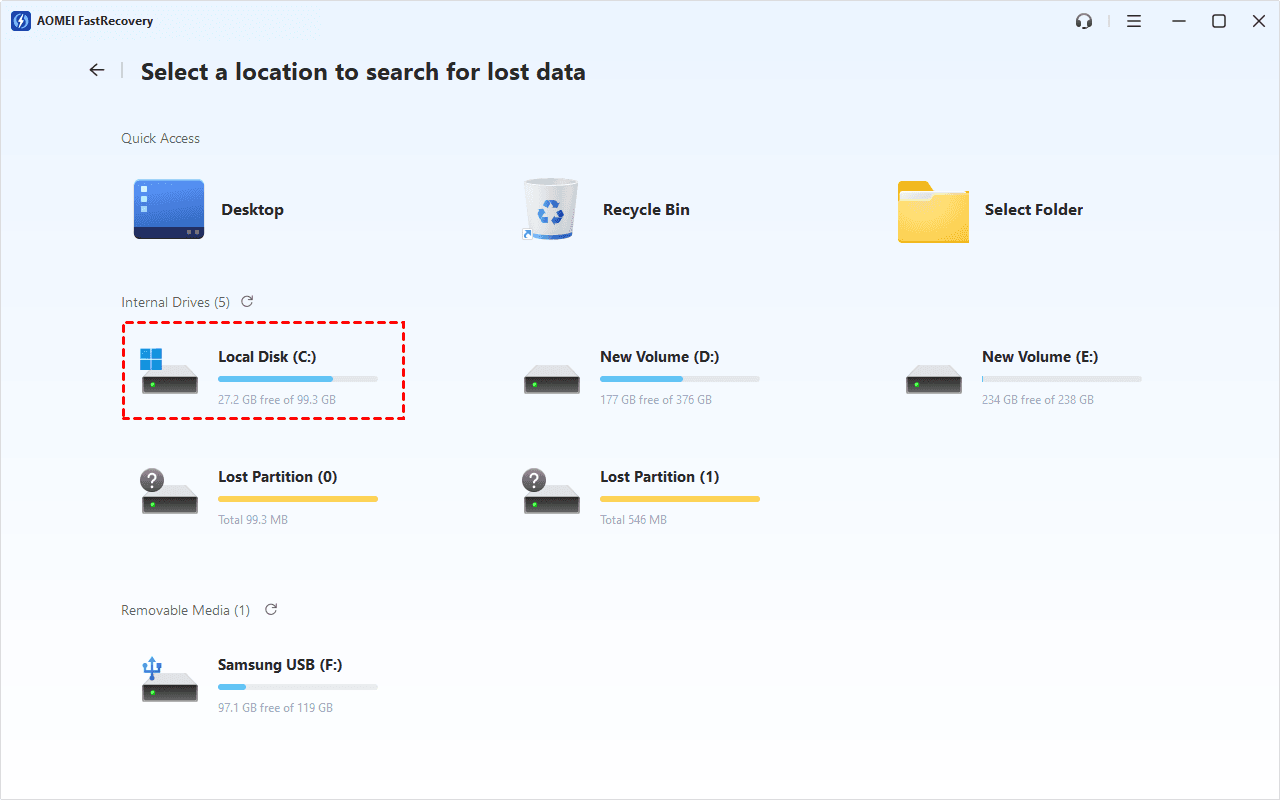
Step 2. Select the drive where the desktop folder was originally stored and click Scan. For example, a folder under C:\Users\YourName\Desktop was on C:. If you moved Desktop to D:, scan D: instead.
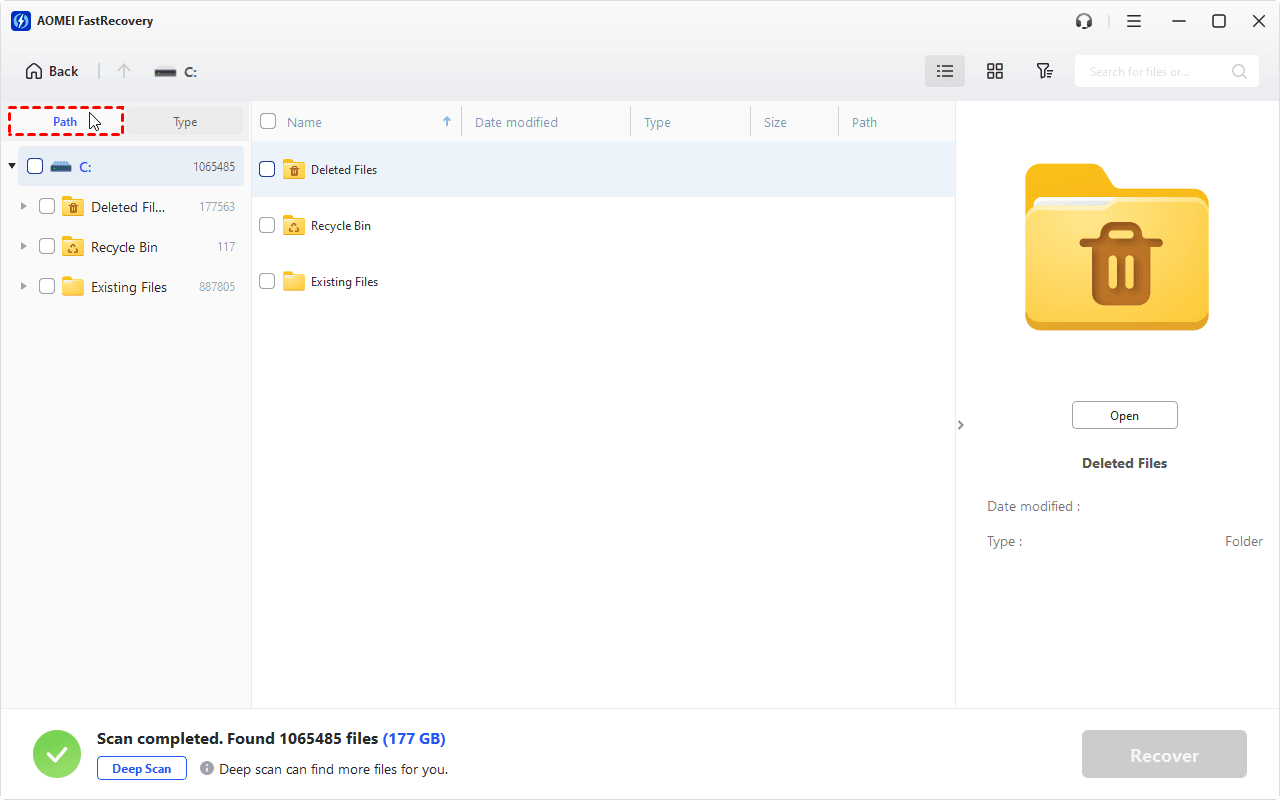
Step 3. Review the Quick Scan results. Under Path, look for the original desktop location. If you remember the file name or extension, search for it; otherwise, use filter or sort to narrow the results.
Step 4. If your files are still missing, click Deep Scan. This searches more thoroughly and may take longer.
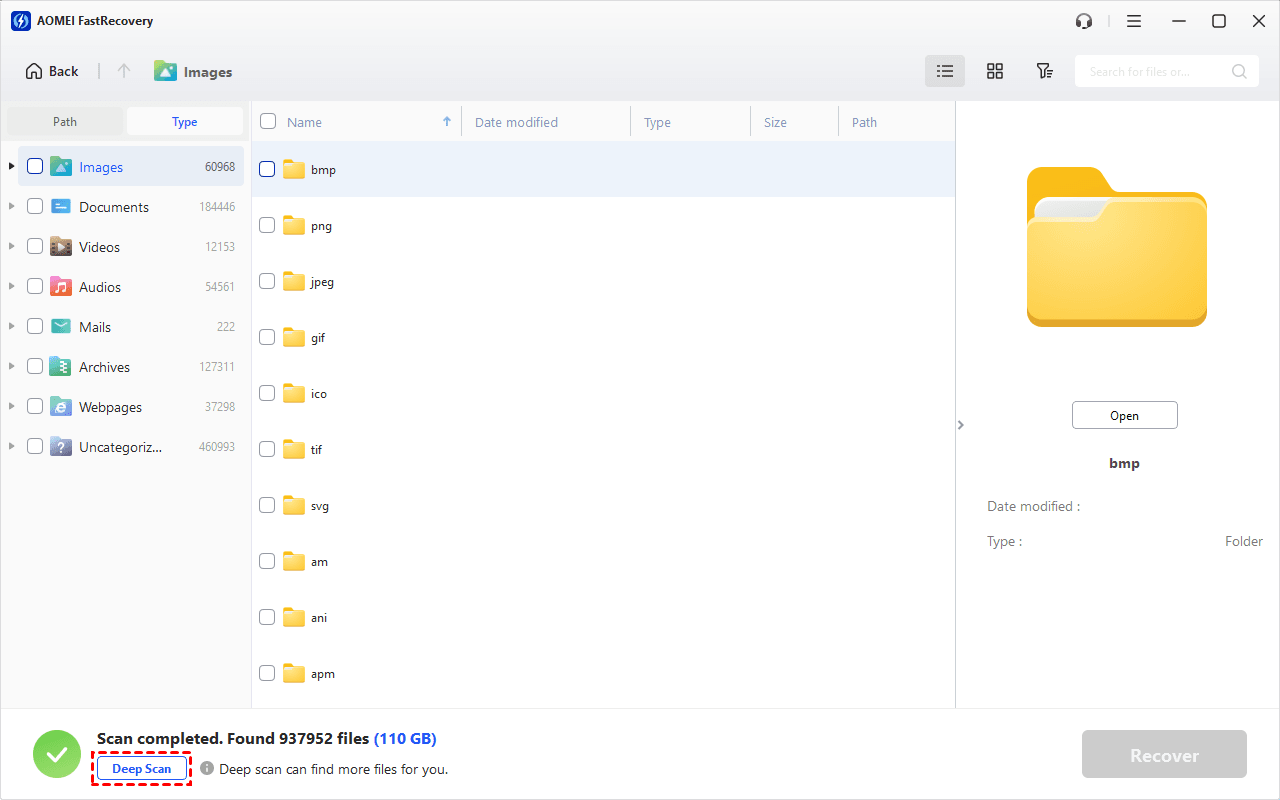
Step 5. Review the scanned results again. Select the required files, and click Recover. Always save them to a different drive, such as an external drive. Another folder on the same source drive may overwrite data.
This software recovers permanently deleted Excel files from desktop, along with Word documents, PPTs, text files, videos, photos, and more.
The free edition recovers up to 500MB. Recovering more than that requires an upgraded edition.
Method 3: Restore a Desktop Folder from OneDrive
👍 Best for: Your Desktop folder was backed up to OneDrive, and the deleted files remain online.
OneDrive desktop folder backup saves your desktop files inside a synced folder. Deleting them there can affect what you see locally and online. However, OneDrive.com has its own Recycle Bin, worth checking separately, especially for online-only files not showing up in your computer's Recycle Bin.
Step 1. Sign in to your OneDrive account with deleted desktop folder.
Step 2. Navigate to Recycle bin, select the deleted desktop folder or files and choose Restore.
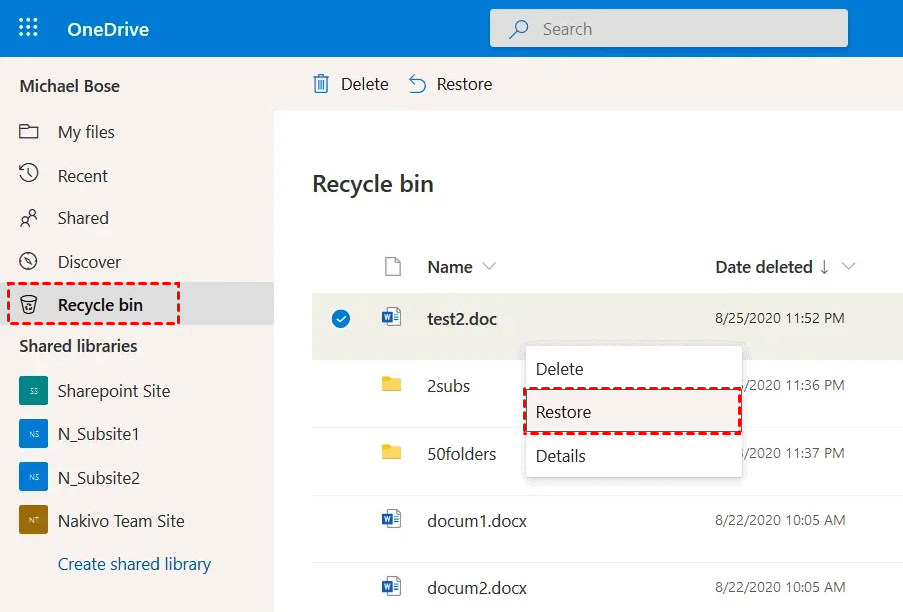
Check the restored files online, then confirm they appear in the local OneDrive desktop folder.
Method 4: Recover Deleted Desktop Folder from File History
👍 Best for: File History saved a copy containing the desktop folder before you deleted it.
File History stores earlier copies of protected files. When the deleted folder is gone, you can check a saved version of its parent folder and retrieve the missing files. Turning on File History after deletion cannot create copies of your files.
Step 1. Connect the drive containing your File History backup, or make its network location available.
Step 2. In File Explorer, locate the folder containing deleted folder. For a folder deleted directly from Desktop, right-click the actual Desktop folder and select Restore previous versions.
Step 3. Choose a folder version from before the deletion. Expand Open and select Open in File History to check its contents.
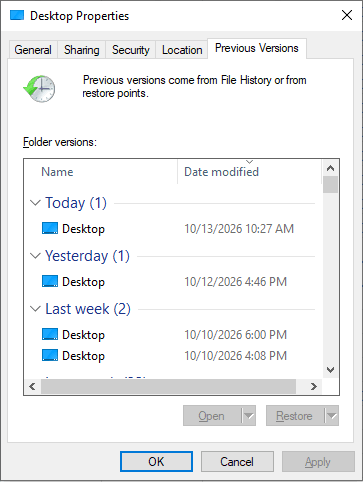
Step 4. Select the required folder. Use Restore, or expand it and choose Restore to... to recover to another location without replacing current files.
What If the Entire Desktop Folder Seems Missing?
👍 Best for: Your desktop is empty or displays a location error, but the files may still exist elsewhere.
A missing Desktop location and deleted desktop files require different fixes. Before recreating folders or changing paths, check whether the files remain in your local user folder or OneDrive Desktop folder.
- All icons disappeared: Right-click an empty area of the desktop, open View, and ensure Show desktop icons is enabled.
- Only a shortcut disappeared: Check whether its target application or file still exists. You may only need to recreate the shortcut.
- Files exist in another Desktop folder: Confirm which local or OneDrive folder contains them before adjusting the desktop location.
For a verified location mismatch, open File Explorer, right-click the relevant Desktop folder, and select Properties > Location > Move. Select the folder containing your existing desktop files, then choose Apply.
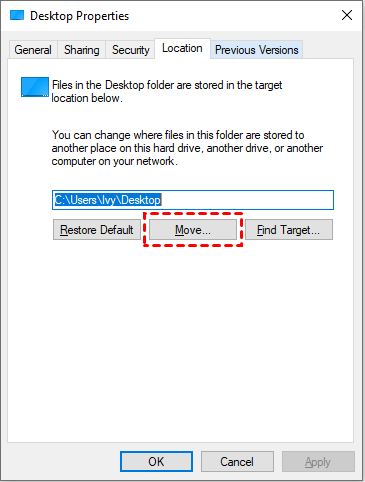
Changing the path or creating an empty Desktop folder does not recover deleted contents. If the files are absent, return to the applicable recovery method above.
FAQs
Can I recover a desktop folder deleted with Shift+Delete?
Possibly. Restore an existing backup or scan the original local drive. Recovery depends on whether the file data remains available; continued writes and SSD TRIM can reduce the chances.
What if my recovered files won’t open?
Check another saved copy if one exists. A filename in scan results does not confirm that the recovered file is complete. For deleted images, see recovering deleted photos in Windows.
In the End
To recover a deleted folder on desktop, restore it from the Recycle Bin or an existing saved copy when available. For deleted local files, scan their original drive with AOMEI FastRecovery and recover them to another drive. Check important files before returning them to Desktop, then set up a backup for the folders you use most.

 as a preferred
source on Google
as a preferred
source on Google