




Fixed: SD Card Deleting Files by Itself (5 Ways)
SD card deleting files by itself? Don't worry, we'll cover 5 practical methods in this post, from basic methods to chkdsk command, format, etc.

By Ivy Updated on May 6, 2026


SD card deleted files by itself? Anyone experiencing random files being deleted off the SD card. It seems to affect photos and pictures more than APK's or zip files. Anyone else experiencing this?
- Question from Reddit
Due to its portability, SD cards are widely used to store data (e.g., photos, videos) or increase capacity in portable devices such as smartphones, tablets, HD cameras, etc. Some users even use it to transfer data from one device to another. However, many users complain that the SD card deletes files by itself, usually without notice.
You can only find this error if you pay attention to missing files in your SD card. This is extremely challenging for data recovery. Don’t panic, this post will walk you through possible causes and corresponding solutions without losing data.
Why does My SD Card Keep Deleting My Files?
Various reasons can lead to the "SD card keeps deleting my files" error. We collect some of them below
- Improperly eject the SD card, causing data loss.
- Hidden files.
- Power surge when transferring files.
- Virus infection deletes or hides files.
- Physically or logically damaged SD cards (e.g., bad sectors) cause data loss, requiring corrupted SD card recovery.
You must not want to lose any data when discovering the "SD card deletes files by itself" error. At this time, any operation may result in data overwriting. Thus, before fixing this issue, it's necessary to perform SD card recovery to be sure your data is safe.
Immediate Action: Recover Deleted Files from SD Card
To recover deleted data from SD card, a professional Windows data recovery tool like AOMEI FastRecovery is needed. It integrates two advanced scanning technologies to scan all recoverable data, such as images, audios, videos, etc., from SD cards, digital cameras, USB drives, external disks, or HDDs/SSDs, etc.
 AOMEI FastRecovery
- ✔ With an intuitive interface and easy-to-follow guide, even novices can operate it easily.
- ✔ Integrate Quick & Deep Scan to find deleted files quickly and thoroughly, with a high success rate.
- ✔ Cover all data types, such as images (e.g., JPG, PNG, TIF, SVG, X3F), audios (e.g., MP3, CDA, WAV, AIFF, WMA), videos (e.g., MP4, MOV, AVI, ASF, WMV, RM, FLV), etc., over 1000+formats.
- ✔ Display all recoverable data by Type or Path, allowing you to sort, search, filter, and preview files.
- ✔ Recover specific files or folders instead of all.
- ✔ Support Windows 7, 8, 10, 11, servers, as well as NTFS, FAT32, exFAT, and ReFS file systems.
- 👍Free data recovery, supporting up to 500MB.
 100% Secure
Now just follow the instructions to recover deleted files from SD card. Download AOMEI FastRecovery to get started.
Step 1. Connect the SD card to your computer and be sure it's recognized. Run AOMEI FastRecovery after installing it. Then, click Deleted Files Recovery to get started.

Step 2. You'll see a list of devices. Hover the mouse over the SD card containing deleted files, and click Scan to start the quick scanning process and display all recoverable data.
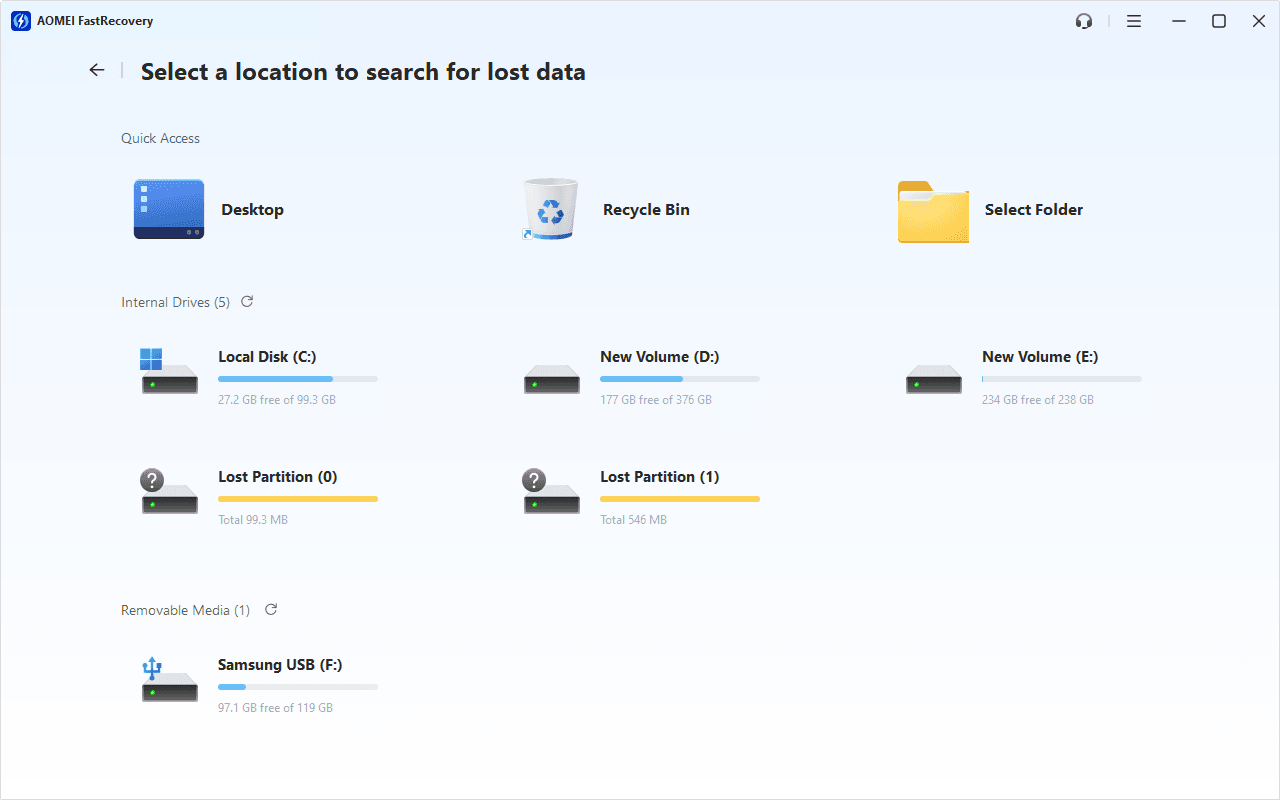
Step 3. Under the Type section, specify a data type (e.g., Videos) and expand it to see all data formats. You can sort them or search the name for quick recovery.
-
You can also locate deleted files by Path if you remember this.
-
Click the Deep Scan button if the Quick Scan fails. Deep Scan searches every sector of the disk to find more files.
Step 3. Once found, double-click the files to preview and select them by ticking the checkbox or leaving them blank. Then, click Recover and select a new location to save the recovered files.
You will be asked to upgrade to advanced edition of AOMEI FastRecovery to enjoy unlimited data recovery. The free edition supports up to 500MB.
In addition, it is not limited to recovering data from SD cards, but also hard drives, SATA SSDs, M.2 SSDs, USB drives, memory cards, etc.
How to Fix SD Card Deleting Files by Itself
After recovering missing files from SD cards, you can try the following methods to fix SD card deleting files by itself without any worry.
Fix 1. Try Something Simple and Effective
Here are some simple methods to help fix the "SD card deleting files by itself" error.
Step 1. Unplug the SD card (if you haven’t ejected it) properly by checking “Safe to Remove Hardware”.
Step 2. Clean the SD card and its interface with a tidy and dry towel or tissue.
Step 3. Replug the SD card carefully.
This may be helpful if this error occurs on Android. If not, you can still try antivirus software to scan and kill viruses on the SD card or your machine.
Fix 2. Unhide SD Card Files Disappeared
Viruses might hide your files. Try to unhide disappeared files from SD card and check if there are any missing files.
Step 1. Connect your SD card to your computer and open it.
Step 2. In File Explorer, click View > Options > View > Show hidden files, folders, and drives.
Step 3. Check if there are lost files back or shown.
Fix 3. Use the CHKDSK Command
The CHKDSK command in CMD can help you check and fix logical/physical file system errors. It can mark the bad sectors as unused as well.
Step 1. Connect your SD card to your device. Type cmd in the Start menu and select Run as administrator.
Step 2. Input chkdsk x: /f /r and press Enter. It will try to look for bad sectors and fix possible errors on your drive. Please replace x with the exact drive letter of the SD card.
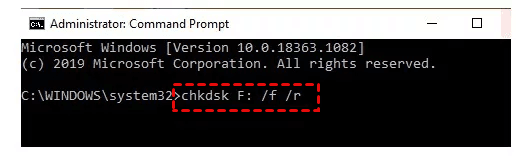
⚠️Note: The /r parameter contains the function of the recovery command in CMD, thus it can recover readable info from SD card, but the effectiveness won’t be that satisfying.
Fix 4. Delete Faulty Apps or Nomedia Files
Sometimes, the "SD card deleting files by itself" error is caused by malicious and corrupted apps.
- If there are any, you need to uninstall the faulty apps to fix this error.
- If not, you still can check if there are nomedia files, usually on an Android device or an SD card connected to it.
The nomedia file tells the media player that there is no multimedia data in this folder and no need to scan it. It's hidden and invisible to most built-in file explorers. You need to use a third-party one, such as ES File Explorer.
Step 1. Open the ES File Explorer. Then, click the blue icon in the upper left corner.
Step 2. Go to the Tools option, and click Show hidden files. If there is a nomedia file, select it and press Delete.
Fix 5. Format SD Card to Restore It to Normal
If the error still exists, you need to format it to restore its health state. But this operation will delete all data on the SD card. Please Back up SD card data before formatting using a reliable backup software.
Instead of copying files manually, you might as well utilize a professional backup tool to save your labor and time. AOMEI Backupper Standard is one such software, with many useful backup features. Select the one you want to back up.
Then, you can format the SD card without worrying about data loss.
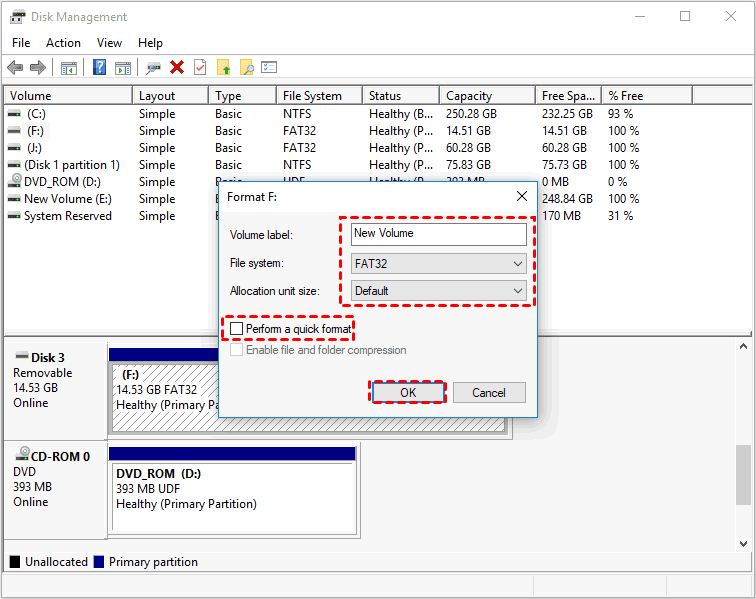
Step 1. Right-click the Start icon and select Disk Management.
Step 2. Find the SD card in Disk Management. Then, right-click the SD card and choose Format.
Step 3. Specify the volume label, file system, and click OK. The option to perform a quick format is checked by default.
After formatting, you can perform a Disk Restore with the help of AOMEI Backupper Standard to restore the disk image containing your data.
FAQs
1. How do I know if my SD card is corrupted?
There are multiple symptoms to notice when an SD card is corrupted.
- SD card failed to be recognized by the computer.
- Files disappear from the SD card.
- Files cannot be read.
- Warning: “A read/write error occurs on SD card”.
- Warning: “SD card is not accessible. The file or directory is corrupted and unreadable.”
2. Can a corrupted SD card be fixed?
In a short answer, yes, you can fix a corrupted SD card. Try either the error checking tool, CHKDSK command, repair tool, or disk formatting to fix it. Note that disk formatting will wipe all the contents on your SD card. It would be better to back up or extract data from it first.
3. Why does my SD card keep getting corrupted?
If your SD card becomes corrupted all the time, it might be coming to the end of its lifespan. It is suggested to stop using it and back up or transfer all the data on it to avoid a sudden “shutdown” and losing data.

 as a preferred
source on Google
as a preferred
source on Google