




SanDisk Corrupted SD Card Recovery - Get Your Data Back First
This is the full guide on SanDisk corrupted SD card recovery. Following the 7 effective tips to recover lost data easily.

By Ivy Updated on July 1, 2026


SanDisk SD cards are known for their reliability and versatility - found in digital cameras, smartphones, and voice recorders worldwide. But even the most trusted storage devices can run into trouble. Corruption, file system crashes, or unexpected errors can leave you locked out of your most important photos, documents, or videos.
It's frustrating. It's stressful. But it's not hopeless. There's a clear way to fix this. First, recover your data. Then, repair the card.
In this guide, we'll show you how to recover files from corrupted SanDisk SD card on Windows and how to resolve the corruption issue. But before that, let's look at the symptoms to help you assess the damage and choose the right recovery method.
SanDisk SD Card corruption symptoms
SD cards usually warn you before they die. Watch for these signs and back up immediately.
✦ SD card asks to be formatted: Your PC says the card needs formatting before use. Don't do it - you can recover data first without formatting.
✦ SD card not detected: You insert the card, but your computer simply doesn't see it. No drive letter, no notification, no response.
✦ File or directory is corrupted and unreadable: Windows throws this error when the card's file system is damaged - often caused by a virus infection or improper ejection.
✦ Read/write issues: You try to copy files, but the transfer keeps failing or requires multiple attempts. The card is struggling.
✦ Slow performance: A simple file transfer takes hours. The card's speed has dropped significantly - a strong sign of damage or corruption.
What causes corrupted SanDisk SD card lost data?
Here are the most common reasons for SanDisk SD card corruption or data loss:
- Corrupted file system. When the file system on the SanDisk card becomes corrupted or RAW, you’re unable to access it and receive an error message. You may end up losing files on the SD card.
- Physical damage. If the SanDisk SD card has been physically damaged or broken.
- Data corruption. Improper SD card usage can cause data corruption and interruptions in the read/write processes.
- Improper ejection. If the SD card is not ejected correctly, it can cause data corruption and even physical damage to the card.
- Formatting the SanDisk memory card. Formatting the memory card carelessly or selecting the wrong drive letter while formatting can cause data loss.
- Virus attack. Virus attacks and malware infections are destructive and can cause severe data corruption on the SD card. Some users have reported that SD card deleting files by itself after being infected.
How to recover data from corrupted SanDisk SD cards efficiently
Now that you've identified the warning signs, it's time to take action. The good news is that most corrupted SanDisk SD cards are still recoverable if you use the right tool.
That's where AOMEI FastRecovery comes in. It's one of the most trusted SD card recovery tools on the market - known for its high success rate, simple interface, and a free version that lets you test it before you commit.
 AOMEI FastRecovery
- Dual-scan modes: Integrate Quick Scan and Deep Scan to scan hard drive for deleted files, ensuring a high success rate.
- 1000+ data types: Recover deleted or lost images (JPG, PNG, TIF, HEIC, GIF), videos (MP4, MOV, AVI, ASF, WMV), audios (MP3, CDA, WAV, AIFF), and more.
- Find your files fast: Browse by type or path, and sort, search, filter, and preview deleted files.
- Versatile: Works seamlessly with healthy, corrupted, formatted, or infected SanDisk SD cards, as well as HDD/SSD/USB flash drives, etc.
- Free to try: The free edition can recover data up to 500MB – no commitment required.
- Safe & easy to use: Read-only, no data overwriting. simple, intuitve interface.
 100% Secure
-
Don't download and install FastRecovery on the SD card where you store deleted files, as this may cause data to be overwritten.
-
Any newly added data or disk formatting can overwrite data. Please avoid these operations after deletion.
Step 1. Select a recovery scenario
Connect your SD card to the PC and install AOMEI FastRecovery. Then, click Deleted Files Recovery, specifically designed for quick recovery.

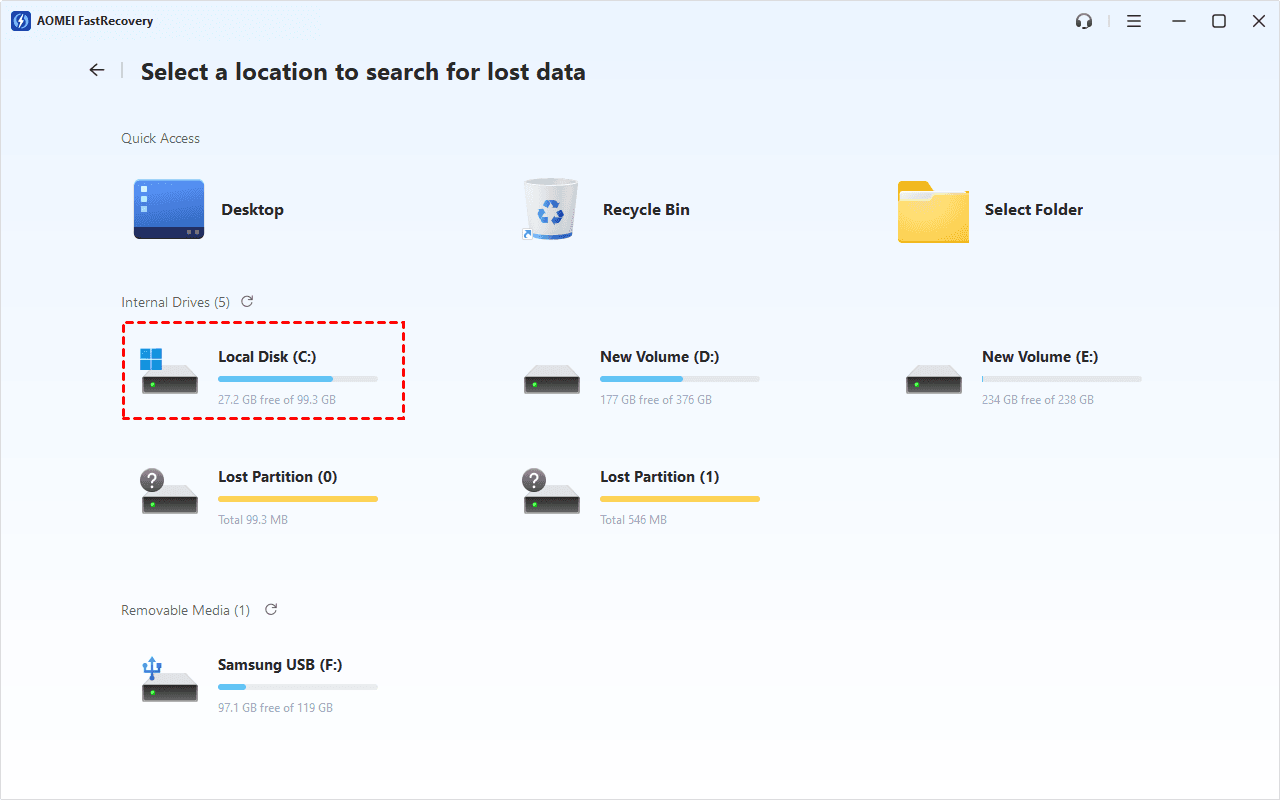
Step 2. Scan the SD card
Hover the mouse over the SD card and click Scan.
Step 3. Find your files fast
It will start a quick scanning process automatically. Wait, and in the scanning result window, check Images, Videos, etc., data type and specific formats. Once confirmed, click Recover to get all Word documents back quickly
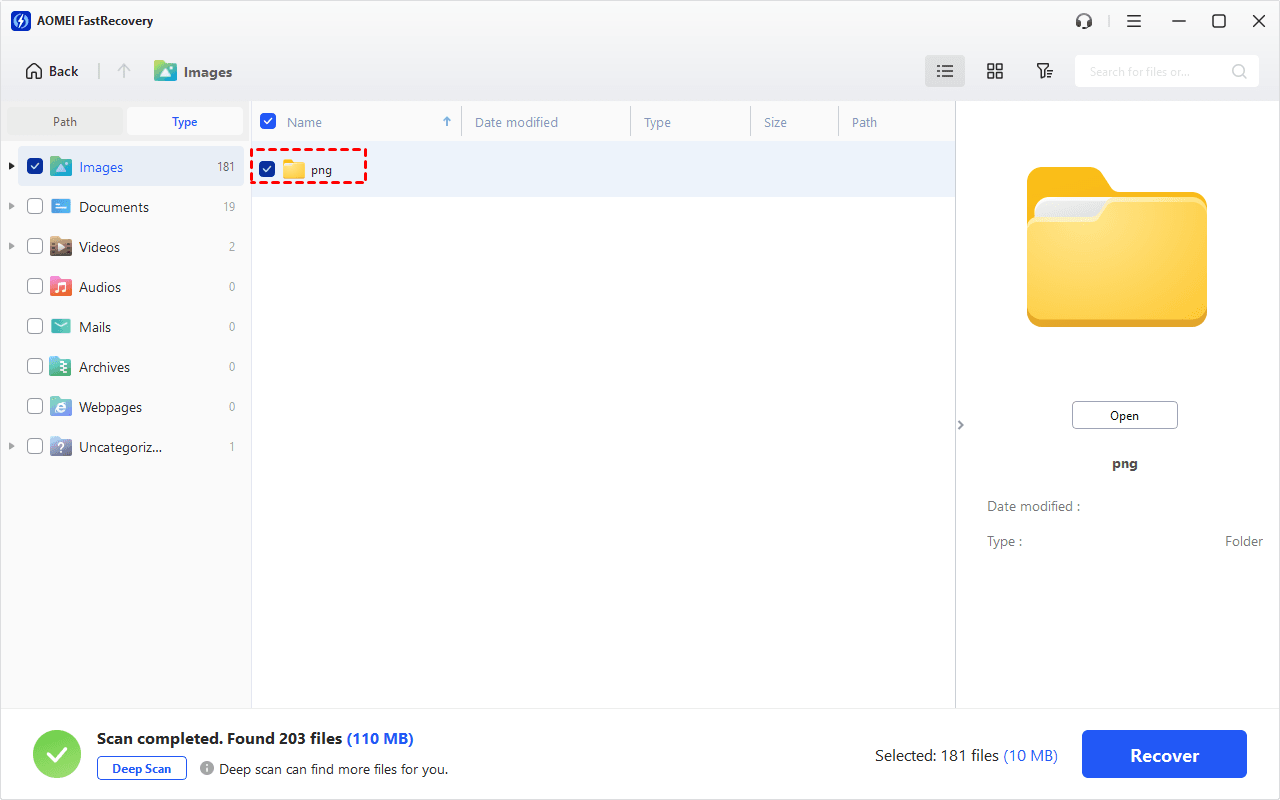
You can also expand to check Deleted Files, Recycle Bin, or Existing Files for specific files. To find files quickly, combine the following options:
-
Sort files by name, date modified, type, etc., using the column headers.
-
For faster searching, type the file name or extension (.png, .mp4) in the search box.
- Or click the funnel-shaped button to narrow your search by type or size, especially useful for large deleted files.
How to fix corrupted SanDisk SD cards
With the files recovered, you still need to fix the corrupted SanDisk SD card with the proper tools or methods. Here we offer 6 feasible solutions to help you perform corrupted SD card recovery.
▶ Method 1. Try another USB port/adapter/computer
Just try to change the USB port you have connected to and the adapter/card reader. This is by far the easiest fix you can try, which is why you should always start with it before you move on to other ways to fix a corrupted/damaged SD card.
Also, it’s possible that your SD card is perfectly fine and that all the issues you’re experiencing with it are caused by your computer.
To rule out this possibility, you should try to use the card on another computer or device to verify that the issues you’re experiencing happen on every device.
▶ Method 2. Check for memory card errors using CMD
How to fix corrupted SD cards? Included in all versions of Windows is a command-line utility for checking the file system and file system metadata of a volume for logical and physical errors.
This utility is called CHKDSK, and it’s actually much easier to use than most people think.
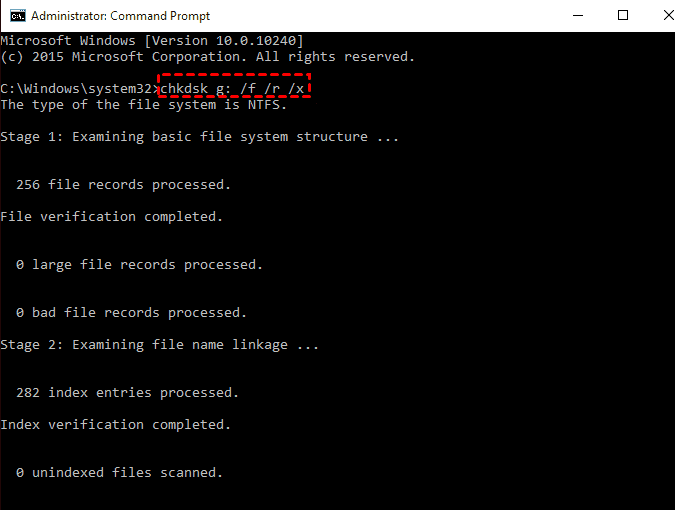
Step 1. Type “cmd” in the search box on the taskbar and select Run as administrator.
Step 2. Enter the chkdsk X: /f /r /x command and press Enter.
Notes:
- Replace X with the letter assigned to the SD card you want to fix.
- The /f parameter tells CHKDSK to fix all memory card errors.
- The /r parameter locates bad sectors and recovers readable data
- The /x parameter forces the drive to dismount before the scan begins
▶ Method 3. Assign a new drive letter
Surprisingly, many SD card errors can be solved by assigning a new drive letter to the SD card.
The errors solved by this method typically have something to do with conflicting drive letters, which may happen as a result of the operating system not updating drive letter information properly.
Step 1. Properly connect your SD card. To open the Run window, use Win+R. Enter diskmgmt.msc and choose OK in the dialog box.
Step 2. Choose Change Drive Letter and Paths > Change > Assign the Following Drive Letter from the context menu after finding your corrupted SD card.
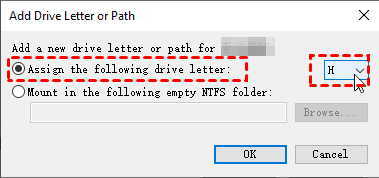
After that, reconnect your SD card and make sure everything is okay.
▶ Method 4. Reinstall SD card drivers
Windows automatically downloads and installs the most recent drivers through Windows Update, but not all driver updates go exactly according to plan.
If you suspect that your SD card is misbehaving because of a faulty driver update, you should reinstall it manually.
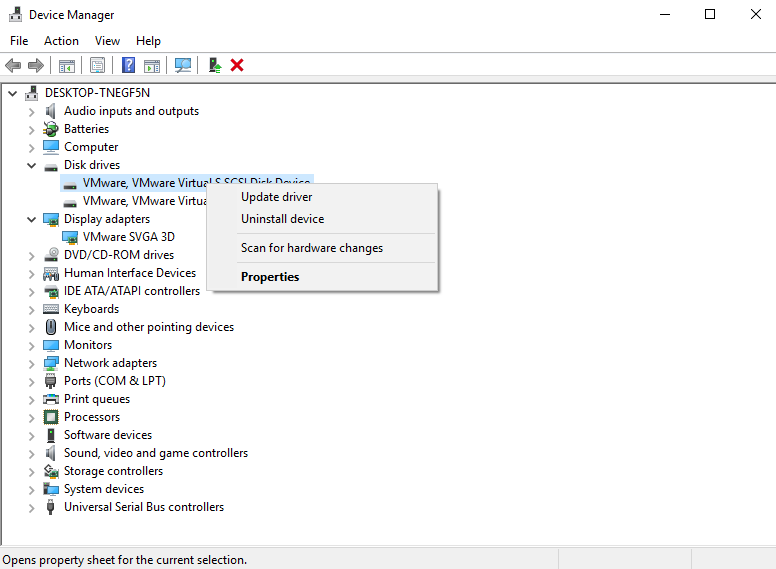
Step 1. As previously indicated, locate your microSD card in Device Manager. "Update Driver" may be chosen by right-clicking it.
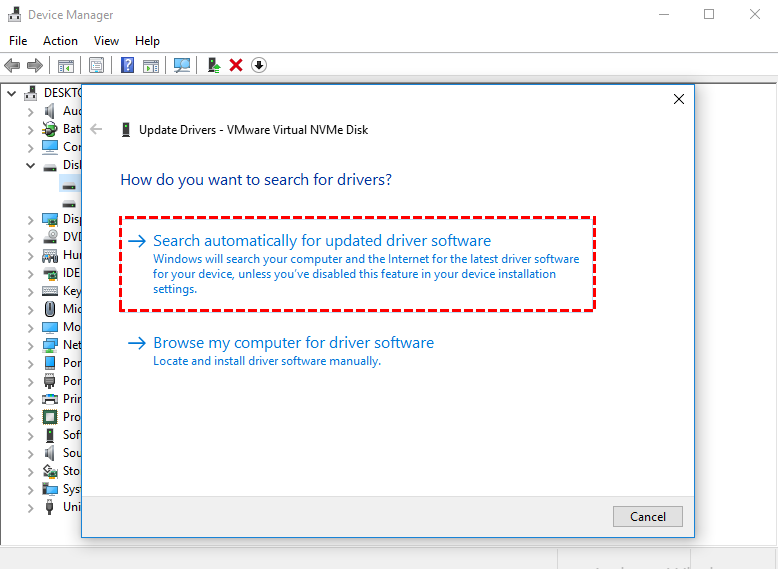
Step 2. In the pop-up box, click "Search automatically for updated driver software".
Step 3. If updating the driver doesn't work, simply pick "Uninstall device" from the context menu when you right-click the microSD card. Restart your computer, and Windows will automatically reinstall the driver.
▶ Method 5. Using Windows Repair Tool
Included with Windows is a graphical tool capable of checking drives for file system errors. This tool is commonly referred to as the Windows Repair Tool, and Windows sometimes automatically launches it when you insert a corrupted drive.
That said, you can also invoke it manually and use it to scan any drive for errors. To fix an SD card/USB drive using this SD card repair tool.
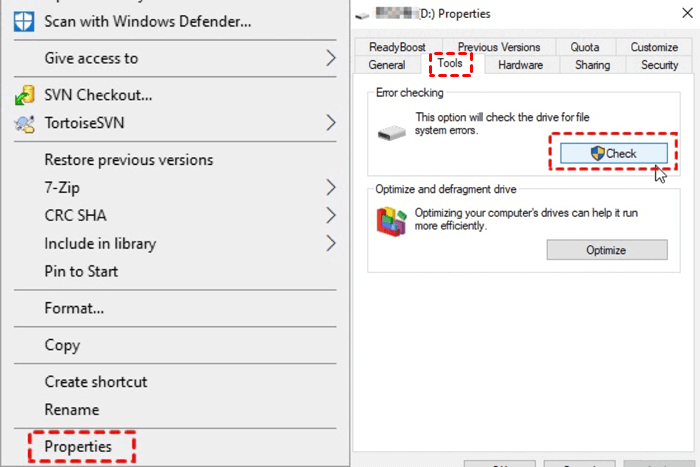
Step 1. Right-click on the corrupted hard disk in File Explorer and choose Properties.
Step 2. Under the Tools tab, click the Check button next to Error checking.
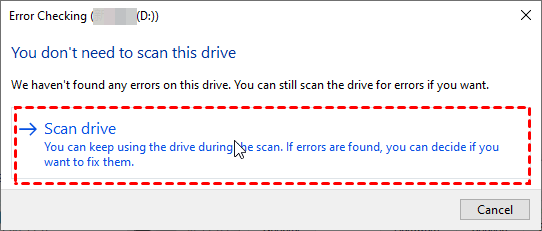
Step 3. To begin the corrupted hard disc recovery, click Scan Drive.
▶ Method 6. Fix the SD card by formatting a RAW SD card to FAT32
An SD card may seem to be corrupted if it has no file system on it. Such an SD card is typically referred to by experts as RAW, and most operating systems won’t display it as an available storage device and allow you to write files to it.
Since a RAW SD card shouldn’t have any data on it, formatting RAW SD card to FAT32 is a relatively safe operation. Just make sure to select the RAW SD and not some other storage device.
Step 1. Click Disk Management by doing a right-click on the Windows Start menu.
Step 2. Right-click the RAW SD card and select Format.
Step 3. Select an exFAT or FAT32 file system from the context menu and click OK.
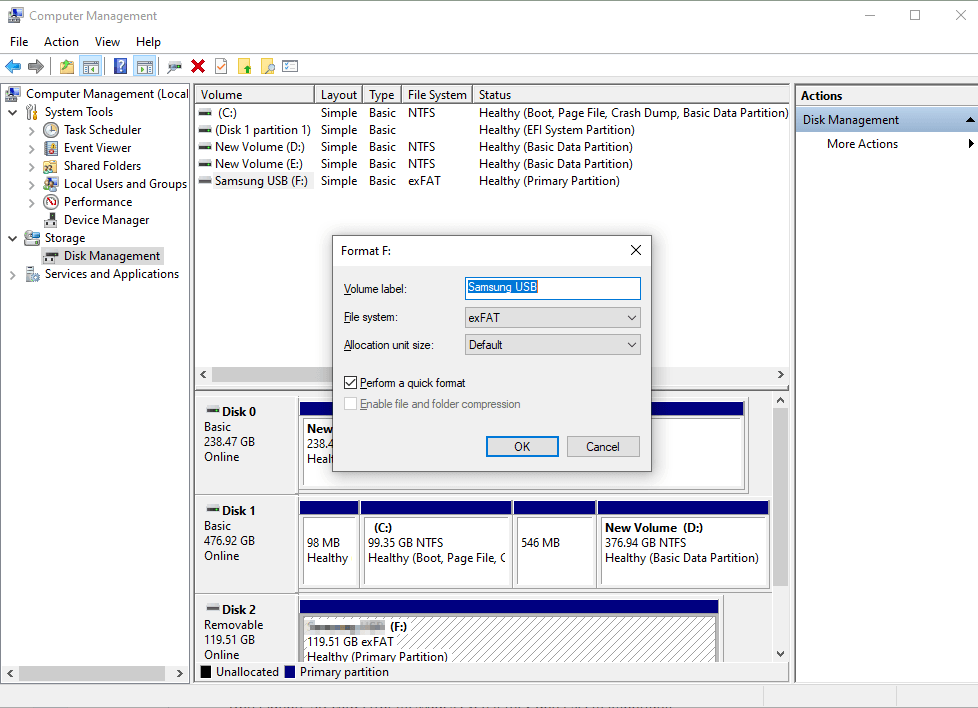
If the situation allows, please back up the drive before formatting it since disc formatting erases all the data on the hard drive.
How to protect your SD card from data loss
We could go on and on about the fragile construction of SD cards or how easy it is to format them by accident. But instead of telling you something you already know, we want to give you some useful tips to protect your SD card from data loss.
- Always safely eject the SD card from your computer before removing it.
- Don’t subject your SD card to extreme temperatures, and keep it away from dust and water.
- Avoid writing data to the SD card if there’s a risk of a sudden loss of power (such as when recording video using a camera that hasn’t been charged in a while).
- Regularly transfer files from the SD card to your computer or cloud storage.
- Use multiple SD cards and avoid filling them up to their maximum capacity.
- Avoid no-name SD cards of questionable quality.
- Always have reliable data recovery software ready.
- Don’t ignore SD card error messages even if they don’t seem important.
With these simple tips, you can prolong the lifespan of your SD card and protect it from data loss.
Conclusion
SanDisk SD cards are great solutions for storing all your photos, videos, and other important files. They are portable, efficient, and excellent value for money.
However, SD cards can be prone to unforeseen damage or corruption, leading to significant data loss. But this damage need not be permanent.
As mentioned in this SanDisk corrupted SD card recovery guide, you can use professional software FastRecovery to perform SanDisk SD card recovery or approach a professional Data Recovery Center for the best results.
Also, you could learn how to fix corrupted SD cards with the 6 feasible solutions in this post to bring your damaged SD card back to life again.
FAQs about SanDisk corrupted SD card recovery
There are some frequently asked questions that you can refer to:
Q: Can a corrupted SD card be recovered?
If your SD card becomes corrupted, several options exist for recovering the data. You can try to retrieve the data from a backup on your computer or another external storage device, or you can use FastRecovery to scan and recover the lost files.
Q: Will formatting fix a corrupted SD card?
Yes. Formatting an SD card is one of the most effective ways to repair an SD card that's creating errors on Android and many other types of devices.
Q: How to retrieve files from a corrupted SanDisk SD card?
Follow the steps below to retrieve files from a damaged SanDisk SD card using My Recover:
1. Download and install FastRecovery.
2. Connect the damaged SanDisk SD card and scan it.
3. Preview the files to be recovered.
4. Click Recover and select the recovery target.
5. Complete the recovery process.
Q: Why is my SD card suddenly corrupted?
A number of factors can cause SD card corruption. The most frequent ones include physical damage, viruses, accumulated bad sectors, and file system errors.

 as a preferred
source on Google
as a preferred
source on Google