




How to Recover Lost Partition on SD Card: 2 Effective Methods
Lost a partition on your SD card? This article presents two effective recovery methods – plus tips to prevent partition loss in the future.

By Lily Updated on October 27, 2026


An SD card partition may disappear from File Explorer after accidental deletion, partition errors, or changes to the card's file system. Sometimes, however, the partition is still present but hidden because it has no drive letter. The right recovery method depends on what happened and how Windows detects the SD card.
What to Do Before SD Card Partition Recovery
Before attempting SD card partition recovery, take these precautions to avoid making the problem worse:
- Stop using the SD card. Do not save new photos, videos, or other files to it. New data may overwrite information needed to recover the lost partition or its files.
- Do not format the SD card. If Windows asks you to format the card before using it, cancel the prompt if you need the data.
- Check the card reader and connection. Remove and reinsert the SD card carefully. If possible, try another card reader or USB port to rule out connection problems.
- Inspect the card in Disk Management. Press Win + X and select Disk Management. Check whether the partition is listed, has a drive letter, appears as Unallocated, or is shown as RAW.
- Identify the correct storage device. If several drives are connected, compare their capacities and layouts to avoid accidentally selecting another disk.
Method 1: Recover SD Card Lost Partition with Partition Recovery Software
If you accidentally deleted an SD card partition or its space now appears as Unallocated in Disk Management, partition recovery software may help locate the lost partition. AOMEI FastRecovery provides a partition recovery workflow that scans a disk for lost or deleted partitions and attempts to restore the detected partition and its accessible data.
 AOMEI FastRecovery
- Simple interface: A graphical interface helps users perform recovery without relying entirely on command-line instructions.
- File scanning: Run Quick Scan or Deep Scan to look for deleted or missing files on a supported drive.
- File organization: Browse detected files by type or path and use available search, filter, sort, and preview options.
- Varied recovery scenarios: Supports deleted file recovery, Recycle Bin recovery, and corrupted hard drive recovery, etc.
- Support for 500+ storage devices: HDD/SSD (Seagate, Toshiba, WD), USB flash drives (Samsung, SanDisk, Kingston), SD cards (PNY, Panasonic, Crucial), cameras (Nikon, Canon, Sony), and more.
 100% Secure
Follow these steps to restore SD card partition with AOMEI FastRecovery:
Step 1. Connect the SD card to your computer using a card reader. Download and install AOMEI FastRecovery on a different drive from the affected SD card.
Step 2. Launch the software, select Disk Data Recovery, and click Start Partition Recovery.
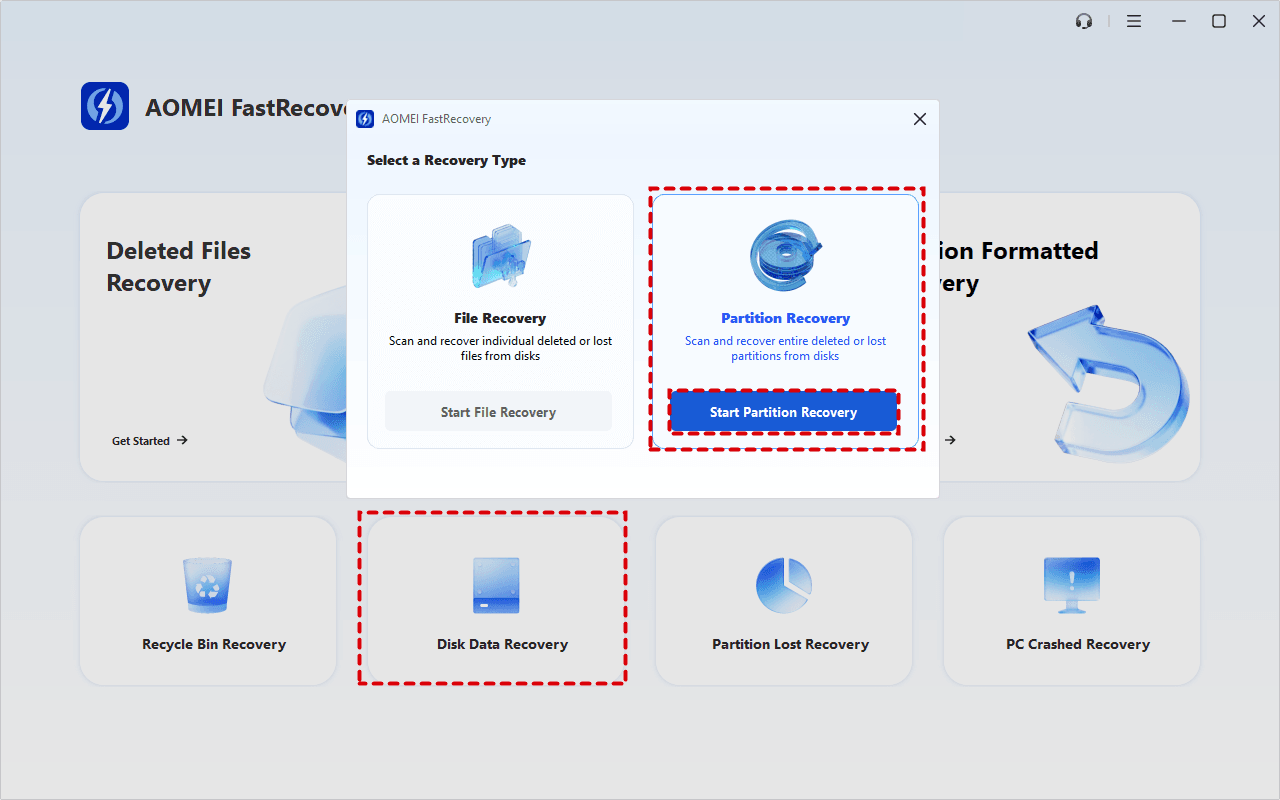
✍ Tip: If your goal is to recover files from the lost partition on SD card, click Start File Recovery to copy recoverable files to another drive.
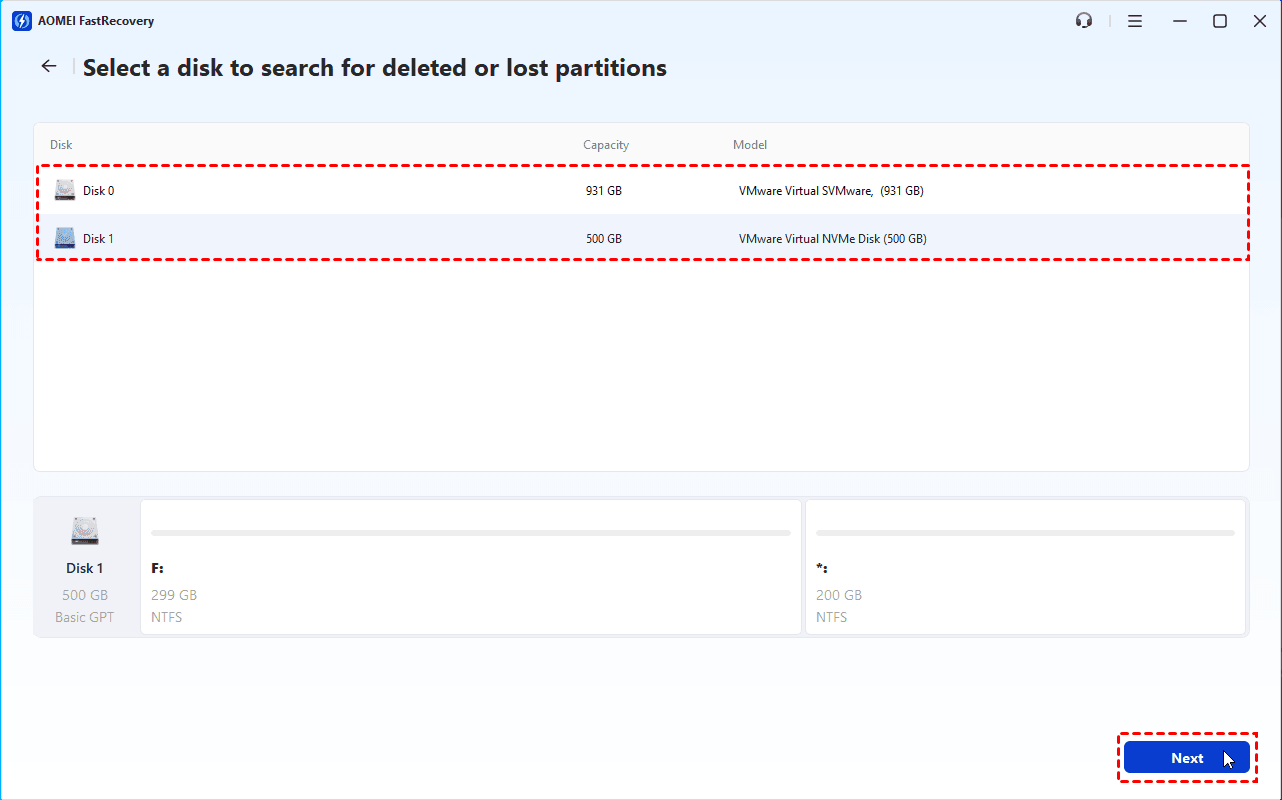
Step 3. Identify the disk containing the lost SD card partition. Check the disk number, capacity, model, and partition layout to make sure you select the correct device. Click Next.
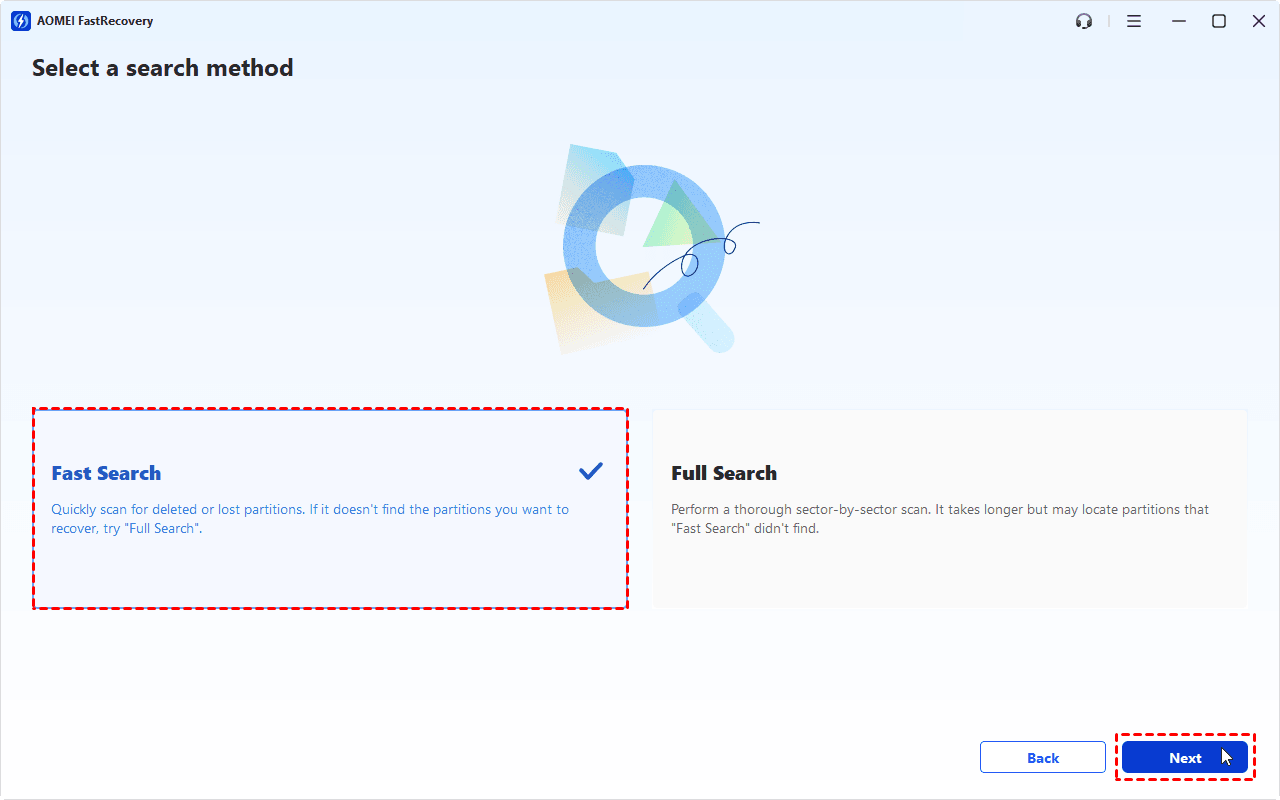
Step 4. Choose a search method and click Next to start scanning. Select Fast Search first to look for deleted or lost partitions.
Step 5. When the scan finishes, review the detected partitions and their details. Select the partition you want to recover and click Proceed.
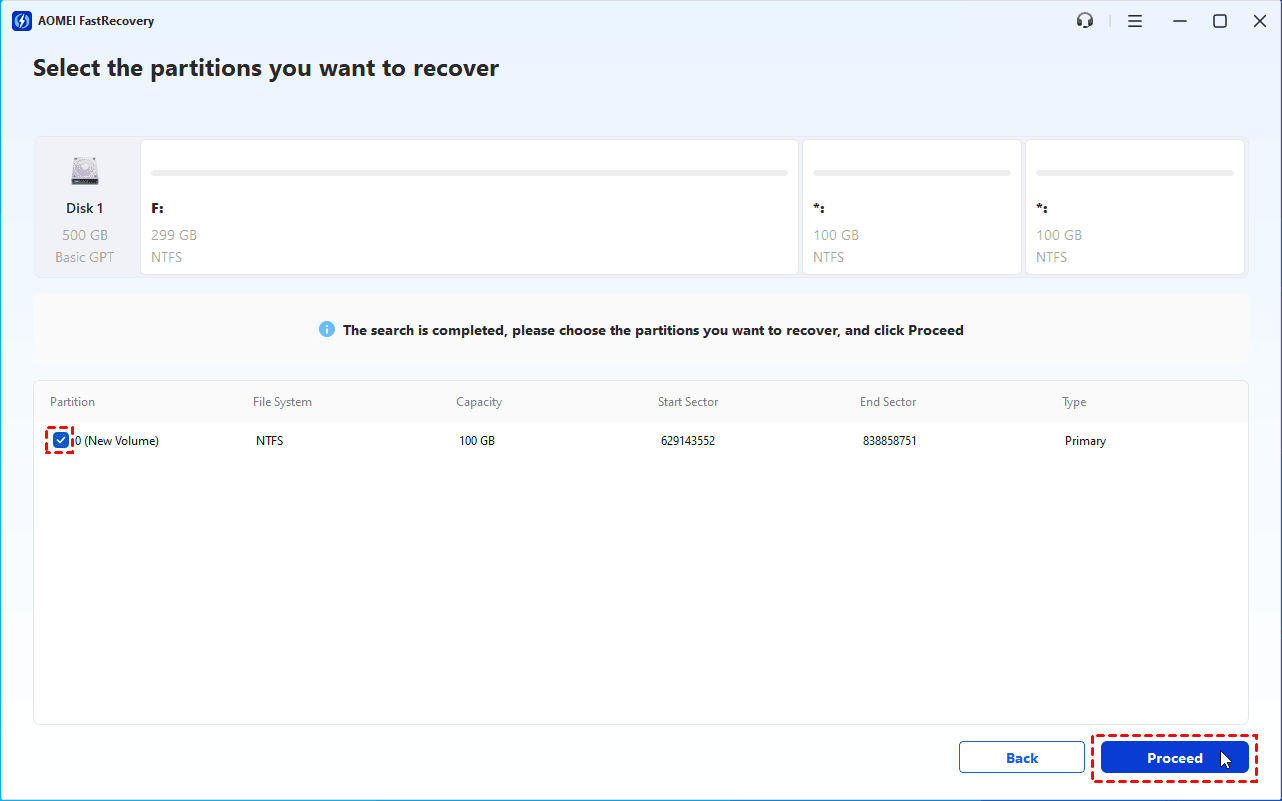
✍ Tip: If the target partition is not listed, go back and try Full Search for a more thorough scan.
Step 6. Wait for the recovery process to finish. Open File Explorer and check whether the partition is accessible. If it does not appear, open Disk Management to check whether the partition needs a drive letter.
Method 2: Recover SD Card Hidden Partition Using Disk Management
If your SD card partition still exists but is missing from File Explorer, it may simply lack a drive letter. In this situation, you may be able to make the partition accessible again through Disk Management without using recovery software.
Step 1. Connect the SD card to your computer. Press Win + X and select Disk Management.
Step 2. Locate the SD card by checking its capacity and partition layout. Find the partition that is missing from File Explorer.
Step 3. Check the partition's status. If it appears healthy but has no drive letter, right-click it and select Change Drive Letter and Paths.
✍ Tip: If the partition already has a drive letter but appears as RAW, do not format the card if Windows asks you to format it. Recover missing files before you take further action.
Step 4. Click Add, select an available drive letter, and click OK to apply the change.
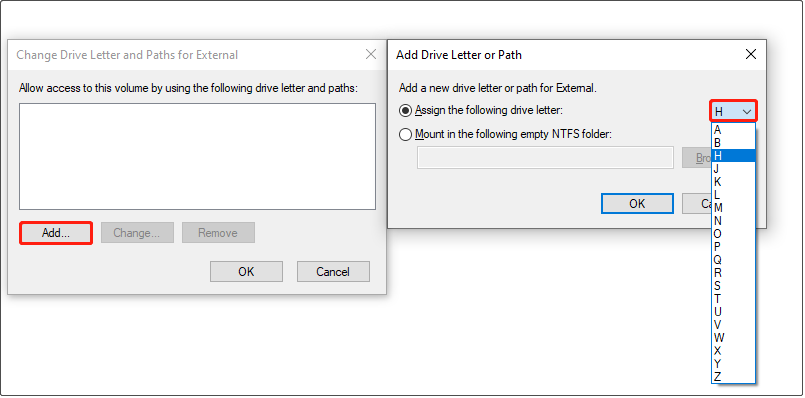
Step 5. Open File Explorer and check whether the SD card partition appears. Try opening it to confirm that your files are accessible.
How to Prevent SD Card Partition Loss
Although partition loss cannot always be prevented, the following practices can help reduce the risk of losing access to your SD card data.
- Back up important files regularly. Copy photos, videos, and documents to your computer, an external drive, or cloud storage. Do not rely on the SD card as the only copy of important data.
- Eject the SD card safely. Use the operating system's safe removal option before disconnecting a card reader from your computer. When using a camera or phone, follow the device's instructions before removing the card.
- Avoid interrupting file transfers. Do not remove the card or turn off the device while files are being written, deleted, or moved.
- Use reliable card readers. Faulty card readers, loose connections, and unstable USB ports can interrupt access to the card.
- Avoid unnecessary partition changes. Be careful when using Disk Management or third-party partition tools. Double-check the selected disk and partition before deleting, formatting, or resizing anything.
- Format the card using the intended device when appropriate. If you need to reuse an SD card, back up its contents first and follow the device manufacturer's recommended formatting procedure.
- Replace unreliable cards. If an SD card frequently becomes unreadable, disconnects, or develops errors, back up any accessible data and consider replacing it.
Regular backups are the most reliable safeguard against permanent data loss. Partition recovery tools can help in some situations, but they cannot guarantee that every lost file or partition can be restored.
FAQs About Recovering a Lost SD Card Partition
1. Why did my SD card partition disappear?
Possible causes include accidental partition deletion, partition-table corruption, interrupted file operations, file system errors, or connection problems. Check the SD card in Disk Management to determine whether the partition is missing, unallocated, RAW, or simply lacking a drive letter.
2. How do I recover an SD card partition without formatting it?
First, stop writing data to the card. If the partition still exists but has no drive letter, try assigning one through Disk Management. If the partition was deleted or its space is unallocated, use an appropriate partition recovery method. Do not format the card before recovering important files.
3. Can Disk Management recover a deleted SD card partition?
Disk Management can help restore access to an existing partition that lacks a drive letter, but it does not provide a direct way to recover a genuinely deleted partition. If the space is marked as Unallocated, try partition recovery software before creating a new volume.
4. Can I recover an SD card partition after formatting it?
Recovery may still be possible, but success depends on the formatting process, subsequent data writes, and the condition of the card. Stop using the card as soon as you realize files are missing. Avoid saving new data to it, as this may overwrite recoverable information.
Wrapping Up
To recover a lost partition on SD card, first determine whether the partition was deleted or is simply hidden. If the partition still exists but lacks a drive letter, Disk Management may restore access. If the partition is missing or its space appears as Unallocated, AOMEI FastRecovery can help locate it and recover accessible data. Don’t hesitate to try it out!

 as a preferred
source on Google
as a preferred
source on Google