




How to Recover Deleted TPL Files (3 Methods)
This article describes how to recover deleted TPL files step by step in 3 simple and effective methods below, including using a powerful recovery tool - AOMEI FastRecovery.

By Ivy Updated on April 2, 2026


Like other files,your TPL files may be deleted accidentally or unsaved, resulting in data loss. Please take a deep breath (if you are in such trouble) and calm down! This article will introduce you to the possible causes and how to recover deleted TPL files successfully.
What Are TPL Files?
TPL files are template files created and used by various types of applications, which save default settings for a document’s page layout, text, and other formatting. They are used to create documents with a similar style and structure. Here we refer to ArchiCAD.
When a user creates a new document or page, the TPL file provides a pre-defined layout and formatting, saving time and effort. Any changes made in the TPL file are automatically reflected in all documents associated with it.
Possible Causes of Deleted TPL
One of the common reasons for deleted TPL files is accidental deletion. Or you can add new data to it, or format the disk containing TPL files after data loss. It may cause data overwriting, making data recovery more difficult.
Sometimes, software glitches, system crashes, or bugs can result in the deletion of TPL files. Anyway, these files are not deleted permanently; you can still recover deleted TPL files using different methods.
How to Recover Deleted TPL
Here are 3 effective TPL file recovery methods to help you get your template files back quickly. Please always try to recover deleted files from Recycle Bin first.
| Top 3 recovery methods | How-to Steps |
|---|---|
|
🔁Check the Recycle Bin folder |
Double-click the Recycle Bin icon to locate TPL files ...Full Guide |
|
📂 Restore from Windows backup |
Type file history in the search box and select Restore your files with file history. Then, check if ...Full Guide |
|
🥇Consider using data recovery software |
Download and launch Windows data recovery software - AOMEI FastRecovery. Hover the mouse over ...Full Guide |
Way 1: Check the Recycle Bin
All deleted files will go into the Recycle Bin folder and remain there for a while. The default setting is 30 days, but this can be changed to 60 days at most.
To recover deleted TPL files, just double-click the Recycle Bin icon and locate your TPL files. If it is there, right-click it and select Restore.

Way 2: Recover Deleted TPL Files from Backup
If the deleted file is not in the Recycle Bin, it may be deleted permanently. You can then continue to check if you have any available backup. Starting from File History or Backup and Restore (Windows 7) will be a good choice.
From File History:
Step 1. Type file history in the search box and select Restore your files with file history.
Step 2. In the Control Panel, check if File History is on and select Restore personal files.
Step 3. Browse the most recent backup for deleted TPL files. Then, select it and click Restore.
To save your recovered TPL files in another path, click on Settings and select Restore to.
From Backup and Restore:
Step 1. Navigate to Control Panel > System and Security and select Backup and Restore (Windows 7).
Step 2. It will list the last backup if you enable this software. Then, click Restore my files.
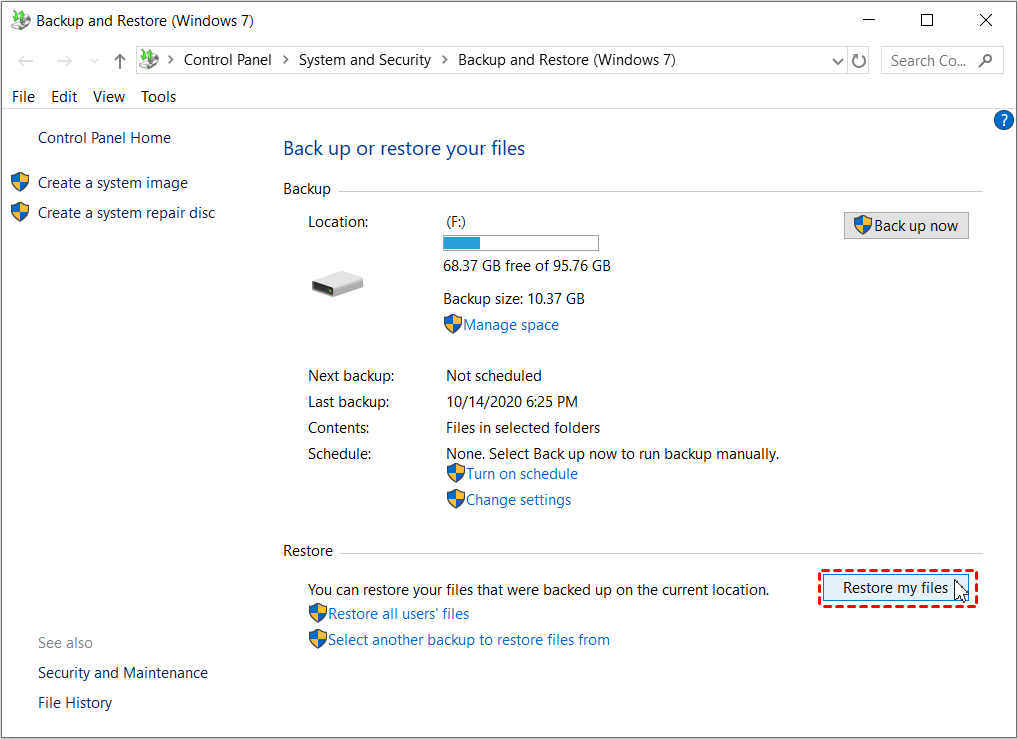
Step 3. In the Restore Files window, you can search or browse for files and folders to restore.
- Search: type part of the name of files and select the deleted files to restore.
- Browse for files: navigate to the folder containing deleted files from the Recycle Bin and select it. Then, click Add Files.
- Browse for folders: select the entire folder with deleted files.
Step 4. Select the original location or browse to a new location. Then, click Start Restore to restore deleted TPL files.
Way 3: Perform TPL File Recovery using Software
If the above method fails, consider using professional data recovery software - AOMEI FastRecovery. With the help of its two advanced scanning methods, it will scan your storage device thoroughly in Windows XP, Vista, 7, 8, 10, Windows 11, etc., and search all the deleted or lostfiles beyond TPLfor recovery.
AOMEI FastRecovery- Recover deleted TPL, TXT, DOC, XLSX, CSV, PDF, PPT, ODP, etc., over 1000 data formats.
- It has a free edition that recovers up to 500MB of data.
- Organize and display deleted or lost files by Type or Path, allowing you to sort, search, filter, and preview files.
- Recover specific files and folders instead of all.
- Compatible with internal or external disk, USB drive, memory card, etc.
- Support NTFS, FAT32, exFAT, and ReFS file systems.
- Retrieve files in any scenario, such as accidental deletion, disk formatting, virus infection, etc.
 100% Secure
In addition, the software does not require technical expertise and is friendly to novices, making the recovery process seamless.
Step 1. Launch Windows data recovery software - AOMEI FastRecovery. Hover the mouse over the drive saved deleted files before, and click Scan.
Step 2. It will automatically run Quick Scan to findall recoverable data. Under the Type section, scroll down to find TPL and select it. To locate deleted TPL files quickly, you can directly type the .tpl extension in the search box.
Step 3. Select your desired files and then click Recover to recover deleted TPL files. If you're not sure, double-click to preview them before recovery.
-
Please select a new location to save the recovered TPL files instead of the original location, which significantly prevents potential data overwriting.
-
You can recover deleted TPL files for free, up to 500MB. Once exceeded, please upgrade to advanced editions to enjoy unlimited data recovery.
If you fail to recover deleted TPL files using software or the situation is complex, it's wise to seek help from data recovery services, such as CBL, Ontrack, Geek Squad, etc.
They usually employ experienced specialists and own advanced equipment to handle even the most challenging data recovery scenarios.
How to Prevent TPL Data Loss in the Future
You may not want to lose TPL files, as it saves time and effort. The best practice is to create regular backups of your template files. Store them in two different locations and be sure one of them is off-site, such as an external disk, network drive, cloud storage, etc.
Try user-friendly Windows backup software - AOMEI Backupper Standard. You can enjoy the following features during backup:
- With its File Backup feature, you can select any type of file or the entire folder.
- It supports all the recognized storage devices, such as external disks, USB drives, network drives, cloud storage, etc.
- You can set daily, weekly, monthly (by date), etc., backup intervals to track any changes.
- By default, in a scheduled task, it will enable the incremental backup feature to back up only changed files automatically.
Step 1. Download and install AOMEI Backupper Standard. Then, click Backup and File Backup.
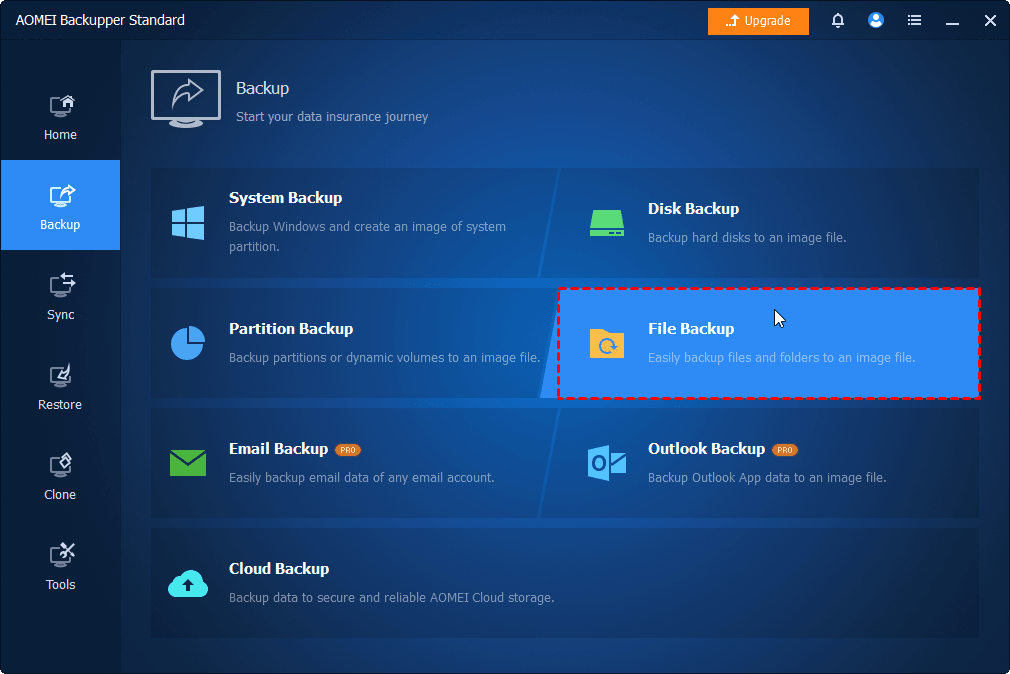
Step 2. Set a unique task name to distinguish the backup task from others. Click Select Source > Add Folder or Add File and select your important TPL files.
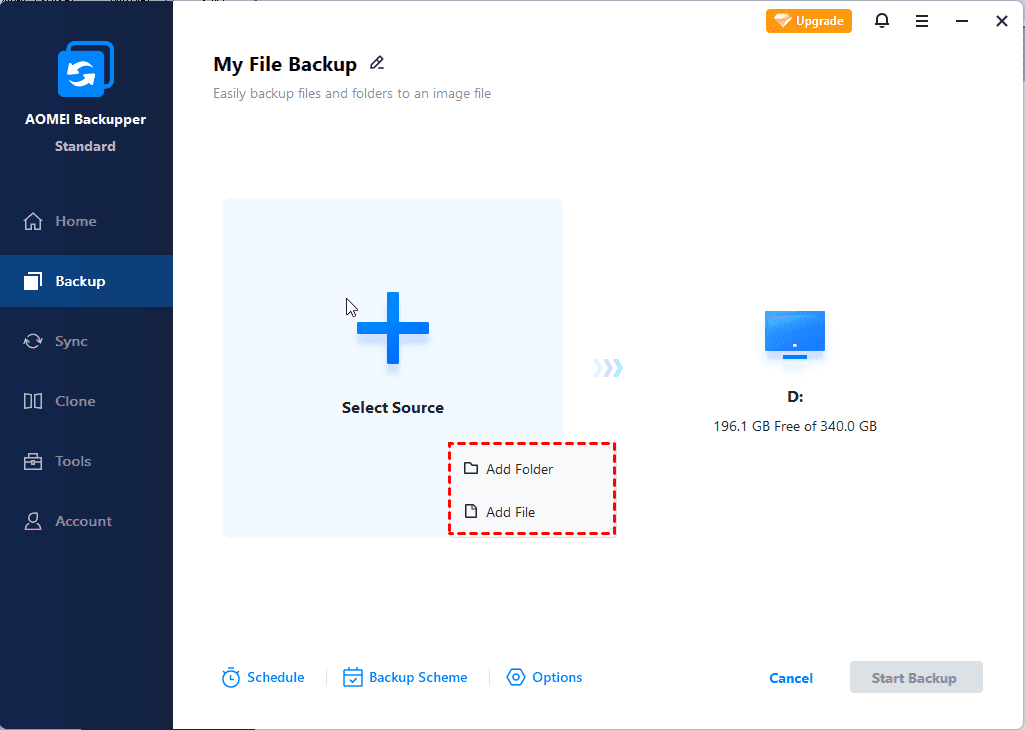
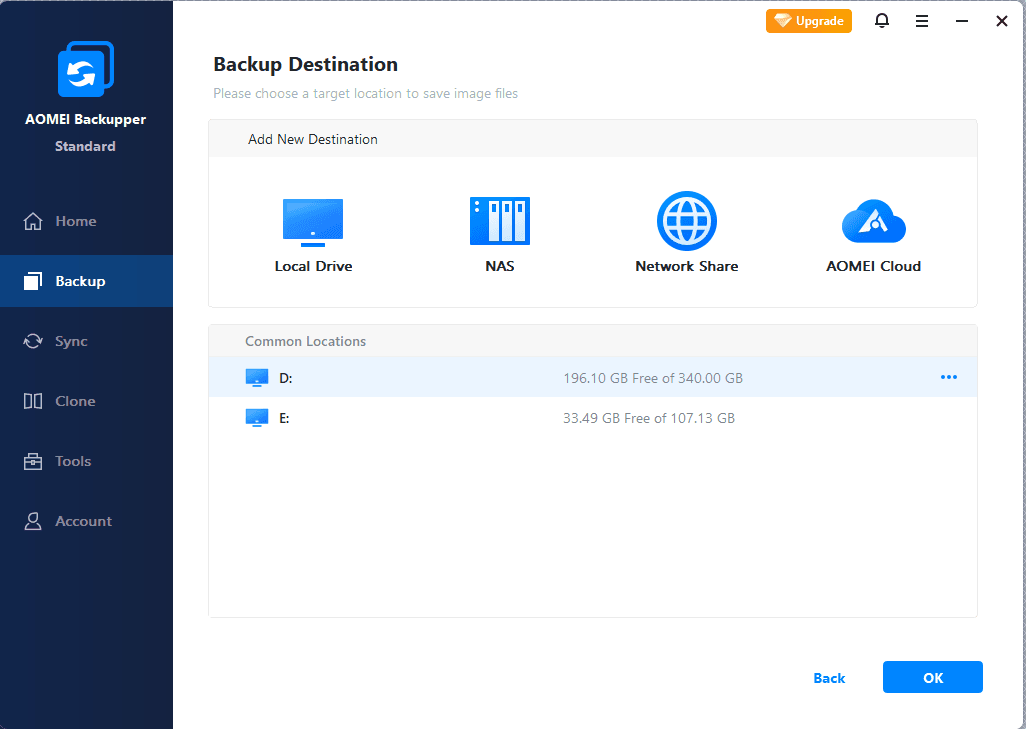
Step 3. Select a local path, network or NAS devices, or cloud drive to save a copy of your TPL files.
Step 4. To back up your files automatically, click Schedule Backup and enableDaily, Weekly, Monthly (By Date), Event triggers, etc.

Step 5. Confirm your backup settings and click Start Backup to create a full copy of them. It will then back up changes or new TPL files at the next scheduled time.
Conclusion
In conclusion, TPL files are invaluable assets for maintaining consistency and efficiency in digital projects. However, accidental deletion or other reasons might lead to TPL file loss.
Fortunately, there are ways to recoverdeleted TPLfiles. Always check the Recycle Bin first. and try data recovery software - AOMEI FastRecovery if necessary. In addition, remember to create a backup of your files after data recovery and make it a habit in the future.
FAQs
Q1: Can I recover TPL files after formatting my storage device?
This varies depending on the formatting method. Windows uses the quick format by default, which will not erase your data. It gives you a chance to recover deleted files from a formatted drive. Conversely, the full format method does not.
Q2: Are TPL files the same as HTML templates?
While both serve as templates, TPL files are specific to certain software applications, while HTML templates are primarily used for web development.
Q3: How often should I back up my TPL files?
The recommended frequency is to back up your TPL files at least once a week or before making significant changes to your templates.
Q4: How to open TPL files on a Windows PC
TPL files are specific and created by different software. So the method is different. To open a TPL file in ArchiCAD:
- Go to File > New, and select Use a Template.
- Select the required ArchiCAD template and click OK.
Q5: How to recover deleted TPL files on Mac
Mac offers you a Trash folder, which will contain the recently deleted TPL files. Try to check if it is there. If not, you still can try to restore TPL files from Time Machine (if there is a backup copy of the files).

 as a preferred
source on Google
as a preferred
source on Google