




What Is INX Files? How to Recover Deleted INX Files
This article describes how to recover deleted INX files in 4 simple and effective methods, including using the powerful data recovery tool - AOMEI FastRecovery.

By Ivy Updated on March 31, 2026


What is the INX File Format?
The .inx file extension was developed by Adoble, most associated with InDesign, known as Adoble InDesign Interchange Files, categorized as Page Layout Files. The INX files are documents exported in XML format and include information on the pages, page content, text frames, colors, margins, guides, and other important elements.
Most of the InDesign CS2 files are exported in INX format and can be accessed through InDesign CS. It recognizes all page contents and formatting except for the features only available in InDesign CS2 alone, such as the footnotes, tracked changes, imported PSD files with layers, SING glyphlets, etc.
How to open the INX file?
The simplest method is to double-click the .inx file. If your file associations are set correctly, the .inx file will open. If not, right-click it and select Open with. Pick the right software to open your .inx file, such as Adobe InDesign, Galvanize ACL, Inkscape, Sublime Text, Vim, etc.

Among them, only Adobe InDesign has full permission to access your INX file. If you don’t have a full version of this software, you can download its free version on the official website. It allows you to do a quick edit on the INX file.
Common reasons for INX file deletion
Several factors can lead to the deletion of INX files. Some common reasons include:
- Human error, such as accidental deletion, formatting, etc.
- Sudden power outage or system shutdown.
- Software glitches.
- Virus or malware attacks.
- Storage device failure or damage.
Can I Recover Deleted INX Files?
Like other files, we may delete or lose INX files due to different reasons and need to recover them. Fear not, you can recover deleted INX files.
Here are some useful methods below. Please select the one that best suits you.
| Scenario | Description | Method |
|---|---|---|
| 🔁 Check the Recycle Bin folder | The deleted files are usually sent to the Recycle Bin. If you find it there, try to recover deleted files from Recycle Bin. | - |
| 📂check for backups |
InDesign offers users an automatic recovery feature to protect against unexpected power or system failures. In addition, if you enable Backup and Restore, File History, or third-party software like AOMEI Backupper Standard, you can also restore from them. |
Way 2; Way 3;Way 4 |
| ❌permanently deleted |
If your files are not in the Recycle Bin or Adobe InDesign’s recovery folder, they are likely to be permanently deleted. Try professional data recovery software like AOMEI FastRecovery. |
Way 1; |
How to Recover Deleted INX Files
Now, you can recover deleted INX files in 4 easy and quick ways below.
Way 1: Recover Deleted INX Files using Software
If the INX files are deleted permanently, don't worry, you still can rely on powerful data recovery software - AOMEI FastRecovery to scan your disk thoroughly and search for deleted files. It even allows you to preview files before recovery.
AOMEI FastRecovery- Powerful data processing: Retrieve files lost in any scenario, such as accidental deletion, formatting, virus infection, corrupted disk, etc.
- Top algorithms: Perform a Quick Scan automatically and integrate Deep Scan to find more data.
- 1000+ data types: Recover deleted INX as well as XML, INX, VWX, JPG, SVG, HEIF, AVI, MP4, DOCX, TXT, XLS, etc.
- Pinpointing files: Sort, search, filter, and preview files before recovery. Recover specific files or folders instead of all.
- Wide compatibility: Support Windows 11/10/8/7 and Windows Server and NTFS, FAT32, exFAT, and ReFS file systems.
- 🔥 Free data recovery, up to 500 MB.
 100% Secure
In addition, the software does not require technical expertise and is friendly to novices, making the recovery process seamless.
Step 1. Scan your drive
Launch Windows data recovery software - AOMEI FastRecovery. Hover the mouse over the drive saved deleted INX files, and click Scan.
Step 2. Locate deleted INX files
It will automatically run Quick Scan to find deleted or lost files and display them by Type or Path. Under the Type section, check Images and select INX files. Or directly type the .inx extension in the search box to locate them quickly.
Step 3. Start the INX file recovery
Select the desired files and then click Recover to recover deleted INX files. You will then be asked to select a location. Please select a new location instead of the original location to prevent potential data overwriting.
Way 2: Restore from InDesign Automatic Recovery Feature
If there are any unexpected power or system failures, you can choose to recover Adobe InDesign files from its automatic recovery feature. It will save your changes every minute and store them in a temporary file, separating them from the original document.
Step 1. Restart your system after unexpected power or system failures. Then, open InDesign. It will check the recovery folder and display the recovered document whosefile name usually ends with “Recovered”.
Step 2. Open the recovered document and click File > Save as.
Step 3. Specify a new location and click Save.
Or you can directly go to the InDesign recovery folder location (C:\Users\[User Name]\AppData\Local\Adobe\InDesign\Version [#].0\en_US\Caches\InDesign Recovery) and check if there are unsaved INX files.
Way 3: Recover Previous Versions of INX Files
If you enable the File History feature, it will save a copy of your files and allow you to restore them to previous versions.
Step 1. Start File Explorer. Locate the folder containing deleted INX files.
Step 2. Right-click this folderand select Properties.
Step 3. In the Previous Versiontab, check the folder version and select the previous one. Finally, click Restore.
Way 4: Recover Deleted INX using Backup and Restore (Windows 7)
Backup and Restore (Windows 7) is a built-in Windows backup utilityinherited from Windows 7 tobackup and restore files on a local disk. Try it if you create a file backup in advance.
Step 1. Navigate to Control Panel > System and Security and select Backup and Restore (Windows 7). Then, click Restore my files.
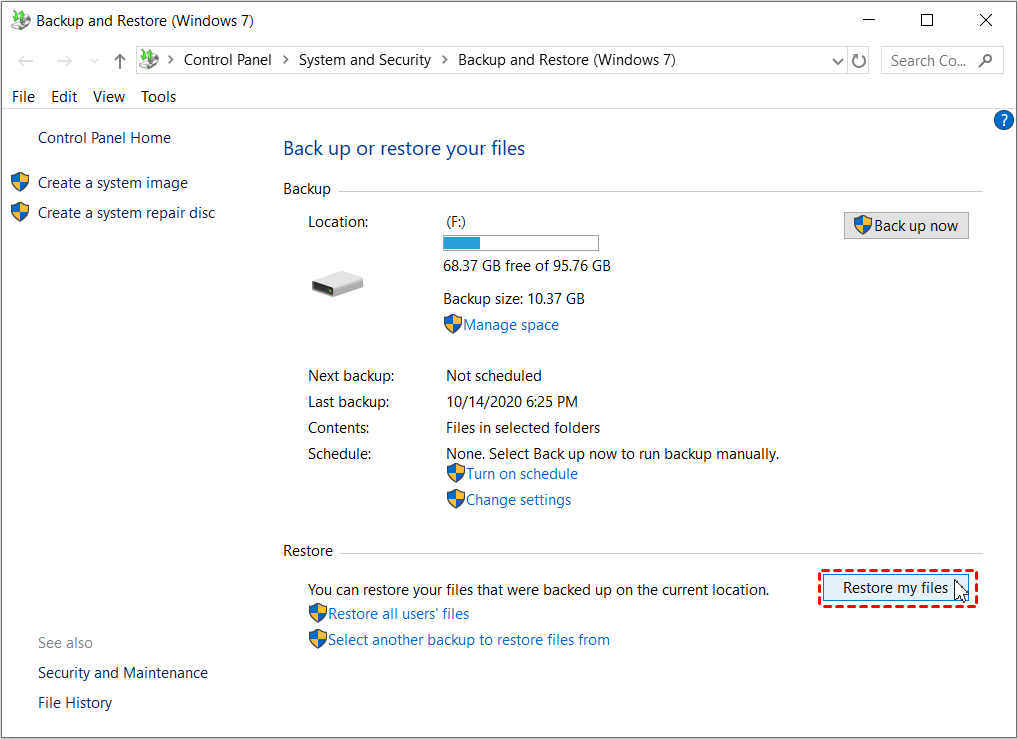
Step 2. In the Restore Files window, you can search or browse for INX files and folders to restore.
- Search: type part of the name of the files and select the deleted files to restore.
- Browse for files: navigate to the folder containing deleted files and select it. Then, click Add Files.
- Browse for folders: select the entire folder with deleted files.
Step 3. Select a location to restore deleted INX files. You can choose the original location or browse to a new location. Then, click Start Restore.
Prevention Tips to Avoid INX File Deletion
Taking precautions can help you avoid the stress of INX file deletion in the future. Here are some helpful tips:
1. Be Cautious with Deletion
When deleting files, double-check if there are any important files, such as INX files. Not using the full format method unless necessary. A little caution can go a long way in preventing accidental deletion.
2. Run Antivirus Software Regularly
A virus or malware infection is a common reason for INX file deletion. To avoid this, it’s suggested to employ reliable antivirus software, such as Windows Defender, and scan your disk regularly to be sure your files are always safe.
3. Regular Backups
Make it a habit to back up your critical files regularly. You can then recover deleted files in the event of any disaster. A user-friendly Windows backup software likeAOMEI Backupper Standardmakes it easy, and especially useful for newbies.
Conclusion
Losing INX files can be troublesome, but with the right approach, you can recover deleted INX files easily and quickly. Always check the Recycle Bin first, and if needed, employ reliable file recovery software.
Additionally, to prevent data from being deleted in the future, it’s suggested to backup your INX files immediately after recovery. At the same time, you need to be cautious with deletion, run antivirus software regularly, etc.
FAQs
1. Can I recover an INX file deleted a year ago?
While it's challenging to recover files deleted a long time ago, file recovery software might still have a chance of retrieving it. The chances of success decrease with time, but it's worth a try.
2. How often should I back up my files?
For crucial files like INX, it's recommended to back up at least once a week. However, the frequency can vary based on how often you change or create new INX files.
3. How to recover deleted INX files on Mac
Like Windows systems, Mac also has a Trash folder for recently deleted files. You can try to check if your VWX files are there. If not, try backup software - Time Machine. The premise is you have an available backup copy.

 as a preferred
source on Google
as a preferred
source on Google