




How to Recover Data from Unbootable Windows 10 (Max 4 Steps)
How to recover data from unbootable Windows 10? Utilize powerful crashed PC recovery software - AOMEI FastRecovery to bring your data back easily and quickly. The troubleshooting steps are also included.

By Ivy Updated on May 6, 2026


Is it possible to recover data from unbootable Windows 10?
“My friend’s Surface Book 2 suddenly stopped booting to Windows. I have noticed that when I intend to browse the files on the drive in either CMD (using Windows Recovery environment) or a bootable Ubuntu drive, user files do not show up. To fix the booting issue, I’ve tried fixing MBR through the command prompt in the Recovery environment, Windows automatic startup repair, and System Restore (but there are no restore points), but failed. So, how do I recover files from an unbootable computer? Thanks."
- Question from the Reddit community
Sometimes, your computer may fail to boot, putting all the valuable data stored on it at risk. Don’t worry, this article will delve into the reasons why Windows computers fail to boot and provide you with effective strategies for recovering data in these challenging situations.
What causes Windows 10 to not boot?
Computers can “crash” and fail to boot for various reasons. The Windows operating system plays a significant role in this “farce.” In addition, countless other factors are at play.
1️⃣ Power issues
2️⃣ Hardware failure
3️⃣Accidentally deleted the boot partition
4️⃣ Corrupted file systems or bad sectors
5️⃣ Corrupted BIOS
6️⃣ Corrupted operating system
7️⃣ Blue Screen of Death
How to recover data from unbootable Windows 10
To recover data from a hard drive that won't boot, it's a wise choice to employ a reliable data recovery software like AOMEI FastRecovery, which can make a bootable USB to boot unbootable Windows 10.
 AOMEI FastRecovery
- The intuitive interface and easy-to-follow guide make it easy to use for all users.
- Create a bootable USB or ISO file to boot any failing computer.
- Recover deleted or lost images (JPG, PNG, DNG, TIFF, etc.), videos (MP4, MOV, AVI, etc.), documents (DOCX, XLXS, PPT, PDF), compressed files, etc., up to 1000+ data formats.
- Integrate Quick & Deep Scan to find all recoverable data for complete recovery.
- Organize and display data by Type or Path, allowing you to sort, search, filter, and preview files.
- Recover data in any scenario, such as permanent deletion, disk formatting, virus attacks, lost partition, or system crashes.
 100% Secure
- Please download and install FastRecovery on another working Windows PC.
- Prepare a blank USB to prevent this bootable media creation process from erasing all the existing data.
- The free version can recover 500MB data for free. To enjoy unlimited data recovery, consider upgrading to the advanced version of AOMEI FastRecovery.
Step 1. Create a bootable USB
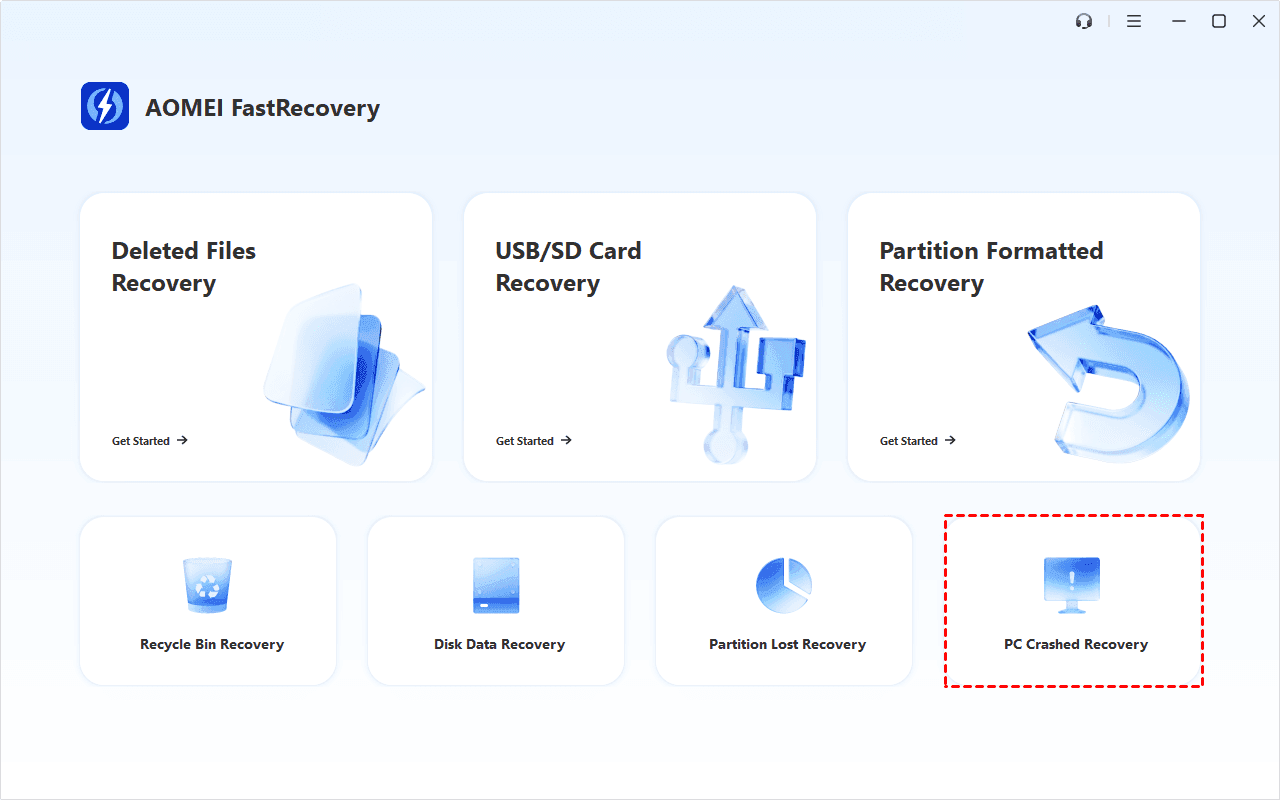
1. Download and install AOMEI FastRecovery on a working PC. On the main page, click PC Crashed Recovery in the lower right corner.
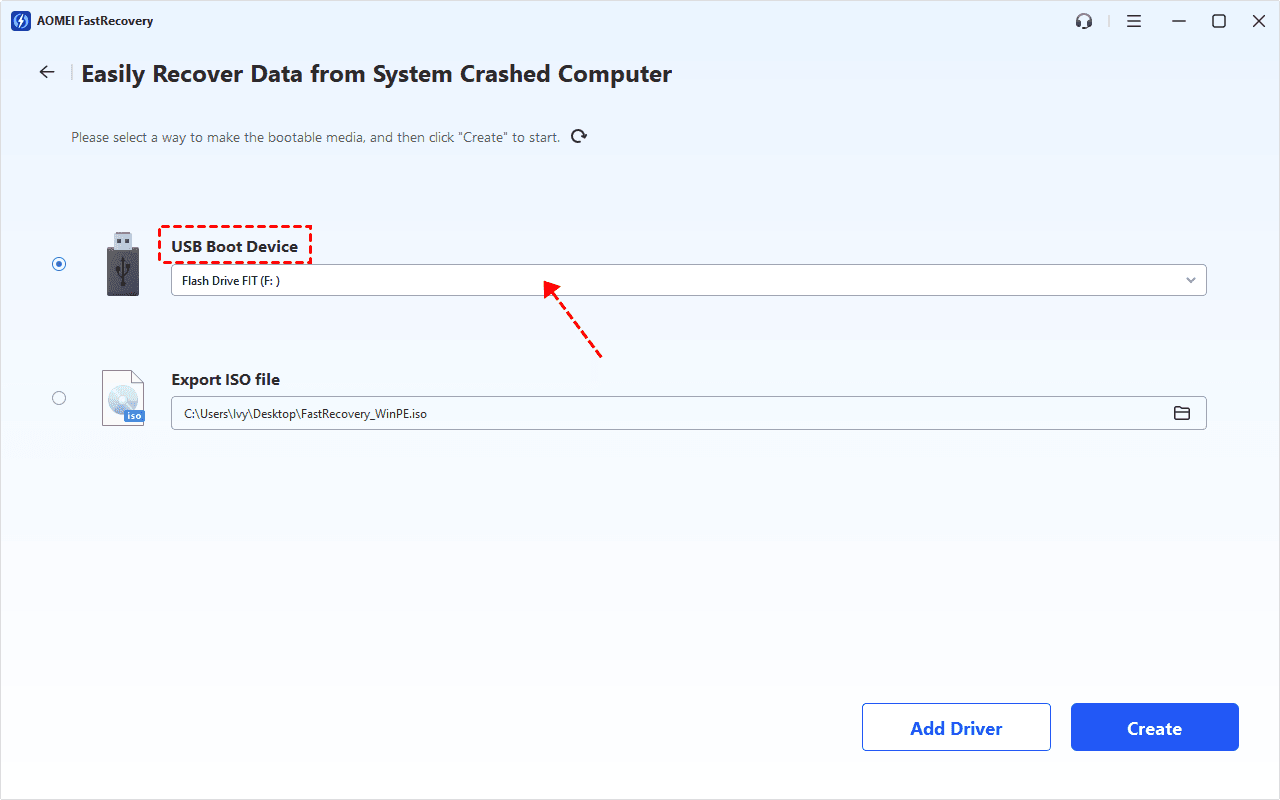
2. Check USB Boot Device.
3. Select a blank USB drive and click Create >Yes to format and create a Windows 10 bootable USB.
Step 2. Boot your unbootable Windows 10
1. Connect the bootable USB to your unbootable Windows 10. Restart it and press the BIOS key, usually F2, F10, ESC, etc., to access the BIOS/UEFI window.
2. Under the Boot tab, look for your bootable USB and move it to the first boot option.
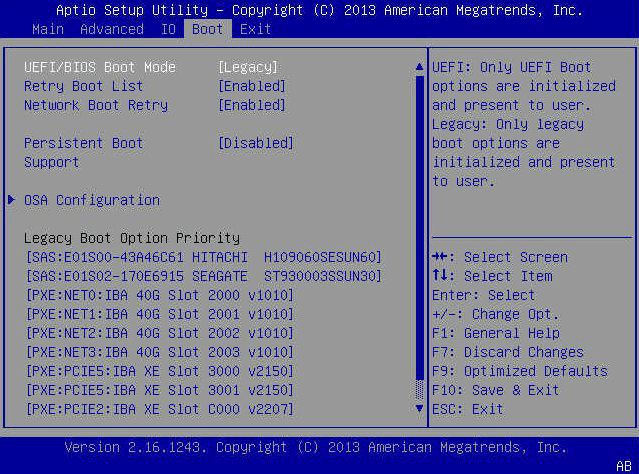
3. Press F10 to save changes and reboot.
Step 3. Recover data from unbootable Windows 10
1. After loading AOMEI FastRecovery, you will see all the recovery options.
- To recover deleted or lost data, click Deleted Files Recovery.
- To recover entire disk data, especially for hard drive with multiple partitions, click Disk Data Recovery.

2. Hover the mouse over the system drive (usually C: drive) and click Scan to find and display all recoverable data.

3. Under the Type section, specify a data type (e.g., Images) and expand to see all the data formats. Sort them or search the name to locate files quickly.
4. Select the desired data and click Recover to bring your data back. Double-click to preview them if you are not sure.
-
Please select a location to save the recovered data, as restoring to the original location may result in data overwriting.
-
You can recover data from unbootable Windows 10 for free, up to 500MB. To enjoy unlimited data recovery, it's best to upgrade to the advanced edition of AOMEI FastRecovery.
What to do if your PC won’t boot?
When faced with the Windows won’t boot problem, you can consider the following troubleshooting steps to pinpoint and address this issue.
#1. Try a different power source
Check if your PC is charging. If it’s completely unresponsive-no lights, no fans, and no display-it’s like a power issue. Please make sure the power switch on the back is on.
For laptops, double-check the charger’s proper connection and port. Not all USB ports may provide power if you utilize USB-C. If issues persist, please consider replacing the power supply.
#2. Disconnect unnecessary devices
Please unplug extra stuff (webcams, USB headsets, or external hard drives) from your computer. Please see if it boots with just a keyboard and mouse.
Sometimes, a USB flash drive or even the port itself could cause issues. For instance, a Windows computer might not boot with something in the front USB port, but it works fine afterward.
#3. Check your monitor
If your computer is making sounds but the screen is blank, check your monitor.
- Be sure it’s plugged in, turned on, and set to the right input.
- Check the cables for issues.
- Then, connect your computer to another display or TV for testing. If it can work, your monitor might need replacing.
- Check the laptop’s brightness. Sometimes, a black screen is just low brightness.
#4. Listen for beeps
Please listen for beeps as you open your computer. One beep usually means all is well, but multiple beeps can signal a problem. Check your Windows or motherboard manual to decode the beeps and find out what’s wrong.
#5. Start your PC in safe mode
If you’re facing the Blue Screen of Death at startup, it could be due to problematic apps, drivers, or hardware issues. To fix this issue, you need to enter Safe Mode, which is a bit trickier in newer Windows versions. Interrupting the boot process three times often can go to the Automatic Repair screen.
Step 1. Press the power button to turn off your PC. Power on and off when you see the manufacturer’s logo. Repeat this cycle 3 times, and you can enter the Windows Recovery Environment.
Step 2. On the Choose an option screen, click Troubleshoot > Advanced options.
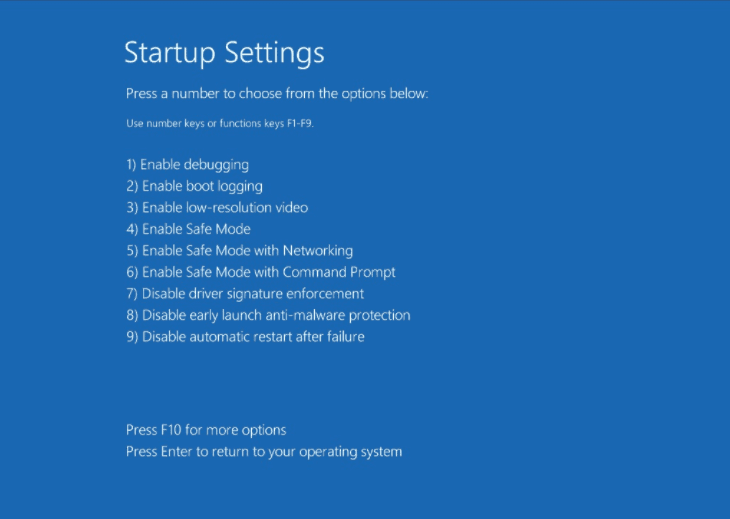
Step 3. Under the Startup Settings tab, click Restart first. After that, you can press F4/F5/F6 to start your PC in Safe Mode.
#6. Reinstall Windows OS
If Windows starts booting but stops midway, it could be a software/hardware issue. In this case, you can attempt to reinstall Windows 10 to address this issue. Nevertheless, if the PC still can’t boot even after the reinstallation, there’s a high probability of hardware problems.
Step 1. Restart your computer 3 times to access the Windows recovery environment.
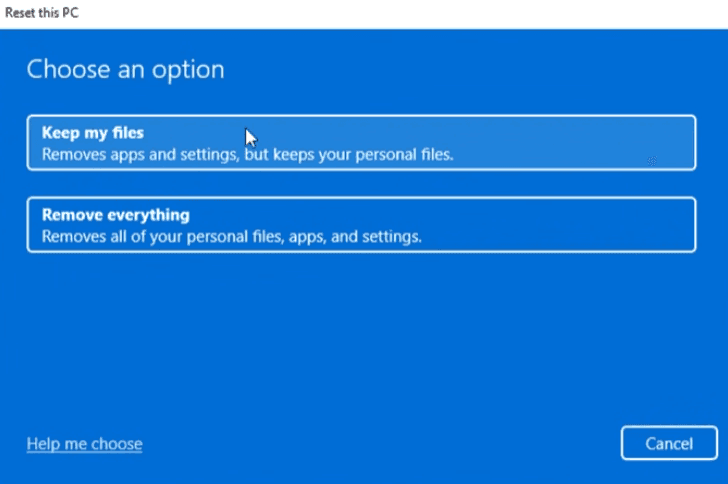
Step 2. On the Choose an option screen, click Troubleshoot > Advanced options > Reset this PC.
Step 3. Choose Keep my files or Remove everything, depending on whether you want to keep personal data. Follow on-screen instructions.
FAQs
1. How do I recover data from an unbootable hard drive?
Please refer to the following steps to recover data from unbootable hard drives.
- Step 1. Download and install a reliable data recovery software like AOMEI FastRecovery. Make a bootable USB media with it.
- Step 2. Boot your PC from the bootable USB drive.
- Step 3. Click Deleted File Recovery.
- Step 4. Select the unbootable hard drive for data recovery and click Scan.
- Step 5. Just wait for the process to complete. Select the files you want to recover and click Recover.
2. Can you get off a computer that won’t turn on?
Here are the feasible steps that you can follow.
- Step 1. Grab a small screwdriver and unscrew the screws holding the computer cover.
- Step 2. Remove the hard drive using a screwdriver.
- Step3. Connect the hard drive to a working computer using a universal hard drive adapter.
- Step 4. Access your hard drive & make a copy of the files you want.
3. How do I factory reset my computer that won’t boot?
If you cannot boot your PC, please press the power button and continuously tap the F11 or Shift key. This action will lead you to the Advanced Settings of the PC, allowing you to initiate a factory reset for your PC.

 as a preferred
source on Google
as a preferred
source on Google