



How to Recover Data from a Partitioned Hard Drive
To recover data from a partitioned hard drive, check what happened to the original partition first. Use its current state to choose between scanning for files, restoring access, and recovering the partition itself.

By Ivy Updated on November 2, 2026


Your files disappeared from a hard drive, or the partition containing them won't open. Perhaps this happened after changing partitions. Or simply noticed a familiar drive was missing.
You may be able to recover data from a partitioned hard drive, depending on what remains readable and whether new data has overwritten it. Stop saving files to that physical disk while you check.
“Partitioned” means the hard drive contains partitions. It does not necessarily mean you recently repartitioned it or deleted a partition. The right recovery method depends on what happened to your files and their original partition.
Check the Partition Before Choosing a Recovery Method
Right-click Start and select Disk Management. Locate the hard drive by its capacity, then check the partition layout. Cancel any prompt to initialize or format the disk.
Choose the method matching your situation. You do not need to complete all three methods.
| 📍 Current State | 🎯 What to Do Next |
|---|---|
| The partition opens but files are deleted | Scan hard drive for missing files |
| Files lost after formatting | |
| Partition is missing, shows as unallocated, or is RAW | |
| You need to restore entire partition | Recover deleted partition with data |
| The drive has a file system, but without a drive letter | Add a drive letter |
After repartitioning, a new D: drive may cover different space from the old D: drive. Identify the original partition by its capacity and available device information rather than its former letter alone.
Method 1: Recover Files from a Partitioned Hard Drive with AOMEI FastRecovery
👍 Best for: You want to retrieve files from a healthy, formatted or lost partition showing as Unallocated or RAW.
AOMEI FastRecovery is a scenario-driven data recovery tool for Windows. It lets you choose a recovery mode for your situation, whether you're dealing with deleted files, formatted partition, lost partition, or something else.
- Deleted Files Recovery: Select this if the files itself are deleted. It's the most common choice. It starts with Quick Scan. See how to scan a hard drive for deleted files.
- Partition Formatted Recovery: Select this if you formatted partition. See recovering files from formatted hard drive.
- Partition Lost Recovery: Select this if the partition is missing, or shown as Unallocated or RAW.
Meanwhile, it also allows you to browse files by Type or Path, then narrow result using search, sort, filter, and thumbnail previews. Then, just select the documents, photos, videos, or other files you want instead of recovering everything.
 AOMEI FastRecovery
A Scenario-driven data recovery software for Windows
To recover files from a lost partition, follow the steps below:
Step 1. Download AOMEI FastRecovery to a different drive and install it there. Prepare another healthy drive with enough space for the recovered files. Then, open this software and select Partition Lost Recovery.
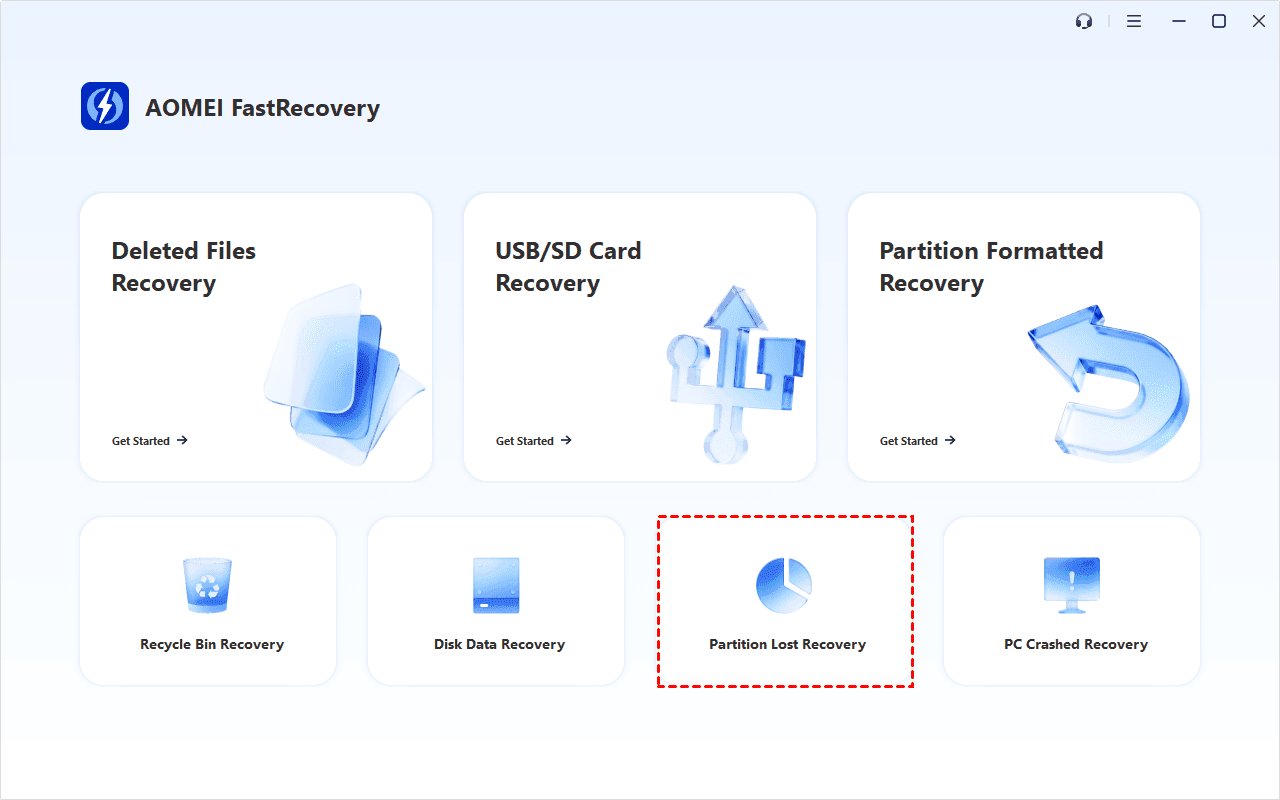
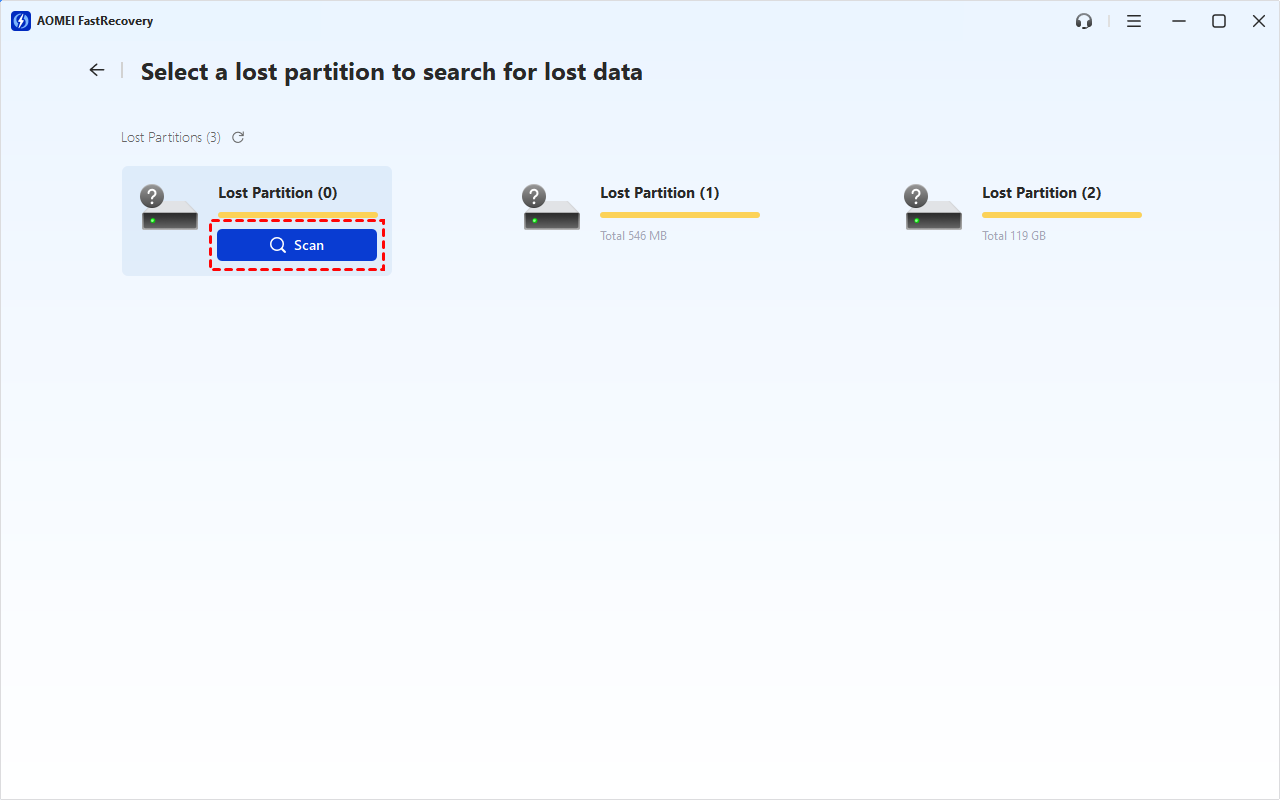
Step 2. Identify the lost partition by its capacity and available device info, then click Scan. It will start a Deep Scan to search for files. Keep the hard drive connected and the power supply stable.
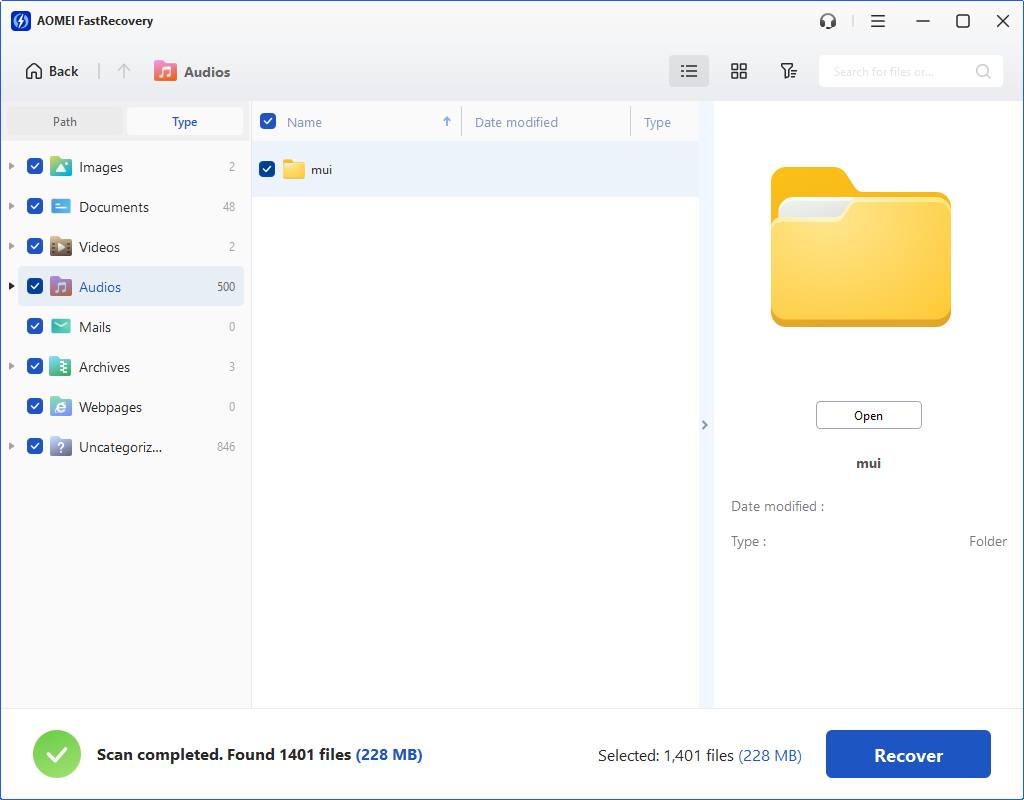
Step 3. Browse the results by Type or Path. Search for familiar filenames or extensions. Or click the arrow next to date modified (find deleted files by date), name, path, type, etc., to sort the result.
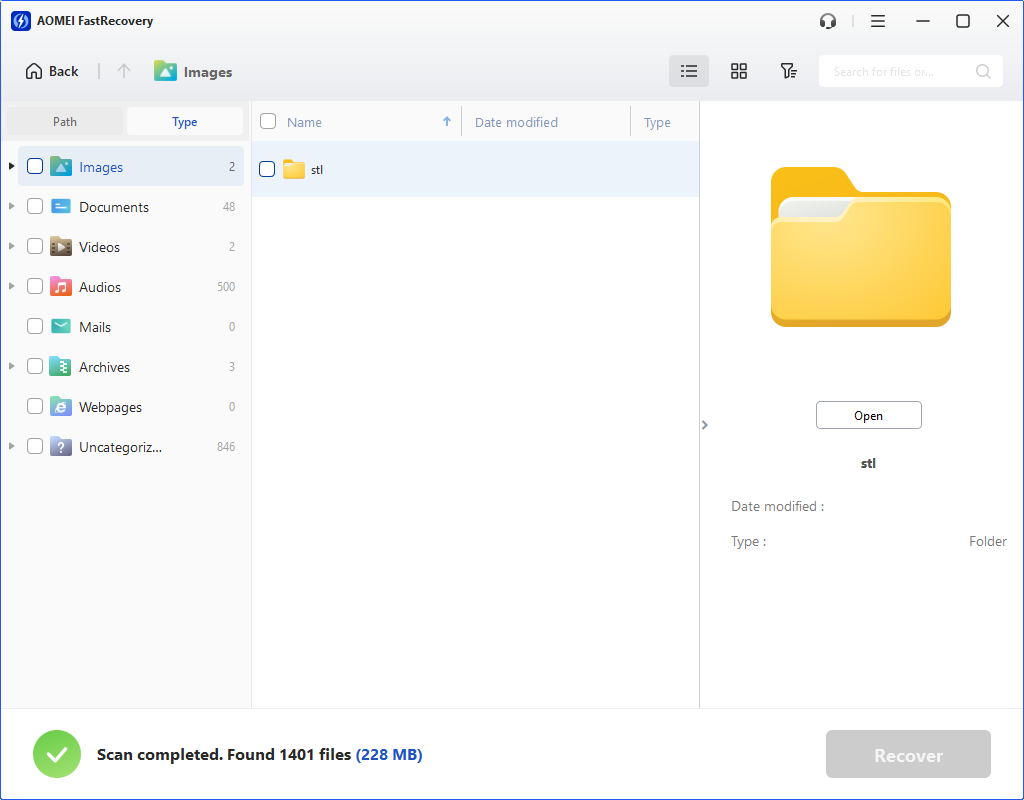
Step 4. Select the files and click Recover. Save them to a different, healthy drive, not the partitioned hard dirve. Another folder on the same drive is not a safe destination.
-
The free edition can recover up to 500MB; recovery beyond that allowance requires an upgraded edition.
-
This method only extracts files; it does not restore lost partition. If you want to bring the partition itself back, consider Method 2.
A scan result doesn't prove a file is complete. Leave the original disk untouched, and open the recovered files from the destination drive. Check important documents for missing pages and spreadsheets for missing sheets or data.
Method 2: Restore Lost Partition with AOMEI FastRecovery
👍 Best for: You need to restore a missing partition and can accurately identify its original size, file system, and layout.
AOMEI FastRecovery includes a Partition Recovery feature under Disk Data Recovery, designed to recover deleted or lost partitions along with its data. Before proceeding, check the detected partition's size, file system, and location.
Step 1. Download and install AOMEI FastRecovery on a different drive from the partitioned hard drive. Do not format it or create a new volume on it. Then, open this software and click Disk Data Recovery > Start Partition Recovery.

Step 2. Identify the partitioned hard drive by its disk number, capacity, model, and layout. Then, select it and click Next.
Step 3. Choose Fast Search to find lost partition quickly. If not, go back and try Full Search. It scans the disk sector by sector and usually takes longer.
Step 4. Wait for searching to finish. Compare the detected partition’s file system, capacity, and sector boundaries with the original.
Step 5. Select the matching partition and click Proceed.
Once the recovery is done, check if the partition shows up in File Explorer again. Then, open a few files to make sure they actually work.
Method 3: Add a Drive Letter to Make It Visible
👍 Best for: An ordinary volume still exists with the expected size and file system, but has no drive letter.
DiskPart can restore access by assigning a letter. It cannot recover deleted files, recreate a deleted partition, or repair a RAW file system.
Do not apply these steps to EFI, Recovery, OEM, system, boot, or paging-file volumes.
Step 1. Search for Command Prompt and select Run as administrator. Approve the permission prompt.
Step 2. In the Command Prompt window, enter the following commands and press Enter after each line.
- diskpart
- list volume
- select volume N
- assign letter=Z
- exit
Replace N with the correct volume number; Replace Z with an unused letter.
Check for a blank Ltr entry. That indicates a missing drive letter. Make sure it's not an EFI, Recovery, OEM, system, boot, or paging-file volume.
Conclusion
To recover data from a partitioned hard drive, match the method to the original files’ location and the partition’s current state. Retrieve and check the files first. Once they are complete and stored elsewhere, you can decide how to reuse the original disk.

 as a preferred
source on Google