




How to Scan Hard Drive for Deleted Files: 2 Easy Ways
Deleted files on a hard drive may still be recoverable, even after using Shift + Delete or emptying the Recycle Bin. This guide explains two practical ways to scan a hard drive for deleted files.

By Lily Updated on September 18, 2026


Can You Retrieve Deleted Files from a Hard Drive?
Yes, deleted files can sometimes be recovered from a hard drive. When a file is deleted, Windows may mark the space it occupied as available for reuse rather than immediately removing every trace of the file.
However, recovery is not guaranteed. If new data has already overwritten the space previously occupied by the deleted files, recovery may become difficult or impossible.
For this reason, stop using the affected drive as much as possible after noticing data loss. Avoid downloading programs, copying large files, formatting the drive, or saving recovered files back to the same location.
How to Scan and Recover Deleted Files from a Hard Drive
There are two methods you can try. If the files were deleted normally and the Recycle Bin hasn't been emptied, start with Way 1. Otherwise, proceed to hard drive data recovery software.
Way 1. Check the Recycle Bin for Deleted Files
When you delete files by pressing the normal Delete key, Windows usually moves them to the Recycle Bin instead of immediately removing them from the drive. If you haven't emptied the Recycle Bin, this is the quickest way to get your files back.
Step 1. Find the Recycle Bin shortcut on the Windows desktop and double-click it to open.
✍ Tip: If you don't see the icon, you can open File Explorer, enter “recycle bin” in the address bar, and press Enter to open the Recycle Bin.
Step 2. Browse the items in the Recycle Bin and locate the files you want to recover. You can sort the contents or use the search function if there are many deleted files.
Step 3. Select the required files, right-click them, and choose Restore. Windows will return the files to their original locations.
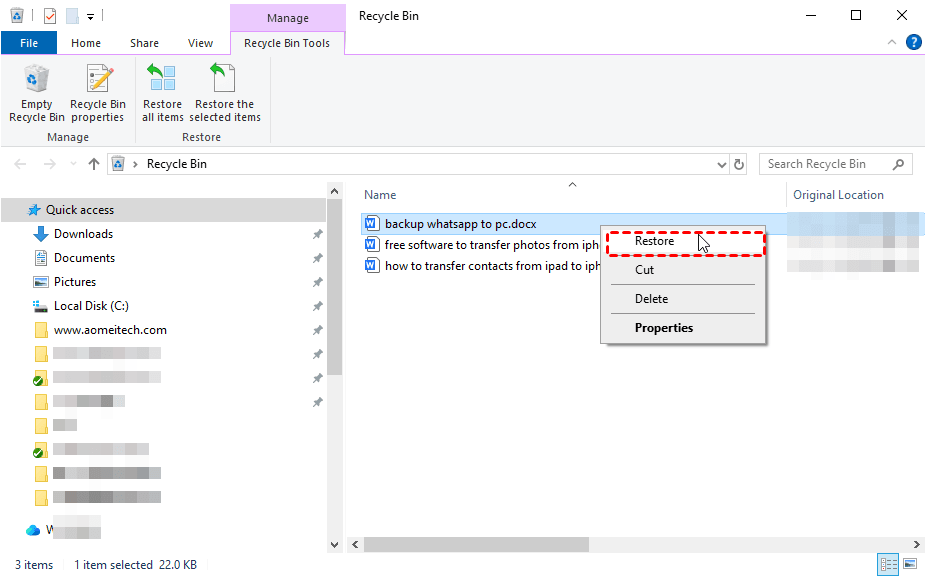
✍ Tip: Alternatively, you can drag the selected files from the Recycle Bin to another folder if you want to save them somewhere else.
Way 2. Scan the Hard Drive for Deleted Files with Data Recovery Software
If your deleted files aren't in the Recycle Bin, specialized data recovery software can scan the hard drive for recoverable data. AOMEI FastRecovery provides Quick Scan and Deep Scan options for finding deleted and lost files on internal and external storage devices. It supports common file types, including documents, pictures, videos, archives, and more.
 AOMEI FastRecovery
- Quick Scan and Deep Scan: Perform an initial scan quickly and use a deeper scan when more extensive searching is needed.
- Wide file support: Recover more than 1,000 supported file types. You can use it to recover Word documents, Excel spreadsheets, presentations, pictures, videos, and compressed files.
- Search and Filter: Narrow results by file name, extension, file type, size, and other available criteria.
- Selective recovery: Recover only the files or folders you need instead of restoring everything.
- Multiple storage devices: Scan internal and external HDDs, SSDs, USB drives, SD cards, and other supported storage media.
- File-system support: Supports common file systems such as NTFS, FAT32, exFAT, and ReFS.
 100% Secure
If the deleted files are stored on an external hard drive, connect the drive to the computer first and make sure Windows can detect it. Then learn how to recover deleted files from hard drive using AOMEI FastRecovery below:
Step 1. Install and launch AOMEI FastRecovery on your computer. From the main interface, select Deleted Files Recovery.

✍ Tips:
- Don't install the recovery software on the same drive where the deleted files were stored. The installation and other new data could overwrite recoverable information.
- Depending on your situation, you can also choose another available recovery mode, such as Disk Data Recovery or Recycle Bin Recovery.
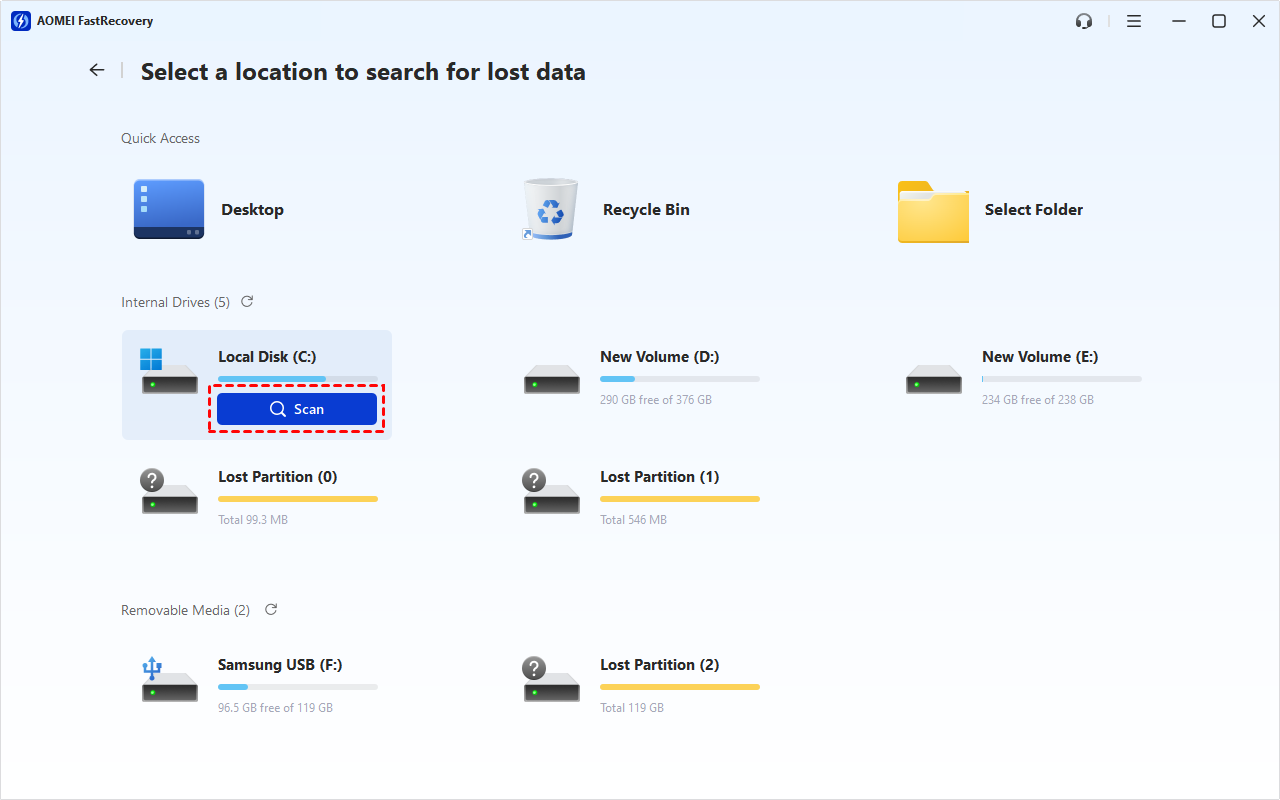
Step 2. Hover over the drive containing the deleted files and click Scan to start searching for recoverable data. AOMEI FastRecovery will initially perform a Quick Scan and display the files it finds.
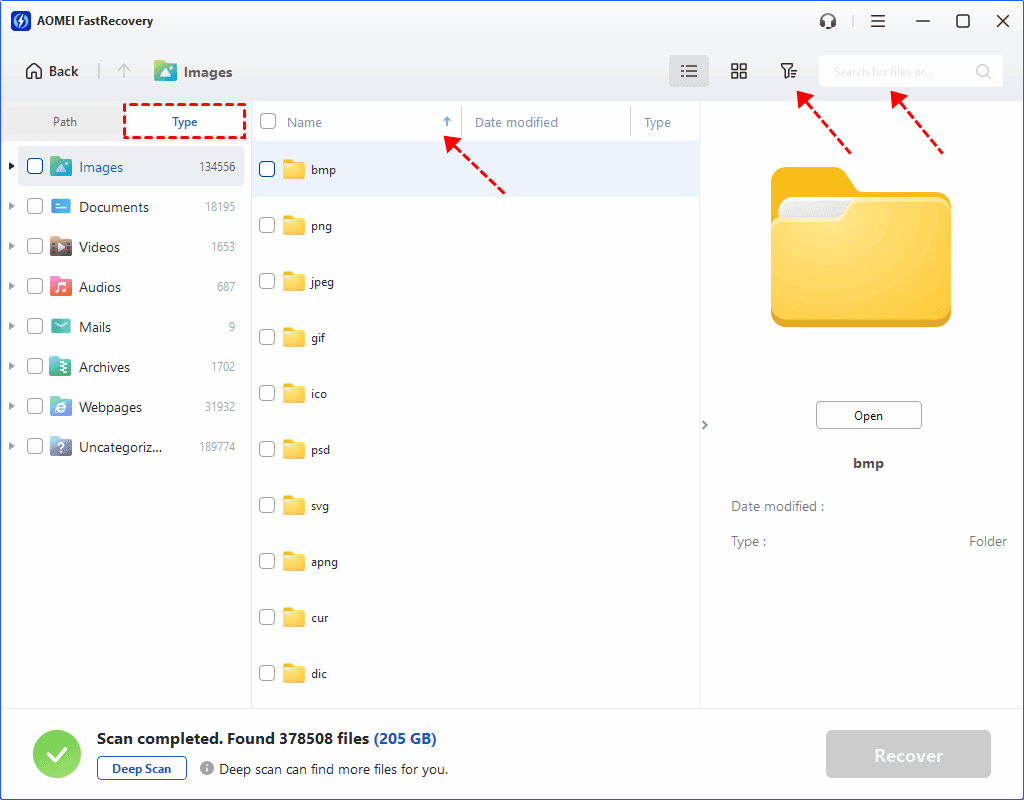
Step 3. Browse the results by Path or Type, and use the available sorting and filtering tools to narrow the list. For example, you can search by file name or extension, filter by file type, and sort the results to find specific files more quickly.
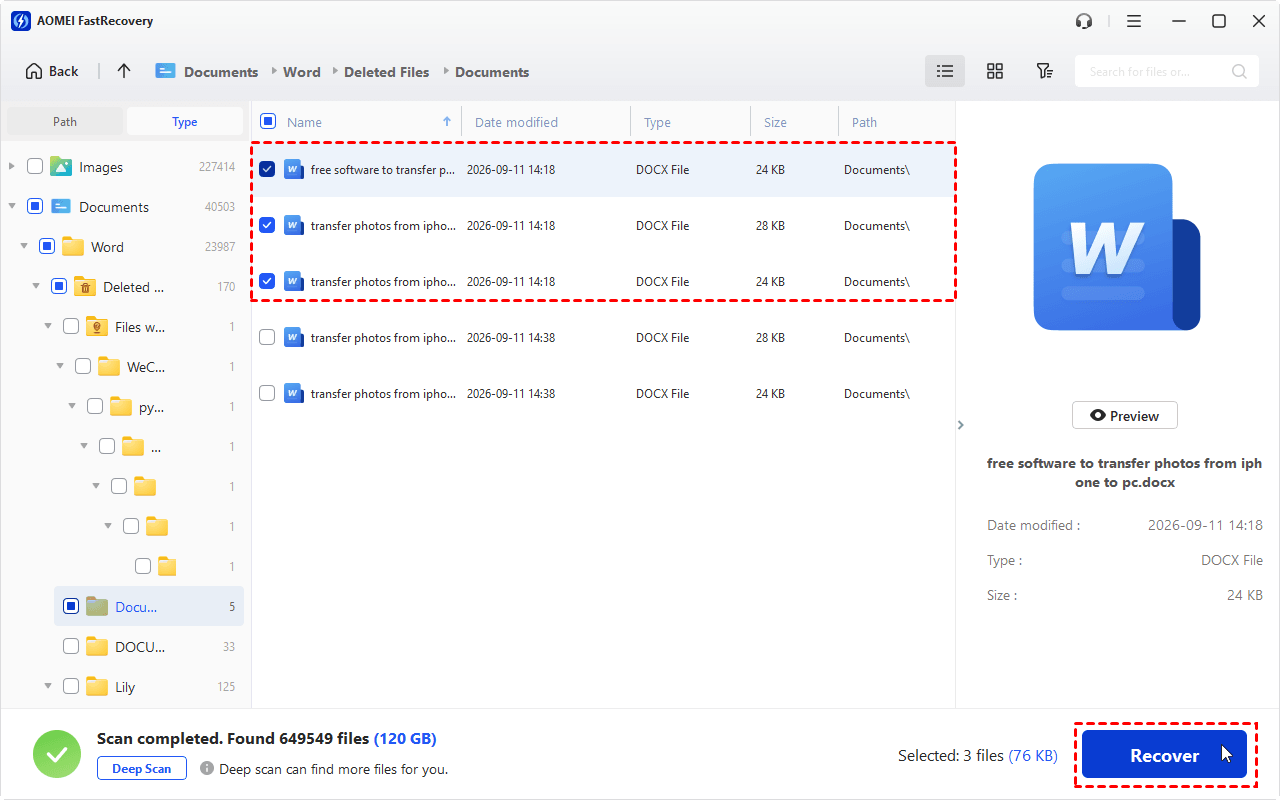
Step 4. Select the files you want to restore and click Recover.
✍ Tips:
- When you find a potentially recoverable file, double-click it to preview the content. You may upgrade to higher editions to enjoy this feature.
- If Quick Scan doesn't find the files you're looking for, click the Deep Scan button at the bottom left for a more thorough search. Keep in mind that a deep scan can take longer.
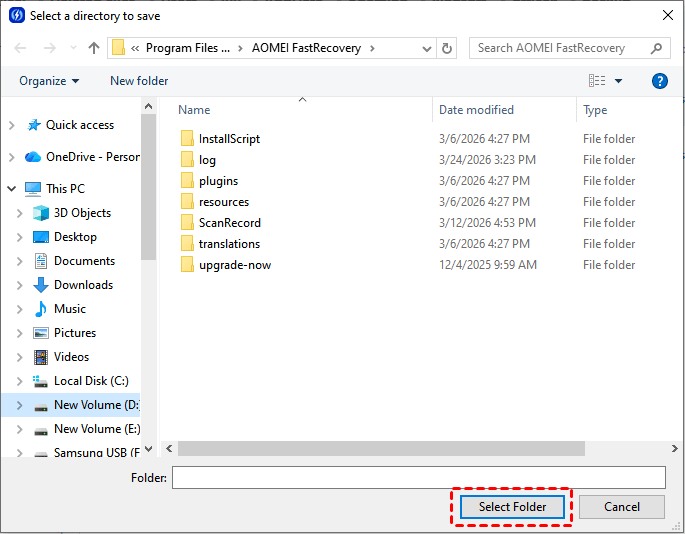
Step 5. You’ll be prompted to select a destination. Choose a different drive or external storage device whenever possible and click Select Folder.
What to Do If the Hard Drive Isn't Detected?
If the hard drive doesn't appear in the hard drive data recovery software, check whether Windows can detect it at all.
For an external hard drive, try reconnecting the USB cable, using another USB port, or checking the drive on another computer.
If an internal drive is missing from Windows or repeatedly disconnects, avoid formatting or initializing it before determining whether important data needs to be recovered. A drive showing signs of physical failure may require professional data recovery rather than repeated scanning.
Tips to Improve Deleted File Recovery
When you need to recover deleted files from hard drive storage, your actions immediately after deletion can affect the recovery process.
- Stop writing new data: Don't download or install unnecessary software on the affected drive.
- Don't format the drive: Formatting can make existing data more difficult to recover.
- Use another recovery destination: Save recovered files to a separate drive.
- Recover important files first: If you find several important files, restore the most valuable ones before continuing.
- Create regular backups: A backup gives you another way to restore files if data recovery isn't possible.
To Sum Up
Learning how to scan hard drive for deleted files doesn't have to be complicated. If you deleted the files normally and haven't emptied the Recycle Bin, you can simply restore them from there.
For files that aren't available in the Recycle Bin, AOMEI FastRecovery provides another option. It can scan internal and external storage for deleted or lost data, then let you search, filter, preview, and selectively recover the files you need.
For future protection, consider backing up important files regularly. Keeping an additional copy of your data can make recovery much easier if accidental deletion or hard drive problems happen again.

 as a preferred
source on Google
as a preferred
source on Google